A composition is the top-level container you build, version, and publish in UI Studio.
A composition contains one or more pages, each with its own URL. You arrange components on each page’s canvas, configure them, and publish when ready. UI Studio tracks every save as a new version so you can view the full history of your work.
UI Studio: Navigating the Workspace
Learn how to access the UI Studio home page and manage your existing compositions.
The Compositions screen shows all compositions in your environment. Each row displays the composition name and the date and time it was last edited. Click any row to open the composition in the editor.
The Compositions screen, where you create, manage, and publish your UI Studio compositions.
Use the search bar to filter compositions by name or description. Use the Filters button to filter by a date range for the Last Edited On column. Click the Name or Last Edited On column headers to sort the list.
Add a composition
Follow these steps to add a new composition.
Open the Compositions screen
Navigate to UI Studio in the left navigation panel and click Builder.
2
Click Create New UI
On the Compositions screen, click Create New UI, enter a name and description for the composition, and click Create.
Add a new composition.
The new composition is listed on the Compositions screen. You can now select the composition and build it.
Build a composition
Follow these steps to add components to build a composition.
Open the Compositions screen
Navigate to UI Studio in the left navigation.
Select a composition
Select a composition from the list.
Start building
The new composition opens in the editor.
Composition
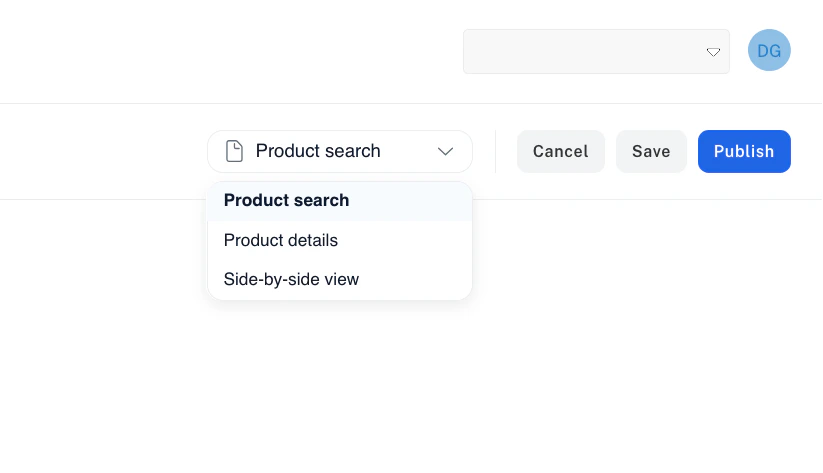
Search Page
Search Bar
Results
Facets
Details Page
Text
Image
Button
Add pages, and then click the main canvas. Click the gear icon of the canvas to open the Customize Section panel and set the canvas color and size.
Drag components from the left panel onto the canvas to build your page layout.
Click any component to select it and configure it in the Customize panel.
Repeat across pages until your composition is ready, then save your work.
The Quickstart walks through this process end to end, and the component documentation covers every configuration option.
Quickstart
Get up and running with your first UI Studio page in minutes.
Components
Browse available components and learn how to configure them.
Manage pages in a composition
A composition contains one or more pages. Each page has a name and a URL path. One page is designated as the home page, which loads when a user visits the root of your published composition. Pages can also contain subpages, each with a URL path nested under the parent page’s path.
End-user single sign-on for published compositions
UI Studio supports end-user Single Sign-On (SSO) using Okta OIDC and controls access for end users who visit published search sites.When enabled, users must authenticate before accessing a published composition at YOUR_COMPANY.ui.lucidworks.com/COMPOSITION_NAME. When SSO is not enabled, the published URL is publicly accessible.To enable UI Studio SSO for your published compositions, contact your Lucidworks representative.
UI Studio SSO is different from Lucidworks Platform SSO, which controls access for administrators who build and manage compositions in the Lucidworks Platform workspace.