When you have a large catalog of products, manually adding rich detail to each product listing isn’t scalable.
Image Data Enrichment is an AI-driven feature that analyzes product images alongside text to augment each product listing with highly accurate and relevant attributes.
This makes every item more discoverable so you can increase conversion rates and revenue while decreasing search abandonment and lost opportunities.By automatically and intelligently adding detail to your B2B or B2C product catalogs, you can surface more results for each query, including relevant products whose original listings don’t always match how customers search.
Before Image Data Enrichment
After Image Data Enrichment
With Image Data Enrichment, customers get more results for each query because richer text fields match more queries.
Image Data Enrichment combines computer vision and natural language processing to transform sparse product information into comprehensive, searchable content.
It analyzes product images alongside existing text fields to generate key words and phrases that improve findability and help customers discover products through search.As a result of this AI-driven analysis, Image Data Enrichment does the following:
Expands keyword coverage
Creates relevant synonyms
Adds precise product categories
The result is a complete product profile that improves discoverability across B2B and B2C commerce platforms.These are the ways to enable the feature:
The following examples demonstrate how Image Data Enrichment processes real-world product catalogs and the specific enhancements it delivers.
B2C: 'futsal shoes'
B2B: 'din rail housing with hinged cover'
Futsal is a popular indoor soccer variant.
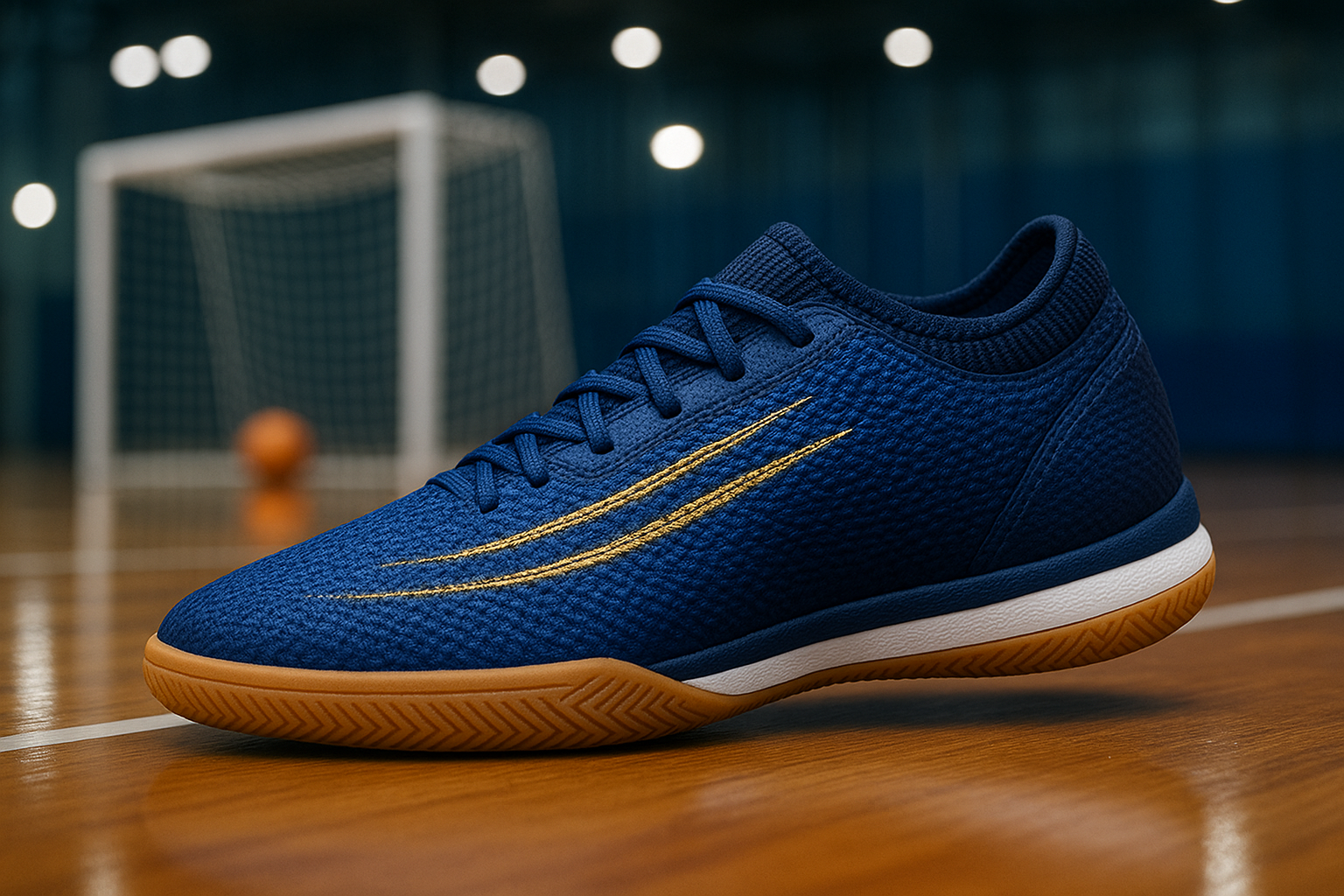
Imagine a customer searches your site for “futsal shoes”.The original catalog listing on the left does not match.
On the right, Image Data Enrichment has added details based on visual and contextual clues that suggest this shoe is designed for futsal.
Original result
Toque Rebound Pro
A blue indoor soccer shoe with side lacing and a gum outsole designed for indoor courts.Keywords: blue, indoor, soccer, side lacing, gum outsoleCategories: indoor soccer footwear, soccer shoes, athletic indoor court shoesSynonyms:
indoor soccer shoe indoor court shoe
traction grip
Image Data Enrichment result
Toque Rebound Pro
A blue indoor soccer shoe with side lacing and a gum outsole designed for indoor courts.Keywords: blue upper, woven upper, side lacing, clean striking surface, gold embroidery, knit collar, gum rubber outsole, herringbone tread, soccer, futsal, indoor, indoor playSynonyms:
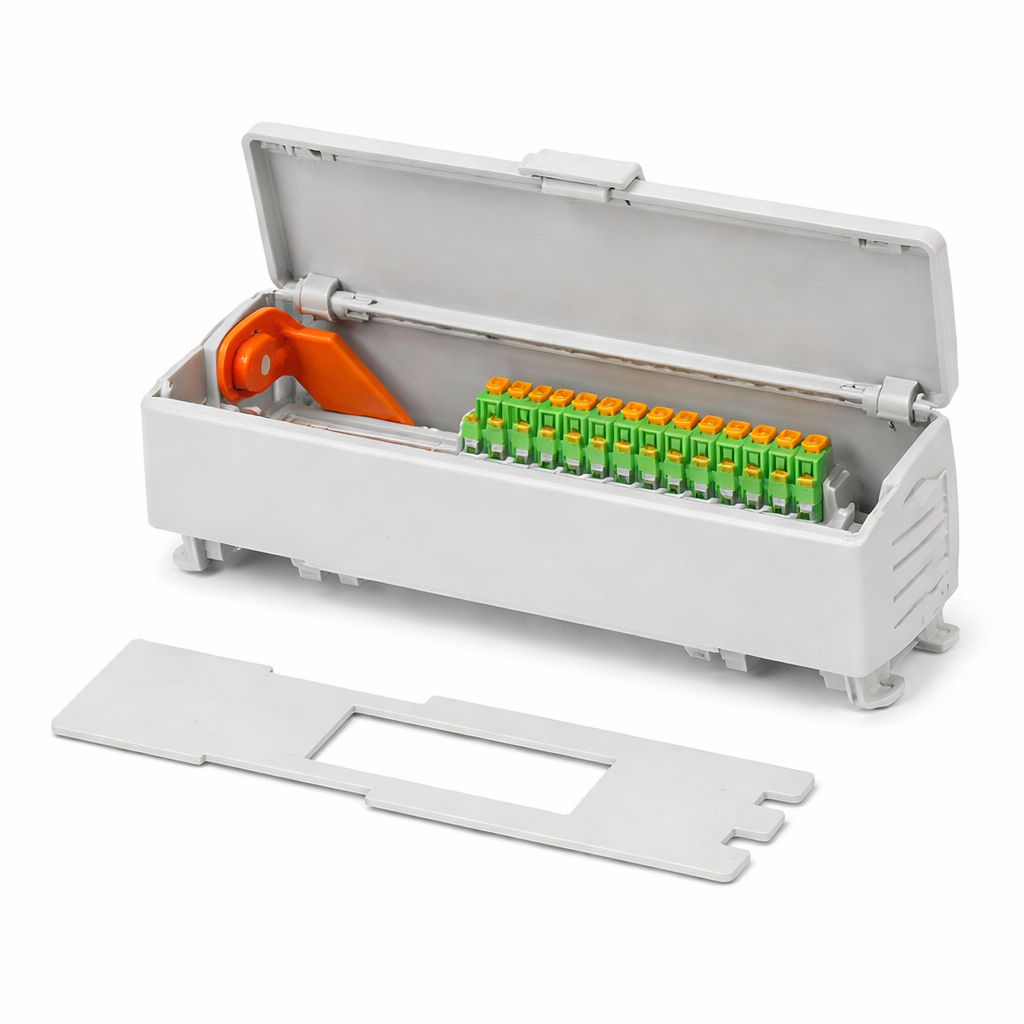
In this example, a customer searches for a “din rail housing with hinged cover”.The original product listing on the left contains none of those terms, though a matching item is shown in the photo.
The enriched product listing on the right adds much more detail derived from the specifications and the photo.
Original
Din rail mount enclosure
FlexView 40-Terminal Control Enclosure MRF-40TU-PC2035
Property
Value
Brand
ModuRail
Color
Gray (Light Gray)
Cover Color
Gray (Light Gray)
Flammability Rating
UL 94 V-0
Height
128 mm
Housing Color
Gray (Light Gray)
IP Rating
IP20
Length
48.3 mm
Material
Polycarbonate (PC)
Product
Accessories
Product Type
Enclosures for Industrial Automation 10
Image Data Enrichment result
Din rail mount enclosure
FlexView 40-Terminal Control Enclosure MRF-40TU-PC2035
Property
Value
Brand
ModuRail
Color
Gray (Light Gray)
Cover Color
Gray (Light Gray)
Flammability Rating
UL 94 V-0
Height
128 mm
Housing Color
Gray (Light Gray)
IP Rating
IP20
Length
48.3 mm
Material
Polycarbonate (PC)
Product
Accessories
Product Type
Enclosures for Industrial Automation 10
Keywords:
control enclosure
terminal enclosure
DIN rail box
automation accessory
electrical housing
modular enclosure
wiring enclosure
control cabinet insert
Synonyms:
control enclosure control box, control housing, control casing, control unit shell
You can enable this feature in Fusion or by using the Prediction API or the Async Prediction API. Before you get started, ensure your product catalog images are publicly available with a URL. Alternatively, you can provide base64-encoded images.
In Fusion, you enable Image Data Enrichment by configuring the LWAI Prediction stage in your index pipeline.You might also need to configure the Field Mapping index pipeline stage and the Query Fields query pipeline stage to generate and display metadata for images.It is essential to review your Image Data Enrichment results.
Plan to test different combinations of “images only” or “images with text fields” to find the balance that produces the best results.
Configure the LWAI Prediction index pipeline stage
In Fusion, open the index pipeline you want to use for Image Data Enrichment.
Click Add a new pipeline stage and select LWAI Prediction.
In the Label field, enter a unique identifier for this stage. For example, LWAI Image Metadata Enrichment.
In the Condition field, enter what the document must contain for the stage to select it. For example, doc.hasField("image_url_t") means the document must have the image’s web address stored as a text field to be included in the stage.
In the Account Name field, select the Lucidworks AI API account name defined in Lucidworks AI Gateway.
In the Use Case field, select or enter image-metadata-enrichment.
In the Model field, you must enter a multi-modal model, which is required by the image-metadata-enrichment use case. A multi-modal model can scan various types of data, such as images, videos, or PDFs.
In the Input context variable variable field, enter the name of the field that contains the image URL. For example, <doc.image_url_t>.
In the Destination field name and context output field, enter the name that will be used as both the field name in the document where the prediction is written and the context variable that contains the prediction. For example, image_enrichment.
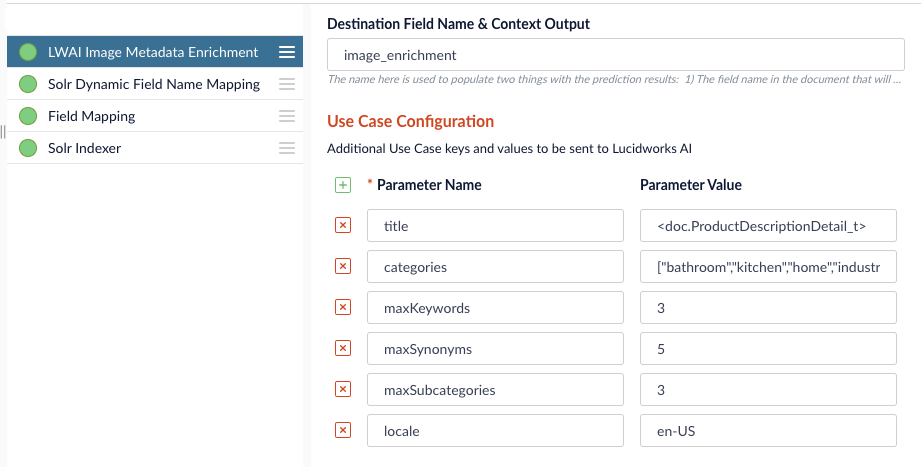
In the Use Case Configuration section, you can add parameters and values to send to Lucidworks AI. These useCaseConfig parameters are only included in the stage processing when they are present in the incoming document. The parameters can also include the type of metadata returned and the maximum number of those metadata elements.This example specifies to submit the image title, and for the stage to focus on documents already containing certain categories that are located in the United States. The example parameters also specify the stage generate up to three keywords, five synonyms, and three subcategories.
In the Model Configuration section, you can add parameters and values to send to Lucidworks AI. For example, you can specify parameters such as region to refine the search in the stage.
You can run this stage in two ways:
Do not select the Call Asynchronously? checkbox to process this stage completely before proceeding with indexing. This is the same as using the Prediction API.
Select the Call Asynchronously? checkbox to process predictions asynchronously without blocking the pipeline. This is the same thing as using the Async Prediction API, and is useful to process large documents without impacting further indexing processes.
In the API Key field, enter the secret value specified in the external model.
Click Save.
Configure the Field Mapping index pipeline stage
You may also need to set some parameters in the Field Mapping index pipeline stage.
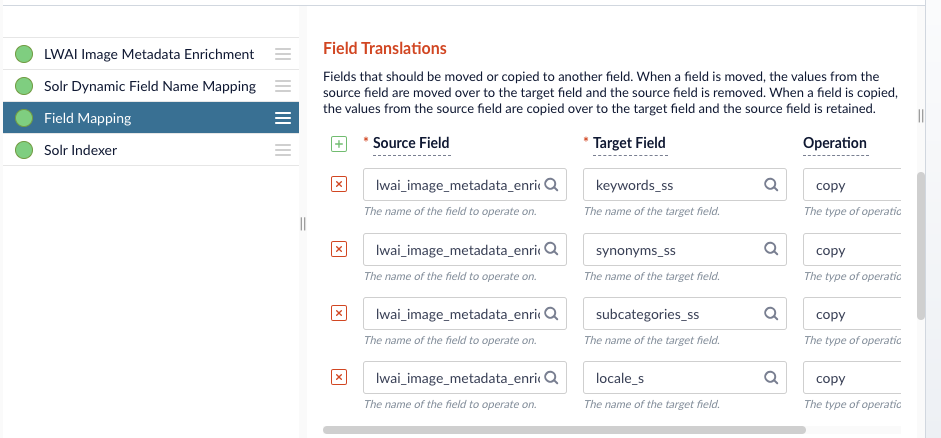
Click the Field Mapping stage and scroll to the Field Translations section.For example, if the source field names are extremely long, you can use the Field Translations section to shorten them for your target index fields.
When you enter all of the parameter and field values, click Save.
Run the datasource job
Run a datasource job that uses the configured index pipeline to add enriched data to your index.
When the datasource job finishes, you can see the image metadata data fields in the Query Workbench.
Configure the Query Fields stage
In your query pipeline, select the Query Fields stage.
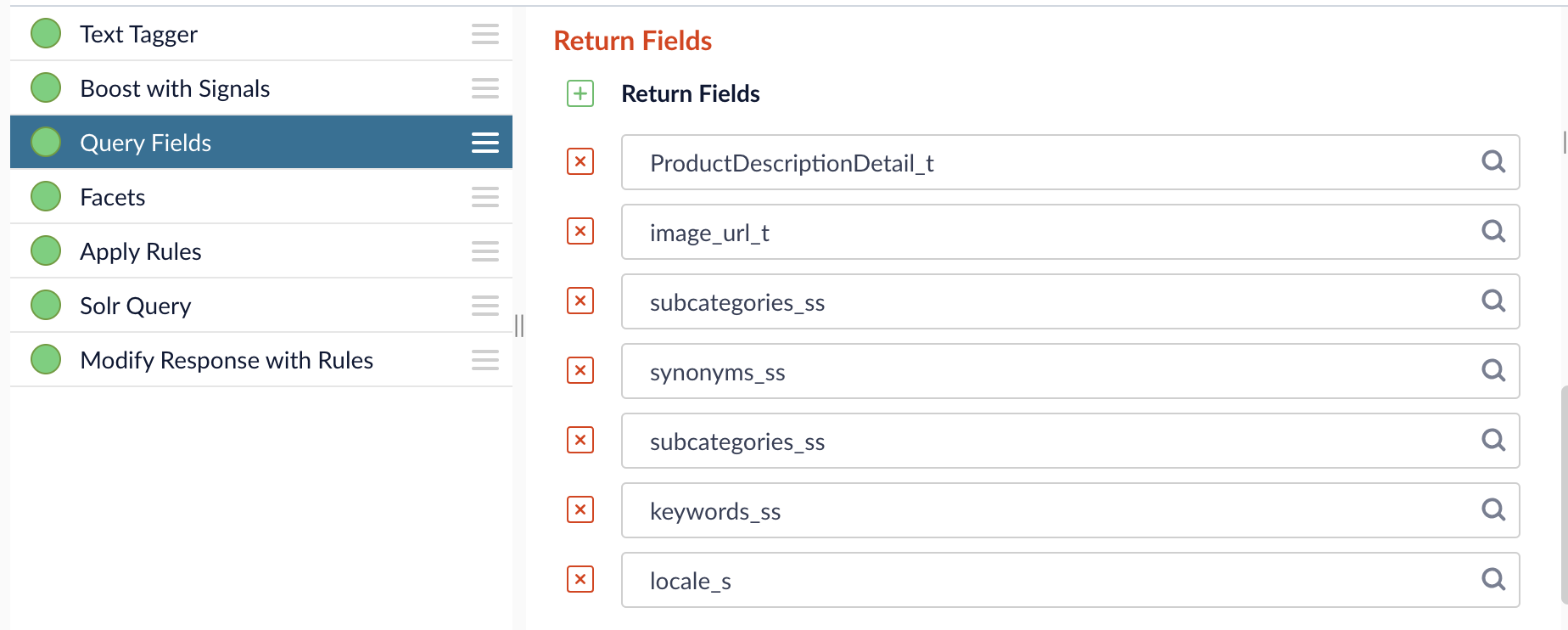
Scroll to the Return Fields section and enter the image metadata fields to include in the query results. The fields need to include, but do not have to be limited to, the fields specified in the indexing stage. This example includes the fields specified in indexing field example.
Review the query results
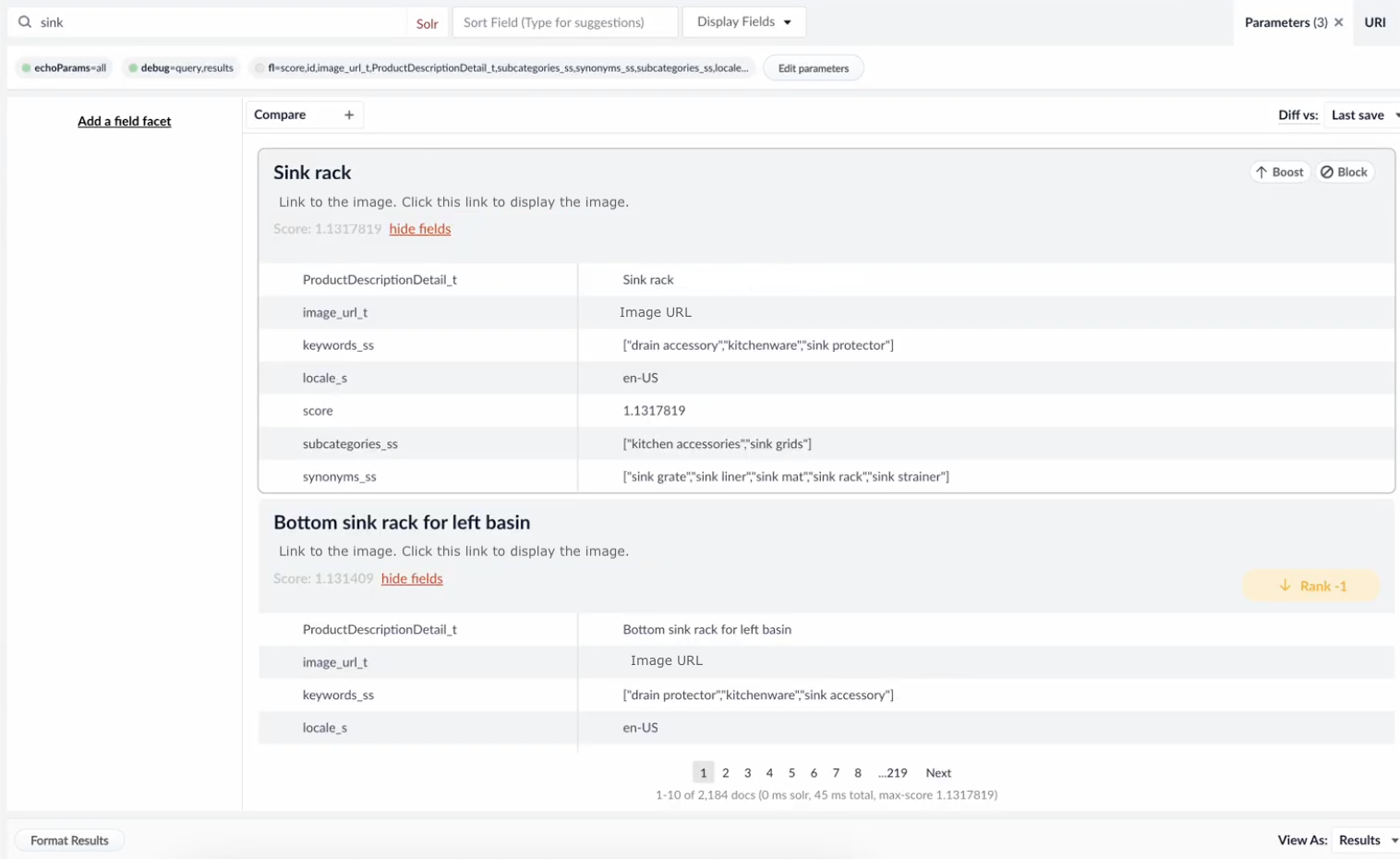
Review the results in the Query Workbench, which should include:
The image link under the title or the image URL to view the image.
The title, locale specified as the US in the stage field, and the calculated score of the item.
The metadata generated based on the categories field in the stage. For this example, the categories requested were bath, kitchen, home, and industrial. The keywords, subcategories, and synonyms now reflect image metadata related to those categories.
If you’re not using Fusion, you can enable Image Data Enrichment by making calls to the Prediction API and incorporating the response into your data source.