

AI Ranking Insights example
To display the information, hold the pointer over a search result and select Click Details. In the Product Details section, click AI Ranking Insights. The AI ranking insights feature identifies key relevancy influencers including merchandising rules, matching fields, and matching logic, and then returns the reasoning in a readable format so merchandisers and search managers can quickly identify the key factors influencing a search result’s relevancy. In this example, the AI ranking insight explains that the selected search result is ranked first because of a pin rule (listed in the Execute section of the Editor screen), and that the rule places the item above all other items. Merchandisers and other personnel would use this information to modify the factors of this and other search results, if needed, to rank other results higher than the bathroom faucet handle.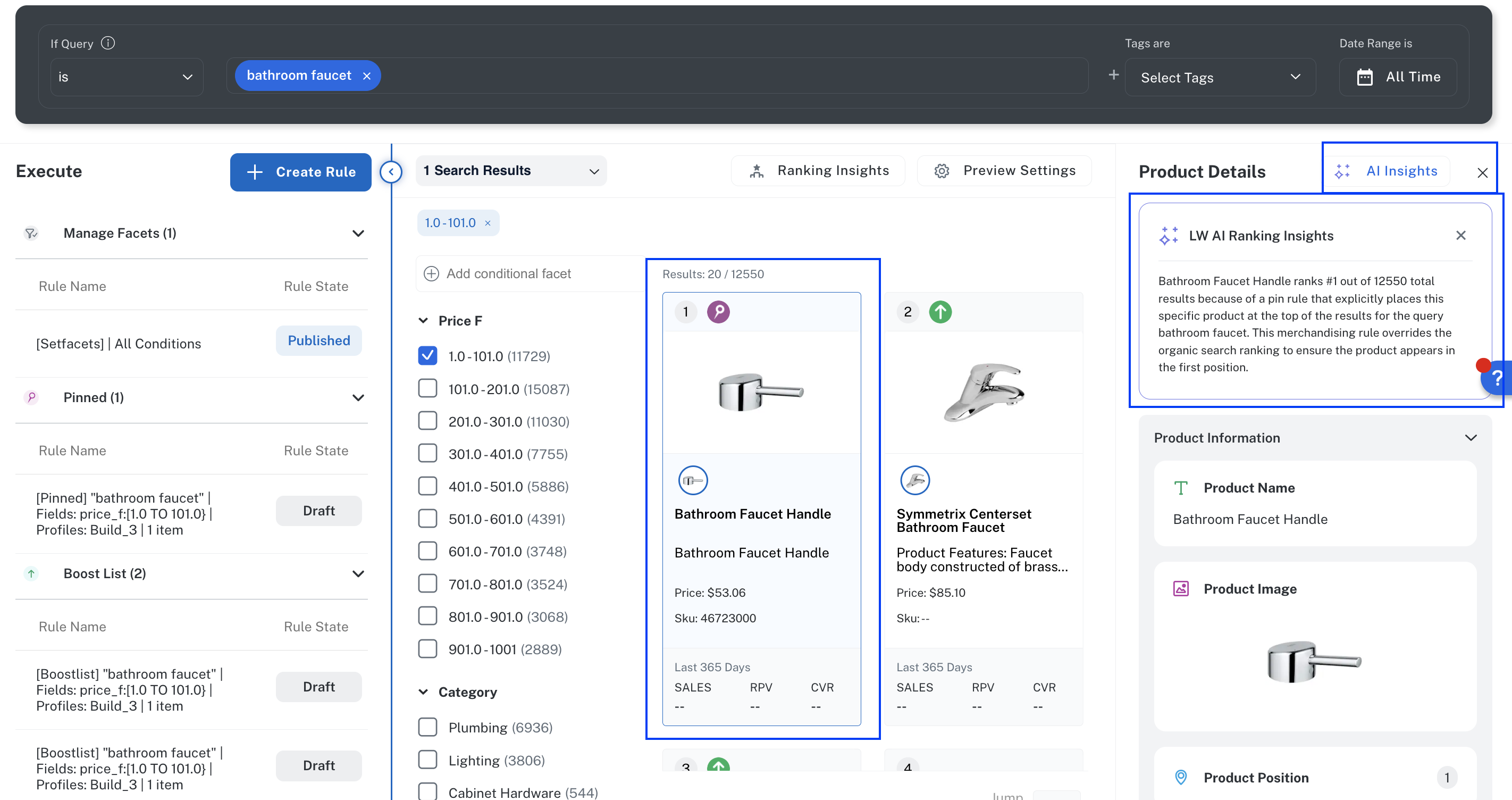
AI Ranking Insights for a popular bathroom faucet handle
Benefits
Merchandisers, search managers, and other personnel can use this concise explanation to:- More quickly refine and optimize relevance without requiring expertise in Fusion configuration or search engineering.
- Reduce the requirement for technical expertise to decipher raw scores, weights, and pipeline calculations.
- Reduce reliance on engineering resources to troubleshoot relevance issues.
- Reduce the risk of time-consuming, trial-and-error rule and other configuration changes.
How it works
This is the flow to display AI Ranking Insights for a product:- In Commerce Studio Editor, a user searches for a product. For example, bathroom faucet.
- Lucidworks Platform captures the corresponding Fusion debug response in the Query Workbench.
- The debug response, aware of the query context, rules, rewrites, and AI signals, is sent to an LLM.
-
The LLM returns a clear, concise explanation that takes the primary ranking factors into account:
- Interaction of related rules, boosts, and relevance
- Why the product displays in relation to the other products
Technical requirements
Because AI Ranking Insights reads the Fusion debug response, you must configure the query pipeline to include debug and explain data in every Commerce Studio query. Commerce Studio cannot pass query parameters per request, so this must be set at the pipeline level using following stage for the product you have deployed: To enable debug output for Commerce Studio:- In the Fusion UI, open the query pipeline used by your Commerce Studio application.
-
In the stage’s Condition field, add the following expression to scope debug output exclusively to Commerce Studio queries:
This ensures explain data is only added for Commerce Studio requests and not returned to other consumers of the same pipeline.
-
Add an Additional Query Parameters stage with the following parameter:
Use
defaultpolicy so the parameter is added only when not already set by the request. Usereplaceif you need to force debug output regardless of incoming request parameters.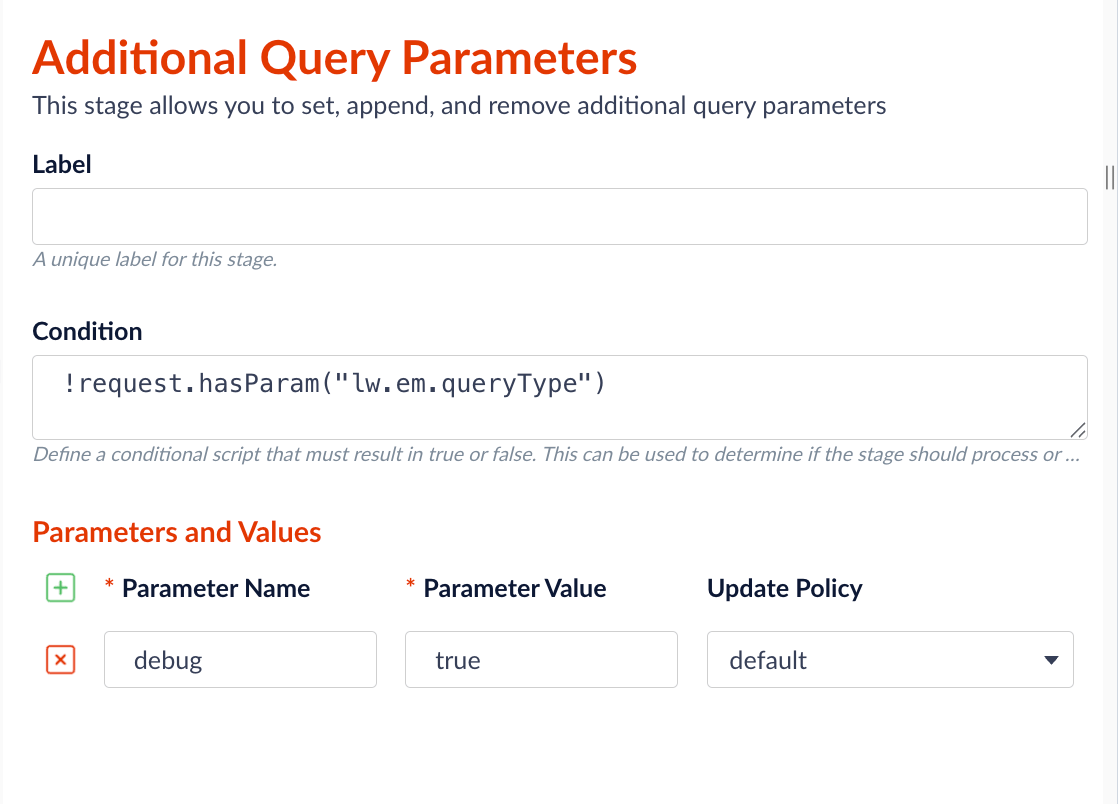
Additional Query Parameters
- Save the changes.
explain data, which shows how each document’s score was calculated — including contributions from lexical scoring, vector similarity, boosts, and merchandising rules.
This is the data the LLM reads to generate the AI Ranking Insights explanation.
For details about reading Solr explain output, including how to find it in Query Workbench and how to interpret NHS scoring, see the information for your product: