- E-commerce sites, where relevant results drive conversions and revenue.
- Support sections of sites, such as help pages, where relevance reduces customer frustration and complaints.
- Enterprise search, where relevance boosts productivity and knowledge discovery by helping employees find what they need to perform their work or solve a problem.
Query profiles
When your site has multiple query profiles, you can select which profile you want to configure using the query profile selector at the top of the Relevance page: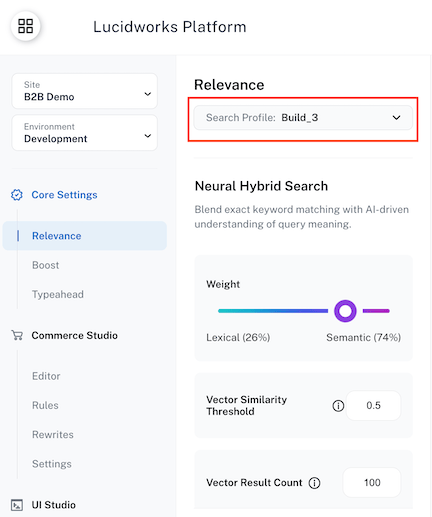
The query profile selector only appears when your site has multiple query profiles configured.
If you have a single query profile, the selector is hidden and all settings apply to that profile automatically.
Neural Hybrid Search
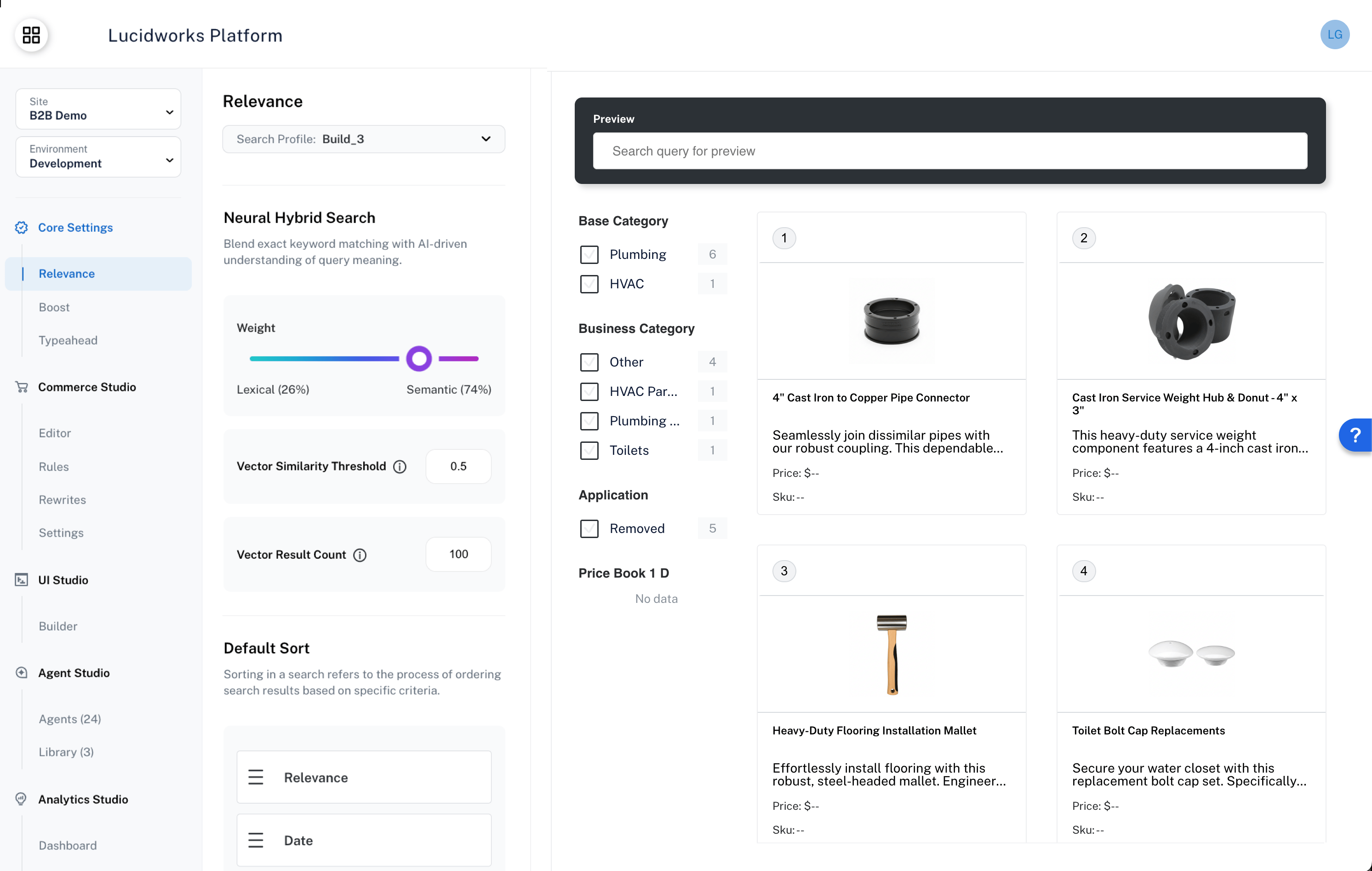
Lucidworks Core Settings includes the option of using Neural Hybrid Search (NHS) to take advantage of advanced searching capabilities that combine lexical search and semantic search, enabling exact and partial keyword matching, phrase detection, and search results that understand the natural language users might enter in the search box. To improve the relevance of results, you can also set values to assess how closely results match and number of results returned.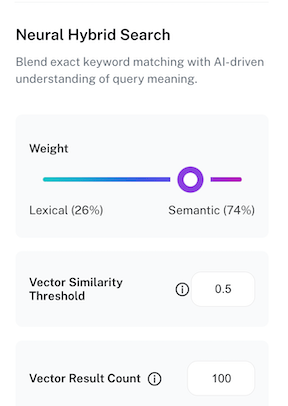
Weight balance between lexical and semantic search
Weight balance between lexical and semantic search
Use the Weight slider to decide the relative importance of and search for your search results. As you increase the weighting of one type of search, the weight of the other type of search decreases.Depending on the type of content you have, you can adjust the slider to accommodate the information you want the user to see.For example, a legal, medical, or financial website might have industry-specific words that benefit from a more lexical approach, while an e-commerce website might want to show users similar products and will benefit from giving a greater weighting to semantic search.NHS uses both of these to optimize the search experience.Fine tune the resultsTo improve results, evaluate the specific needs of your use case to determine the appropriate balance between lexical and semantic search.Begin testing by starting in the middle with 50% lexical and 50% semantic and perform a series of queries.
If the results do not match your expectations, then adjust the slider.Adjust the weighting strategy to match user intent and the goals of your business.Adjust the weights for your specific use case, and validate that the search results become more relevant for the users.
- B2C
- Financial services
In a B2C context such as a grocery store chain, if a user searches for “ice cream” and the results prioritize “bag of ice” and “sour cream,” the semantic weight should be increased. This helps return contextually relevant items like “waffle cones” and “chocolate syrup” that align with the shopper’s intent.
Control how closely records match and the number of records returned
Control how closely records match and the number of records returned
Two settings determine the number of records returned:Recommended starting values by use caseUse these starting values as a baseline, then adjust based on observed results.Tuning these settingsAdjust one setting at a time so you can identify what is causing changes in results.
-
Vector Similarity Threshold: This threshold sets the minimum of how closely a document must match your query’s meaning to be included in results. Enter a decimal value between
0and1.- A higher minimum value returns only results that strongly match the query’s meaning. Assessing possible matches to return strong results may increase latency (processing response time).
- A lower minimum value returns more results because results do not have to match the query’s meaning as closely.
- Results that are not semantically close enough to the query’s meaning are filtered out before results are re-ranked.
-
Vector Result Count: This value specifies how many candidate results the vector (semantic) search retrieves before the results are merged and re-ranked with the lexical results. Enter an integer between
0and2000.- A higher value assesses more semantic candidate results, which improves relevant results, but may increase latency (processing response time).
- A lower value assesses fewer semantic candidate results, which may decrease relevant results, but also takes less processing time.
These fields map to the
Min Return Vector Similarity and Number of Vector Results fields in the Neural Hybrid Query stage settings.- B2B catalog
- E-commerce
- Knowledge management
B2B catalog search involves dense product catalogs with technical terminology.
Users expect both precision (correct part or product) and coverage (all relevant variants).
This balanced configuration provides a candidate pool wide enough to capture product variants and related SKUs,
while filtering results with weak semantic relevance.Signs you should adjust:
- If searches return too many unrelated items, raise the threshold.
- If variant products are missing from results, lower the threshold or increase the result count.
- Start permissive. Set Vector Result Count to
100–150and Vector Similarity Threshold to0.50. This gives you a broad candidate pool and avoids prematurely hiding relevant results. - Adjust the threshold first. The similarity threshold has the most direct impact on result quality.
Raise it gradually in increments of
0.05, querying representative terms after each change. - Tighten the result count last. Once the threshold produces clean results, reduce Vector Result Count to improve response time. Watch for result quality changes as you lower it — if results degrade, the count is too low for your collection size.
- Zero or very few results: A threshold that is too high can exclude all vector candidates for some queries, causing NHS to fall back to lexical-only results.
A threshold of
0.80or higher is rarely appropriate except for tightly controlled, well-structured catalogs. If users report missing results, lower the threshold by0.05–0.10and test again. - Noisy or unrelated results: If results don’t feel related to the query, the threshold is likely too low. Also check whether Vector Result Count is higher than needed — a large candidate pool with a low threshold gives re-ranking more noise to contend with.
- Slow query response times: Vector Result Count directly affects how many candidates are retrieved.
If query times are slow, reduce the result count in increments of
25. Note that if your collection spans multiple Solr shards, the effective candidate pool is Vector Result Count × shard count.
- Self-hosted Fusion clients, see Choosing, implementing, and troubleshooting NHS stages and Semantic vector search test guidelines.
- Lucidworks Search clients, see Choosing, implementing, and troubleshooting NHS stages and Semantic vector search test guidelines.
Sort
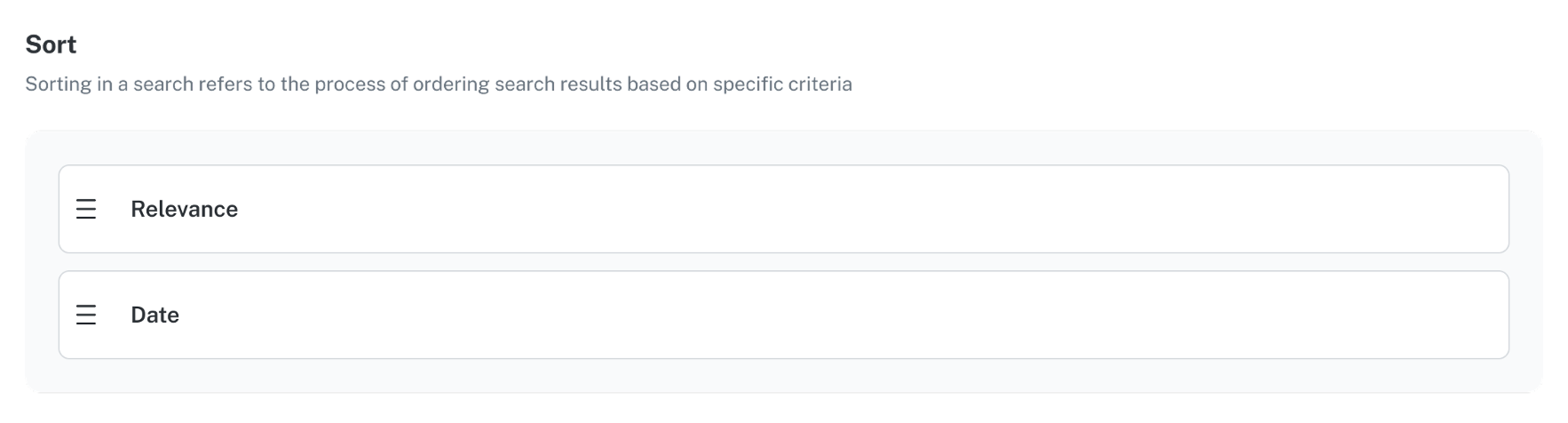
Sort is how search results are ordered and can be set according to relevance, which is the degree to which each item matches a user’s query based on search settings. You can change the default sorting order that is used for results by arranging the tiles in the Sort section. This lets you sort first by relevance, then by date for items with identical relevance, or sort first by date, then by relevance for items with identical dates.