

You must first upload a JDBC Driver to Fusion.
Upload a JDBC Driver to Fusion
Upload a JDBC Driver to Fusion
The JDBC V2 connector is supported, and fetches documents from a relational database via SQL queries. Under the hood, this connector implements the Solr DataImportHandler (DIH) plugin.Fusion stores JDBC drivers in the blob store. You can upload a driver using the Fusion UI or the Blob Store API.
How to upload a JDBC driver using the Fusion UI
- In the Fusion UI, navigate to System > Blobs.
- Click Add.
-
Select JDBC Driver.
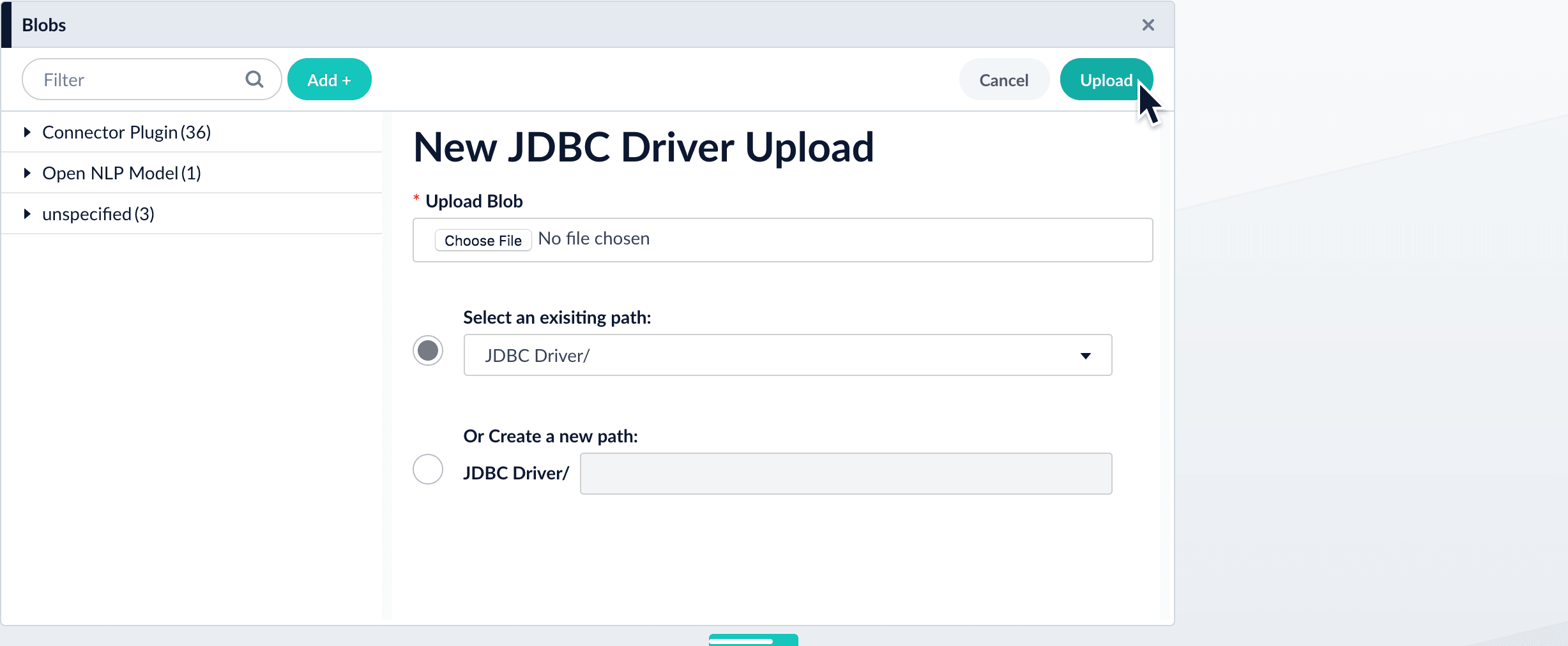
The “New ‘JDBC Driver’ Upload” panel appears.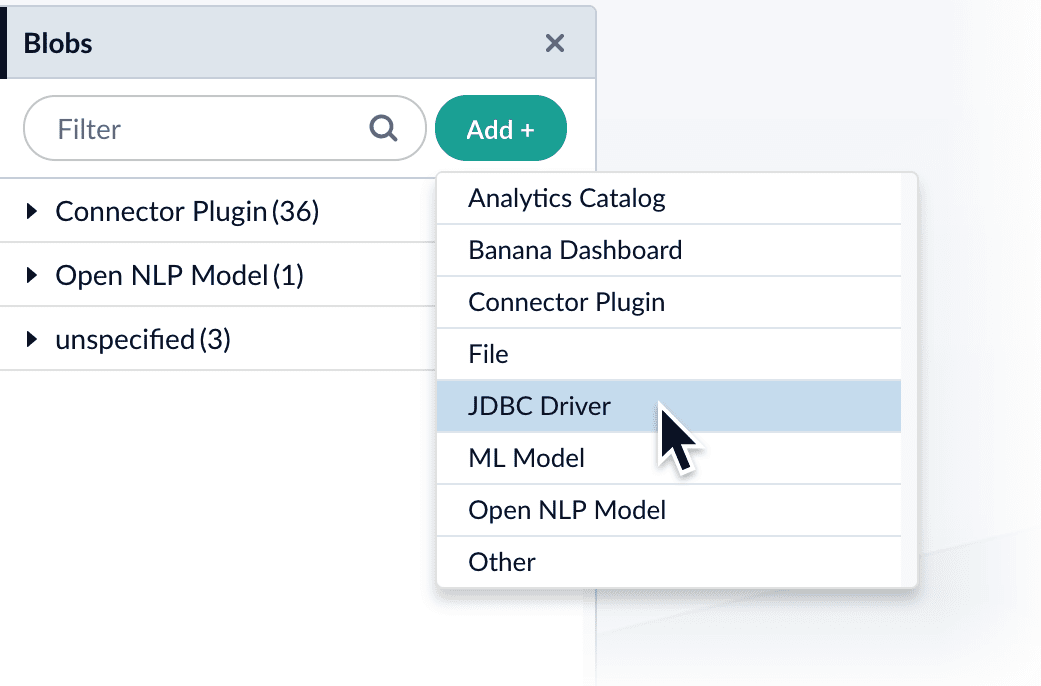
-
Click Choose File and select the .jar file from your file system.
-
Click Upload.
The new driver’s blob manifest appears.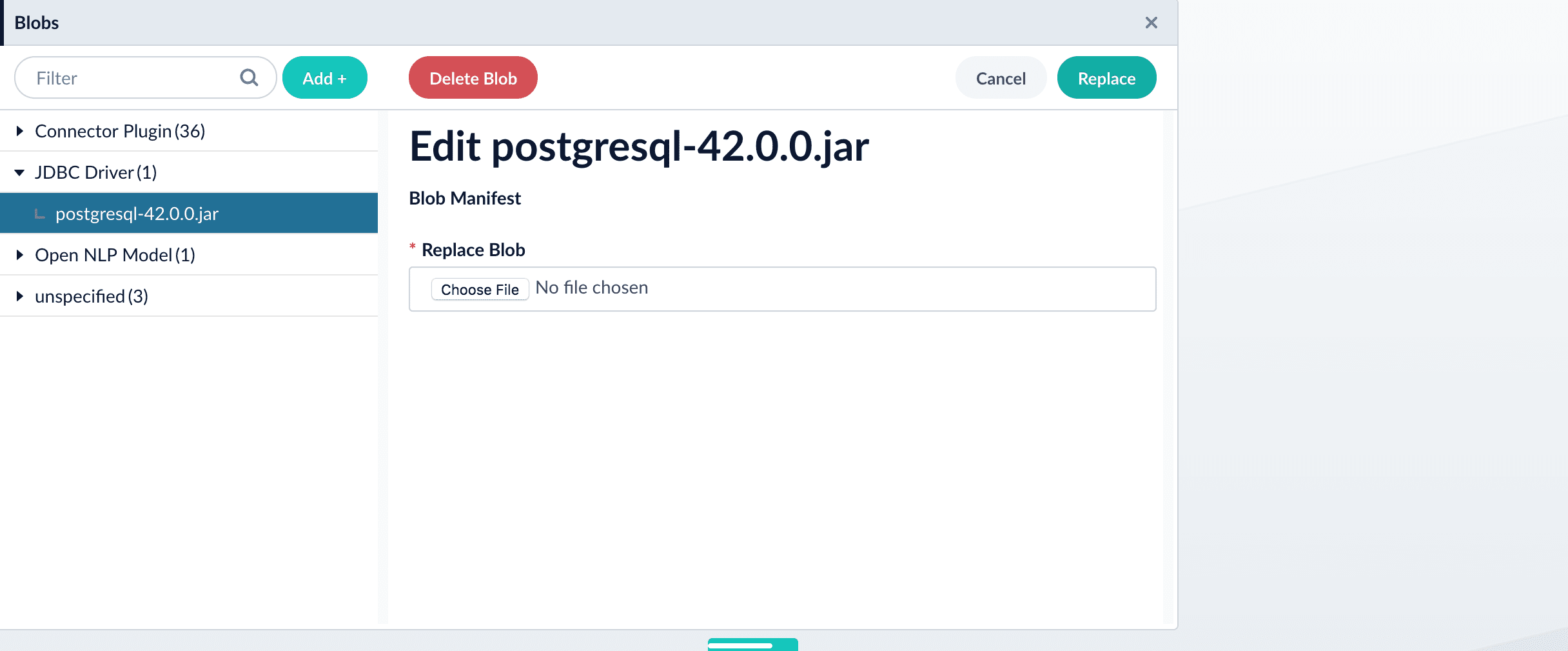
How to install a JDBC driver using the API
-
Upload the JAR file to Fusion’s blob store using the
/blobs/{id}endpoint. Specify an arbitrary blob ID, and aresourceTypevalue ofplugin:connector, as in this example:Success response:Fusion automatically publishes the event to the cluster, and the listeners perform the driver installation process on each node. -
To verify the uploaded driver, run:
Where the
BLOB_IDis the name specified during upload, such as “mydriver” above. A success response looks like this:
Example
An example of a JDBC Index Stage setup Upload stage config via POST to Fusion REST API endpointapi/index-stages/instances