

Blob Types
AresourceType query parameter can be used to specify the blob type. For example, specify file when uploading a text or CSV file, like this:
resourceType is below:
Upload a JDBC Driver to Fusion
Upload a JDBC Driver to Fusion
The JDBC V2 connector is supported, and fetches documents from a relational database via SQL queries. Under the hood, this connector implements the Solr DataImportHandler (DIH) plugin.Fusion stores JDBC drivers in the blob store. You can upload a driver using the Fusion UI or the Blob Store API.
How to upload a JDBC driver using the Fusion UI
- In the Fusion UI, navigate to System > Blobs.
- Click Add.
-
Select JDBC Driver.
The “New ‘JDBC Driver’ Upload” panel appears.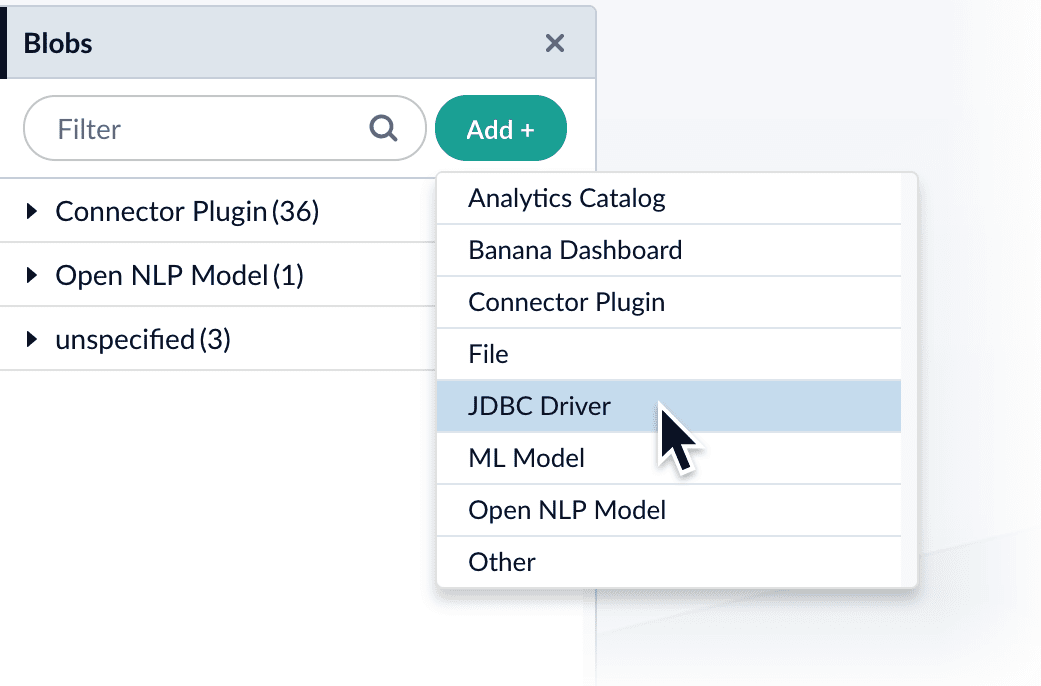
-
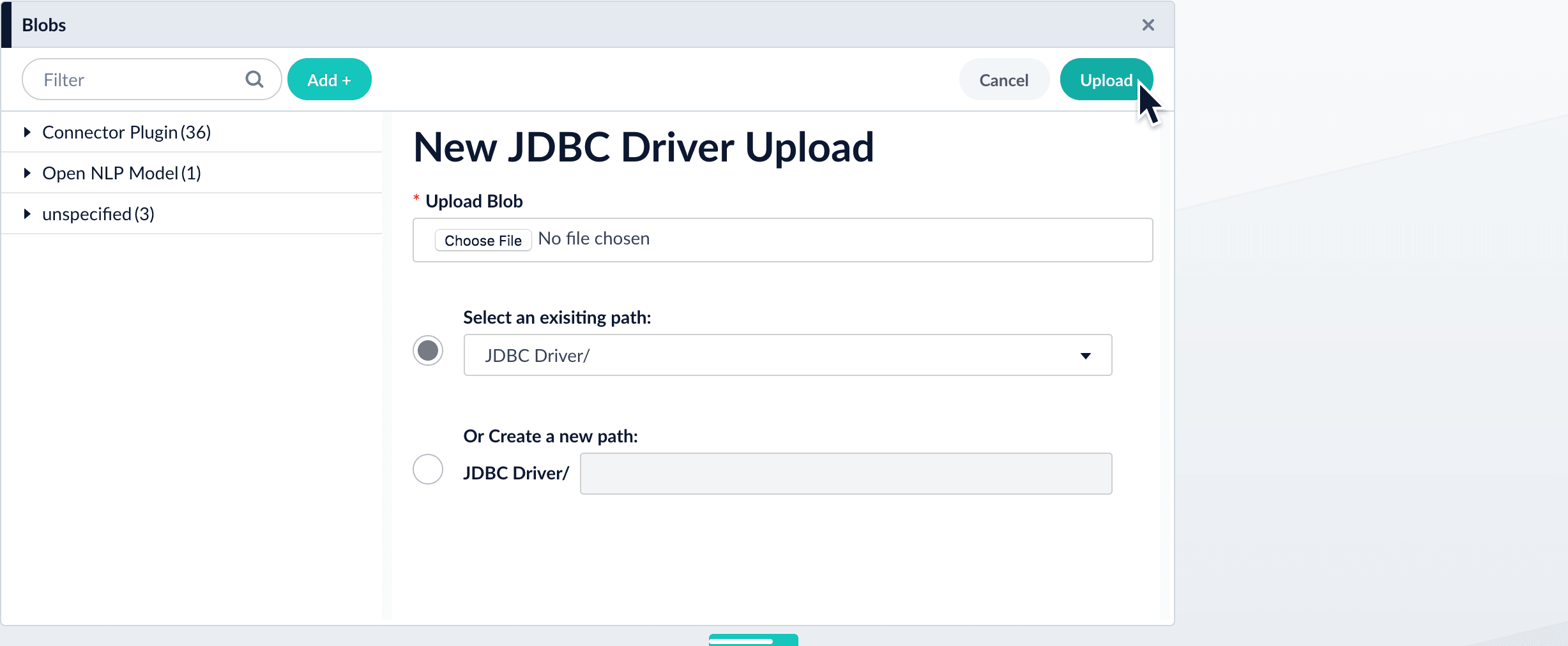
Click Choose File and select the .jar file from your file system.
-
Click Upload.
The new driver’s blob manifest appears.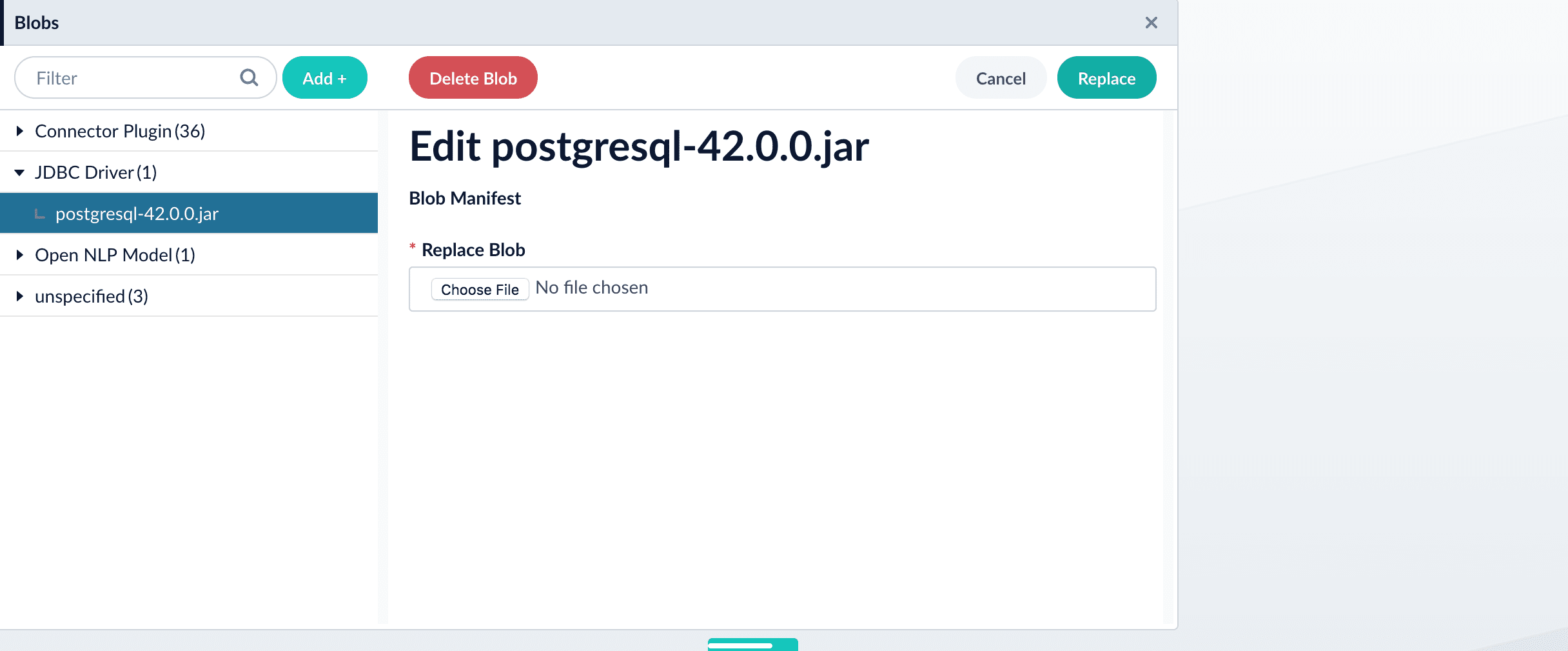
How to install a JDBC driver using the API
-
Upload the JAR file to Fusion’s blob store using the
/blobs/{id}endpoint. Specify an arbitrary blob ID, and aresourceTypevalue ofplugin:connector, as in this example:Success response:Fusion automatically publishes the event to the cluster, and the listeners perform the driver installation process on each node. -
To verify the uploaded driver, run:
Where the
BLOB_IDis the name specified during upload, such as “mydriver” above. A success response looks like this:
The Blob manager
In addition to the Blob Store API, the Fusion UI provides an interface to the blob store in the Fusion workspace at System > Blobs.- Click Add to upload a new blob.
- Select an uploaded blob to view, replace, or delete it.
- Click Add to upload a new blob.
- Select an uploaded blob to view, replace, or delete it.
Blob editor
The blob editor gives the ability to edit blobs in the Fusion UI in a variety of formats:- CSV
- Java
- JavaScript
- Python
- SCALA
- Typescript
- Plain text
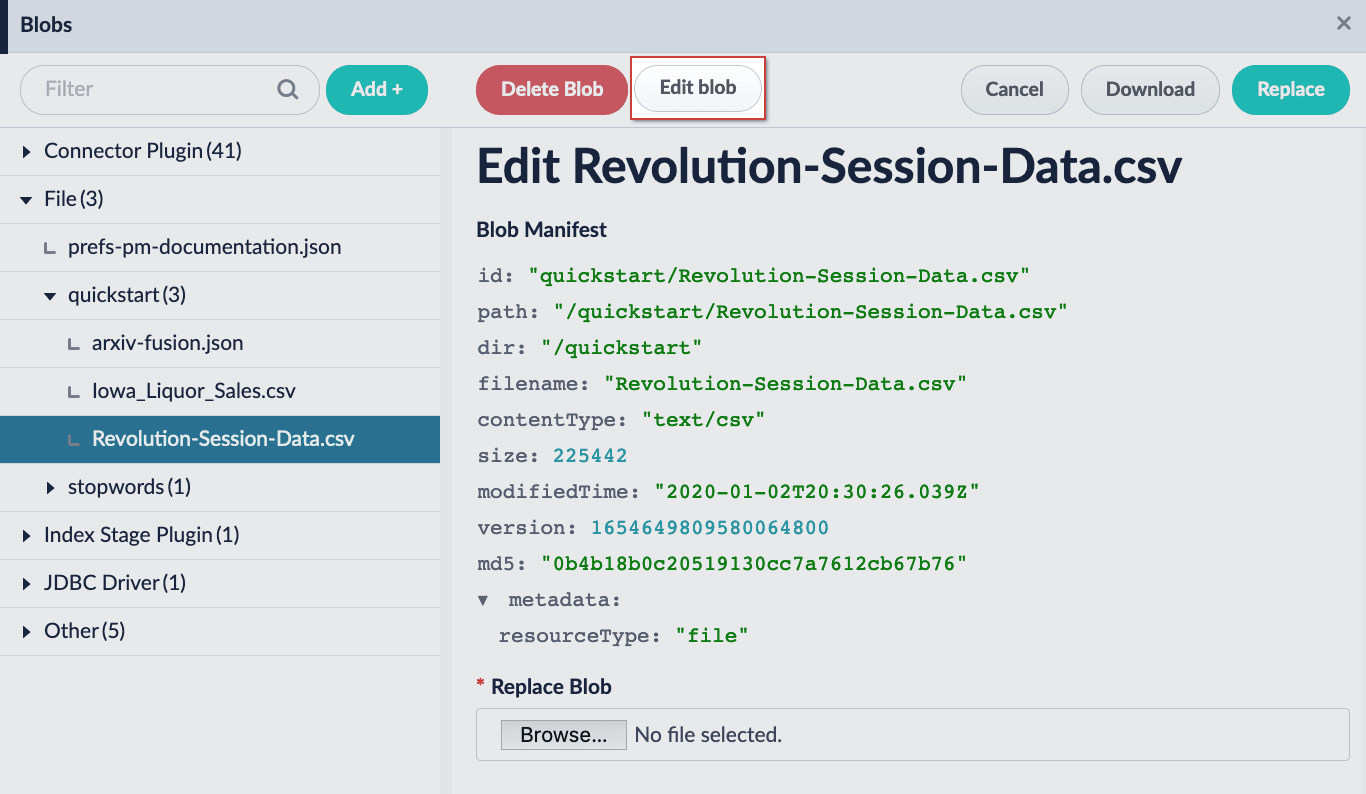
- If the Edit blob button is not available, the blob type cannot be edited with the blob editor.
- For Fusion 5.4.x and later, JavaScript can be edited directly in the Fusion UI.
For instructions, see Use the Blob Editor.
Use the Blob Editor
Use the Blob Editor
The blob editor gives the ability to edit blobs in the Fusion UI in a variety of formats:
- CSV
- Java
- JavaScript
- Python
- SCALA
- Typescript
- Plain text
- Navigate to System > Blobs and select a valid blob.
-
Click the Edit blob button. This button is only available for valid blob types.
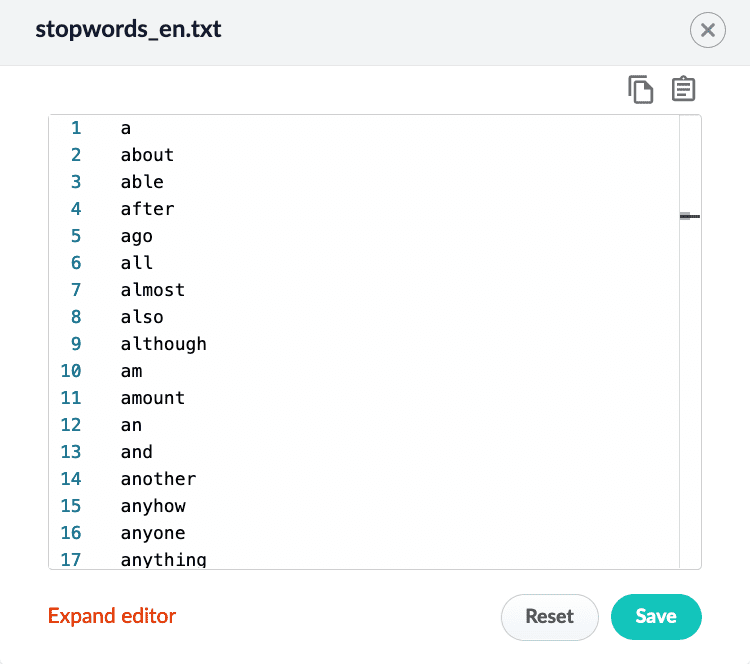
- (optional) Click Expand editor to view the editor in fullscreen mode.
- (optional) Click the Copy button to copy the blob details. This can be saved somewhere, if desired.
-
Copy the contents of the new stop words file, and click the Paste button to replace the contents of the blob. Alternatively, delete the existing contents and manually paste the new contents.
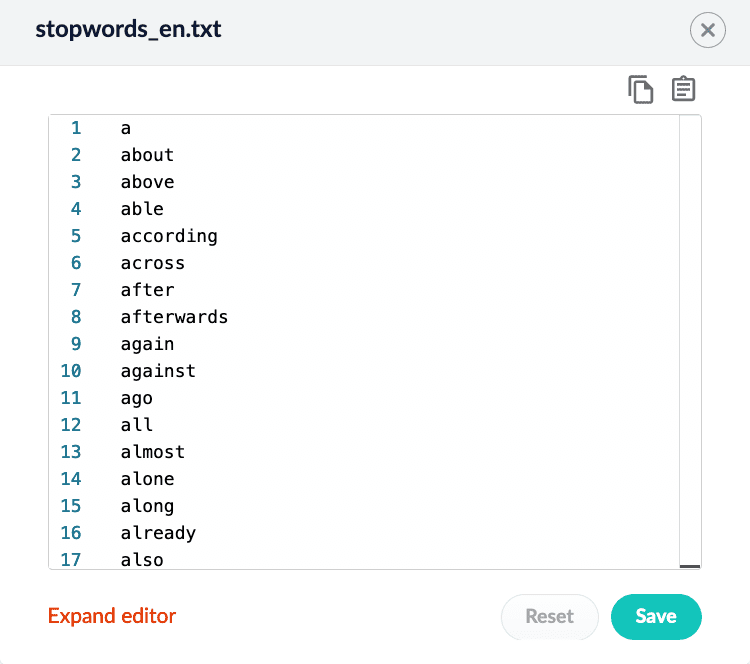
- Click the Save button to save your changes.