

Some rule actions are only available to specific version of Fusion.
Configuration options
Banner action
The Banner action returns an image outside of the search results that can be displayed in the frontend. For example, an e-commerce website may display a banner to promote a sale or new product release.Block list
The Block List action blocks the associated values from appearing in the search results. For example, a workplace may block documents that the user does not have permission to view.Boost attributes
The Boost Attributes action boosts documents with specific attributes in a search. Boosts can be additive or multiplicative. For example, an e-commerce website may boost the laptop manufacturer’s name if the search query contains a manufacturer.Boost list
The Boost List action boosts documents with a large multiplicative boost so the documents appear at the top of the results. Larger boosts can override this action. For example, an e-commerce website may boost new or seasonal items.Bury list
The Bury List action buries documents with the selected values. This action minimizes certain documents without blocking them. For example, a workplace may bury out-of-date documents.Filter list
The Filter List action applies filter queries (fq) to the query and changes the results so a pre-selected set of content displays.
For example, an e-commerce website may display only movies rated G or PG when a user searches for children’s movies.
Ingroup actions
Ingroup actions perform a specific action within a product group. You can boost, bury, or pin specific items within a group. Ingroup actions require a grouping field to perform the action within.Ingroup boost list
The Ingroup Boost List action boosts an item within a product group. This action does not boost the product group.Ingroup bury list
The Ingroup Bury List action buries an item within a product group. This action does not bury the product group.Ingroup pinned
The Ingroup Pinned action sticks a document to a specific location within a product group. This ensures that users view a result in a specified place. This action does not pin the product group.Pinned
The Pinned action sticks a document to a specific location within the search results. This ensures that users view a result in a specified place. For example, a workplace may pin documents answering frequently asked questions.Redirect
The Redirect action displays a message at the top of the search results that the frontend can utilize to redirect a user to a specific URL. This action guides users to the desired URL when the search query isn’t included in the collection. For example, a workplace may create a redirect action that displays a link to the internal help desk when an employee searches for “computer broken”.Response value
The Response Value action sends an arbitrary value to the frontend or pipeline, which the frontend of pipeline can use to perform another action. The Response Value action can be combined with other actions within the same rule. For example, an e-commerce website may use the response value action to display an advertisement.Set facets
The Set Facets action customizes the facets returned in the query response. These facets are different from the facets set in the Query Workbench. For example, an e-commerce website may display different facets on the homepage, the primary search page, and category pages.
Advanced options for
field facet types
Advanced options for
range facet types
Set Params
The Set Params action sets a parameter name and value to a search query. For example, a workplace may use the name and value to display only specific filetypes in the results.JSON Blob
The JSON Blob action returns an arbitrary JSON blob to your frontend when a business rule fires. The JSON blob displays outside of the search results.Additional configuration options
- Set response values. Combine Response Value rules with other rules for purposes as described above.
- Use Query Elevation Component (QEC). Apply the rule action to configure the top results regardless of the document’s score. However, enabling QEC does not boost the document’s score. The QEC only supports elevation through the
idfield. If QEC is enabled but is not configured correctly in Solr, the rule does not fire.
To use the Query Elevation Component, you must first Use the Query Elevation Component. Note that query elevation does not boost scores.
Use the Query Elevation Component
Use the Query Elevation Component
Fusion currently supports the use of the Query Elevation Component (QEC) with boost lists and filter lists. You must configure Solr in order to enable the QEC option.
Although it will not be accessed for the elevation process, Fusion requires an independent
elevate.xml file for the use of built-in rule actions with QEC due to a known issue in Solr.-
Create an XML file named
elevate.xmlin the same directory as thesolrconfig.xmlfile. -
Use the following as the contents of the
elevate.xmlfile: -
In the
solrconfig.xmlfile, add the following in the elevator search Component (searchComponent name="elevator"). Before adding, check to see if thesearchComponentalready exists within the file. -
Add
elevatoras a ‘last component’ part of the select handler in thesolrconfig.xmlfile. If alast-componentsarray is not already defined, create it at the end of the select handler’s configuration. If one is already defined, add<str>elevator</str>. -
When you create a new business rule, check the USE QUERY ELEVATION COMPONENT checkbox to use elevation.
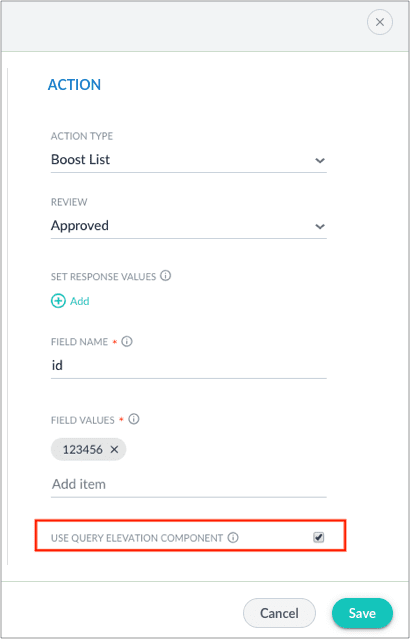
The Query Elevation Component only elevates documents within the query rewriting rules engine by the document
id field. Ensure id is entered in the “FIELD NAME” option.