This topic describes Fusion Vault, which is a Fusion service that watches labeled Kubernetes secrets and makes them available to Fusion pipelines, jobs, and connectors by logical reference.Secret references are logical names stored and transferred as plain text in pipeline and connector configurations. The same reference name can point to different underlying Kubernetes secrets in the development, staging, and production environments. This enables portable pipeline and connector configurations that do not require modification when moving between environments.Credential values never display in Fusion configurations.These examples illustrate the datasources, index and query pipeline stages, and job settings in Fusion.
Datasources (connector)
Pipeline stages
Jobs
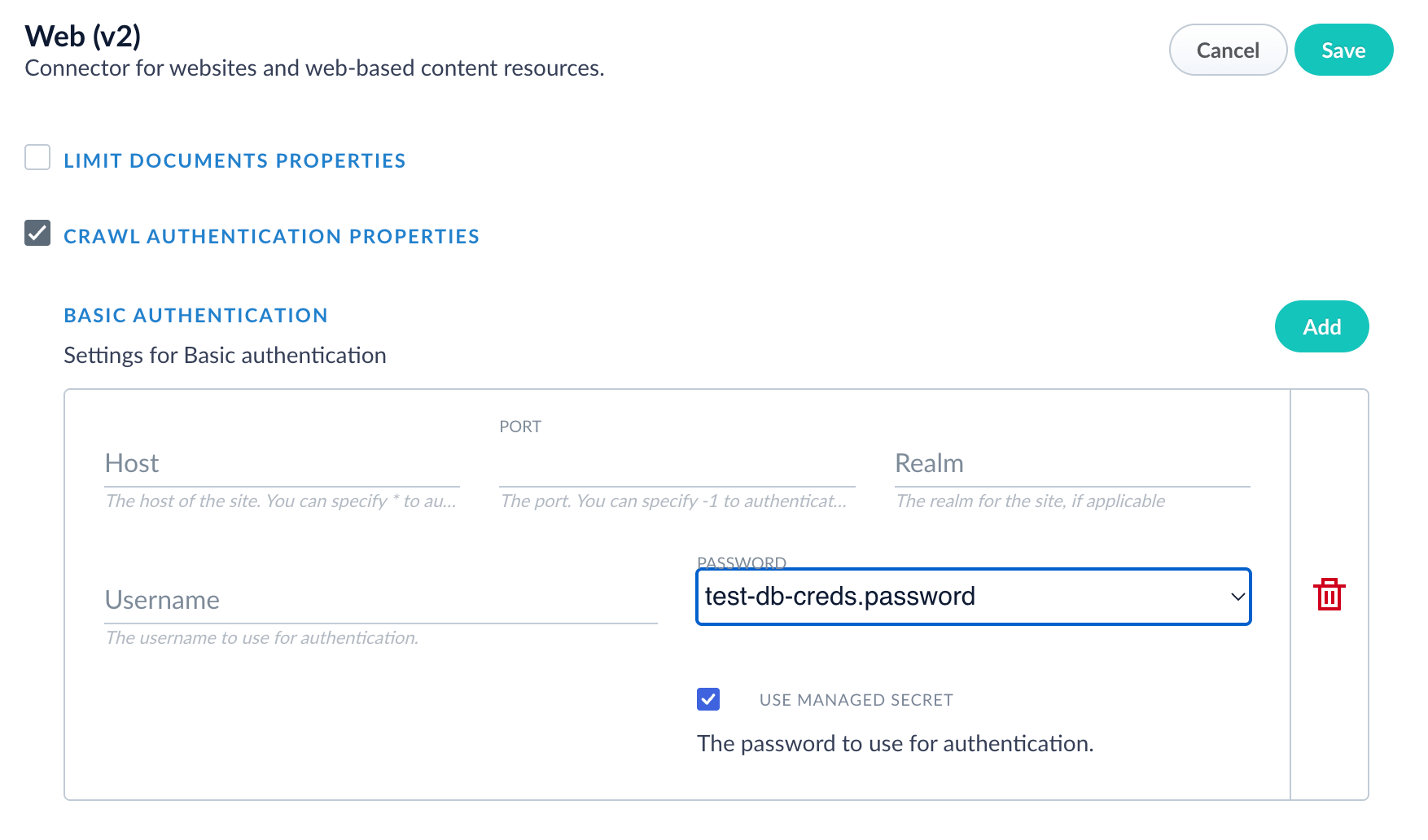
Set Fusion datasource to use a managed secret
Your managed secret is found in the datasource configuration in Crawl Authentication Properties > Basic Authentication > Host.
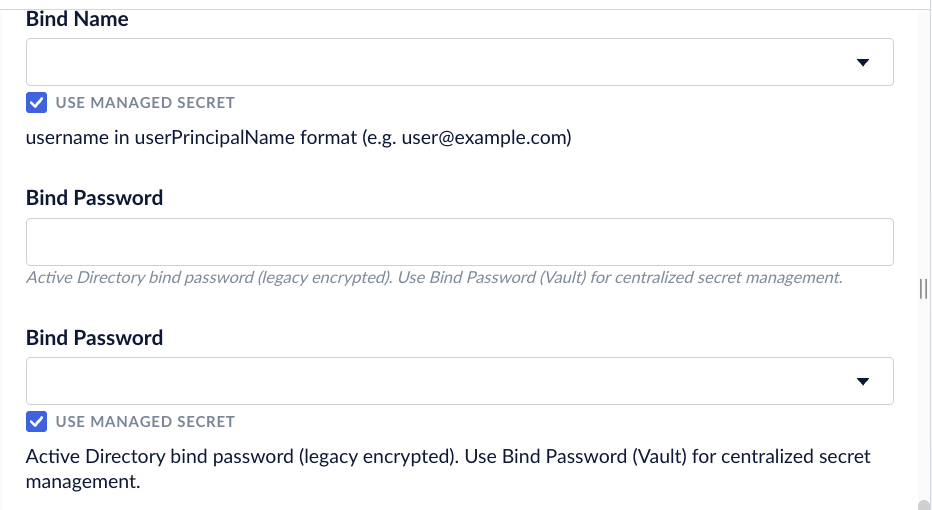
Set index and query pipeline stages to use a managed secret
If selected, Use Managed Secret applies to the name, password, and secret reference.
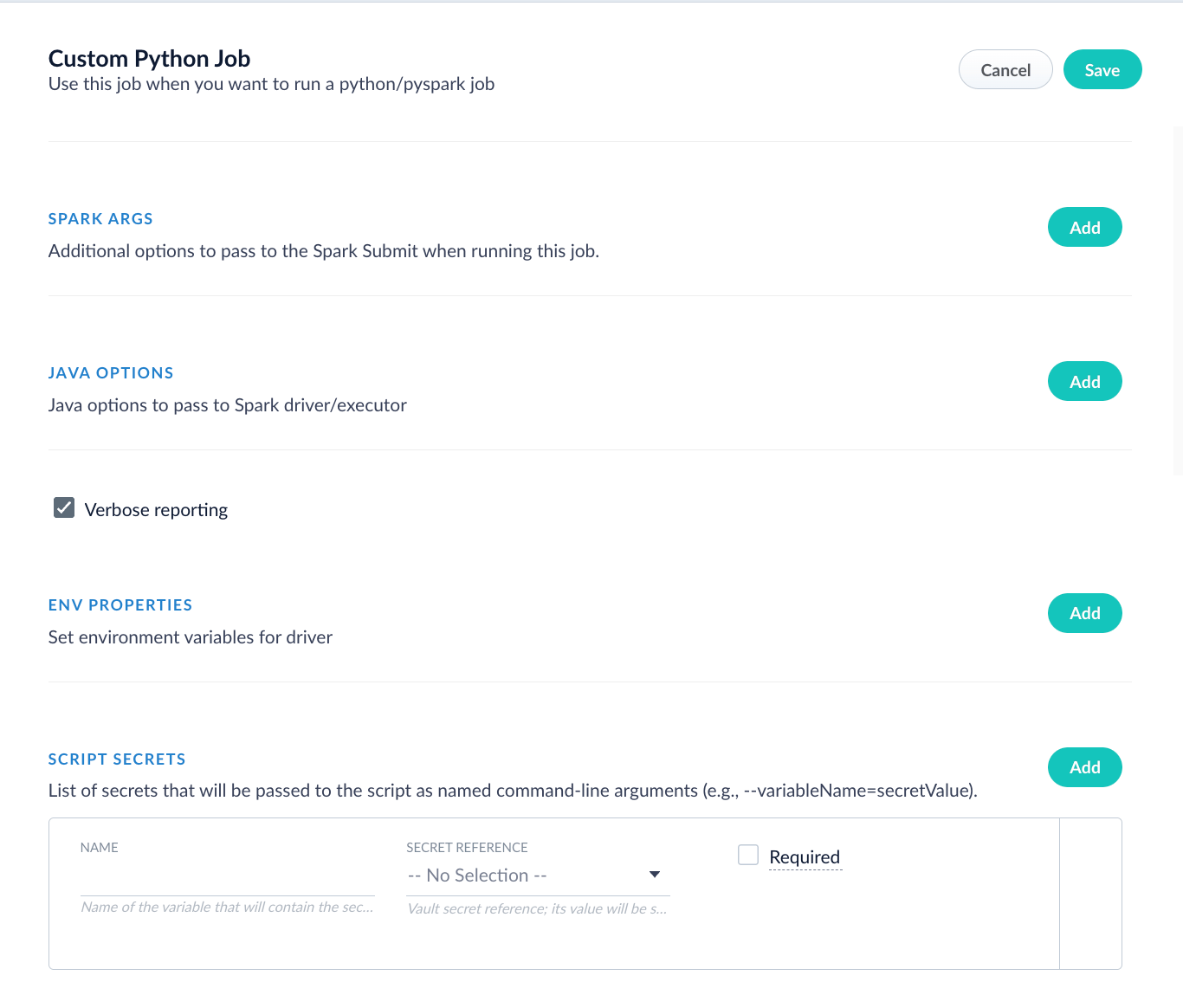
Set script to use a managed secret
Your managed secret is found in Advanced > Scripts Secrets.
The ZooKeeper-based secrets management option is the legacy approach, where credentials are encrypted and embedded directly in pipeline and connector configurations. It is maintained for backward compatibility, and uses V1 connectors.
Using Fusion Vault for secrets management, your organization can perform the following functions:
Create and store credentials in Kubernetes secrets instead of embedding them directly in a pipeline. Kubernetes secrets can be populated from external providers such as HashiCorp Vault, Amazon Web Services (AWS) Secrets Manager, Google Cloud Platform (GCP) Secret Manager, and Azure Key Vault using ESO. Fusion configurations only store references, not actual values.
Reference credentials by logical name rather than by value. References are stored and exported as plain text, so the same pipeline or connector configuration can be imported into any environment. Each environment can define different underlying Kubernetes secrets behind the same reference name, with no changes to the configuration itself.
When you update a credential in your vault, all related pipelines change automatically without manual pipeline updates or service restarts.
Maintain compliance with strict Kubernetes security policies.
This section provides examples of use cases that illustrate how your organization can use Fusion Vault for secrets management.
A data scientist creates a query pipeline that needs to access multiple external services securely. The fields of the pipeline are configured to reference the API and database credentials entered in your organization’s Kubernetes vault. The data scientist does not enter the values of the credentials in the Fusion pipeline. When the pipeline runs, authorization is completed using the credentials in the external vault. In addition, the same secret can be reused in multiple pipelines and stages, and are logged for audit purposes.
A data engineer needs to configure an AWS S3 connector using credentials stored in AWS Secrets Manager. Other backend procedures such as configuring an ESO in the cluster need to be created as well. The data engineer creates an AWS S3 connector in the Fusion Admin UI by selecting the reference names of the credentials, but does not enter the values of the credentials in the Fusion UI. When the connector starts, credentials are pulled from the external vault. Credentials can be updated without reconfiguring the connector, and ESO automatically synchronizes any changes to all instances.
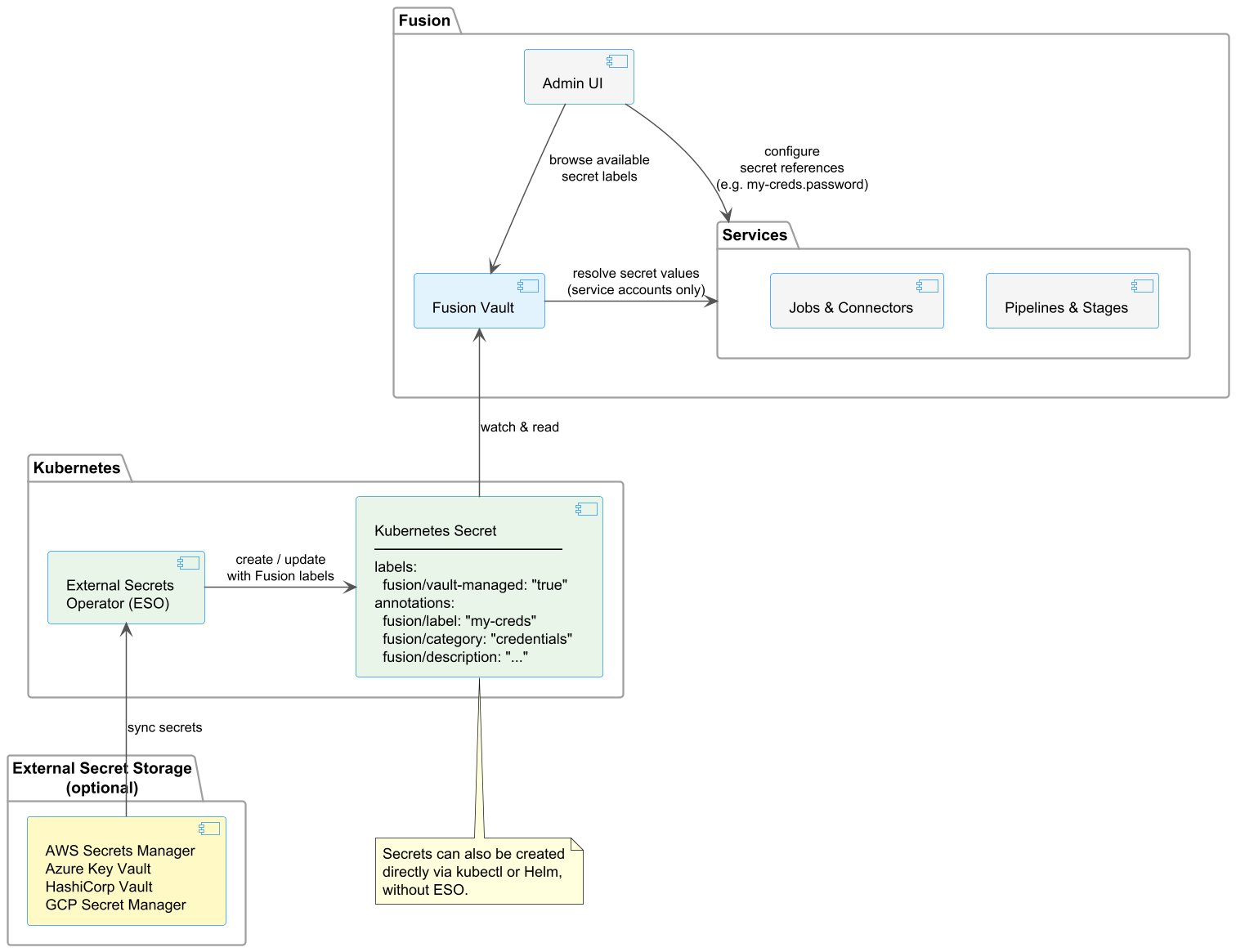
Fusion Vault watches for Kubernetes secrets labeled fusion/vault-managed: "true" and caches their values. The following describes how the components interact:
Fusion Admin UI queries Fusion Vault for the list of available secret labels and presents them in dropdowns when configuring pipelines, jobs, and connectors. Users select a secret reference (for example, my-creds.password), but users never see or enter the actual secret value.
Fusion services (jobs, connectors, pipelines, and stages) store only the logical secret reference in their configuration. At runtime, they resolve the actual value through Fusion Vault using a service account. End users cannot access secret values directly.
Kubernetes secrets are the source of truth. Fusion Vault watches them continuously and updates its cache when they change. Secrets can be created directly using kubectl or Helm, or are synchronized from an external vault provider (AWS Secrets Manager, Azure Key Vault, HashiCorp Vault, GCP Secret Manager) using the optional Kubernetes External Secrets Operator (ESO).
When a Kubernetes secret changes, whether updated manually or synchronized by ESO, Fusion Vault detects the update and automatically provides the new value to Fusion services without manual updates or restarts.
Multi-tier caching ensures Fusion pipelines continue to run even if the Kubernetes API is temporarily unavailable, with automatic resynchronization when connectivity is restored.
Fusion Vault manages credentials such as database credentials, API keys, cloud storage access keys, and authentication tokens used by pipelines, jobs, and connectors to connect to external services.Fusion Vault does not manage secrets required for Fusion itself to operate, such as service account passwords, TLS certificates, and encryption keys. Those are defined during installation through Helm chart values or Kubernetes secrets and are not affected by this feature.
Fusion Vault reads Kubernetes secrets that match its required format. You can create conforming secrets using a method that suits your infrastructure. Create secrets using Helm, a CI/CD pipeline, or any tool capable of producing Kubernetes secrets with the required label and annotations.
Prerequisites
Ensure you have the following prerequisites in place:
A Kubernetes cluster with Fusion installed
Access to the Kubernetes cluster using kubectl commands
Administrative privileges in Fusion for testing and validation
Administrative privileges in your external vault provider (only required if using a synchronizing tool such as ESO)
Kubernetes secret format requirements
For Fusion Vault to pick up a Kubernetes secret, the secret must have the label fusion/vault-managed: "true". Secrets without this label are ignored.The following annotations are optional but recommended:
fusion/label: A human-readable name used when referencing the secret in Fusion. If omitted, the Kubernetes secret name is used in references instead
fusion/description: A description of the secret’s purpose
Any method to create Kubernetes secrets is valid: kubectl, Helm, CI/CD pipelines, or automated synchronizing tools as long as the resulting secret carries the fusion/vault-managed: "true" label.
Create secrets
Choose one of the following approaches to create conforming secrets.
Create secrets directly (kubectl)
Create secrets using ESO
Create Kubernetes secrets yourself using kubectl, Helm, or a CI/CD pipeline.Here is an example of using kubectl to create a Kubernetes secret and apply the required label and optional annotations:
Fusion Vault detects the labeled secret and makes it available for reference in pipelines, jobs, and connectors as database-creds.username and database-creds.password.
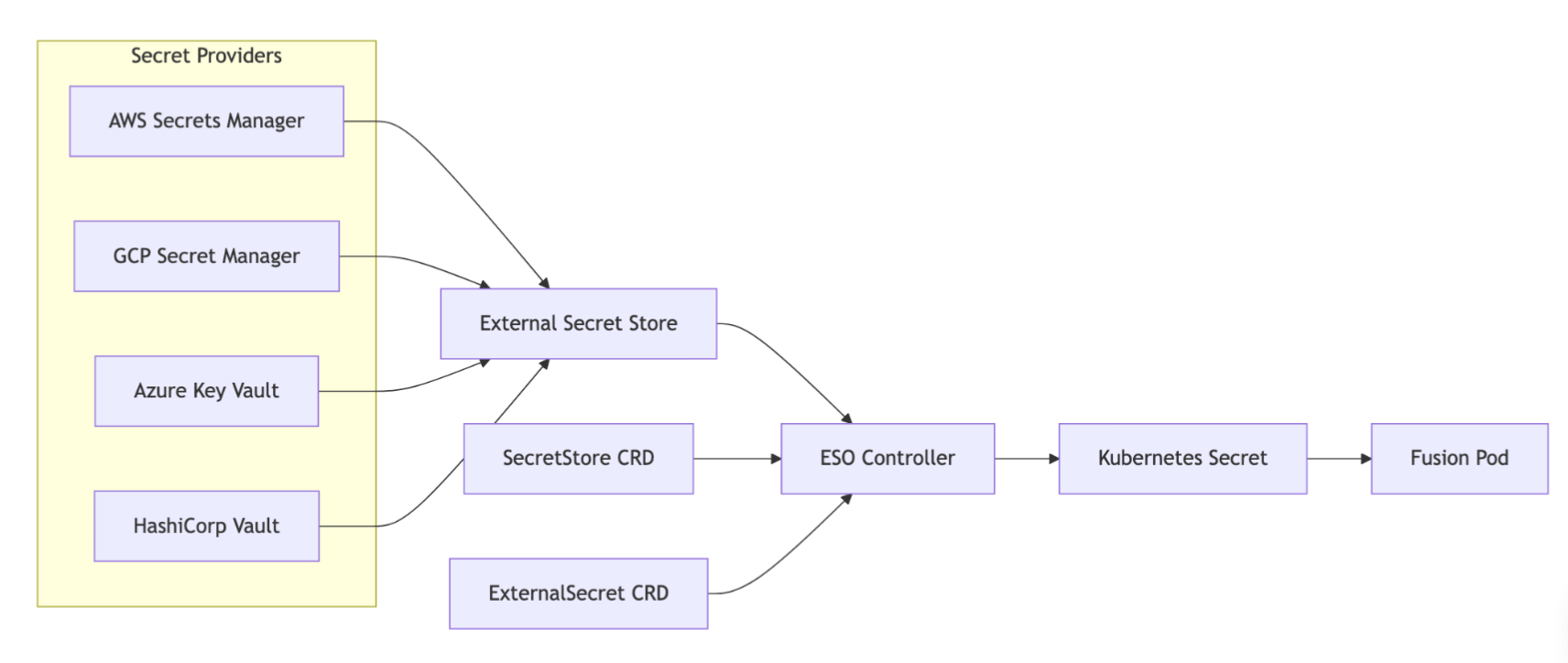
Use any synchronizing tool that creates Kubernetes secrets from an external source and can apply the required label and annotations.ESO is one example because it automatically synchronizes secrets into Kubernetes from external vault providers such as AWS Secrets Manager, Azure Key Vault, HashiCorp Vault, GCP Secret Manager.The following diagram illustrates how ESO syncs secrets from external vault providers into Kubernetes secrets that Fusion Vault then reads.
External Secrets Operator architecture
Refer to the External Secrets Operator installation guide for detailed installation instructions using Helm or kubectl.Best practicesFollow these guidelines to optimize the use of the ESO with Fusion:
Ensure all ExternalSecret resources include the required Fusion label in the template:
A SecretStore is a Kubernetes Custom Resource Definition (CRD) provided by the External Secrets Operator.
It is not part of Fusion’s Helm chart. You manage it as a separate infrastructure resource, deployed in the same namespace as Fusion.The SecretStore acts as a configuration bridge that tells ESO which external vault to connect to and how to authenticate to it. Define it as a YAML manifest and apply it to your cluster:
kubectl apply -f secretstore.yaml -n fusion
You can configure multiple SecretStores simultaneously, one per environment (development, staging, production) or one per vault provider.Each ExternalSecret resource references the appropriate store by name.
Use your vault provider’s console or command line interface (CLI) to create the actual secret values. Store the vault paths and keys securely for reference when creating ExternalSecret resources.
Google Cloud Console
AWS Console
Azure Portal
HashiCorp Vault
Use the Google Cloud Console or enter the gcloud secrets create command.
Use the AWS Console or enter the aws secretsmanager create-secret command.
Use the Azure Portal or or enter the az keyvault secret set command.
Enter the vault kv put command.
Create ExternalSecret resources
Create ExternalSecret resources that define how secrets synchronize from your vault to Kubernetes.ExternalSecret resources must include the fusion/vault-managed: "true" label in spec.target.template.metadata.labels for Fusion to discover them. This feature requires Kubernetes External Secrets Operator version 0.10 or later.As you create ExternalSecret resources, enter the following labels and annotations to identify the secrets.
The fusion/vault-managed: "true" label is required and enables Fusion discovery of secrets.
The following annotations are recommended, but not required:
fusion/label: A human-readable identifier used in secret references
fusion/description: A description of the secret’s purpose
The following tabs are example for credential information:
Configure Fusion datasources (connectors), pipelines, and jobs to reference the synchronized secrets.In the Fusion UI, preview the fields used for secrets:
Datasources (connectors)
Query pipelines
Custom Python job
Set Fusion datasource (connector) to use secret management
Your managed secret is found in the datasource configuration in Crawl Authentication Properties > Basic Authentication > Host.
Set pipelines to use secret
If selected, Use Managed Secret applies to the name, password, and secret reference.
Set script to use secret
Your managed secret is found in Advanced > Scripts Secrets.
Test and validate
Test each configured pipeline, job, and connector using these steps:
Run a test indexing job using the configured datasource.
Verify the connector, pipeline, or job can authenticate using the secret reference.
Check Fusion logs for any secret resolution errors.
Monitor Fusion processes to confirm secrets are accessible.
When secret rotation is necessary, update the secret values in your vault provider. ESO automatically synchronizes changes to Kubernetes based on the refreshInterval, and Fusion picks up the new values without manual updates or restarts.
Migrate secrets management from ZooKeeper to Fusion Vault
Migration from ZooKeeper-based secrets management to Fusion Vault secrets management is manual and optional. Each pipeline, job, connector, and datasource must be manually updated to configure where secrets are stored.To migrate, follow the steps described in the Configuration section.
Implement migrations during maintenance windows to avoid service disruption.
If your organization does not migrate, your current secrets management method remains in place. However, secrets management using ZooKeeper will be deprecated at some point in the future.