

-
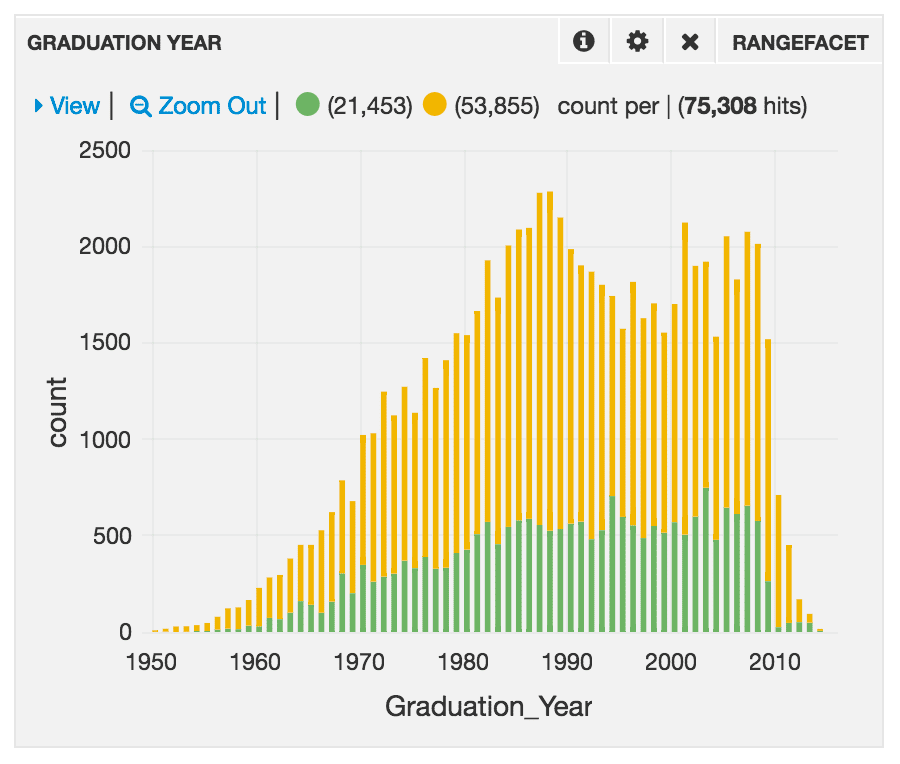
Query Panel. Enter a freeform query (one or more query terms) in a search bar. Add additional search bars to a query panel to submit separate queries. Some visualization panels (for example, Rangefacet) keep the data separate so you can compare it. This is an example of a Query panel with two search boxes. The parameters for query strings are
Primary_Specialty:UrologyandPrimary_Specialty:Psychiatry. Here is the Query Panel and the resulting Rangefacet panel:
-
Time Picker Panel. Apply a time range to time-series data. The time range can be:
-
Relative.* A time range starting now and reaching backward in time, for example, the last 15 minutes or one hour

-
Absolute.* A specific time-and-date range, for example, from 06/01/2017 00:00:00 to 06/30/17 23:59:59

- Since.* A time range since a specific date and time, for example, since 01/01/2017 00:00:00.
-
Relative.* A time range starting now and reaching backward in time, for example, the last 15 minutes or one hour
-
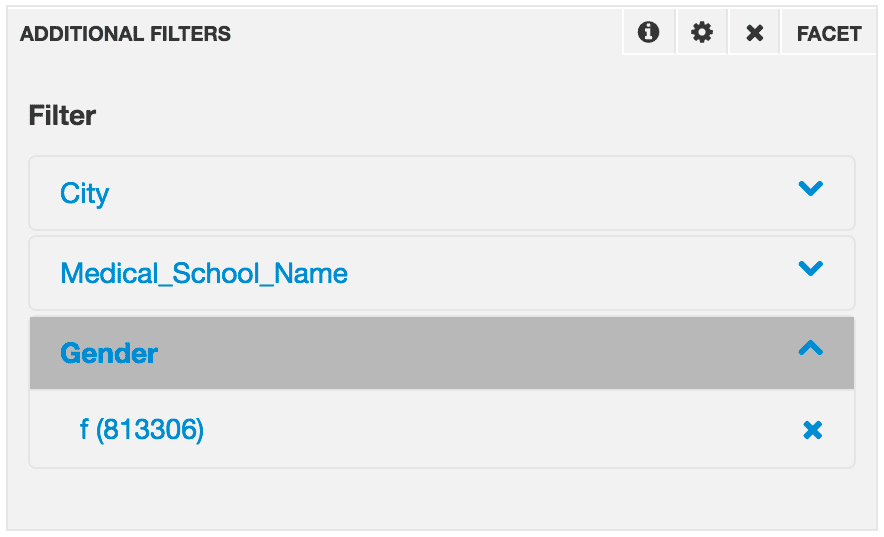
Facet. A Facet panel can facet any data field.
-
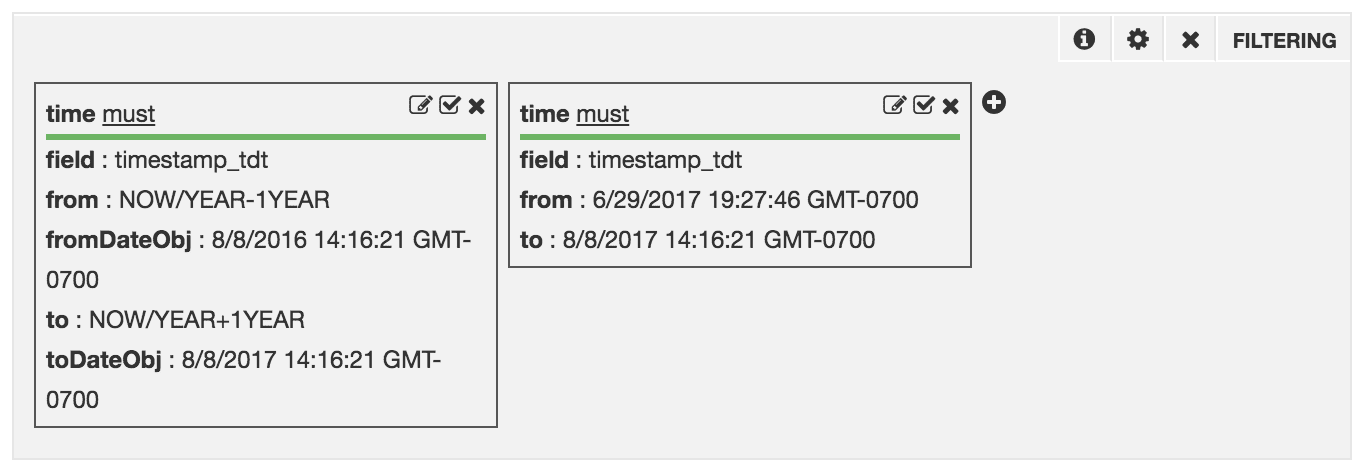
Filtering. A Filtering panel lets you apply field-based filters to the hits returned by the query. The filters apply to all display panels.
Query Syntax
Enter a search term or phrase in the search box of the Query panel. Autocompletion provides a list of possibly related prior searches. Finish typing your search query or select an autocompleted query, and then click Search. Enter queries in a Query panel using Apache Lucene Query Parser syntax. You enter the parameter for the query string (for example,Susan or Gender:F), not the query string (for example, q=Susan or q=Gender:F).
Rules for the Simplest Cases
Here are some syntax rules for the simplest cases:- A single term is either
field:valueorvalue. Withvalue, the search is over all fields. - For an exact-case match, you must specify the field name.
- Surround a term that contains spaces in double quotation marks (” ”).
- You cannot specify
*:valueor*:"value"to search over all fields; that syntax does not work. - To retrieve all records, use the search term
*:*. - For OR logic, enter
ORbetween the terms, or just use spaces. For AND logic, enterANDbetween the terms.
Examples
These are examples of the query syntax:
For more information about the query syntax, see Standard Query Parser Parameters.
Inspect a Panel Query
You cannot inspect the panel query in the Query panel. You can inspect the panel query in other panels, for example, in a Histogram or Heatmap panel. You can see the contributions that the different parts of the query make. In this example, there are no global query parameters. Query:q= through Male.