

Signals types and structure
Signals can be broadly categorized as implicit or explicit. When signals are enabled, Fusion produces several built-in signal types by default, all of which are implicit signals. You can also create custom signal types, including explicit signals. Be sure to verify that your signals include all of the important fields for best results. It is also useful to rank your signal types in terms of how strongly each type indicates a user’s interest in an item.Implicit signals vs explicit signals
Signals can reveal a user’s level of interest in an item in two main ways:- Implicit The user shows interest by engaging with the item/document through clicks, searches, and so on. Since this type of interaction requires no additional effort on the user’s part, these types of signals tend to be plentiful. They can be used to infer a measurable value of interest in order to build an accurate recommender system.
- Explicit An explicit signal is created when a user intentionally assigns a clear, measurable value to an item, such as by giving it a rating. This value can be used to rank items, for example. Since this requires the user to invest extra time to provide the information, the number of ratings tends to be small compared to the total number of users interacting with the item.
Built-in signal types
There are five built-in signal types:Annotation signals
Annotation signals are generated when a user bookmarks, likes, or comments on a document. Annotation signals are likewise generated when the user removes a bookmark, like, or comment.Annotation signals are generated by App Studio. If you are not using App Studio, this type of signal is not relevant to your search application.
Login signals
Login signals record information about specific users when they log in to an application. This includes a time stamp and various session details.Request signals
A request signal is generated by a front-end search app and captures the raw user query and other contextual information about a user and their journey through the search app. A request signal should have the following fields:params object. Optional fields are as follows:
Response signals
Response signals are automatically generated by a query pipeline when the signals feature is enabled for a collection.Front-end search applications should not send response signals to Fusion directly, as those would conflict with the auto-generated signals.
Fusion’s experiment framework relies heavily on response signals and the linking between response and clicks signals using the
fusion_query_id.
Click signals
Click signals are sent from the search app to Fusion. All click signals should include afusion_query_id field pulled from the query response header x-fusion-query-id. In addition, click signals should include the following fields:
params object. Optional fields are as follows:
Custom signal types
The signaltype parameter can also take arbitrary values for custom signal types. For example, you can create special signals for purchase events, cart addition/subtraction events, “favorite” or “like” events, customer service events, and so on.
To collect custom signals, configure your front-end search application to send signals to Fusion using a custom value for the type field. Custom signals should also include the fields described below in order to get the best results from aggregation and recommendation jobs.
To use custom signals in recommendations, you must add them to the value of the signalTypeWeights parameter in the configuration for the _user_item_preferences_aggregation job and the _user_query_history_aggregation job.
Custom signals can be analyzed in App Insights just like pre-defined signal types.
Important fields for signals
Depending on how you use signals, certain fields are required. These are signals collection field names and not the JSON field names in the in-bound signals document. An example is when sending the user id, write it asparams.user_id.
The jobs that aggregate signals and generate recommendations work best when all of the following fields are present in your signals:
Some signal types, including custom signal types, may include additional fields.
Parameter suffixes
Fusion can add suffixes when fields are indexed. This table lists common suffix values.Signal field count analysis
Lucidworks recommends performing signal field count analysis to determine whether any of the fields above are missing from some of your signals. The table below shows how to query for specific fields using the Query Workbench in order to compare the number of results for each field with the total number of documents in the signals collection. In the examples in the third column, some fields appear in all 33,477,919 signals documents, while others appear in fewer documents.
You can also get the number of signals documents that contain all of the required fields by using the following query:
The query_id field
For each incoming signal, Fusion calculates a value for the query_id field, which App Insights uses to create group-by-query reports like the one shown below:
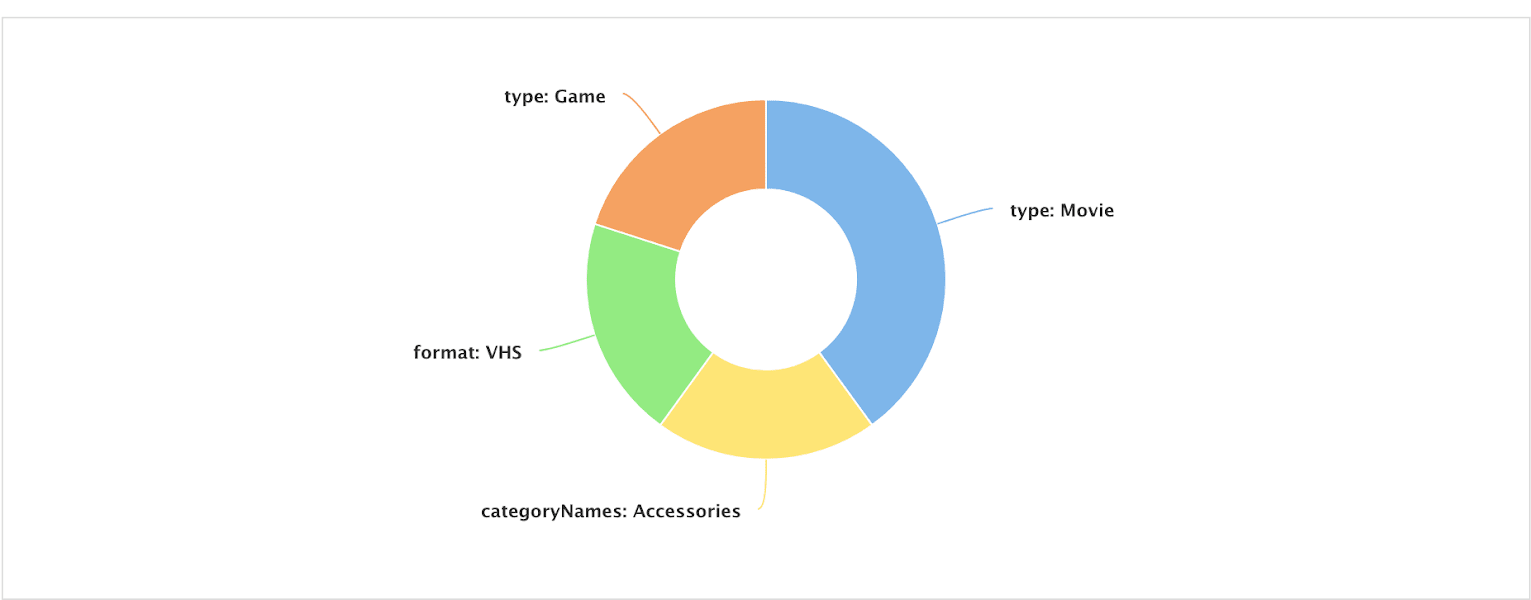
The
query_id field should not be confused with the fusion_query_id, which is a unique ID for each query processed by a Fusion query pipeline, or with query_s which is the query string.session, query, and filter fields, then saves it into the query_id field.
The filter field can either be passed in by the search app,
or computed by the SignalFormatterStage (the first stage in the _signals_ingest pipeline) using the raw filter queries. For instance, on a response signal that is generated by a query pipeline, the following fq query params get translated into the multi-valued filter field:
- Raw query parameters:
filters_sfield (created by the SearchLogger component):
filterfield:
filter field to generate various reports.