> ## Documentation Index
> Fetch the complete documentation index at: https://doc.lucidworks.com/llms.txt
> Use this file to discover all available pages before exploring further.
# Compositions
> A composition is the top-level container you build, version, and publish in UI Studio.
A composition contains one or more pages, each with its own URL. You arrange components on each page's canvas, configure them, and publish when ready. UI Studio tracks every save as a new version so you can view the full history of your work.
## The compositions list
The Compositions screen shows all compositions in your environment. Each row displays the composition name and the date and time it was last edited. Click any row to open the composition in the editor.
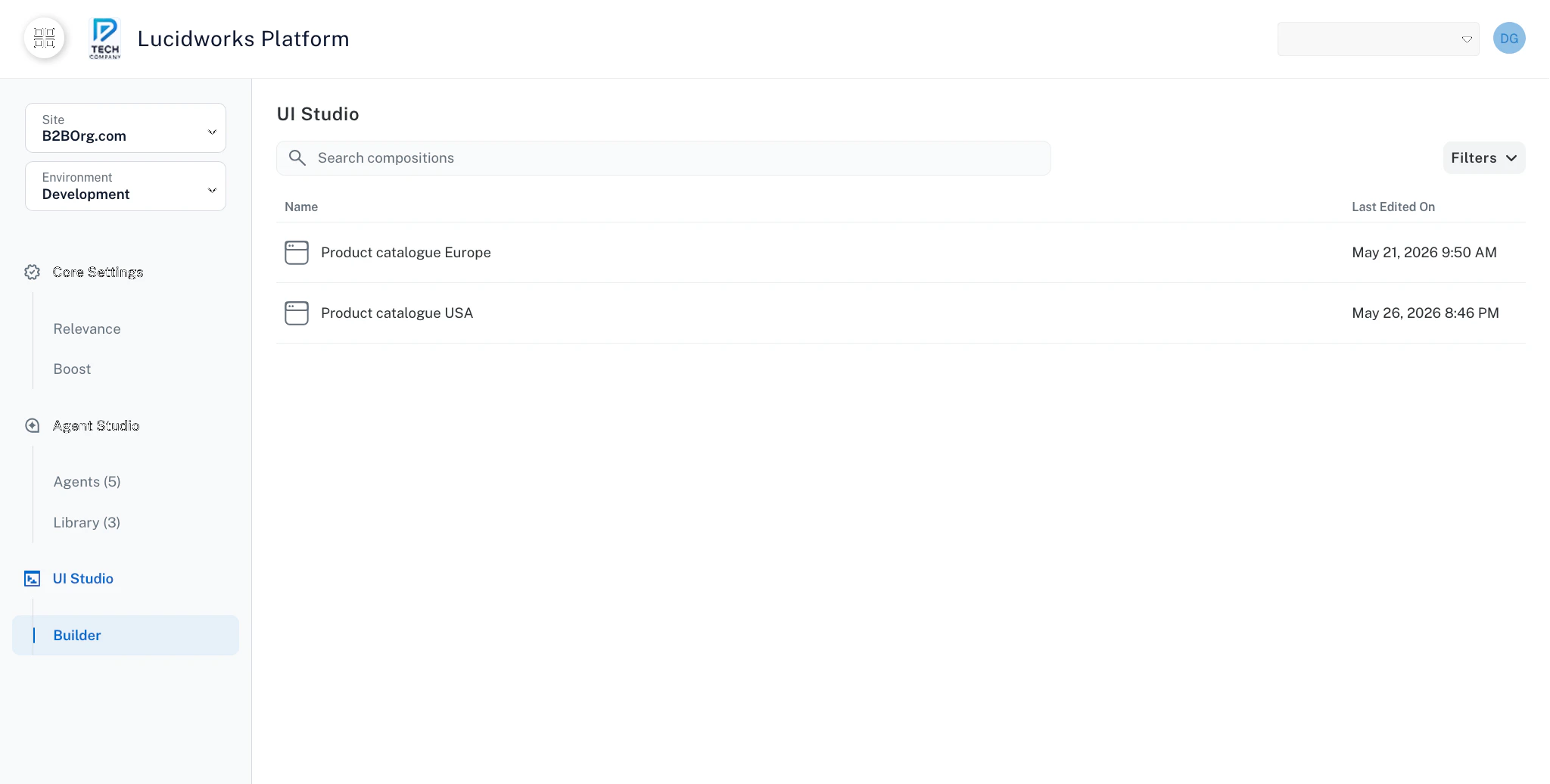 Use the search bar to filter compositions by name or description. Use the **Filters** button to filter by a date range for the Last Edited On column. Click the **Name** or **Last Edited On** column headers to sort the list.
## Build a composition
Navigate to **UI Studio** in the left navigation.
Select a composition from the list.
Compositions are currently created on your behalf by your Lucidworks client team. A self-service composition creation workflow is coming in a near-term product update.
The new composition opens in the editor. Add pages and arrange components on the canvas.
## Manage pages
A composition contains one or more pages. Each page has a name and a URL path. One page is designated as the home page, which loads when a user visits the root of your published composition. Pages can also contain subpages, each with a URL path nested under the parent page's path.
Use the search bar to filter compositions by name or description. Use the **Filters** button to filter by a date range for the Last Edited On column. Click the **Name** or **Last Edited On** column headers to sort the list.
## Build a composition
Navigate to **UI Studio** in the left navigation.
Select a composition from the list.
Compositions are currently created on your behalf by your Lucidworks client team. A self-service composition creation workflow is coming in a near-term product update.
The new composition opens in the editor. Add pages and arrange components on the canvas.
## Manage pages
A composition contains one or more pages. Each page has a name and a URL path. One page is designated as the home page, which loads when a user visits the root of your published composition. Pages can also contain subpages, each with a URL path nested under the parent page's path.
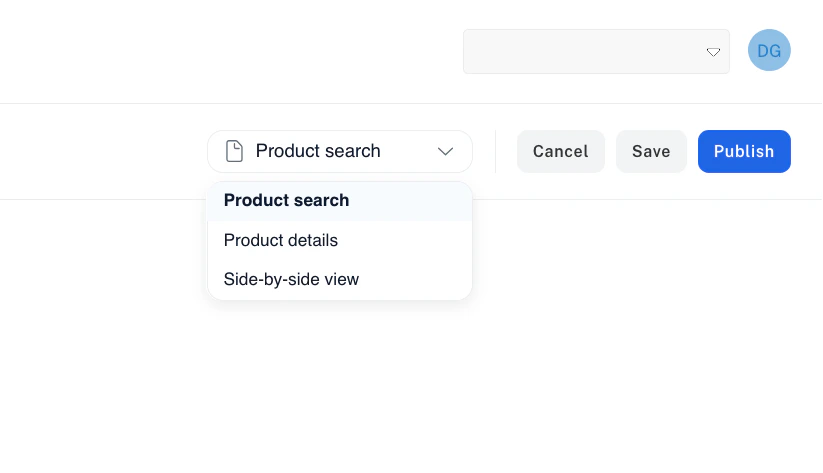 Display name for the page.
URL path for the page, relative to the composition's root URL.
When true, this page loads when a user visits the root of the published composition. Only one page can be the home page.
Optional child pages nested under this page's URL path. Each subpage has the same configuration options as a top-level page.
## Build your composition
Drag components from the left panel onto the canvas to build your page layout. Click any component to select it and configure it in the **Customize** panel. Repeat across pages until your composition is ready, then save your work. The Quickstart walks through this process end to end, and the component documentation covers every configuration option.
Get up and running with your first UI Studio page in minutes.
Browse available components and learn how to configure them.
## Publish a composition
Publishing makes your composition available at a public URL in the format `YOUR_COMPANY.ui.lucidworks.com/COMPOSITION_NAME`.
In the editor toolbar, click **Publish**.
Review and confirm your company name, composition name, and page title, then click **Publish**.
The published URL uses the composition name. To change the URL, update the composition name before publishing.
## Composition settings
Settings apply at the composition level and affect all pages. Access settings from the editor toolbar.
### Branding
Upload a logo and favicon for your composition. These appear in the browser tab and any branded areas of your pages.
Image file displayed in branded areas of your composition.
Icon file displayed in the browser tab.
### Localization
Configure the language, timezone, and date and time format for your composition. These settings affect how dates and times display across all pages.
Language code for the composition, for example, `en-US`.
Timezone for the composition, for example, `America/Los_Angeles`.
Format string for displaying dates and times, for example, `MM/DD/YYYY h:mm A`.
### Authentication
Configure single sign-on (SSO) for your composition using OIDC.
When true, SSO is required to access the composition.
How long, in hours, a user session remains valid.
How many minutes before session expiry a session is eligible for extension.
Identity provider configuration for the OIDC protocol.
Client identifier registered with your identity provider.
Client secret registered with your identity provider.
Base URI of your identity provider.
URI where users are redirected to authenticate.
URI used to exchange authorization codes for tokens.
URI of your identity provider's JSON Web Key Set.
URI used to retrieve user profile information.
URI used to log users out of the identity provider.
OAuth scopes to request from the identity provider, for example, `openid`, `profile`, `email`.
Display name for the page.
URL path for the page, relative to the composition's root URL.
When true, this page loads when a user visits the root of the published composition. Only one page can be the home page.
Optional child pages nested under this page's URL path. Each subpage has the same configuration options as a top-level page.
## Build your composition
Drag components from the left panel onto the canvas to build your page layout. Click any component to select it and configure it in the **Customize** panel. Repeat across pages until your composition is ready, then save your work. The Quickstart walks through this process end to end, and the component documentation covers every configuration option.
Get up and running with your first UI Studio page in minutes.
Browse available components and learn how to configure them.
## Publish a composition
Publishing makes your composition available at a public URL in the format `YOUR_COMPANY.ui.lucidworks.com/COMPOSITION_NAME`.
In the editor toolbar, click **Publish**.
Review and confirm your company name, composition name, and page title, then click **Publish**.
The published URL uses the composition name. To change the URL, update the composition name before publishing.
## Composition settings
Settings apply at the composition level and affect all pages. Access settings from the editor toolbar.
### Branding
Upload a logo and favicon for your composition. These appear in the browser tab and any branded areas of your pages.
Image file displayed in branded areas of your composition.
Icon file displayed in the browser tab.
### Localization
Configure the language, timezone, and date and time format for your composition. These settings affect how dates and times display across all pages.
Language code for the composition, for example, `en-US`.
Timezone for the composition, for example, `America/Los_Angeles`.
Format string for displaying dates and times, for example, `MM/DD/YYYY h:mm A`.
### Authentication
Configure single sign-on (SSO) for your composition using OIDC.
When true, SSO is required to access the composition.
How long, in hours, a user session remains valid.
How many minutes before session expiry a session is eligible for extension.
Identity provider configuration for the OIDC protocol.
Client identifier registered with your identity provider.
Client secret registered with your identity provider.
Base URI of your identity provider.
URI where users are redirected to authenticate.
URI used to exchange authorization codes for tokens.
URI of your identity provider's JSON Web Key Set.
URI used to retrieve user profile information.
URI used to log users out of the identity provider.
OAuth scopes to request from the identity provider, for example, `openid`, `profile`, `email`.