> ## Documentation Index
> Fetch the complete documentation index at: https://doc.lucidworks.com/llms.txt
> Use this file to discover all available pages before exploring further.
# Settings
In Commerce Studio's settings, you can configure what the [Editor](/docs/lw-platform/lw-cs/cstudio-editor) displays for each search profile.
Some of these settings require the names of data fields in Fusion, but you can type to search for the fields you need.
In your site on Lucidworks Platform, navigate to **Commerce Studio** > **Settings** to access these settings.
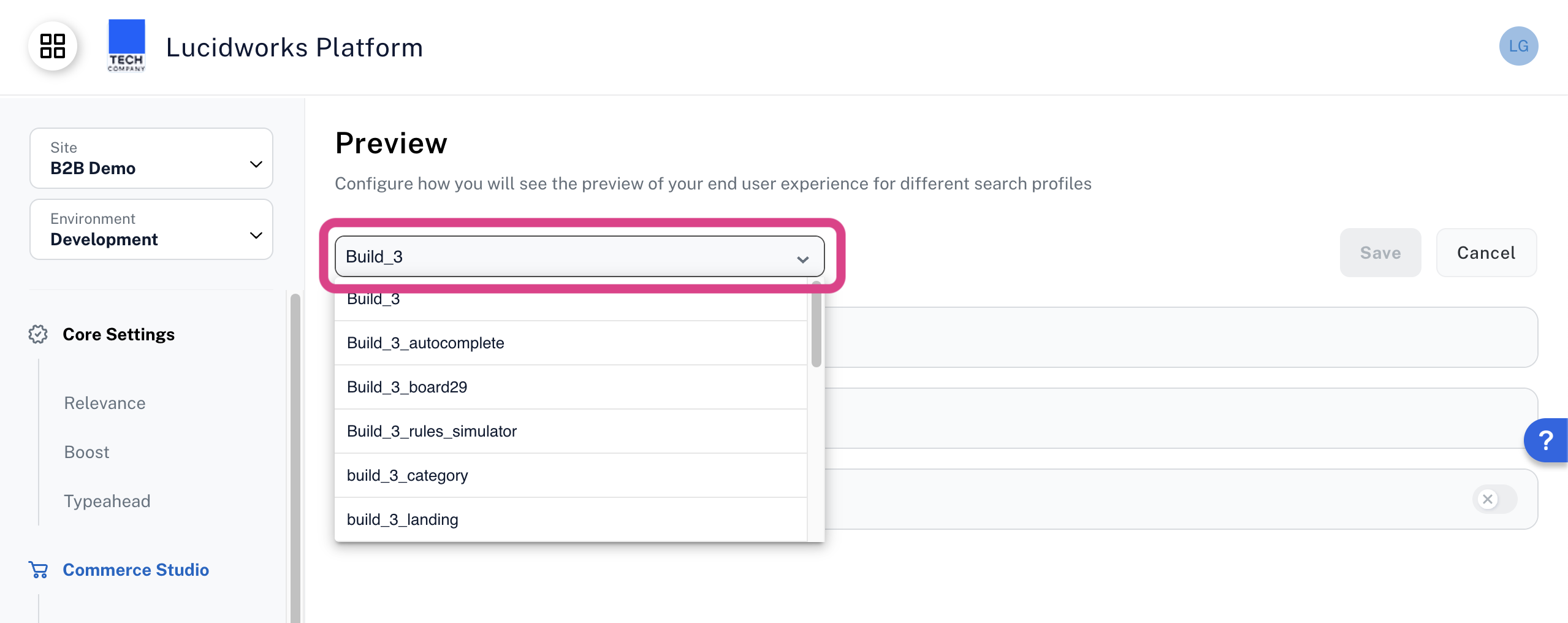
Start by selecting a search profile to configure.
Search profiles represent different predefined search results that you can display on different pages of your customer-facing site, such as new items, seasonal items, sale items, and so on.
You might also have experimental search profiles for testing different configurations.
The configuration you create here determines how the item cards are displayed in the Editor when the same search profile is selected.
 ## Configure Search Results
In the **Search Results** section, you can configure the fields displayed for each result item in the Editor.
Once you configure these settings, you can turn different display fields on or off while you're working in the Editor using its [Preview Settings](/docs/lw-platform/lw-cs/cstudio-editor#configure-the-item-card-display).
## Configure Search Results
In the **Search Results** section, you can configure the fields displayed for each result item in the Editor.
Once you configure these settings, you can turn different display fields on or off while you're working in the Editor using its [Preview Settings](/docs/lw-platform/lw-cs/cstudio-editor#configure-the-item-card-display).
 ### Fields Style
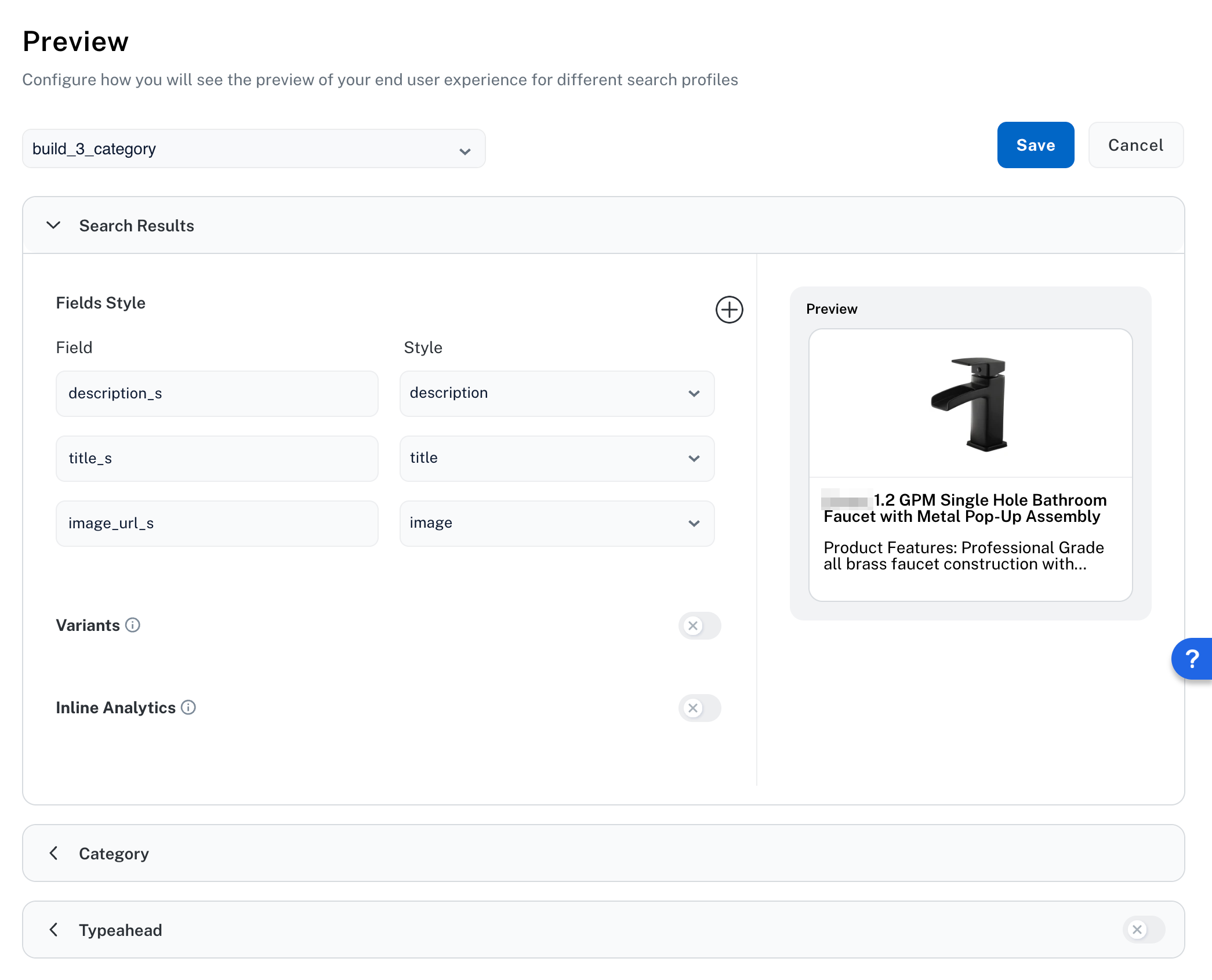
Under **Fields Style**, you can select and format the fields that the preview cards display in the Editor.
* To add a field, click the button.
* To change a field, click the field and type to search for another one.
* To change a field's display style, click the dropdown and select the style that best matches the field's data type.
### Variants
When you enable Variants, you can select the fields that contain data about different variants of your products. To enable product grouping in Commerce Studio, follow the procedure for your configuration.
If you are using Core Settings, enable product grouping in the Lucidworks Platform UI.
Go to **Core Settings** > **Relevance** and turn on **Product Grouping**:
### Fields Style
Under **Fields Style**, you can select and format the fields that the preview cards display in the Editor.
* To add a field, click the button.
* To change a field, click the field and type to search for another one.
* To change a field's display style, click the dropdown and select the style that best matches the field's data type.
### Variants
When you enable Variants, you can select the fields that contain data about different variants of your products. To enable product grouping in Commerce Studio, follow the procedure for your configuration.
If you are using Core Settings, enable product grouping in the Lucidworks Platform UI.
Go to **Core Settings** > **Relevance** and turn on **Product Grouping**:
 Go to **Commerce Studio** > **Settings** and configure these options:
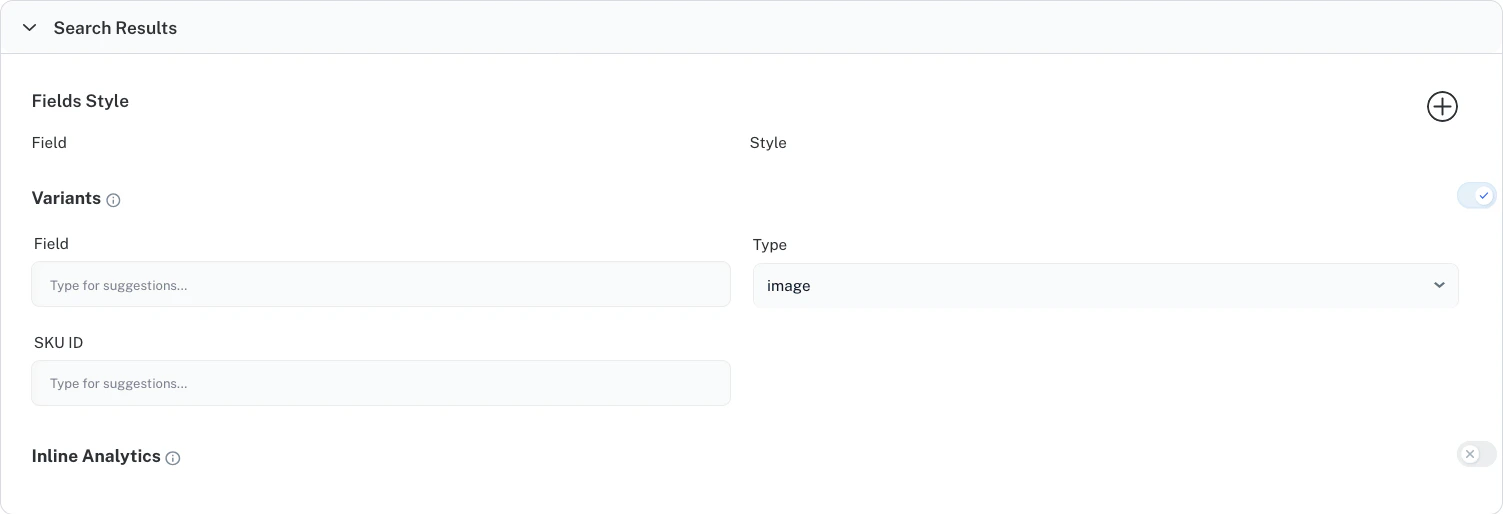 The Fusion field containing visual data (image or color) used for variant swatches on the product card. For visual display purposes only.
Specifies whether the variant field name contains an `image` or `color`, determining which type of swatch Commerce Studio displays. For visual display purposes only.
The field containing IDs of individual products collapsed into a single group in the Editor. This information is used for visual display of variant swatches and for creating rules to rerank products within the group.
Save your changes, then visit the Editor to verify that items are correctly grouped.
If you are using Fusion, configure grouping in your query pipeline. Then, configure grouping in Commerce Studio.
In Fusion, open the query pipeline for which you want to configure grouping.
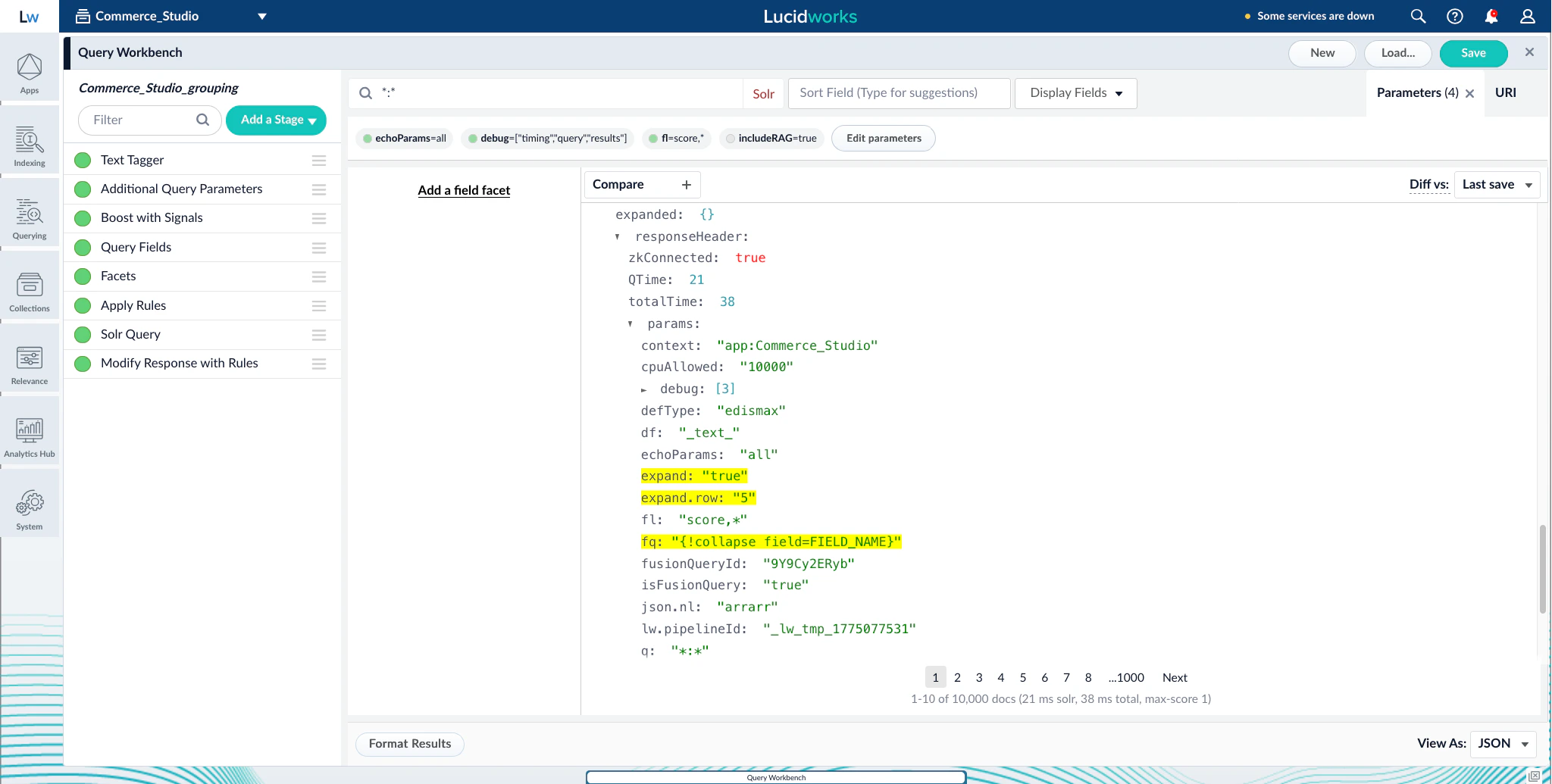
The query profile must pass a `fq`, `expand`, and `expand.rows` query parameters.
1. Add a new **Additional Query Parameters** pipeline stage or edit an existing one.
2. Add the following query parameters:
`fq`
`{!collapse field=FIELD_NAME}`
`default`
`expand`
`true`
`default`
`expand.rows`
The number of variant swatches displayed on each product card in Commerce Studio. For example, `5` displays 5 variant swatches on the product card. All variants are included in the response regardless of this value. This parameter must be set in Fusion or in the same Set Parameter Rule as the collapse parameter.
`default`
3. Save the pipeline stage and pipeline configuration.
4. Verify that your query pipeline passes the query parameters you set up in previous steps. In the query workbench, open the **View As** selector and select JSON. Navigate to `responseHeader.params` in the response.
The Fusion field containing visual data (image or color) used for variant swatches on the product card. For visual display purposes only.
Specifies whether the variant field name contains an `image` or `color`, determining which type of swatch Commerce Studio displays. For visual display purposes only.
The field containing IDs of individual products collapsed into a single group in the Editor. This information is used for visual display of variant swatches and for creating rules to rerank products within the group.
Save your changes, then visit the Editor to verify that items are correctly grouped.
If you are using Fusion, configure grouping in your query pipeline. Then, configure grouping in Commerce Studio.
In Fusion, open the query pipeline for which you want to configure grouping.
The query profile must pass a `fq`, `expand`, and `expand.rows` query parameters.
1. Add a new **Additional Query Parameters** pipeline stage or edit an existing one.
2. Add the following query parameters:
`fq`
`{!collapse field=FIELD_NAME}`
`default`
`expand`
`true`
`default`
`expand.rows`
The number of variant swatches displayed on each product card in Commerce Studio. For example, `5` displays 5 variant swatches on the product card. All variants are included in the response regardless of this value. This parameter must be set in Fusion or in the same Set Parameter Rule as the collapse parameter.
`default`
3. Save the pipeline stage and pipeline configuration.
4. Verify that your query pipeline passes the query parameters you set up in previous steps. In the query workbench, open the **View As** selector and select JSON. Navigate to `responseHeader.params` in the response.
 Setting a parameter requires proper Solr syntax. If you receive errors in Commerce Studio after completing these steps, verify that you set up these parameters correctly.
Go to **Commerce Studio** > **Settings** and configure these options:
The Fusion field containing visual data (image path or color) used for variant swatches on the product card. This information is used for visual display purposes only.
Specifies whether the variant field name contains an `image` or `color`, determining which type of swatch Commerce Studio displays. This information is used for visual display purposes only.
The field containing IDs of individual products collapsed into a single group in the Editor. This information is used for visual display of variant swatches and for creating rules to rerank products within the group.
These configurations determine how products with variants are visualized in the Editor.
Save your changes, then visit the Editor to verify that items are correctly grouped.
For conditional, rule-based grouping that can vary based on queries, categories, or other conditions, see [advanced grouping](/docs/lw-platform/lw-cs/cstudio-rules#advanced-grouping) in the Rules documentation.
### Inline Analytics
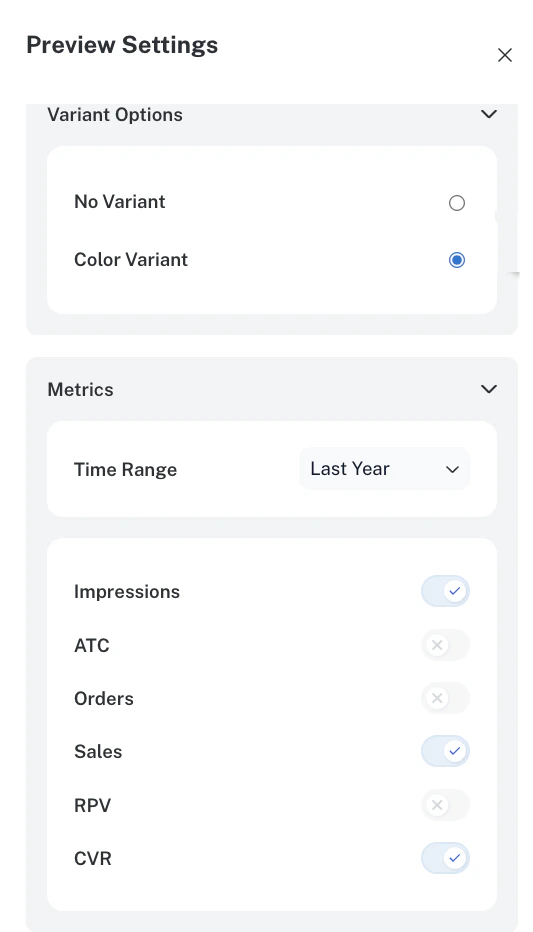
When you configure and use the signals beacon and Analytics Studio to collect and display signal information, you can also enable Inline Analytics, which lets you select the metrics to display in the preview cards, along with the duration reflected by the metrics.
The metrics you can select to display on the product preview cards include Impressions, Add-To-Cart (ATC), Orders, Sales, Revenue Per Visit (RPV), and Conversion Rate (CVR).
Navigate to Inline Analytics, and in the Metrics section, select the options you want to display on all product cards.
Setting a parameter requires proper Solr syntax. If you receive errors in Commerce Studio after completing these steps, verify that you set up these parameters correctly.
Go to **Commerce Studio** > **Settings** and configure these options:
The Fusion field containing visual data (image path or color) used for variant swatches on the product card. This information is used for visual display purposes only.
Specifies whether the variant field name contains an `image` or `color`, determining which type of swatch Commerce Studio displays. This information is used for visual display purposes only.
The field containing IDs of individual products collapsed into a single group in the Editor. This information is used for visual display of variant swatches and for creating rules to rerank products within the group.
These configurations determine how products with variants are visualized in the Editor.
Save your changes, then visit the Editor to verify that items are correctly grouped.
For conditional, rule-based grouping that can vary based on queries, categories, or other conditions, see [advanced grouping](/docs/lw-platform/lw-cs/cstudio-rules#advanced-grouping) in the Rules documentation.
### Inline Analytics
When you configure and use the signals beacon and Analytics Studio to collect and display signal information, you can also enable Inline Analytics, which lets you select the metrics to display in the preview cards, along with the duration reflected by the metrics.
The metrics you can select to display on the product preview cards include Impressions, Add-To-Cart (ATC), Orders, Sales, Revenue Per Visit (RPV), and Conversion Rate (CVR).
Navigate to Inline Analytics, and in the Metrics section, select the options you want to display on all product cards.
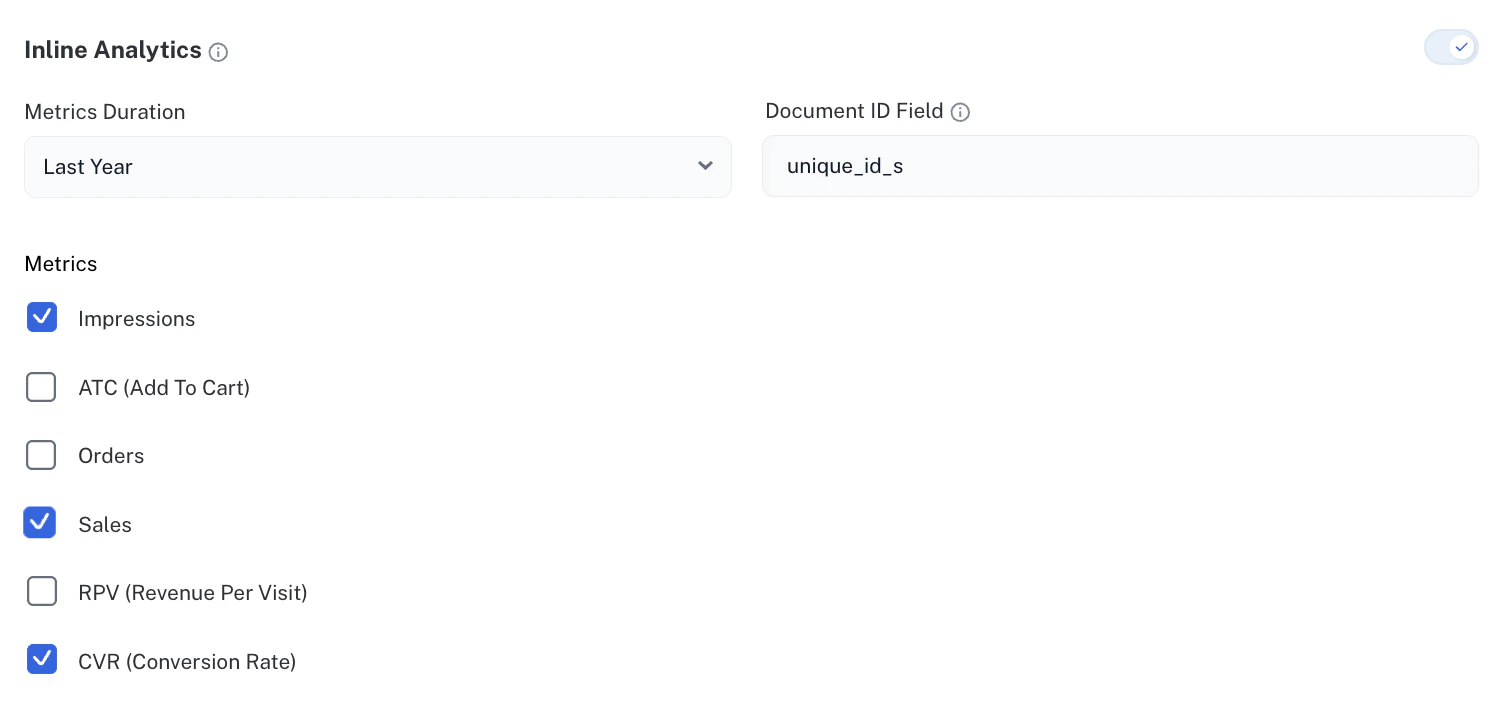 The product card displays the metrics for each specific product in Commerce Studio Editor.
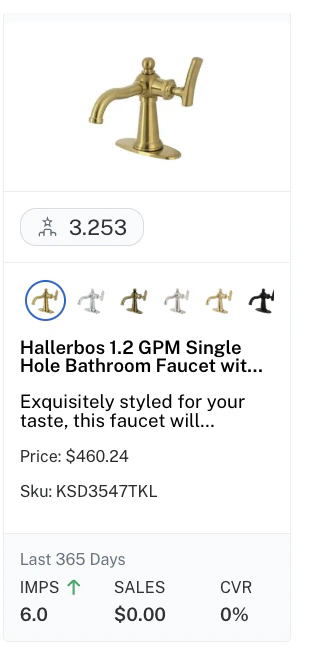 The Preview Settings panel in Commerce Studio Editor lets you toggle the metrics on or off to display on result cards. You can select up to three metrics at a time.
 ## Configure categories
In the Editor, you can create and manage rules that apply within specific categories of items in your catalog.
To enable category-level search optimization in the Editor, you need to set the category field here.
Type to search for the data field that contains your site's categories, such as `category_s`.
When you select a field, this section displays example values found in that field so you can verify that the field you selected contains the data you need.
## Configure categories
In the Editor, you can create and manage rules that apply within specific categories of items in your catalog.
To enable category-level search optimization in the Editor, you need to set the category field here.
Type to search for the data field that contains your site's categories, such as `category_s`.
When you select a field, this section displays example values found in that field so you can verify that the field you selected contains the data you need.
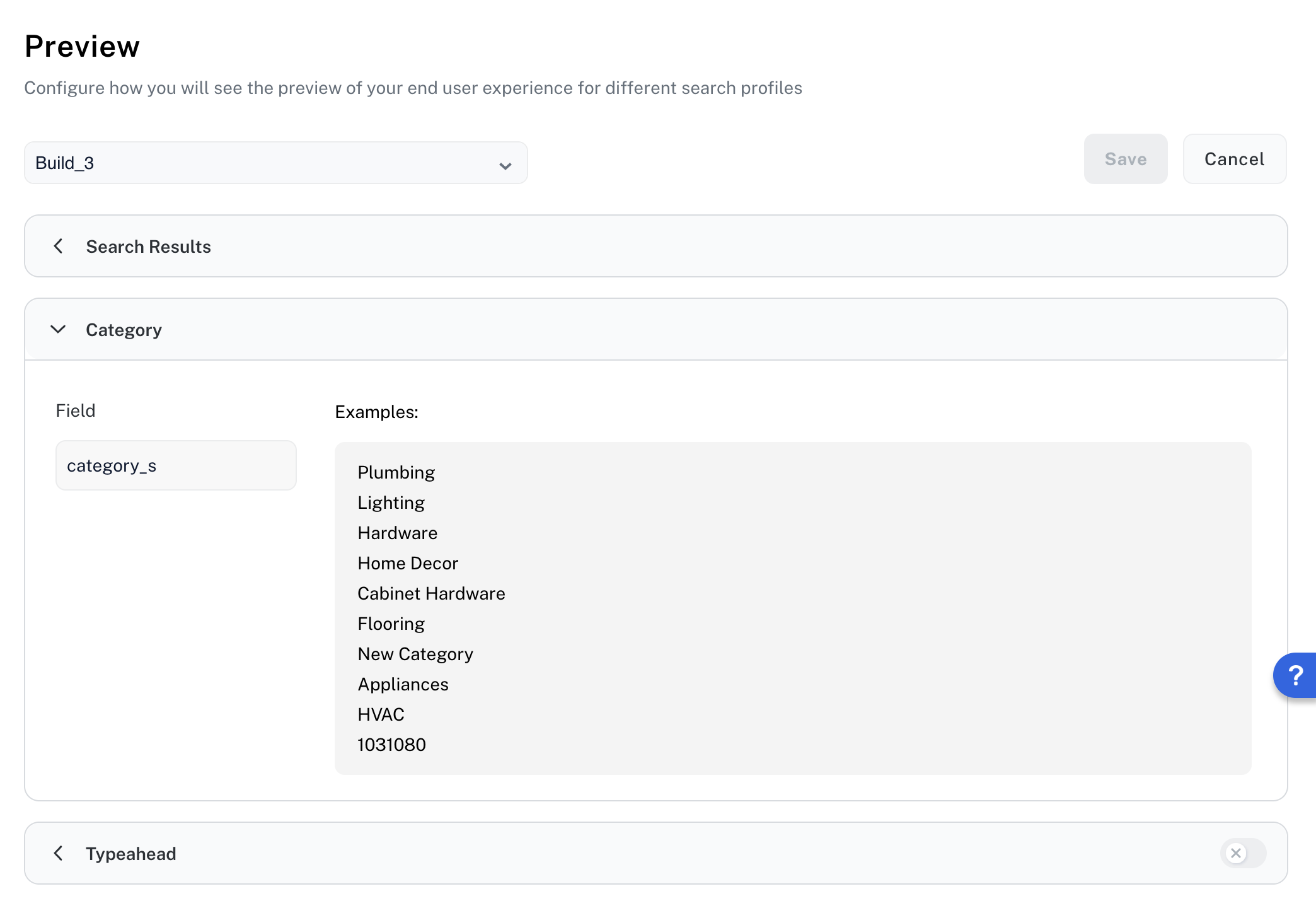 Once you've selected the category field here, you can [use category conditions](/docs/lw-platform/lw-cs/cstudio-editor#use-category-conditions) in the Editor to access the available categories and optimize the results for each one.
## Configure typeahead
Typeahead, also known as autocomplete or autosuggest, is a feature that provides real-time query and phrase suggestions as you type in the Editor's search bar.
In the Typeahead section, you can configure the fields to use for typeahead for this search profile.
Once you've selected the category field here, you can [use category conditions](/docs/lw-platform/lw-cs/cstudio-editor#use-category-conditions) in the Editor to access the available categories and optimize the results for each one.
## Configure typeahead
Typeahead, also known as autocomplete or autosuggest, is a feature that provides real-time query and phrase suggestions as you type in the Editor's search bar.
In the Typeahead section, you can configure the fields to use for typeahead for this search profile.
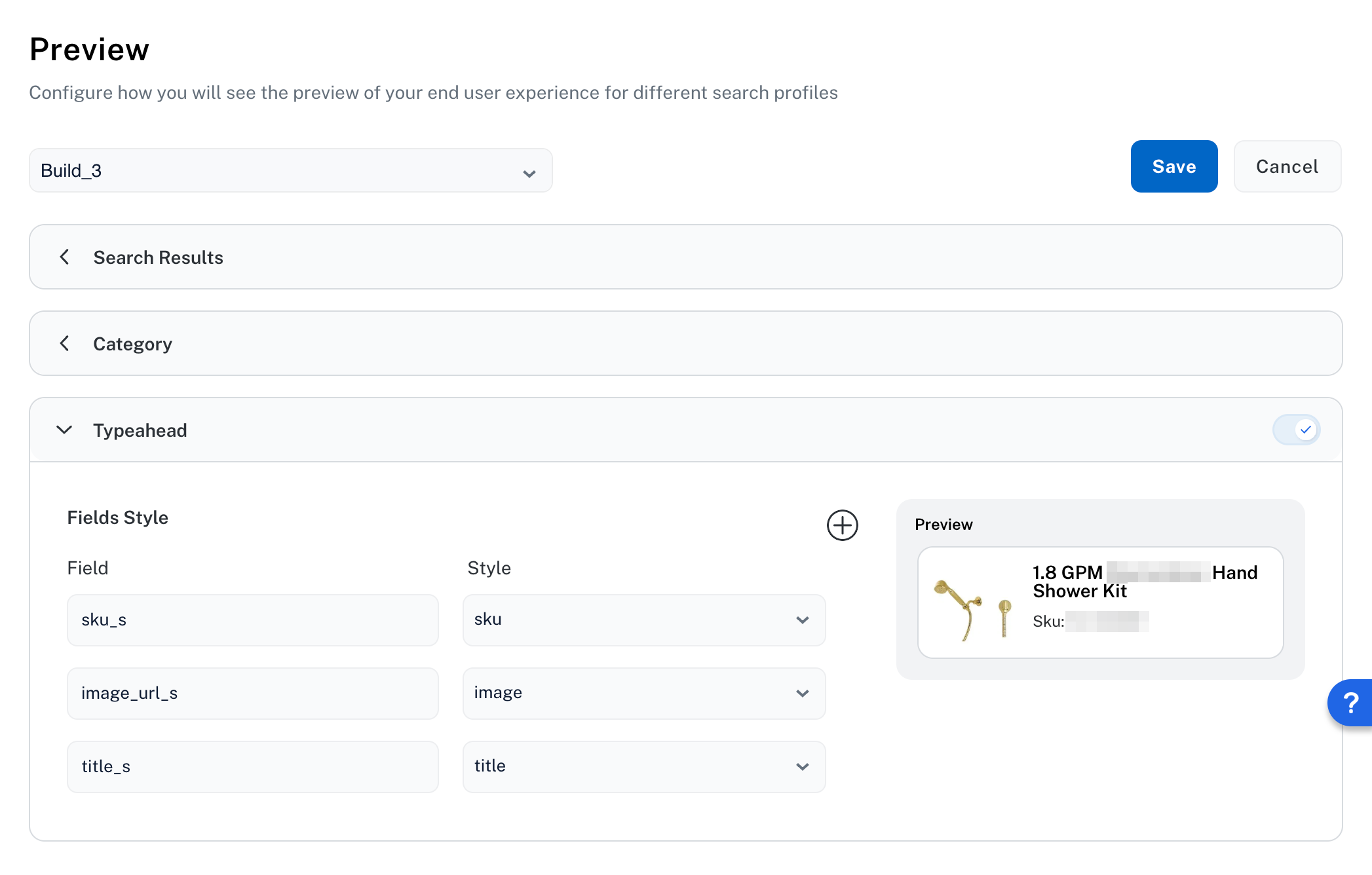 * To add a field, click the button.
* To change a field, click the field and type to search for another one.
* To change a field's display style, click the dropdown and select the style that best matches the field's data type.
The Commerce Studio Settings Typeahead feature is for internal use in Commerce Studio. This is different than the [Lucidworks Platform Core Settings Typeahead feature](/docs/lw-platform/lw-core/sites-typeahead), which is where typeahead options for customer queries is configured.
* To add a field, click the button.
* To change a field, click the field and type to search for another one.
* To change a field's display style, click the dropdown and select the style that best matches the field's data type.
The Commerce Studio Settings Typeahead feature is for internal use in Commerce Studio. This is different than the [Lucidworks Platform Core Settings Typeahead feature](/docs/lw-platform/lw-core/sites-typeahead), which is where typeahead options for customer queries is configured.