> ## Documentation Index
> Fetch the complete documentation index at: https://doc.lucidworks.com/llms.txt
> Use this file to discover all available pages before exploring further.
# Rules
export const LwTemplate = ({title = "Key questions to get you started", icon = "sparkles", cta = "Powered by Agent Studio", linkHref = "https://lucidworks.com/demo/?utm_source=docs&utm_medium=referral&utm_campaign=docs_cta_ai"}) => {
const [isLoaded, setIsLoaded] = useState(false);
useEffect(() => {
const timer = setTimeout(() => {
setIsLoaded(true);
}, 500);
return () => clearTimeout(timer);
}, []);
return
{isLoaded && `
}} />}
Powered by Lucidworks Agent Studio
;
};
Rules affect the order in which products appear in your search results.
Rules let you pin, boost, bury, and block specific items in your catalog.
You can also use rules to display custom banners, redirect customers to a different page on your site, set facets, and more.
Learn how to use every rule type in Commerce Studio to improve search results and merchandising. This course provides detailed guidance on boost, pin, bury, block, facets, banners, redirects, and advanced configurations.
Click your organization type to see examples of how to use rules to benefit your business goals:
B2C organizations use rules to promote the following to achieve business goals:
* Products for marketing campaigns
* New product launches
* Products with inventory levels the organization wants to reduce
* Any other business objective, such as increasing conversions
For example, a boost rule could be applied to promote summer sandals and clothing for an end-of-summer promotion.
B2B organizations use rules to promote the most relevant items, services, and documents based on customer queries, and provide similar products and specifications based on customer intent. For example, if your organization sells computer memory components to distributors, the results include installation instructions and specifications that distributors can confirm and provide to their customers.
Knowledge management organizations use rules to retrieve and display the most relevant documents based on user queries. For example, an organization that provides scientific study results for medication clinical trials may pin the most recent results, while burying results for previous studies.
## Rules vs. query rewrites
Both rules and query rewrites can be configured to help return the best search results to your users.
Query rewrites allow you to alter and interpret search terms in multiple ways so relevant results are delivered.
Rules changes the order in which search results are displayed, allowing you to promote certain items over others.
Although query rewrites are configured in the [Rewrites](/docs/lw-platform/lw-cs/cstudio-query-rewrite) screen, you will see the effects of those rules on the Editor screen.
## How rules work
Rules contain [conditions](#conditions) and [actions](#actions).
When a condition or a combination of conditions is met, the rule performs an action.
## Conditions
You can trigger rules on a single condition or a combination of conditions.
The date and time range for the rule. Click the field to select a date and time, or enter manually. For example, `05/15/2026 12:00`.
The field value to which the rule applies. For example, you can specify the `Color` field and set it to `Color: Black`. and multiple values for a given field to create more specific rules. For example, if you set the `Color` field to `Color: Black` and specify the `Brand` field to include multiple brands, then the rule triggers only if the Color and Brand field conditions are satisfied.
The query that triggers the rule. You must select a **Query Matching Method** to determine when a rule triggers.
* **is**: The search query must match the defined term exactly. For example, if the rule is set to "\[is] black shoes", it only triggers when the user search is exactly "black shoes."
* **contains**: The search query must include one or more of the defined terms anywhere within the query. Each word is evaluated independently. For example, if the rule is set to "\[contains] black shoes", it triggers for any query containing "black" (such as "black boots") and any query containing "shoes" (such as "running shoes"). The words do not need to appear together or in a specific order.
* **contains phrase**: The search query must include the defined phrase in the exact word order entered. For example, if the rule is set to "\[contains phrase] black shoes", it triggers for "black shoes" or "men's black shoes," but not for "shoes black" or "black running shoes."
* **starts with**: The search query must begin with the defined word or phrase. For example, if the rule is set to "\[starts with] winter", it triggers for "winter jackets" or "winter boots," but not for "jackets for winter." Multi-word phrases respect word order, so "\[starts with] winter jackets" triggers for "winter jackets sale" but not for "jackets winter sale."
* **ends with**: The search query must end with the defined word or phrase. For example, if the rule is set to "\[ends with] manual", it triggers for "installation manual" or "product manual," but not for "manual installation guide." Multi-word phrases respect word order, so "\[ends with] near me" triggers for "pizza near me" but not for "near pizza me."
Trigger this rule on a specified query profile. This value must match an existing Fusion query profile, which points to a specific configuration.
You must select a **Query Matching Method** to determine when a rule triggers:
* **is**: The search query must match the defined term exactly. For example, if the rule is set to "\[is] black shoes", it only triggers when the user search is exactly "black shoes".
* **contains**: The search query must include one or more of the defined terms anywhere within the query. Each word is evaluated independently. For example, if the rule is set to "\[contains] black shoes", it triggers for any query containing "black" (such as "black boots") and any query containing "shoes" (such as "running shoes"). The words do not need to appear together or in a specific order.
* **contains phrase**: The search query must include the defined phrase in the exact word order entered. For example, if the rule is set to "\[contains phrase] black shoes", it triggers for "black shoes" or "mens black shoes," but not for "shoes black" or "black running shoes".
* **starts with**: The search query must begin with the defined word or phrase. For example, if the rule is set to "\[starts with] winter", it triggers for "winter jackets" or "winter boots," but not for "jackets for winter". Multi-word phrases respect word order, so "\[starts with] winter jackets" triggers for "winter jackets sale" but not for "jackets winter sale".
* **ends with**: The search query must end with the defined word or phrase. For example, if the rule is set to "\[ends with] manual", it triggers for "installation manual" or "product manual," but not for "manual installation guide". Multi-word phrases respect word order, so "\[ends with] near me" triggers for "pizza near me" but not for "near pizza me".
## Actions
You can only apply one action per rule. Commerce Studio alerts you if you create multiple rules with conflicting actions. For example, a conflict occurs if you create rules that boost, block, and bury the same item.
### Rerank
#### Boost
Increases the ranking of one or more products so they move up in the search results.
##### Boost by attributes
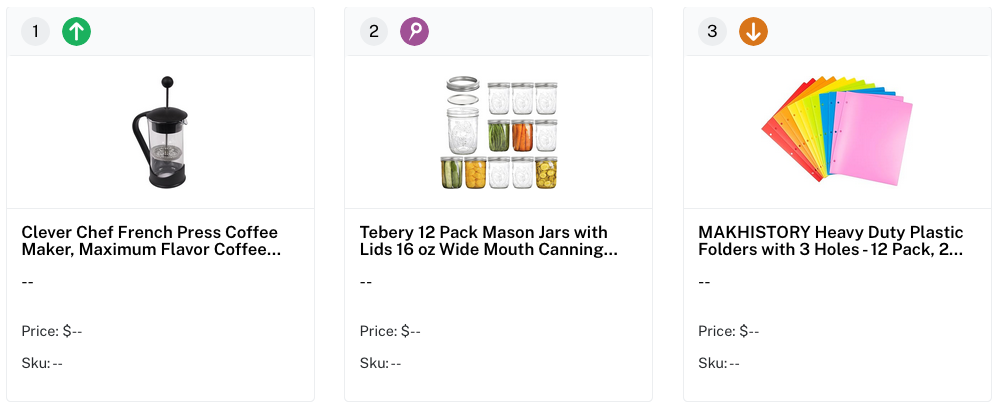
Boosts items matching on selected attributes up in the search results based on the weight of the slider selection. This is the recommended type of boost because it adapts to changing catalogs and reflects a broader merchandising strategy.
You can boost items based on multiple attributes, including multiple values in one category.
* **Within a single attribute**: When you select multiple values for one attribute (for example, `Color: Black, Gray`), items matching any of those values are included using **OR logic**, so items matching either Black or Gray are boosted.
* **Across multiple attributes**: You can combine different attribute categories using **AND logic** for more granular targeting. For example, if you set `Color: Black, Gray` AND `Count: 40, 50`, the rule boosts only black or gray items that come in packs of 40 or 50. Items must match at least one value from each attribute category.
Existing attribute rules continue to use OR logic between attributes, ensuring backward compatibility for older rules.
This rule type also supports these comparison operators for numerical fields:
* **Equals** matches the specified value exactly (text or numeric).
* **Greater than** matches numeric values greater than the specified number.
* **Less than** matches numeric values less than the specified number.
* **Greater than or equal to** matches numeric values greater than or equal to the specified number.
* **Less than or equal to** matches numeric values less than or equal to the specified number.
* **Between** matches numeric values within the specified range (inclusive).
* **Not equal to** excludes values that match the specified value exactly.
Numeric comparison operators and boosting by AND attributes require Fusion 5.17.1 or later.
##### Boost items
Boosts specific items to the top of the results. These items must be identified individually. This approach is more precise but less flexible than boost by attributes.
#### Pin items
Pins products to an exact location within search results. This allows precise control over product placement. For example, you can ensure certain products always appear next to each other.
Another example is that you can pin a product to a specific position that reliably appears on page 2 after pagination. This capability requires the applicable Fusion patch to be installed. For more information, contact your Lucidworks support representative.
#### Bury
Moves selected items to the bottom of search results. Unlike the Block action, products are not removed entirely from the search results.
##### Bury by attributes
Buries items matching on selected attributes lower in the search results based on the weight of the slider selection. This is the recommended type of bury for the same reasons as boost by attributes.
For example, you can use this to de-emphasize a particular brand in your results without removing it entirely.
You can bury items based on multiple attributes, including multiple values in one category.
* **Within a single attribute**: When you select multiple values for one attribute (for example, `Color: Black, Gray`), items matching any of those values are included using **OR logic**, so items matching either Black or Gray are buried.
* **Across multiple attributes**: You can combine different attribute categories using **AND logic** for more granular targeting. For example, if you set `Color: Black, Gray` AND `Count: 40, 50`, the rule buries only black or gray items that come in packs of 40 or 50. Items must match at least one value from each attribute category.
Existing attribute rules continue to use OR logic between attributes, ensuring backward compatibility for older rules.
This rule type also supports these comparison operators for numerical fields:
* **Equals** matches the specified value exactly (text or numeric).
* **Greater than** matches numeric values greater than the specified number.
* **Less than** matches numeric values less than the specified number.
* **Greater than or equal to** matches numeric values greater than or equal to the specified number.
* **Less than or equal to** matches numeric values less than or equal to the specified number.
* **Between** matches numeric values within the specified range (inclusive).
* **Not equal to** excludes values that match the specified value exactly.
Numeric comparison operators and burying by AND attributes require Fusion 5.17.1 or later.
##### Bury items
Buries specific items to the bottom of the results. These items must be identified individually.
Like boost items, this approach is more precise but less flexible than bury by attributes.
#### Block
Removes selected items from search results entirely. Blocked items don't appear for matching searches.
##### Block by attributes
Applies block based on selected attributes. Products matching the specified attributes are completely removed from search results.
You can block items based on multiple attributes, including multiple values in one category.
* **Within a single attribute**: When you select multiple values for one attribute (for example, `Color: Black, Gray`), items matching any of those values are included using **OR logic**, so items matching either Black or Gray are blocked.
* **Across multiple attributes**: You can combine different attribute categories using **AND logic** for more granular targeting. For example, if you set `Color: Black, Gray` AND `Count: 40, 50`, the rule blocks only black or gray items that come in packs of 40 or 50. Items must match at least one value from each attribute category.
Existing attribute rules continue to use OR logic between attributes, ensuring backward compatibility for older rules.
This rule type also supports these comparison operators for numerical fields:
* **Equals** matches the specified value exactly (text or numeric).
* **Greater than** matches numeric values greater than the specified number.
* **Less than** matches numeric values less than the specified number.
* **Greater than or equal to** matches numeric values greater than or equal to the specified number.
* **Less than or equal to** matches numeric values less than or equal to the specified number.
* **Between** matches numeric values within the specified range (inclusive).
* **Not equal to** excludes values that match the specified value exactly.
Numeric comparison operators and blocking by AND attributes require Fusion 5.17.1 or later.
##### Block items
Applies block to specific products that must be identified individually. These products will be completely removed from search results.
### Facets
#### Manage facets
Customizes which facet categories appear in the query response, their display order, and their individual configuration settings. For example, if your site sells clothing, you can configure facet categories for brand, color, price, size, and other attributes.
Each facet category can be extensively customized to control how values are displayed and how users interact with them.
Specifies how facet values are generated. **Term** generates discrete values like brand names or colors. **Gap Range** generates numeric ranges like price brackets or size ranges.
Controls how users can select facet values. **Single-select** allows users to choose only one value at a time. **Multi-select** allows users to choose multiple values simultaneously.
Determines how facet values are sorted. **Index** sorts values in alphabetical or numeric order. **Count** sorts values by the number of matching products.
Sets the minimum number of matching products required for a facet value to be displayed. Values with fewer matches will be hidden from the facet list.
Promotes specific facet values higher in the list, making them appear more prominently to users.
Moves specific facet values lower in the list, de-emphasizing them without removing them entirely.
Removes specific facet values from display entirely, preventing them from appearing in the facet list.
### Advanced
#### Add banner
Associates an image URL with a search rule and includes it in the search results JSON response. You can specify the image URL and optionally define a page zone identifier. Your frontend application can then consume this data to dynamically display promotional banners or images alongside the corresponding search results.
The URL of the image to display as a banner.
An identifier specifying which zone or area of the page the banner should appear in.
```json theme={"dark"}
"banner": [{
"url": "https://example.com/assets/holiday-banner.png",
"zone": "top-wide"
}]
```
#### Filter items
Applies [filter queries](https://solr.apache.org/guide/common-query-parameters.html) (`fq`) to the query and changes the results so a pre-selected set of content displays.
#### Set JSON configuration
Allows you to define a custom JSON blob that will be included in the search results response. You can input any valid JSON structure, which your frontend application can then interpret and use for custom functionality. This provides flexibility to pass arbitrary data alongside search results for frontend consumption.
An optional identifier used primarily for categorizing or identifying the blob.
The custom JSON blob to include in the search results response.
```json theme={"dark"}
"jsonBlob": {
"example-blob": [{
"event": "Black Friday Sale 2026",
"startDate": "11/27/2026 00:00",
"endDate": "11/27/2026 23:59",
"description": "Our biggest sale of the year! Save up to 70% on select items during our Black Friday event.",
"banner": {
"url": "https://example.com/assets/black-friday-2026-banner.png",
"zone": "top-wide"
},
"promotionCode": "BF2026"
}]
},
```
#### Redirect
Includes a redirect URL in the search results JSON response. Your frontend application can consume this data to redirect users to a specific destination, such as dedicated landing pages or custom pages for queries that return zero results.
The URL or path to redirect users to.
```json theme={"dark"}
"redirect": ["https://example.com/new-location"]
```
#### Set response value
Sends an arbitrary value to the frontend or pipeline to trigger another action. This action can be combined with other actions within the same rule. For example, an e-commerce website may use the response value action to display an advertisement.
#### Set parameters
Sets a [parameter name and value](https://solr.apache.org/guide/solr/latest/query-guide/common-query-parameters.html) to a search query. For example, the sort order for the results, or a filter that affects results.
## Advanced Grouping
Advanced grouping is a conditional, rule-based approach to product [variant grouping](/docs/lw-platform/lw-cs/cstudio-settings#variants) that enables different grouping behaviors based on rules.
You can implement advanced grouping using the Set Parameters rule type.
When you create a Set Parameters rule that includes the required grouping parameters, Commerce Studio automatically detects and enables grouping for queries where the rule conditions are met. This conditional behavior means grouping can activate for some searches but not others, based on your rule configuration.
Advanced grouping enables scenarios like these:
* Apply color-based grouping for apparel queries but ID-based grouping for electronics
* Group by size for furniture searches but by style for home decor
* Enable grouping only for specific categories or query types
* Switch grouping fields based on seasonal campaigns or promotions
### Enable advanced grouping
To enable advanced grouping, your Set Parameters rule must include the following:
Controls how many variants to display per group.
Must be set to `true` to enable expansion.
Contains the Solr `collapse` syntax that defines the grouping field.
Here's an example of the syntax for the `fq` parameter:
```
{!collapse tag=collapse field=FIELD_NAME nullPolicy=expand}
```
It includes the following parameters:
This must be set to `collapse`.
The field to group by (for example, `id`, `color_s`, `product_family_s`).
Determines behavior for items without a value in the grouping field (typically `expand`).
### Example configurations
These example configurations illustrate how to configure advanced grouping for different scenarios:
```
{!collapse tag=collapse field=id nullPolicy=expand}
```
```
{!collapse tag=collapse field=color_s nullPolicy=expand}
```
```
{!collapse tag=collapse field=Collapse_Field_s nullPolicy=expand}
```
## Create rules
Commerce Studio offers two ways to create rules: the Visual Builder and the Form Builder.
### Visual Builder
The Visual Builder lets you create rules while previewing live search results in the [Editor](/docs/lw-platform/lw-cs/cstudio-editor). Use this approach when you want to see how a rule affects item ranking in context as you configure it.
More information about creating rules in the Editor, including options to create rules for individual items, is in the [Commerce Studio Editor](/docs/lw-platform/lw-cs/cstudio-editor) topic.
### Form Builder
The Form Builder lets you create rules directly on the Rules screen without the live preview. Use this approach when you know exactly what rule you want to create and do not need to see the search results in context.
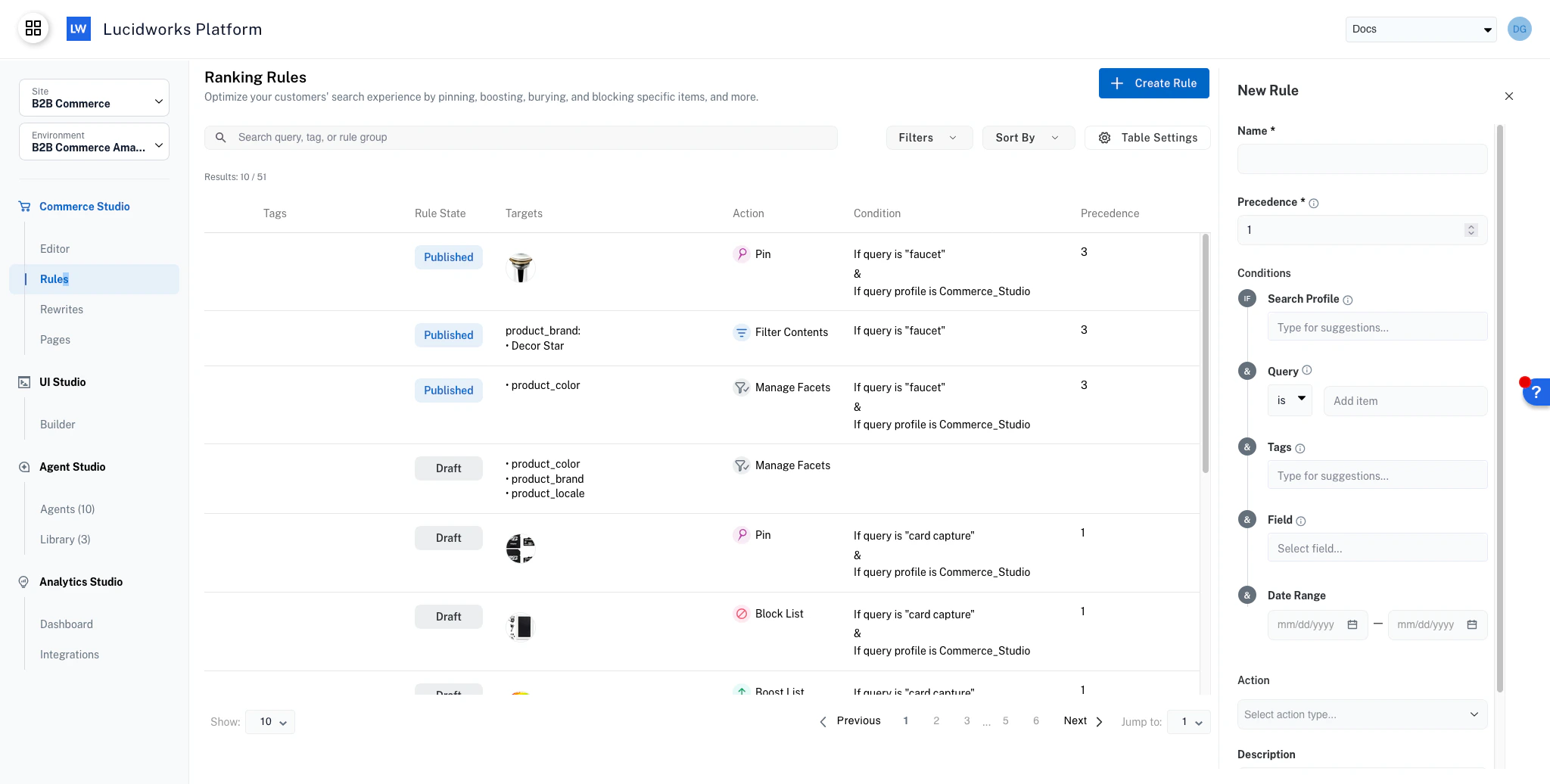
To create a rule using the Form Builder:
On the Rules screen, click **Create Rule** and select **Form Builder**.
Configure the rule fields in the panel that appears.
A name for the rule. You can edit this at any time.
Determines the order in which rules are applied when multiple rules match the same conditions. Lower numbers take higher priority.
The conditions that trigger the rule. These correspond to the condition types described in [Conditions](#conditions).
The action the rule performs when its conditions are met. Select an action type from the dropdown. The form updates to show the configuration fields for that action type. For details on each action type, see [Actions](#actions).
Optional text describing the purpose of the rule.
Click **Save as Draft** to save the rule without publishing it, or click **Publish** to make it immediately active on your site.
To edit a rule that is already published, see [Edit a published rule](#edit-a-published-rule).
## Manage rules
The Rules screen lists all rules in your Commerce Studio instance and is where you publish, edit, filter, and perform bulk actions on them.
### Rule states
Each rule on the Rules screen is in one of the following states:
* **Published.** The rule is active on your site.
* **Draft.** The rule is saved but is not active on your site.
* **Published with draft edits.** A published rule has unpublished edits saved as a draft. The published version remains active on your site, and the draft appears as a second row beneath it so you can see and act on both.
### Edit a published rule
When you edit a published rule, the published version continues to serve your site until you explicitly publish the changes. Your edits are shown in the Editor as a draft so you can preview their impact without affecting customers.
When you finish editing, click **Publish** to replace the published version with your edits and apply them to your site immediately. Alternatively, click **Save as Draft** to save your edits as a draft attached to the published rule. The published version remains live, and the draft appears beneath it on the Rules screen.
A published rule can have only one draft edit at a time. If a draft already exists, opening the rule for editing adds to the existing draft.
### Manage a published rule with draft edits
When a published rule has draft edits, both versions appear as two rows on the Rules screen. The actions available depend on which row you act on.
On the **published row**:
* **Edit** is disabled. Edits must be made to the draft version.
* **Delete** removes both the published rule and the draft edits.
* **Duplicate** is disabled. The draft edits must be published or deleted before the rule can be duplicated.
* **Unpublish** unpublishes the rule and deletes the draft edits.
On the **draft row**:
* **Edit** opens the draft for further editing.
* **Delete** discards the draft and restores the rule to the published version.
* **Publish** replaces the published version with the draft and applies it to your site.
### Bulk actions
When you select multiple rules from the Rules screen, the bulk action you apply affects the published rule, the draft, or both, depending on the action.
For bulk operations that modify rules, you can choose to publish the changes immediately or save them as drafts attached to the affected rules.
## Examples to improve search results using rules
Commerce Studio allows you to apply targeted actions when a search query contains specific terms. These actions do not require code changes and support the following business goals to:
* Improve relevance
* Guide users to the content they are seeking
This section provides examples of how to use rules to improve search results.
B2B and B2C organizations can use rules to improve product discovery and merchandising outcomes by performing the following actions. These examples describe some actions for a bookstore website.
* **Promote high-priority products.** Boost books from a popular series so they appear higher in search results when users search by author name.
* **Remove outdated or unavailable items.** Block discontinued titles to ensure only relevant, purchasable books appear in results.
* **Highlight specific products.** Boost selected new or overstocked titles to increase visibility and drive sales.
* **Refine results by intent.** Filter results to show only children’s and young adult books when users search for children’s content.
* **Improve ranking within related groups.** Boost items within a series so the most popular titles appear first when users search for that series.
* **Target branded searches.** Use "\[starts with]" to boost promotional campaigns when users begin their query with a specific brand name, without affecting queries where the brand appears later in the query.
* **Support location-based queries.** Use "\[ends with] near me" to apply location-specific filtering or boosting logic for geo-modified searches.
* **Manage available facets.** Display genre facets on the homepage and top author facets on search results pages to help users refine results.
* **Apply advanced configurations.** Use a `Set Banner` rule to display a promotional banner when users search for mystery titles.
B2B, B2C, and Knowledge management organizations can use rules to improve user search experiences for documents on their site by performing the following actions.
For example, organizations could set rules to enhance the discovery of internal policies and procedures for employees, and different rules for searches about external, customer-facing policies, procedures, and product specifications.
These examples describe some actions that can be applied to knowledge and support content to reduce friction and guide users quickly.
* **Surface critical content.** Pin a gift card information document to the top of results for searches including the term, "gift".
* **Guide users to key destinations.** Redirect users to a "Contact Us" page when they search for terms such as "email" or "contact".
* **Target support documentation.** Use "\[ends with] manual" to boost user manuals and product documentation, or use "\[ends with] pdf" to prioritize downloadable resources.
* **De-emphasize outdated content.** Bury notices related to discontinued programs so they appear lower in results.
* **Prioritize important documents.** Redirect to the privacy policy page when a user searches for "privacy policy".
* **Manage grouped content visibility.** Bury older product support documents within a group while pinning new program information to the top for related searches.
 ####
#### 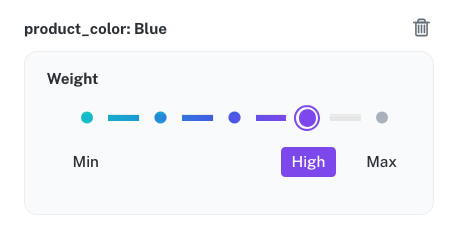 Boosts items matching on selected attributes up in the search results based on the weight of the slider selection. This is the recommended type of boost because it adapts to changing catalogs and reflects a broader merchandising strategy.
You can boost items based on multiple attributes, including multiple values in one category.
* **Within a single attribute**: When you select multiple values for one attribute (for example, `Color: Black, Gray`), items matching any of those values are included using **OR logic**, so items matching either Black or Gray are boosted.
* **Across multiple attributes**: You can combine different attribute categories using **AND logic** for more granular targeting. For example, if you set `Color: Black, Gray` AND `Count: 40, 50`, the rule boosts only black or gray items that come in packs of 40 or 50. Items must match at least one value from each attribute category.
Boosts items matching on selected attributes up in the search results based on the weight of the slider selection. This is the recommended type of boost because it adapts to changing catalogs and reflects a broader merchandising strategy.
You can boost items based on multiple attributes, including multiple values in one category.
* **Within a single attribute**: When you select multiple values for one attribute (for example, `Color: Black, Gray`), items matching any of those values are included using **OR logic**, so items matching either Black or Gray are boosted.
* **Across multiple attributes**: You can combine different attribute categories using **AND logic** for more granular targeting. For example, if you set `Color: Black, Gray` AND `Count: 40, 50`, the rule boosts only black or gray items that come in packs of 40 or 50. Items must match at least one value from each attribute category.
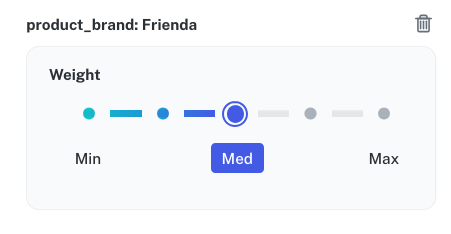 Buries items matching on selected attributes lower in the search results based on the weight of the slider selection. This is the recommended type of bury for the same reasons as boost by attributes.
For example, you can use this to de-emphasize a particular brand in your results without removing it entirely.
You can bury items based on multiple attributes, including multiple values in one category.
* **Within a single attribute**: When you select multiple values for one attribute (for example, `Color: Black, Gray`), items matching any of those values are included using **OR logic**, so items matching either Black or Gray are buried.
* **Across multiple attributes**: You can combine different attribute categories using **AND logic** for more granular targeting. For example, if you set `Color: Black, Gray` AND `Count: 40, 50`, the rule buries only black or gray items that come in packs of 40 or 50. Items must match at least one value from each attribute category.
Buries items matching on selected attributes lower in the search results based on the weight of the slider selection. This is the recommended type of bury for the same reasons as boost by attributes.
For example, you can use this to de-emphasize a particular brand in your results without removing it entirely.
You can bury items based on multiple attributes, including multiple values in one category.
* **Within a single attribute**: When you select multiple values for one attribute (for example, `Color: Black, Gray`), items matching any of those values are included using **OR logic**, so items matching either Black or Gray are buried.
* **Across multiple attributes**: You can combine different attribute categories using **AND logic** for more granular targeting. For example, if you set `Color: Black, Gray` AND `Count: 40, 50`, the rule buries only black or gray items that come in packs of 40 or 50. Items must match at least one value from each attribute category.
 To create a rule using the Form Builder: