> ## Documentation Index
> Fetch the complete documentation index at: https://doc.lucidworks.com/llms.txt
> Use this file to discover all available pages before exploring further.
# Quickstart
> Build intuitive and configurable searches in 3 steps.
[localhost link]: http://localhost:3000/docs/lw-platform/lw-core/quickstart
[mintlify link]: https://doc.lucidworks.com/docs/lw-platform/lw-core/quickstart
This quickstart guide helps you set up and optimize your customer's search and browse experience to return the most relevant content for their queries.
import { LwTemplate } from '/snippets/LwTemplate.jsx';
Core settings default values are set based on informed industry standards when you first launch the application. From there, you can tune and evaluate your configuration to best fit your users.
It is essential that you consistently review results and settings in Commerce Studio and Analytics Studio and modify the Core Settings fields to optimize search results for your customers.
Use Neural Hybrid Search (NHS) to take advantage of advanced searching capabilities that combine lexical search and semantic search.
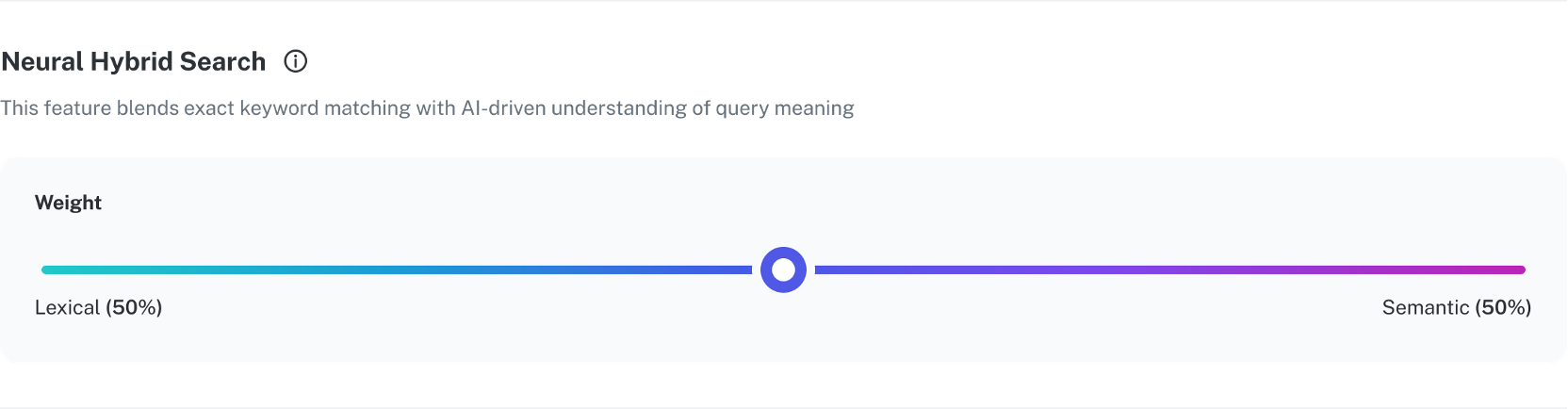
Click and drag the Neural Hybrid Search Weight slider to set the level of lexical versus semantic search. User behavior and record types will impact the weight setting.
To weight exact word entries higher, drag the slider toward **Lexical**. If your products use specific names, SKUs, or other fields such as model number, lexical search is more likely to generate the most relevant results. Lexical search is also more effective for identifying detailed information in specifications and other documents.
To weight results that interpret the meaning of the query, drag the slider more toward **Semantic**. Semantic search is more helpful if your users tend to enter different terminology for products or enter phrases or complete questions in their queries.
To determine the effectiveness of this setting, enter multiple searches and review where the query entry displays in the results. You can drag the slider in either direction and test again to determine the optimal setting.
The [rules](/docs/lw-platform/lw-cs/cstudio-rules) and [query rewrites](/docs/lw-platform/lw-cs/cstudio-query-rewrite) created in [Commerce Studio](/docs/lw-platform/lw-cs/overview) determine which results display. If results are not as expected, Lucidworks recommends you review and modify the rules and rewrites in Commerce Studio and then adjust the slider.
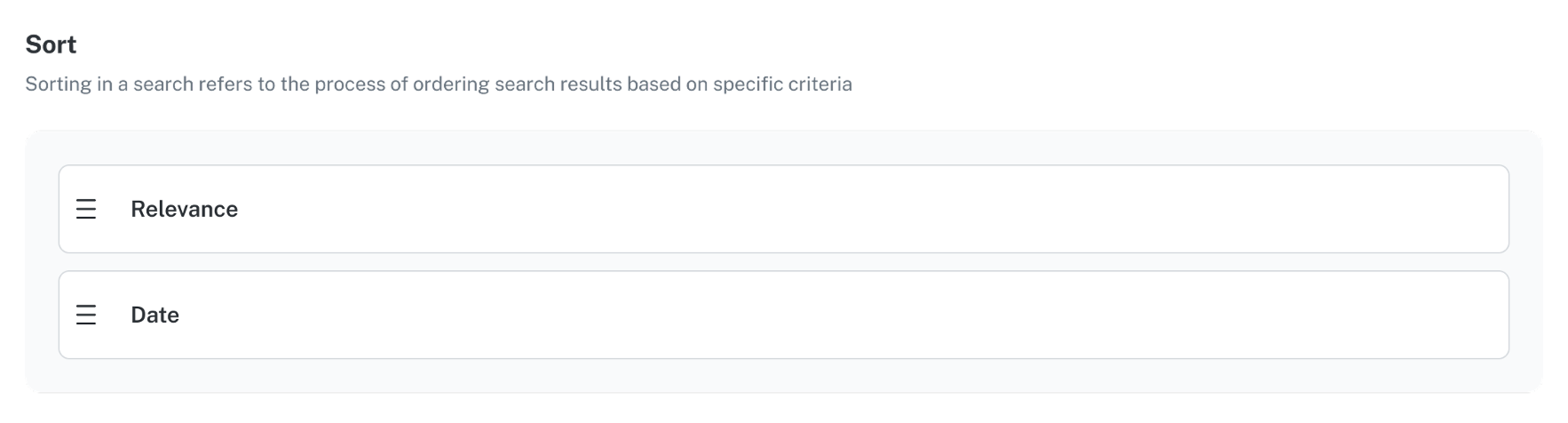
 Use the Sort options to display the search results ordered either by relevance or date. For more information, see [Relevance](/docs/lw-platform/lw-core/sites-relevance).
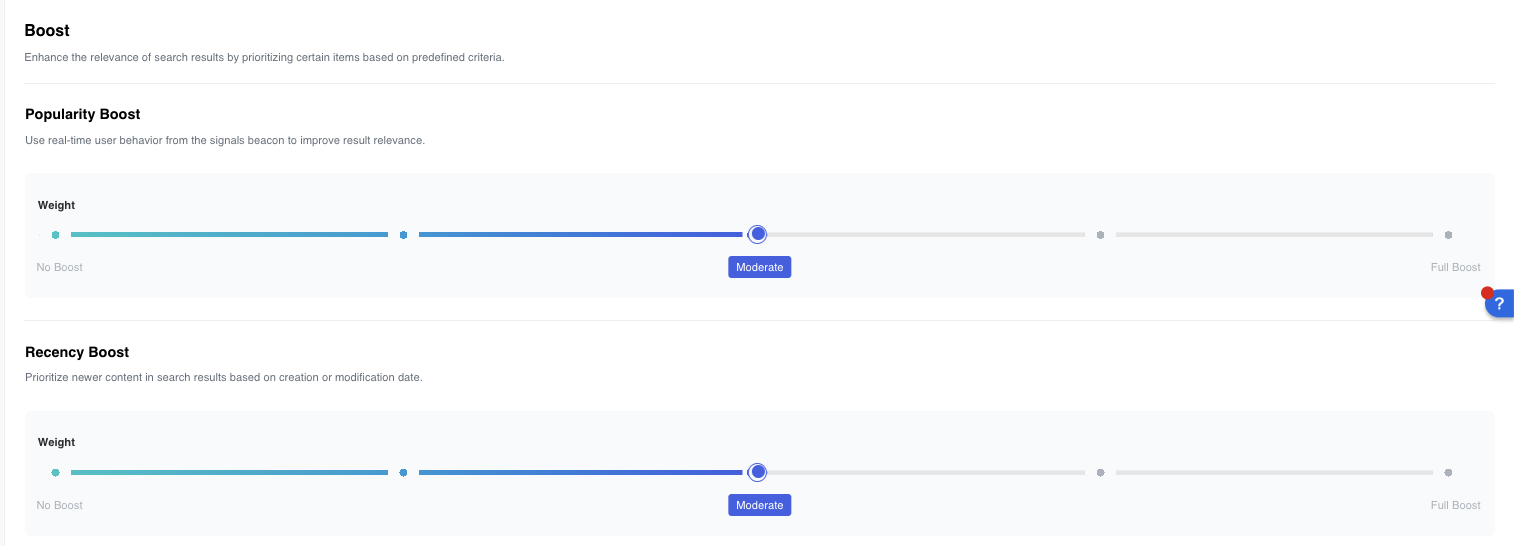
 These options let you balance the order in which specific results display. You can adjust the display order of products and information by popularity or recency. For more information, see [Boost](/docs/lw-platform/lw-core/sites-boost).
Click and drag the Popularity Boost slider to boost real-time user information from signals. If your products and information are more stable and long-term, the popularity boost provides consistent results for user queries.
Click and drag the Recency Boost slider if you want to boost recently added or recently modified items or information. For example, if newer versions of products or more recent technical or compliance specifications are essential, the recency boost is more important.
These options let you balance the order in which specific results display. You can adjust the display order of products and information by popularity or recency. For more information, see [Boost](/docs/lw-platform/lw-core/sites-boost).
Click and drag the Popularity Boost slider to boost real-time user information from signals. If your products and information are more stable and long-term, the popularity boost provides consistent results for user queries.
Click and drag the Recency Boost slider if you want to boost recently added or recently modified items or information. For example, if newer versions of products or more recent technical or compliance specifications are essential, the recency boost is more important.
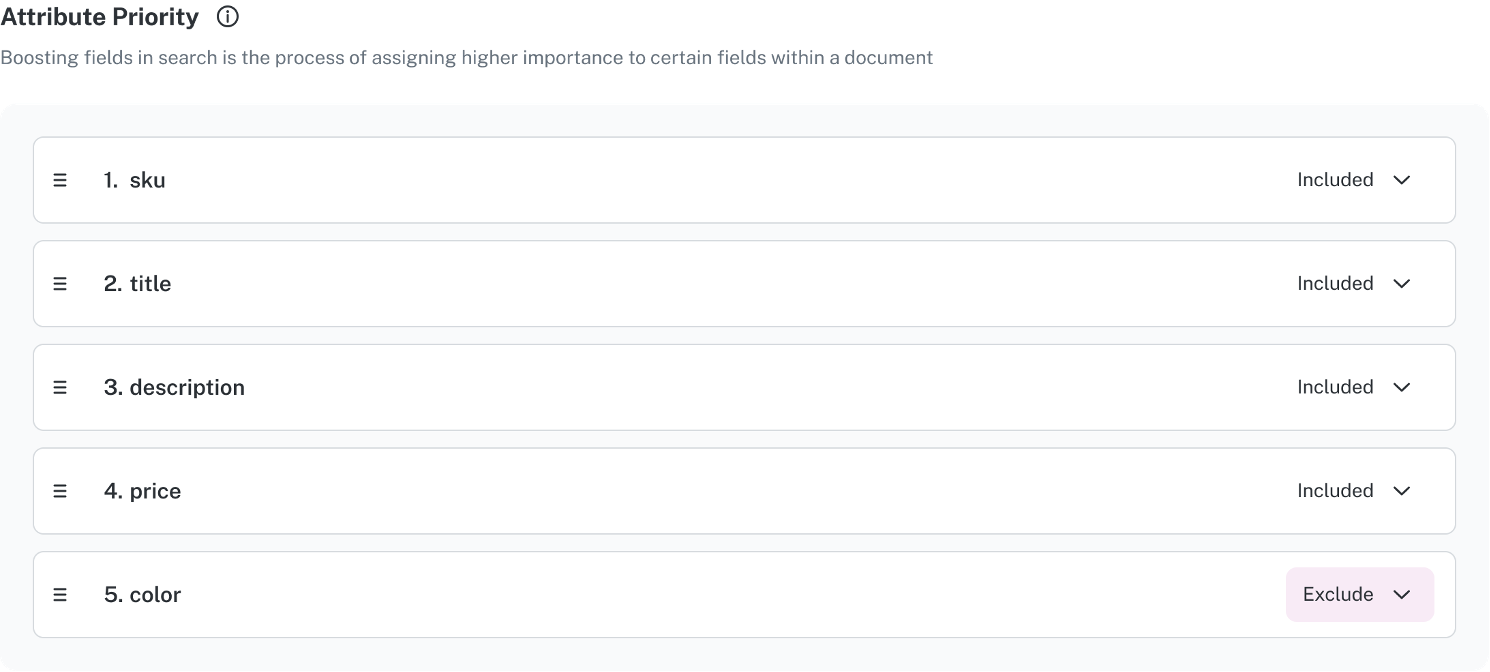
 You can prioritize certain fields such as SKU or title, if you assign and include them in the Attribute Priority section.
Preview the results to determine if the popular versus recent items display as expected, and make changes as needed. Reviewing results and then changing as needed is an ongoing process to obtain optimal results.
You can prioritize certain fields such as SKU or title, if you assign and include them in the Attribute Priority section.
Preview the results to determine if the popular versus recent items display as expected, and make changes as needed. Reviewing results and then changing as needed is an ongoing process to obtain optimal results.
 Lucidworks recommends that you consistently assess your site's analytics and determine where metrics could be improved. [Analytics Studio](/docs/lw-platform/lw-analytics/analytics-screen#types-of-metrics) provides signals graphic overviews for multiple metrics.
Important measures such as conversion rate, search conversion rate, and click-through rate help you determine the success of campaigns and other actions. And underperforming products and zero result search rate identify items that may need attention.
Modify the Core Settings fields and Commerce Studio features as needed to improve the search experiences of your customers and enhance your company's strategic goals.
On an ongoing basis, consistently review analytics and change the settings as needed.
Lucidworks recommends that you consistently assess your site's analytics and determine where metrics could be improved. [Analytics Studio](/docs/lw-platform/lw-analytics/analytics-screen#types-of-metrics) provides signals graphic overviews for multiple metrics.
Important measures such as conversion rate, search conversion rate, and click-through rate help you determine the success of campaigns and other actions. And underperforming products and zero result search rate identify items that may need attention.
Modify the Core Settings fields and Commerce Studio features as needed to improve the search experiences of your customers and enhance your company's strategic goals.
On an ongoing basis, consistently review analytics and change the settings as needed.