> ## Documentation Index
> Fetch the complete documentation index at: https://doc.lucidworks.com/llms.txt
> Use this file to discover all available pages before exploring further.
# Quickstart
> Start collecting user insights in 3 steps.
export const LwTemplate = ({title = "Key questions to get you started", icon = "sparkles", cta = "Powered by Agent Studio", linkHref = "https://lucidworks.com/demo/?utm_source=docs&utm_medium=referral&utm_campaign=docs_cta_ai"}) => {
const [isLoaded, setIsLoaded] = useState(false);
useEffect(() => {
const timer = setTimeout(() => {
setIsLoaded(true);
}, 500);
return () => clearTimeout(timer);
}, []);
return
{isLoaded && `
}} />}
Powered by Lucidworks Agent Studio
;
};
[localhost link]: http://localhost:3000/docs/lw-platform/lw-analytics/quickstart
[mintlify link]: https://doc.lucidworks.com/docs/lw-platform/lw-analytics/quickstart
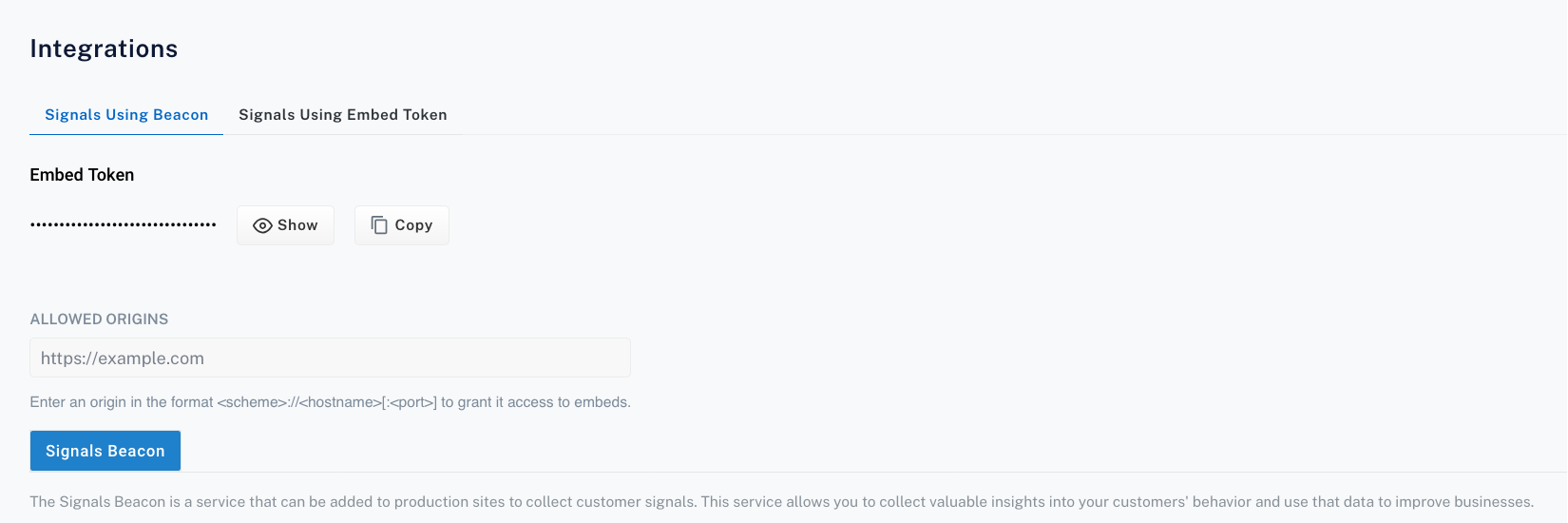
Grab the Signals Beacon embed script from your Lucidworks Analytics Signals Store on the **Integrations** page. Paste it in the `` of your website.
```html theme={"dark"}
```
Every site works a little differently. The Signals Beacon is flexible, so you can set it up in the way that fits your site best.
To get started, configure the Signals Beacon to collect these user insights:
When users search for products, they land on a search results page. They might use facets to narrow down what they see.
Capture the user's search query and selected facets. Map the query and facet parameters from the URL to the `query` field in the Signals Beacon configuration.
```html URL theme={"dark"}
https://example.com/search?q=USER_QUERY&fq=color:("red","pink")
```
```json Query Config highlight={22-30} theme={"dark"}
{
"attributes": {
"idQueryParam": "pid",
"numberTypeFields": [
"price",
"quantity",
"revenue"
],
"productPath": ".resultsItem"
},
"cartAdd": {
"trigger": ".lw-cart-add-trigger"
},
"click": {},
"fields": {
"productId": ":scope .resultId @text",
"title": ":scope .itemTitle @text"
},
"purchase": {
"trigger": ".lw-purchase-trigger"
},
"query": {
"facets": {
"keyValueDelimiter": ":",
"queryParams": "fq",
"valueExtractorRegex": "/\\\"(.*)\\\"/",
"valuesDelimiter": ","
},
"queryParam": "q"
}
}
```
When users find a product they like, they click on it.
Capture that interaction. Map the product ID from the HTML to the `click` and `fields` fields in the Signals Beacon configuration.
The `click` field inherits values from the `fields` field. It’s recommended to use the `fields` field directly.
```html HTML highlight={3-4} theme={"dark"}
```
```json Click Config highlight={14-18} theme={"dark"}
{
"attributes": {
"idQueryParam": "pid",
"numberTypeFields": [
"price",
"quantity",
"revenue"
],
"productPath": ".resultsItem"
},
"cartAdd": {
"trigger": ".lw-cart-add-trigger"
},
"click": {},
"fields": {
"productId": ":scope .resultId @text",
"title": ":scope .itemTitle @text"
},
"purchase": {
"trigger": ".lw-purchase-trigger"
},
"query": {
"facets": {
"keyValueDelimiter": ":",
"queryParams": "fq",
"valueExtractorRegex": "/\\\"(.*)\\\"/",
"valuesDelimiter": ","
},
"queryParam": "q"
}
}
```
When users add a product to their shopping cart, that action shows strong interest and intent to buy.
Capture this interaction by mapping the click from your HTML to the `cartAdd` field in the Signals Beacon configuration. Tracking this helps you understand what products matter most and where users may drop off before purchasing.
```html HTML highlight={7} theme={"dark"}
12345
Wireless Noise-Canceling Headphones
199.99
```
```json Cart Add Config highlight={11-13} theme={"dark"}
{
"attributes": {
"idQueryParam": "pid",
"numberTypeFields": [
"price",
"quantity",
"revenue"
],
"productPath": ".resultsItem"
},
"cartAdd": {
"trigger": ".lw-cart-add-trigger"
},
"click": {},
"fields": {
"productId": ":scope .resultId @text",
"title": ":scope .itemTitle @text"
},
"purchase": {
"trigger": ".lw-purchase-trigger"
},
"query": {
"facets": {
"keyValueDelimiter": ":",
"queryParams": "fq",
"valueExtractorRegex": "/\\\"(.*)\\\"/",
"valuesDelimiter": ","
},
"queryParam": "q"
}
}
```
One of the most important actions that drives your business is a user purchase. When users complete the checkout process, it confirms their decision to buy.
Make sure to capture this event. Map the relevant HTML to the purchase field in the Signals Beacon configuration.
```html HTML highlight={9} theme={"dark"}
12345
Wireless Noise-Canceling Headphones
1
199.99
199.99
```
```json Purchase Config highlight={19-21} theme={"dark"}
{
"attributes": {
"idQueryParam": "pid",
"numberTypeFields": [
"price",
"quantity",
"revenue"
],
"productPath": ".resultsItem"
},
"cartAdd": {
"trigger": ".lw-cart-add-trigger"
},
"click": {},
"fields": {
"productId": ":scope .resultId @text",
"title": ":scope .itemTitle @text"
},
"purchase": {
"trigger": ".lw-purchase-trigger"
},
"query": {
"facets": {
"keyValueDelimiter": ":",
"queryParams": "fq",
"valueExtractorRegex": "/\\\"(.*)\\\"/",
"valuesDelimiter": ","
},
"queryParam": "q"
}
}
```
When you're ready to start collecting user insights in Lucidworks Analytics using the Signals Beacon, activate it in the **Integrations** screen. Add your site to the list of **Allowed origins**.
Once added, the Signals Beacon starts sending user insights to Lucidworks Analytics. Your **Signals analytics** dashboard will begin to show key metrics.
 Once added, the Signals Beacon starts sending user insights to Lucidworks Analytics. Your **Signals analytics** dashboard will begin to show key metrics.