> ## Documentation Index
> Fetch the complete documentation index at: https://doc.lucidworks.com/llms.txt
> Use this file to discover all available pages before exploring further.

# Text Tagger

> Query pipeline stage configuration specifications

export const schema = {
  "type": "object",
  "title": "Text Tagger",
  "description": "Queries a Solr Text Tagger request handler to perform spell correction, phrase boosting, and synonym expansion on the incoming query.",
  "properties": {
    "skip": {
      "type": "boolean",
      "title": "Skip This Stage",
      "description": "Controls whether this stage executes during pipeline processing at runtime. When set to `true`, the stage is completely bypassed and documents pass through unchanged to the next stage. Useful for A/B testing, gradual rollouts, or temporarily disabling a stage without removing it from the pipeline.",
      "default": false,
      "hints": ["advanced"]
    },
    "label": {
      "type": "string",
      "title": "Label",
      "description": "Human-readable identifier displayed in the Fusion Admin UI, monitoring dashboards, and log messages. Use descriptive labels like `Parse Product PDFs` to aid debugging and team collaboration. Labels appear in performance metrics and error reports, making it easier to identify which stage failed.",
      "hints": ["advanced"],
      "maxLength": 255
    },
    "condition": {
      "type": "string",
      "title": "Condition",
      "description": "JavaScript expression evaluated at runtime on each document to conditionally execute this stage. The expression must return `true` to execute or `false` to skip. Access document fields using `doc.getFieldValue('fieldName')` and request parameters via `request.getFirstParam('paramName')`. For example, `doc.getFieldValue('type') === 'premium'` executes this stage only for premium content.",
      "hints": ["code", "code/javascript", "advanced"]
    },
    "legacy": {
      "type": "boolean",
      "title": "Legacy",
      "description": "When `true`, this stage operates in legacy mode only.",
      "hints": ["readonly", "hidden"]
    },
    "taggerCollectionId": {
      "type": "string",
      "title": "Tagger Collection",
      "description": "Specifies the collection to send tagger requests to. Defaults to the `query_rewrite` collection for the current application. The collection must be single-shard. Supports template expressions.",
      "minLength": 1
    },
    "paramToTag": {
      "type": "string",
      "title": "Param to Tag",
      "description": "Specifies the request parameter containing the text to tag. Defaults to `q`. Ignored for DSL requests.",
      "default": "q"
    },
    "taggedOutputParam": {
      "type": "string",
      "title": "Tagged Output Param",
      "description": "Specifies the parameter name where tagged output is written. Defaults to the value of `paramToTag`. Ignored for DSL requests."
    },
    "saveTagsInContextKey": {
      "type": "string",
      "title": "Save Tags in Context",
      "description": "Specifies a context key where tags are saved instead of being applied directly to the query, allowing downstream stages to apply them after additional processing. Ignored for DSL requests."
    },
    "spell_corrections_enabled": {
      "type": "boolean",
      "title": "Spell Correction",
      "description": "When enabled, this stage applies spell correction to the incoming query.",
      "default": true
    },
    "phrase_boosting_enabled": {
      "type": "boolean",
      "title": "Phrase Boosting",
      "description": "When enabled, this stage applies phrase boosting to the incoming query.",
      "default": true
    },
    "synonym_expansion_enabled": {
      "type": "boolean",
      "title": "Synonym Expansion",
      "description": "When enabled, this stage performs synonym expansion on the incoming query.",
      "default": true
    },
    "remove_words_enabled": {
      "type": "boolean",
      "title": "Remove Words",
      "description": "When enabled, this stage applies Remove Words rewrites to the incoming query.",
      "default": true
    },
    "tail_rewrites_enabled": {
      "type": "boolean",
      "title": "Tail Rewrites",
      "description": "When enabled, this stage applies tail rewrites to the incoming query.",
      "default": true
    },
    "filterOverride": {
      "type": "string",
      "title": "Filter Override",
      "description": "Specifies a custom filter to override the built-in filtering for tagger document types."
    },
    "synonymExpansionBoost": {
      "type": "number",
      "title": "Original Term Boost for Synonyms",
      "description": "Sets the boost applied to the original term during synonym expansion. Set to `-1` to disable this behavior.",
      "default": 2
    },
    "phraseBoost": {
      "type": "number",
      "title": "Default Phrase Boost",
      "description": "Sets the default boost applied to detected phrases that do not have an explicit boost configured. Set to `-1` to disable this behavior.",
      "default": 2
    },
    "phraseSlop": {
      "type": "integer",
      "title": "Default Phrase Slop",
      "description": "Sets the default phrase slop applied to detected phrases.",
      "default": 10
    },
    "overlaps": {
      "type": "string",
      "title": "Overlapping Tag Policy",
      "description": "Specifies the algorithm for resolving overlapping tags. Options: `all`, `no_sub`, or `longest_dominant_right` (default). Ignored for DSL requests, which always use `longest_dominant_right`.",
      "enum": ["longest_dominant_right", "all", "no_sub"],
      "default": "longest_dominant_right"
    },
    "params": {
      "type": "array",
      "title": "Additional Params to be Included in the Text Tagger Request. ",
      "items": {
        "type": "object",
        "required": ["key"],
        "properties": {
          "key": {
            "type": "string",
            "title": "Parameter Name"
          },
          "value": {
            "type": "string",
            "title": "Parameter Value"
          }
        }
      }
    },
    "maxWaitMs": {
      "type": "integer",
      "title": "Max Wait for Lookup (ms)",
      "description": "Sets the maximum time in milliseconds to wait for the remote tagger collection to respond. Set to `-1` to disable the timeout.",
      "default": 500
    },
    "skipQueryRegex": {
      "type": "string",
      "title": "Skip Query Regex",
      "description": "Specifies a regex pattern used to identify queries that should skip tagger matching, such as single-term wildcard queries."
    }
  },
  "category": "Other",
  "categoryPriority": 1,
  "unsafe": false
};

export const SchemaParamFields = ({schema}) => {
  const sanitize = str => {
    if (typeof str !== "string") return str;
    return str.replace(/^"(.*)"$/s, "$1").replace(/\\/g, "").replace(/"/g, "'");
  };
  const renderMd = str => {
    const s = sanitize(str);
    const text = (/[.!?]\)*$/).test(s) ? s : `${s}.`;
    return text.split(/(\*\*[^*]+\*\*|_[^_]+_|`[^`]+`)/g).map((part, i) => {
      if (part.startsWith("**")) return <strong key={i}>{part.slice(2, -2)}</strong>;
      if (part.startsWith("_")) return <em key={i}>{part.slice(1, -1)}</em>;
      if (part.startsWith("`")) return <code key={i}>{part.slice(1, -1)}</code>;
      return part;
    });
  };
  const {description, properties = {}, required: requiredProps = []} = schema;
  const visibleProps = useMemo(() => Object.entries(properties).filter(([, prop]) => !prop.hints?.includes("hidden")), [properties]);
  const renderProp = ([name, prop]) => {
    const isRequired = requiredProps.includes(name);
    const hasDefault = prop.default !== undefined;
    const rawDefault = prop.default;
    const hints = prop.hints || [];
    const isComplexDefault = hasDefault && (typeof rawDefault === "object" || typeof rawDefault === "string" && (rawDefault.length > 20 || rawDefault.includes('"')));
    const postBadges = [];
    if (prop.title) {
      postBadges.push(<><span className="text-stone-400 dark:text-stone-500">API property: </span>{name}</>);
    }
    const constraints = [];
    if (prop.minimum !== undefined && prop.maximum !== undefined) {
      constraints.push(`Range: ${prop.minimum} – ${prop.maximum}`);
    } else if (prop.minimum !== undefined) {
      constraints.push(`Min: ${prop.minimum}`);
    } else if (prop.maximum !== undefined) {
      constraints.push(`Max: ${prop.maximum}`);
    }
    if (prop.minLength !== undefined && prop.maxLength !== undefined) {
      constraints.push(`Length: ${prop.minLength} – ${prop.maxLength}`);
    } else if (prop.minLength !== undefined) {
      constraints.push(`Min length: ${prop.minLength}`);
    } else if (prop.maxLength !== undefined) {
      constraints.push(`Max length: ${prop.maxLength}`);
    }
    const fieldProps = {
      key: name,
      body: prop.title || name,
      type: prop.type,
      ...postBadges.length > 0 && ({
        post: postBadges
      }),
      ...isRequired && ({
        required: true
      }),
      ...!isComplexDefault && hasDefault ? {
        default: sanitize(String(rawDefault))
      } : {}
    };
    const isObject = prop.type === "object" && prop.properties;
    const isArrayOfObjects = prop.type === "array" && prop.items?.type === "object" && prop.items.properties;
    return <ParamField {...fieldProps}>
        {prop.description && <p>{renderMd(prop.description)}</p>}

        {prop.enum && <p>
            Allowed values: 
            {prop.enum.map((v, i) => <>{i > 0 && ", "}<code key={i}>{String(v)}</code></>)}
          </p>}

        {constraints.length > 0 && <p className="text-stone-500 dark:text-stone-400 text-sm">
            {constraints.join(" · ")}
          </p>}

        {isComplexDefault && <div className="flex">
            <p>
              <strong>Default:</strong>
            </p>
            <pre className="!my-0">
              <code>
                {JSON.stringify(rawDefault, null, 2)}
              </code>
            </pre>
          </div>}

        {isArrayOfObjects && <Expandable title="item properties">
            <SchemaParamFields schema={{
      properties: prop.items.properties,
      required: prop.items.required
    }} />
          </Expandable>}

        {isObject && <Expandable title="properties">
            <SchemaParamFields schema={{
      properties: prop.properties,
      required: prop.required
    }} />
          </Expandable>}
      </ParamField>;
  };
  return <div>
      {description && <p>{renderMd(description)}</p>}

      {visibleProps.map(renderProp)}
    </div>;
};

export const LwTemplate = ({title = "Key questions to get you started", icon = "sparkles", cta = "Powered by Agent Studio", linkHref = "https://lucidworks.com/demo/?utm_source=docs&utm_medium=referral&utm_campaign=docs_cta_ai"}) => {
  const [isLoaded, setIsLoaded] = useState(false);
  useEffect(() => {
    const timer = setTimeout(() => {
      setIsLoaded(true);
    }, 500);
    return () => clearTimeout(timer);
  }, []);
  return <div className="lw-template-container">
      <Card title={title} icon={icon}>
        {isLoaded && <span dangerouslySetInnerHTML={{
    __html: `<lw-template id="a029c1a9-28be-427e-b0e1-5d918920246a"></lw-template
            >`
  }} />}
        <Link href={linkHref} className="agent-studio-link text-left text-gray-600 gap-2 dark:text-gray-400 text-sm font-medium flex flex-row items-center hover:text-primary dark:hover:text-primary-light group-hover:text-primary group-hover:dark:text-primary-light">Powered by Lucidworks Agent Studio</Link>
      </Card>
    </div>;
};

[localhost link]: http://localhost:3000/docs/lucidworks-search/09-developer-documentation/config-specs/query-pipeline-stages/text-tagger

[mintlify link]: https://doc.lucidworks.com/docs/lucidworks-search/09-developer-documentation/config-specs/query-pipeline-stages/text-tagger

[old doc.lw link]: https://doc.lucidworks.com/managed-fusion/5.9/74ygo4

This stage uses the SolrTextTagger handler to identify known entities in the query by searching the [`COLLECTION_NAME_query_rewrite` collection](/docs/lucidworks-search/04-move-data-in/collection/overview). See **Manage Collections in the Lucidworks Search UI** for more information.

<Accordion title="Manage Collections in the Lucidworks Search UI">
  Collections can be created or removed using the Fusion UI or the REST API.

  For information about using the REST API to manage collections, see [Collections API](/api-reference/collections/get-collections-service-status) in the REST API reference.

  <LwTemplate />

  ## Creating a Collection

  When you create an app, by default Lucidworks Search creates a collection and associated objects.

  To create a new collection in the Lucidworks Search UI:

  1. From within an app, click **Collections > Collections Manager**.
  2. At the upper right of the panel, click **New**.
  3. Enter a **Collection name**. This name cannot be changed later.
  4. To create the collection in the default Solr cluster and with other default settings, click **Save Collection**.

  ## Creating a Collection with Advanced Options

  To access advanced options for creating a collection in the Lucidworks Search UI:

  1. From within an app, click **Collections > Collections Manager**.
  2. At the upper right of the panel, click **New**.
  3. Enter a **Collection name**. This name cannot be changed later.
  4. Click **Advanced**.
  5. Configure advanced options. The options are described below.
  6. Click **Save Collection**.

  ### Solr Cluster

  By default, a new collection is associated with the Solr instance that is associated with the `default` Solr cluster.

  If Lucidworks Search has multiple Solr clusters, choose from the list which cluster you want to associate your collection with.
  The cluster must exist first.

  ### Solr Cluster Layout

  The next section lets you define a **Replication Factor** and **Number of Shards**.
  Define these options only if you are creating a new collection in the Solr cluster.
  If you are linking Fusion to an existing Solr collection, you can skip these settings.

  ### Solr Collection Import

  Import a Solr collection to associate the new Lucidworks Search collection with an existing Solr collection.
  Enter a **Solr Collection Name** to associate the collection with an existing Solr collection.
  Then, enter a **Solr Config Set** to tell ZooKeeper to use the configurations from an existing collection in Solr when creating this collection.

  ## Configuring Collections

  The Collections menu lets you configure your existing collection, including datasources, fields, jobs, stopwords, and synonyms.

  In the Lucidworks Search UI, from any app, the Collections icon displays on the left side of the screen.

  Some tasks related to managing a collection are available in other menus:

  * Configure a profile in **Indexing > Indexing Profiles** or **Querying > Query Profiles**.
  * View reports about your collection’s activity in **Analytics > Dashboards**.

  ### Collections Manager

  The Collections Manager page displays details about the collection, such as how many datasources are configured, how many documents are in the index, and how much disk space the index consumes.

  This page also lets you [create a new collection](#creating-a-collection), disable search logs or signals, enable recommendations, issue a commit command to Solr, or clear a collection.

  #### Disable search logs

  When you first create a collection, the search logs are created by default. The search logs populate the panels in **Analytics > Dashboards**.

  1. Hover over your collection name until the gear icon appears at the end of the line.
  2. Click the gear icon.
  3. Click **Disable Search Logs**.
  4. On the confirmation screen, click **Disable Search Logs**.

  Note that if you disable search logs, you cannot see any data for this collection in **Analytics > Dashboards**.

  #### Disable signals

  When you first create a collection, the signals and aggregated signals collections are created by default.

  1. Hover over your collection name until the gear icon appears at the end of the line.
  2. Click the gear icon.
  3. Click **Disable Signals**.
  4. On the confirmation screen, click **Disable Signals**.

  #### Hard commit a collection

  1. Hover over your collection name until the gear icon appears at the end of the line.
  2. Click the gear icon.
  3. Click  **Hard Commit Collection**.
  4. On the confirmation screen, click **Hard Commit Collection**.

  Read internal details about how Solr processes commits on [our blog](https://lucidworks.com/post/understanding-transaction-logs-softcommit-and-commit-in-sorlcloud/).

  ### Datasources

  To access the Datasources page, click **Indexing > Datasources**. By default, there are no datasources configured right after installation.

  To add a new datasource, click **New** at the upper right of the panel.

  See the [Connectors Configuration Reference](/docs/lucidworks-search/09-developer-documentation/config-specs/fusion-connectors/overview) for details on how to configure a datasource. Options vary depending on the repository you would like to index.

  After you configure a datasource, it appears in a list on this screen. Click the name of a datasource to edit its properties. Click **Start** to start the datasource. Click **Stop** to stop the datasource before it completes.
  To the right, view information on the last completed job, including the date and time started and stopped, and the number of documents found as new, skipped, or failed.

  <Note>When you stop a datasource, Lucidworks Search attempts to safely close connector threads, finishing processing documents through the pipeline and indexing documents to Solr. Some connectors take longer to complete these processes than others, so might stay in a "stopping" state for several minutes.</Note>

  To stop a datasource immediately, choose **Abort** instead of **Stop**.

  There is also a REST API for datasources. See [Connector Datasources API](/api-reference/datasource-configuration-v2-api/list-all-v2-datasources).

  ### Stopwords

  The Stopwords page lets you edit a stopwords list for your collection.

  To add or delete stop words:

  1. Click the name of the text file you wish to edit.
  2. Add a new word on a new line.
  3. When you are done with your changes, click **Save**.

  To import a stop words list:

  1. Click **System > Import Fusion Objects**.
  2. Choose the file to upload.
  3. Click **Import >>**.

  Read more about [stopwords](/docs/lucidworks-search/07-improve-your-queries/stopwords-file/overview).

  ### Synonyms

  Lucidworks Search has the same synonym functionality that Solr supports. This includes a list of words that are synonyms (where the synonym list expands on the terms entered by the user), as well as a full mapping of words, where a word is substituted for what the user has entered (that is, the term the user has entered is replaced by a term in the synonym list).

  See more about [synonyms](/docs/lucidworks-search/07-improve-your-queries/synonyms/overview).

  You can edit the synonyms list for your collection.

  To access the Synonyms page in the Lucidworks Search UI, in any app, click **Collections > Synonyms**.

  Filter the list of synonym definitions by typing in the **Filter...** box.

  To import a synonyms list:

  1. From the Synonyms page, click **Import and Save**. A dialog box opens.
  2. Choose the file to import.

  To edit a synonyms list:

  * Enter new synonym definitions one per line.
    * To enter a string of terms that expand on the terms the user entered, enter the terms separated by commas, like `Television, TV`.
    * To enter a term that should be mapped to another term, enter the terms separated by an equal sign then a right angle bracket, `=>`, like `i-pod=>ipod`.
  * Remove a line by clicking the **x** at the end of the line.
  * Once you are finished with edits, click **Save**.

  To export the synonyms list, click **Export**. This downloads the list to your computer using your browser download capability.

  ### Profiles

  Profiles allow you to create an alias for an index or query pipeline.
  This allows you to send documents or queries to a consistent endpoint and change the underlying pipeline or collection as needed.

  Read about profiles in Index Profiles and Query Profiles:

  * [Index Profiles](/docs/lucidworks-search/04-move-data-in/index-profile/overview)
  * [Query Profiles](/docs/lucidworks-search/05-move-data-out/query-profile/overview)

  To access the Solr Config page, from any app, click **System > Solr Config**.

  ## Learn more

  <Card title="Collections Menu Tour" class="note-image" href="https://academy.lucidworks.com/collections-menu-tour" cta="Take this course on the LucidAcademy." icon="graduation-cap" iconType="duotone">
    The quick learning for **Collections Menu Tour** focuses on the Collections Menu features and functionality along with a brief description of each screen available in the menu.
  </Card>
</Accordion>

<Note>
  For Lucidworks Search organizations that do *not* have a Predictive Merchandiser license, the Solr Text Tagger handler also searches the `COLLECTION_NAME_query_rewrite_staging` collection in the case of the Lucidworks Search query rewriting [Simulator](/docs/4/fusion-ai/concepts/query-rewriting/simulator)).
</Note>

The purpose of the search is to perform [query rewriting](/docs/lucidworks-search/07-improve-your-queries/query-rewriting/overview) using matches from the following items:

* [Spelling corrections](/docs/lucidworks-search/07-improve-your-queries/misspelling-detection/overview)
* [Phrase boosts](/docs/lucidworks-search/07-improve-your-queries/phrase-detection/overview)
* [Head/Tail Analysis (Underperforming query improvements)](/docs/lucidworks-search/07-improve-your-queries/head-tail-analysis/overview)
* [Synonym expansions](/docs/lucidworks-search/09-developer-documentation/config-specs/jobs/synonym-detection)

<Note>
  The jobs that automatically these query rewrites are deprecated in Lucidworks Search 5.9.15 and will be removed in a future release.
  Lucidworks recommends using [Neural Hybrid Search](/docs/lucidworks-search/11-vector-search/overview), which achieves superior relevance compared to legacy machine learning methods.
</Note>

When the query rewrite entails boosting, the boosting is applied later in the pipeline, during the [Solr Query stage](/docs/lucidworks-search/09-developer-documentation/config-specs/query-pipeline-stages/solr-query).

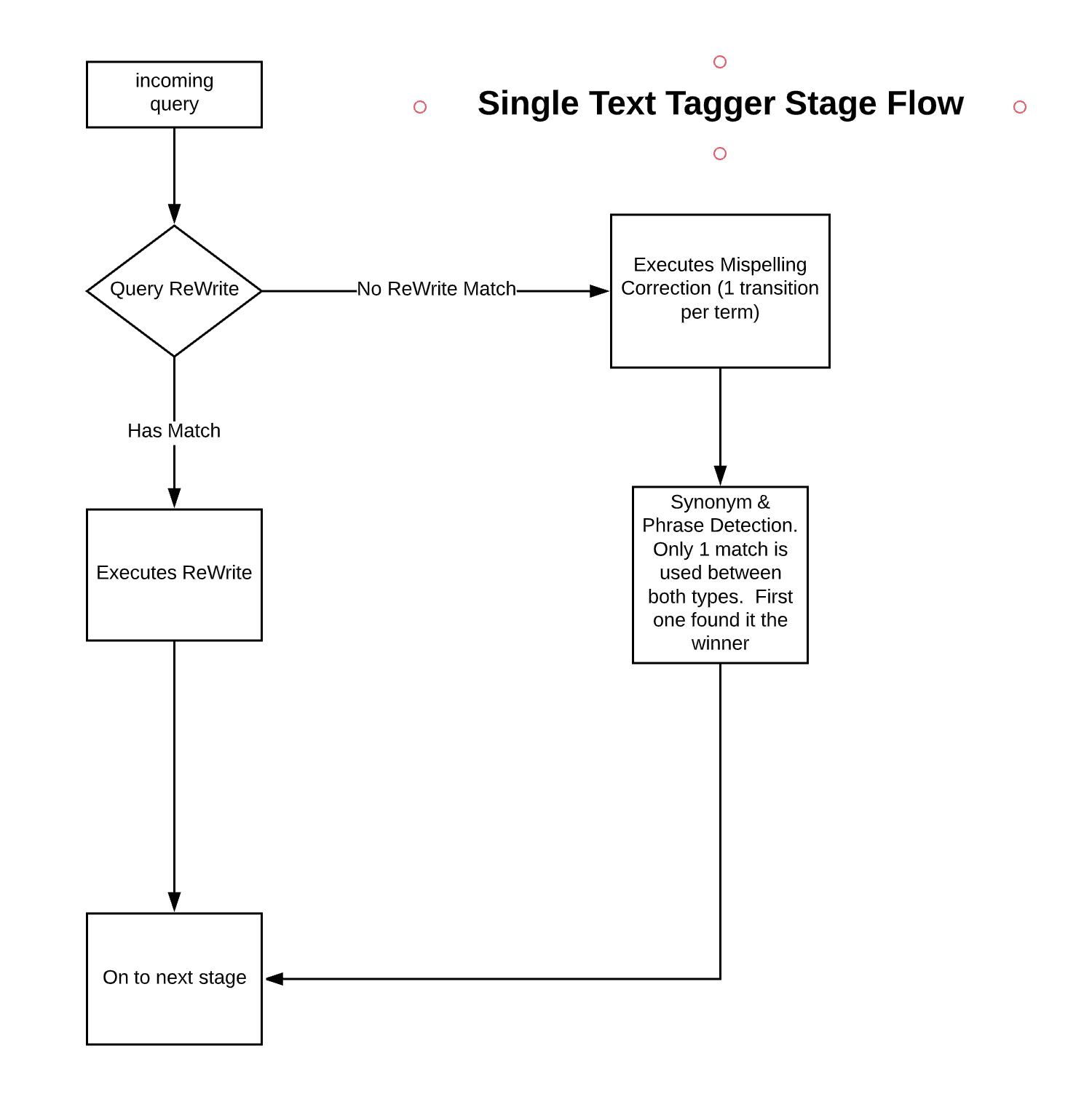
The below diagram shows the process flow for the Text Tagger Stage:

<img src="https://mintcdn.com/lucidworks/L5PMnIeZ03zhv8Ti/assets/images/5.4/stage-text-tagger-flow.png?fit=max&auto=format&n=L5PMnIeZ03zhv8Ti&q=85&s=6b1158c5d930523d9b092d36dfa560d7" alt="Text Tagger Stage Process" width="1500" height="1536" data-path="assets/images/5.4/stage-text-tagger-flow.png" />

<Danger>
  The underlying SolrTextTagger currently only supports *single-shard collections*. Lucidworks Search users should ensure their `COLLECTION_NAME_query_rewrite` collection, or whatever collection the Text Tagger stage is configured to use, is single-sharded before enabling this stage.
</Danger>

<Note>
  Although this stage is available without a Lucidworks Search license, it is only effective after running Lucidworks Search jobs or creating Lucidworks Search rules. See [Query Rewriting](/docs/lucidworks-search/07-improve-your-queries/query-rewriting/overview) for details.
</Note>

## Configuration

<Tip>
  When entering configuration values in the UI, use *unescaped* characters, such as `\t` for the tab character. When entering configuration values in the API, use *escaped* characters, such as `\\t` for the tab character.
</Tip>

<SchemaParamFields schema={schema} />
