> ## Documentation Index
> Fetch the complete documentation index at: https://doc.lucidworks.com/llms.txt
> Use this file to discover all available pages before exploring further.
# BPR Recommender
> Job configuration specifications
export const schema = {
"type": "object",
"title": "BPR Recommender",
"description": "Computes user recommendations or item similarities using a Bayesian Personalized Ranking (BPR) recommender. Configure training and output paths to generate batch-predicted recommendations stored in Solr or cloud storage. Use the advanced section to enable user-to-item recommendations.",
"required": ["id", "trainingCollection", "trainingFormat", "outputFormat", "userIdField", "itemIdField", "type"],
"properties": {
"id": {
"type": "string",
"title": "Job ID",
"description": "Sets the unique identifier for this job, used to reference it in the API. Allowed characters: a-z, A-Z, dash (`-`), and underscore (`_`). Must start with a letter.",
"maxLength": 63,
"pattern": "[a-zA-Z][_\\-a-zA-Z0-9]*[a-zA-Z0-9]?"
},
"sparkConfig": {
"type": "array",
"title": "Additional parameters",
"description": "Injects additional key-value pairs into the training JSON map at runtime. String values must be wrapped in quotes, for example `\"myParam\": \"myValue\"`. Use this to pass custom runtime parameters not exposed in the UI.",
"hints": ["advanced"],
"items": {
"type": "object",
"required": ["key"],
"properties": {
"key": {
"type": "string",
"title": "Parameter Name"
},
"value": {
"type": "string",
"title": "Parameter Value"
}
}
}
},
"writeOptions": {
"type": "array",
"title": "Write Options",
"description": "Sets additional key-value options passed to the Spark writer when writing output to Solr or other sinks. Use entries like `commitWithin=10000` to control Solr commit behavior.",
"hints": ["advanced"],
"items": {
"type": "object",
"required": ["key"],
"properties": {
"key": {
"type": "string",
"title": "Parameter Name"
},
"value": {
"type": "string",
"title": "Parameter Value"
}
}
}
},
"readOptions": {
"type": "array",
"title": "Read Options",
"description": "Sets additional key-value options passed to the Spark reader when loading input from Solr or other sources. Use these to configure connector-specific behavior such as `rows` or `zkHost`.",
"hints": ["advanced"],
"items": {
"type": "object",
"required": ["key"],
"properties": {
"key": {
"type": "string",
"title": "Parameter Name"
},
"value": {
"type": "string",
"title": "Parameter Value"
}
}
}
},
"outputBatchSize": {
"type": "string",
"title": "Output Batch Size",
"description": "Controls how many output records are written per batch operation when saving recommendations. Larger batch sizes improve throughput but increase memory usage. Reduce if out-of-memory errors occur during output.",
"default": "15000",
"hints": ["advanced"]
},
"jobRunName": {
"type": "string",
"title": "Job Run Name",
"description": "Sets an identifier attached to this job run's output records. Use this to filter recommendations produced by a specific run when multiple runs write to the same output collection.",
"hints": ["advanced"]
},
"trainingCollection": {
"type": "string",
"title": "Training data path",
"description": "Specifies the Solr collection or cloud storage path containing the training interaction data. This is the primary source of user-item preference signals used to train the BPR model.",
"minLength": 1
},
"trainingFormat": {
"type": "string",
"title": "Training data format",
"description": "Specifies the format of the training data, such as `solr` or `parquet`. This controls which Spark connector loads the training data from `trainingCollection`.",
"default": "solr",
"minLength": 1
},
"secretName": {
"type": "string",
"title": "Cloud storage secret name",
"description": "Specifies the Kubernetes secret used to authenticate access to cloud storage. Define this secret in the K8s namespace before referencing it here. Omit if training data is in Solr.",
"hints": ["advanced"],
"minLength": 1
},
"outputUserRecsCollection": {
"type": "string",
"title": "Items-Users Output Path",
"description": "Specifies the Solr collection or cloud storage path where user-to-item recommendations are written. Specify at least one of this field or `outputItemSimCollection`. If absent, no user recommendations are computed.",
"minLength": 1
},
"outputItemSimCollection": {
"type": "string",
"title": "Item-Items Output Path",
"description": "Specifies the Solr collection or cloud storage path where item-to-item similarity recommendations are written. Specify at least one of this field or `outputUserRecsCollection`. If absent, no item similarities are computed.",
"minLength": 1
},
"outputFormat": {
"type": "string",
"title": "Output data format",
"description": "Specifies the format used to write output recommendations, such as `solr` or `parquet`. This must match the target storage system specified in the output path fields.",
"default": "solr",
"minLength": 1
},
"partitionFields": {
"type": "string",
"title": "Partition fields",
"description": "Specifies the field names used to partition output data when writing to non-Solr storage. Partition fields improve read performance by allowing downstream queries to prune irrelevant data files.",
"hints": ["advanced"]
},
"numRecsPerUser": {
"type": "integer",
"title": "No. of recs per user",
"description": "Sets the number of item recommendations saved per user in the output collection. Increase to surface more choices. Note that higher values increase output storage size proportionally.",
"default": 10,
"minimum": 0,
"exclusiveMinimum": false
},
"userTopkAnn": {
"type": "integer",
"title": "No. of User Recs to Compute for Filtering",
"description": "Sets the number of candidates fetched before filtering already-clicked items, ensuring `numRecsPerUser` is satisfied after filtering. Only applies when `filterClicked` is enabled. Set to approximately 3-5x `numRecsPerUser`.",
"hints": ["advanced"],
"minimum": 0,
"exclusiveMinimum": false
},
"numSimsPerItem": {
"type": "integer",
"title": "No. of recs per item",
"description": "Sets the number of item similarity recommendations saved per item in the output collection. Increase to broaden item-to-item coverage. Higher values require more storage and compute time.",
"default": 10,
"minimum": 0,
"exclusiveMinimum": false
},
"deleteOldRecs": {
"type": "boolean",
"title": "Delete Old Recommendations",
"description": "Controls whether existing recommendations are deleted before writing new ones. When `false`, new recommendations are appended with a different job run ID, and both old and new records coexist in the same collection.",
"default": true
},
"excludeFromDeleteFilter": {
"type": "string",
"title": "Exclude from Delete Filter",
"description": "Specifies a Solr filter query identifying recommendation documents to retain when `deleteOldRecs` is `true`. Use this to protect specific records, such as manually curated recommendations, from deletion.",
"hints": ["advanced"]
},
"filterClicked": {
"type": "boolean",
"title": "Filter already clicked items",
"description": "Controls whether already-clicked items are excluded from user recommendations. Enabling this improves recommendation quality by avoiding items the user has already interacted with, at the cost of additional compute time.",
"default": true,
"hints": ["advanced"]
},
"weightField": {
"type": "string",
"title": "Training Collection Counts/Weights Field",
"description": "Specifies the field in the training collection containing interaction counts or weights. Maps the `aggr_count_i` field by default. Adjust to match the actual count or score field in your aggregation collection.",
"default": "aggr_count_i"
},
"trainingDataFilterQuery": {
"type": "string",
"title": "Training Data Filter Query",
"description": "Filters training data using a Solr query when reading from a Solr collection, or a SQL expression when reading from cloud storage. Use this to exclude low-quality signals or restrict training to a specific time window.",
"hints": ["code/sql", "advanced"]
},
"trainingSampleFraction": {
"type": "number",
"title": "Training Data Sampling Fraction",
"description": "Sets the fraction of training data to use, sampling randomly before model training. Values less than `1.0` speed up training at the cost of coverage. Use on very large datasets.",
"default": 1,
"hints": ["advanced"],
"maximum": 1,
"exclusiveMaximum": false
},
"userIdField": {
"type": "string",
"title": "Training Collection User Id Field",
"description": "Specifies the field in the training collection that contains user identifiers. Maps the `user_id_s` field by default. Change this when your collection uses a different user ID field name.",
"default": "user_id_s",
"minLength": 1
},
"itemIdField": {
"type": "string",
"title": "Training Collection Item Id Field",
"description": "Specifies the field in the training collection that contains item identifiers. Maps the `item_id_s` field by default. Change this when your collection uses a different item ID field name.",
"default": "item_id_s",
"minLength": 1
},
"randomSeed": {
"type": "integer",
"title": "Random Seed",
"description": "Sets the random seed used during BPR model training to produce deterministic results across runs. Fix this value to reproduce identical model outputs when debugging or comparing configurations.",
"default": 12345,
"hints": ["advanced"]
},
"itemMetadataFields": {
"type": "array",
"title": "Item Metadata Fields",
"description": "Specifies item metadata fields to include in recommendation output documents, such as `title` or `category`. Adding many fields can significantly increase output size and may cause out-of-memory errors.",
"hints": ["advanced"],
"items": {
"type": "string"
}
},
"itemMetadataCollection": {
"type": "string",
"title": "Item Metadata Path",
"description": "Specifies the cloud storage path or Solr collection containing item metadata to join with output recommendations. Leave blank and set `itemMetadataJoinField` to fetch metadata from the training collection itself.",
"hints": ["advanced"]
},
"itemMetadataFormat": {
"type": "string",
"title": "Metdata format",
"description": "Specifies the format of the item metadata source, such as `solr` or `parquet`. Must match the storage format of the collection or path specified in `itemMetadataCollection`.",
"default": "solr",
"hints": ["advanced"],
"minLength": 1
},
"itemMetadataJoinField": {
"type": "string",
"title": "Item Metadata Join Field",
"description": "Specifies the field used to join item metadata to recommendation output documents. This field must exist in both the training and metadata collections for the join to produce correct results.",
"hints": ["advanced"]
},
"performANN": {
"type": "boolean",
"title": "Perform approximate nearest neighbor search",
"description": "Controls whether approximate nearest neighbor (ANN) search is used to speed up similarity computation. Disable only for very small datasets. ANN significantly reduces training time with minimal accuracy loss.",
"default": true
},
"maxNeighbors": {
"type": "integer",
"title": "Max neighbors for indexing",
"description": "Sets the number of candidate neighbors evaluated during ANN index construction. Higher values improve recall and reduce retrieval time at the cost of longer indexing. The recommended range is 5–100.",
"hints": ["advanced"],
"maximum": 2000,
"exclusiveMaximum": false,
"minimum": 100,
"exclusiveMinimum": false
},
"searchNN": {
"type": "integer",
"title": "Search Depth",
"description": "Sets the search depth used to find neighbors during ANN retrieval. Higher values improve recall but increase retrieval time. The recommended range is 100–2000.",
"hints": ["advanced"],
"maximum": 2000,
"exclusiveMaximum": false,
"minimum": 100,
"exclusiveMinimum": false
},
"indexNN": {
"type": "integer",
"title": "Indexing Depth",
"description": "Sets the depth of the ANN index structure built during indexing. Higher values improve recall but increase indexing time. The recommended range is 100–2000.",
"hints": ["advanced"],
"maximum": 2000,
"exclusiveMaximum": false,
"minimum": 100,
"exclusiveMinimum": false
},
"factors": {
"type": "integer",
"title": "Dimension of latent factors",
"description": "Sets the number of latent factor dimensions used in the BPR matrix decomposition. Larger values capture more complex user-item relationships but require more memory and training time.",
"default": 100,
"hints": ["advanced"],
"minimum": 1,
"exclusiveMinimum": false
},
"epochs": {
"type": "integer",
"title": "Training iterations",
"description": "Sets the number of training iterations for the BPR model. More epochs improve model convergence but increase training time. Use smaller values for very large datasets.",
"default": 30,
"hints": ["advanced"],
"minimum": 1,
"exclusiveMinimum": false
},
"learningRate": {
"type": "number",
"title": "Learning rate",
"description": "Sets the step size used by the BPR optimization algorithm during each training iteration. Lower values produce more stable training. Higher values speed up convergence but may cause instability.",
"default": 0.05,
"hints": ["advanced"]
},
"metadataCategoryFields": {
"type": "array",
"title": "Metadata fields for item-item evaluation",
"description": "Specifies metadata fields used to evaluate whether recommended item pairs belong to the same category. These fields are used during the item-to-item evaluation phase to assess recommendation quality.",
"hints": ["advanced"],
"items": {
"type": "string"
}
},
"minNumItemUniqueClicks": {
"type": "integer",
"title": "Training Data Filtered By Popular Items",
"description": "Filters items from training that have fewer unique user interactions than this threshold. Higher values focus training on popular items but reduce training data volume.",
"default": 2,
"minimum": 1,
"exclusiveMinimum": false
},
"minNumUserUniqueClicks": {
"type": "integer",
"title": "Training Data Filtered By User clicks",
"description": "Filters users from training that have fewer unique item interactions than this threshold. Higher values select more active users but reduce training data volume.",
"default": 2,
"minimum": 1,
"exclusiveMinimum": false
},
"minNumClickedProducts": {
"type": "integer",
"title": "Minimum Clicked Products",
"description": "Sets the minimum number of interactions a user must have to be eligible for the test set. Users with fewer interactions than this value are excluded from model evaluation.",
"default": 3,
"minimum": 2,
"exclusiveMinimum": false
},
"maxNumTestUsers": {
"type": "integer",
"title": "Maximum Test Users",
"description": "Sets the maximum number of users sampled for the test set during evaluation. If more qualifying users exist, the count is capped at this value to control evaluation runtime.",
"default": 10000,
"minimum": 0,
"exclusiveMinimum": false
},
"numTestUserClicks": {
"type": "integer",
"title": "Number of User Clicks for Test",
"description": "Sets the number of user interactions withheld per test user for model evaluation. This value must be less than `minNumClickedProducts` to leave enough training interactions per user.",
"default": 1,
"minimum": 1,
"exclusiveMinimum": false
},
"doEvaluation": {
"type": "boolean",
"title": "Evaluate on test data",
"description": "Controls whether the trained BPR model is evaluated against a held-out test set. When enabled, test data is sampled from the original dataset and evaluation metrics are reported after training."
},
"type": {
"type": "string",
"title": "Spark Job Type",
"enum": ["argo-item-recommender-user"],
"default": "argo-item-recommender-user",
"hints": ["readonly"]
}
},
"additionalProperties": true,
"category": "Other",
"categoryPriority": 1,
"propertyGroups": [{
"label": "Input/Output Parameters",
"properties": ["trainingCollection", "trainingFormat", "outputUserRecsCollection", "outputItemSimCollection", "outputFormat", "outputBatchSize", "secretName", "partitionFields"]
}, {
"label": "Training Data Settings",
"properties": ["trainingDataFilterQuery", "trainingSampleFraction", "userIdField", "itemIdField", "weightField", "trainingDataFrameConfigOptions"]
}, {
"label": "Model Tuning Parameters",
"properties": ["numRecsPerUser", "numSimsPerItem", "filterClicked", "userTopkAnn", "minNumItemUniqueClicks", "minNumUserUniqueClicks", "maxIters", "deleteOldRecs", "excludeFromDeleteFilter", "performANN", "maxNeighbors", "searchNN", "indexNN", "factors", "epochs", "learningRate", "randomSeed"]
}, {
"label": "Evaluation Parameters",
"properties": ["doEvaluation", "minNumClickedProducts", "numTestUserClicks", "maxNumTestUsers"]
}, {
"label": "Item Metadata Settings",
"properties": ["itemMetadataCollection", "itemMetadataFormat", "itemMetadataJoinField", "itemMetadataFields", "metadataCategoryFields"]
}]
};
export const SchemaParamFields = ({schema}) => {
const sanitize = str => {
if (typeof str !== "string") return str;
return str.replace(/^"(.*)"$/s, "$1").replace(/\\/g, "").replace(/"/g, "'");
};
const renderMd = str => {
const s = sanitize(str);
const text = (/[.!?]\)*$/).test(s) ? s : `${s}.`;
return text.split(/(\*\*[^*]+\*\*|_[^_]+_|`[^`]+`)/g).map((part, i) => {
if (part.startsWith("**")) return {part.slice(2, -2)};
if (part.startsWith("_")) return {part.slice(1, -1)};
if (part.startsWith("`")) return {part.slice(1, -1)};
return part;
});
};
const {description, properties = {}, required: requiredProps = []} = schema;
const visibleProps = useMemo(() => Object.entries(properties).filter(([, prop]) => !prop.hints?.includes("hidden")), [properties]);
const renderProp = ([name, prop]) => {
const isRequired = requiredProps.includes(name);
const hasDefault = prop.default !== undefined;
const rawDefault = prop.default;
const hints = prop.hints || [];
const isComplexDefault = hasDefault && (typeof rawDefault === "object" || typeof rawDefault === "string" && (rawDefault.length > 20 || rawDefault.includes('"')));
const postBadges = [];
if (prop.title) {
postBadges.push(<>API property: {name});
}
const constraints = [];
if (prop.minimum !== undefined && prop.maximum !== undefined) {
constraints.push(`Range: ${prop.minimum} – ${prop.maximum}`);
} else if (prop.minimum !== undefined) {
constraints.push(`Min: ${prop.minimum}`);
} else if (prop.maximum !== undefined) {
constraints.push(`Max: ${prop.maximum}`);
}
if (prop.minLength !== undefined && prop.maxLength !== undefined) {
constraints.push(`Length: ${prop.minLength} – ${prop.maxLength}`);
} else if (prop.minLength !== undefined) {
constraints.push(`Min length: ${prop.minLength}`);
} else if (prop.maxLength !== undefined) {
constraints.push(`Max length: ${prop.maxLength}`);
}
const fieldProps = {
key: name,
body: prop.title || name,
type: prop.type,
...postBadges.length > 0 && ({
post: postBadges
}),
...isRequired && ({
required: true
}),
...!isComplexDefault && hasDefault ? {
default: sanitize(String(rawDefault))
} : {}
};
const isObject = prop.type === "object" && prop.properties;
const isArrayOfObjects = prop.type === "array" && prop.items?.type === "object" && prop.items.properties;
return
{prop.description &&
{isLoaded && `
}} />}
Powered by Lucidworks Agent Studio
;
};
[localhost link]: http://localhost:3000/docs/lucidworks-search/09-developer-documentation/config-specs/jobs/bpr-recommender
[mintlify link]: https://doc.lucidworks.com/docs/lucidworks-search/09-developer-documentation/config-specs/jobs/bpr-recommender
[old doc.lw link]: https://doc.lucidworks.com/managed-fusion/5.9/ec8fkn
Use this job when you want to compute user recommendations or item similarities using a Bayesian Personalized Ranking (BPR) recommender algorithm.
| | |
| ---------------- | -------------------------------------------------------------------------------------------------------------------------------------------------------------------------------------------------------------------------------------------------------------------------------------------------------------------------------------------------------------- |
| Default job name | `COLLECTION_NAME_bpr_item_recs` |
| Input | [Aggregated signals](/docs/lucidworks-search/09-developer-documentation/config-specs/jobs/sql-aggregation/built-in-sql-aggregation-jobs) (the `COLLECTION_NAME_recs_aggr` collection by default) |
| Output | [Items-for-item recommendations](/docs/lucidworks-search/07-improve-your-queries/recommendations/items-for-item) (the `COLLECTION_NAME_bpr_item_recs` collection by default) and [Items-for-user recommendations](/docs/lucidworks-search/07-improve-your-queries/recommendations/items-for-user) (the `COLLECTION_NAME_bpr_user_recs` collection by default). |
This job assumes that your signals collection contains the preferences of many users. It uses this collection of preferences to predict another user’s preference for an item that the user has not yet seen:
* **User.** Use **Training Collection User Id Field** to specify the name of the user ID field, usually `user_id_s`.
* **Item.** Use **Training Collection Item Id Field** to specify the name of the item ID field, usually `item_id_s`.
* **Interaction-value.** Use **Training Collection Counts/Weights Field** to specify the name of the interaction value field, usually `aggr_count_i`.
BPR-based recommenders compare a pair of recommendations for a user.
You can also configure this job to read from or write to cloud storage. See **Configure An Argo-Based Job to Access GCS** and **Configure An Argo-Based Job to Access S3**.
Some jobs can be configured to read from or write to Google Cloud Storage (GCS).
You can configure a combination of Solr and cloud-based input or output, that is, you can read from GCS and then write to Solr or vice versa.
However, you cannot configure multiple storage sources for input or multiple storage targets for output; only one can be configured for each.
See also Configure An Argo-Based Job to Access S3.
## Supported jobs
This procedure applies to these Argo jobs:
* Content based Recommender
* BPR Recommender
* Classification
* Evaluate QnA Pipeline
* QnA Coldstart Training
* QnA Supervised Training
For Spark jobs, see Configure A Spark-Based Job to Access Cloud Storage.
## How to configure a job to access GCS
1. Gather the access key for your GCS account.\
See the [GCS documentation](https://cloud.google.com/iam/docs/creating-managing-service-account-keys).
2. Create a Kubernetes secret:
```
kubectl create secret generic my-gcs-serviceaccount-key --from-file=.json --namespace
```
3. In the job’s **Cloud storage secret name** field, enter the name of the secret for the GCS target as mounted in the Kubernetes namespace.\
This is the name you specified in the previous step. In the example above, the secret name is `my-gcs-serviceaccount-key`.
You can also find this name using `kubectl get secret -n `.
4. In the job’s **Additional Parameters**, add this parameter:
* Parameter name: `google.cloud.auth.service.account.json.keyfile`
* Parameter value: ``
The file name may be different than the secret name. You can check using `kubectl get secret -n -o yaml`.
Some jobs can be configured to read from or write to Amazon S3 (S3).
You can configure a combination of Solr and cloud-based input or output, that is, you can read from S3 and then write to Solr or vice versa.
However, you cannot configure multiple storage sources for input or multiple storage targets for output; only one can be configured for each.
See also Configure An Argo-Based Job to Access GCS.
## Supported jobs
This procedure applies to these Argo jobs:
* Content based Recommender
* BPR Recommender
* Classification
* Evaluate QnA Pipeline
* QnA Coldstart Training
* QnA Supervised Training
For Spark jobs, see Configure A Spark-Based Job to Access Cloud Storage.
## How to configure a job to access S3
1. Gather the access key and secret key for your S3 account.\
See the [AWS documentation](https://aws.amazon.com/premiumsupport/knowledge-center/create-access-key).
2. Create a Kubernetes secret:
```
kubectl create secret generic aws-secret --from-literal=my-aws-key-file='' --from-literal=my-aws-secret-path='' --namespace
```
3. In the job’s **Cloud storage secret name** field, enter the name of the secret for the S3 target as mounted in the Kubernetes namespace.\
This is the name you specified in the previous step. In the example above, the secret name is `aws-secret`.
You can also find this name using `kubectl get secret -n `.
4. In the job’s **Additional Parameters**, add these two parameters:
* Param name: `fs.s3a.access.keyPath`\
Param value: ``
* Param name: `fs.s3a.secret.keyPath`\
Param value: ``
The file name may be different than the secret name. You can check using `kubectl get secret -n -o yaml`.
**BPR collaborative recommendations dataflow**
```mermaid theme={"dark"}
flowchart TD
accTitle: BPR collaborative recommendations dataflow
accDescr: A flowchart showing the BPR Collaborative Recommendations Job processing signals and populating bpr_item_recs and bpr_user_recs collections used by their respective query pipelines
UI["UI"]
subgraph item_profile["Query Profile"]
Pipe1["bpr_item_recs Query Pipeline"]
end
subgraph user_profile["Query Profile"]
Pipe2["bpr_user_recs Query Pipeline"]
end
Col1[("bpr_item_recs collection")]
Col2[("bpr_user_recs collection")]
Job["BPR Collaborative Recommendations Job (Experimental)"]
Sig[("signals\ncollection")]
UI <--> item_profile
Pipe1 --> Col1
UI <--> user_profile
Pipe2 --> Col2
Sig --> Job
Job --> Col1
Job --> Col2
```
If using Solr as the training data source, ensure that the source collection contains the `random_*` dynamic field defined in its `managed-schema.xml`. This field is required for sampling the data. If it is not present, add the following entry to the `managed-schema.xml` alongside other dynamic fields `` and \ alongside other field types.
## Tuning tips
The BPR Recommender job has a few unique tuning parameters compared to the ALS Recommender job:
* **Training Data Filtered By Popular Items**. By setting the minimum number of user interactions required for items to be included in training and recommendations, you can suppress items that do not yet have enough signals data for meaningful recommendations.
* **Filter already clicked items**. This feature produces only "fresh" recommendations, by omitting items the user has already clicked. (It also increases the job’s running time.)
* **Perform approximate nearest neighbor search**. This option reduces the job’s running time significantly, with a small decrease in accuracy. If your training dataset is very small, then you can disable this option.
* **Evaluate on test data**. This feature samples the original dataset to evaluate how well the trained model predicts unseen user interactions. The clicks that are sampled for testing are not used for training. For example, with the default configuration, users who have at least three total clicks are selected for testing. For each of those users, one click is used for testing and the rest are used for training. The trained model is applied to the test data, and the evaluation results are written to the log.
* **Metadata fields for item-item evaluation**. These fields are used during evaluation to determine whether pairs belong to the same category.
## Query pipeline setup
* For [items-for-item recommendations](/docs/lucidworks-search/07-improve-your-queries/recommendations/items-for-item), Download the APPName\_item\_item\_rec\_pipelines\_bpr.json file and **Migrate Lucidworks Search Objects** to create the query pipeline that consumes this job’s output. See **Fetch Items-for-Item Recommendations (Collaborative/BPR Method)** for details.
* For [items-for-user recommendations](/docs/lucidworks-search/07-improve-your-queries/recommendations/items-for-user), Download the APPName\_item\_user\_rec\_pipelines\_bpr.json file and **Migrate Lucidworks Search Objects** to create the query pipeline that consumes this job’s output. See **Fetch Items-for-User Recommendations (Collaborative/BPR Method)** for details.
You can use the Fusion UI and the [Objects API](/api-reference/objects/get-objects-service-status) to migrate collections and related objects, including your searchable data, configuration data, pipelines, aggregations, and other objects on which your collections depend. You can also migrate entire apps.
To upgrade from one Fusion version to a 5.x version, see Fusion 5 Upgrades to migrate objects.
You might need to migrate objects in the following circumstances:
* When migrating data from development environments into testing and production environments
* To back up data, so you can restore it after an incident of data loss
* When the migrator script was not able to migrate an object automatically
When you export and import objects to migrate them, make sure you that any data gets to where it is going before deleting the sources.
## Migration approaches
Several approaches are available for migrating Fusion objects. This table summarizes the approaches.
| | Export an app | Import an app | Export an object | Import an object | Add an object to an app |
| --------------------------------- | -------------------------- | ------------------------------------------------------------------ | -------------------------- | ------------------------- | ----------------------- |
| **Fusion UI** | App configuration | Launcher (entire app) App configuration (combine apps) | - | - | Object Explorer |
| **Objects API** (endpoints) | GET from `export` endpoint | POST to `import` endpoint | GET from `export` endpoint | POST to `import` endpoint | - |
For more information about using the Objects API to export and import objects, see [Objects API](/api-reference/objects/get-objects-service-status).
The remainder of this topic describes approaches in the Fusion UI.
Use the parts of the Fusion UI indicated in the table to export and import apps and specific objects. Exporting creates a zip file. To import, you select a data file and possibly a variable file.
The approach with Object Explorer differs. With Object Explorer, you can add objects from other apps (or that are not linked to any apps) to the currently open app.
## Export an app with the Fusion UI
**How to export an app with the Fusion UI**
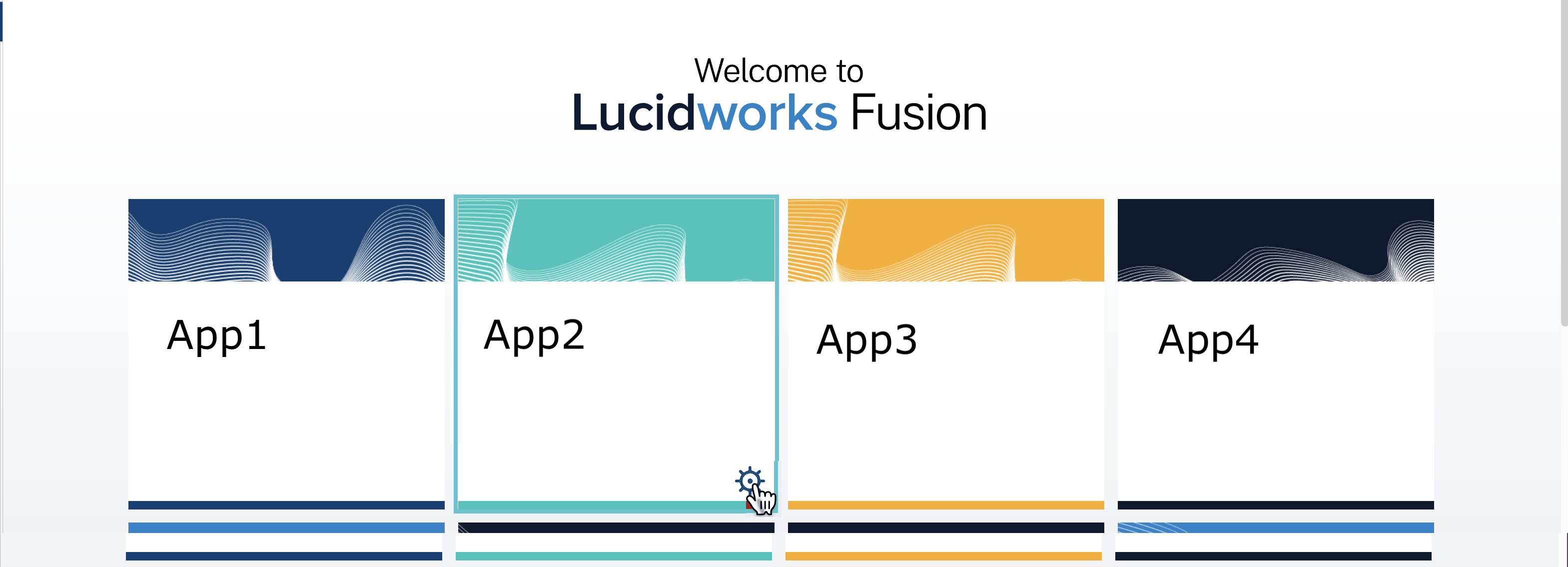
1. Navigate to the launcher.
2. Hover over the app you want to export and click the Configure icon:
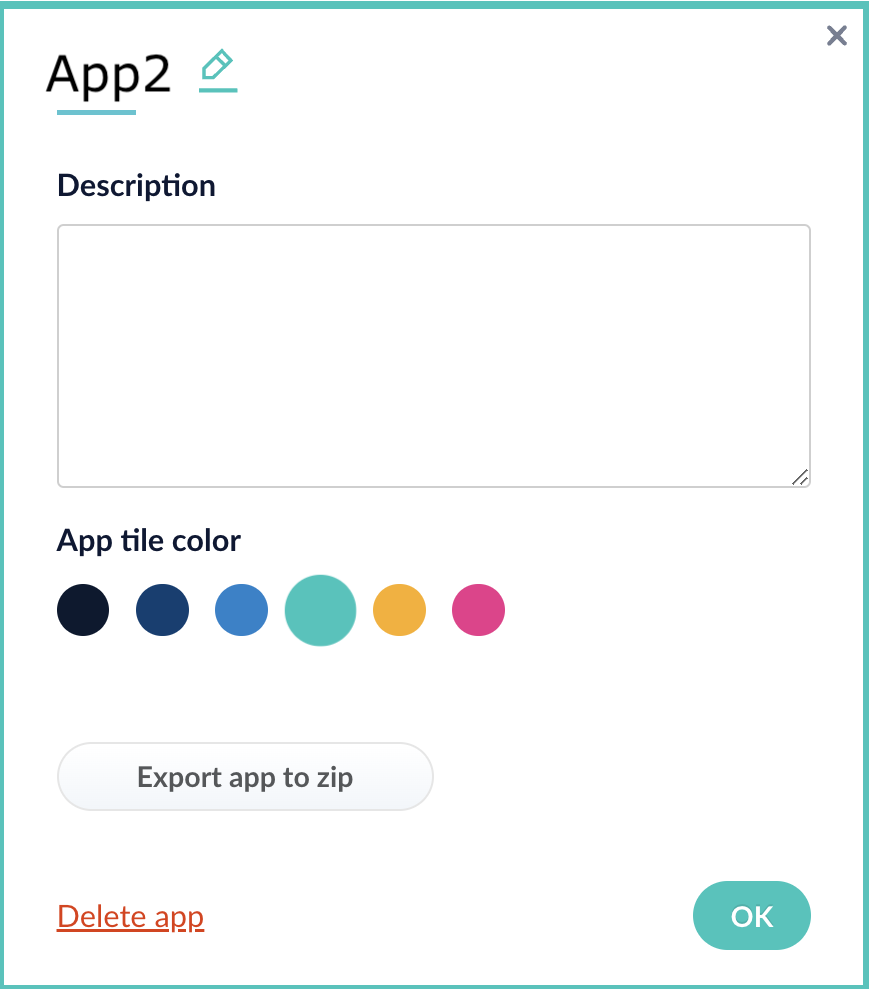
3. In the app config window, click **Export app to zip**:
See import for information to import the downloaded zip file into other instances of Fusion 5.x.
## Import an app with the Fusion UI
**How to import an app with the Fusion UI**
1. Navigate to the launcher.
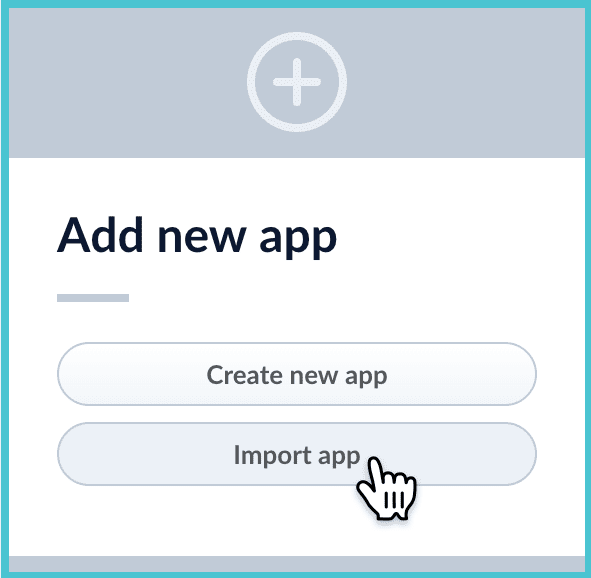
2. Click **Import app**.
3. Under **Data File**, click **Choose File** and select the zip file containing the app you want to import.
4. If your app has [usernames and passwords](/api-reference/objects/list-imported-variables) in a separate file, select it under **Variables File**.
If the Variables File is needed, it *must* be a separate file that is not in a .zip file. It is a .json map of variables to values. The following is an example:
```json theme={"dark"}
{
"secret.dataSources.Inventory_BR_S3_DS.password":"SOMETHING",
"secret.dataSources.LLM_A_BR_S3_DS.password":"FmJSaDE9Tj5REDACTED",
"secret.dataSources.LLM_BR_Inventory_S3_DS.password":"FmJSaDE9Tj5GzIVvethAC4Huh",
"secret.dataSources.LLM_BR_Load_S3_DS.password":"FmJSaDE9Tj5GzIVvethAC4"
}
```
5. You can sometimes edit parameter values to use the new values in the imported app. If this is the case, Fusion displays a dialog box that lets you edit the parameter values.
Make desired changes, and then click **Import**.
## Copy an app
To copy an app from one deployment to a different one, [export the app](#export-an-app-with-the-fusion-ui) on the source deployment, and then [import the app](#import-an-app-with-the-fusion-ui) on the target deployment.
## Import objects into an app
You can import objects into the currently open app.
**How to import objects into an open app**
1. In the Fusion launcher, click the app into which you want to import objects.
The Fusion workspace appears.
2. Click **System > Import Fusion Objects**.
The Import Fusion Objects window opens.
3. Select the data file from your local filesystem.
If you are importing [usernames and passwords](/api-reference/objects/import-objects) in a separate file, select it under **Variables File**.
4. Click **Import**.
If there are conflicts, Fusion prompts you to specify an import policy:
* Click **Overwrite** to overwrite the objects on the target system with the ones in the import file.
* Click **Merge** to skip all conflicting objects and import only the non-conflicting objects.
* Click **Start Over** to abort the import.
Fusion confirms that the import was successful:
5. Click **Close** to close the Import Fusion Objects window.
## Add an object to an app
You can add objects present in other apps (or in no apps) to the open app. Some objects are linked to other apps. You can also add those directly to an app.
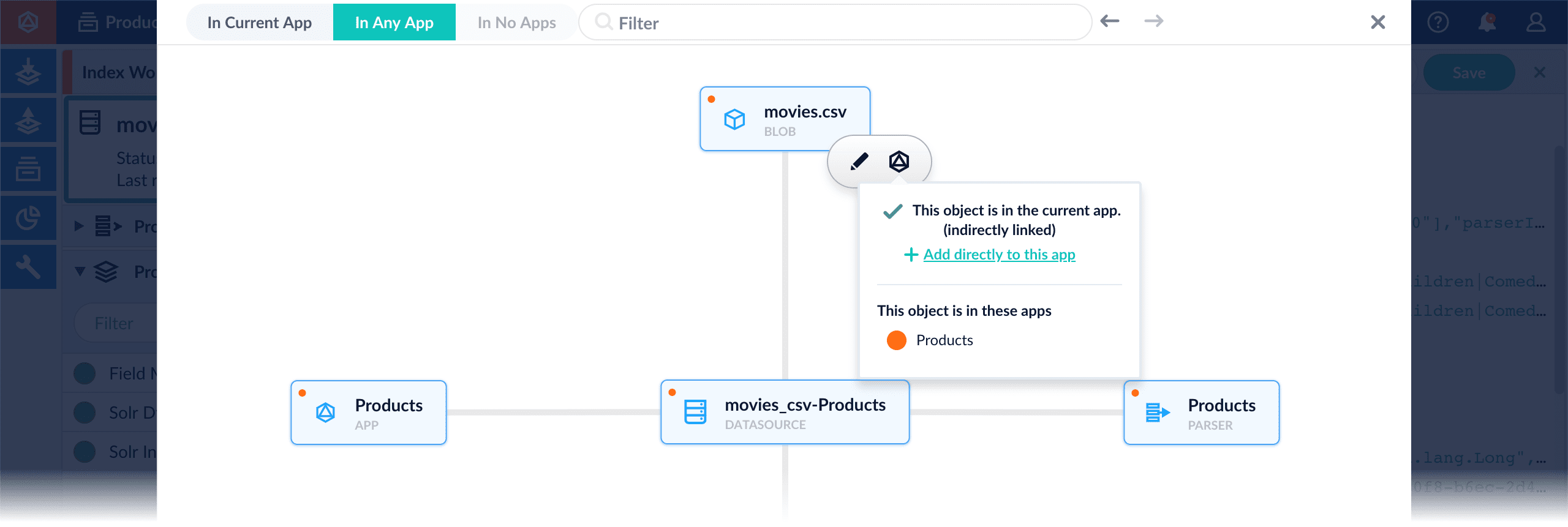
* **Add an object to an app** – While in the Fusion workspace for the app to which you want to add an object, open Object Explorer and click **In Any App**. Search for or browse to the object you want to add. Hover over the object, click the App icon, and then click **Add to this app**.
* **Add an object to an app directly** – In cases when an object is linked to an app, but is not linked directly to the app (it is linked via some dependency), you can add the object to an app directly.
While in the Fusion workspace for the app to which you want to add an object directly, open Object Explorer and click **In Any App**. Search for or browse to the object you want to add. Hover over the object, click the App icon, and then click **Add to this app directly**.
In Lucidworks Search, you can download and import a query pipeline that works out of the box with the default [BPR Recommender](/docs/lucidworks-search/09-developer-documentation/config-specs/jobs/bpr-recommender) job.
There are two separate pipelines attached below which work in different ways to query and return recommendations.
**Query for recommendations only**
1. Download the `APPName_item_item_rec_pipelines_bpr.json` file.
2. Rename the file to replace `APPName` with the name of your Lucidworks Search app, such as `ProductCatalog_item_item_rec_pipelines_bpr.json`.
3. Open the JSON file, replace all instances of `APPName` with the name of your Lucidworks Search app, such as `ProductCatalog`, and save it.
4. Import the JSON file into your Lucidworks Search instance using the Query Pipelines REST API:
```
curl -u USERNAME:PASSWORD
```
5. In the Lucidworks Search UI, navigate to **Query** > **Query Pipelines** to verify that the new pipeline is available.
This pipeline should be used to query the collection where the recommendations are stored. It makes a query against the `itemId` field and only returns the recommended `itemId` values. To get the actual items, you need to make a second query to the respective catalog collection with the returned `itemId` values.
No additional configuration is needed to use this pipeline with the default BPR job configuration.
**Boost recommended products from catalog**
1. Download the `APPName_items_for_item_bpr_boost.json` file
2. Rename the file to replace `APPName` with the name of your Lucidworks Search app, such as `ProductCatalog_item_item_rec_pipelines_bpr.json`.
3. Open the JSON file, replace all instances of `APPName` with the name of your Lucidworks Search app, such as `ProductCatalog`.
4. Fill in the `collection` name field in the first `Recommend Items for Item` stage and save the file.
5. Import the JSON file into your Lucidworks Search instance using the Query Pipelines REST API:
```
curl -u USERNAME:PASSWORD https://EXAMPLE_COMPANY.b.lucidworks.cloud/api/query-pipelines -XPOST -H 'content-type:application/json' -d@
```
6. In the Lucidworks Search UI, navigate to **Query** > **Query Pipelines** to verify that the new pipeline is available.
This pipeline queries the recommendations collection and then makes a subsequent query to the actual catalog collection boosting the recommended items and returning the actual items from the catalog. This pipeline will therefore also return recommendations even if none were generated/available.This pipeline expects a request parameter called `id=` to be appended to the request in order to work. An example query URL to this pipeline would look like `https://EXAMPLE_COMPANY.b.lucidworks.cloud/api/query-pipelines/APPName_items_for_item_bpr_boost/collections/catalog/select?q=**:**&id=SomeItemId`If the pipeline does not appear in the **Query Pipelines** panel, you may need to attach it to your app like this: Go to **System** > **Object Explorer**, click the **In No Apps** filter, hover over the pipeline, click the icon, and select **Add to this app**.
No additional configuration is needed to use this pipeline with the default BPR job configuration.
**See also**
* [Items-For-Item Recommendations](/docs/lucidworks-search/07-improve-your-queries/recommendations/items-for-item)
* [Get Started with Recommendations and Boosting](/docs/lucidworks-search/07-improve-your-queries/recommendations/getting-started)
You can download and import a query pipeline that works out of the box to fetch items-for-user recommendations generated by the default [BPR Recommender](/docs/5/fusion/reference/config-ref/jobs/bpr-recommender) job.
There are two separate pipelines attached below which work in different ways to query and return recommendations.
**Query for recommendations only**
1. Download the `APPName_item_user_rec_pipelines_bpr.json` file.
2. Rename the file to replace `APPName` with the name of your Fusion app, such as `ProductCatalog_item_item_rec_pipelines_bpr.json`.
3. Open the JSON file, replace all instances of `APPName` with the name of your Fusion app, such as `ProductCatalog`, and save it.
4. Import the JSON file into your Fusion instance using the Query Pipelines REST API:
```
curl -u USERNAME:PASSWORD /api/query-pipelines -XPOST -H 'content-type:application/json' -d@
```
5. In the Fusion UI, navigate to **Query** > **Query Pipelines** to verify that the new pipeline is available.
This pipeline should be used to query the collection where the recommendations are stored. It makes a query against the `userId` field and only returns the recommended `itemId` values. To get the actual items, you need to make a second query to the respective catalog collection with the returned `itemId` values.
No additional configuration is needed to use this pipeline with the default BPR job configuration.
**Boost recommended products from catalog**
1. Download the `APPName_items_for_user_bpr_boost.json` file
2. Rename the file to replace `APPName` with the name of your Fusion app, such as `ProductCatalog_items_for_user_bpr_boost.json`.
3. Open the JSON file, replace all instances of `APPName` with the name of your Fusion app, such as `ProductCatalog`.
4. Fill in the `collection` name field in the first `Recommend Items for User` stage and save the file.
5. Import the JSON file into your Fusion instance using the Query Pipelines REST API:
```
curl -u USERNAME:PASSWORD /api/query-pipelines -XPOST -H 'content-type:application/json' -d@
```
6. In the Fusion UI, navigate to **Query** > **Query Pipelines** to verify that the new pipeline is available.
This pipeline queries the recommendations collection and then makes a subsequent query to the actual catalog collection boosting the recommended items and returning the actual items from the catalog. This pipeline will therefore also return recommendations even if none were generated/available.This pipeline expects a request parameter called `id=` to be appended to the request in order to work. An example query URL to this pipeline would look like `https://example-recs-fusion.com/api/query-pipelines/APPName_items_for_user_bpr_boost/collections/catalog/select?q=**:**&id=SomeUserId`If the pipeline does not appear in the **Query Pipelines** panel, you may need to attach it to your app like this: Go to **System** > **Object Explorer**, click the **In No Apps** filter, hover over the pipeline, click the icon, and select **Add to this app**.
**See also**
* [Items-For-User Recommendations](/docs/5/fusion/reference/config-ref/pipeline-stages/query-stages/recommend-items-for-user-query-stage)
* [BPR Recommender job](/docs/5/fusion/reference/config-ref/jobs/bpr-recommender)
* [Getting Started with Recommendations and Boosting](/docs/5/fusion/getting-data-out/query-enhancement/recommendations/getting-started)
## Configuration properties
 3. In the app config window, click **Export app to zip**:
 See import for information to import the downloaded zip file into other instances of Fusion 5.x.
## Import an app with the Fusion UI
**How to import an app with the Fusion UI**
1. Navigate to the launcher.
2. Click **Import app**.
See import for information to import the downloaded zip file into other instances of Fusion 5.x.
## Import an app with the Fusion UI
**How to import an app with the Fusion UI**
1. Navigate to the launcher.
2. Click **Import app**.
 3. Under **Data File**, click **Choose File** and select the zip file containing the app you want to import.
4. If your app has [usernames and passwords](/api-reference/objects/list-imported-variables) in a separate file, select it under **Variables File**.
If the Variables File is needed, it *must* be a separate file that is not in a .zip file. It is a .json map of variables to values. The following is an example:
```json theme={"dark"}
{
"secret.dataSources.Inventory_BR_S3_DS.password":"SOMETHING",
"secret.dataSources.LLM_A_BR_S3_DS.password":"FmJSaDE9Tj5REDACTED",
"secret.dataSources.LLM_BR_Inventory_S3_DS.password":"FmJSaDE9Tj5GzIVvethAC4Huh",
"secret.dataSources.LLM_BR_Load_S3_DS.password":"FmJSaDE9Tj5GzIVvethAC4"
}
```
5. You can sometimes edit parameter values to use the new values in the imported app. If this is the case, Fusion displays a dialog box that lets you edit the parameter values.
3. Under **Data File**, click **Choose File** and select the zip file containing the app you want to import.
4. If your app has [usernames and passwords](/api-reference/objects/list-imported-variables) in a separate file, select it under **Variables File**.
If the Variables File is needed, it *must* be a separate file that is not in a .zip file. It is a .json map of variables to values. The following is an example:
```json theme={"dark"}
{
"secret.dataSources.Inventory_BR_S3_DS.password":"SOMETHING",
"secret.dataSources.LLM_A_BR_S3_DS.password":"FmJSaDE9Tj5REDACTED",
"secret.dataSources.LLM_BR_Inventory_S3_DS.password":"FmJSaDE9Tj5GzIVvethAC4Huh",
"secret.dataSources.LLM_BR_Load_S3_DS.password":"FmJSaDE9Tj5GzIVvethAC4"
}
```
5. You can sometimes edit parameter values to use the new values in the imported app. If this is the case, Fusion displays a dialog box that lets you edit the parameter values.
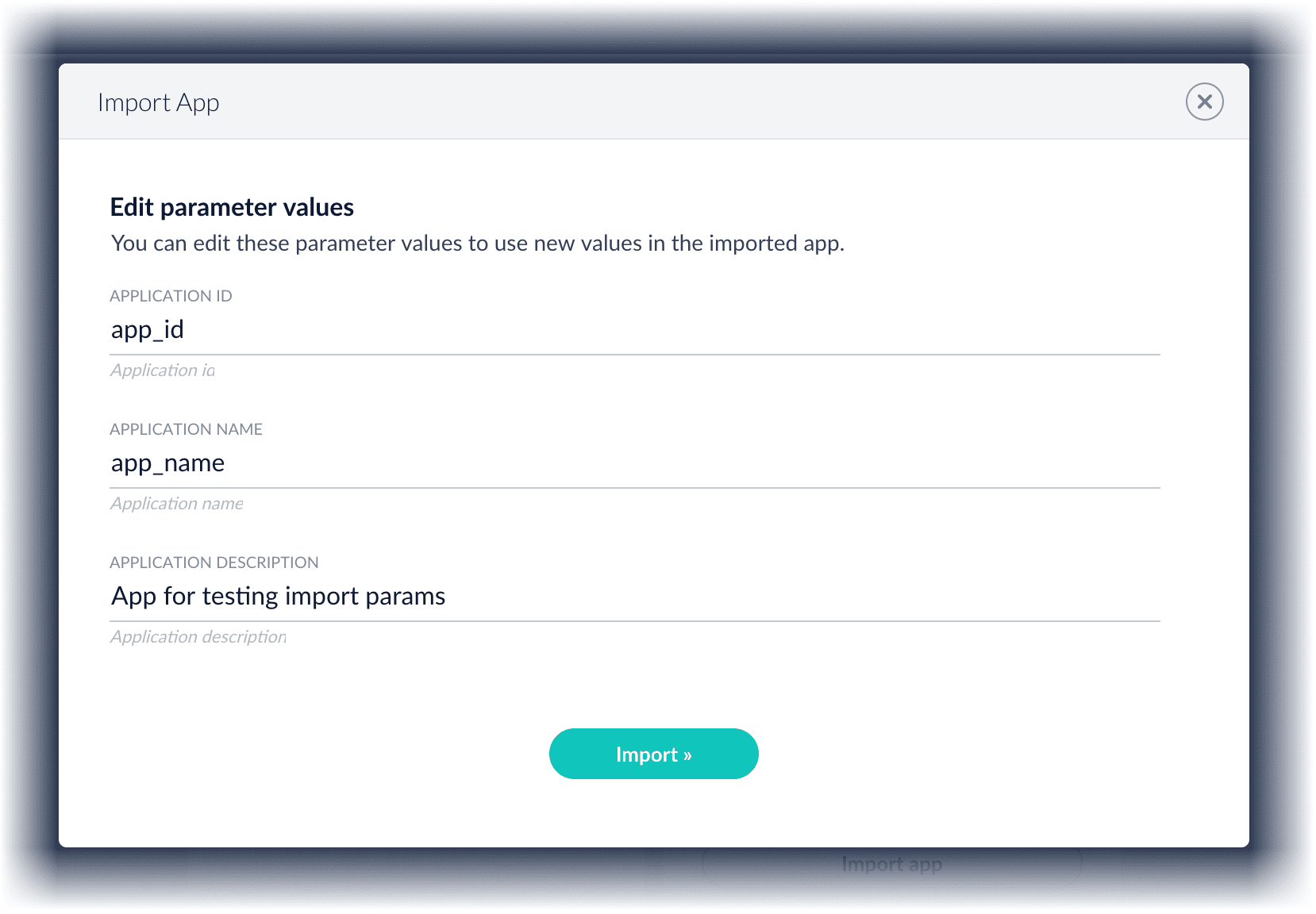 Make desired changes, and then click **Import**.
## Copy an app
To copy an app from one deployment to a different one, [export the app](#export-an-app-with-the-fusion-ui) on the source deployment, and then [import the app](#import-an-app-with-the-fusion-ui) on the target deployment.
## Import objects into an app
You can import objects into the currently open app.
**How to import objects into an open app**
1. In the Fusion launcher, click the app into which you want to import objects.
The Fusion workspace appears.
2. Click **System > Import Fusion Objects**.
The Import Fusion Objects window opens.
Make desired changes, and then click **Import**.
## Copy an app
To copy an app from one deployment to a different one, [export the app](#export-an-app-with-the-fusion-ui) on the source deployment, and then [import the app](#import-an-app-with-the-fusion-ui) on the target deployment.
## Import objects into an app
You can import objects into the currently open app.
**How to import objects into an open app**
1. In the Fusion launcher, click the app into which you want to import objects.
The Fusion workspace appears.
2. Click **System > Import Fusion Objects**.
The Import Fusion Objects window opens.
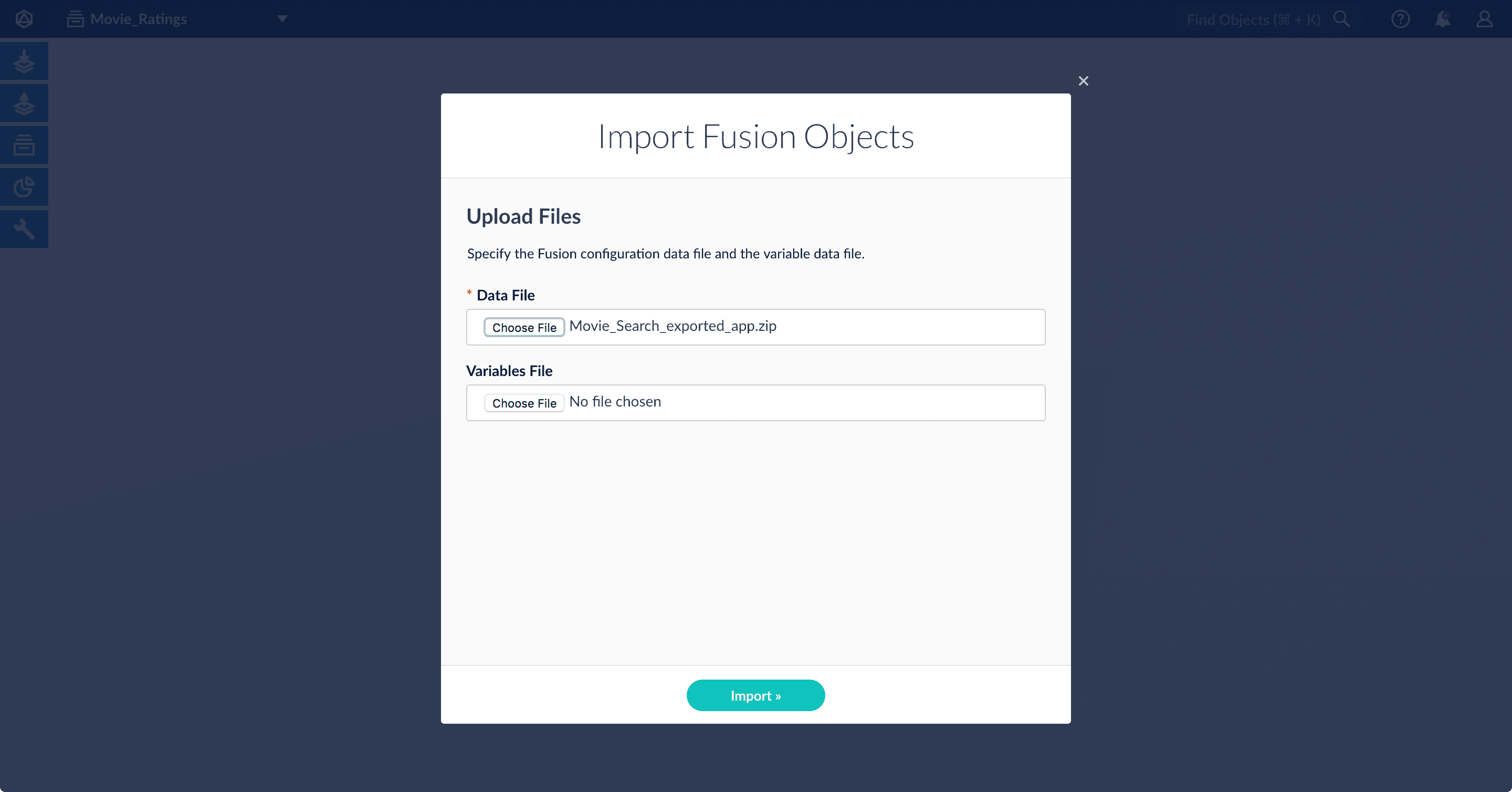 3. Select the data file from your local filesystem.
If you are importing [usernames and passwords](/api-reference/objects/import-objects) in a separate file, select it under **Variables File**.
4. Click **Import**.
If there are conflicts, Fusion prompts you to specify an import policy:
3. Select the data file from your local filesystem.
If you are importing [usernames and passwords](/api-reference/objects/import-objects) in a separate file, select it under **Variables File**.
4. Click **Import**.
If there are conflicts, Fusion prompts you to specify an import policy:
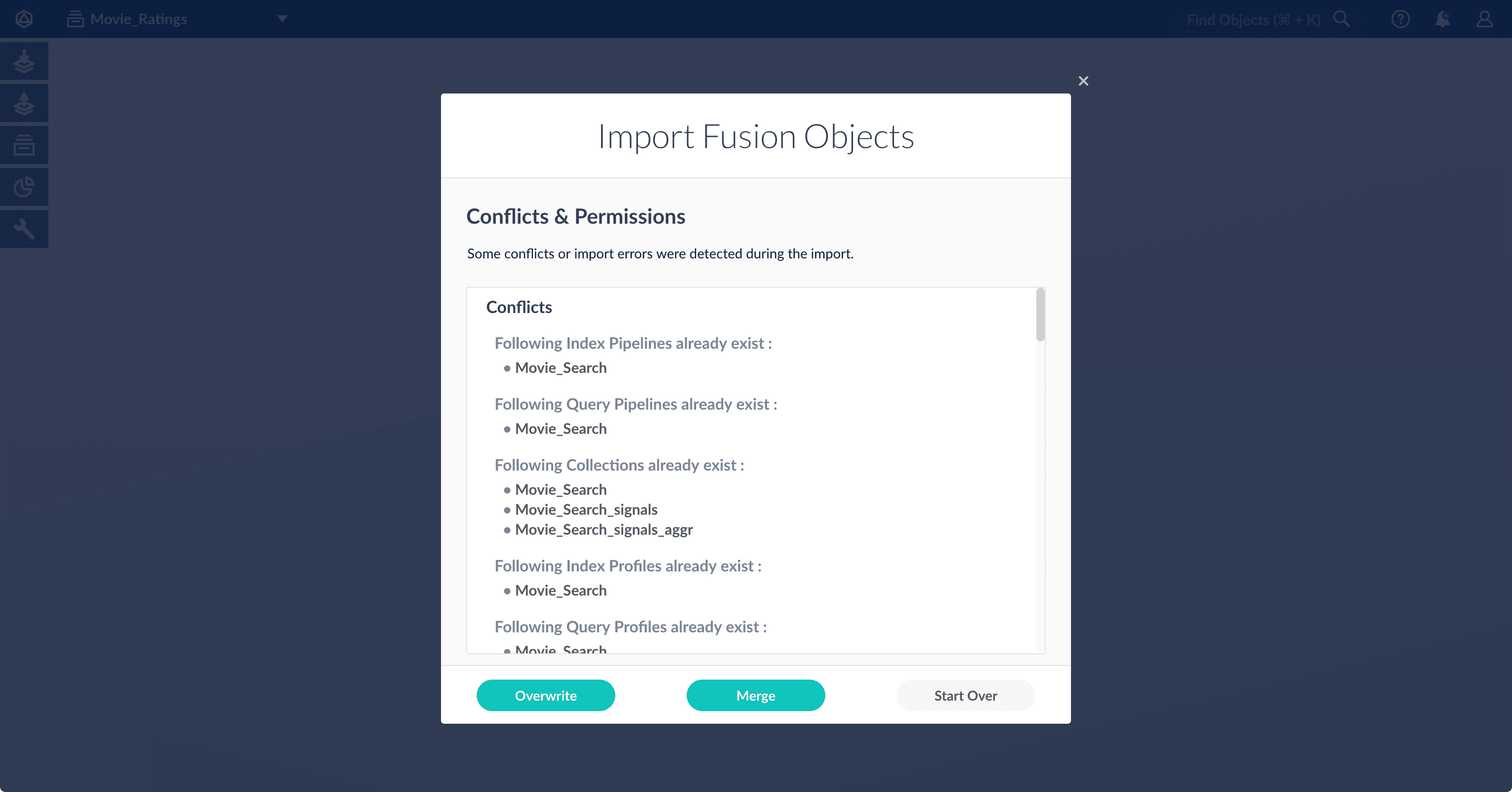 * Click **Overwrite** to overwrite the objects on the target system with the ones in the import file.
* Click **Merge** to skip all conflicting objects and import only the non-conflicting objects.
* Click **Start Over** to abort the import.
Fusion confirms that the import was successful:
* Click **Overwrite** to overwrite the objects on the target system with the ones in the import file.
* Click **Merge** to skip all conflicting objects and import only the non-conflicting objects.
* Click **Start Over** to abort the import.
Fusion confirms that the import was successful:
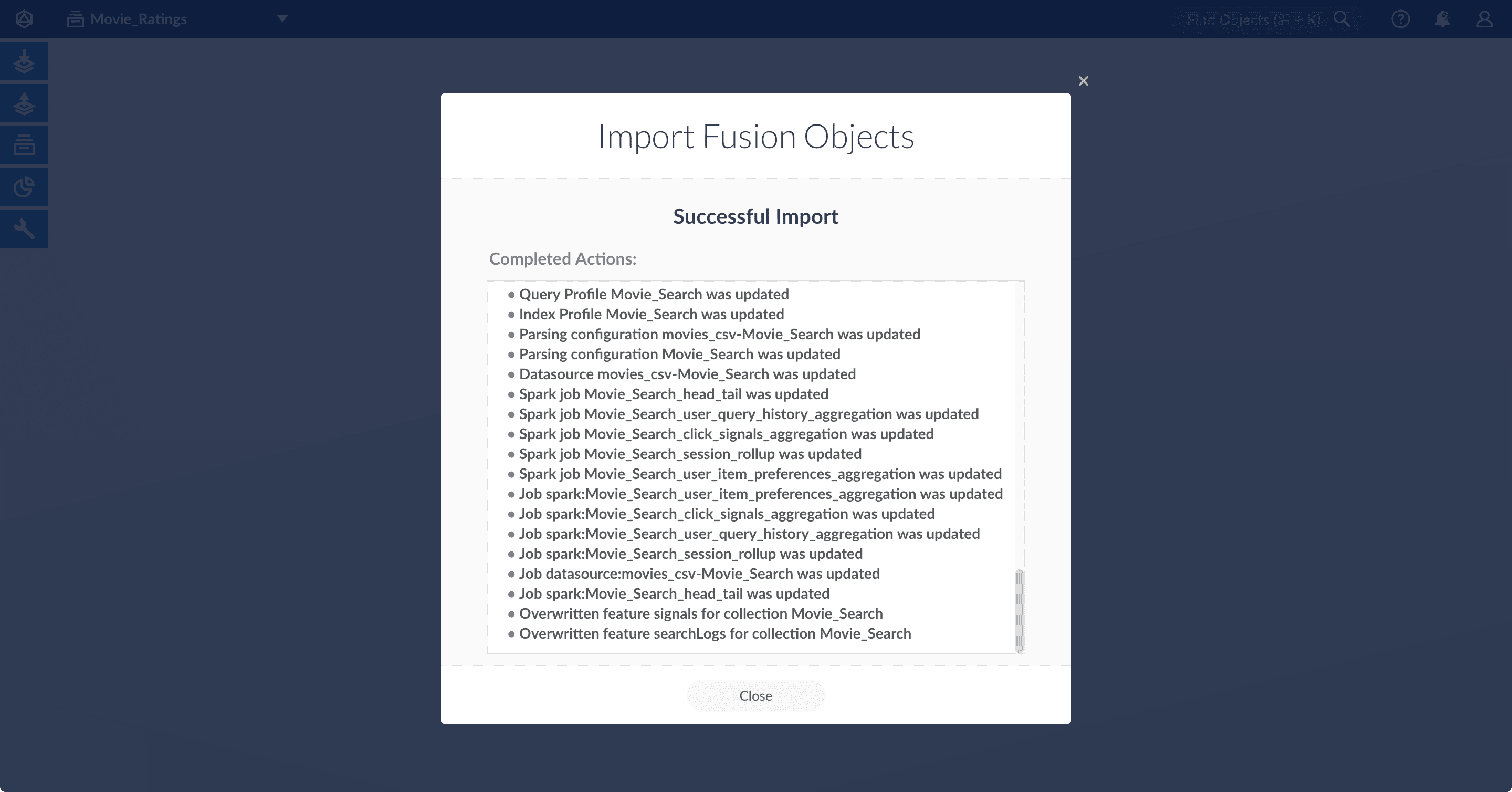 5. Click **Close** to close the Import Fusion Objects window.
## Add an object to an app
You can add objects present in other apps (or in no apps) to the open app. Some objects are linked to other apps. You can also add those directly to an app.
* **Add an object to an app** – While in the Fusion workspace for the app to which you want to add an object, open Object Explorer and click **In Any App**. Search for or browse to the object you want to add. Hover over the object, click the App
5. Click **Close** to close the Import Fusion Objects window.
## Add an object to an app
You can add objects present in other apps (or in no apps) to the open app. Some objects are linked to other apps. You can also add those directly to an app.
* **Add an object to an app** – While in the Fusion workspace for the app to which you want to add an object, open Object Explorer and click **In Any App**. Search for or browse to the object you want to add. Hover over the object, click the App  icon, and then click **Add to this app**.
 * **Add an object to an app directly** – In cases when an object is linked to an app, but is not linked directly to the app (it is linked via some dependency), you can add the object to an app directly.
While in the Fusion workspace for the app to which you want to add an object directly, open Object Explorer and click **In Any App**. Search for or browse to the object you want to add. Hover over the object, click the App
* **Add an object to an app directly** – In cases when an object is linked to an app, but is not linked directly to the app (it is linked via some dependency), you can add the object to an app directly.
While in the Fusion workspace for the app to which you want to add an object directly, open Object Explorer and click **In Any App**. Search for or browse to the object you want to add. Hover over the object, click the App