> ## Documentation Index
> Fetch the complete documentation index at: https://doc.lucidworks.com/llms.txt
> Use this file to discover all available pages before exploring further.
# Data Model Mapping
> Index pipeline stage configuration specifications
export const schema = {
"type": "object",
"title": "Data Model Mapping",
"description": "Transforms document fields to conform to a predefined data model schema using configurable mapping rules. Maps source field names to target field names, applies type conversions, handles nested object transformations, and enforces schema constraints. Enables normalization across heterogeneous data sources while maintaining referential integrity.",
"required": ["dataModelType", "mappings", "keepUnmappedFields"],
"properties": {
"skip": {
"type": "boolean",
"title": "Skip This Stage",
"description": "Controls whether this stage executes during pipeline processing at runtime. When set to `true`, the stage is completely bypassed and documents pass through unchanged to the next stage. Useful for A/B testing, gradual rollouts, or temporarily disabling a stage without removing it from the pipeline.",
"default": false,
"hints": ["advanced"]
},
"label": {
"type": "string",
"title": "Label",
"description": "Human-readable identifier displayed in the Fusion Admin UI, monitoring dashboards, and log messages. Use descriptive labels like `Parse Product PDFs` to aid debugging and team collaboration. Labels appear in performance metrics and error reports, making it easier to identify which stage failed.",
"hints": ["advanced"],
"maxLength": 255
},
"condition": {
"type": "string",
"title": "Condition",
"description": "JavaScript expression evaluated at runtime on each document to conditionally execute this stage. The expression must return `true` to execute or `false` to skip. Access document fields using `doc.getFieldValue('fieldName')` and request parameters via `request.getFirstParam('paramName')`. For example, `doc.getFieldValue('type') === 'premium'` executes this stage only for premium content.",
"hints": ["code", "code/javascript", "advanced"]
},
"dataModelType": {
"type": "string",
"title": "DataModel Type",
"description": "Specifies the Fusion Data Model type to map document fields to. This determines which field mapping rules and schema constraints are applied during transformation.",
"hints": ["enumUrl:/api/data-models"]
},
"matchTrigger": {
"type": "object",
"title": "Match Trigger",
"required": ["fieldToMatch", "valueToMatch"],
"properties": {
"fieldToMatch": {
"type": "string",
"title": "Field to match",
"description": "The name of the field to match on. Enter '*' to match all documents that don't already have a data model."
},
"valueToMatch": {
"type": "string",
"title": "Value to match",
"description": "The value of the field to match on. Supports regular expression by wrapping the value in slashes, e.g.: '/text.*/'."
}
}
},
"mappings": {
"type": "array",
"title": "Field Mappings",
"description": "Defines the list of field mapping rules that transform source fields to target fields in the data model. Each rule specifies a source field, a target field, and optionally a transformation or type conversion.",
"hints": ["advanced"],
"items": {
"type": "object",
"required": ["sourceField", "dataModelField"],
"properties": {
"sourceField": {
"type": "string",
"title": "Source Field",
"description": "Name of the field in the source document from which data will be read and processed by this stage. The value from this field serves as input for the stage's transformation, parsing, or enrichment logic. Supports both static field names like `title`, `description`, or `content`, as well as dynamic field patterns using wildcards or expressions."
},
"dataModelField": {
"type": "string",
"title": "Data model field",
"hints": ["enumUrl:/api/data-models/${dataModelType}/fields"],
"minLength": 1,
"description": "Specifies the field name(s) for data model field operations in the document processing pipeline."
}
}
}
},
"keepUnmappedFields": {
"type": "boolean",
"title": "Keep unmapped fields",
"default": false,
"description": "Controls whether fields not matched by any mapping rule are retained in the document or dropped. When `true`, unmapped fields pass through unchanged. When `false`, only explicitly mapped fields are kept."
}
},
"category": "Advanced",
"categoryPriority": 3,
"unsafe": false
};
export const SchemaParamFields = ({schema}) => {
const sanitize = str => {
if (typeof str !== "string") return str;
return str.replace(/^"(.*)"$/s, "$1").replace(/\\/g, "").replace(/"/g, "'");
};
const renderMd = str => {
const s = sanitize(str);
const text = (/[.!?]\)*$/).test(s) ? s : `${s}.`;
return text.split(/(\*\*[^*]+\*\*|_[^_]+_|`[^`]+`)/g).map((part, i) => {
if (part.startsWith("**")) return {part.slice(2, -2)};
if (part.startsWith("_")) return {part.slice(1, -1)};
if (part.startsWith("`")) return {part.slice(1, -1)};
return part;
});
};
const {description, properties = {}, required: requiredProps = []} = schema;
const visibleProps = useMemo(() => Object.entries(properties).filter(([, prop]) => !prop.hints?.includes("hidden")), [properties]);
const renderProp = ([name, prop]) => {
const isRequired = requiredProps.includes(name);
const hasDefault = prop.default !== undefined;
const rawDefault = prop.default;
const hints = prop.hints || [];
const isComplexDefault = hasDefault && (typeof rawDefault === "object" || typeof rawDefault === "string" && (rawDefault.length > 20 || rawDefault.includes('"')));
const postBadges = [];
if (prop.title) {
postBadges.push(<>API property: {name});
}
const constraints = [];
if (prop.minimum !== undefined && prop.maximum !== undefined) {
constraints.push(`Range: ${prop.minimum} – ${prop.maximum}`);
} else if (prop.minimum !== undefined) {
constraints.push(`Min: ${prop.minimum}`);
} else if (prop.maximum !== undefined) {
constraints.push(`Max: ${prop.maximum}`);
}
if (prop.minLength !== undefined && prop.maxLength !== undefined) {
constraints.push(`Length: ${prop.minLength} – ${prop.maxLength}`);
} else if (prop.minLength !== undefined) {
constraints.push(`Min length: ${prop.minLength}`);
} else if (prop.maxLength !== undefined) {
constraints.push(`Max length: ${prop.maxLength}`);
}
const fieldProps = {
key: name,
body: prop.title || name,
type: prop.type,
...postBadges.length > 0 && ({
post: postBadges
}),
...isRequired && ({
required: true
}),
...!isComplexDefault && hasDefault ? {
default: sanitize(String(rawDefault))
} : {}
};
const isObject = prop.type === "object" && prop.properties;
const isArrayOfObjects = prop.type === "array" && prop.items?.type === "object" && prop.items.properties;
return
{prop.description &&
{isLoaded && `
}} />}
Powered by Lucidworks Agent Studio
;
};
[localhost link]: http://localhost:3000/docs/lucidworks-search/09-developer-documentation/config-specs/index-pipeline-stages/data-model-mapping
[mintlify link]: https://doc.lucidworks.com/docs/lucidworks-search/09-developer-documentation/config-specs/index-pipeline-stages/data-model-mapping
[old doc.lw link]: https://doc.lucidworks.com/managed-fusion/5.9/04pnyx
Data models simplify the process of getting started with Lucidworks Search by providing pre-configured objects to reduce the effort spent on basic starting tasks. This helps keep documents consistent between datasources and intuitive to the object’s type.
The Data Model Mapping index stage is used to map the field values found in your documents to the data model fields.
**Important**
This index stage must be placed *before* the **[Call Data Model Pipeline index stage](/docs/lucidworks-search/09-developer-documentation/config-specs/index-pipeline-stages/call-data-model-pipeline)**.
## More information
* **Configure a Data Model**
* [Data Models](/docs/lucidworks-search/04-move-data-in/data-models/overview)
* [Data Models API reference](/api-reference/data-models/get-data-models-service-status)
* [Call Data Model Pipeline Index Stage reference](/docs/lucidworks-search/09-developer-documentation/config-specs/index-pipeline-stages/call-data-model-pipeline)
Data models simplify the process of getting started with Fusion by providing pre-configured objects to reduce the effort spent on basic starting tasks. This helps keep documents consistent between datasources and intuitive to the object’s type.
See the [Data Models](/docs/5/fusion/getting-data-in/indexing/data-models/overview) topic for more information.
## Configure the datasource
This section references the Slack V2 Connector as an example. The instructions on [configuring the data model](#configure-the-data-model) are valid for any connector that indexes users.
1. Navigate to **Indexing > Datasources**.
2. Click the **Add** button, and choose the Slack V2 connector from the list.
Some connectors include built-in data models as a standard component. Others require you to manually create data models.
3. Complete the datasource configuration:
* Ideally, use a pipeline specifically created for this data model. For now, you can create the pipeline by navigating to **Indexing > Index Pipelines** and clicking the **Add** button. Configure it using the information in [Configure the index pipeline](#configure-the-index-pipeline).
* Under **Profiles Settings**, select *Index profiles*:
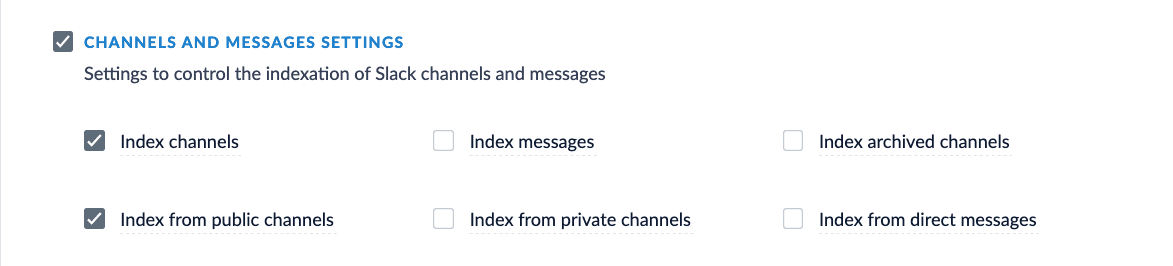
* Under **Channels and Messages Settings**, select *Index channels* and *Index from public channels*:
4. Click **Save**.
5. Click **Run** to run the indexing job.
{/* [#configure-data-model] */}
## Configure the data model
Some connectors include built-in data models with pre-configured object types. However, you can add new data models or customize existing ones to fit your particular needs.
1. Navigate to **Indexing > Data Models**.
2. Click the **Add** button.
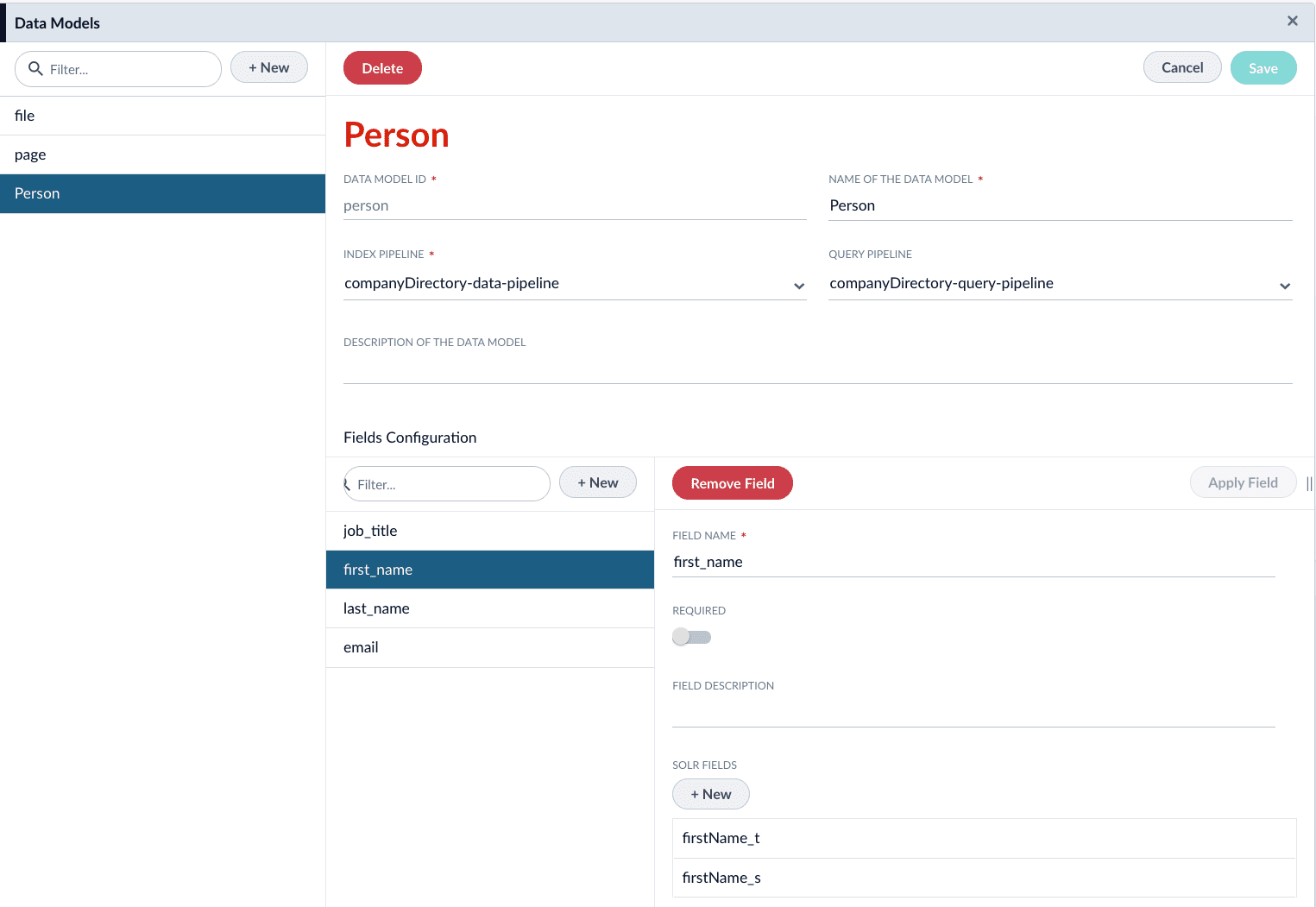
3. Create a new data model. For example, `person`.
4. Assign the index pipeline for the data model. In this example, create a new index pipeline named `companyDirectory-data-pipeline`.
This pipeline is ideally for operation with data models only. For the sake of this example, we will only be using the default stages. Applying additional logic/stages specific to the object would occur here.
5. Assign the query pipeline you will use to query the indexed documents. In this example, create a new query pipeline named `companyDirectory-query-pipeline`.
6. Click the **New** button under **Fields Configuration**.
7. Complete the required configurations, as detailed in [Data Models API Reference](/api-reference/data-models/get-data-models-service-status). Create fields for the following:
| Field Name | Solr Fields |
| ------------ | ---------------------------- |
| `first_name` | `firstName_t`, `firstName_s` |
| `last_name` | `lastName_t`, `lastName_s` |
| `email` | `email_s` |
| `job_title` | `jobTitle_t`, `jobTitle_s` |
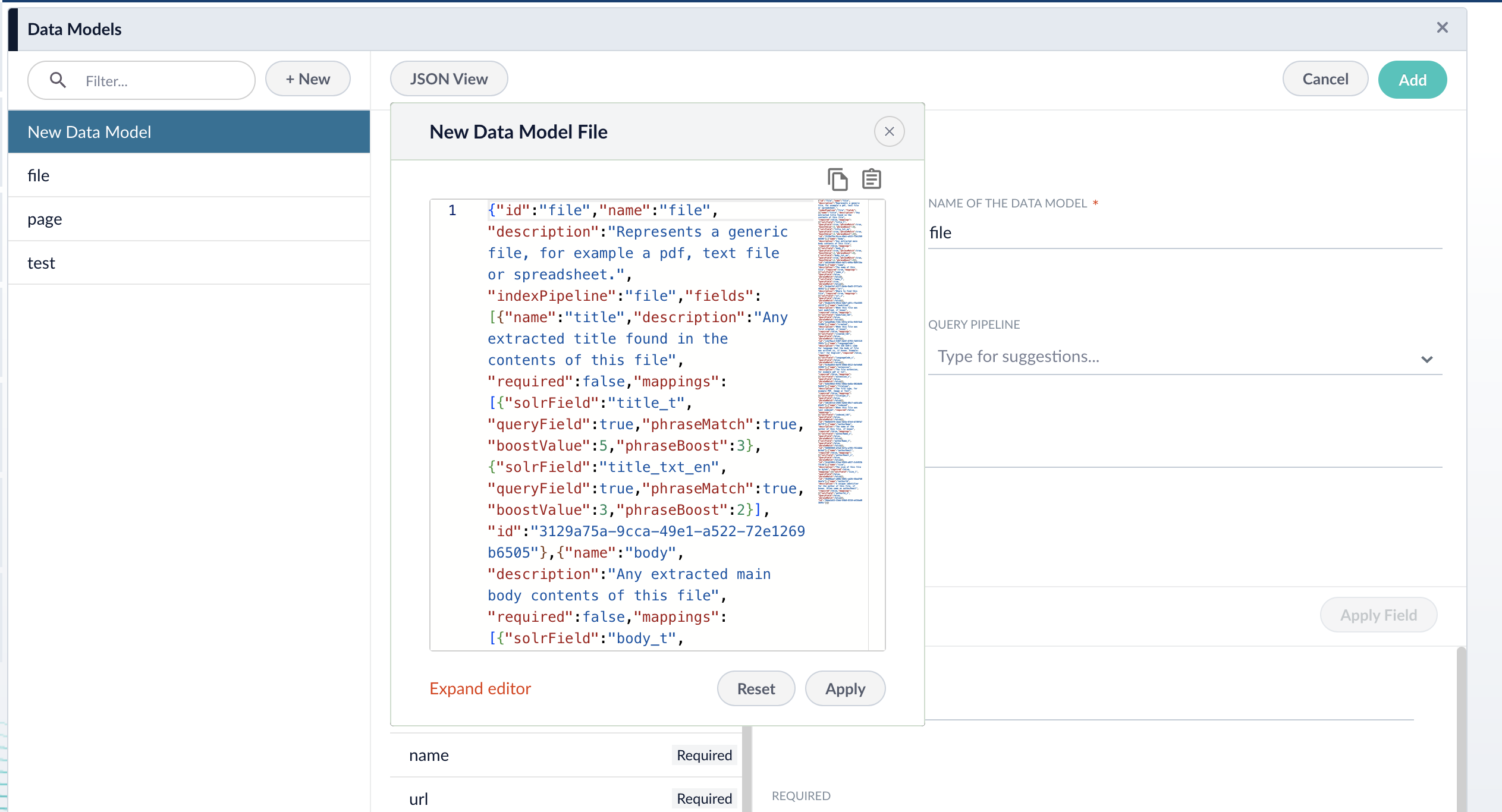
8. If needed, edit the JSON for the data model before saving. After saving the data model, this JSON viewer becomes read-only.
9. Click the **Save** button to save the data model.
## Configure the index pipeline
To begin, navigate to **Indexing > Index Workbench**. Alternatively, the `companyDirectory-index-pipeline` pipeline can be configured in **Indexing > Index Pipelines**, but you are not able to preview results.
The raw data fields in your index coming from Slack may differ from the example data fields used in this article.
### Data Model Mapping stage
1. Click the **Add a Stage** button, and choose **Data Model Mapping** from the list.
2. Use the **Data Model Type** dropdown to select the `person` data model.
3. *(optional)* Check the **Match Trigger** checkbox and assign the following values:
| Field | Value |
| ------------------ | -------- |
| **Field to match** | `type_s` |
| **Value to match** | `user` |
The **Value to match** field supports RegEx. You can assign multiple values. Alternatively, you can create additional **Data Model Mapping** stages.
4. Assign field mappings for the Slack datasource’s raw datasources:
| Source Field | Data Model Field |
| ------------ | ---------------- |
| `first_name` | `first_name` |
| `last_name` | `last_name` |
| `email` | `email` |
5. *(optional)* Check the **Keep unmapped fields** checkbox to preserve fields that are unmatched to the data model.
6. Click **Apply**.
### Call Data Model Pipeline stage
This stage must be placed *after* the Data Model Mapping stage.
1. Click the **Add a Stage** button, and choose **Call Data Model Pipeline** from the list.
2. Assign the value `_lw_data_model_type_s` to the **Data Model Type Field** field. This field is created when a document meets the criteria specified in the **Data Model Mapping**.
3. Click **Apply**.
## Next steps
With the index pipeline configured, you are now ready to complete the indexing job by clicking the **Start Job** button.
Once complete, the documents are ready for viewing in the Query Workbench:
1. Navigate to **Querying > Query Workbench**.
2. Click the **Load** button.
3. Choose the query pipeline you specified when creating the data model, `companyDirectory-query-pipeline`.
## More information
* [Data Models](/docs/5/fusion/getting-data-in/indexing/data-models/overview)
* [Data Models API reference](/api-reference/data-models/get-data-models-service-status)
* [Data Model Mapping Index Stage reference](/docs/5/fusion/reference/config-ref/pipeline-stages/index-stages/datamodel-mapping-index-stage)
* [Call Data Model Pipeline Index Stage reference](/docs/5/fusion/reference/config-ref/pipeline-stages/index-stages/call-datamodel-pipeline-index-stage)
## Configuration
When entering configuration values in the UI, use *unescaped* characters, such as `\t` for the tab character. When entering configuration values in the API, use *escaped* characters, such as `\\t` for the tab character.
 * Under **Channels and Messages Settings**, select *Index channels* and *Index from public channels*:
 4. Click **Save**.
5. Click **Run** to run the indexing job.
{/* [#configure-data-model] */}
## Configure the data model
Some connectors include built-in data models with pre-configured object types. However, you can add new data models or customize existing ones to fit your particular needs.
1. Navigate to **Indexing > Data Models**.
2. Click the **Add** button.
3. Create a new data model. For example, `person`.
4. Assign the index pipeline for the data model. In this example, create a new index pipeline named `companyDirectory-data-pipeline`.
This pipeline is ideally for operation with data models only. For the sake of this example, we will only be using the default stages. Applying additional logic/stages specific to the object would occur here.
5. Assign the query pipeline you will use to query the indexed documents. In this example, create a new query pipeline named `companyDirectory-query-pipeline`.
6. Click the **New** button under **Fields Configuration**.
7. Complete the required configurations, as detailed in [Data Models API Reference](/api-reference/data-models/get-data-models-service-status). Create fields for the following:
| Field Name | Solr Fields |
| ------------ | ---------------------------- |
| `first_name` | `firstName_t`, `firstName_s` |
| `last_name` | `lastName_t`, `lastName_s` |
| `email` | `email_s` |
| `job_title` | `jobTitle_t`, `jobTitle_s` |
4. Click **Save**.
5. Click **Run** to run the indexing job.
{/* [#configure-data-model] */}
## Configure the data model
Some connectors include built-in data models with pre-configured object types. However, you can add new data models or customize existing ones to fit your particular needs.
1. Navigate to **Indexing > Data Models**.
2. Click the **Add** button.
3. Create a new data model. For example, `person`.
4. Assign the index pipeline for the data model. In this example, create a new index pipeline named `companyDirectory-data-pipeline`.
This pipeline is ideally for operation with data models only. For the sake of this example, we will only be using the default stages. Applying additional logic/stages specific to the object would occur here.
5. Assign the query pipeline you will use to query the indexed documents. In this example, create a new query pipeline named `companyDirectory-query-pipeline`.
6. Click the **New** button under **Fields Configuration**.
7. Complete the required configurations, as detailed in [Data Models API Reference](/api-reference/data-models/get-data-models-service-status). Create fields for the following:
| Field Name | Solr Fields |
| ------------ | ---------------------------- |
| `first_name` | `firstName_t`, `firstName_s` |
| `last_name` | `lastName_t`, `lastName_s` |
| `email` | `email_s` |
| `job_title` | `jobTitle_t`, `jobTitle_s` |
 8. If needed, edit the JSON for the data model before saving. After saving the data model, this JSON viewer becomes read-only.
 9. Click the **Save** button to save the data model.
## Configure the index pipeline
To begin, navigate to **Indexing > Index Workbench**. Alternatively, the `companyDirectory-index-pipeline` pipeline can be configured in **Indexing > Index Pipelines**, but you are not able to preview results.
9. Click the **Save** button to save the data model.
## Configure the index pipeline
To begin, navigate to **Indexing > Index Workbench**. Alternatively, the `companyDirectory-index-pipeline` pipeline can be configured in **Indexing > Index Pipelines**, but you are not able to preview results.