> ## Documentation Index
> Fetch the complete documentation index at: https://doc.lucidworks.com/llms.txt
> Use this file to discover all available pages before exploring further.

# Spell Check Query Stage

export const schema = {
  "type": "object",
  "title": "Spell Check",
  "description": "Suggests spelling corrections for the search query when the result count falls below configured thresholds.",
  "required": ["querySuggestionsMethod"],
  "properties": {
    "skip": {
      "type": "boolean",
      "title": "Skip This Stage",
      "description": "Controls whether this stage executes during pipeline processing at runtime. When set to `true`, the stage is completely bypassed and documents pass through unchanged to the next stage. Useful for A/B testing, gradual rollouts, or temporarily disabling a stage without removing it from the pipeline.",
      "default": false,
      "hints": ["advanced"]
    },
    "label": {
      "type": "string",
      "title": "Label",
      "description": "Human-readable identifier displayed in the Fusion Admin UI, monitoring dashboards, and log messages. Use descriptive labels like `Parse Product PDFs` to aid debugging and team collaboration. Labels appear in performance metrics and error reports, making it easier to identify which stage failed.",
      "hints": ["advanced"],
      "maxLength": 255
    },
    "condition": {
      "type": "string",
      "title": "Condition",
      "description": "JavaScript expression evaluated at runtime on each document to conditionally execute this stage. The expression must return `true` to execute or `false` to skip. Access document fields using `doc.getFieldValue('fieldName')` and request parameters via `request.getFirstParam('paramName')`. For example, `doc.getFieldValue('type') === 'premium'` executes this stage only for premium content.",
      "hints": ["code", "code/javascript", "advanced"]
    },
    "legacy": {
      "type": "boolean",
      "title": "Legacy",
      "description": "When `true`, this stage operates in legacy mode only.",
      "hints": ["readonly", "hidden"]
    },
    "resultCountThreshold": {
      "type": "object",
      "title": "Result Count Threshold",
      "description": "Sets the minimum result count threshold below which spell check suggestions are generated.",
      "required": ["threshold"],
      "properties": {
        "threshold": {
          "type": "integer",
          "title": "Result Count Threshold",
          "description": "Minimum threshold value for Spell Check/resultCountThreshold. Values below this threshold are excluded or trigger alternative processing. Numeric value with valid range depending on context.",
          "maximum": 50,
          "exclusiveMaximum": false,
          "minimum": 0,
          "exclusiveMinimum": false
        }
      }
    },
    "nhsThreshold": {
      "type": "object",
      "title": "Cutoff margin (NHS)",
      "description": "Sets the cutoff margin (NHS) used to determine when spell check corrections are applied.",
      "required": ["threshold"],
      "properties": {
        "threshold": {
          "type": "number",
          "title": "Cutoff margin (NHS)",
          "description": "Minimum threshold value for Spell Check/nhsThreshold. Values below this threshold are excluded or trigger alternative processing. Numeric value with valid range depending on context.",
          "default": 0.45,
          "maximum": 1,
          "exclusiveMaximum": false
        }
      }
    },
    "querySuggestionsMethod": {
      "type": "string",
      "title": "Query Suggestions Method",
      "enum": ["solr"],
      "default": "solr",
      "description": "Specifies the method or query type used to retrieve spelling suggestions."
    }
  },
  "category": "Results Relevancy",
  "categoryPriority": 7,
  "unsafe": false
};

export const SchemaParamFields = ({schema}) => {
  const sanitize = str => {
    if (typeof str !== "string") return str;
    return str.replace(/^"(.*)"$/s, "$1").replace(/\\/g, "").replace(/"/g, "'");
  };
  const renderMd = str => {
    const s = sanitize(str);
    const text = (/[.!?]\)*$/).test(s) ? s : `${s}.`;
    return text.split(/(\*\*[^*]+\*\*|_[^_]+_|`[^`]+`)/g).map((part, i) => {
      if (part.startsWith("**")) return <strong key={i}>{part.slice(2, -2)}</strong>;
      if (part.startsWith("_")) return <em key={i}>{part.slice(1, -1)}</em>;
      if (part.startsWith("`")) return <code key={i}>{part.slice(1, -1)}</code>;
      return part;
    });
  };
  const {description, properties = {}, required: requiredProps = []} = schema;
  const visibleProps = useMemo(() => Object.entries(properties).filter(([, prop]) => !prop.hints?.includes("hidden")), [properties]);
  const renderProp = ([name, prop]) => {
    const isRequired = requiredProps.includes(name);
    const hasDefault = prop.default !== undefined;
    const rawDefault = prop.default;
    const hints = prop.hints || [];
    const isComplexDefault = hasDefault && (typeof rawDefault === "object" || typeof rawDefault === "string" && (rawDefault.length > 20 || rawDefault.includes('"')));
    const postBadges = [];
    if (prop.title) {
      postBadges.push(<><span className="text-stone-400 dark:text-stone-500">API property: </span>{name}</>);
    }
    const constraints = [];
    if (prop.minimum !== undefined && prop.maximum !== undefined) {
      constraints.push(`Range: ${prop.minimum} – ${prop.maximum}`);
    } else if (prop.minimum !== undefined) {
      constraints.push(`Min: ${prop.minimum}`);
    } else if (prop.maximum !== undefined) {
      constraints.push(`Max: ${prop.maximum}`);
    }
    if (prop.minLength !== undefined && prop.maxLength !== undefined) {
      constraints.push(`Length: ${prop.minLength} – ${prop.maxLength}`);
    } else if (prop.minLength !== undefined) {
      constraints.push(`Min length: ${prop.minLength}`);
    } else if (prop.maxLength !== undefined) {
      constraints.push(`Max length: ${prop.maxLength}`);
    }
    const fieldProps = {
      key: name,
      body: prop.title || name,
      type: prop.type,
      ...postBadges.length > 0 && ({
        post: postBadges
      }),
      ...isRequired && ({
        required: true
      }),
      ...!isComplexDefault && hasDefault ? {
        default: sanitize(String(rawDefault))
      } : {}
    };
    const isObject = prop.type === "object" && prop.properties;
    const isArrayOfObjects = prop.type === "array" && prop.items?.type === "object" && prop.items.properties;
    return <ParamField {...fieldProps}>
        {prop.description && <p>{renderMd(prop.description)}</p>}

        {prop.enum && <p>
            Allowed values: 
            {prop.enum.map((v, i) => <>{i > 0 && ", "}<code key={i}>{String(v)}</code></>)}
          </p>}

        {constraints.length > 0 && <p className="text-stone-500 dark:text-stone-400 text-sm">
            {constraints.join(" · ")}
          </p>}

        {isComplexDefault && <div className="flex">
            <p>
              <strong>Default:</strong>
            </p>
            <pre className="!my-0">
              <code>
                {JSON.stringify(rawDefault, null, 2)}
              </code>
            </pre>
          </div>}

        {isArrayOfObjects && <Expandable title="item properties">
            <SchemaParamFields schema={{
      properties: prop.items.properties,
      required: prop.items.required
    }} />
          </Expandable>}

        {isObject && <Expandable title="properties">
            <SchemaParamFields schema={{
      properties: prop.properties,
      required: prop.required
    }} />
          </Expandable>}
      </ParamField>;
  };
  return <div>
      {description && <p>{renderMd(description)}</p>}

      {visibleProps.map(renderProp)}
    </div>;
};

export const LwTemplate = ({title = "Key questions to get you started", icon = "sparkles", cta = "Powered by Agent Studio", linkHref = "https://lucidworks.com/demo/?utm_source=docs&utm_medium=referral&utm_campaign=docs_cta_ai"}) => {
  const [isLoaded, setIsLoaded] = useState(false);
  useEffect(() => {
    const timer = setTimeout(() => {
      setIsLoaded(true);
    }, 500);
    return () => clearTimeout(timer);
  }, []);
  return <div className="lw-template-container">
      <Card title={title} icon={icon}>
        {isLoaded && <span dangerouslySetInnerHTML={{
    __html: `<lw-template id="a029c1a9-28be-427e-b0e1-5d918920246a"></lw-template
            >`
  }} />}
        <Link href={linkHref} className="agent-studio-link text-left text-gray-600 gap-2 dark:text-gray-400 text-sm font-medium flex flex-row items-center hover:text-primary dark:hover:text-primary-light group-hover:text-primary group-hover:dark:text-primary-light">Powered by Lucidworks Agent Studio</Link>
      </Card>
    </div>;
};

The Spell Check query stage lets you configure threshold values to invoke a spell check function, such as Solr Spell Check, to return relevant spelling suggestions when queries contain misspellings or typing errors. This improves search relevance and minimizes zero search result experiences.

After the stage is configured, you can test by entering misspelled search terms in Query Workbench, and reviewing the suggestions returned by the spell check function.

<iframe src="https://app.supademo.com/embed/cmkmyvng52fwy12fimc4ct6k5?embed_v=2&utm_source=embed" title="Configure the Spell Check query stage" allow="clipboard-write" className="w-full aspect-video rounded-xl" allow="clipboard-write" allowFullScreen />

<LwTemplate />

## Prerequisites

You can set up a Spell Check stage for any query pipeline. However, you must choose whether spell check is dependent on results for a Solr Query stage or from a neural hybrid query stage.

<Columns cols={2}>
  <Card icon="magnifying-glass" title="Solr Query" cta="Set up spell check with Solr Query" href="#add-spell-check-to-your-query-pipeline">
    The search approach for lexical search uses a basic Solr query. The Solr Query stage enables this functionality, and the Spell Check stage must appear after it in the query pipeline.

    The **Result Count Threshold** configuration option is tied to this approach and checks for a minimum document count returned before processing.
  </Card>

  <Card icon="magnifying-glass-plus" title="Neural Hybrid Search (NHS)" cta="Set up spell check with NHS" href="#add-spell-check-to-your-query-pipeline">
    The search approach for a blend of lexical and semantic search uses Neural Hybrid Search. Either the Neural Hybrid Query stage or Chunking Neural Hybrid Query stage enables this functionality, and the Spell Check stage must appear after either of these stages in the query pipeline.

    The **Cutoff margin (NHS)** configuration option is tied to this approach and checks for a minimum lexical score before processing.
  </Card>
</Columns>

<Tip>
  Choose either **Result Count Threshold** or **Cutoff margin (NHS)** based on your pipeline setup described above. If you configure both in the same query pipeline, **Result Count Threshold** takes priority.
</Tip>

## Add Spell Check to your query pipeline

<Tabs>
  <Tab title="Spell check with Solr Query">
    To configure and test the Spell Check query stage, open your pipeline, and complete the following steps:

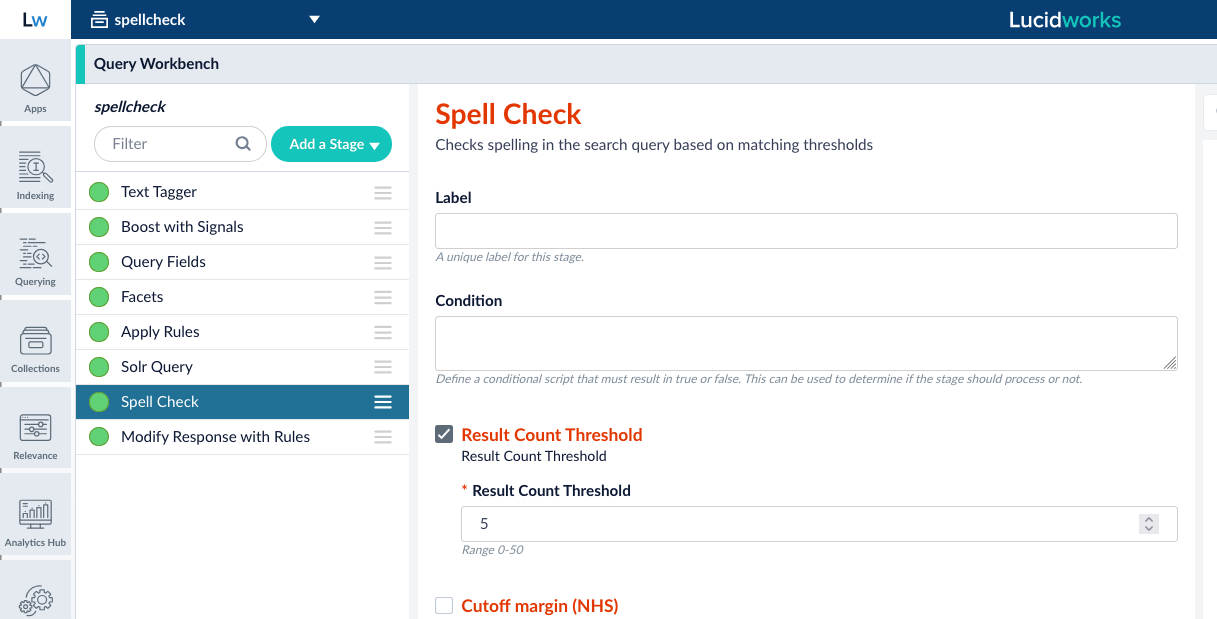
    1. Click **Add a new pipeline stage**, and select **Spell Check** from the list.
    2. Select the **Result Count Threshold** checkbox, then enter the minimum number of results the search terms must return to prevent triggering the spell check function. The values are 0-50.

       For example, if the value in **Result Count Threshold** is 50, and the user enters search terms where fewer than 50 results are returned, the Spell Check stage triggers the spell check function selected in the **Query Suggestions Method** field. The spell check function assumes the user entry is misspelled or typed incorrectly, so it searches for correctly spelled terms similar to the search terms entered. If it finds suggestions, they display in Query Workbench.
    3. In the **Query Suggestions Method** field, select the spell check function to trigger if the threshold values are not met. For example, a value of `solr` triggers the [Solr Spell Checking function](https://solr.apache.org/guide/solr/latest/query-guide/spell-checking.html).
    4. Click **Save**.
    5. Drag and move the Spell Check stage in the list so it appears after the Solr Query stage.

    <Frame caption="Spell Check stage located correctly in the query pipeline">
      <img src="https://mintcdn.com/lucidworks/A5HemAgQp10Lau1U/assets/images/5.9/5.9.16/spell-check-solr-query.png?fit=max&auto=format&n=A5HemAgQp10Lau1U&q=85&s=2d548906ec10ac717989430da2fe93d8" alt="Spell Check stage located correctly in the query pipeline" width="1217" height="619" data-path="assets/images/5.9/5.9.16/spell-check-solr-query.png" />
    </Frame>
  </Tab>

  <Tab title="Spell check with NHS">
    To configure and test the Spell Check query stage, open your pipeline, and complete the following steps:

    1. Click **Add a new pipeline stage**, and select **Spell Check** from the list.
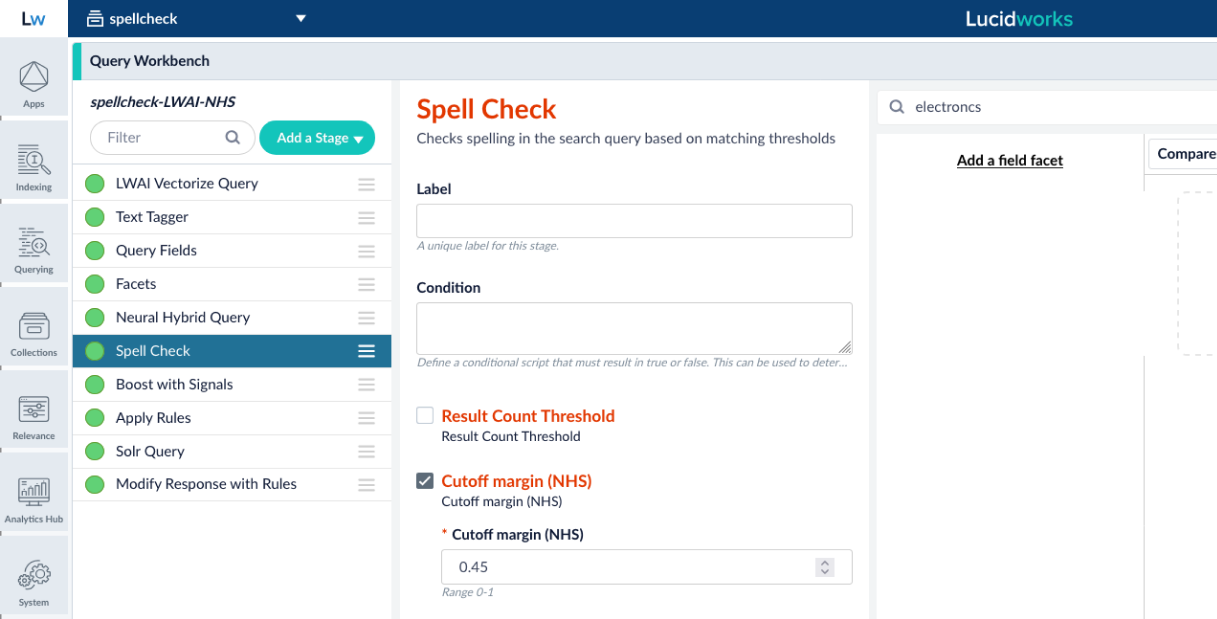
    2. Select the **Cutoff margin (NHS)** checkbox and then enter a value that is a lexical score between 0 and 1. The margin sets the minimum lexical score the results must match to prevent triggering the spell check function selected in the **Query Suggestions Method** field.

       For example, if the **Cutoff margin (NHS)** value is `.45`, the spell check function is triggered when the results that are returned in the mistyped search terms fall below 55% of what is returned by the neural hybrid query stage.
    3. In the **Query Suggestions Method** field, select the spell check function to trigger if the threshold values are not met. For example, a value of `solr` triggers the [Solr Spell Checking function](https://solr.apache.org/guide/solr/latest/query-guide/spell-checking.html).
    4. Click **Save**.
    5. Drag and move the Spell Check stage in the list so it appears after the neural hybrid query stage you have configured.

    <Frame caption="Spell Check stage located correctly in the query pipeline">
      <img src="https://mintcdn.com/lucidworks/A5HemAgQp10Lau1U/assets/images/5.9/5.9.16/spell-check-nhs.png?fit=max&auto=format&n=A5HemAgQp10Lau1U&q=85&s=d97aad670d014483a63484925cfe97bb" alt="Spell Check stage located correctly in the query pipeline" width="1217" height="619" data-path="assets/images/5.9/5.9.16/spell-check-nhs.png" />
    </Frame>
  </Tab>
</Tabs>

After the Spell Check stage is configured, test the spell check function by accessing Query Workbench.

1. In Query Workbench, enter a misspelled term in the **Search** field.

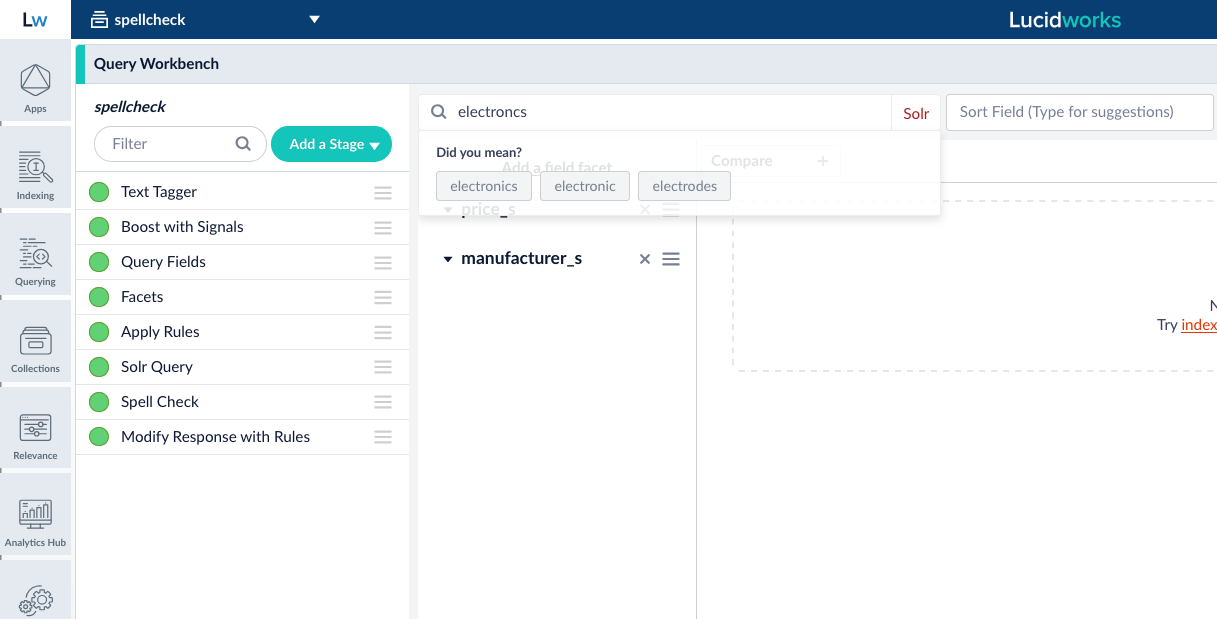
2. If the threshold for results is not met, verify the "Did you mean?" dropdown with suggestions related to the search terms display. For example, if you enter `electroncs`, the system displays "Did you mean?" `electronics`, `electronic`, `electrodes`, and so on. The results do not interfere with neural hybrid search semantic relevance.

   <Frame caption="Spell Check stage suggestions">
     <img src="https://mintcdn.com/lucidworks/A5HemAgQp10Lau1U/assets/images/5.9/5.9.16/spell-check-suggestions.png?fit=max&auto=format&n=A5HemAgQp10Lau1U&q=85&s=620dba82f2838df2c715e639b6cc505b" alt="Spell Check stage suggestions" width="1217" height="619" data-path="assets/images/5.9/5.9.16/spell-check-suggestions.png" />
   </Frame>

3. Select one of the suggestions and verify appropriate results display in the results section. You can click **show fields** to view details for each result.

If you are happy with the changes to your pipeline, save the pipeline.

<Note>
  The Spell Check query stage also provides Prometheus metrics and insights that help your organization make data-driven adjustments to increase conversions.
</Note>

### Understand threshold behavior

<Tabs>
  <Tab title="Spell check with Solr Query">
    The spell check function is not triggered until the defined **Result Count Threshold** is met. When the threshold is not met, the spell check function processes the query, but suggestions only appear if the function produces at least one suggestion.

    For example, if **Result Count Threshold** is configured as `50`:

    | Docs returned | Threshold met         | Number of suggestions | Spell check suggestions returned |
    | ------------- | --------------------- | --------------------- | -------------------------------- |
    | 75            | <Icon icon="check" /> | <Icon icon="x" />     | <Icon icon="x" />                |
    | 50            | <Icon icon="check" /> | <Icon icon="x" />     | <Icon icon="x" />                |
    | 25            | <Icon icon="x" />     | 0                     | <Icon icon="x" />                |
    | 25            | <Icon icon="x" />     | 5                     | <Icon icon="check" />            |
  </Tab>

  <Tab title="Spell check with NHS">
    The spell check function is not triggered until the defined **Cutoff margin (NHS)** is met. When the margin is not met, the spell check function processes the query, but suggestions only appear if the function produces at least one suggestion.

    For example, if **Cutoff margin (NHS)** is configured as `0.45`:

    | Lexical score | Margin met            | Number of suggestions | Spell check suggestions returned |
    | ------------- | --------------------- | --------------------- | -------------------------------- |
    | 0.75          | <Icon icon="check" /> | <Icon icon="x" />     | <Icon icon="x" />                |
    | 0.45          | <Icon icon="check" /> | <Icon icon="x" />     | <Icon icon="x" />                |
    | 0.30          | <Icon icon="x" />     | 0                     | <Icon icon="x" />                |
    | 0.30          | <Icon icon="x" />     | 5                     | <Icon icon="check" />            |
  </Tab>
</Tabs>

## Configuration

<Tip>
  When entering configuration values in the UI, use *unescaped* characters, such as `\t` for the tab character. When entering configuration values in the API, use *escaped* characters, such as `\\t` for the tab character.
</Tip>

<SchemaParamFields schema={schema} />