> ## Documentation Index
> Fetch the complete documentation index at: https://doc.lucidworks.com/llms.txt
> Use this file to discover all available pages before exploring further.

# Build Training Data Jobs

export const schema = {
  "type": "object",
  "title": "Build Training Data",
  "description": "Use this job to build training data for query classification by joining signals with catalog.",
  "required": ["id", "fieldToVectorize", "catalogPath", "catalogFormat", "signalsPath", "outputPath", "categoryField", "catalogIdField", "itemIdField", "countField", "analyzerConfig", "type"],
  "properties": {
    "id": {
      "type": "string",
      "title": "Spark Job ID",
      "description": "The ID for this Spark job. Used in the API to reference this job. Allowed characters: a-z, A-Z, dash (-) and underscore (_). Maximum length: 63 characters.",
      "maxLength": 63,
      "pattern": "[a-zA-Z][_\\-a-zA-Z0-9]*[a-zA-Z0-9]?"
    },
    "sparkConfig": {
      "type": "array",
      "title": "Spark Settings",
      "description": "Spark configuration settings.",
      "hints": ["advanced"],
      "items": {
        "type": "object",
        "required": ["key"],
        "properties": {
          "key": {
            "type": "string",
            "title": "Parameter Name"
          },
          "value": {
            "type": "string",
            "title": "Parameter Value"
          }
        }
      }
    },
    "trainingCollection": {
      "type": "string",
      "title": "Training Collection",
      "description": "Solr Collection containing labeled training data",
      "hints": ["dummy", "hidden"],
      "minLength": 1
    },
    "fieldToVectorize": {
      "type": "string",
      "title": "Query Field",
      "description": "Field containing query strings.",
      "default": "query_s",
      "minLength": 1
    },
    "dataFormat": {
      "type": "string",
      "title": "Signals Format",
      "description": "Spark-compatible format that contains training data (like 'solr', 'parquet', 'orc' etc)",
      "default": "solr",
      "hints": ["dummy"],
      "minLength": 1
    },
    "trainingDataFrameConfigOptions": {
      "type": "object",
      "title": "Dataframe Config Options",
      "description": "Additional spark dataframe loading configuration options",
      "properties": {},
      "additionalProperties": {
        "type": "string"
      },
      "hints": ["advanced"]
    },
    "trainingDataFilterQuery": {
      "type": "string",
      "title": "Signal Data Filter Query",
      "description": "Solr query to additionally filter signals. For non-solr data source use SPARK SQL FILTER QUERY under Advanced to filter results",
      "default": "*:*",
      "hints": ["dummy"]
    },
    "sparkSQL": {
      "type": "string",
      "title": "Spark SQL filter query",
      "description": "Use this field to create a Spark SQL query for filtering your input data. The input data will be registered as spark_input",
      "default": "SELECT * from spark_input",
      "hints": ["code/sql", "advanced"]
    },
    "trainingDataSamplingFraction": {
      "type": "number",
      "title": "Training data sampling fraction",
      "description": "Fraction of the training data to use",
      "default": 1,
      "hints": ["advanced"],
      "maximum": 1,
      "exclusiveMaximum": false
    },
    "randomSeed": {
      "type": "integer",
      "title": "Random seed",
      "description": "For any deterministic pseudorandom number generation",
      "default": 1234,
      "hints": ["advanced"]
    },
    "outputCollection": {
      "type": "string",
      "title": "Output Collection",
      "description": "Solr Collection to store model-labeled data to",
      "hints": ["dummy", "hidden"]
    },
    "overwriteOutput": {
      "type": "boolean",
      "title": "Overwrite Output",
      "description": "Overwrite output collection",
      "default": true,
      "hints": ["hidden", "advanced"]
    },
    "dataOutputFormat": {
      "type": "string",
      "title": "Data output format",
      "description": "Spark-compatible output format (like 'solr', 'parquet', etc)",
      "default": "solr",
      "hints": ["dummy"],
      "minLength": 1
    },
    "sourceFields": {
      "type": "string",
      "title": "Fields to Load",
      "description": "Solr fields to load (comma-delimited). Leave empty to allow the job to select the required fields to load at runtime.",
      "hints": ["dummy", "hidden"]
    },
    "partitionCols": {
      "type": "string",
      "title": "Partition fields",
      "description": "If writing to non-Solr sources, this field will accept a comma-delimited list of column names for partitioning the dataframe before writing to the external output ",
      "hints": ["advanced"]
    },
    "writeOptions": {
      "type": "array",
      "title": "Write Options",
      "description": "Options used when writing output to Solr or other sources",
      "hints": ["advanced"],
      "items": {
        "type": "object",
        "required": ["key"],
        "properties": {
          "key": {
            "type": "string",
            "title": "Parameter Name"
          },
          "value": {
            "type": "string",
            "title": "Parameter Value"
          }
        }
      }
    },
    "readOptions": {
      "type": "array",
      "title": "Read Options",
      "description": "Options used when reading input from Solr or other sources.",
      "hints": ["advanced"],
      "items": {
        "type": "object",
        "required": ["key"],
        "properties": {
          "key": {
            "type": "string",
            "title": "Parameter Name"
          },
          "value": {
            "type": "string",
            "title": "Parameter Value"
          }
        }
      }
    },
    "catalogPath": {
      "type": "string",
      "title": "Catalog Path",
      "description": "Catalog collection or cloud storage path which contains item categories."
    },
    "catalogFormat": {
      "type": "string",
      "title": "Catalog Format",
      "description": "Spark-compatible format that contains catalog data (like 'solr', 'parquet', 'orc' etc)"
    },
    "signalsPath": {
      "type": "string",
      "title": "Signals Path",
      "description": "Signals collection or cloud storage path which contains item categories."
    },
    "outputPath": {
      "type": "string",
      "title": "Output Path",
      "description": "Output collection or cloud storage path which contains item categories."
    },
    "categoryField": {
      "type": "string",
      "title": "Category Field in Catalog",
      "description": "Item category field in catalog."
    },
    "catalogIdField": {
      "type": "string",
      "title": "Item Id Field in Catalog",
      "description": "Item Id field in catalog, which will be used to join with signals"
    },
    "itemIdField": {
      "type": "string",
      "title": "Item Id Field in Signals",
      "description": "Item Id field in signals, which will be used to join with catalog.",
      "default": "doc_id_s"
    },
    "countField": {
      "type": "string",
      "title": "Count Field in Signals",
      "description": "Count Field in raw or aggregated signals.",
      "default": "aggr_count_i"
    },
    "topCategoryProportion": {
      "type": "number",
      "title": "Top Category Proportion",
      "description": "Proportion of the top category has to be among all categories.",
      "default": 0.5
    },
    "topCategoryThreshold": {
      "type": "integer",
      "title": "Minimum Count",
      "description": "Minimum number of query,category pair counts.",
      "default": 1,
      "minimum": 1,
      "exclusiveMinimum": false
    },
    "analyzerConfig": {
      "type": "string",
      "title": "Lucene Text Analyzer",
      "description": "The style of text analyzer you would like to use.",
      "default": "{ \"analyzers\": [{ \"name\": \"StdTokLowerStop\",\"charFilters\": [ { \"type\": \"htmlstrip\" } ],\"tokenizer\": { \"type\": \"standard\" },\"filters\": [{ \"type\": \"lowercase\" }] }],\"fields\": [{ \"regex\": \".+\", \"analyzer\": \"StdTokLowerStop\" } ]}",
      "hints": ["lengthy", "code/json"]
    },
    "type": {
      "type": "string",
      "title": "Spark Job Type",
      "enum": ["build-training"],
      "default": "build-training",
      "hints": ["readonly"]
    }
  },
  "additionalProperties": true,
  "category": "Other",
  "categoryPriority": 1,
  "propertyGroups": [{
    "label": "Input/Output Parameters",
    "properties": ["trainingCollection", "outputCollection", "dataFormat", "trainingDataFilterQuery", "readOptions", "writeOptions", "trainingDataFrameConfigOptions", "trainingDataSamplingFraction", "randomSeed", "catalogPath", "catalogFormat", "signalsPath", "outputPath", "dataOutputFormat", "partitionCols", "sparkSQL"]
  }, {
    "label": "Field Parameters",
    "properties": ["fieldToVectorize", "sourceFields", "categoryField", "catalogIdField", "itemIdField", "countField"]
  }, {
    "label": "Training Parameters",
    "properties": ["topCategoryProportion", "topCategoryThreshold"]
  }, {
    "label": "Featurization Parameters",
    "properties": ["analyzerConfig"]
  }]
};

export const SchemaParamFields = ({schema}) => {
  const sanitize = str => {
    if (typeof str !== "string") return str;
    return str.replace(/^"(.*)"$/s, "$1").replace(/\\/g, "").replace(/"/g, "'");
  };
  const formatDescription = str => {
    const s = sanitize(str);
    return (/[.!?]\)*$/).test(s) ? s : `${s}.`;
  };
  const {description, properties = {}, required: requiredProps = []} = schema;
  const visibleProps = useMemo(() => Object.entries(properties).filter(([, prop]) => !prop.hints?.includes("hidden")), [properties]);
  return <div>
      {description && <p>{formatDescription(description)}</p>}

      {visibleProps.map(([name, prop]) => {
    const isRequired = requiredProps.includes(name);
    const hasDefault = prop.default !== undefined;
    const rawDefault = prop.default;
    const isComplexDefault = hasDefault && (typeof rawDefault === "object" || typeof rawDefault === "string" && (rawDefault.length > 20 || rawDefault.includes('"')));
    const fieldProps = {
      key: name,
      body: prop.title || name,
      type: prop.type,
      ...prop.title && ({
        post: [<><span className="text-stone-400 dark:text-stone-500">API property: </span>{name}</>]
      }),
      ...isRequired && ({
        required: true
      }),
      ...!isComplexDefault && hasDefault ? {
        default: sanitize(String(rawDefault))
      } : {}
    };
    const isObject = prop.type === "object" && prop.properties;
    const isArrayOfObjects = prop.type === "array" && prop.items?.type === "object" && prop.items.properties;
    return <ParamField {...fieldProps}>
            {prop.description && <p>{formatDescription(prop.description)}</p>}

            {isComplexDefault && <div className="flex">
                <p>
                  <strong>Default:</strong>
                </p>
                <pre className="!my-0">
                  <code>
                    {JSON.stringify(rawDefault, null, 2)}
                  </code>
                </pre>
              </div>}

            {isArrayOfObjects && <div className="flex">
              <p>
                <strong>Object attributes:</strong>
              </p>
              <pre className="!my-0">
                <code>
                  {'{\n'}
                  {Object.entries(prop.items.properties).map(([iname, iprop]) => <>
                      {`  ${iname}`}
                      {prop.items?.required?.includes(iname) && <span style={{
      color: 'red'
    }}> required</span>}
                      {`: {\n    display name: ${sanitize(iprop.title || '')}\n    type: ${iprop.type}\n  }\n`}
                    </>)}
                  {'}'}
                </code>
              </pre>
              </div>}

            {isObject && <Expandable title="properties">
                <SchemaParamFields schema={{
      properties: prop.properties,
      required: prop.required
    }} />
              </Expandable>}
          </ParamField>;
  })}
    </div>;
};

export const LwTemplate = ({title = "Key questions to get you started", icon = "sparkles", cta = "Powered by Agent Studio", linkHref = "https://lucidworks.com/demo/?utm_source=docs&utm_medium=referral&utm_campaign=docs_cta_ai"}) => {
  const [isLoaded, setIsLoaded] = useState(false);
  useEffect(() => {
    const timer = setTimeout(() => {
      setIsLoaded(true);
    }, 500);
    return () => clearTimeout(timer);
  }, []);
  return <div className="lw-template-container">
      <Card title={title} icon={icon}>
        {isLoaded && <span dangerouslySetInnerHTML={{
    __html: `<lw-template id="a029c1a9-28be-427e-b0e1-5d918920246a"></lw-template
            >`
  }} />}
        <Link href={linkHref} className="agent-studio-link text-left text-gray-600 gap-2 dark:text-gray-400 text-sm font-medium flex flex-row items-center hover:text-primary dark:hover:text-primary-light group-hover:text-primary group-hover:dark:text-primary-light">Powered by Lucidworks Agent Studio</Link>
      </Card>
    </div>;
};

[localhost link]: http://localhost:3000/docs/5/fusion/reference/config-ref/jobs/build-training-data

[mintlify link]: https://doc.lucidworks.com/docs/5/fusion/reference/config-ref/jobs/build-training-data

[old doc.lw link]: https://doc.lucidworks.com/fusion/5.9/10912

Use this job to build training data for query classification by joining signals data with catalog data.

The output of this job can be used as input for the [Classification job](/docs/5/fusion/reference/config-ref/jobs/classification), which analyzes how documents are categorized and generates a model. That model can then be used to predict categories of new documents when they are indexed.

The Build Training Data job can be configured in **Collections > Jobs** in your Fusion UI instance.

Enter the following information:

* Spark Job ID used by the API to reference the job.
* Location where your signals are stored, the Spark-compatible format for the signals, and filters for the query.
* Location where your content catalog is stored and the Spark-compatible format of the catalog data.
* Location and Spark-compatible format of the job output.
* Field names for the query string, the category and item from the catalog, the signals item ID, and the signals count field.
* Style of the text analyzer you want to use for the job.
* Top category proportion in relation to all the categories, and the minimum number of the query category pair counts.

For detailed configuration steps, see **Automatically Classify New Queries**. That process lets you predict the categories that are most likely to be returned successfully in a query.

<Accordion title="Automatically Classify New Queries">
  You can predict the categories most likely to satisfy a new query using this workflow:

  1. Use the [Build Training Data job](/docs/5/fusion/reference/config-ref/jobs/build-training-data) to join your signals data with your catalog data and produce training data in the form of query/class pairs.
  2. Use the [Classification job](/docs/5/fusion/reference/config-ref/jobs/classification) to train a classification model using the output collection of the Build Training Data job as the training collection.

  **Query-time classification workflow**

  <img src="https://mintcdn.com/lucidworks/aGMTh7KKUIwUyuv7/assets/images/5.3/diagrams/AI_Diagrams_DC-QueryClassification.png?fit=max&auto=format&n=aGMTh7KKUIwUyuv7&q=85&s=ad78ab030d062f4d6ef1b75f857ba66c" alt="Query-time classification workflow" width="1705" height="332" data-path="assets/images/5.3/diagrams/AI_Diagrams_DC-QueryClassification.png" />

  See the detailed steps below.

  <LwTemplate />

  ## To predict the categories of new queries

  1. Navigate to **Collections** > **Jobs** > **Add+** > **Build Training Data** to create a new Build Training Data job.
  2. Configure the job as follows:
     1. In the **Catalog Path** field, enter the collection name or cloud storage path where your main content is stored.
     2. In the **Catalog Format** field, enter `solr` if you are analyzing a Solr collection, or another format if your content is in the cloud.
     3. In the **Signals Path** field, enter the collection name or cloud storage path where your signals data is stored.
     4. In the **Output Path** field, enter the collection name or cloud storage path where you want to store the training data.
     5. In the **Category Field in Catalog** field, enter the field name for the category data in your main content.
     6. In the **Item ID Field in Catalog** field, enter the field name for the item IDs in your main content.
     7. Check that the values of **Item ID Field in Signals** and **Count Field in Signals** match the field names in your signals data.
  3. Save the job.
  4. Click **Run** > **Start** to run the job.
  5. Navigate to **Collections** > **Jobs** > **Add+** > **Classification** to create a new Classification job.
  6. Configure the job as follows:
     1. In the **Model Deployment Name** field, enter an ID for the new classification model.
     2. In the **Training Data Path** field, enter the collection name or cloud storage path from the Build Training Data job’s **Output Path** field.
     3. In the **Training Data Format** field, leave the default `solr` value if the **Training Data Path** is a collection or if you used the default format in your Build Training Data job configuration. If you configured the Build Training Data job to output a different format, enter it here.
     4. In the **Training collection content field**, enter `query_s`, the default content field name in the Build Training Data job’s output.
     5. In the **Training collection class field**, enter `category_s`, the default category field name in the Build Training Data job’s output.

        <Tip>      For additional configuration details, see [Best practices](#best-practices-for-configuring-the-classification-job) below.</Tip>
  7. Save the job.
  8. Verify that the Build Training Data job has finished successfully.
  9. Click **Run** > **Start** to run the job.
  10. Navigate to **Indexing** > **Query Workbench** > **Load** and select your query pipeline.
  11. Configure the query pipeline as follows:

      1. Add a new Machine Learning stage.
      2. In the **Model ID** field, enter the name from the Classification job’s **Model Deployment Name** field.
      3. In the **Model input transformation script** field, enter the following:

      ```js theme={"dark"}
      var modelInput = new java.util.HashMap()
      modelInput.put("text", request.getFirstParam("q"))
      modelInput
      ```

      4. In the **Model output transformation script** field, enter the following:

      ```js theme={"dark"}
      {/* // In case if top_k_predictions are needed */}
      {/* // To put into response documents (can be done only after Solr Query stage) */}
      var jsonOutput = JSON.parse(modelOutput.get("_rawJsonResponse"))
      var parsedOutput = {};
      for (var i=0; i<jsonOutput["names"].length;i++){
        parsedOutput[jsonOutput["names"][i]] = jsonOutput["ndarray"][i]
      }

      var docs = response.get().getInnerResponse().getDocuments();
      var ndocs = new java.util.ArrayList();
      for (var i=0; i<docs.length;i++){
        var doc = docs[i];
        doc.putField("top_1_class", parsedOutput["top_1_class"][0])
        doc.putField("top_1_score", parsedOutput["top_1_score"][0])
        if ("top_k_classes" in parsedOutput) {
          doc.putField("top_k_classes", new java.util.ArrayList(parsedOutput["top_k_classes"][0]))
          doc.putField("top_k_scores", new java.util.ArrayList(parsedOutput["top_k_scores"][0]))
        }
        ndocs.add(doc);
      }
      response.get().getInnerResponse().updateDocuments(ndocs);
      ```

      5. Click **Apply**.

  {/* // Should the user see something different in the preview at this point?  What can they look for to confirm that the config is working? */}

  12. Save the query pipeline.

  ## Custom output transformation script examples

  ```js theme={"dark"}
  {/* // To put into request */}
  request.putSingleParam("class", modelOutput.get("top_1_class")[0])
  request.putSingleParam("score", modelOutput.get("top_1_score")[0])

  {/* // Or for example to apply Filter Query */}
  request.putSingleParam("fq", "class:" + modelOutput.get("top_1_class")[0])
  ```

  ```js theme={"dark"}
  {/* // To put into query context */}
  context.put("class", modelOutput.get("top_1_class")[0])
  context.put("score", modelOutput.get("top_1_score")[0])
  ```

  ```js theme={"dark"}
  {/* // To put into response documents (can be done only after Solr Query stage) */}
  var docs = response.get().getInnerResponse().getDocuments();
  var ndocs = new java.util.ArrayList();

  for (var i=0; i<docs.length;i++){
    var doc = docs[i];
    doc.putField("query_class", modelOutput.get("top_1_class")[0])
    doc.putField("query_score", modelOutput.get("top_1_score")[0])
    ndocs.add(doc);
  }

  response.get().getInnerResponse().updateDocuments(ndocs);
  ```

  ## Best practices for configuring the Classification job

  This job analyzes how your existing documents are categorized and produces a classification model that can be used to predict the categories of new documents at index time.

  In addition to the information in this topic, see **Automatically classify new documents at index time** for configuration information and examples.

  {/* Taken from /Users/dustinguericke/repositories/fusion-docs-site-mintlify/convert_mdx/how-to_mdx/classify-new-documents.mdx and "Automatically Classify New Documents at Index Time" */}

  <Accordion title="Automatically Classify New Documents at Index Time">
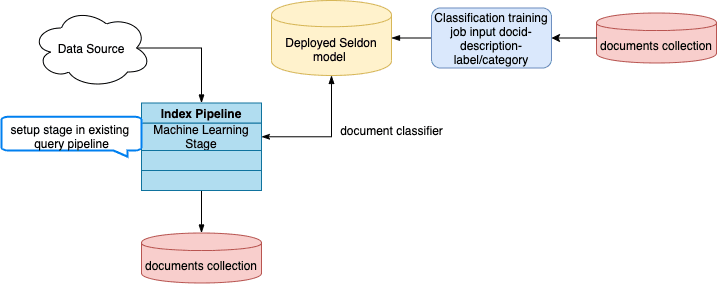
    You can predict the categories of new documents at index time by using the [Classification job](/docs/5/fusion/reference/config-ref/jobs/classification) to analyze previously-classified documents in your index and produce a training model, then referencing the model in the [Machine Learning index stage](/docs/5/fusion/reference/config-ref/pipeline-stages/index-stages/machine-learning-index-stage).

    **Classification job dataflow (documents)**

    <img src="https://mintcdn.com/lucidworks/S4K1ej9-5L4WZcZ9/assets/images/5.2/classification-document-dataflow-diagram.png?fit=max&auto=format&n=S4K1ej9-5L4WZcZ9&q=85&s=5cf2377e6f7fd6b564a5366eb0e38927" alt="Document classification job dataflow" width="717" height="284" data-path="assets/images/5.2/classification-document-dataflow-diagram.png" />

    ## How to configure new document classification

    1. Navigate to **Collections** > **Jobs** > **Add+** > **Classification** to create a new Classification job.
    2. Configure the job as follows:
       1. In the **Model Deployment Name** field, enter an ID for the new classification model.
       2. In the **Training Data Path** field, enter the collection name or cloud storage path where your main content is stored.
       3. In the **Training Data Format** field, leave the default `solr` value if the **Training Data Path** is a collection.  Otherwise, specify the format of your data in cloud storage.
       4. In the **Training collection content field**, enter the name of the field that contains the content to analyze.\
          The content field that you choose depends on your use case and the types of queries that your users commonly make.\
          For example, you could choose the description field if users tend to make descriptive queries like "4k TV" or "soft waterproof jacket".\
          But if users are more likely to search for specific brands or products, such as "LG TV" or "North Face jacket", then the product name field might be more suitable.
       5. In the **Training collection class field**, enter the name of the field that contains the category data.

          <Tip>      For additional configuration details, see [Best practices](#best-practices-for-configuring-the-classification-job) below.</Tip>
    3. Save the job.
    4. Specify the model’s name in the [Machine Learning stage](/docs/5/fusion/reference/config-ref/pipeline-stages/index-stages/machine-learning-index-stage) of your index pipeline.
    5. In the **Model input transformation script** field, enter the following:

       ```js theme={"dark"}
       /*
       Name of the document field to feed into the model.
       */
       var documentFeatureField = "body_t"

       /*
       Model input construction.
       */
       var modelInput = new java.util.HashMap()
       modelInput.put("text", doc.getFirstFieldValue(documentFeatureField))
       modelInput
       ```
    6. In the **Model output transformation script** field, enter the following:

       ```js theme={"dark"}
       {/* // In case if top_k_predictions are needed */}
       var top1ClassField = "top_1_class_s"
       var top1ScoreField = "top_1_score_d"
       var topKClassesField = "top_k_classes_ss"
       var topKScoresField = "top_k_scores_ds"

       var jsonOutput = JSON.parse(modelOutput.get("_rawJsonResponse"))
       var parsedOutput = {};
       for (var i=0; i<jsonOutput["names"].length;i++){
         parsedOutput[jsonOutput["names"][i]] = jsonOutput["ndarray"][i]
       }

       doc.addField(top1ClassField, parsedOutput["top_1_class"][0])
       doc.addField(top1ScoreField, parsedOutput["top_1_score"][0])
       if ("top_k_classes" in parsedOutput) {
           doc.addField(topKClassesField, new java.util.ArrayList(parsedOutput["top_k_classes"][0]))
           doc.addField(topKScoresField, new java.util.ArrayList(parsedOutput["top_k_scores"][0]))
       }
       ```

       1. Click **Apply**.

       {/* // Should the user see something different in the preview at this point?  What can they look for to confirm that the config is working? */}
    7. Save the query pipeline.

    ## Custom output transformation script example

    ```js theme={"dark"}
    var top1ClassField = "top_1_class_s"
    var top1ScoreField = "top_1_score_d"

    doc.addField(top1ClassField, modelOutput.get("top_1_class")[0])
    doc.addField(top1ScoreField, modelOutput.get("top_1_score")[0])
    ```

    ## Best practices for configuring the Classification job

    This job analyzes how your existing documents are categorized and produces a classification model that can be used to predict the categories of new documents at index time.

    In addition to the information in this topic, see [Automatically classify new queries](#automatically-classify-new-queries) for configuration information and examples.

    This job takes raw text and an associated single class as input. Although it trains on single classes, there is an option to predict the top several classes with their scores.

    At a minimum, you must configure these:

    * An ID for this job
    * A **Method**; Logistic Regression is the default
    * A **Model Deployment Name**
    * The **Training Collection**
    * The **Training collection content field**, the document field containing the raw text
    * The **Training collection class field** containing the classes, labels, or other category data for the text
  </Accordion>

  This job takes raw text and an associated single class as input. Although it trains on single classes, there is an option to predict the top several classes with their scores.

  At a minimum, you must configure these:

  * An ID for this job
  * A **Method**; Logistic Regression is the default
  * A **Model Deployment Name**
  * The **Training Collection**
  * The **Training collection content field**, the document field containing the raw text
  * The **Training collection class field** containing the classes, labels, or other category data for the text
</Accordion>

## Configuration properties

<SchemaParamFields schema={schema} />