> ## Documentation Index
> Fetch the complete documentation index at: https://doc.lucidworks.com/llms.txt
> Use this file to discover all available pages before exploring further.
# Indexing Data Flow
export const LwTemplate = ({title = "Key questions to get you started", icon = "sparkles", cta = "Powered by Agent Studio", linkHref = "https://lucidworks.com/demo/?utm_source=docs&utm_medium=referral&utm_campaign=docs_cta_ai"}) => {
const [isLoaded, setIsLoaded] = useState(false);
useEffect(() => {
const timer = setTimeout(() => {
setIsLoaded(true);
}, 500);
return () => clearTimeout(timer);
}, []);
return
{isLoaded && `
}} />}
Powered by Lucidworks Agent Studio
;
};
[localhost link]: http://localhost:3000/docs/5/fusion/intro/indexing-dataflow
[mintlify link]: https://doc.lucidworks.com/docs/5/fusion/intro/indexing-dataflow
[old doc.lw link]: https://doc.lucidworks.com/fusion/5.9/3211
With Fusion, your data is indexed in a set of collections in Fusion’s Solr core.
A *primary collection* holds your searchable content, such as your product catalog, knowledge base, blog articles, product reviews, and so on.
A set of *secondary collections* are associated with your primary collection to hold related data that Fusion can use to enhance the relevancy of your search results.
This topic shows you how different types of data flow through Fusion to be indexed in your primary and secondary collections.
## 1. Index your content
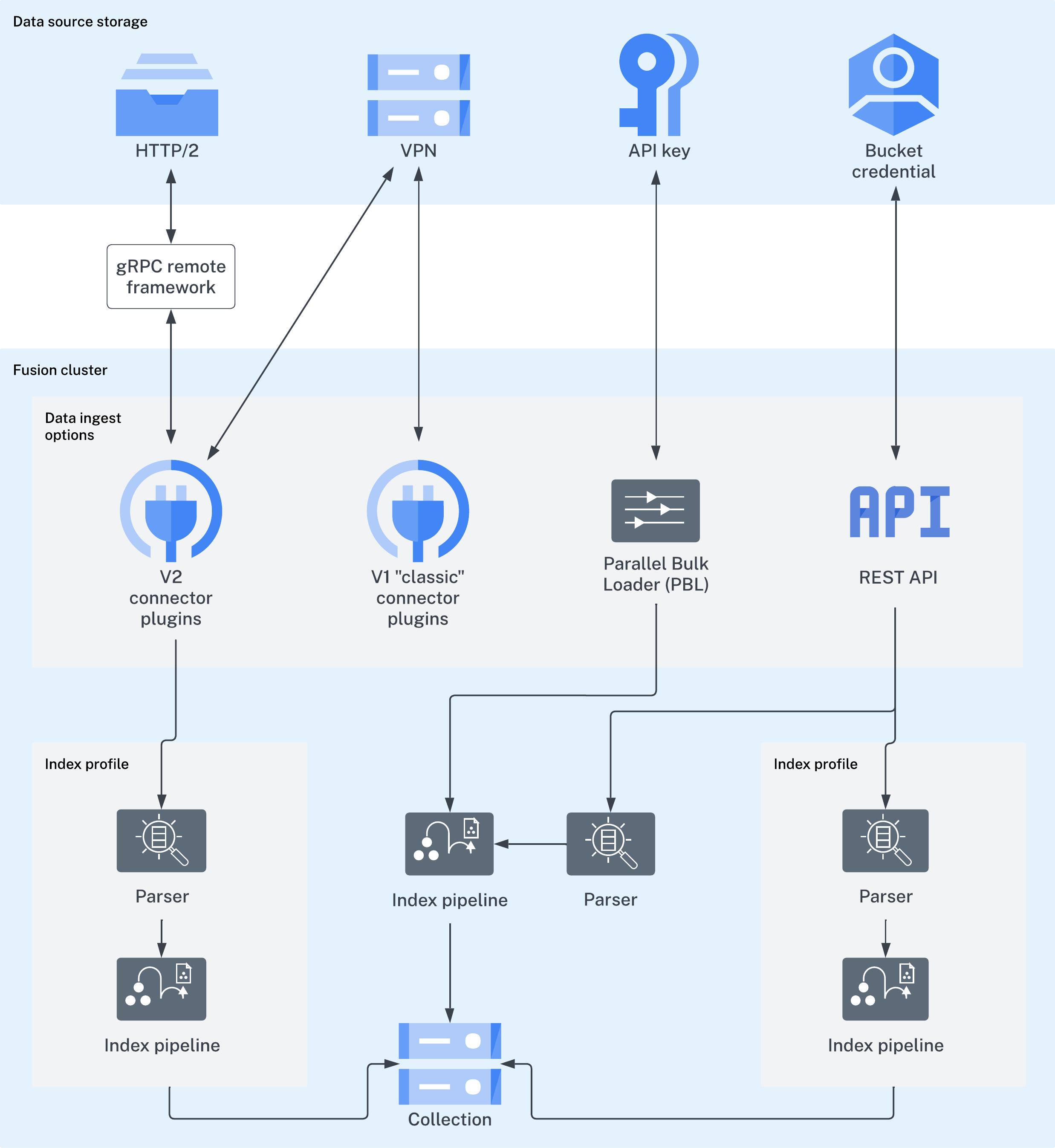
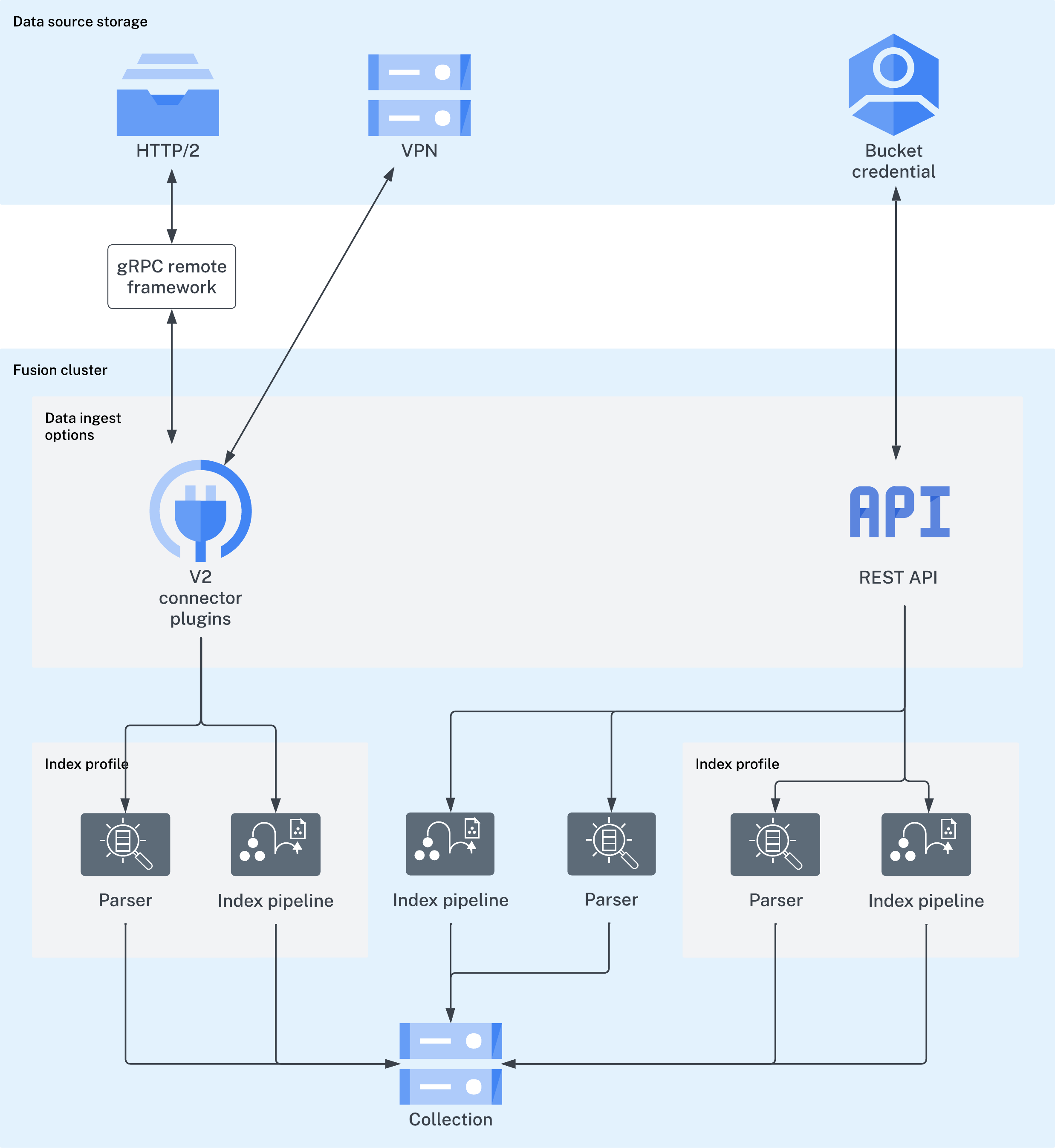
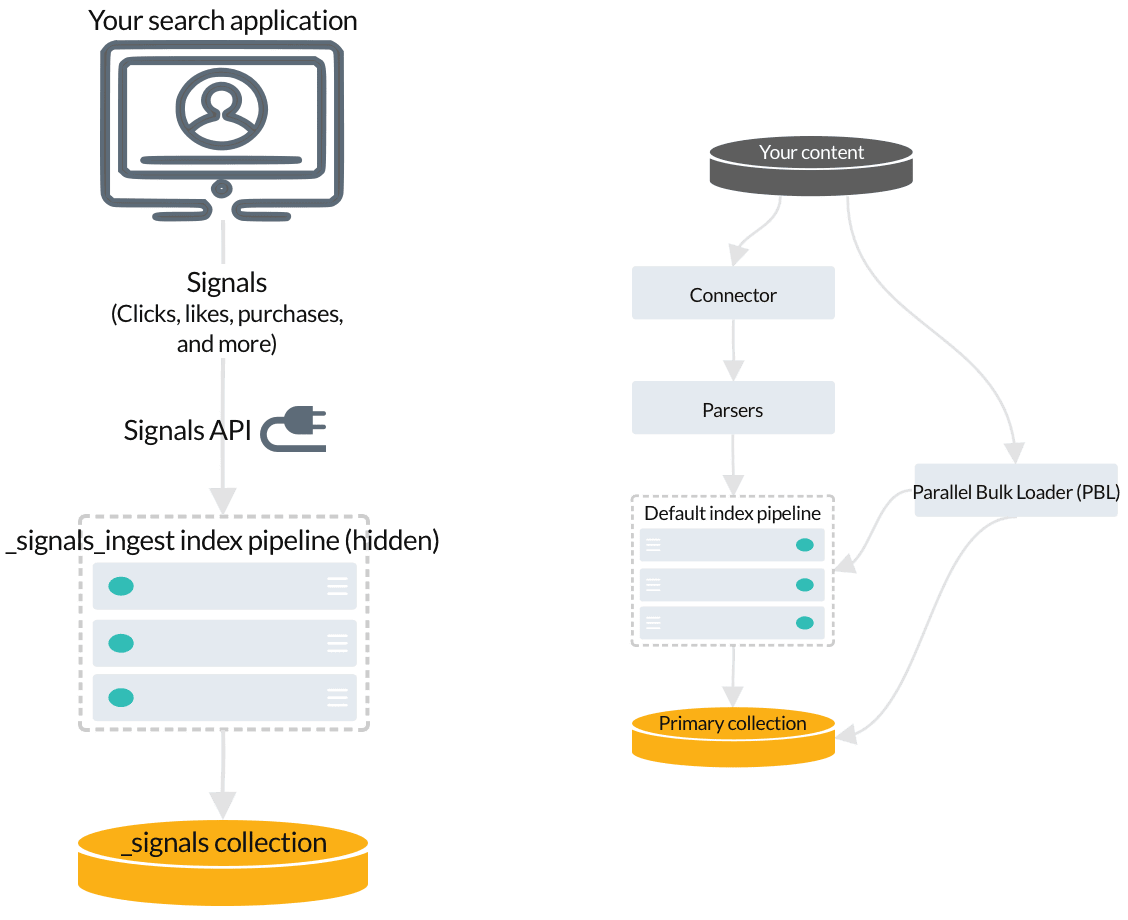
No matter where your content is located, Fusion can index it. The Fusion collection where your searchable content is indexed is called the primary collection. Secondary collections are automatically created to hold related data, such as signals, machine learning job output, and so on.
There are a few ways to index your searchable content to the primary collection:
* [Connectors](/docs/fusion-connectors/overview)\
Lucidworks has a wide variety of connectors for many types of data sources. [Find your connector](/docs/fusion-connectors/overview).\
Once the connector fetches your data, [parsers](/docs/5/fusion/reference/config-ref/parser-stages/overview) read it before passing it to the [index pipeline](/docs/5/fusion/getting-data-in/indexing/index-pipelines/overview).
* The gRpc remote framework is configured on the client side and only works with V2 type connectors.
* V1 classic connectors support ingesting data using IP white lists, VPN tunnels, and public channels.
* The [Parallel Bulk Loader (PBL)](/docs/5/fusion/getting-data-in/parallel-bulk-loader)\
The PBL can send your data to an index pipeline *or* directly to the primary collection, depending on whether the data requires transformation before indexing. It does not support parsers and is not recommended for production environments.
* Import Data with the REST API\
Send your content to an index profile using the Fusion REST API. Index profiles are saved configurations of parsers and index pipelines.
It is often possible to get documents into Fusion by configuring a datasource with [the appropriate connector](/docs/5/fusion/getting-data-in/indexing/connectors).
But if there are obstacles to using connectors, it can be simpler to index documents with a REST API call to an index profile or pipeline.
## Push documents to Fusion using index profiles
[Index profiles](/docs/5/fusion/getting-data-in/indexing/index-pipelines/index-profiles) allow you to send documents to a consistent endpoint (the profile alias) and change the backend index pipeline as needed. The profile is also a simple way to use one pipeline for multiple collections without any one collection "owning" the pipeline.
You can send documents directly to an index using the [Index Profiles REST API](/docs/5/fusion/getting-data-in/indexing/index-pipelines/index-profiles). The request path is:
```bash theme={"dark"}
/api/apps/APP_NAME/index/INDEX_PROFILE
```
These requests are sent as a POST request. The request header specifies the format of the contents of the request body. Create an index profile in the Fusion UI.
To send a streaming list of JSON documents, you can send the JSON file that holds these objects to the API listed above with `application/json` as the content type. If your JSON file is a list or array of many items, the endpoint operates in a streaming way and indexes the docs as necessary.
### Send data to an index profile that is part of an app
Accessing an index profile through an app lets a Fusion admin secure and manage all objects on a per-app basis. Security is then determined by whether a user can access an app. This is the recommended way to manage permissions in Fusion.
The syntax for sending documents to an index profile that is part of an app is as follows:
```bash wrap theme={"dark"}
curl -u USERNAME:PASSWORD -X POST -H 'content-type: application/json' https://FUSION_HOST:FUSION_PORT/api/apps/APP_NAME/index/INDEX_PROFILE --data-binary @my-json-data.json
```
Spaces in an app name become underscores. Spaces in an index profile name become hyphens.
To prevent the terminal from displaying all the data and metadata it indexes--useful if you are indexing a large file--you can optionally append `?echo=false` to the URL.
Be sure to set the content type header properly for the content being sent. Some frequently used content types are:
* Text: `application/json`, `application/xml`
* PDF documents: `application/pdf`
* MS Office:
* DOCX: `application/vnd.openxmlformats-officedocument.wordprocessingml.document`
* XLSX: `application/vnd.openxmlformats-officedocument.spreadsheetml.sheet`
* PPTX: `application/vnd.vnd.openxmlformats-officedocument.presentationml.presentation`
* More types: [http://filext.com/faq/office\_mime\_types.php](http://filext.com/faq/office_mime_types.php)
### Example: Send JSON data to an index profile under an app
In `$FUSION_HOME/apps/solr-dist/example/exampledocs` you can find a few sample documents. This example uses one of these, `books.json`.
To push JSON data to an index profile under an app:
1. Create an index profile. In the Fusion UI, click **Indexing > Index Profiles** and follow the prompts.
2. From the directory containing `books.json`, enter the following, substituting your values for username, password, and index profile name:
```bash wrap theme={"dark"}
curl -u USERNAME:PASSWORD -X POST -H 'content-type: application/json' https://FUSION_HOST:FUSION_PORT/api/apps/APP_NAME/index/INDEX_PROFILE?echo=false --data-binary @books.json
```
3. Test that your data has made it into Fusion:
1. Log into the Fusion UI.
2. Navigate to the app where you sent your data.
3. Navigate to the Query Workbench.
4. Search for `*:*`.
5. Select relevant Display Fields, for example `author` and `name`.
### Example: Send JSON data without defining an app
In most cases it is best to delegate permissions on a per-app basis. But if your use case requires it, you can push data to Fusion without defining an app.
To send JSON data without app security, issue the following curl command:
```bash wrap theme={"dark"}
curl -u USERNAME:PASSWORD -X POST -H 'content-type: application/json' https://FUSION_HOST:FUSION_PORT/api/index/INDEX_PROFILE --data-binary @my-json-data.json
```
### Example: Send XML data to an index profile with an app
To send XML data to an app, use the following:
```bash wrap theme={"dark"}
curl -u USERNAME:PASSWORD -X POST -H 'content-type: application/xml' https://FUSION_HOST:FUSION_PORT/api/apps/APP_NAME/index/INDEX_PROFILE --data-binary @my-xml-file.xml
```
In Fusion 5, documents can be created on the fly using the [PipelineDocument](https://javadoc.lucidworks.com/fusion-pipeline-javadocs/5.9/com/lucidworks/apollo/common/pipeline/PipelineDocument.html) JSON notation.
## Remove documents
### Example 1
The following example removes content:
```bash wrap theme={"dark"}
curl -u USERNAME:PASSWORD -X POST -H 'content-type: application/vnd.lucidworks-document' https://FUSION_HOST:FUSION_PORT/api/apps/APP_NAME/index/INDEX_PROFILE --data-binary @del-json-data.json
```
### Example 2
A more specific example removes data from `books.json`. To delete "The Lightning Thief" and "The Sea of Monsters" from the index, use their id values in the JSON file.
The `del-json-data.json` file to delete the two books:
```json wrap theme={"dark"}
[{ "id": "978-0641723445","commands": [{"name": "delete","params": {}}]},{ "id": "978-1423103349","commands": [{"name": "delete","params": {}}, {"name": "commit","params": {}}]}]
```
You can use `?echo=false` to turn off the response to the terminal.
### Example 3
Another example to delete items using the Push API is:
```bash wrap theme={"dark"}
curl -u admin:XXX -X POST 'http://FUSION_HOST:FUSION_PORT/api/apps/APP/index/INDEX' -H 'Content-Type: application/vnd.lucidworks-document' -d '[
{
"id": "1663838589-44",
"commands":
[
{
"name": "delete",
"params":
{}
},
{
"name": "commit",
"params":
{}
}
]
}, ...
]'
```
## Send documents to an index pipeline
Although sending documents to an index profile is recommended, if your use case requires it, you can send documents directly to an index pipeline.
For more information about index pipeline REST API reference documentation, see [Fusion 5.x Index Pipelines API](/api-reference/index-pipelines-api/list-all-index-pipelines).
### Specify a parser
When you push data to a pipeline, you can specify the name of the parser by adding a parserId querystring parameter to the URL.
For example: `https://FUSION_HOST:FUSION_PORT/api/index-pipelines/INDEX_PIPELINE/collections/COLLECTION_NAME/index?parserId=PARSER`.
If you do not specify a parser, and you are indexing outside of an app (`https://FUSION_HOST:FUSION_PORT/api/index-pipelines/...`), then the `_system` parser is used.
If you do not specify a parser, and you are indexing in an app context (`https://FUSION_HOST:FUSION_PORT/api/apps/APP_NAME/index-pipelines/...`), then the parser with the same name as the app is used.
## Indexing CSV Files
In the usual case, to index a CSV or TSV file, the file is split into records, one per row, and each row is indexed as a separate document.
When using the REST API for synchronous parsing, you can send content directly to the Fusion indexing endpoint for Fusion to process. You can designate an index profile that consists of a parser, collection, and a pipeline. If you do not want to use an index profile, you can specify the parser, collection, and pipeline in the API call.
When using asynchronous parsing, you can send content directly to the Fusion indexing endpoint for Fusion to process. You can designate an index profile that consists of a parser, collection, and a pipeline. If you do not want to use an index profile, you can specify the parser, collection, and pipeline in the API call.
Asynchronous parsing only uses V2 connectors.
The [index pipeline](/docs/5/fusion/getting-data-in/indexing/index-pipelines/overview) consists of one or more configurable [index pipeline stages](/docs/5/fusion/getting-data-in/indexing/index-pipelines/index-pipeline-stages), each performing a different type of transformation on the incoming data. Each connector has a default index pipeline, but you can modify these or create new ones.
The last stage in any index pipeline should be the [Solr Indexer](/docs/5/fusion/reference/config-ref/pipeline-stages/index-stages/solr-indexer-stage) stage, which submits the documents to Solr for indexing.
## 2. Index your signals
Signals are event records that provide historical data about user behavior, such as clicks, likes, purchases, and so on. You don’t need to index signals about query responses; Fusion indexes response signals automatically by default. If you are using [App Studio](/docs/5/fusion/dev-portal/appkit/overview) or [App Insights](/docs/5/fusion/getting-data-out/data-analytics/app-insights/overview), then you need to index request signals. Learn more about [signal types and required fields](/docs/5/fusion/getting-data-out/query-enhancement/signals/types-and-structures).
To index your signals, you send them to Fusion using the [Signals API](/api-reference/signal-indexing-api/index-an-event-signal), which points to the hidden index pipeline designed especially for signals.
Raw signals are indexed in a secondary collection called `COLLECTION_NAME_signals`. For example, if your primary collection is called `Products`, then the raw signals collection is `Products_signals`.
## 3. Fusion jobs that index signals-related data
When you **Enable or Disable Signals**, Fusion creates jobs and secondary collections for analyzing and aggregating your raw signals. Some of this data enables [query rewriting](/docs/5/fusion/getting-data-out/query-enhancement/query-rewriting) and [automatic boosting](/docs/5/fusion/getting-data-out/query-enhancement/boosting/boost-with-signals), while other data becomes useful when you enable [recommendations](/docs/5/fusion/getting-data-out/query-enhancement/recommendations/overview).
You can enable and disable signals using the [Fusion UI](#using-the-ui) or the [REST API](#using-the-collection-features-api).
When you disable signals, the [aggregation jobs](/docs/4/fusion-ai/concepts/signals-and-aggregations/aggregations/sql-aggregations) are deleted, but the `_signals` and `_signals_aggr` collections are not, your legacy signal data remains intact.
## Using the UI
When you create a collection using the Fusion UI, signals are enabled and a signals collection created by default. You can also enable and disable signals for existing collections using the Collections Manager.
**Enable signals for a collection**
1. In the Fusion workspace, navigate to **Collections** > **Collections Manager**.
2. Hover over the primary collection for which you want to enable signals.
3. Click **Configure** to open the drop-down menu.
4. Click **Enable Signals**.\
The **Enable Signals** window appears, with a list of collections and jobs that are created when you enable signals.
5. Click **Enable Signals**.
**Disable signals for a collection**
1. In the Fusion workspace, navigate to **Collections** > **Collections Manager**.
2. Hover over the primary collection for which you want to disable signals.
3. Click **Configure** to open the drop-down menu.
4. Click **Disable Signals**.\
The **Disable Signals** window appears, with a list of jobs that are created when you enable signals.
5. Click **Disable Signals**.\
Your `_signals` and `_signals_aggr` collections remain intact so that you can access your legacy signals data.
## Using the Collection Features API
Using the API, the [`/collections/{collection}/features/{feature}`](/api-reference/collections/get-collection-features) endpoint enables or disables signals for any collection:
**Check whether signals are enabled for a collection**
```bash wrap theme={"dark"}
curl -u USERNAME:PASSWORD http://localhost:{api-port}/api/collections/COLLECTION_NAME/features/signals
```
**Enable signals for a collection**
```json wrap theme={"dark"}
curl -u USERNAME:PASSWORD -X PUT -H "Content-type: application/json" -d '{"enabled" : true}' http://localhost:{api-port}/api/collections/COLLECTION_NAME/features/signals
```
**Disable signals for a collection**
```json wrap theme={"dark"}
curl -u USERNAME:PASSWORD -X PUT -H "Content-type: application/json" -d '{"enabled" : false}' http://localhost:{api-port}/api/collections/COLLECTION_NAME/features/signals
```
* The [`_session_rollup` job](/docs/5/fusion/reference/config-ref/jobs/aggregations/built-in-sql-aggregation-jobs#collection-name-session-rollup) creates session signals from your raw signals and adds them to the `_signals` collection.
* [Automatic query rewrites](/docs/5/fusion/getting-data-out/query-enhancement/query-rewriting) are created by [several jobs](/docs/5/fusion/getting-data-out/query-enhancement/query-rewriting) and indexed in the `_query_rewrite_staging` collection for review before they are published to the `_query_rewrite` collection.
* The [`_head_tail` job](/docs/5/fusion/reference/config-ref/jobs/head-tail-analysis) sends [rewrites for underperforming queries](/docs/5/fusion/getting-data-out/query-enhancement/query-rewriting) to the `_query_rewrite_staging` collection. It also sends analytics tables to the `_job_reports` collection.
* The `_signals_aggr` collection stores unique combinations of query, document ID, and filters found in your raw signals, each with a timestamp, weight, and count. These are generated by the [`_click_signals_aggregation` job](/docs/5/fusion/reference/config-ref/jobs/aggregations/overview) and the [`_user_query_history_agg` job](/docs/5/fusion/reference/config-ref/jobs/aggregations/built-in-sql-aggregation-jobs).
* The [`user_item_prefs_agg` job](/docs/5/fusion/reference/config-ref/jobs/aggregations/built-in-sql-aggregation-jobs) identifies unique pairs of document IDs and user IDs, assigns a timestamp, weight, and count to each pair, and indexes it in the `_recs_aggr` collection.
## 4. Fusion jobs that index recommendations
When you [enable recommendations](/docs/5/fusion/getting-data-out/query-enhancement/recommendations/getting-started#enable-recommendations), another set of jobs and secondary collections is created.
The default recommendation jobs read data from different collections depending on the type of recommendations being generated:
* [Content-based recommendations](/docs/5/fusion/getting-data-out/query-enhancement/recommendations/items-for-item) are produced by the [`_content_recs` job](/docs/5/fusion/reference/config-ref/jobs/content-based-recommender) by analyzing your primary collection.
* [Queries-for-query recommendations](/docs/5/fusion/getting-data-out/query-enhancement/recommendations/queries-for-query) are produced by the [`_query_recs` job](/docs/5/fusion/reference/config-ref/jobs/query-to-query-session-based-similarity) by analyzing your raw signals.
* BPR-based [items-for-item](/docs/5/fusion/getting-data-out/query-enhancement/recommendations/items-for-item#collaborative-items-for-item-recommendations) and [items-for-user](/docs/5/fusion/getting-data-out/query-enhancement/recommendations/items-for-user) recommendations are produced by the [`_bpr_item_recs` job](/docs/5/fusion/reference/config-ref/jobs/bpr-recommender) by analyzing aggregated signals.
For more recommendations, try **Identify Trending Items or Queries**.
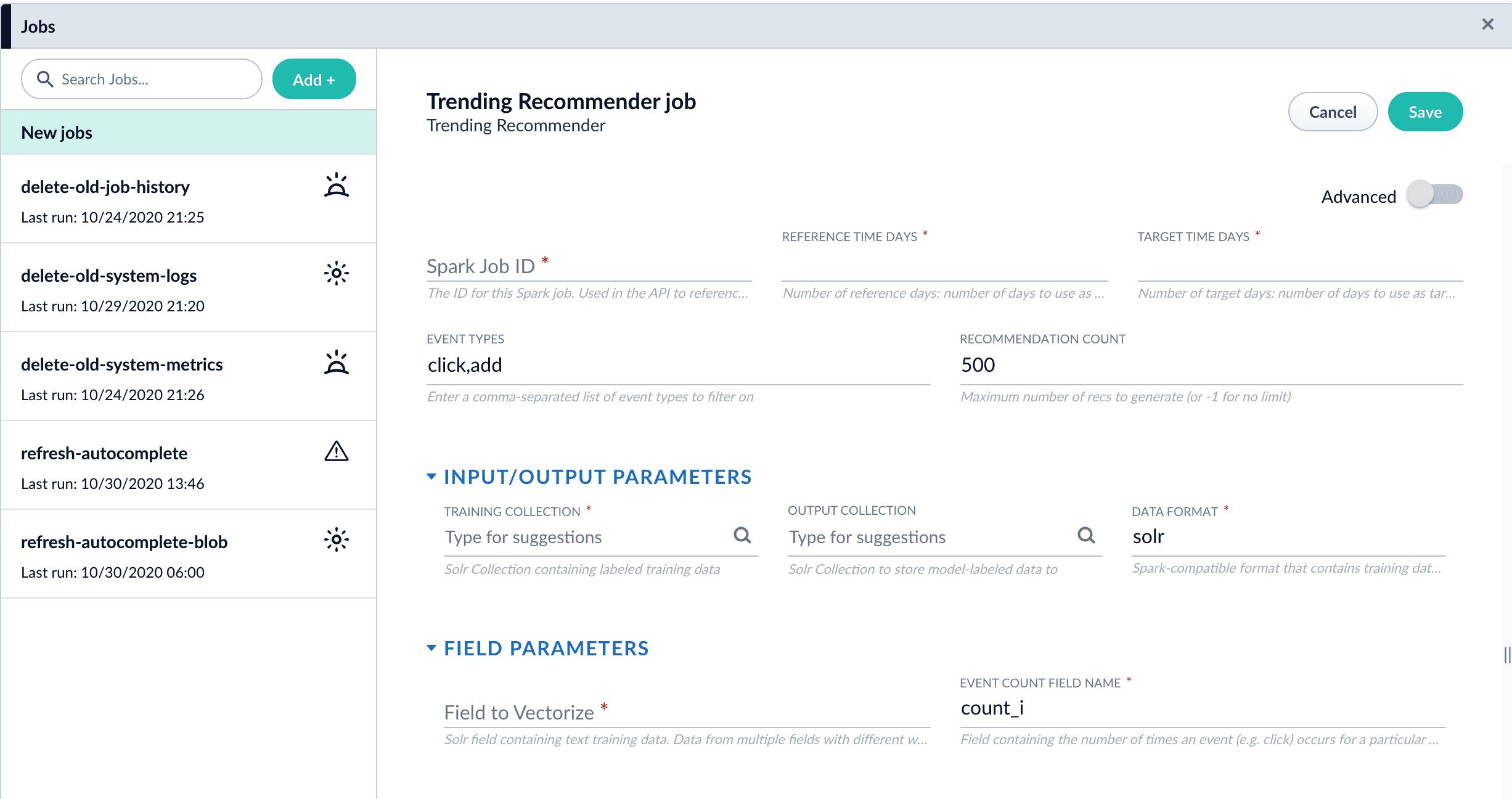
The Trending Recommender job analyzes signals to measure customer engagement over time. Use this job to identify spikes in popularity for specific items or queries, then display those items to your users or analyze the trends for business purposes. You can configure any time window, such as daily, weekly, or monthly.
For complete details about the job’s configuration options, see [Trending Recommender Jobs](/docs/5/fusion/reference/config-ref/jobs/trending-recommender).
**How to identify trending items or queries**
1. Navigate to **Collections** > **Jobs** > **Add +** > **Trending Recommender**.
2. Configure the job:
1. Enter an ID for this job.
2. In the **Reference Time Days** field, enter the number of days to use as a *baseline* for identifying trends, starting from today.\
For example, enter 21 days to analyze three weeks of signals data to use as a baseline.
3. In the **Target Time Days** field, enter the number of days to use as a *target* for identifying trends, starting from today.\
For example, enter 7 days to get documents or products whose popularity has spiked in the past week.
**Reference Time Days** and **Target Time Days** do not overlap. For example, with the values suggested above, a total of 28 days of signals are analyzed, and the first 21 days are compared to the last 7 days.
4. If you want to identify trending queries instead of trending items, change the value of the **Document ID Field** from `doc_id_s` to `query_s`.
This field must be present in your signals. See the required signals fields in the [Trending Recommender Jobs](/docs/5/fusion/reference/config-ref/jobs/trending-recommender) reference topic.
5. In the **Training Collection** field, enter the Solr collection or cloud path where signals are stored (the `COLLECTION_NAME_signals` collection by default).
6. In the **Output Collection** field, enter the Solr collection or cloud path where trend analysis data will be stored.
7. If you are using a format other than `solr`, enter it in the **Data Format** field.
8. In the **Solr Fields to Read** field, enter one or more field names containing text training data.
You can enter multiple field names with weights, as in `field1:weight1,field2:weight2...`.
9. In the **Event Count Field Name** field, enter the name of the event count field in your training data, usually `count_i`.
3. Click **Save**.
4. Click **Run** > **Start** to run the job.
The job outputs documents similar to this example:
```json theme={"dark"}
{
"doc_id":250,
"ref_hits":1,
"ref_rank":1,
"trgt_hits":1,
"trgt_rank":1,
"vol_diff":0.5,
"average_weekly_vol":0.5,
"hit_vol_ratio":2.0,
"combine_score":1.0,
"vol_diff_ratio":1.0,
"ref_wt_vol_diff_ratio":1.0,
"vol_diff_wt_vol_diff_ratio":0.5,
"log_diff_wt_ratio":1.3068528194400546,
"trend-type":"prds_weekly",
"id":"284f930d-d750-49a2-90ac-be4692bddda9",
"_version_":1682995654191742976
}
```
5. Configure a query pipeline to retrieve trending items from the job’s output collection for display or further analysis. For information about pipelines created when recommendations are enabled, see [enable recommendations](/docs/5/fusion/getting-data-out/query-enhancement/recommendations/getting-started).
Search on the `log_diff_wt_ratio` field to find the top trending items in the output collection.
## What’s next?
See [Query Data Flow](/docs/5/fusion/intro/query-dataflow) to learn about querying your content and recommendations.
 Raw signals are indexed in a secondary collection called `COLLECTION_NAME_signals`. For example, if your primary collection is called `Products`, then the raw signals collection is `Products_signals`.
## 3. Fusion jobs that index signals-related data
When you **Enable or Disable Signals**, Fusion creates jobs and secondary collections for analyzing and aggregating your raw signals. Some of this data enables [query rewriting](/docs/5/fusion/getting-data-out/query-enhancement/query-rewriting) and [automatic boosting](/docs/5/fusion/getting-data-out/query-enhancement/boosting/boost-with-signals), while other data becomes useful when you enable [recommendations](/docs/5/fusion/getting-data-out/query-enhancement/recommendations/overview).
Raw signals are indexed in a secondary collection called `COLLECTION_NAME_signals`. For example, if your primary collection is called `Products`, then the raw signals collection is `Products_signals`.
## 3. Fusion jobs that index signals-related data
When you **Enable or Disable Signals**, Fusion creates jobs and secondary collections for analyzing and aggregating your raw signals. Some of this data enables [query rewriting](/docs/5/fusion/getting-data-out/query-enhancement/query-rewriting) and [automatic boosting](/docs/5/fusion/getting-data-out/query-enhancement/boosting/boost-with-signals), while other data becomes useful when you enable [recommendations](/docs/5/fusion/getting-data-out/query-enhancement/recommendations/overview).
 **Configure** to open the drop-down menu.
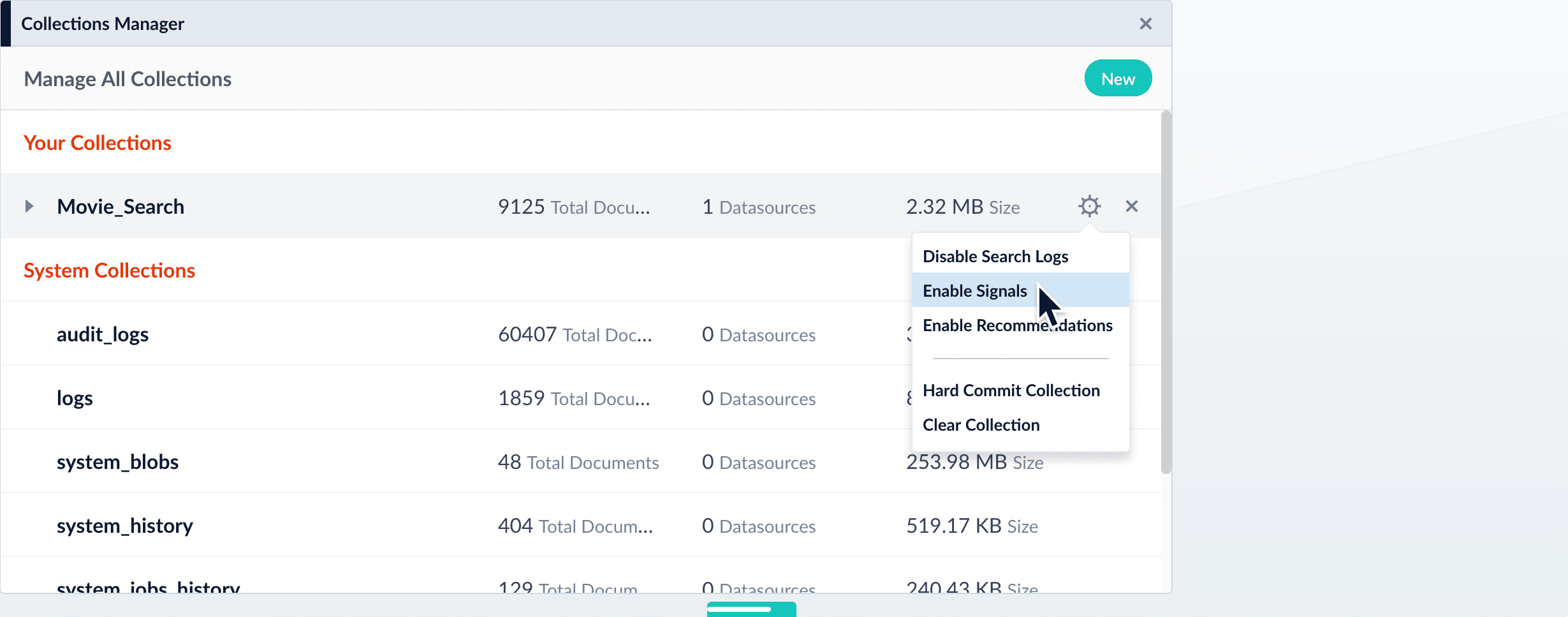 4. Click **Enable Signals**.\
The **Enable Signals** window appears, with a list of collections and jobs that are created when you enable signals.
4. Click **Enable Signals**.\
The **Enable Signals** window appears, with a list of collections and jobs that are created when you enable signals.
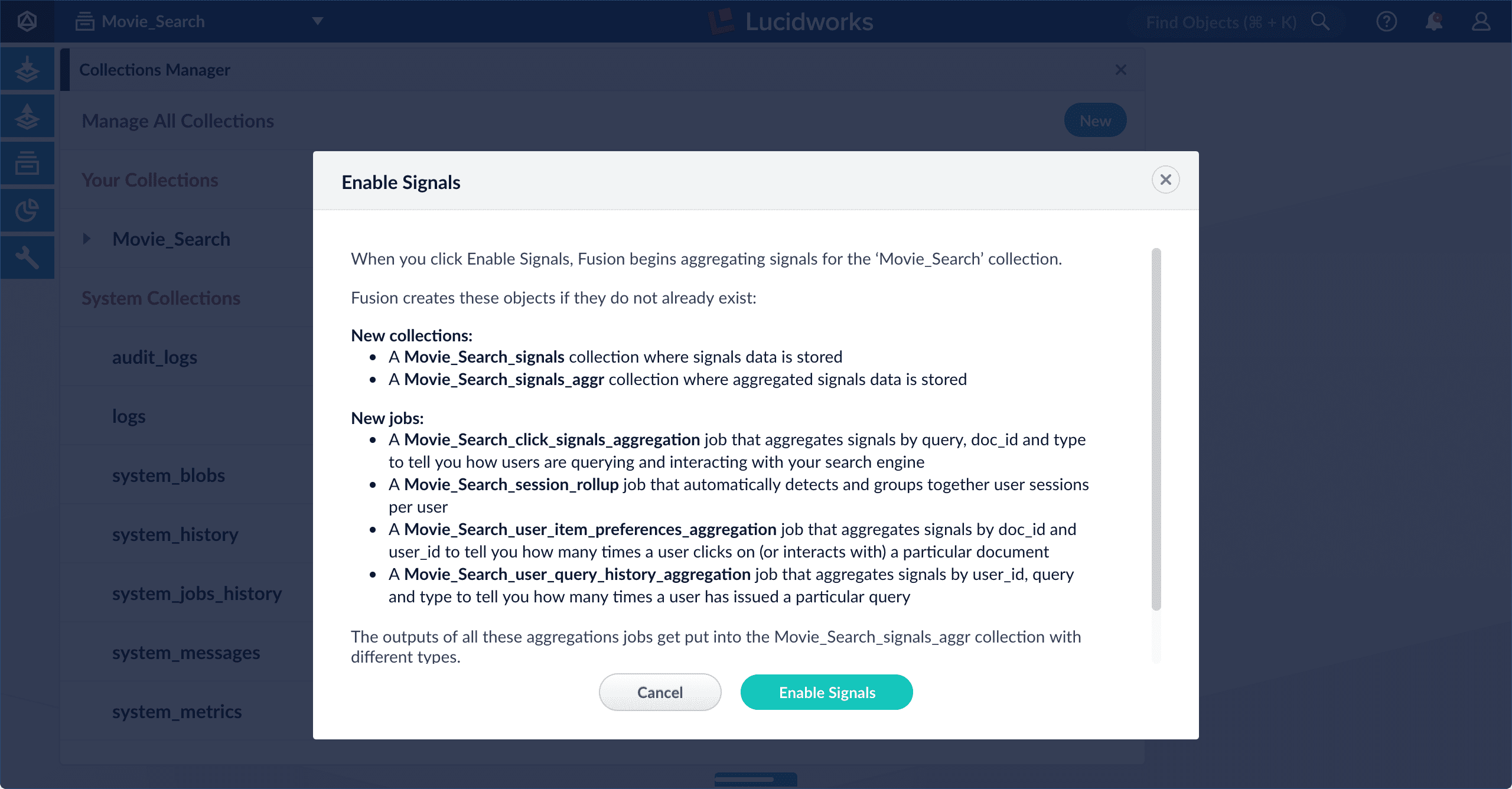 5. Click **Enable Signals**.
**Disable signals for a collection**
1. In the Fusion workspace, navigate to **Collections** > **Collections Manager**.
2. Hover over the primary collection for which you want to disable signals.
3. Click
5. Click **Enable Signals**.
**Disable signals for a collection**
1. In the Fusion workspace, navigate to **Collections** > **Collections Manager**.
2. Hover over the primary collection for which you want to disable signals.
3. Click 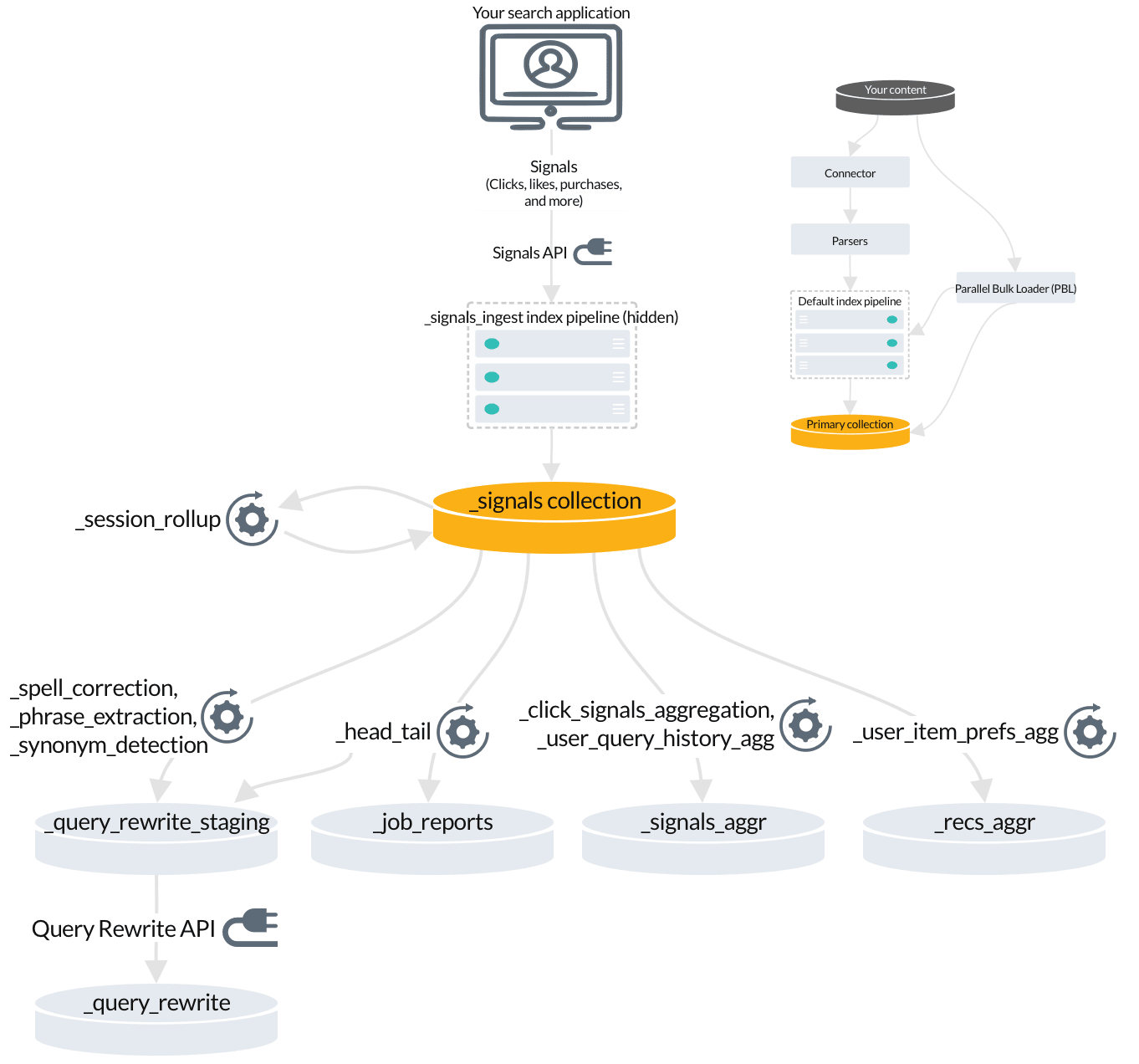 * The [`_session_rollup` job](/docs/5/fusion/reference/config-ref/jobs/aggregations/built-in-sql-aggregation-jobs#collection-name-session-rollup) creates session signals from your raw signals and adds them to the `_signals` collection.
* [Automatic query rewrites](/docs/5/fusion/getting-data-out/query-enhancement/query-rewriting) are created by [several jobs](/docs/5/fusion/getting-data-out/query-enhancement/query-rewriting) and indexed in the `_query_rewrite_staging` collection for review before they are published to the `_query_rewrite` collection.
* The [`_head_tail` job](/docs/5/fusion/reference/config-ref/jobs/head-tail-analysis) sends [rewrites for underperforming queries](/docs/5/fusion/getting-data-out/query-enhancement/query-rewriting) to the `_query_rewrite_staging` collection. It also sends analytics tables to the `_job_reports` collection.
* The `_signals_aggr` collection stores unique combinations of query, document ID, and filters found in your raw signals, each with a timestamp, weight, and count. These are generated by the [`_click_signals_aggregation` job](/docs/5/fusion/reference/config-ref/jobs/aggregations/overview) and the [`_user_query_history_agg` job](/docs/5/fusion/reference/config-ref/jobs/aggregations/built-in-sql-aggregation-jobs).
* The [`user_item_prefs_agg` job](/docs/5/fusion/reference/config-ref/jobs/aggregations/built-in-sql-aggregation-jobs) identifies unique pairs of document IDs and user IDs, assigns a timestamp, weight, and count to each pair, and indexes it in the `_recs_aggr` collection.
## 4. Fusion jobs that index recommendations
When you [enable recommendations](/docs/5/fusion/getting-data-out/query-enhancement/recommendations/getting-started#enable-recommendations), another set of jobs and secondary collections is created.
* The [`_session_rollup` job](/docs/5/fusion/reference/config-ref/jobs/aggregations/built-in-sql-aggregation-jobs#collection-name-session-rollup) creates session signals from your raw signals and adds them to the `_signals` collection.
* [Automatic query rewrites](/docs/5/fusion/getting-data-out/query-enhancement/query-rewriting) are created by [several jobs](/docs/5/fusion/getting-data-out/query-enhancement/query-rewriting) and indexed in the `_query_rewrite_staging` collection for review before they are published to the `_query_rewrite` collection.
* The [`_head_tail` job](/docs/5/fusion/reference/config-ref/jobs/head-tail-analysis) sends [rewrites for underperforming queries](/docs/5/fusion/getting-data-out/query-enhancement/query-rewriting) to the `_query_rewrite_staging` collection. It also sends analytics tables to the `_job_reports` collection.
* The `_signals_aggr` collection stores unique combinations of query, document ID, and filters found in your raw signals, each with a timestamp, weight, and count. These are generated by the [`_click_signals_aggregation` job](/docs/5/fusion/reference/config-ref/jobs/aggregations/overview) and the [`_user_query_history_agg` job](/docs/5/fusion/reference/config-ref/jobs/aggregations/built-in-sql-aggregation-jobs).
* The [`user_item_prefs_agg` job](/docs/5/fusion/reference/config-ref/jobs/aggregations/built-in-sql-aggregation-jobs) identifies unique pairs of document IDs and user IDs, assigns a timestamp, weight, and count to each pair, and indexes it in the `_recs_aggr` collection.
## 4. Fusion jobs that index recommendations
When you [enable recommendations](/docs/5/fusion/getting-data-out/query-enhancement/recommendations/getting-started#enable-recommendations), another set of jobs and secondary collections is created.
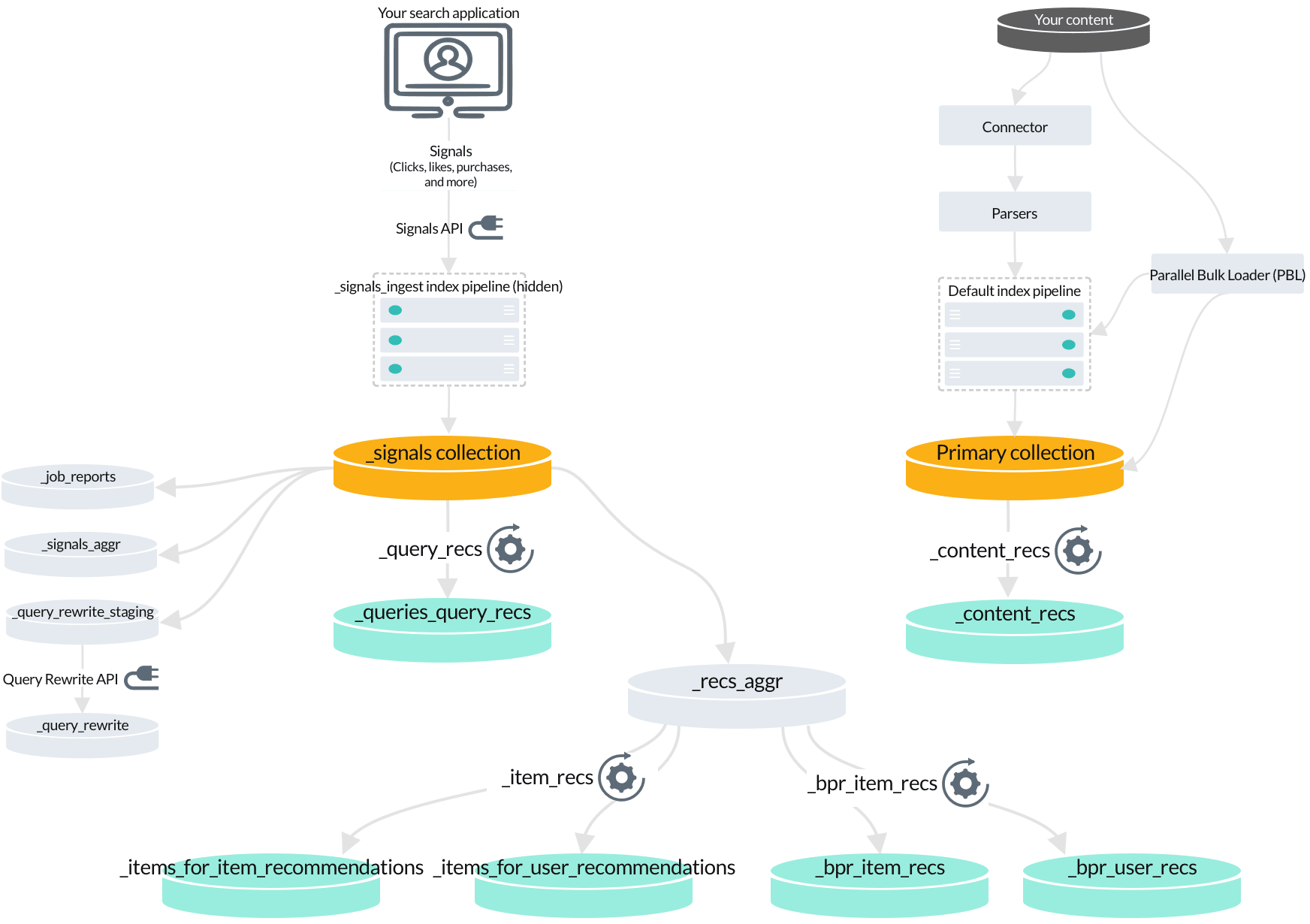 The default recommendation jobs read data from different collections depending on the type of recommendations being generated:
* [Content-based recommendations](/docs/5/fusion/getting-data-out/query-enhancement/recommendations/items-for-item) are produced by the [`_content_recs` job](/docs/5/fusion/reference/config-ref/jobs/content-based-recommender) by analyzing your primary collection.
* [Queries-for-query recommendations](/docs/5/fusion/getting-data-out/query-enhancement/recommendations/queries-for-query) are produced by the [`_query_recs` job](/docs/5/fusion/reference/config-ref/jobs/query-to-query-session-based-similarity) by analyzing your raw signals.
* BPR-based [items-for-item](/docs/5/fusion/getting-data-out/query-enhancement/recommendations/items-for-item#collaborative-items-for-item-recommendations) and [items-for-user](/docs/5/fusion/getting-data-out/query-enhancement/recommendations/items-for-user) recommendations are produced by the [`_bpr_item_recs` job](/docs/5/fusion/reference/config-ref/jobs/bpr-recommender) by analyzing aggregated signals.
The default recommendation jobs read data from different collections depending on the type of recommendations being generated:
* [Content-based recommendations](/docs/5/fusion/getting-data-out/query-enhancement/recommendations/items-for-item) are produced by the [`_content_recs` job](/docs/5/fusion/reference/config-ref/jobs/content-based-recommender) by analyzing your primary collection.
* [Queries-for-query recommendations](/docs/5/fusion/getting-data-out/query-enhancement/recommendations/queries-for-query) are produced by the [`_query_recs` job](/docs/5/fusion/reference/config-ref/jobs/query-to-query-session-based-similarity) by analyzing your raw signals.
* BPR-based [items-for-item](/docs/5/fusion/getting-data-out/query-enhancement/recommendations/items-for-item#collaborative-items-for-item-recommendations) and [items-for-user](/docs/5/fusion/getting-data-out/query-enhancement/recommendations/items-for-user) recommendations are produced by the [`_bpr_item_recs` job](/docs/5/fusion/reference/config-ref/jobs/bpr-recommender) by analyzing aggregated signals.
 2. Configure the job:
1. Enter an ID for this job.
2. In the **Reference Time Days** field, enter the number of days to use as a *baseline* for identifying trends, starting from today.\
For example, enter 21 days to analyze three weeks of signals data to use as a baseline.
3. In the **Target Time Days** field, enter the number of days to use as a *target* for identifying trends, starting from today.\
For example, enter 7 days to get documents or products whose popularity has spiked in the past week.
2. Configure the job:
1. Enter an ID for this job.
2. In the **Reference Time Days** field, enter the number of days to use as a *baseline* for identifying trends, starting from today.\
For example, enter 21 days to analyze three weeks of signals data to use as a baseline.
3. In the **Target Time Days** field, enter the number of days to use as a *target* for identifying trends, starting from today.\
For example, enter 7 days to get documents or products whose popularity has spiked in the past week.