> ## Documentation Index
> Fetch the complete documentation index at: https://doc.lucidworks.com/llms.txt
> Use this file to discover all available pages before exploring further.
# Milvus
export const LwTemplate = ({title = "Key questions to get you started", icon = "sparkles", cta = "Powered by Agent Studio", linkHref = "https://lucidworks.com/demo/?utm_source=docs&utm_medium=referral&utm_campaign=docs_cta_ai"}) => {
const [isLoaded, setIsLoaded] = useState(false);
useEffect(() => {
const timer = setTimeout(() => {
setIsLoaded(true);
}, 500);
return () => clearTimeout(timer);
}, []);
return
{isLoaded && `
}} />}
Powered by Lucidworks Agent Studio
;
};
[localhost link]: http://localhost:3000/docs/5/fusion/intro/fusion-stack/milvus
[mintlify link]: https://doc.lucidworks.com/docs/5/fusion/intro/fusion-stack/milvus
[old doc.lw link]: https://doc.lucidworks.com/fusion/5.9/8821
**Deprecated**
As of Fusion 5.9.5, Milvus is deprecated and will be removed in a future release. Use [Seldon](/docs/5/fusion/reference/config-ref/pipeline-stages/query-stages/vectorize-query-via-seldon-query-stage) or [Lucidworks AI](/docs/5/fusion/reference/config-ref/pipeline-stages/query-stages/lwai-vectorize-query) vector query stages instead. For more information, see the following topics:
* [Deprecations and Removals](/docs/5/fusion/deprecations-and-removals)
* [Seldon](/docs/5/fusion/intro/fusion-stack/seldon)
* [Lucidworks AI](/docs/lw-platform/lw-ai/overview)
[Milvus](https://milvus.io/) is an open source vector similarity search engine, integrated into Fusion to streamline its deep learning capabilities and reduce the workload on Solr. See [Milvus v0.10.2 documentation](https://www.milvus.io/docs/v0.10.2/overview.md).
## Milvus collections
Milvus stores the vectors produced by machine learning models in one or more Milvus collections.
For each collection, the following parameters need to be set:
* `Collection Name`. A name for the Milvus collection you are creating. Milvus requires that collection names only include alphanumeric characters and the underscore `_`.
* `Dimension`. The dimension size of the vectors to store in this Milvus collection. The Dimension should match the size of the vectors returned by the encoding model. For example, the `Smart Answers Pre-trained Coldstart` models output vectors of 512 dimension size. Dimensionality of encoders trained by `Smart Answers Supervised Training` job depends on the provided parameters and printed in the training job logs. See **Train a Smart Answers Supervised Model** for more details.
* `Index file size`. Vectors are added to the raw data files and then indexed. Files larger than this will trigger index building for raw data files.
* `Metric`. The type of metric used to determine how close the search vector is to the vectors in the collection. It is used to calculate the vector similarity scores. In most cases we suggest to use Cosine Similarity which can be obtained by using the `Inner Product` metric over normalized vectors. It produces values between -1 and 1, where a higher value means higher similarity.
The [Supervised solution for Smart Answers](/docs/5/fusion/getting-data-out/advanced-query-enhancement/smart-answers/faq-solution) begins with training a model using your existing data and the [Smart Answers Supervised Training job](/docs/5/fusion/reference/config-ref/jobs/smart-answers-supervised-training), as explained in this topic. The job includes an auto-tune feature that you can use instead of manually tuning the configuration.
See also [Advanced Model Training Configuration for Smart Answers](/docs/5/fusion/getting-data-out/advanced-query-enhancement/smart-answers/smart-answers-advanced-model-config).
{/* // tag::requirements[] */}
## Training job requirements
**Storage**
150GB plus 2.5 times the total input data size.
**Processor and memory**
The memory requirements depend on whether you choose GPU or CPU processing:
| GPU | CPU |
| -------------------------------------------- | -------------------------------------------- |
|
one core
11GB RAM
|
32 cores
32GB RAM
|
If your training data contains more than 1 million entries, use GPU.
{/* // end::requirements[] */}
## Prepare the input data
1. Format your input data as question/answer pairs, that is, a query and its corresponding response in each row.
You can do this in any format that Fusion supports.
If there are multiple possible answers for a unique question, then repeat the questions and put the pair into different rows to make sure each row has one question and one answer, as in the example JSON below:
```json theme={"dark"}
[{"question":"How to transfer personal auto lease to business auto lease?","answer":"I would approach the lender that you are getting the lease from..."}
{"question":"How to transfer personal auto lease to business auto lease?","answer":"See what the contract says about transfers or subleases..."}]
```
2. Index the input data in Fusion.
If you wish to have the training data in Fusion, index it into a separate collection for training data such as `model_training_input`. Otherwise you can use it directly from the cloud storage.
{/* // tag::steps[] */}
## Configure the training job
1. In Fusion, navigate to **Collections** > **Jobs**.
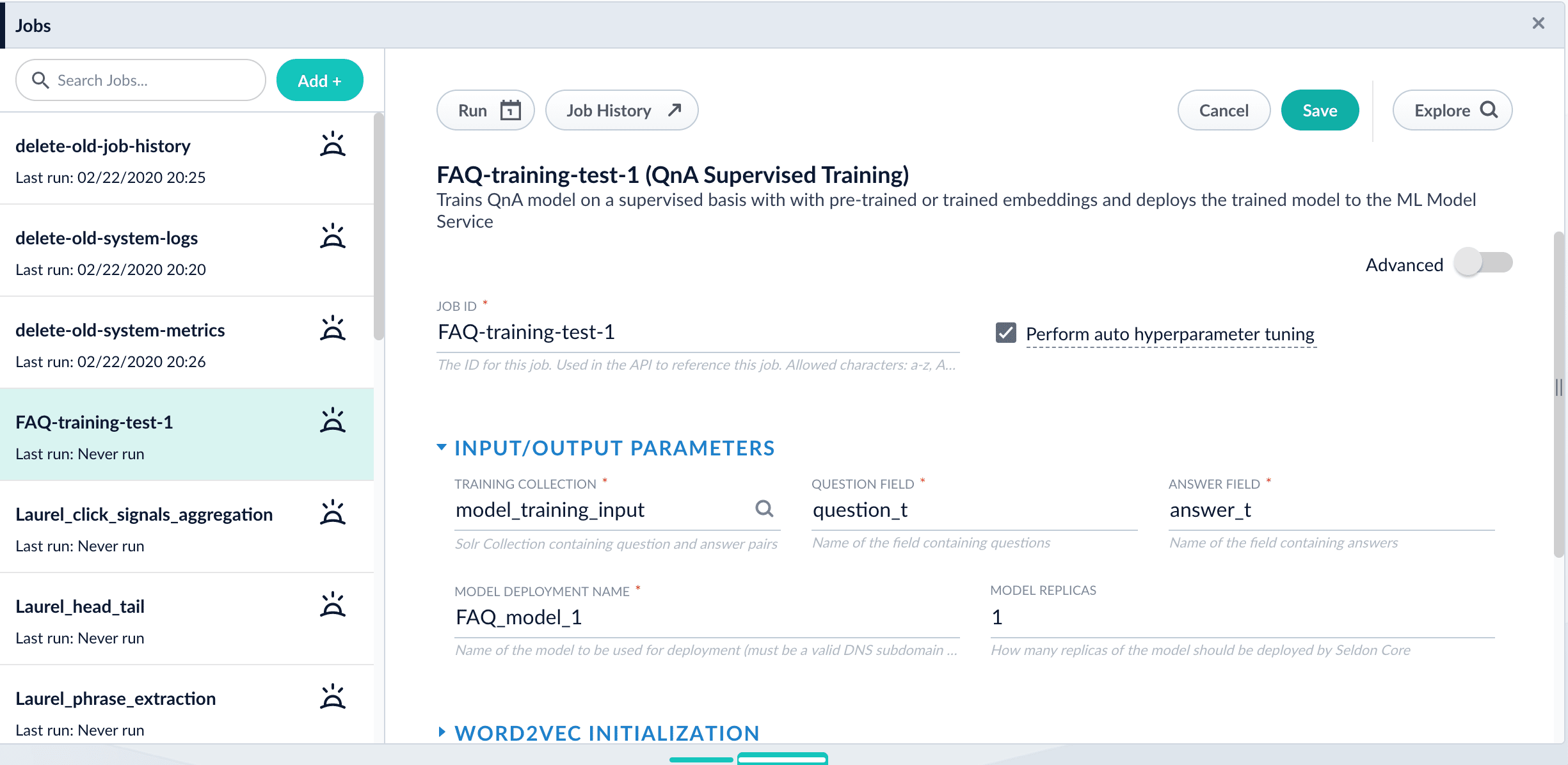
2. Select **Add** > **Smart Answers Supervised Training**:
3. In the **Training Collection** field, specify the input data collection that you created when you [prepared the input data](#prepare-the-input-data).
In Fusion 5.3 and later, you can also configure this job to read from or write to cloud storage.
4. Enter the names of the **Question Field** and the **Answer Field** in the training collection.
5. Enter a **Model Deployment Name**.
The new machine learning model will be saved in the blob store with this name. You will reference it later when you configure your pipelines.
6. *Fusion 5.3 and later:* Configure the **Model base**.
There are several pre-trained word and [BPE](https://nlp.h-its.org/bpemb) embeddings for different languages, as well as a few pre-trained BERT models.
If you want to train custom embeddings, select `word_custom` or `bpe_custom`. This trains Word2vec on the provided data and specified fields. It might be useful in cases when your content includes unusual or domain-specific vocabulary.
If you have content in addition to the query/response pairs that can be used to train the model, then specify it in the **Texts Data Path**.
When you use the pre-trained embeddings, the log shows the percentage of processed vocabulary words. If this value is high, then try using custom embeddings.
The job trains a few (configurable) RNN layers on top of word embeddings or fine-tunes a BERT model on the provided training data. The result model uses an attention mechanism to average word embeddings to obtain the final single dense vector for the content.
Dimension size of vectors for Transformer-based models is 768. For RNN-based models it is 2 times the number units of the last layer. To find the dimension size: download the model, expand the zip, open the log and search for `Encoder output dim size:` line. You might need this information when creating collections in Milvus.
7. *Optional:* Check **Perform auto hyperparameter tuning** to use auto-tune.
Although training module tries to select the most optimal default parameters based on the training data statistics, auto-tune can extend it by automatically finding even better training configuration through hyper-parameter search.
Although this is a resource-intensive operation, it can be useful to identify the best possible RNN-based configuration. Transformer-based models like BERT are not used during auto hyperparameter tuning as they usually perform better yet they are much more expensive on both training and inference time.
8. Click **Save**.
If using solr as the training data source ensure that the source collection contains the `random_*` dynamic field defined in its `managed-schema.xml`. This field is required for sampling the data. If it is not present, add the following entry to the `managed-schema.xml` alongside other dynamic fields `` and \ alongside other field types.
9. Click **Run** > **Start**.
After training is finished the model is deployed into the cluster and can be used in index and query pipelines.
{/* // where are they saved? */}
{/* // end::steps[] */}
## Next steps
1. See A Smart Answers Supervised Job’s Status and Output
2. Configure The Smart Answers Pipelines
3. Evaluate a Smart Answers Query Pipeline
The Metric options for Milvus collections are: Euclidean, Inner Product, Hamming, Jaccard, Tanimoto, Substructure, and Superstructure. The following metrics all require that the Dimension is a multiple of 8: Hamming, Jaccard, Tanimoto, Substructure, and Superstructure. Otherwise the Create Milvus Collection job will fail. See [Milvus metrics documentation](https://www.milvus.io/docs/v0.10.2/metric.md#floating) for more details.
Milvus can be configured to pre-load one or more collections via the Milvus parameter `preload_collection`. Fusion does not currently ship with a method to manage this parameter, but the Milvus API can be used directly (after first setting up port forwarding via `kubectl port-forward milvus-writeable-- 19121:19121`).
For an example of how to create and utilize a Milvus collection, see **Configure the Smart Answers Pipelines (5.3 and later)**.
Before beginning this procedure, train a machine learning model using either the FAQ method or the cold start method.
Regardless of how you set up your model, the deployment procedure is the same:
1. [Create the `Milvus` collection](#create-the-milvus-collection).
2. [Configure the `smart-answers` index pipeline](#configure-the-index-pipeline).
3. [Configure the `smart-answers` query pipeline](#configure-the-query-pipeline).
See also [Best Practices](/docs/5/fusion/getting-data-out/advanced-query-enhancement/smart-answers/best-practices), [Advanced Model Training Configuration for Smart Answers](/docs/5/fusion/getting-data-out/advanced-query-enhancement/smart-answers/smart-answers-advanced-model-config), and Smart Answers Detailed Pipeline Setup.
## Create the Milvus collection
For complete details about job configuration options, see the [Create Collections in Milvus job](/docs/5/fusion/reference/config-ref/jobs/create-collections-in-milvus).
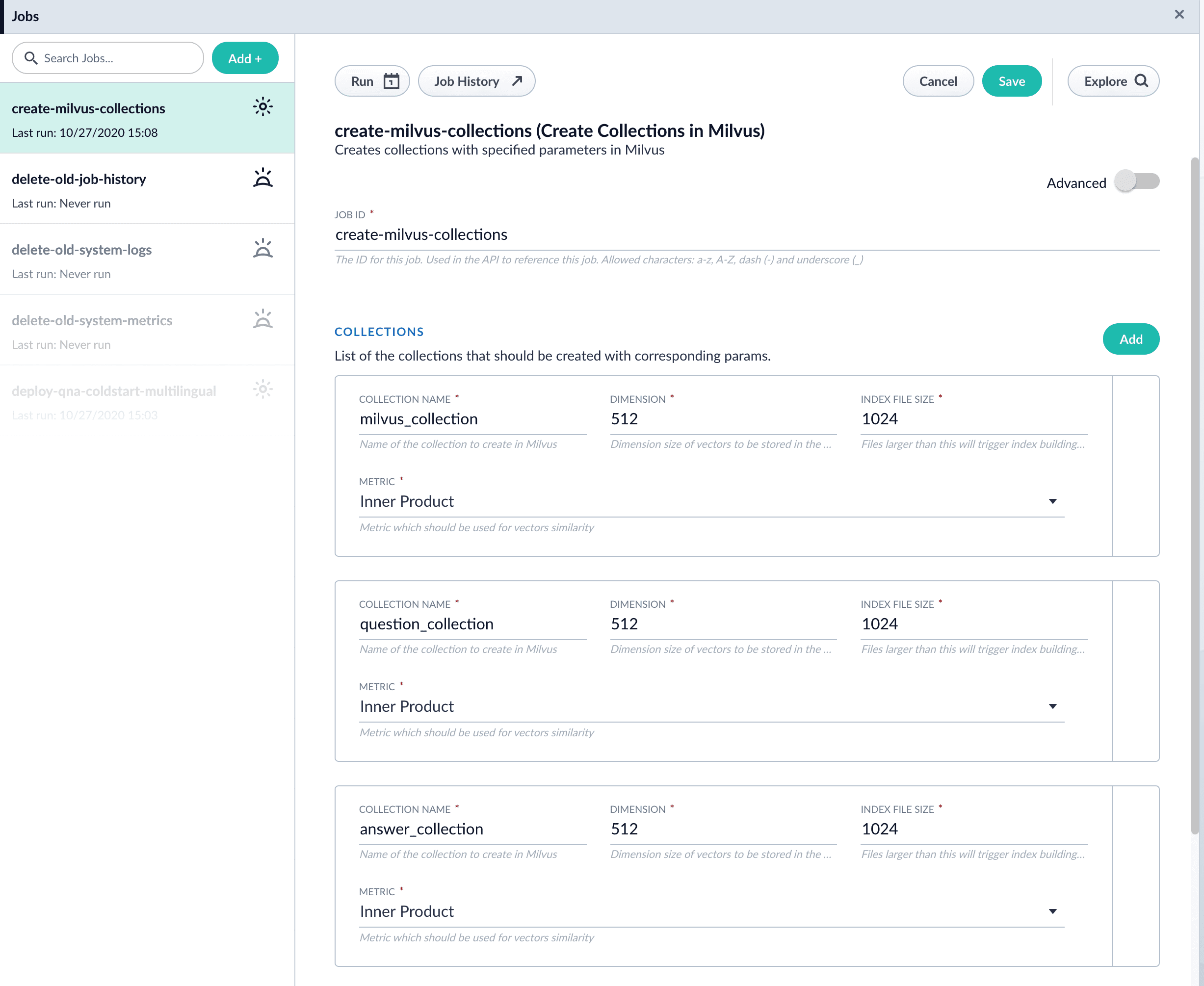
1. Navigate to **Collections** > **Jobs** > **Add +** and select **Create Collections in Milvus**.
2. Configure the job:
1. Enter an ID for this job.
2. Under **Collections**, click **Add**.
3. Enter a collection name.
4. In the **Dimension** field, enter the dimension size of vectors to store in this Milvus collection. The Dimension should match the size of the vectors returned by the encoding model. For example, the `Smart Answers Pre-trained Coldstart` models outputs vectors of 512 dimension size. Dimensionality of encoders trained by `Smart Answers Supervised Training` job depends on the provided parameters and printed in the training job logs.
3. Click **Save**.
The `Create Collections in Milvus` job can be used to create multiple collections at once. In this image, the first collection is used in the [indexing](#configure-the-index-pipeline) and [query](#configure-the-query-pipeline) steps. The other two collections are used in the [example](#pipeline-setup-example).
4. Click **Run** > **Start** to run the job.
## Configure the index pipeline
1. Open the Index Workbench.
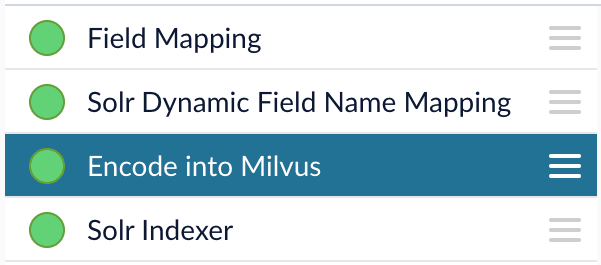
2. Load or create your datasource using the default smart-answers index pipeline.
3. Configure the
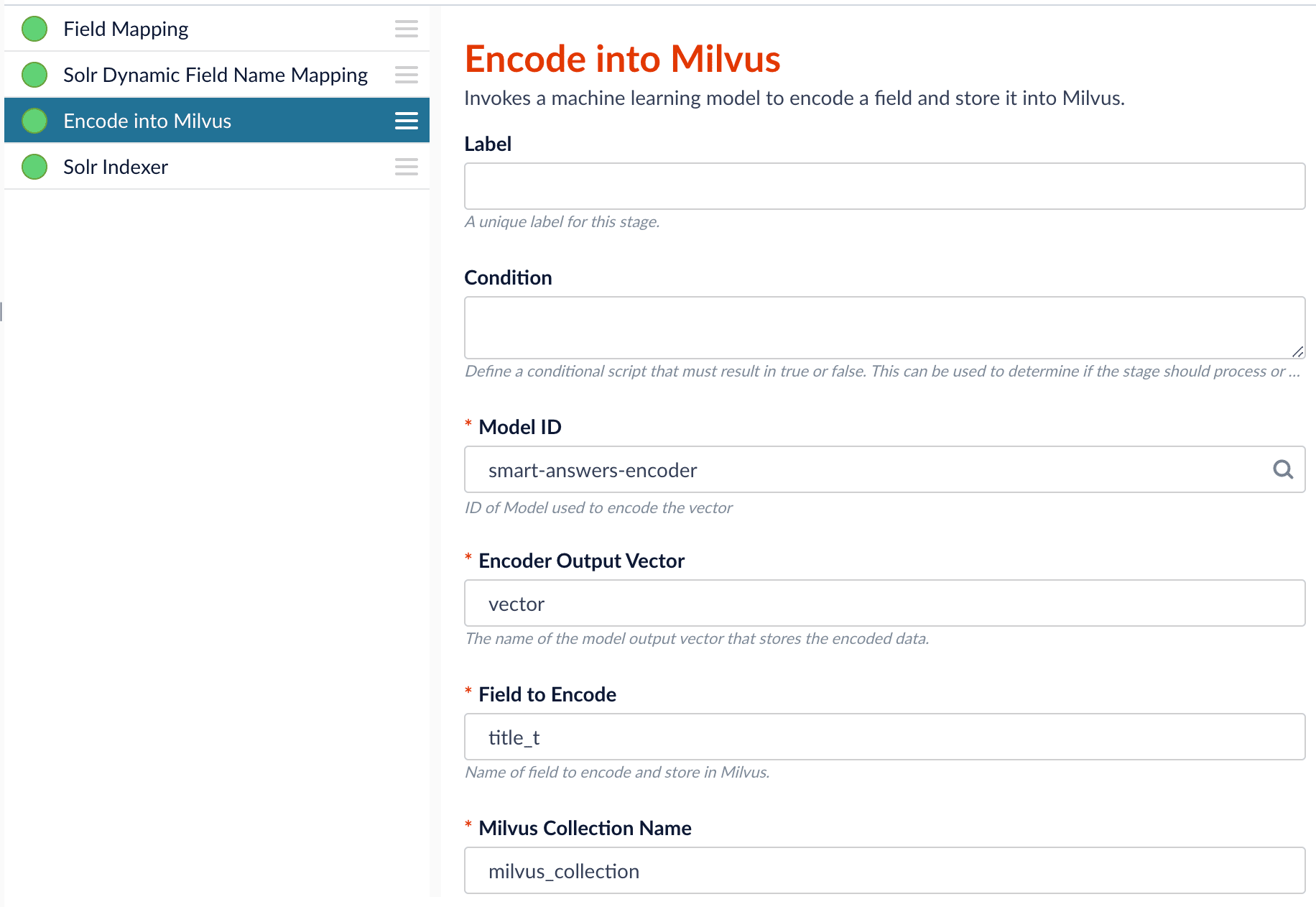
[Encode into Milvus stage](/docs/5/fusion/reference/config-ref/pipeline-stages/index-stages/encode-into-milvus-index-stage):
1. change the value of **Model ID** to match the model deployment name you chose when you configured the model training job.
2. Change `Field to Encode` to the document field name to be processed and encoded into dense vectors.
3. Ensure the `Encoder Output Vector` matches the output vector from the chosen model.
4. Ensure the `Milvus Collection Name` matches the collection name created via the `Create Milvus Collection` job.
To test out your settings, turn on `Fail on Error` in the `Encode into Milvus` stage and Apply the changes. This will cause an error message to display if any settings need to be changed.
4. Save the datasource.
5. Index your data.
## Configure the query pipeline
1. Open the Query Workbench.
2. Load the default smart-answers query pipeline.
3. Configure the [Milvus Query stage](/docs/5/fusion/reference/config-ref/pipeline-stages/query-stages/milvus-query-stage):
1. Change the **Model ID** value to match the model deployment name you chose when you configured the model training job.
2. Ensure the `Encoder Output Vector` matches the output vector from the chosen model.
3. Ensure the `Milvus Collection Name` matches the collection name created via the `Create Milvus Collection` job.
4. `Milvus Results Context Key` can be changed as needed. It will be used in the Milvus Ensemble Query Stage to calculate the query score.
4. In the [Milvus Ensemble Query stage](/docs/5/fusion/reference/config-ref/pipeline-stages/query-stages/milvus-ensemble-query-stage), update the `Ensemble math expression` as needed based on your model and the name used in the prior stage for the storing the Milvus results.
In versions 5.4 and later, you can also set the `Threshold` so that the Milvus Ensemble Query Stage will only return items with a score **greater than** or **equal to** the configured value.
5. Save the query pipeline.
## Pipeline Setup Example
### Index and retrieve the question and answer together
To show question and answer together in one document (that is, treat the question as the title and the answer as the description), you can index them together in the same document. You can still use the default `smart-answers` index and query pipelines with a few additional changes.
Prior to configuring the Smart Answers pipelines, use the `Create Milvus Collection` job to create two collections, `question_collection` and `answer_collection`, to store the encoded "questions" and the encoded "answers", respectively.
#### Index Pipeline
As shown in the pictures below, you will need two Encode into Milvus stages, named Encode Question and Encode Answer respectively.
**Encode Question (Encode Into Milvus) stage**
**Encode Answer (Encode Into Milvus) stage**
In the Encode Question stage, specify `Field to Encode` to be `title_t` and change the `Milvus Collection Name` to match the new Milvus collection, `question_collection`.
In the Encode Answer stage, specify `Field to Encode` to be `description_t` and change the `Milvus Collection Name` to match the new Milvus collection, `answer_collection`.
#### Query Pipeline
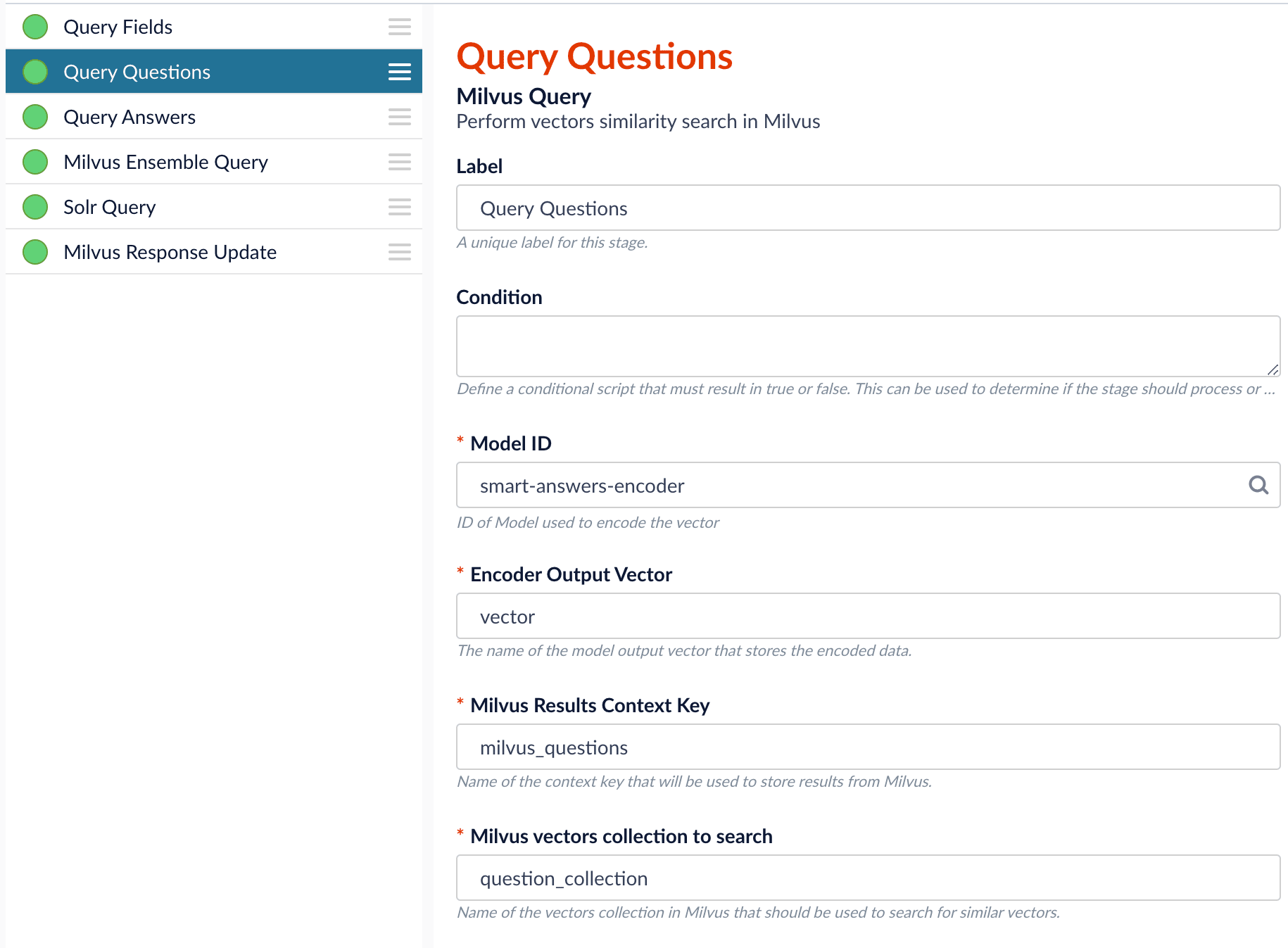
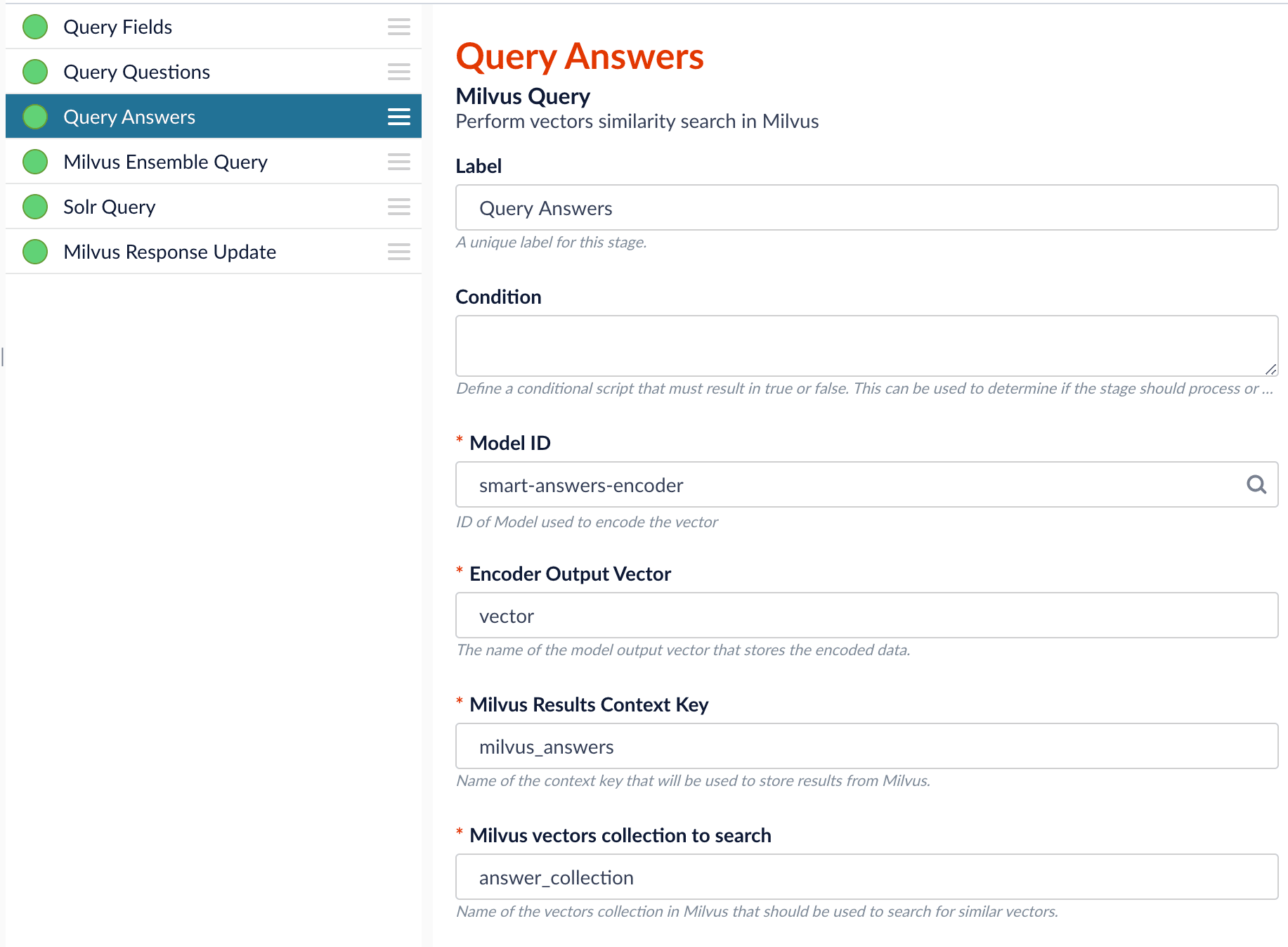
Since we have two dense vectors generated during indexing, at query time we need to compute both query to question distance and query to answer distance. This can be set up as the pictures shown below with two Milvus Query Stages, one for each of the two Milvus collections.
To store those two distances separately, the `Milvus Results Context Key` needs to be different in each of these two stages.
In the Query Questions stage, we set the `Milvus Results Context Key` to `milvus_questions` and the Milvus collection name to `question_collection`.
Query Questions (Milvus Query) stage:
In the Query Answers stage, we set the `Milvus Results Context Key` to `milvus_answers` and the Milvus collection name to `answer_collection`.
Query Answers (Milvus Query) stage:
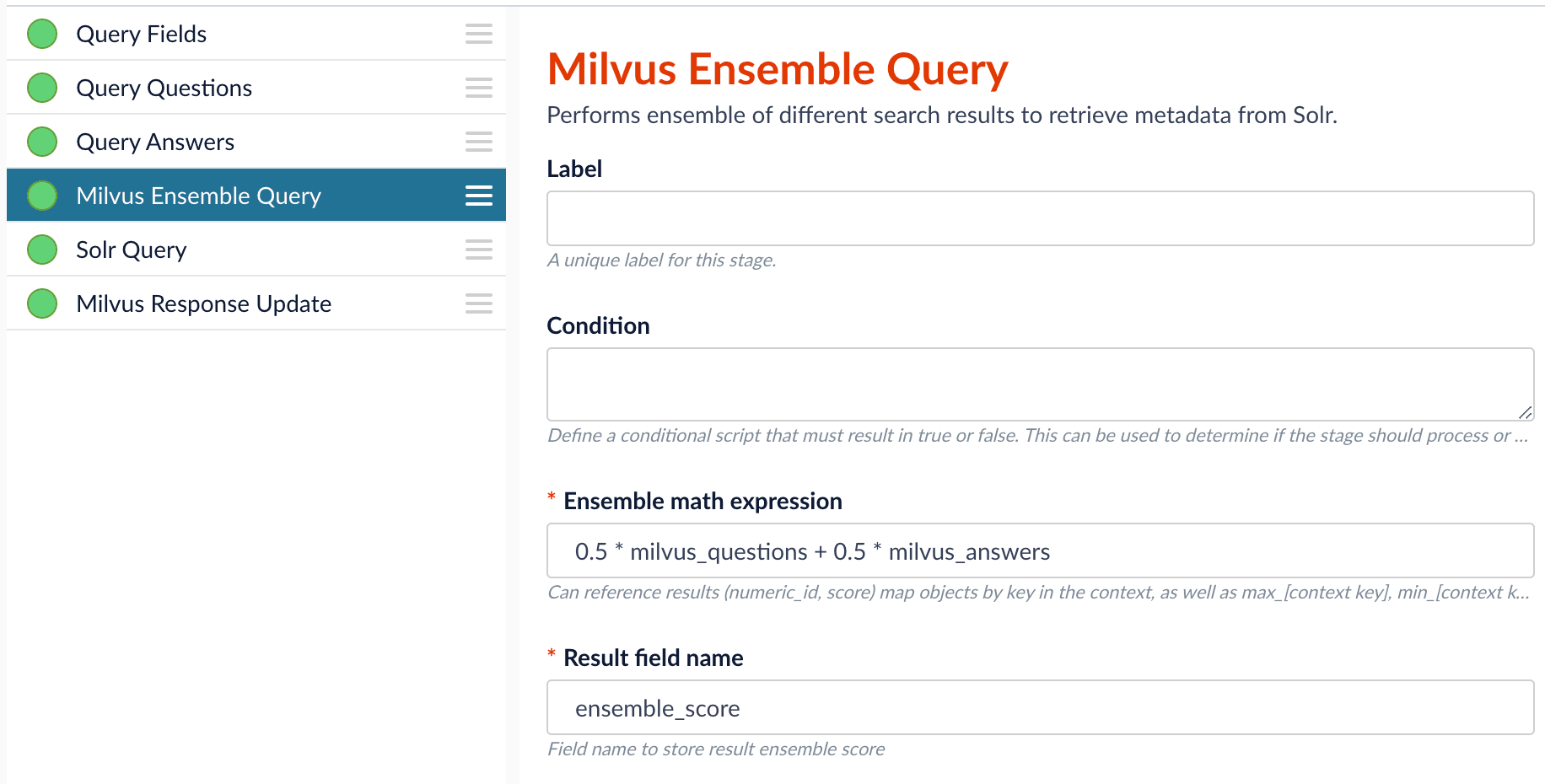
Now we can ensemble them together with the Milvus Ensemble Query Stage with the `Ensemble math expression` combining the results from the two query stages. If we want the question scores and answer scores weighted equally, we would use: `0.5 * milvus_questions + 0.5 * milvus_answers`.
This is recommended especially when you have limited FAQ dataset and want to utilize both question and answer information.
**Milvus Ensemble Query stage**
## Evaluate the query pipeline
The [Evaluate QnA Pipeline job](/docs/5/fusion/reference/config-ref/jobs/smart-answers-evaluate-pipeline) evaluates the rankings of results from any Smart Answers pipeline and finds the best set of weights in the ensemble score.
## Detailed pipeline setup
Typically, you can use the [default pipelines](/docs/5/fusion/getting-data-out/advanced-query-enhancement/smart-answers/overview) included with Fusion AI. These pipelines now utilize Milvus to store encoded vectors and to calculate vector similarity. This topic provides information you can use to customize the Smart Answers pipelines.
| | | |
| ---------------------------------- | ------------------------------------------------------------------------------------------------------------------------------------------------------------------------------------------------------------------------------------------------------------------------------------------------------------------------------------------------------------------------------------------------------------------------------------------------------------------------------------------------------------------------------------------------------------------------------------------------------------------------------------------------------------------------------------------------------------------------------------------------------------------------------------------------------------------------------------------------------------------------------------------------------------------------------------------------------------------------------------------------------------------------------------------------------------------------------------------------------------------------------------------------------------------------------------------------------------------------------------------------------------------------------------------------------------------------------------------------------------------------------------------------------------------------------------------------------------------------------------------------------------------------------------------------------------------------------------------------------------------------------------------ | --------------------------------------------------------------------------------------------------------------------------------------------------------------------------------------------------------------------------------------------------------- |
| **"smart-answers" index pipeline** | | [Encode into Milvus stage](#the-encode-into-milvus-index-stage) |
| **"smart-answers" query pipeline** | |
|
### Create the Milvus collection
Prior to indexing data, the [Create Collections in Milvus job](/docs/5/fusion/reference/config-ref/jobs/create-collections-in-milvus) can be used to create the Milvus collection(s) used by the Smart Answers pipelines (see [Milvus overview](/docs/5/fusion/intro/fusion-stack/milvus)).
* `Job ID`. A unique identifier for the job.
* `Collection Name`. A name for the Milvus collection you are creating. This name is used in both the Smart Answer Index and the Smart Answer Query pipelines.
* `Dimension`. The dimension size of the vectors to store in this Milvus collection. The Dimension should match the size of the vectors returned by the encryption model. For example, if the model was created with either the `Smart Answers Coldstart Training` job or the `Smart Answers Supervised Training` job with the Model Base `word_en_300d_2M`, then the dimension would be 300.
* `Index file size`. Files with more documents than this will cause Milvus to build an index on this collection.
* `Metric`. The type of metric used to calculate vector similarity scores. `Inner Product` is recommended. It produces values between 0 and 1, where a higher value means higher similarity.
### Index pipeline setup
**Stages in the default "smart-answers" index pipeline**
Only one custom index stage needs to be configured in your index pipeline, the [Encode into Milvus index stage](/docs/5/fusion/reference/config-ref/pipeline-stages/index-stages/encode-into-milvus-index-stage).
#### The Encode into Milvus Index Stage
If you are using a dynamic schema, make sure this stage is added *after* the [Solr Dynamic Field Name Mapping stage](/docs/5/fusion/reference/config-ref/pipeline-stages/index-stages/solr-dynamic-field-name-mapping-index-stage).
The [Encode into Milvus](/docs/5/fusion/reference/config-ref/pipeline-stages/index-stages/encode-into-milvus-index-stage) index stage uses the specified model to encode the `Field to Encode` and store it in Milvus in the given Milvus collection.
There are several required parameters:
* `Model ID`. The ID of the model.
* `Encoder Output Vector`. The name of the field that stores the compressed dense vectors output from the model. Default value: `vector`.
* `Field to Encode`. The text field to encode into a dense vector, such as `answer_t` or `body_t`.
* `Milvus Collection Name`. The name of the collection you created via the [Create Milvus Collection](/docs/5/fusion/reference/config-ref/jobs/create-collections-in-milvus) job, which will store the dense vectors. When creating the collection you specify the type of **Metric** to use to calculate vector similarity.
This stage can be used multiple times to encode additional fields, each into a different Milvus collection.
### Query pipeline setup
#### The Query Fields stage
The first stage is **Query Fields**. For more information see the [Query Fields stage](/docs/5/fusion/reference/config-ref/pipeline-stages/query-stages/search-fields-query-stage).
#### The Milvus Query stage
The [Milvus Query](/docs/5/fusion/reference/config-ref/pipeline-stages/query-stages/milvus-query-stage) stage encodes the query into a vector using the specified model. It then performs a vector similarity search against the specified Milvus collection and returns a list of the best document matches.
* `Model ID`. The ID of the model used when configuring the model training job.
* `Encoder Output Vector`. The name of the output vector from the specified model, which will contain the query encoded as a vector. Defaults to vector.
* `Milvus Collection Name`. The name of the collection that you used in the `Encode into Milvus` index stage to store the encoded vectors.
* `Milvus Results Context Key`. The name of the variable used to store the vector distances. It can be changed as needed. It will be used in the Milvus Ensemble Query Stage to calculate the query score for the document.
* `Number of Results`. The number of highest scoring results returned from Milvus.
This stage would typically be used the same number of times that the `Encode into Milvus` index stage is used, each with a different Milvus collection and a different `Milvus Results Context Key`.
#### The Milvus Ensemble Query stage
The [Milvus Ensemble Query](/docs/5/fusion/reference/config-ref/pipeline-stages/query-stages/milvus-ensemble-query-stage) takes the results of the Milvus Query stage(s) and calculates the `ensemble score`, which is used to return the best matches.
* `Ensemble math expression`. The mathematical expression used to calculate the `ensemble score`. It should reference the value(s) variable name specified in the `Milvus Results Context Key` parameter in the Milvus Query stage.
* `Result field name`. The name of the field used to store the `ensemble score`. It defaults to `ensemble_score`.
* `Threshold`- A parameter that filters the stage results to remove items that fall below the configured score. Items with a score at, or above, the threshold will be returned.
The **Threshold** feature is only available in Fusion 5.4 and later.
#### The Milvus Response Update Query stage
The [Milvus Response Update Query](/docs/5/fusion/reference/config-ref/pipeline-stages/query-stages/milvus-response-update-stage) stage does not need to be configured and can be skipped if desired. It inserts the Milvus values, including the `ensemble_score`, into each of the returned documents, which is particularly useful when there is more than one `Milvus Query Stage`. This stage needs to come after the `Solr Query` stage.
## Short answer extraction
By default, the question-answering query pipelines return complete documents that answer questions. Optionally, you can extract just a paragraph, a sentence, or a few words that answer the question.
{/* // end::body[] */}
## Milvus indexes
When a Milvus collection is large, creating an index can speed up the similarities search. If you do not create an index on a collection then a FLAT index is used. See [Milvus index documentation](https://www.milvus.io/docs/v0.10.2/index.md) for more details.
When you create an index on a collection, in addition to the `collection name` you will need to specify:
* `Index Type`. The index type must be one of \[`ANNOY`, `FLAT`, `HNSW`, `IVF_PQ`, `IVF_SQ8`, `IVF_SQ8H`, `IVFLAT`, `RNSG`]. We recommend you use the Fusion job default value of `HNSW`.
* `Index Parameters`. Parameters used to create an index in Milvus. These required parameters are specific to the chosen `Index Type`. For example, `nlist=4096` for IVF indexes or `M=36` and `efConstruction=500` for HNSW indexes.
If you create an index for the collection different from FLAT, index specific query parameters have to be added as Search Parameters in the Milvus Query stage. Refer to the [Milvus supported indexes](https://www.milvus.io/docs/v0.10.2/index.md#Indexes-that-Milvus-supports) for query parameters for each index type.
## Milvus management jobs
Fusion ships with several jobs for managing collections and indexes in Milvus:
* [Create Collections in Milvus](/docs/5/fusion/reference/config-ref/jobs/create-collections-in-milvus)
* [Delete Collections in Milvus](/docs/5/fusion/reference/config-ref/jobs/delete-collections-in-milvus)
* [Create Indexes in Milvus](/docs/5/fusion/reference/config-ref/jobs/create-indexes-in-milvus)
* [Delete Indexes in Milvus](/docs/5/fusion/reference/config-ref/jobs/delete-indexes-in-milvus)
## Pipeline stages
For more information about using these stages see **Configure the Smart Answers Pipelines (5.3 and later)**.
Before beginning this procedure, train a machine learning model using either the FAQ method or the cold start method.
Regardless of how you set up your model, the deployment procedure is the same:
1. [Create the `Milvus` collection](#create-the-milvus-collection).
2. [Configure the `smart-answers` index pipeline](#configure-the-index-pipeline).
3. [Configure the `smart-answers` query pipeline](#configure-the-query-pipeline).
See also [Best Practices](/docs/5/fusion/getting-data-out/advanced-query-enhancement/smart-answers/best-practices), [Advanced Model Training Configuration for Smart Answers](/docs/5/fusion/getting-data-out/advanced-query-enhancement/smart-answers/smart-answers-advanced-model-config), and Smart Answers Detailed Pipeline Setup.
## Create the Milvus collection
For complete details about job configuration options, see the [Create Collections in Milvus job](/docs/5/fusion/reference/config-ref/jobs/create-collections-in-milvus).
1. Navigate to **Collections** > **Jobs** > **Add +** and select **Create Collections in Milvus**.
2. Configure the job:
1. Enter an ID for this job.
2. Under **Collections**, click **Add**.
3. Enter a collection name.
4. In the **Dimension** field, enter the dimension size of vectors to store in this Milvus collection. The Dimension should match the size of the vectors returned by the encoding model. For example, the `Smart Answers Pre-trained Coldstart` models outputs vectors of 512 dimension size. Dimensionality of encoders trained by `Smart Answers Supervised Training` job depends on the provided parameters and printed in the training job logs.
3. Click **Save**.
The `Create Collections in Milvus` job can be used to create multiple collections at once. In this image, the first collection is used in the [indexing](#configure-the-index-pipeline) and [query](#configure-the-query-pipeline) steps. The other two collections are used in the [example](#pipeline-setup-example).
4. Click **Run** > **Start** to run the job.
## Configure the index pipeline
1. Open the Index Workbench.
2. Load or create your datasource using the default smart-answers index pipeline.
3. Configure the
[Encode into Milvus stage](/docs/5/fusion/reference/config-ref/pipeline-stages/index-stages/encode-into-milvus-index-stage):
1. change the value of **Model ID** to match the model deployment name you chose when you configured the model training job.
2. Change `Field to Encode` to the document field name to be processed and encoded into dense vectors.
3. Ensure the `Encoder Output Vector` matches the output vector from the chosen model.
4. Ensure the `Milvus Collection Name` matches the collection name created via the `Create Milvus Collection` job.
To test out your settings, turn on `Fail on Error` in the `Encode into Milvus` stage and Apply the changes. This will cause an error message to display if any settings need to be changed.
4. Save the datasource.
5. Index your data.
## Configure the query pipeline
1. Open the Query Workbench.
2. Load the default smart-answers query pipeline.
3. Configure the [Milvus Query stage](/docs/5/fusion/reference/config-ref/pipeline-stages/query-stages/milvus-query-stage):
1. Change the **Model ID** value to match the model deployment name you chose when you configured the model training job.
2. Ensure the `Encoder Output Vector` matches the output vector from the chosen model.
3. Ensure the `Milvus Collection Name` matches the collection name created via the `Create Milvus Collection` job.
4. `Milvus Results Context Key` can be changed as needed. It will be used in the Milvus Ensemble Query Stage to calculate the query score.
4. In the [Milvus Ensemble Query stage](/docs/5/fusion/reference/config-ref/pipeline-stages/query-stages/milvus-ensemble-query-stage), update the `Ensemble math expression` as needed based on your model and the name used in the prior stage for the storing the Milvus results.
In versions 5.4 and later, you can also set the `Threshold` so that the Milvus Ensemble Query Stage will only return items with a score **greater than** or **equal to** the configured value.
5. Save the query pipeline.
## Pipeline Setup Example
### Index and retrieve the question and answer together
To show question and answer together in one document (that is, treat the question as the title and the answer as the description), you can index them together in the same document. You can still use the default `smart-answers` index and query pipelines with a few additional changes.
Prior to configuring the Smart Answers pipelines, use the `Create Milvus Collection` job to create two collections, `question_collection` and `answer_collection`, to store the encoded "questions" and the encoded "answers", respectively.
#### Index Pipeline
As shown in the pictures below, you will need two Encode into Milvus stages, named Encode Question and Encode Answer respectively.
**Encode Question (Encode Into Milvus) stage**
**Encode Answer (Encode Into Milvus) stage**
In the Encode Question stage, specify `Field to Encode` to be `title_t` and change the `Milvus Collection Name` to match the new Milvus collection, `question_collection`.
In the Encode Answer stage, specify `Field to Encode` to be `description_t` and change the `Milvus Collection Name` to match the new Milvus collection, `answer_collection`.
#### Query Pipeline
Since we have two dense vectors generated during indexing, at query time we need to compute both query to question distance and query to answer distance. This can be set up as the pictures shown below with two Milvus Query Stages, one for each of the two Milvus collections.
To store those two distances separately, the `Milvus Results Context Key` needs to be different in each of these two stages.
In the Query Questions stage, we set the `Milvus Results Context Key` to `milvus_questions` and the Milvus collection name to `question_collection`.
Query Questions (Milvus Query) stage:
In the Query Answers stage, we set the `Milvus Results Context Key` to `milvus_answers` and the Milvus collection name to `answer_collection`.
Query Answers (Milvus Query) stage:
Now we can ensemble them together with the Milvus Ensemble Query Stage with the `Ensemble math expression` combining the results from the two query stages. If we want the question scores and answer scores weighted equally, we would use: `0.5 * milvus_questions + 0.5 * milvus_answers`.
This is recommended especially when you have limited FAQ dataset and want to utilize both question and answer information.
**Milvus Ensemble Query stage**
## Evaluate the query pipeline
The [Evaluate QnA Pipeline job](/docs/5/fusion/reference/config-ref/jobs/smart-answers-evaluate-pipeline) evaluates the rankings of results from any Smart Answers pipeline and finds the best set of weights in the ensemble score.
## Detailed pipeline setup
Typically, you can use the [default pipelines](/docs/5/fusion/getting-data-out/advanced-query-enhancement/smart-answers/overview) included with Fusion AI. These pipelines now utilize Milvus to store encoded vectors and to calculate vector similarity. This topic provides information you can use to customize the Smart Answers pipelines.
| | | |
| ---------------------------------- | ------------------------------------------------------------------------------------------------------------------------------------------------------------------------------------------------------------------------------------------------------------------------------------------------------------------------------------------------------------------------------------------------------------------------------------------------------------------------------------------------------------------------------------------------------------------------------------------------------------------------------------------------------------------------------------------------------------------------------------------------------------------------------------------------------------------------------------------------------------------------------------------------------------------------------------------------------------------------------------------------------------------------------------------------------------------------------------------------------------------------------------------------------------------------------------------------------------------------------------------------------------------------------------------------------------------------------------------------------------------------------------------------------------------------------------------------------------------------------------------------------------------------------------------------------------------------------------------------------------------------------------------ | --------------------------------------------------------------------------------------------------------------------------------------------------------------------------------------------------------------------------------------------------------- |
| **"smart-answers" index pipeline** | | [Encode into Milvus stage](#the-encode-into-milvus-index-stage) |
| **"smart-answers" query pipeline** | |
|
### Create the Milvus collection
Prior to indexing data, the [Create Collections in Milvus job](/docs/5/fusion/reference/config-ref/jobs/create-collections-in-milvus) can be used to create the Milvus collection(s) used by the Smart Answers pipelines (see [Milvus overview](/docs/5/fusion/intro/fusion-stack/milvus)).
* `Job ID`. A unique identifier for the job.
* `Collection Name`. A name for the Milvus collection you are creating. This name is used in both the Smart Answer Index and the Smart Answer Query pipelines.
* `Dimension`. The dimension size of the vectors to store in this Milvus collection. The Dimension should match the size of the vectors returned by the encryption model. For example, if the model was created with either the `Smart Answers Coldstart Training` job or the `Smart Answers Supervised Training` job with the Model Base `word_en_300d_2M`, then the dimension would be 300.
* `Index file size`. Files with more documents than this will cause Milvus to build an index on this collection.
* `Metric`. The type of metric used to calculate vector similarity scores. `Inner Product` is recommended. It produces values between 0 and 1, where a higher value means higher similarity.
### Index pipeline setup
**Stages in the default "smart-answers" index pipeline**
Only one custom index stage needs to be configured in your index pipeline, the [Encode into Milvus index stage](/docs/5/fusion/reference/config-ref/pipeline-stages/index-stages/encode-into-milvus-index-stage).
#### The Encode into Milvus Index Stage
If you are using a dynamic schema, make sure this stage is added *after* the [Solr Dynamic Field Name Mapping stage](/docs/5/fusion/reference/config-ref/pipeline-stages/index-stages/solr-dynamic-field-name-mapping-index-stage).
The [Encode into Milvus](/docs/5/fusion/reference/config-ref/pipeline-stages/index-stages/encode-into-milvus-index-stage) index stage uses the specified model to encode the `Field to Encode` and store it in Milvus in the given Milvus collection.
There are several required parameters:
* `Model ID`. The ID of the model.
* `Encoder Output Vector`. The name of the field that stores the compressed dense vectors output from the model. Default value: `vector`.
* `Field to Encode`. The text field to encode into a dense vector, such as `answer_t` or `body_t`.
* `Milvus Collection Name`. The name of the collection you created via the [Create Milvus Collection](/docs/5/fusion/reference/config-ref/jobs/create-collections-in-milvus) job, which will store the dense vectors. When creating the collection you specify the type of **Metric** to use to calculate vector similarity.
This stage can be used multiple times to encode additional fields, each into a different Milvus collection.
### Query pipeline setup
#### The Query Fields stage
The first stage is **Query Fields**. For more information see the [Query Fields stage](/docs/5/fusion/reference/config-ref/pipeline-stages/query-stages/search-fields-query-stage).
#### The Milvus Query stage
The [Milvus Query](/docs/5/fusion/reference/config-ref/pipeline-stages/query-stages/milvus-query-stage) stage encodes the query into a vector using the specified model. It then performs a vector similarity search against the specified Milvus collection and returns a list of the best document matches.
* `Model ID`. The ID of the model used when configuring the model training job.
* `Encoder Output Vector`. The name of the output vector from the specified model, which will contain the query encoded as a vector. Defaults to vector.
* `Milvus Collection Name`. The name of the collection that you used in the `Encode into Milvus` index stage to store the encoded vectors.
* `Milvus Results Context Key`. The name of the variable used to store the vector distances. It can be changed as needed. It will be used in the Milvus Ensemble Query Stage to calculate the query score for the document.
* `Number of Results`. The number of highest scoring results returned from Milvus.
This stage would typically be used the same number of times that the `Encode into Milvus` index stage is used, each with a different Milvus collection and a different `Milvus Results Context Key`.
#### The Milvus Ensemble Query stage
The [Milvus Ensemble Query](/docs/5/fusion/reference/config-ref/pipeline-stages/query-stages/milvus-ensemble-query-stage) takes the results of the Milvus Query stage(s) and calculates the `ensemble score`, which is used to return the best matches.
* `Ensemble math expression`. The mathematical expression used to calculate the `ensemble score`. It should reference the value(s) variable name specified in the `Milvus Results Context Key` parameter in the Milvus Query stage.
* `Result field name`. The name of the field used to store the `ensemble score`. It defaults to `ensemble_score`.
* `Threshold`- A parameter that filters the stage results to remove items that fall below the configured score. Items with a score at, or above, the threshold will be returned.
The **Threshold** feature is only available in Fusion 5.4 and later.
#### The Milvus Response Update Query stage
The [Milvus Response Update Query](/docs/5/fusion/reference/config-ref/pipeline-stages/query-stages/milvus-response-update-stage) stage does not need to be configured and can be skipped if desired. It inserts the Milvus values, including the `ensemble_score`, into each of the returned documents, which is particularly useful when there is more than one `Milvus Query Stage`. This stage needs to come after the `Solr Query` stage.
## Short answer extraction
By default, the question-answering query pipelines return complete documents that answer questions. Optionally, you can extract just a paragraph, a sentence, or a few words that answer the question.
{/* // end::body[] */}
* The [Encode into Milvus](/docs/5/fusion/reference/config-ref/pipeline-stages/index-stages/encode-into-milvus-index-stage) index pipeline stage invokes a machine learning model to encode a field and store it into Milvus.
* Query pipeline stages:
* [Milvus Query](/docs/5/fusion/reference/config-ref/pipeline-stages/query-stages/milvus-query-stage) performs vectors similarity search in Milvus.
* [Milvus Ensemble Query](/docs/5/fusion/reference/config-ref/pipeline-stages/query-stages/milvus-ensemble-query-stage) performs ensemble of different search results to retrieve metadata from Solr.
* [Milvus Response Update](/docs/5/fusion/reference/config-ref/pipeline-stages/query-stages/milvus-response-update-stage) updates response documents with vectors similarity and ensemble scores.
## Troubleshooting
### Update a Milvus collection
**Update and delete semantics are not supported on individual items in a Milvus collection. We recommend that you use a blue/green set of collections: reindex to apply updates to an empty Milvus collection, then swap between collections to apply the updates.**
 3. In the **Training Collection** field, specify the input data collection that you created when you [prepared the input data](#prepare-the-input-data).
 4. Click **Run** > **Start** to run the job.
## Configure the index pipeline
1. Open the Index Workbench.
2. Load or create your datasource using the default smart-answers index pipeline.
4. Click **Run** > **Start** to run the job.
## Configure the index pipeline
1. Open the Index Workbench.
2. Load or create your datasource using the default smart-answers index pipeline.
 3. Configure the
[Encode into Milvus stage](/docs/5/fusion/reference/config-ref/pipeline-stages/index-stages/encode-into-milvus-index-stage):
1. change the value of **Model ID** to match the model deployment name you chose when you configured the model training job.
2. Change `Field to Encode` to the document field name to be processed and encoded into dense vectors.
3. Ensure the `Encoder Output Vector` matches the output vector from the chosen model.
4. Ensure the `Milvus Collection Name` matches the collection name created via the `Create Milvus Collection` job.
3. Configure the
[Encode into Milvus stage](/docs/5/fusion/reference/config-ref/pipeline-stages/index-stages/encode-into-milvus-index-stage):
1. change the value of **Model ID** to match the model deployment name you chose when you configured the model training job.
2. Change `Field to Encode` to the document field name to be processed and encoded into dense vectors.
3. Ensure the `Encoder Output Vector` matches the output vector from the chosen model.
4. Ensure the `Milvus Collection Name` matches the collection name created via the `Create Milvus Collection` job.
 4. Save the datasource.
5. Index your data.
## Configure the query pipeline
1. Open the Query Workbench.
2. Load the default smart-answers query pipeline.
4. Save the datasource.
5. Index your data.
## Configure the query pipeline
1. Open the Query Workbench.
2. Load the default smart-answers query pipeline.
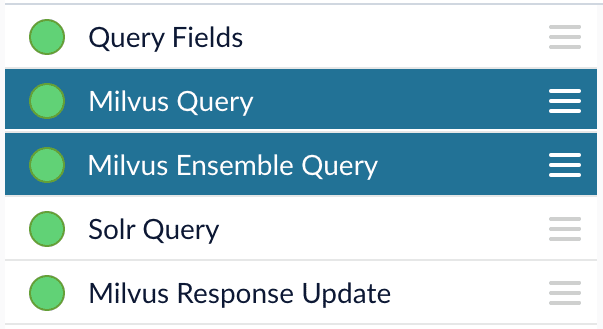 3. Configure the [Milvus Query stage](/docs/5/fusion/reference/config-ref/pipeline-stages/query-stages/milvus-query-stage):
1. Change the **Model ID** value to match the model deployment name you chose when you configured the model training job.
2. Ensure the `Encoder Output Vector` matches the output vector from the chosen model.
3. Ensure the `Milvus Collection Name` matches the collection name created via the `Create Milvus Collection` job.
4. `Milvus Results Context Key` can be changed as needed. It will be used in the Milvus Ensemble Query Stage to calculate the query score.
3. Configure the [Milvus Query stage](/docs/5/fusion/reference/config-ref/pipeline-stages/query-stages/milvus-query-stage):
1. Change the **Model ID** value to match the model deployment name you chose when you configured the model training job.
2. Ensure the `Encoder Output Vector` matches the output vector from the chosen model.
3. Ensure the `Milvus Collection Name` matches the collection name created via the `Create Milvus Collection` job.
4. `Milvus Results Context Key` can be changed as needed. It will be used in the Milvus Ensemble Query Stage to calculate the query score.
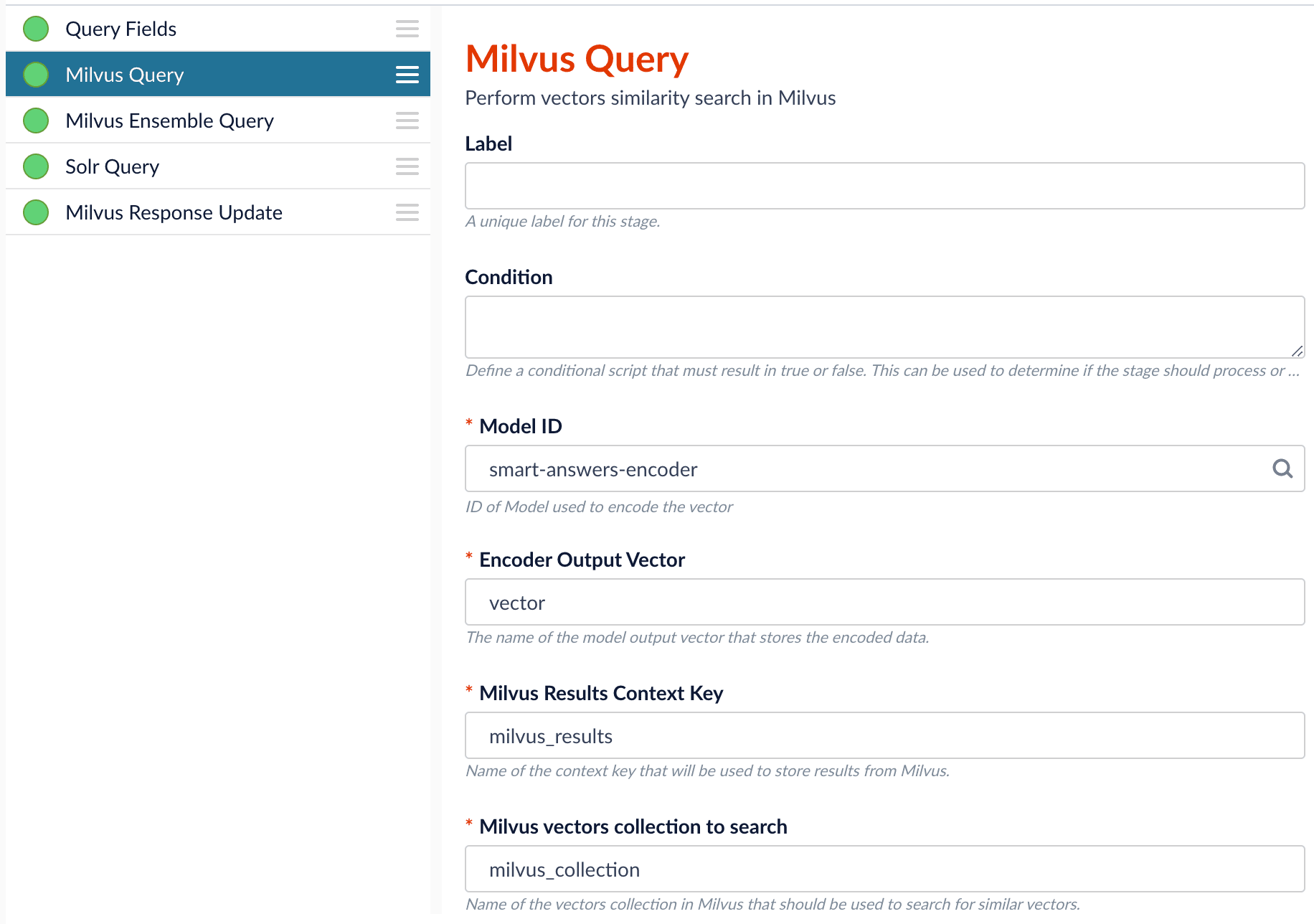 4. In the [Milvus Ensemble Query stage](/docs/5/fusion/reference/config-ref/pipeline-stages/query-stages/milvus-ensemble-query-stage), update the `Ensemble math expression` as needed based on your model and the name used in the prior stage for the storing the Milvus results.
In versions 5.4 and later, you can also set the `Threshold` so that the Milvus Ensemble Query Stage will only return items with a score **greater than** or **equal to** the configured value.
4. In the [Milvus Ensemble Query stage](/docs/5/fusion/reference/config-ref/pipeline-stages/query-stages/milvus-ensemble-query-stage), update the `Ensemble math expression` as needed based on your model and the name used in the prior stage for the storing the Milvus results.
In versions 5.4 and later, you can also set the `Threshold` so that the Milvus Ensemble Query Stage will only return items with a score **greater than** or **equal to** the configured value.
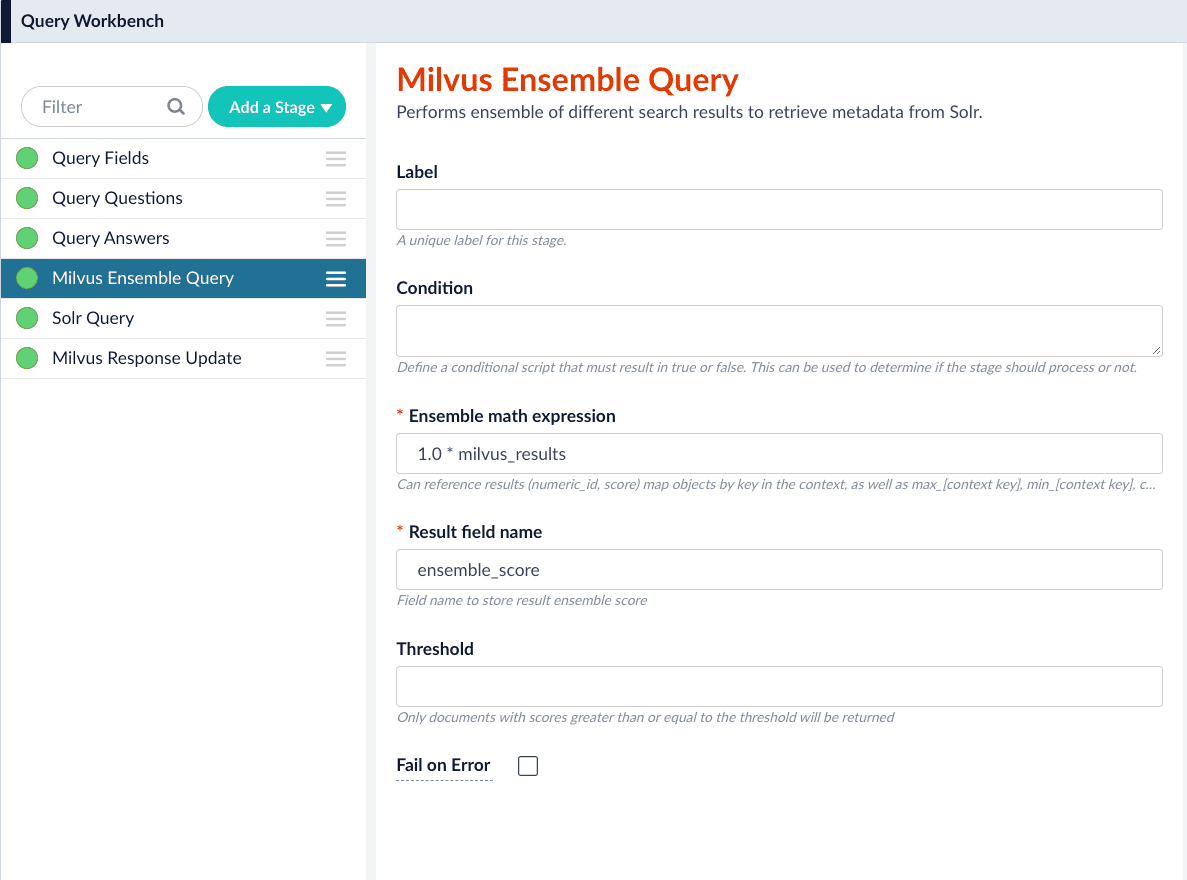 5. Save the query pipeline.
## Pipeline Setup Example
### Index and retrieve the question and answer together
To show question and answer together in one document (that is, treat the question as the title and the answer as the description), you can index them together in the same document. You can still use the default `smart-answers` index and query pipelines with a few additional changes.
Prior to configuring the Smart Answers pipelines, use the `Create Milvus Collection` job to create two collections, `question_collection` and `answer_collection`, to store the encoded "questions" and the encoded "answers", respectively.
#### Index Pipeline
As shown in the pictures below, you will need two Encode into Milvus stages, named Encode Question and Encode Answer respectively.
**Encode Question (Encode Into Milvus) stage**
5. Save the query pipeline.
## Pipeline Setup Example
### Index and retrieve the question and answer together
To show question and answer together in one document (that is, treat the question as the title and the answer as the description), you can index them together in the same document. You can still use the default `smart-answers` index and query pipelines with a few additional changes.
Prior to configuring the Smart Answers pipelines, use the `Create Milvus Collection` job to create two collections, `question_collection` and `answer_collection`, to store the encoded "questions" and the encoded "answers", respectively.
#### Index Pipeline
As shown in the pictures below, you will need two Encode into Milvus stages, named Encode Question and Encode Answer respectively.
**Encode Question (Encode Into Milvus) stage**
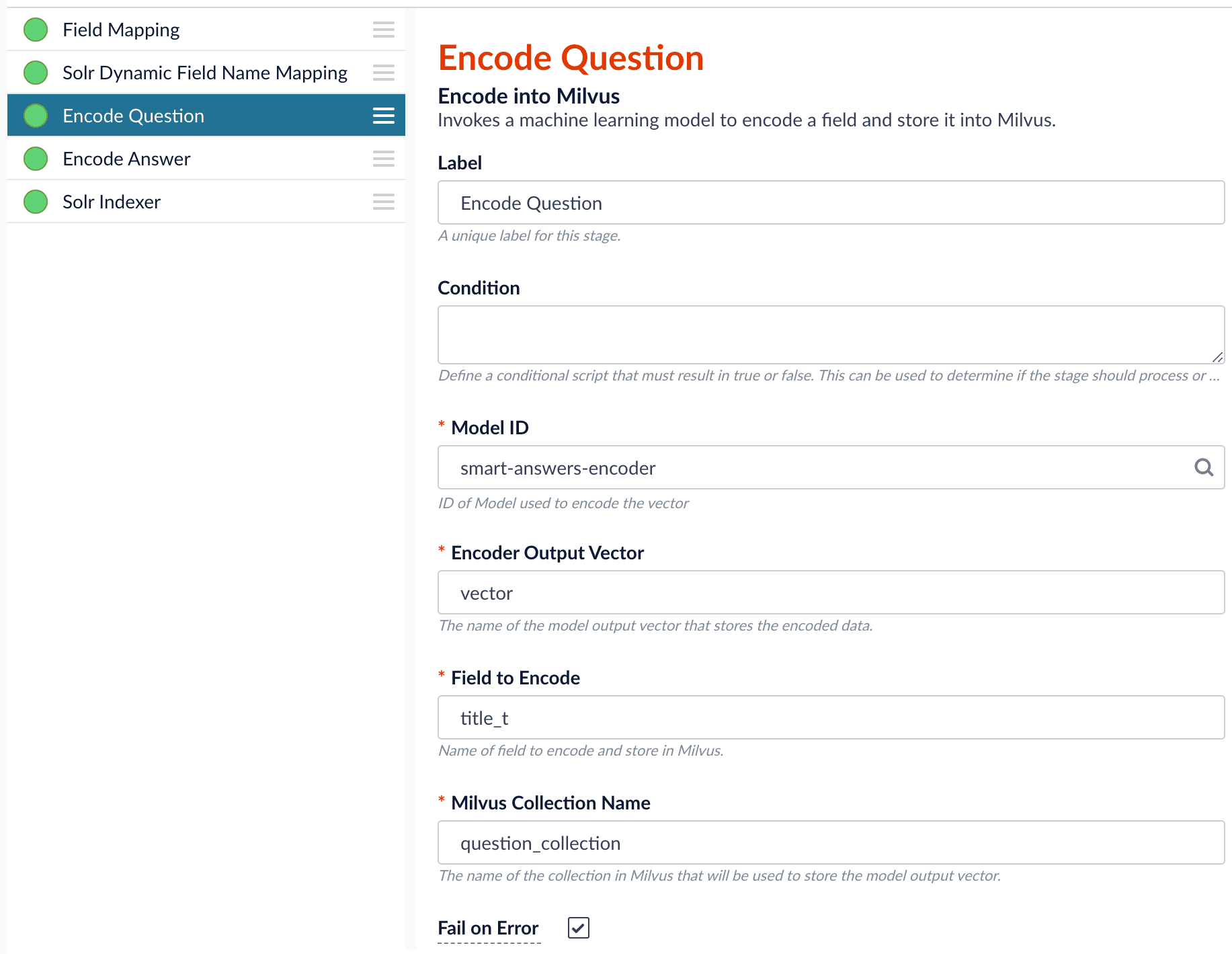 **Encode Answer (Encode Into Milvus) stage**
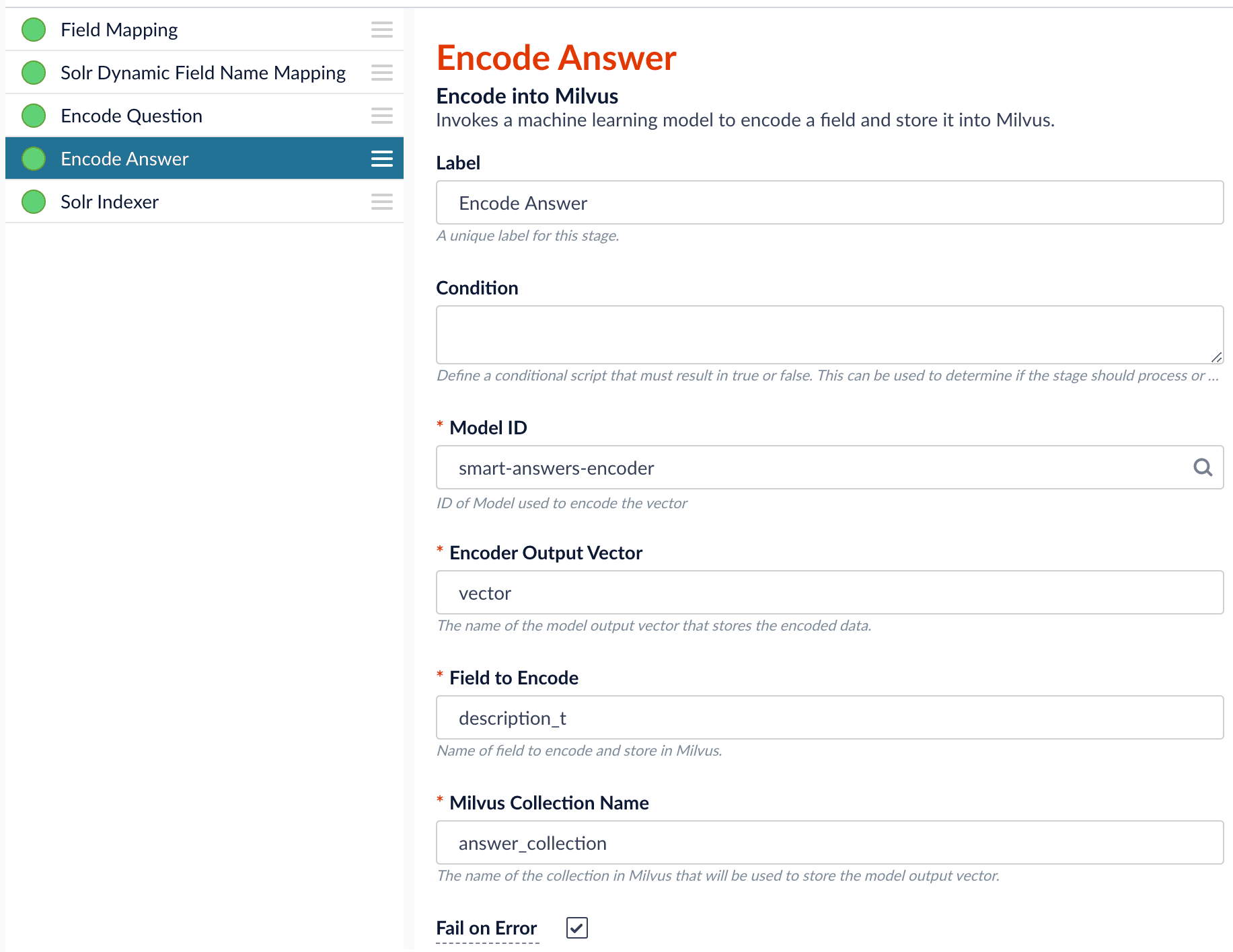 In the Encode Question stage, specify `Field to Encode` to be `title_t` and change the `Milvus Collection Name` to match the new Milvus collection, `question_collection`.
In the Encode Answer stage, specify `Field to Encode` to be `description_t` and change the `Milvus Collection Name` to match the new Milvus collection, `answer_collection`.
#### Query Pipeline
Since we have two dense vectors generated during indexing, at query time we need to compute both query to question distance and query to answer distance. This can be set up as the pictures shown below with two Milvus Query Stages, one for each of the two Milvus collections.
To store those two distances separately, the `Milvus Results Context Key` needs to be different in each of these two stages.
In the Query Questions stage, we set the `Milvus Results Context Key` to `milvus_questions` and the Milvus collection name to `question_collection`.
Query Questions (Milvus Query) stage:
In the Encode Question stage, specify `Field to Encode` to be `title_t` and change the `Milvus Collection Name` to match the new Milvus collection, `question_collection`.
In the Encode Answer stage, specify `Field to Encode` to be `description_t` and change the `Milvus Collection Name` to match the new Milvus collection, `answer_collection`.
#### Query Pipeline
Since we have two dense vectors generated during indexing, at query time we need to compute both query to question distance and query to answer distance. This can be set up as the pictures shown below with two Milvus Query Stages, one for each of the two Milvus collections.
To store those two distances separately, the `Milvus Results Context Key` needs to be different in each of these two stages.
In the Query Questions stage, we set the `Milvus Results Context Key` to `milvus_questions` and the Milvus collection name to `question_collection`.
Query Questions (Milvus Query) stage:
 In the Query Answers stage, we set the `Milvus Results Context Key` to `milvus_answers` and the Milvus collection name to `answer_collection`.
Query Answers (Milvus Query) stage:
In the Query Answers stage, we set the `Milvus Results Context Key` to `milvus_answers` and the Milvus collection name to `answer_collection`.
Query Answers (Milvus Query) stage:
 Now we can ensemble them together with the Milvus Ensemble Query Stage with the `Ensemble math expression` combining the results from the two query stages. If we want the question scores and answer scores weighted equally, we would use: `0.5 * milvus_questions + 0.5 * milvus_answers`.
This is recommended especially when you have limited FAQ dataset and want to utilize both question and answer information.
**Milvus Ensemble Query stage**
Now we can ensemble them together with the Milvus Ensemble Query Stage with the `Ensemble math expression` combining the results from the two query stages. If we want the question scores and answer scores weighted equally, we would use: `0.5 * milvus_questions + 0.5 * milvus_answers`.
This is recommended especially when you have limited FAQ dataset and want to utilize both question and answer information.
**Milvus Ensemble Query stage**
 ## Evaluate the query pipeline
The [Evaluate QnA Pipeline job](/docs/5/fusion/reference/config-ref/jobs/smart-answers-evaluate-pipeline) evaluates the rankings of results from any Smart Answers pipeline and finds the best set of weights in the ensemble score.
## Detailed pipeline setup
Typically, you can use the [default pipelines](/docs/5/fusion/getting-data-out/advanced-query-enhancement/smart-answers/overview) included with Fusion AI. These pipelines now utilize Milvus to store encoded vectors and to calculate vector similarity. This topic provides information you can use to customize the Smart Answers pipelines.
| | | |
| ---------------------------------- | ------------------------------------------------------------------------------------------------------------------------------------------------------------------------------------------------------------------------------------------------------------------------------------------------------------------------------------------------------------------------------------------------------------------------------------------------------------------------------------------------------------------------------------------------------------------------------------------------------------------------------------------------------------------------------------------------------------------------------------------------------------------------------------------------------------------------------------------------------------------------------------------------------------------------------------------------------------------------------------------------------------------------------------------------------------------------------------------------------------------------------------------------------------------------------------------------------------------------------------------------------------------------------------------------------------------------------------------------------------------------------------------------------------------------------------------------------------------------------------------------------------------------------------------------------------------------------------------------------------------------------------------ | --------------------------------------------------------------------------------------------------------------------------------------------------------------------------------------------------------------------------------------------------------- |
| **"smart-answers" index pipeline** |
## Evaluate the query pipeline
The [Evaluate QnA Pipeline job](/docs/5/fusion/reference/config-ref/jobs/smart-answers-evaluate-pipeline) evaluates the rankings of results from any Smart Answers pipeline and finds the best set of weights in the ensemble score.
## Detailed pipeline setup
Typically, you can use the [default pipelines](/docs/5/fusion/getting-data-out/advanced-query-enhancement/smart-answers/overview) included with Fusion AI. These pipelines now utilize Milvus to store encoded vectors and to calculate vector similarity. This topic provides information you can use to customize the Smart Answers pipelines.
| | | |
| ---------------------------------- | ------------------------------------------------------------------------------------------------------------------------------------------------------------------------------------------------------------------------------------------------------------------------------------------------------------------------------------------------------------------------------------------------------------------------------------------------------------------------------------------------------------------------------------------------------------------------------------------------------------------------------------------------------------------------------------------------------------------------------------------------------------------------------------------------------------------------------------------------------------------------------------------------------------------------------------------------------------------------------------------------------------------------------------------------------------------------------------------------------------------------------------------------------------------------------------------------------------------------------------------------------------------------------------------------------------------------------------------------------------------------------------------------------------------------------------------------------------------------------------------------------------------------------------------------------------------------------------------------------------------------------------------ | --------------------------------------------------------------------------------------------------------------------------------------------------------------------------------------------------------------------------------------------------------- |
| **"smart-answers" index pipeline** |