> ## Documentation Index
> Fetch the complete documentation index at: https://doc.lucidworks.com/llms.txt
> Use this file to discover all available pages before exploring further.
# Rules Editor
export const LwTemplate = ({title = "Key questions to get you started", icon = "sparkles", cta = "Powered by Agent Studio", linkHref = "https://lucidworks.com/demo/?utm_source=docs&utm_medium=referral&utm_campaign=docs_cta_ai"}) => {
const [isLoaded, setIsLoaded] = useState(false);
useEffect(() => {
const timer = setTimeout(() => {
setIsLoaded(true);
}, 500);
return () => clearTimeout(timer);
}, []);
return
{isLoaded && `
}} />}
Powered by Lucidworks Agent Studio
;
};
export const InlineImage = ({src, alt = '', height = '2em'}) => {
return ;
};
[localhost link]: http://localhost:3000/docs/5/fusion/getting-data-out/query-enhancement/rules-editor
[mintlify link]: https://doc.lucidworks.com/docs/5/fusion/getting-data-out/query-enhancement/rules-editor
[old doc.lw link]: https://doc.lucidworks.com/fusion/5.9/491
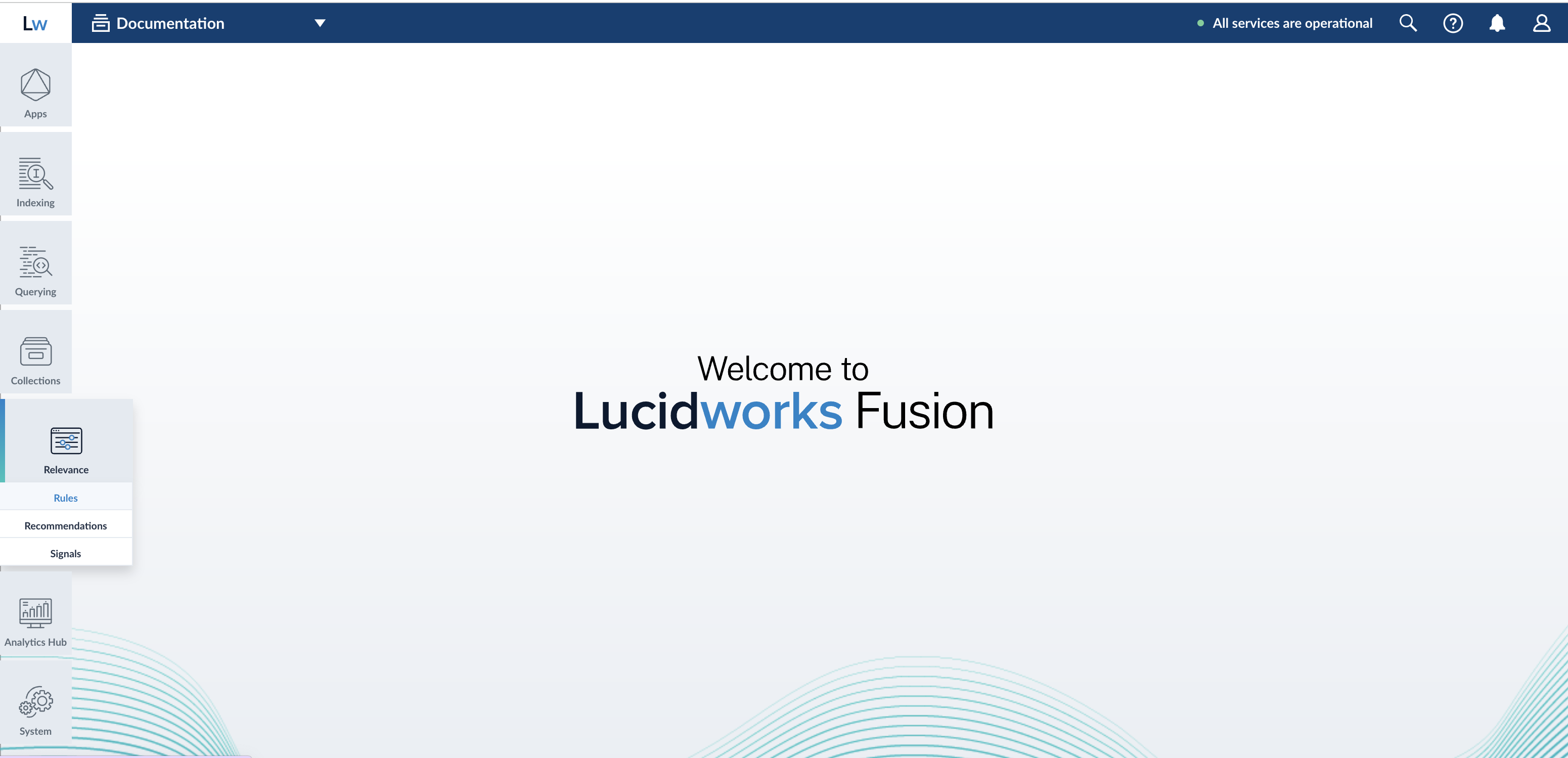
The Rules Editor allows you to view, edit, create, approve, enable, and publish rules powered by Fusion. Access the Rules Editor from the Fusion UI by navigating to **Relevance** > **Rules**:
A rule’s various states determine whether the rule is in effect for everyone using your search application:
| State | Options | Description |
| ------------- | ----------------------- | ------------------------------------------------------------------------------------------------------------------------------------------------------------------------------------------------------------------------------------------------------------------------------------------------------------------------------------------------------------------------------------------------------- |
| **Status** | *Enabled* or *Disabled* | If a rule’s status is *Enabled*, the rule is in effect. If a rule’s status is *Disabled*, the rule is not in effect. This is only true if the rule is published, as described below. |
| **Review** | *Approved* or *Denied* | If a rule’s review state is *Approved*, and you publish the changes, the latest changes to that rule are in effect. If the state is *Denied*, and you publish the changes, the Rules Manager deletes the rule. **Caution**
Unlike deleting the rule with the UI, if you delete the rule by publishing it while in a *Denied* review state, you cannot undo the action. |
| **Published** | *Yes* or *No* | If a rule’s published state is *Yes*, the latest changes to the rule are in effect. If the state is *No*, the latest changes are not in effect. This also applies to changes to the rule’s status, such as disabling to rule. |
For more information:
* **Use the Analytics Screen in the Rules Editor**
* **Use Business Rules in the Rules Editor**
* **Use Query Rewrites in the Rules Editor**
This article describes how to use the [Analytics screen](/docs/5/fusion/getting-data-out/query-enhancement/rules-editor) in the [Rules Editor](/docs/5/fusion/getting-data-out/query-enhancement/rules-editor).
Job configuration affects the data that displays on the dashboard. For example, the [`COLLECTION_NAME_session_rollup` job](/docs/5/fusion/reference/config-ref/jobs/aggregations/built-in-sql-aggregation-jobs) aggregates related user activity into a session signal that contains activity count, duration, and keywords (based on user search terms).
### UI elements
#### Data date range
* **Quick Range Selectors.** Click one of the quick range selectors to facet your data.
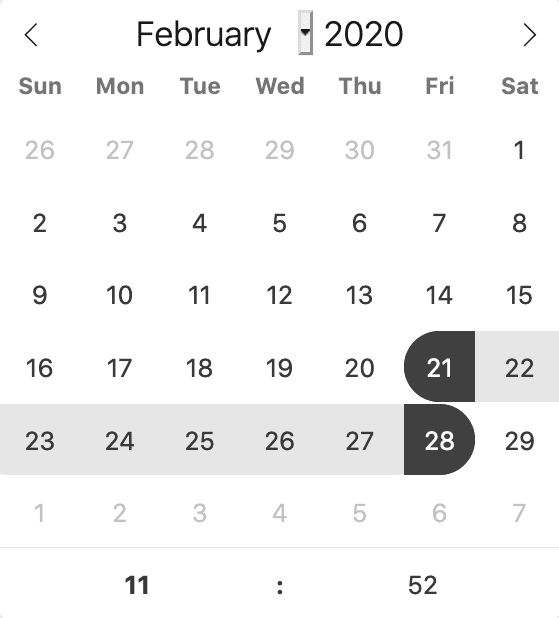
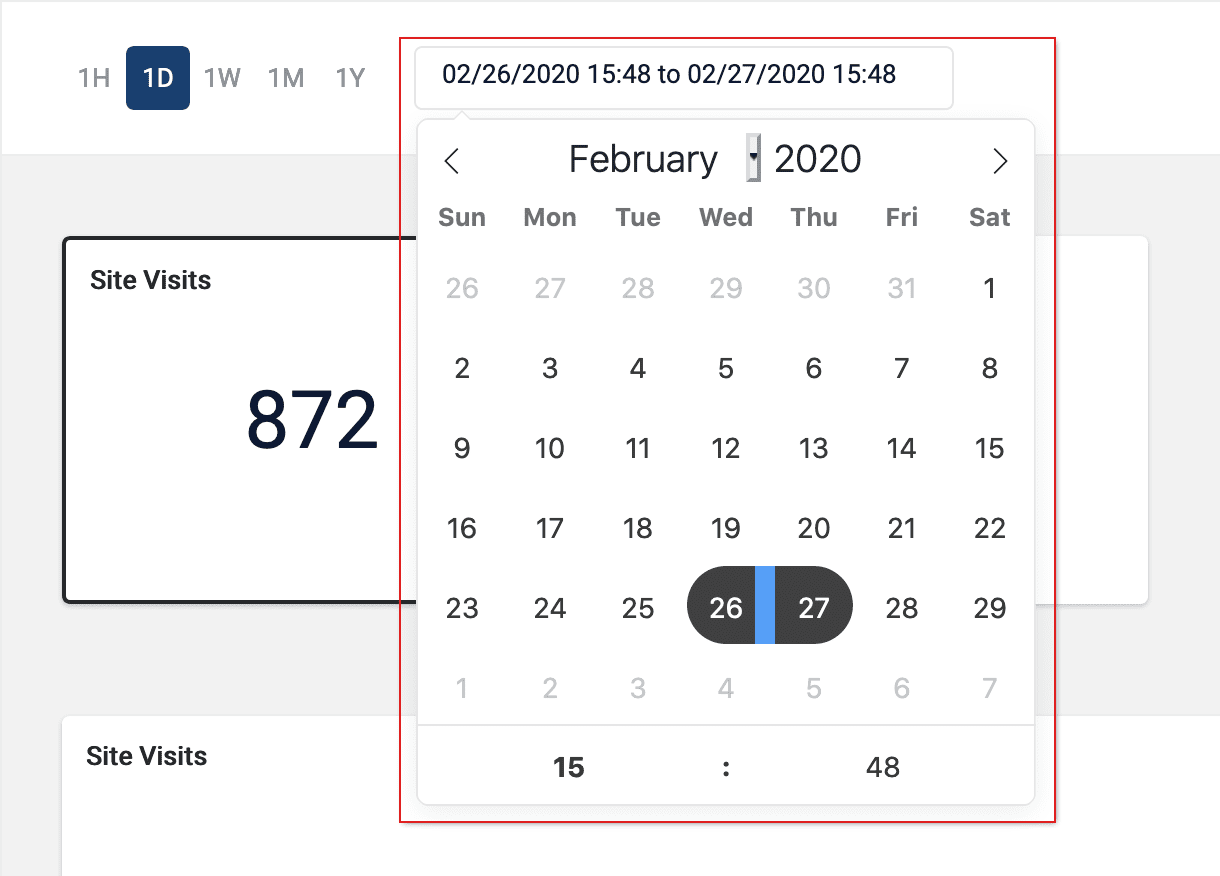
* **Calendar Selector.** Use the calendar selector to specify a start and end date and time facet for your data.
#### Visitor data
* **Data Cards**
* **Site Visits.** The total number of visits.
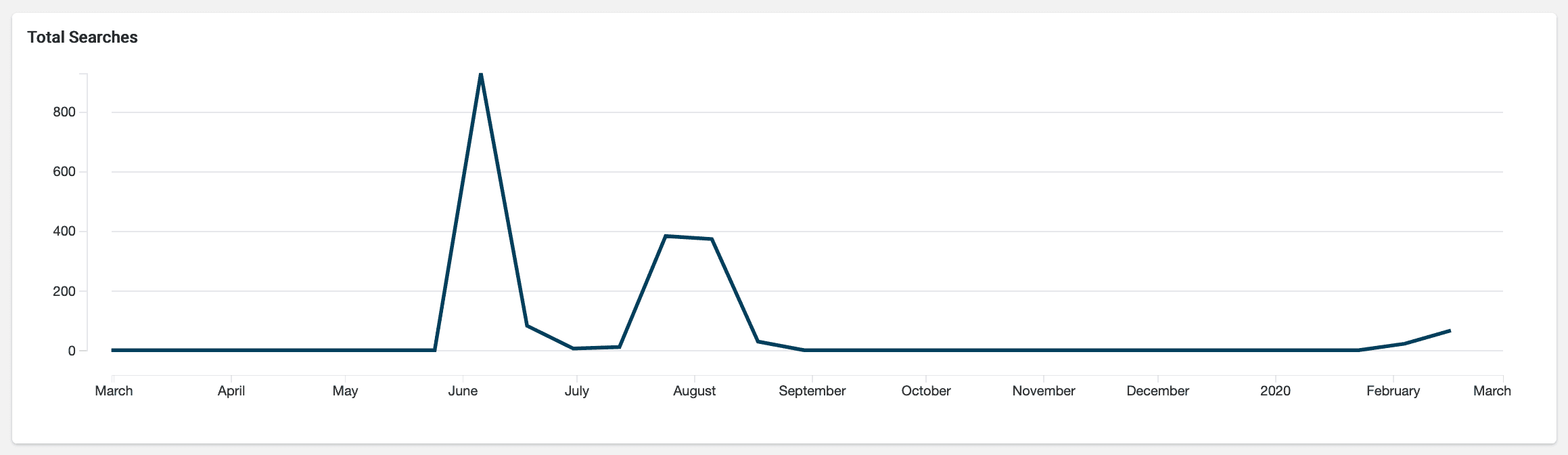
* **Total Searches.** The total number of searches performed.
* **Unique Visitors.** The number of unique visitors to your site.
* **Average Session.** The average length of time spent on your site.
* **Data Graph.** Detailed information for the selected data card.
## View data by date range
The Rules Editor analytics allows you to view data by a date range. To do this, you can either:
* Click one of the date range presets:
* Click the date range details to display and select your range on the calendar that appears:
## View additional card details
Click one of the analytics cards to view additional details for that card’s data.
## Configure Analytics cards
1. Hover over one of the cards.
2. Click the **Edit** button that appears:
3. Complete the form that appears.
4. Click the **Save** button.
If the data is empty, check to make sure the date range includes the data you want to display.
This article describes how to use the [Business Rules](/docs/5/fusion/getting-data-out/query-enhancement/business-rules/overview) screen in the [Rules Editor](/docs/5/fusion/getting-data-out/query-enhancement/rules-editor).
The course for **Query Rewriting with Business Rules and Search Rewrites** focuses on how using business rules and search rewrites gives you the opportunity to boost conversions and create better customer experiences by improving your relevancy.
## Facet rules
### Facet menu
To facet the rules list by **Action**, **Status**, **Published**, or **Tags**, click one of the facet items within the facet categories.
To facet the rules list by **Created Date** or **Expiration Date**:
1. Click the date start value. A calendar will appear.
2. Click a date to select the start of your facet range.
3. Click the bottom date and select the end of your facet range.
### Search
Enter a term in the search bar to quickly facet your business rules.
## Rules
### Create a rule
1. Click the button in the top-right corner of the card. Alternatively, click the button in the bottom-left corner of the card. The **New Rule** dialog box will appear.
2. Complete the required fields, at a minimum.
| | | |
| ------------------------------------------------------------------------------------------------------------------------------------------------------------------------------------------------------------------------------------------------------------------------------------------------------------------------------------------------------------------------------------------------------------------------------------------------------------------------------------------------------------------------------------------------------------------------------------------------------------------------------------------------------------------------------------------------------------------------------------------------------------------------------------------------------------------------------------------------------------------------------------------------------------------------------------ | -------------------------------------------------------------------------------------------------------------------------------------------------------------------------------------------------------------------------------- | ------------------------------------------------------------------------------------------------------------------------------------------------------------------------------------------------------------------------------------------------------------------------------------------------------ |
| General | Condition | Action |
| In the **General** column, only the **Name** field is required. Other fields are optional:
**Description** is an arbitrary string you can use to describe this rule.
**Rule Group** can be a user-defined group that you use to organize your rules.
**Tags** are another way to organize your rules. Tags appear as facets in the Business Rules interface, so you can filter the set of visible rules by tag.
**Priority** can be used to determine which rule should apply first if multiple rules are activated for the same request. Priority is an integer value, ranging from 1 to infinity, with the value 1 given lowest priority. If multiple rules have the same value, those rules are applied in a random order.
**Enabled** means that this rule is applied but not necessarily published. Disabling a rule helps ensure that it is not accidentally published.
| Conditions are triggers that activate the rule when they match the current date and time, query, or field values. See [Rule conditions](/docs/5/fusion/getting-data-out/query-enhancement/query-rewriting) for more information. | A rule can take different types of actions when the specified conditions are met. See [Action types](/docs/5/fusion/getting-data-out/query-enhancement/query-rewriting) for more information. You can also create [custom actions](/docs/5/fusion/getting-data-out/query-enhancement/query-rewriting). |
Hover over the icon for more information.
3. Once complete, click the button.
### Copy a rule
1. Hover over a rule. A row of buttons will appear on the right.
2. Click the button. The **Copy Rule** dialog box will appear.
3. At a minimum, change the title of the rule.
4. Once complete, click the button.
### Edit a rule
1. Hover over a rule. A row of buttons will appear on the right.
2. Click the button. The **Edit Rule** dialog box appears.
3. Make your desired changes to the rule.
4. Once complete, click the button.
### Approve/deny rules
1. Hover over a rule. A checkbox will appear on the left.
2. Click the checkbox to select the rule.
3. Repeat this process to select multiple rules. *(optional)*
4. Click the Approve button to approve the selected rules, or click the Deny button to deny the rules.
### Enable/disable a rule
1. Hover over a rule. A checkbox will appear on the left.
2. Click the checkbox to select the rule.
3. Repeat this process to select multiple rules. *(optional)*
4. Click the button to enable the selected rules, or click the button to disable the rules.
### Publish a rule
1. Hover over a rule. A checkbox will appear on the left.
2. Click the checkbox to select the rule.
3. Repeat this process to select multiple rules. *(optional)*
4. Click the button to publish the selected rules.
### Tag a rule
Tags are a powerful tool for organizing and publishing rules according to a keyword, such as `black-friday-sale`.
1. Hover over a rule. A checkbox will appear on the left.
2. Click the checkbox to select the rule.
3. Repeat this process to select multiple rules. *(optional)*
4. Click the button. A dialog box will appear.
5. Enter a tag. To enter multiple tags, press **Tab** after writing each tag.
6. Click the button to add the tag to the rule.
See [General Configuration Tags](/docs/5/fusion/getting-data-out/query-enhancement/business-rules/general-config) for information about how to use tagnames in the request URL to fire specific rules.
### Delete rules
#### Delete a single rule
1. Hover over a rule. A row of buttons will appear on the right.
2. Click the button. A confirmation box will appear.
3. Click the button to confirm.
#### Delete multiple rules
1. Hover over a rule. A checkbox will appear on the left.
2. Click the checkbox to select the rule.
3. Repeat this process to select multiple rules. *(optional)*
4. Click the button to delete the selected rules. A confirmation box will appear.
5. Click the button to confirm.
### Sort rules
1. Hover over column titles. A icon will appear for some titles to indicate the rules list can be sorted by that column.
2. Click on the title column to sort the rules.
The column that is currently sorting the rules list is indicated by an or icon.
### Export rules
To export the rules list, simply click the button. This generates a `.csv` file containing your rules.
## Columns
### Customize columns
To customize the columns:
1. Hover over the row of column titles. A button will appear on the right.
2. Click the button. The **Customize Columns to Display** dialog box will appear.
3. Click the checkboxes to select or deselect the columns you want to display.
4. Click the button to save your changes.
This article describes how to use the Rewrites screen in the [Rules Editor](/docs/5/fusion/getting-data-out/query-enhancement/rules-editor).
## Query rewrite rule types
* **Head/Tail.** Replace underperforming queries with queries that produce higher click-through rates. Query improvements always require review before they are published. Schedule the Head/Tail Analysis job to get AI-generated query improvements based on your signals collection. \
\
Manually created Head/Tail rewrites must provide an "Improved Query" in a format appropriate to the type of request the rewrite will be applied to. For Legacy requests, this means a valid Solr query fit for use as the `q` parameter. For DSL requests this means a JSON string representing the main DSL query. \
\
For more information, see:
* [Underperforming Query Rewriting](/docs/5/fusion/getting-data-out/query-enhancement/underperforming-queries)
* [Head/Tail Analysis Jobs](/docs/5/fusion/reference/config-ref/jobs/head-tail-analysis)
* **Misspelling.** Fusion replaces misspelled query terms with their spelling corrections for better search results. Schedule the Token and Phrase Spell Correction job to get AI-generated spelling corrections based on your signals collection. For more information, see [Misspelling Detection](/docs/5/fusion/getting-data-out/query-enhancement/misspelling-detection).
* **Phrase.** Known phrases are boosted when they appear in new queries. Schedule the Phrase Extraction job to get AI-generated phrases based on your signals collection.
For more information, see [Phrase Detection](/docs/5/fusion/getting-data-out/query-enhancement/phrase-detection).
* **Synonym.** Synonyms are used to expand queries so that they include all known synonyms of the query terms. To retrieve AI-generated synonyms based on your signals collection, schedule the [Synonym Detection job](/docs/5/fusion/reference/config-ref/jobs/synonym-detection).
* **Remove Words** - Remove particular phrases from queries. Unlike other rewrites, these should be entered manually and are not generated by a job. For more information, see [Remove Words](/docs/5/fusion/getting-data-out/query-enhancement/remove-words).
## Facets
### Facet menu
To facet the rules list by **Status** or **Published**, click one of the facet items within the facet categories.
To facet the rules by **Confidence**, click and drag either slider to set the range of confidence you would like to see:
Faceting rules by confidence is not available for Head/Tail rewrites.
### Search
Enter a term in the search bar to quickly facet your query rewrite rules.
## Rules
Begin by selecting one of the query rewrite rule types you will create.
### Create a rule
1. Click **+Add**.
2. In the new table row, complete the required fields, and additional fields as needed.
3. Click the checkmark to save, or close to cancel the changes.
### Edit a rule
1. Hold the pointer over the rule to edit.
2. Click the pencil icon.
3. Enter desired changes and click the checkmark to save, or close to cancel the changes.
### Approve/deny rules
{/* // New or altered rules will need to be approved by a user with the appropriate permissions before the rule can be enabled. */}
1. Hold the pointer over a rule.
2. Select the checkbox that displays for that rule.
3. To modify multiple rules, hold the pointer over each rule and select its corresponding checkbox.
4. Click **Approve** or **Deny** as needed.
{/*
This is not an explicit option in the rewrite screen. Is this implicit by approval/denial?
### Enable/disable a rule
1. Hold the pointer over a rule.
2. Select the checkbox that displays for that rule.
3. To modify multiple rules, hold the pointer over each rule and select its corresponding checkbox.
4. Click **Enable** or **Disable** as needed.
*/}
### Publish a rule
1. Hold the pointer over a rule.
2. Select the checkbox that displays for that rule.
3. To publish multiple rules, hold the pointer over each rule and select its corresponding checkbox.
4. Click **Publish Selected** to publish the selected rules.
#### Publish an individual rule
1. Hold the pointer over a rule.
2. Click the button.
3. To confirm, click **Publish**.
### Delete rules
#### Delete a single rule
1. Hold the pointer over a rule.
2. Click the trash can.
3. To confirm, click **Delete**.
#### Delete multiple rules
1. Hold the pointer over a rule.
2. Select the checkbox that displays for that rule.
3. To delete multiple rules, hold the pointer over each rule and select its corresponding checkbox.
4. Click **Delete**.
5. To confirm, click **Delete** again.
### Sort rules
1. Hold the pointer over column titles. A icon displays for some titles to indicate the rules list can be sorted by that column.
2. Click the title column to sort the rules.
The column that is currently sorting the rules list is indicated by an or icon.
### Export rules
To export the rules list, click **Export**. This generates a `.csv` file that contains your rules.
## Columns
### Customize columns
To customize columns:
1. Hold the pointer over the row of column titles.
2. Click the button.
3. In the Customize Columns to Display screen, select the checkboxes for the columns you want to display. Clear the checkboxes for columns you do not want to display.
4. Click **Save**. To exit without saving your changes, click **Cancel**.
The course for **Experience Optimizer: Rules Manager** focuses on how to create and utilize business rules to create more relevant search results for your users.
## Signals data
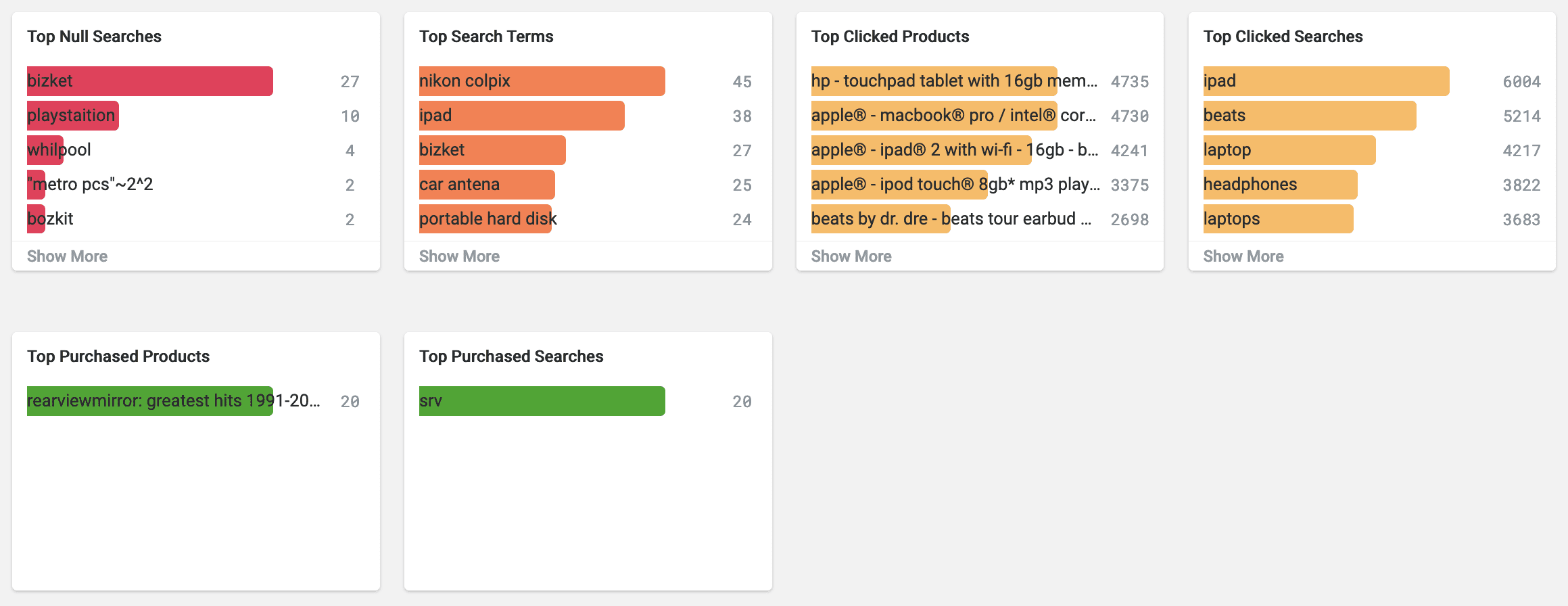
* **Top Null Searches.** The top search terms that yielded 0 results. A null search is considered a poor user experience. Use **Use Query Rewrites in the Rules Editor** to reduce the likelihood of a visitor receiving 0 results.
* **Top Search Terms.** The most commonly searched terms.
* **Top Clicked Products.** The most commonly clicked products or documents. This may include searches, recommendations, static links, or outside referrals.
* **Top Clicked Searches.** The most common searches that resulted in a click.
* **Top Purchased Products.** The most commonly purchased products. This may include searches, recommendations, static links, or referrals.
* **Top Purchased Searches.** The most commonly purchased products that were identified from a search.
Use query rewrites in the Rules Editor to adapt your search results and guide visitors to top clicked and top purchased products.
This article describes how to use the Rewrites screen in the [Rules Editor](/docs/5/fusion/getting-data-out/query-enhancement/rules-editor).
## Query rewrite rule types
* **Head/Tail.** Replace underperforming queries with queries that produce higher click-through rates. Query improvements always require review before they are published. Schedule the Head/Tail Analysis job to get AI-generated query improvements based on your signals collection. \
\
Manually created Head/Tail rewrites must provide an "Improved Query" in a format appropriate to the type of request the rewrite will be applied to. For Legacy requests, this means a valid Solr query fit for use as the `q` parameter. For DSL requests this means a JSON string representing the main DSL query. \
\
For more information, see:
* [Underperforming Query Rewriting](/docs/5/fusion/getting-data-out/query-enhancement/underperforming-queries)
* [Head/Tail Analysis Jobs](/docs/5/fusion/reference/config-ref/jobs/head-tail-analysis)
* **Misspelling.** Fusion replaces misspelled query terms with their spelling corrections for better search results. Schedule the Token and Phrase Spell Correction job to get AI-generated spelling corrections based on your signals collection. For more information, see [Misspelling Detection](/docs/5/fusion/getting-data-out/query-enhancement/misspelling-detection).
* **Phrase.** Known phrases are boosted when they appear in new queries. Schedule the Phrase Extraction job to get AI-generated phrases based on your signals collection.
For more information, see [Phrase Detection](/docs/5/fusion/getting-data-out/query-enhancement/phrase-detection).
* **Synonym.** Synonyms are used to expand queries so that they include all known synonyms of the query terms. To retrieve AI-generated synonyms based on your signals collection, schedule the [Synonym Detection job](/docs/5/fusion/reference/config-ref/jobs/synonym-detection).
* **Remove Words** - Remove particular phrases from queries. Unlike other rewrites, these should be entered manually and are not generated by a job. For more information, see [Remove Words](/docs/5/fusion/getting-data-out/query-enhancement/remove-words).
## Facets
### Facet menu
To facet the rules list by **Status** or **Published**, click one of the facet items within the facet categories.
To facet the rules by **Confidence**, click and drag either slider to set the range of confidence you would like to see:
Faceting rules by confidence is not available for Head/Tail rewrites.
### Search
Enter a term in the search bar to quickly facet your query rewrite rules.
## Rules
Begin by selecting one of the query rewrite rule types you will create.
### Create a rule
1. Click **+Add**.
2. In the new table row, complete the required fields, and additional fields as needed.
3. Click the checkmark to save, or close to cancel the changes.
### Edit a rule
1. Hold the pointer over the rule to edit.
2. Click the pencil icon.
3. Enter desired changes and click the checkmark to save, or close to cancel the changes.
### Approve/deny rules
{/* // New or altered rules will need to be approved by a user with the appropriate permissions before the rule can be enabled. */}
1. Hold the pointer over a rule.
2. Select the checkbox that displays for that rule.
3. To modify multiple rules, hold the pointer over each rule and select its corresponding checkbox.
4. Click **Approve** or **Deny** as needed.
{/*
This is not an explicit option in the rewrite screen. Is this implicit by approval/denial?
### Enable/disable a rule
1. Hold the pointer over a rule.
2. Select the checkbox that displays for that rule.
3. To modify multiple rules, hold the pointer over each rule and select its corresponding checkbox.
4. Click **Enable** or **Disable** as needed.
*/}
### Publish a rule
1. Hold the pointer over a rule.
2. Select the checkbox that displays for that rule.
3. To publish multiple rules, hold the pointer over each rule and select its corresponding checkbox.
4. Click **Publish Selected** to publish the selected rules.
#### Publish an individual rule
1. Hold the pointer over a rule.
2. Click the button.
3. To confirm, click **Publish**.
### Delete rules
#### Delete a single rule
1. Hold the pointer over a rule.
2. Click the trash can.
3. To confirm, click **Delete**.
#### Delete multiple rules
1. Hold the pointer over a rule.
2. Select the checkbox that displays for that rule.
3. To delete multiple rules, hold the pointer over each rule and select its corresponding checkbox.
4. Click **Delete**.
5. To confirm, click **Delete** again.
### Sort rules
1. Hold the pointer over column titles. A icon displays for some titles to indicate the rules list can be sorted by that column.
2. Click the title column to sort the rules.
The column that is currently sorting the rules list is indicated by an or icon.
### Export rules
To export the rules list, click **Export**. This generates a `.csv` file that contains your rules.
## Columns
### Customize columns
To customize columns:
1. Hold the pointer over the row of column titles.
2. Click the button.
3. In the Customize Columns to Display screen, select the checkboxes for the columns you want to display. Clear the checkboxes for columns you do not want to display.
4. Click **Save**. To exit without saving your changes, click **Cancel**.
## Predictive Merchandiser and Experience Optimizer
Predictive Merchandiser and Experience Optimizer are both AI-powered tools that provide insights, customer recommendations, and search optimization in a single comprehensive product.
Predictive Merchandiser and Experience Optimizer are separate offerings from Fusion. See the [Predictive Merchandiser documentation](/docs/5/fusion/getting-data-out/curating-your-search-experience/predictive-merchandiser/overview) for more information.
## Rules
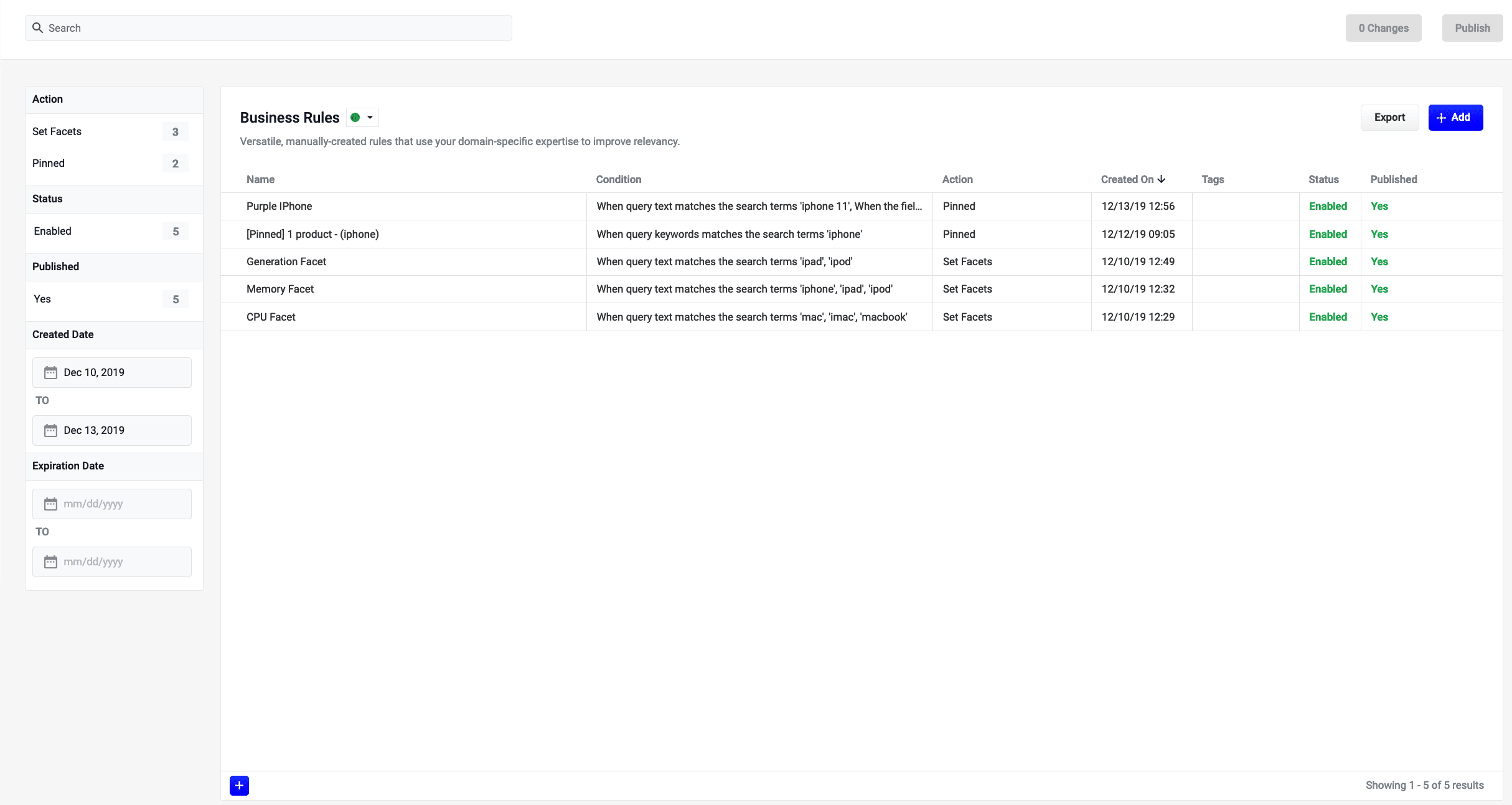
The Rules screen is used to create [Business Rules](/docs/5/fusion/getting-data-out/query-enhancement/business-rules/overview) within the Rules Editor.
Business rules are manually-created formulas for rewriting queries. This is the most versatile strategy for creating custom query rewrites. It supports a variety of conditions and actions to address a wide range of use cases. When you need a very specific query rewrite, this is the best strategy.
Business rules are applied in the [Apply Rules stage](/docs/5/fusion/reference/config-ref/pipeline-stages/query-stages/query-rules-query-stage) of the query pipeline.
Learn how to use the **Use Business Rules in the Rules Editor**.
This article describes how to use the [Business Rules](/docs/5/fusion/getting-data-out/query-enhancement/business-rules/overview) screen in the [Rules Editor](/docs/5/fusion/getting-data-out/query-enhancement/rules-editor).
The course for **Query Rewriting with Business Rules and Search Rewrites** focuses on how using business rules and search rewrites gives you the opportunity to boost conversions and create better customer experiences by improving your relevancy.
## Facet rules
### Facet menu
To facet the rules list by **Action**, **Status**, **Published**, or **Tags**, click one of the facet items within the facet categories.
To facet the rules list by **Created Date** or **Expiration Date**:
1. Click the date start value. A calendar will appear.
2. Click a date to select the start of your facet range.
3. Click the bottom date and select the end of your facet range.
### Search
Enter a term in the search bar to quickly facet your business rules.
## Rules
### Create a rule
1. Click the button in the top-right corner of the card. Alternatively, click the button in the bottom-left corner of the card. The **New Rule** dialog box will appear.
2. Complete the required fields, at a minimum.
| | | |
| ------------------------------------------------------------------------------------------------------------------------------------------------------------------------------------------------------------------------------------------------------------------------------------------------------------------------------------------------------------------------------------------------------------------------------------------------------------------------------------------------------------------------------------------------------------------------------------------------------------------------------------------------------------------------------------------------------------------------------------------------------------------------------------------------------------------------------------------------------------------------------------------------------------------------------------ | -------------------------------------------------------------------------------------------------------------------------------------------------------------------------------------------------------------------------------- | ------------------------------------------------------------------------------------------------------------------------------------------------------------------------------------------------------------------------------------------------------------------------------------------------------ |
| General | Condition | Action |
| In the **General** column, only the **Name** field is required. Other fields are optional:
**Description** is an arbitrary string you can use to describe this rule.
**Rule Group** can be a user-defined group that you use to organize your rules.
**Tags** are another way to organize your rules. Tags appear as facets in the Business Rules interface, so you can filter the set of visible rules by tag.
**Priority** can be used to determine which rule should apply first if multiple rules are activated for the same request. Priority is an integer value, ranging from 1 to infinity, with the value 1 given lowest priority. If multiple rules have the same value, those rules are applied in a random order.
**Enabled** means that this rule is applied but not necessarily published. Disabling a rule helps ensure that it is not accidentally published.
| Conditions are triggers that activate the rule when they match the current date and time, query, or field values. See [Rule conditions](/docs/5/fusion/getting-data-out/query-enhancement/query-rewriting) for more information. | A rule can take different types of actions when the specified conditions are met. See [Action types](/docs/5/fusion/getting-data-out/query-enhancement/query-rewriting) for more information. You can also create [custom actions](/docs/5/fusion/getting-data-out/query-enhancement/query-rewriting). |
Hover over the icon for more information.
3. Once complete, click the button.
### Copy a rule
1. Hover over a rule. A row of buttons will appear on the right.
2. Click the button. The **Copy Rule** dialog box will appear.
3. At a minimum, change the title of the rule.
4. Once complete, click the button.
### Edit a rule
1. Hover over a rule. A row of buttons will appear on the right.
2. Click the button. The **Edit Rule** dialog box appears.
3. Make your desired changes to the rule.
4. Once complete, click the button.
### Approve/deny rules
1. Hover over a rule. A checkbox will appear on the left.
2. Click the checkbox to select the rule.
3. Repeat this process to select multiple rules. *(optional)*
4. Click the Approve button to approve the selected rules, or click the Deny button to deny the rules.
### Enable/disable a rule
1. Hover over a rule. A checkbox will appear on the left.
2. Click the checkbox to select the rule.
3. Repeat this process to select multiple rules. *(optional)*
4. Click the button to enable the selected rules, or click the button to disable the rules.
### Publish a rule
1. Hover over a rule. A checkbox will appear on the left.
2. Click the checkbox to select the rule.
3. Repeat this process to select multiple rules. *(optional)*
4. Click the button to publish the selected rules.
### Tag a rule
Tags are a powerful tool for organizing and publishing rules according to a keyword, such as `black-friday-sale`.
1. Hover over a rule. A checkbox will appear on the left.
2. Click the checkbox to select the rule.
3. Repeat this process to select multiple rules. *(optional)*
4. Click the button. A dialog box will appear.
5. Enter a tag. To enter multiple tags, press **Tab** after writing each tag.
6. Click the button to add the tag to the rule.
See [General Configuration Tags](/docs/5/fusion/getting-data-out/query-enhancement/business-rules/general-config) for information about how to use tagnames in the request URL to fire specific rules.
### Delete rules
#### Delete a single rule
1. Hover over a rule. A row of buttons will appear on the right.
2. Click the button. A confirmation box will appear.
3. Click the button to confirm.
#### Delete multiple rules
1. Hover over a rule. A checkbox will appear on the left.
2. Click the checkbox to select the rule.
3. Repeat this process to select multiple rules. *(optional)*
4. Click the button to delete the selected rules. A confirmation box will appear.
5. Click the button to confirm.
### Sort rules
1. Hover over column titles. A icon will appear for some titles to indicate the rules list can be sorted by that column.
2. Click on the title column to sort the rules.
The column that is currently sorting the rules list is indicated by an or icon.
### Export rules
To export the rules list, simply click the button. This generates a `.csv` file containing your rules.
## Columns
### Customize columns
To customize the columns:
1. Hover over the row of column titles. A button will appear on the right.
2. Click the button. The **Customize Columns to Display** dialog box will appear.
3. Click the checkboxes to select or deselect the columns you want to display.
4. Click the button to save your changes.
### UI elements
#### Facets
* **Action.** The [built-in rule action](/docs/5/fusion/getting-data-out/query-enhancement/business-rules/overview) for the rule.
* **Status.** Whether a rule is enabled or disabled.
* **Published.** Whether or not a rule has been published.
* **Created Date.** The date the rule was created.
* **Expiration Date.** The date the rule will expire.
#### Rules list
The rules list can be faceted, searched, or sorted according to the various values the rules hold.
## Rewrite
Learn how to use the **Use Query Rewrites in the Rules Editor**.
This article describes how to use the Rewrites screen in the [Rules Editor](/docs/5/fusion/getting-data-out/query-enhancement/rules-editor).
## Query rewrite rule types
* **Head/Tail.** Replace underperforming queries with queries that produce higher click-through rates. Query improvements always require review before they are published. Schedule the Head/Tail Analysis job to get AI-generated query improvements based on your signals collection. \
\
Manually created Head/Tail rewrites must provide an "Improved Query" in a format appropriate to the type of request the rewrite will be applied to. For Legacy requests, this means a valid Solr query fit for use as the `q` parameter. For DSL requests this means a JSON string representing the main DSL query. \
\
For more information, see:
* [Underperforming Query Rewriting](/docs/5/fusion/getting-data-out/query-enhancement/underperforming-queries)
* [Head/Tail Analysis Jobs](/docs/5/fusion/reference/config-ref/jobs/head-tail-analysis)
* **Misspelling.** Fusion replaces misspelled query terms with their spelling corrections for better search results. Schedule the Token and Phrase Spell Correction job to get AI-generated spelling corrections based on your signals collection. For more information, see [Misspelling Detection](/docs/5/fusion/getting-data-out/query-enhancement/misspelling-detection).
* **Phrase.** Known phrases are boosted when they appear in new queries. Schedule the Phrase Extraction job to get AI-generated phrases based on your signals collection.
For more information, see [Phrase Detection](/docs/5/fusion/getting-data-out/query-enhancement/phrase-detection).
* **Synonym.** Synonyms are used to expand queries so that they include all known synonyms of the query terms. To retrieve AI-generated synonyms based on your signals collection, schedule the [Synonym Detection job](/docs/5/fusion/reference/config-ref/jobs/synonym-detection).
* **Remove Words** - Remove particular phrases from queries. Unlike other rewrites, these should be entered manually and are not generated by a job. For more information, see [Remove Words](/docs/5/fusion/getting-data-out/query-enhancement/remove-words).
## Facets
### Facet menu
To facet the rules list by **Status** or **Published**, click one of the facet items within the facet categories.
To facet the rules by **Confidence**, click and drag either slider to set the range of confidence you would like to see:
Faceting rules by confidence is not available for Head/Tail rewrites.
### Search
Enter a term in the search bar to quickly facet your query rewrite rules.
## Rules
Begin by selecting one of the query rewrite rule types you will create.
### Create a rule
1. Click **+Add**.
2. In the new table row, complete the required fields, and additional fields as needed.
3. Click the checkmark to save, or close to cancel the changes.
### Edit a rule
1. Hold the pointer over the rule to edit.
2. Click the pencil icon.
3. Enter desired changes and click the checkmark to save, or close to cancel the changes.
### Approve/deny rules
{/* // New or altered rules will need to be approved by a user with the appropriate permissions before the rule can be enabled. */}
1. Hold the pointer over a rule.
2. Select the checkbox that displays for that rule.
3. To modify multiple rules, hold the pointer over each rule and select its corresponding checkbox.
4. Click **Approve** or **Deny** as needed.
{/*
This is not an explicit option in the rewrite screen. Is this implicit by approval/denial?
### Enable/disable a rule
1. Hold the pointer over a rule.
2. Select the checkbox that displays for that rule.
3. To modify multiple rules, hold the pointer over each rule and select its corresponding checkbox.
4. Click **Enable** or **Disable** as needed.
*/}
### Publish a rule
1. Hold the pointer over a rule.
2. Select the checkbox that displays for that rule.
3. To publish multiple rules, hold the pointer over each rule and select its corresponding checkbox.
4. Click **Publish Selected** to publish the selected rules.
#### Publish an individual rule
1. Hold the pointer over a rule.
2. Click the button.
3. To confirm, click **Publish**.
### Delete rules
#### Delete a single rule
1. Hold the pointer over a rule.
2. Click the trash can.
3. To confirm, click **Delete**.
#### Delete multiple rules
1. Hold the pointer over a rule.
2. Select the checkbox that displays for that rule.
3. To delete multiple rules, hold the pointer over each rule and select its corresponding checkbox.
4. Click **Delete**.
5. To confirm, click **Delete** again.
### Sort rules
1. Hold the pointer over column titles. A icon displays for some titles to indicate the rules list can be sorted by that column.
2. Click the title column to sort the rules.
The column that is currently sorting the rules list is indicated by an or icon.
### Export rules
To export the rules list, click **Export**. This generates a `.csv` file that contains your rules.
## Columns
### Customize columns
To customize columns:
1. Hold the pointer over the row of column titles.
2. Click the button.
3. In the Customize Columns to Display screen, select the checkboxes for the columns you want to display. Clear the checkboxes for columns you do not want to display.
4. Click **Save**. To exit without saving your changes, click **Cancel**.
### UI elements
#### Facets
* **Status.** Whether a rule is enabled or disabled.
* **Published.** Whether or not a rule has been published.
* **Confidence.** The confidence score for the rule. A confidence score is automatically set by Fusion. It can be manually set for user-created rules. The confidence score is used, in part, to decided whether a rule is automatically published or not. See [Query Rewriting concepts](/docs/5/fusion/getting-data-out/query-enhancement/query-rewriting) for more information.
**Confidence** is not used for Head/Tail query rewrites.
#### Rules list
You can facet, search, or sort the rules list according to the values the rules hold.
##### Rule type selectors
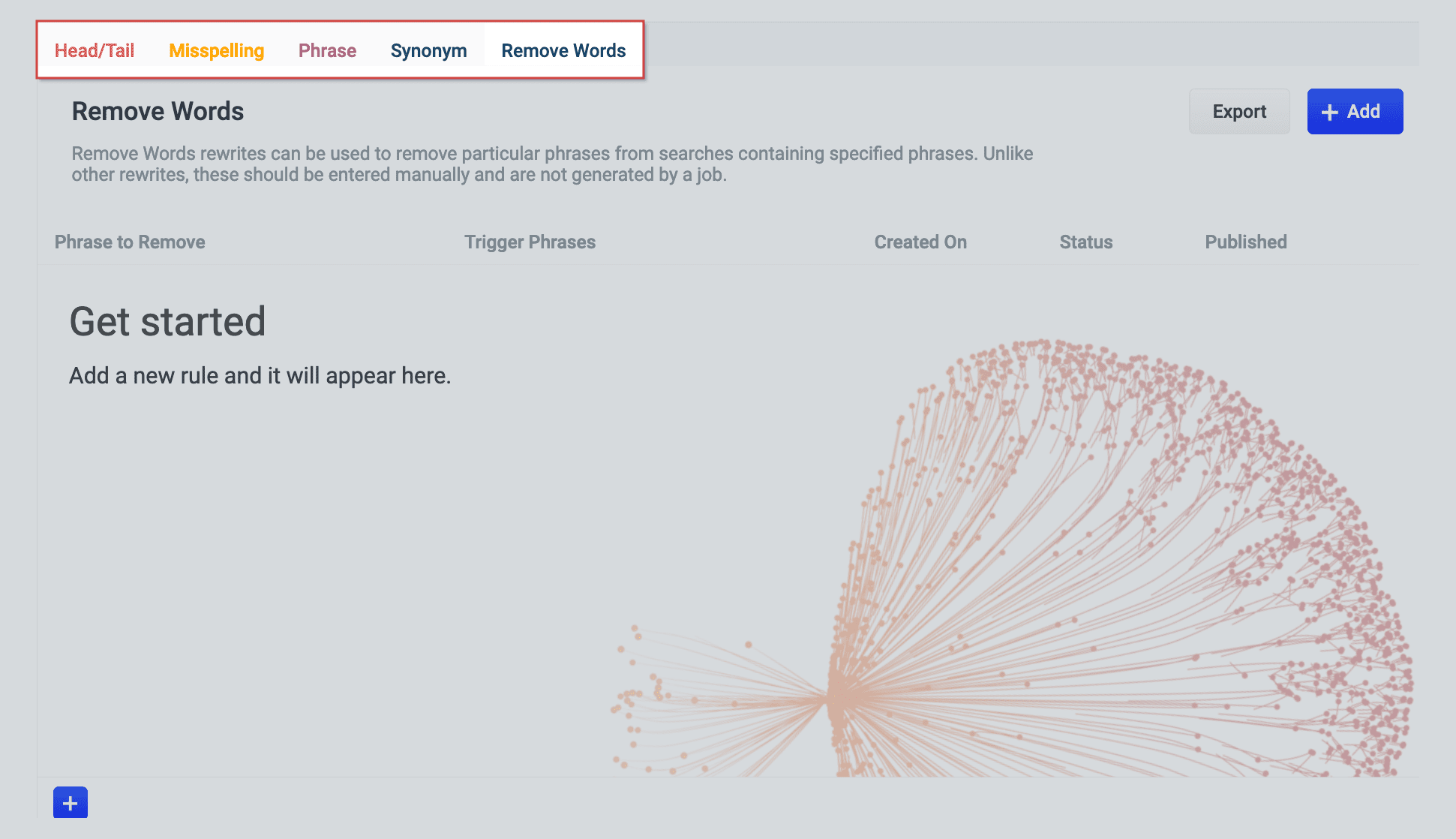
There are buttons at the top of the rules list that allow you to choose what query rewrite rule types you would like to work with:
* **Head/Tail.** Replace underperforming queries with queries that produce higher click-through rates. Query improvements always require review before they are published. Schedule the Head/Tail Analysis job to get AI-generated query improvements based on your signals collection. See [Underperforming Query Rewriting](/docs/5/fusion/getting-data-out/query-enhancement/underperforming-queries).
* **Misspelling.** Fusion replaces misspelled query terms with their spelling corrections for better search results. Schedule the Token and Phrase Spell Correction job to get AI-generated spelling corrections based on your signals collection. See [Misspelling Detection](/docs/5/fusion/getting-data-out/query-enhancement/misspelling-detection).
* **Phrase.** Known phrases are boosted when they appear in new queries. Schedule the Phrase Extraction job to get AI-generated phrases based on your signals collection. See [Phrase Detection](/docs/5/fusion/getting-data-out/query-enhancement/phrase-detection).
* **Synonym.** Synonyms expand queries so that they include all known synonyms of the query terms. Schedule the Synonym Detection job to get AI-generated synonyms based on your signals collection. See [Synonym Detection](/docs/5/fusion/reference/config-ref/jobs/synonym-detection).
* **Remove Words.** Remove particular phrases from queries. Unlike other rewrites, these should be entered manually and are not generated by a job. See [Remove Words](/docs/5/fusion/getting-data-out/query-enhancement/remove-words).
## Templates
The Templates screen in the Rules Editor allows you to design, test, and implement a wide variety of search experiences. Results are conditionally delivered from multiple different query pipelines, enabling you to use Fusion’s search, browse, and AI-driven functionality throughout your site.
Templates are only available with a valid license for [Predictive Merchandiser](/docs/5/fusion/getting-data-out/curating-your-search-experience/predictive-merchandiser/overview). If available, you will see the templates icon in the left navigation panel:
## Simulator
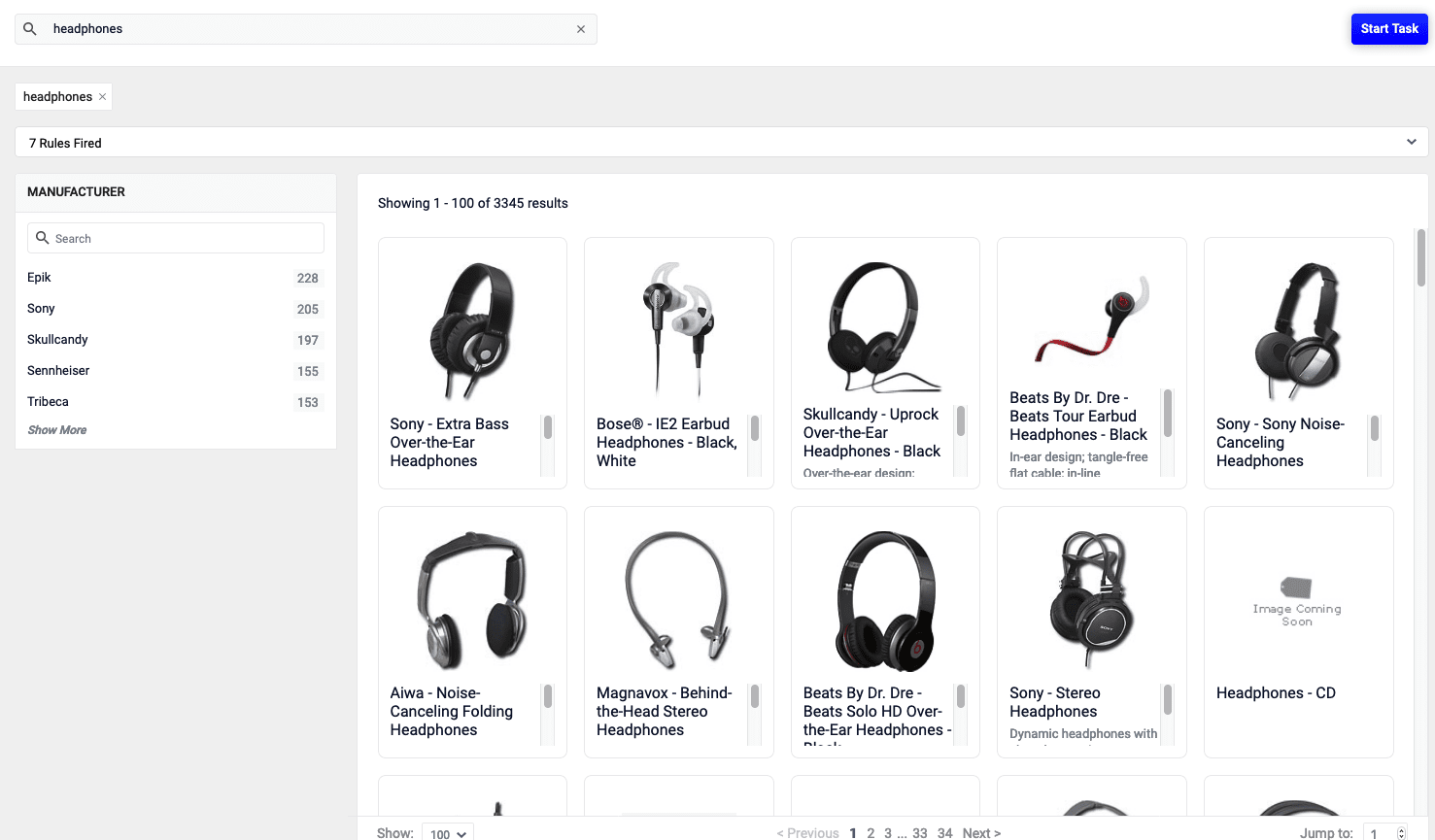
The Simulator provides an interactive preview of how your staged rules affect relevancy, using your search data and a simple search interface. When you enter a query, the Simulator shows you the triggered rules, in the order in which they were triggered, along with any triggered facets.
You can edit any of the triggered rules, then re-run the query to see new results.
The Simulator sends requests to the `COLLECTION_NAME_rules_simulator` query profile, which you can configure to point to any pipeline and collection in your app.
The Simulator is only visible in the Rules Editor if you *do not* have a valid license for [Predictive Merchandiser](/docs/5/fusion/getting-data-out/curating-your-search-experience/predictive-merchandiser/overview). If available, you will see the simulator icon in the left navigation panel.
### Search
Use the search bar in the top nav panel to simulate, or preview, your staged rules.
### Rule indicators
After entering a search query, the active rules affecting the results are displayed above the results. For example, a query for the term `keyboard` with a query rewrite rule would display an indicator for the rewritten query `wireless keyboard` in the left panel of the Simulator:
You can edit the query rewrite rule by hovering over this indicator and clicking the edit button. A dialog box appears:
Similarly, when a business rule is triggered by a search condition, it appears in the right panel of the Simulator:
## Analytics
The Analytics screen is available as part of the [Predictive Merchandiser](#predictive-merchandiser-and-experience-optimizer), a separate offering from Fusion. See the [Predictive Merchandiser documentation](/docs/5/fusion/getting-data-out/curating-your-search-experience/predictive-merchandiser/overview) for more information.
Learn how to use the **Use the Analytics Screen in the Rules Editor**.
This article describes how to use the [Analytics screen](/docs/5/fusion/getting-data-out/query-enhancement/rules-editor) in the [Rules Editor](/docs/5/fusion/getting-data-out/query-enhancement/rules-editor).
Job configuration affects the data that displays on the dashboard. For example, the [`COLLECTION_NAME_session_rollup` job](/docs/5/fusion/reference/config-ref/jobs/aggregations/built-in-sql-aggregation-jobs) aggregates related user activity into a session signal that contains activity count, duration, and keywords (based on user search terms).
### UI elements
#### Data date range
* **Quick Range Selectors.** Click one of the quick range selectors to facet your data.
* **Calendar Selector.** Use the calendar selector to specify a start and end date and time facet for your data.
#### Visitor data
* **Data Cards**
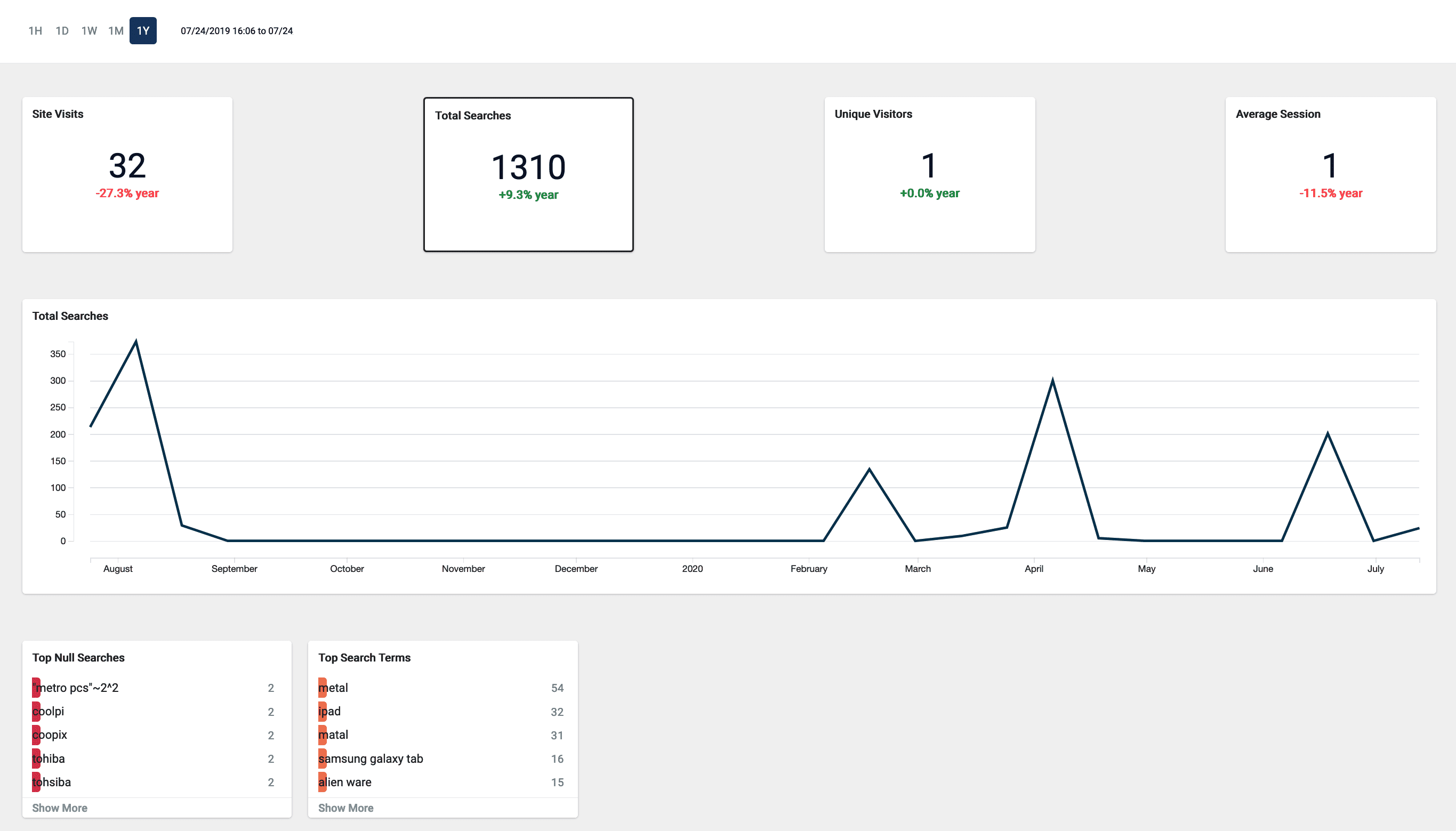
* **Site Visits.** The total number of visits.
* **Total Searches.** The total number of searches performed.
* **Unique Visitors.** The number of unique visitors to your site.
* **Average Session.** The average length of time spent on your site.
* **Data Graph.** Detailed information for the selected data card.
## View data by date range
The Rules Editor analytics allows you to view data by a date range. To do this, you can either:
* Click one of the date range presets:
* Click the date range details to display and select your range on the calendar that appears:
## View additional card details
Click one of the analytics cards to view additional details for that card’s data.
## Configure Analytics cards
1. Hover over one of the cards.
2. Click the **Edit** button that appears:
3. Complete the form that appears.
4. Click the **Save** button.
If the data is empty, check to make sure the date range includes the data you want to display.
### UI elements
#### Data date range
* **Quick Range Selectors.** Click one of the quick range selectors to facet your data.
* **Calendar Selector.** Use the calendar selector to specify a start and end date and time facet for your data.
#### Visitor data
* **Data Cards**
* **Site Visits.** The total number of visits.
* **Total Searches.** The total number of searches performed.
* **Unique Visitors.** The number of unique visitors to your site.
* **Average Session.** The average length of time spent on your site.
* **Data Graph.** Detailed information for the selected data card.
## Learn more
This article teaches you how to keep business rules consistent between clusters. Use a `PUT` API call to the Query Rewrite) API’s `/query-rewrite/instances` endpoint for bulk operations. The JSON payload sent with the `PUT` call must adhere to the following format:
```json theme={"dark"}
{
"create": [
This article describes how to use the Analytics screen in the Rules Editor.
The Analytics screen was renamed from the Dashboard screen in Fusion 5.2.0. All functionality remained the same.
### UI elements
#### Data date range
* **Quick Range Selectors.** Click one of the quick range selectors to facet your data.
* **Calendar Selector.** Use the calendar selector to specify a start and end date and time facet for your data.
#### Visitor data
* **Data Cards**
* **Site Visits.** The total number of visits.
* **Total Searches.** The total number of searches performed.
* **Unique Visitors.** The number of unique visitors to your site.
* **Average Session.** The average length of time spent on your site.
* **Data Graph.** Detailed information for the selected data card.
## View data by date range
The Rules Editor analytics allows you to view data by a date range. To do this, you can either:
* Click one of the date range presets:
* Click the date range details to display and select your range on the calendar that appears:
## View additional card details
Click one of the analytics cards to view additional details for that card’s data.
 A rule’s various states determine whether the rule is in effect for everyone using your search application:
| State | Options | Description |
| ------------- | ----------------------- | ------------------------------------------------------------------------------------------------------------------------------------------------------------------------------------------------------------------------------------------------------------------------------------------------------------------------------------------------------------------------------------------------------- |
| **Status** | *Enabled* or *Disabled* | If a rule’s status is *Enabled*, the rule is in effect. If a rule’s status is *Disabled*, the rule is not in effect. This is only true if the rule is published, as described below. |
| **Review** | *Approved* or *Denied* | If a rule’s review state is *Approved*, and you publish the changes, the latest changes to that rule are in effect. If the state is *Denied*, and you publish the changes, the Rules Manager deletes the rule.
A rule’s various states determine whether the rule is in effect for everyone using your search application:
| State | Options | Description |
| ------------- | ----------------------- | ------------------------------------------------------------------------------------------------------------------------------------------------------------------------------------------------------------------------------------------------------------------------------------------------------------------------------------------------------------------------------------------------------- |
| **Status** | *Enabled* or *Disabled* | If a rule’s status is *Enabled*, the rule is in effect. If a rule’s status is *Disabled*, the rule is not in effect. This is only true if the rule is published, as described below. |
| **Review** | *Approved* or *Denied* | If a rule’s review state is *Approved*, and you publish the changes, the latest changes to that rule are in effect. If the state is *Denied*, and you publish the changes, the Rules Manager deletes the rule.  * **Calendar Selector.** Use the calendar selector to specify a start and end date and time facet for your data.
 #### Visitor data
* **Data Cards**
#### Visitor data
* **Data Cards**
 * **Site Visits.** The total number of visits.
* **Total Searches.** The total number of searches performed.
* **Unique Visitors.** The number of unique visitors to your site.
* **Average Session.** The average length of time spent on your site.
* **Data Graph.** Detailed information for the selected data card.
* **Site Visits.** The total number of visits.
* **Total Searches.** The total number of searches performed.
* **Unique Visitors.** The number of unique visitors to your site.
* **Average Session.** The average length of time spent on your site.
* **Data Graph.** Detailed information for the selected data card.
 ## View data by date range
The Rules Editor analytics allows you to view data by a date range. To do this, you can either:
* Click one of the date range presets:
## View data by date range
The Rules Editor analytics allows you to view data by a date range. To do this, you can either:
* Click one of the date range presets:
 * Click the date range details to display and select your range on the calendar that appears:
 ## View additional card details
Click one of the analytics cards to view additional details for that card’s data.
## Configure Analytics cards
1. Hover over one of the cards.
2. Click the **Edit** button that appears:
## View additional card details
Click one of the analytics cards to view additional details for that card’s data.
## Configure Analytics cards
1. Hover over one of the cards.
2. Click the **Edit** button that appears:  3. Complete the form that appears.
4. Click the **Save** button.
If the data is empty, check to make sure the date range includes the data you want to display.
3. Complete the form that appears.
4. Click the **Save** button.
If the data is empty, check to make sure the date range includes the data you want to display.

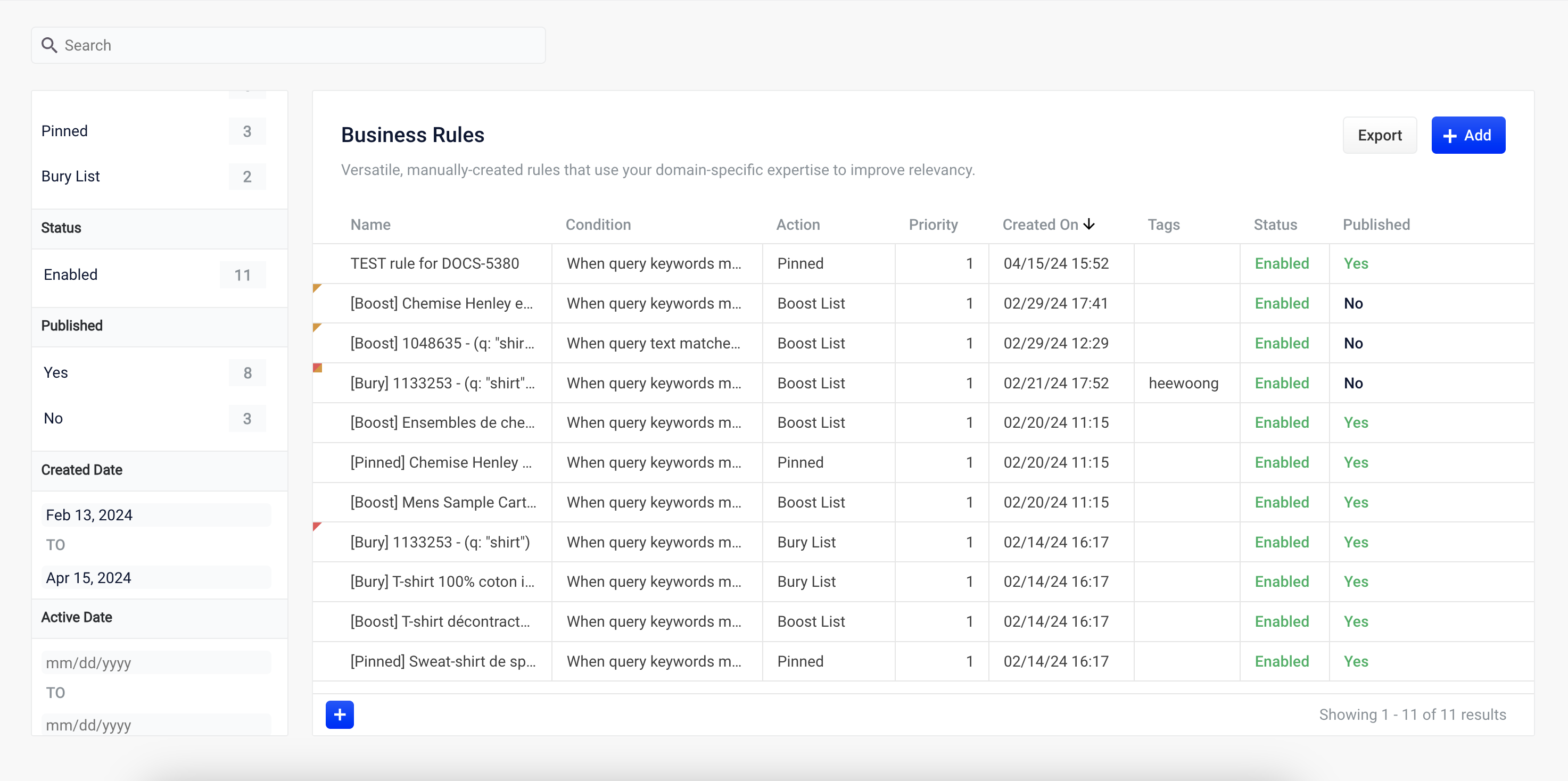 To facet the rules list by **Action**, **Status**, **Published**, or **Tags**, click one of the facet items within the facet categories.
To facet the rules list by **Created Date** or **Expiration Date**:
1. Click the date start value. A calendar will appear.
To facet the rules list by **Action**, **Status**, **Published**, or **Tags**, click one of the facet items within the facet categories.
To facet the rules list by **Created Date** or **Expiration Date**:
1. Click the date start value. A calendar will appear.
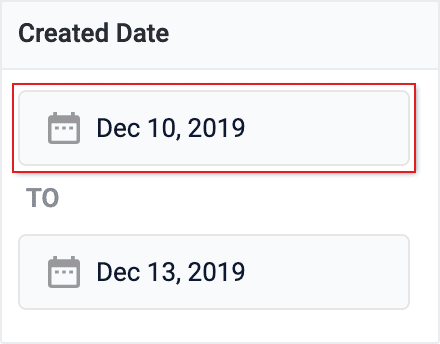 2. Click a date to select the start of your facet range.
3. Click the bottom date and select the end of your facet range.
### Search
Enter a term in the search bar to quickly facet your business rules.
## Rules
### Create a rule
1. Click the
2. Click a date to select the start of your facet range.
3. Click the bottom date and select the end of your facet range.
### Search
Enter a term in the search bar to quickly facet your business rules.
## Rules
### Create a rule
1. Click the 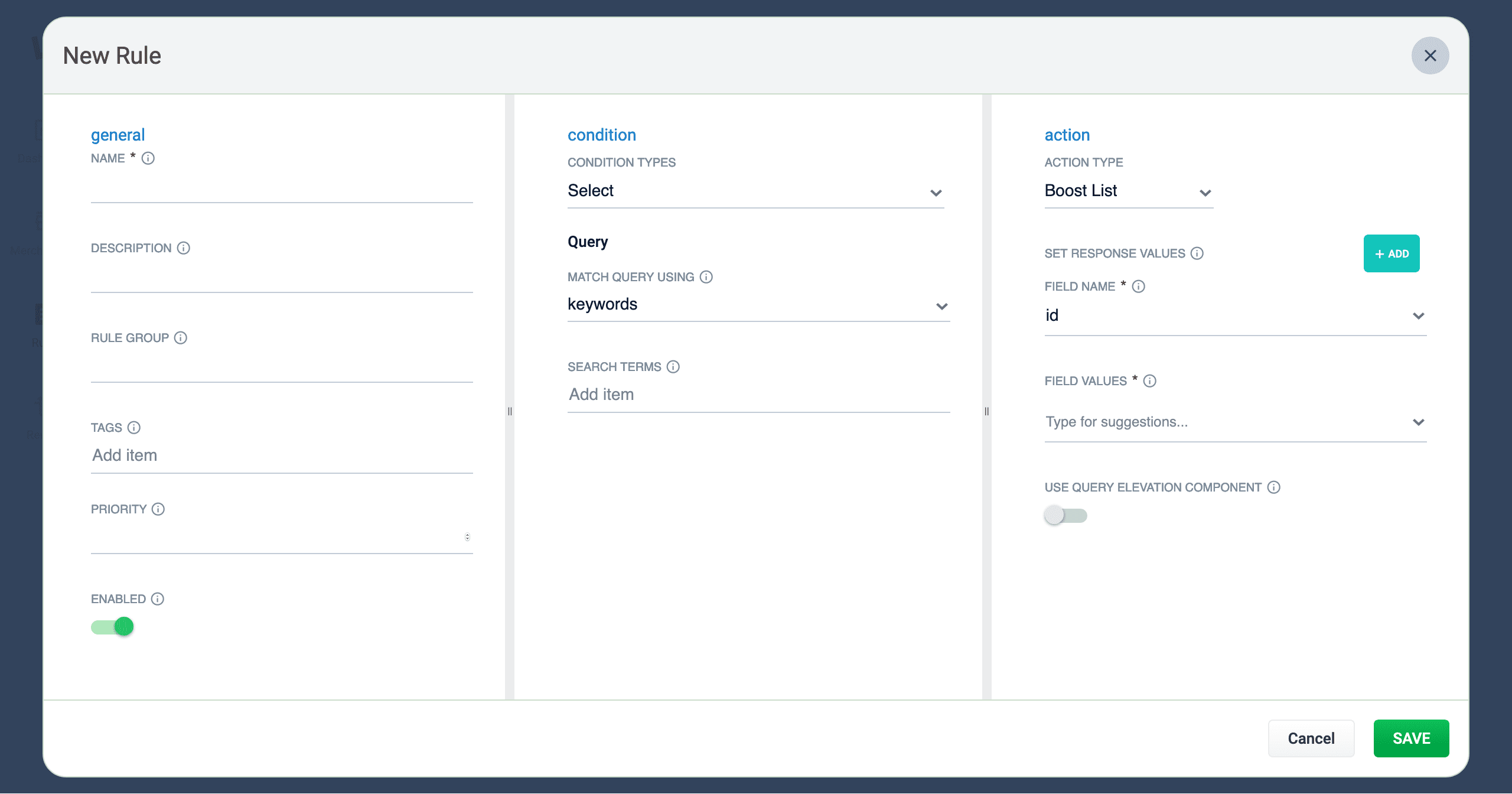 2. Complete the required fields, at a minimum.
| | | |
| ------------------------------------------------------------------------------------------------------------------------------------------------------------------------------------------------------------------------------------------------------------------------------------------------------------------------------------------------------------------------------------------------------------------------------------------------------------------------------------------------------------------------------------------------------------------------------------------------------------------------------------------------------------------------------------------------------------------------------------------------------------------------------------------------------------------------------------------------------------------------------------------------------------------------------------ | -------------------------------------------------------------------------------------------------------------------------------------------------------------------------------------------------------------------------------- | ------------------------------------------------------------------------------------------------------------------------------------------------------------------------------------------------------------------------------------------------------------------------------------------------------ |
| General | Condition | Action |
| In the **General** column, only the **Name** field is required. Other fields are optional:
2. Complete the required fields, at a minimum.
| | | |
| ------------------------------------------------------------------------------------------------------------------------------------------------------------------------------------------------------------------------------------------------------------------------------------------------------------------------------------------------------------------------------------------------------------------------------------------------------------------------------------------------------------------------------------------------------------------------------------------------------------------------------------------------------------------------------------------------------------------------------------------------------------------------------------------------------------------------------------------------------------------------------------------------------------------------------------ | -------------------------------------------------------------------------------------------------------------------------------------------------------------------------------------------------------------------------------- | ------------------------------------------------------------------------------------------------------------------------------------------------------------------------------------------------------------------------------------------------------------------------------------------------------ |
| General | Condition | Action |
| In the **General** column, only the **Name** field is required. Other fields are optional: 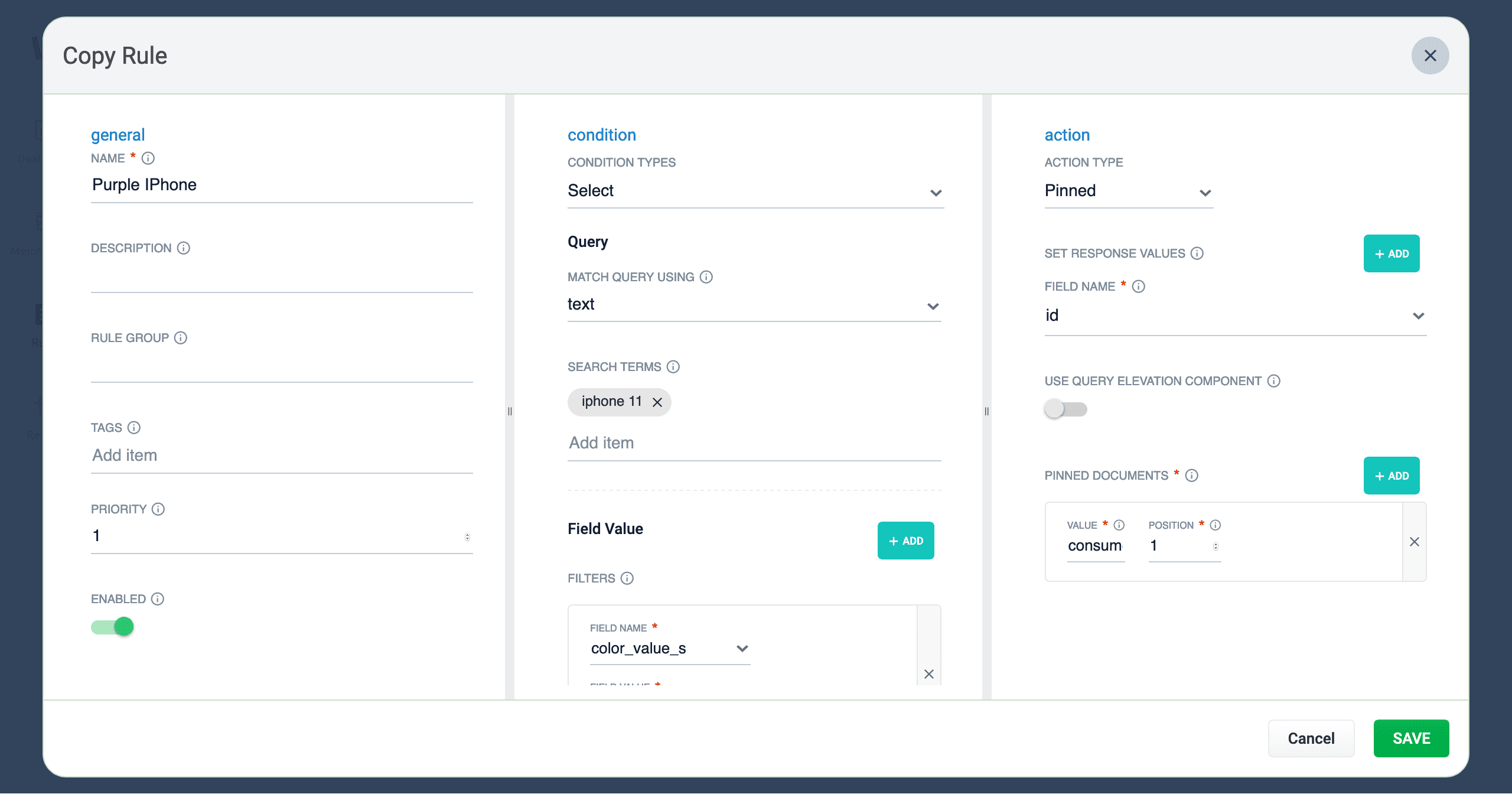 3. At a minimum, change the title of the rule.
4. Once complete, click the
3. At a minimum, change the title of the rule.
4. Once complete, click the 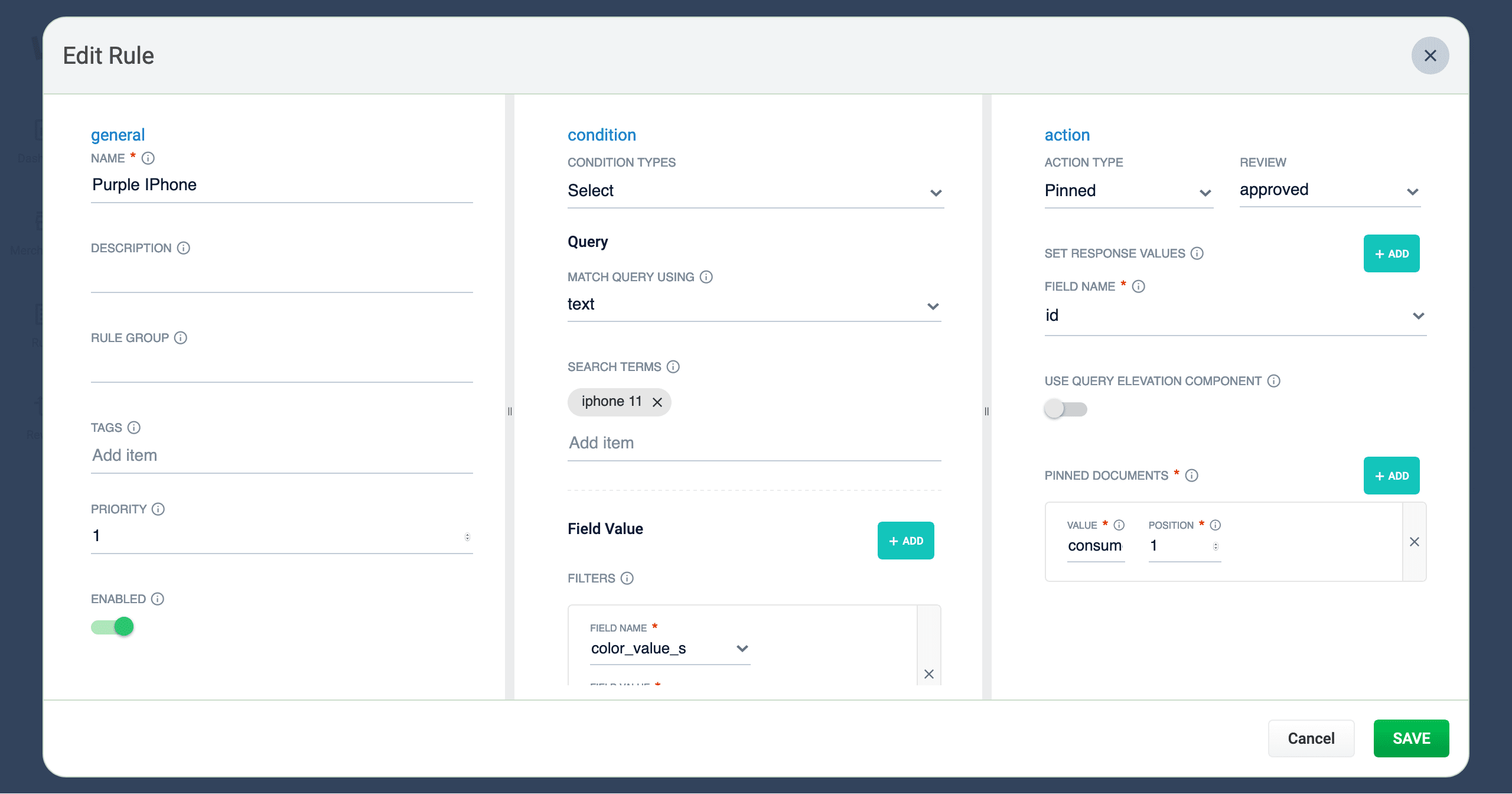 3. Make your desired changes to the rule.
4. Once complete, click the
3. Make your desired changes to the rule.
4. Once complete, click the 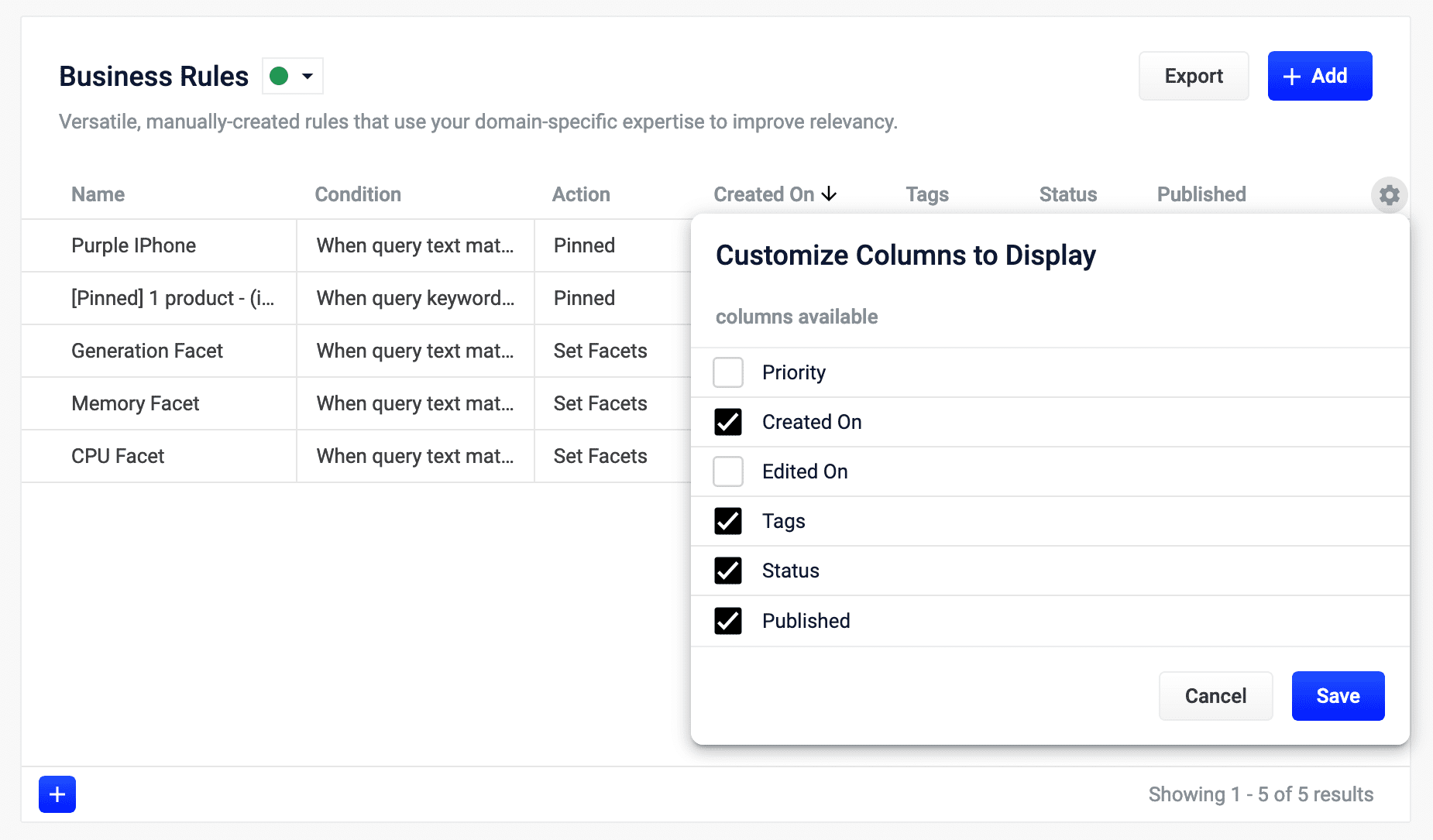 3. Click the checkboxes to select or deselect the columns you want to display.
4. Click the
3. Click the checkboxes to select or deselect the columns you want to display.
4. Click the 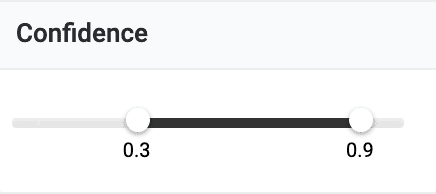
 ### Create a rule
1. Click **+Add**.
2. In the new table row, complete the required fields, and additional fields as needed.
3. Click the checkmark to save, or close to cancel the changes.
### Edit a rule
1. Hold the pointer over the rule to edit.
2. Click the pencil icon.
3. Enter desired changes and click the checkmark to save, or close to cancel the changes.
### Approve/deny rules
{/* // New or altered rules will need to be approved by a user with the appropriate permissions before the rule can be enabled. */}
1. Hold the pointer over a rule.
2. Select the checkbox that displays for that rule.
3. To modify multiple rules, hold the pointer over each rule and select its corresponding checkbox.
4. Click **Approve** or **Deny** as needed.
{/*
This is not an explicit option in the rewrite screen. Is this implicit by approval/denial?
### Enable/disable a rule
1. Hold the pointer over a rule.
2. Select the checkbox that displays for that rule.
3. To modify multiple rules, hold the pointer over each rule and select its corresponding checkbox.
4. Click **Enable** or **Disable** as needed.
*/}
### Publish a rule
1. Hold the pointer over a rule.
2. Select the checkbox that displays for that rule.
3. To publish multiple rules, hold the pointer over each rule and select its corresponding checkbox.
4. Click **Publish Selected** to publish the selected rules.
#### Publish an individual rule
1. Hold the pointer over a rule.
2. Click the
### Create a rule
1. Click **+Add**.
2. In the new table row, complete the required fields, and additional fields as needed.
3. Click the checkmark to save, or close to cancel the changes.
### Edit a rule
1. Hold the pointer over the rule to edit.
2. Click the pencil icon.
3. Enter desired changes and click the checkmark to save, or close to cancel the changes.
### Approve/deny rules
{/* // New or altered rules will need to be approved by a user with the appropriate permissions before the rule can be enabled. */}
1. Hold the pointer over a rule.
2. Select the checkbox that displays for that rule.
3. To modify multiple rules, hold the pointer over each rule and select its corresponding checkbox.
4. Click **Approve** or **Deny** as needed.
{/*
This is not an explicit option in the rewrite screen. Is this implicit by approval/denial?
### Enable/disable a rule
1. Hold the pointer over a rule.
2. Select the checkbox that displays for that rule.
3. To modify multiple rules, hold the pointer over each rule and select its corresponding checkbox.
4. Click **Enable** or **Disable** as needed.
*/}
### Publish a rule
1. Hold the pointer over a rule.
2. Select the checkbox that displays for that rule.
3. To publish multiple rules, hold the pointer over each rule and select its corresponding checkbox.
4. Click **Publish Selected** to publish the selected rules.
#### Publish an individual rule
1. Hold the pointer over a rule.
2. Click the 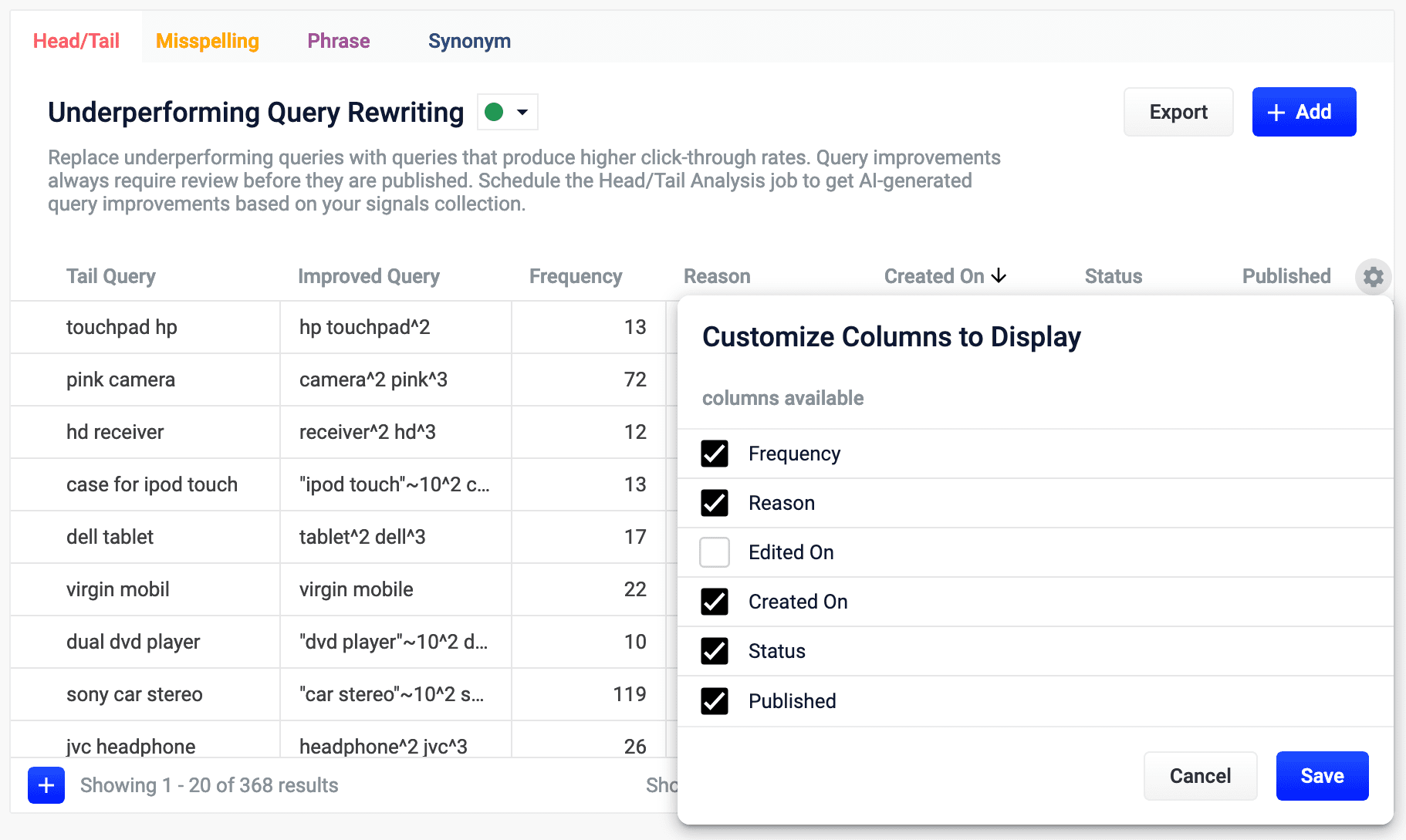 3. In the Customize Columns to Display screen, select the checkboxes for the columns you want to display. Clear the checkboxes for columns you do not want to display.
4. Click **Save**. To exit without saving your changes, click **Cancel**.
3. In the Customize Columns to Display screen, select the checkboxes for the columns you want to display. Clear the checkboxes for columns you do not want to display.
4. Click **Save**. To exit without saving your changes, click **Cancel**.
 * **Top Null Searches.** The top search terms that yielded 0 results. A null search is considered a poor user experience. Use **Use Query Rewrites in the Rules Editor** to reduce the likelihood of a visitor receiving 0 results.
* **Top Search Terms.** The most commonly searched terms.
* **Top Clicked Products.** The most commonly clicked products or documents. This may include searches, recommendations, static links, or outside referrals.
* **Top Clicked Searches.** The most common searches that resulted in a click.
* **Top Purchased Products.** The most commonly purchased products. This may include searches, recommendations, static links, or referrals.
* **Top Purchased Searches.** The most commonly purchased products that were identified from a search.
* **Top Null Searches.** The top search terms that yielded 0 results. A null search is considered a poor user experience. Use **Use Query Rewrites in the Rules Editor** to reduce the likelihood of a visitor receiving 0 results.
* **Top Search Terms.** The most commonly searched terms.
* **Top Clicked Products.** The most commonly clicked products or documents. This may include searches, recommendations, static links, or outside referrals.
* **Top Clicked Searches.** The most common searches that resulted in a click.
* **Top Purchased Products.** The most commonly purchased products. This may include searches, recommendations, static links, or referrals.
* **Top Purchased Searches.** The most commonly purchased products that were identified from a search.
 Predictive Merchandiser and Experience Optimizer are separate offerings from Fusion. See the [Predictive Merchandiser documentation](/docs/5/fusion/getting-data-out/curating-your-search-experience/predictive-merchandiser/overview) for more information.
## Rules
Predictive Merchandiser and Experience Optimizer are separate offerings from Fusion. See the [Predictive Merchandiser documentation](/docs/5/fusion/getting-data-out/curating-your-search-experience/predictive-merchandiser/overview) for more information.
## Rules
 The Rules screen is used to create [Business Rules](/docs/5/fusion/getting-data-out/query-enhancement/business-rules/overview) within the Rules Editor.
Business rules are manually-created formulas for rewriting queries. This is the most versatile strategy for creating custom query rewrites. It supports a variety of conditions and actions to address a wide range of use cases. When you need a very specific query rewrite, this is the best strategy.
Business rules are applied in the [Apply Rules stage](/docs/5/fusion/reference/config-ref/pipeline-stages/query-stages/query-rules-query-stage) of the query pipeline.
Learn how to use the **Use Business Rules in the Rules Editor**.
The Rules screen is used to create [Business Rules](/docs/5/fusion/getting-data-out/query-enhancement/business-rules/overview) within the Rules Editor.
Business rules are manually-created formulas for rewriting queries. This is the most versatile strategy for creating custom query rewrites. It supports a variety of conditions and actions to address a wide range of use cases. When you need a very specific query rewrite, this is the best strategy.
Business rules are applied in the [Apply Rules stage](/docs/5/fusion/reference/config-ref/pipeline-stages/query-stages/query-rules-query-stage) of the query pipeline.
Learn how to use the **Use Business Rules in the Rules Editor**.
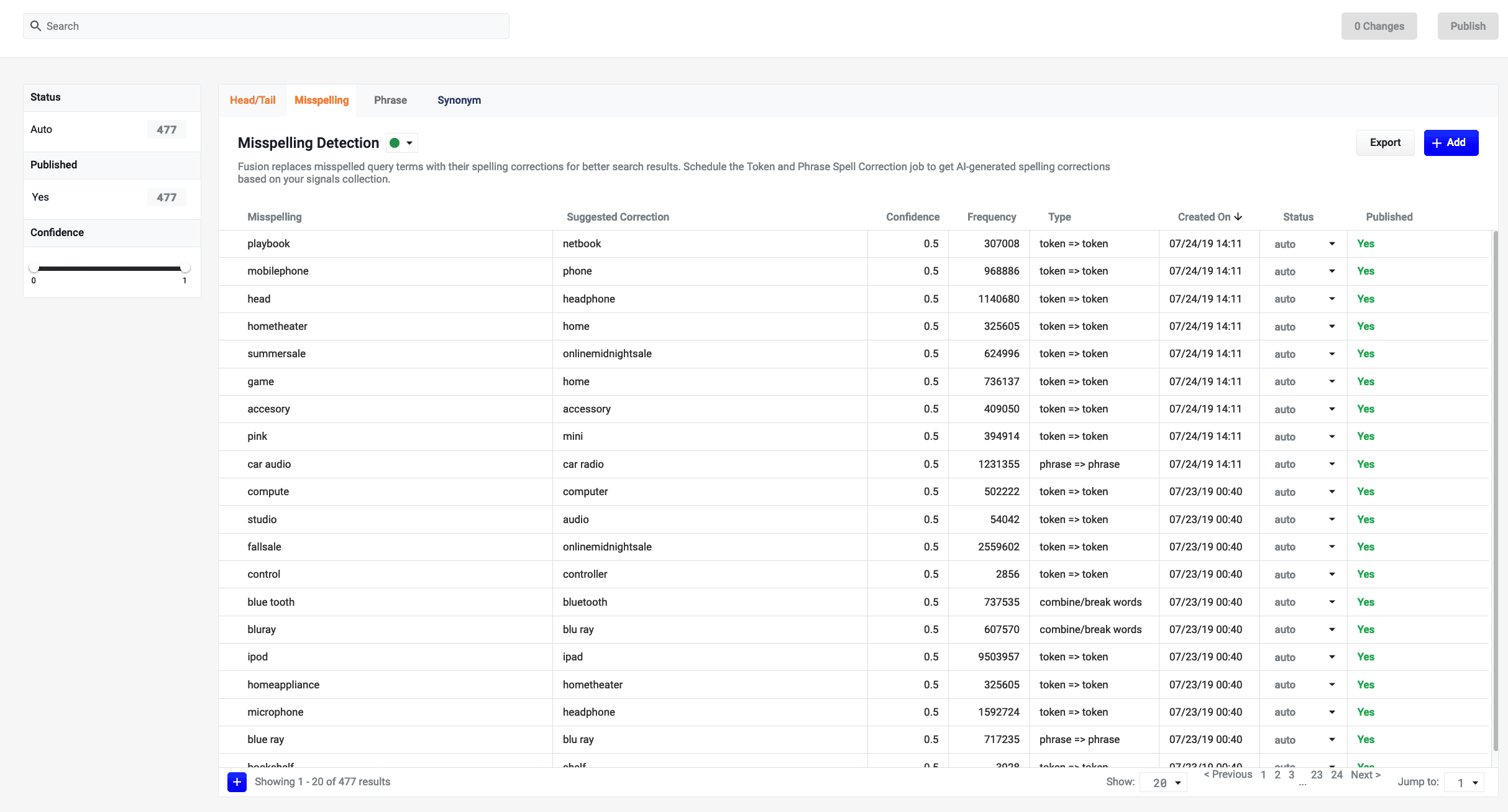 Learn how to use the **Use Query Rewrites in the Rules Editor**.
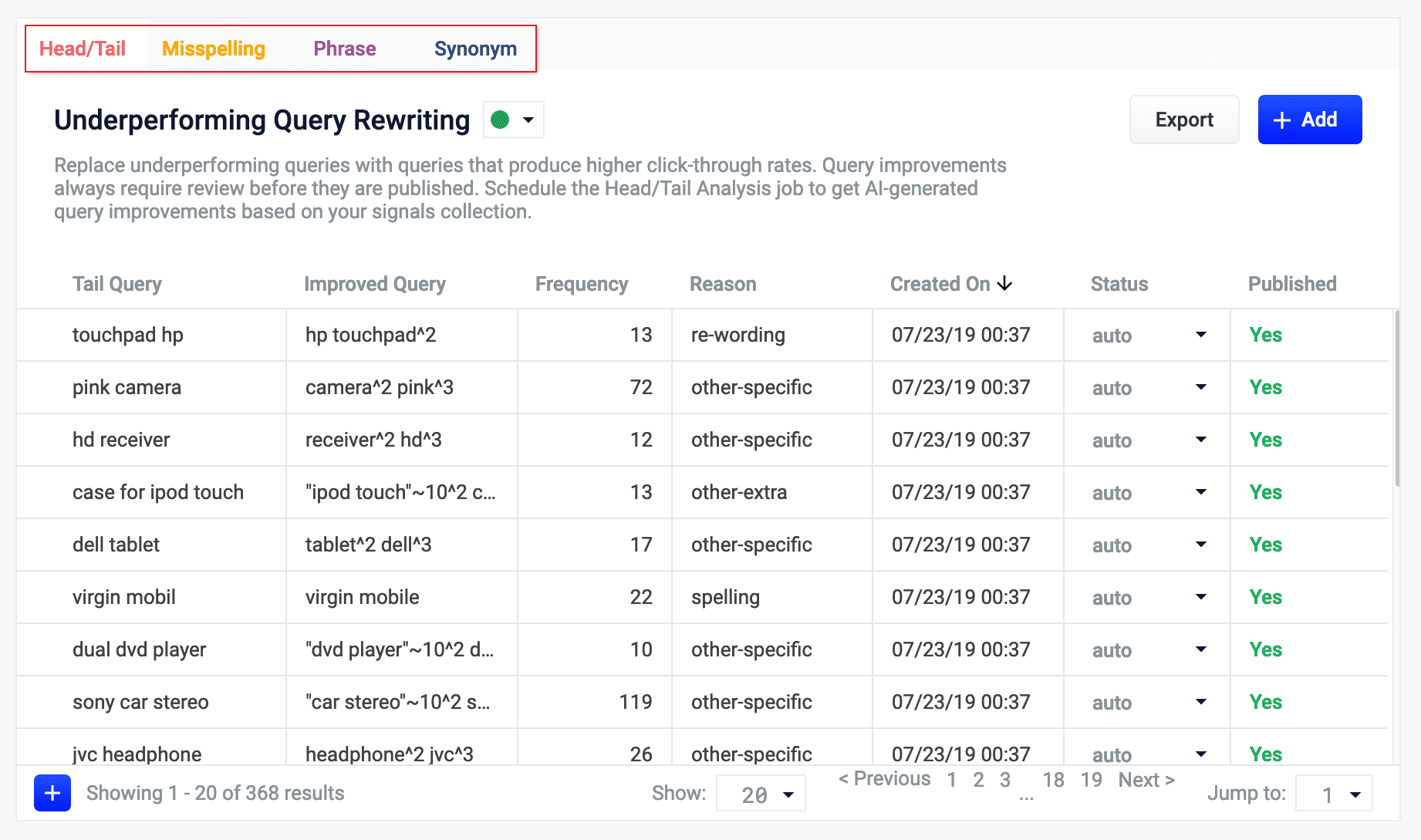 * **Head/Tail.** Replace underperforming queries with queries that produce higher click-through rates. Query improvements always require review before they are published. Schedule the Head/Tail Analysis job to get AI-generated query improvements based on your signals collection. See [Underperforming Query Rewriting](/docs/5/fusion/getting-data-out/query-enhancement/underperforming-queries).
* **Misspelling.** Fusion replaces misspelled query terms with their spelling corrections for better search results. Schedule the Token and Phrase Spell Correction job to get AI-generated spelling corrections based on your signals collection. See [Misspelling Detection](/docs/5/fusion/getting-data-out/query-enhancement/misspelling-detection).
* **Phrase.** Known phrases are boosted when they appear in new queries. Schedule the Phrase Extraction job to get AI-generated phrases based on your signals collection. See [Phrase Detection](/docs/5/fusion/getting-data-out/query-enhancement/phrase-detection).
* **Synonym.** Synonyms expand queries so that they include all known synonyms of the query terms. Schedule the Synonym Detection job to get AI-generated synonyms based on your signals collection. See [Synonym Detection](/docs/5/fusion/reference/config-ref/jobs/synonym-detection).
* **Remove Words.** Remove particular phrases from queries. Unlike other rewrites, these should be entered manually and are not generated by a job. See [Remove Words](/docs/5/fusion/getting-data-out/query-enhancement/remove-words).
## Templates
The Templates screen in the Rules Editor allows you to design, test, and implement a wide variety of search experiences. Results are conditionally delivered from multiple different query pipelines, enabling you to use Fusion’s search, browse, and AI-driven functionality throughout your site.
* **Head/Tail.** Replace underperforming queries with queries that produce higher click-through rates. Query improvements always require review before they are published. Schedule the Head/Tail Analysis job to get AI-generated query improvements based on your signals collection. See [Underperforming Query Rewriting](/docs/5/fusion/getting-data-out/query-enhancement/underperforming-queries).
* **Misspelling.** Fusion replaces misspelled query terms with their spelling corrections for better search results. Schedule the Token and Phrase Spell Correction job to get AI-generated spelling corrections based on your signals collection. See [Misspelling Detection](/docs/5/fusion/getting-data-out/query-enhancement/misspelling-detection).
* **Phrase.** Known phrases are boosted when they appear in new queries. Schedule the Phrase Extraction job to get AI-generated phrases based on your signals collection. See [Phrase Detection](/docs/5/fusion/getting-data-out/query-enhancement/phrase-detection).
* **Synonym.** Synonyms expand queries so that they include all known synonyms of the query terms. Schedule the Synonym Detection job to get AI-generated synonyms based on your signals collection. See [Synonym Detection](/docs/5/fusion/reference/config-ref/jobs/synonym-detection).
* **Remove Words.** Remove particular phrases from queries. Unlike other rewrites, these should be entered manually and are not generated by a job. See [Remove Words](/docs/5/fusion/getting-data-out/query-enhancement/remove-words).
## Templates
The Templates screen in the Rules Editor allows you to design, test, and implement a wide variety of search experiences. Results are conditionally delivered from multiple different query pipelines, enabling you to use Fusion’s search, browse, and AI-driven functionality throughout your site.
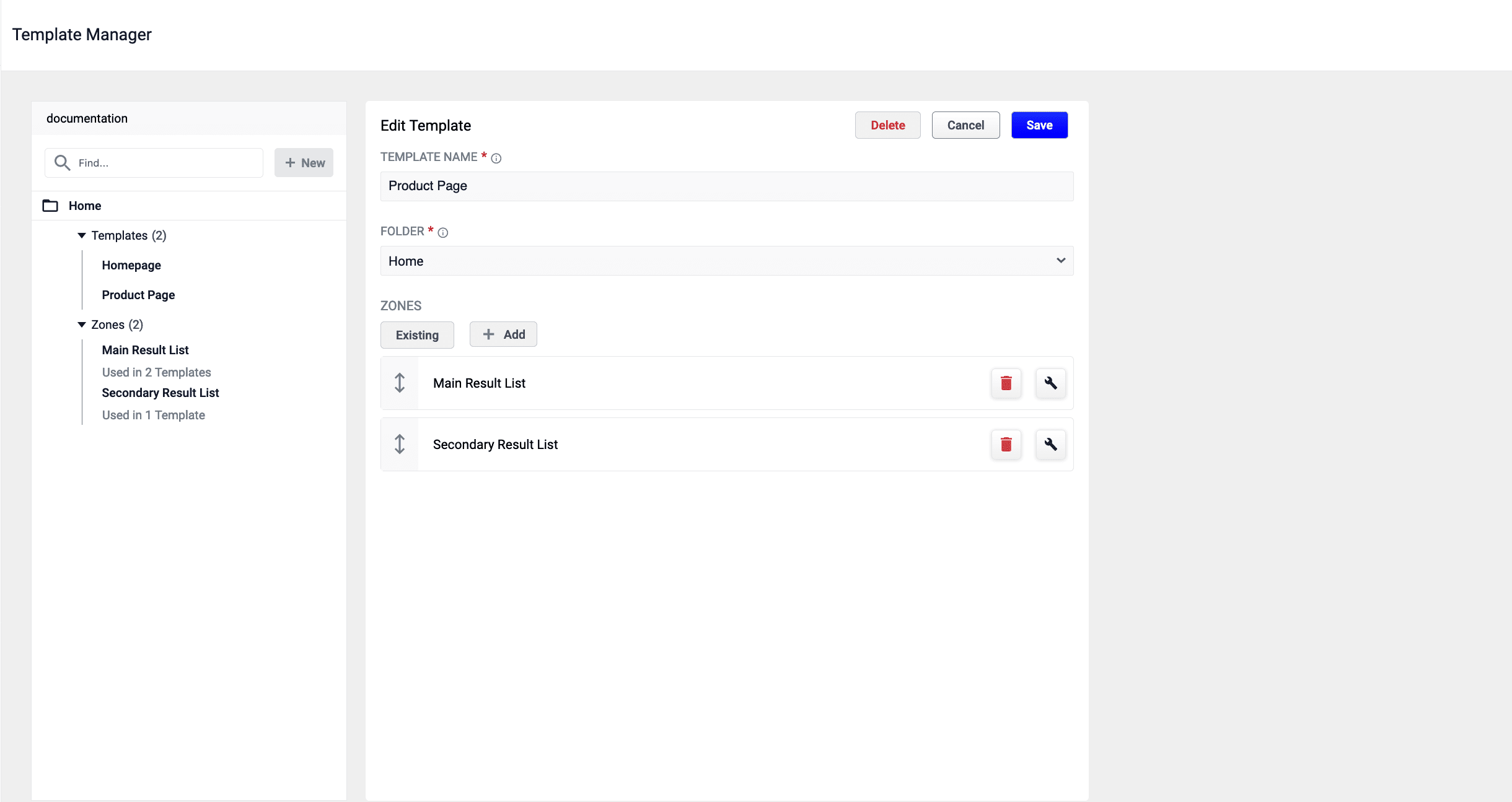 Templates are only available with a valid license for [Predictive Merchandiser](/docs/5/fusion/getting-data-out/curating-your-search-experience/predictive-merchandiser/overview). If available, you will see the templates icon in the left navigation panel:
 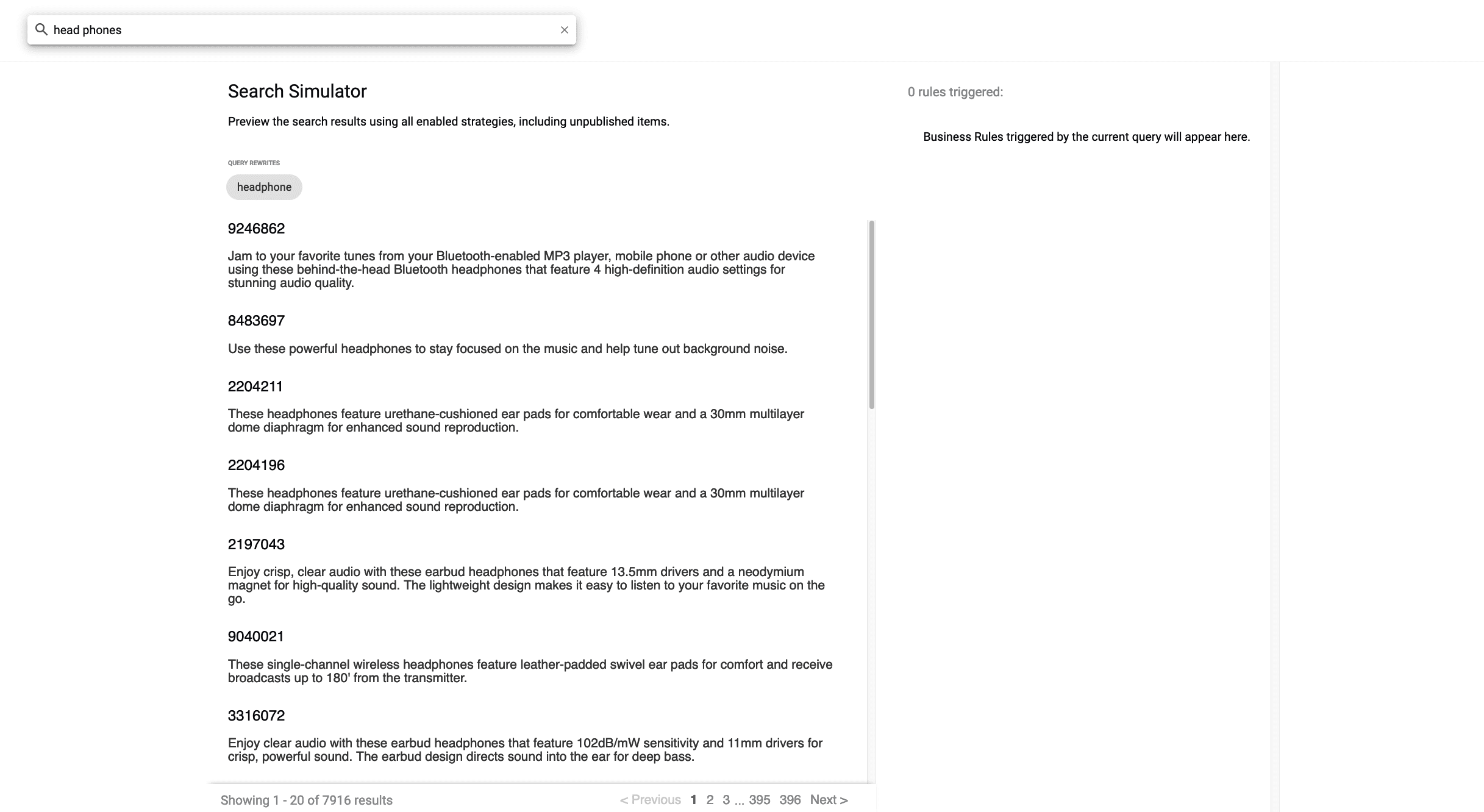 You can edit any of the triggered rules, then re-run the query to see new results.
The Simulator sends requests to the `COLLECTION_NAME_rules_simulator` query profile, which you can configure to point to any pipeline and collection in your app.
The Simulator is only visible in the Rules Editor if you *do not* have a valid license for [Predictive Merchandiser](/docs/5/fusion/getting-data-out/curating-your-search-experience/predictive-merchandiser/overview). If available, you will see the simulator icon in the left navigation panel.
### Search
You can edit any of the triggered rules, then re-run the query to see new results.
The Simulator sends requests to the `COLLECTION_NAME_rules_simulator` query profile, which you can configure to point to any pipeline and collection in your app.
The Simulator is only visible in the Rules Editor if you *do not* have a valid license for [Predictive Merchandiser](/docs/5/fusion/getting-data-out/curating-your-search-experience/predictive-merchandiser/overview). If available, you will see the simulator icon in the left navigation panel.
### Search
 Use the search bar in the top nav panel to simulate, or preview, your staged rules.
### Rule indicators
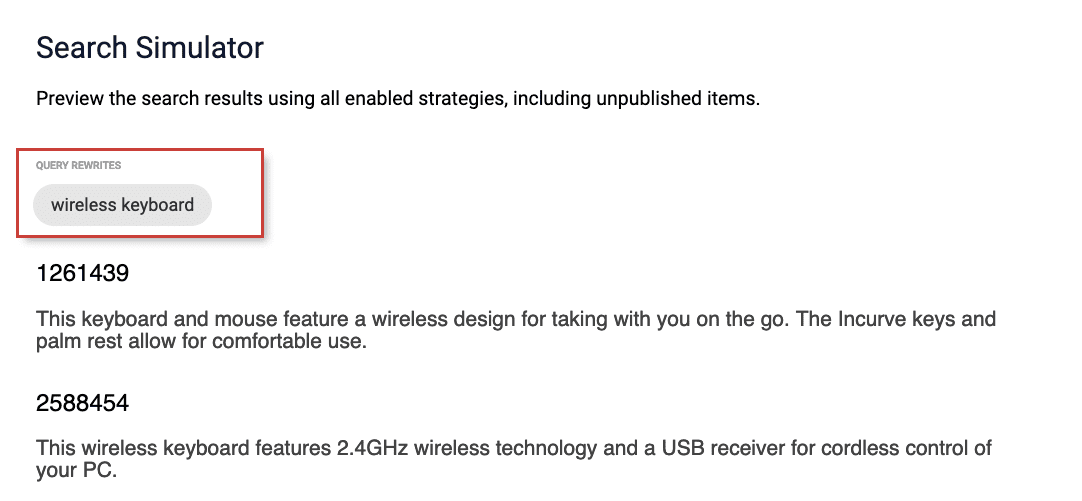
After entering a search query, the active rules affecting the results are displayed above the results. For example, a query for the term `keyboard` with a query rewrite rule would display an indicator for the rewritten query `wireless keyboard` in the left panel of the Simulator:
Use the search bar in the top nav panel to simulate, or preview, your staged rules.
### Rule indicators
After entering a search query, the active rules affecting the results are displayed above the results. For example, a query for the term `keyboard` with a query rewrite rule would display an indicator for the rewritten query `wireless keyboard` in the left panel of the Simulator:
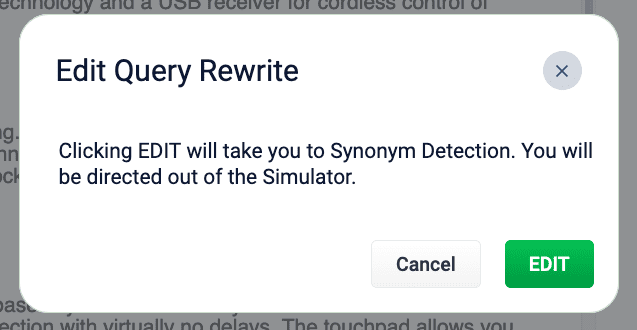
 You can edit the query rewrite rule by hovering over this indicator and clicking the edit button. A dialog box appears:
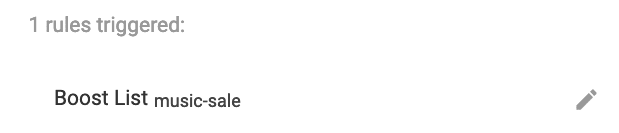
 Similarly, when a business rule is triggered by a search condition, it appears in the right panel of the Simulator:
 ## Analytics
 The Analytics screen is available as part of the [Predictive Merchandiser](#predictive-merchandiser-and-experience-optimizer), a separate offering from Fusion. See the [Predictive Merchandiser documentation](/docs/5/fusion/getting-data-out/curating-your-search-experience/predictive-merchandiser/overview) for more information.
Learn how to use the **Use the Analytics Screen in the Rules Editor**.
The Analytics screen is available as part of the [Predictive Merchandiser](#predictive-merchandiser-and-experience-optimizer), a separate offering from Fusion. See the [Predictive Merchandiser documentation](/docs/5/fusion/getting-data-out/curating-your-search-experience/predictive-merchandiser/overview) for more information.
Learn how to use the **Use the Analytics Screen in the Rules Editor**.