> ## Documentation Index
> Fetch the complete documentation index at: https://doc.lucidworks.com/llms.txt
> Use this file to discover all available pages before exploring further.
# Faceting
export const LwTemplate = ({title = "Key questions to get you started", icon = "sparkles", cta = "Powered by Agent Studio", linkHref = "https://lucidworks.com/demo/?utm_source=docs&utm_medium=referral&utm_campaign=docs_cta_ai"}) => {
const [isLoaded, setIsLoaded] = useState(false);
useEffect(() => {
const timer = setTimeout(() => {
setIsLoaded(true);
}, 500);
return () => clearTimeout(timer);
}, []);
return
{isLoaded && `
}} />}
Powered by Lucidworks Agent Studio
;
};
[localhost link]: http://localhost:3000/docs/5/fusion/getting-data-out/query-basics/faceting
[mintlify link]: https://doc.lucidworks.com/docs/5/fusion/getting-data-out/query-basics/faceting
[old doc.lw link]: https://doc.lucidworks.com/fusion/5.9/175
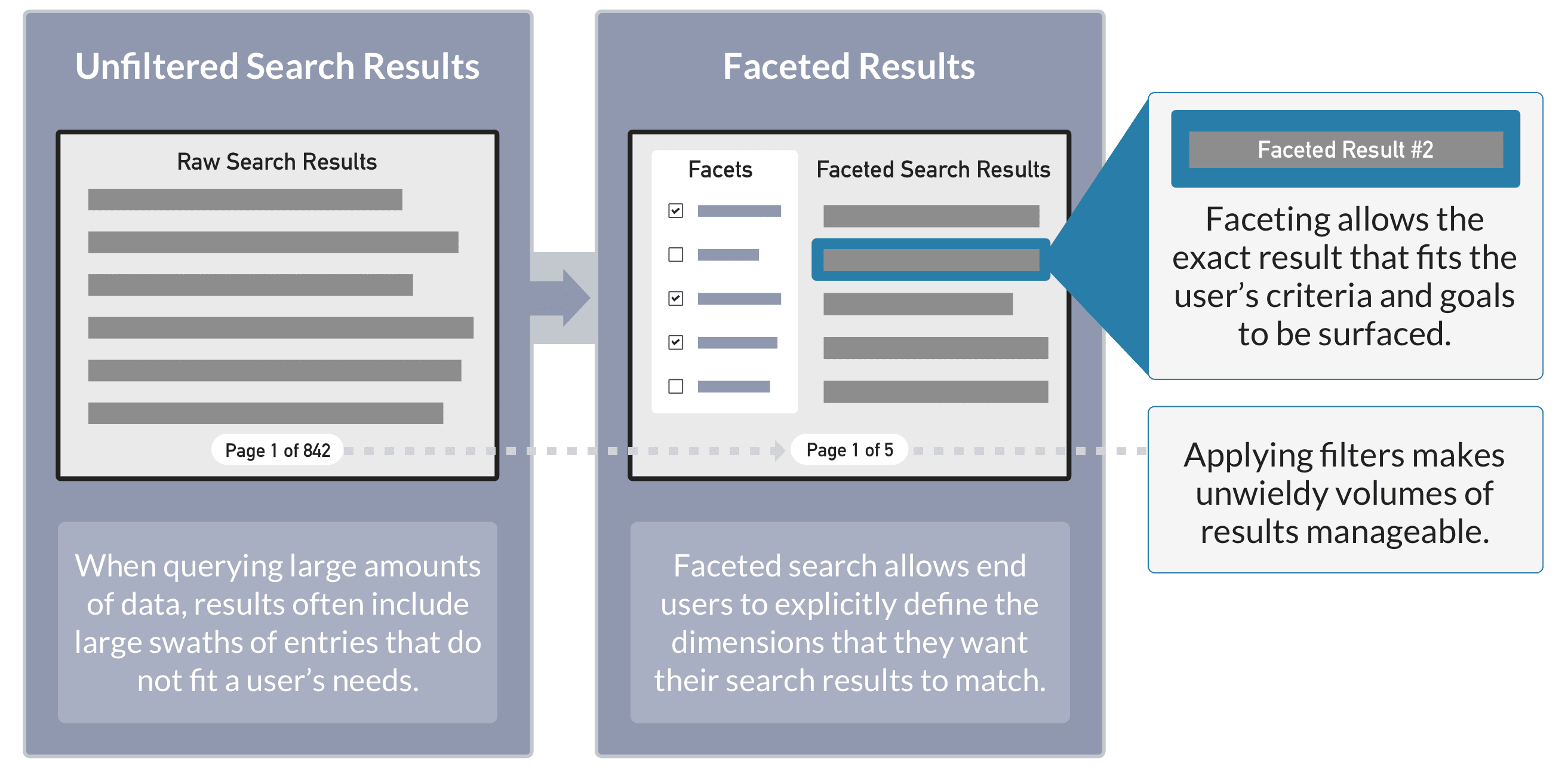
Faceting is the name given to a set of computed counts over a search result returned together with the documents which match the search query.
Facets are most often used to create additional navigational controls on the search results page or panel. Users can expand and restrict their search criteria in a natural way, without having to construct complicated queries.
For example, popular e-commerce facets include product category, price range, availability, and user ratings.
Fusion leverages [Solr’s Faceting](https://cwiki.apache.org/confluence/display/solr/Faceting) search components.
## Field faceting
In Solr the most straightforward kind of faceting is field faceting, in which Solr’s FacetComponent computes the top values for a field and returns the list of those values along with a count of the subset of documents in the search results which match that term. Field faceting works best over fields which contain a single label or set of labels from a finite, controlled lexicon such as product category. Fusion’s [Facet Query Stage](/docs/5/fusion/reference/config-ref/pipeline-stages/query-stages/facet-query-stage) can be used to configure field faceting as part of the search query pipeline.
## Range faceting
Range facets are used for fields which contain date or number values. Values can be grouped into ranges by specifying additional query parameters.
To configure range faceting, use the [Additional Query Parameters Stage](/docs/5/fusion/reference/config-ref/pipeline-stages/query-stages/set-query-params-stage) to specify [Solr range faceting parameters](https://cwiki.apache.org/confluence/display/solr/Faceting#Faceting-RangeFaceting).
The quick learning for **Configuring Range Facets** focuses on how to group values into ranges for faceting.
## JSON faceting
In eCommerce, one product often contains multiple SKUs. In this case, it’s ideal to group search results on the product ID, such that only one result for all SKUs of a given product will be returned. This is achieved by using the `unique` parameter in [JSON facets](https://solr.apache.org/guide/solr/latest/query-guide/json-facet-api.html).
You can use JSON facets by creating Query Params in a **Create a Query Profile** or with the [Additional Query Parameters Stage](/docs/5/fusion/reference/config-ref/pipeline-stages/query-stages/set-query-params-stage) in a Query Pipeline.
Configure facets with a JSON script in your query pipeline.
Facets that come from Rules must be converted in code to JSON facets. they cannot be passed through as name/value params.
You can use the [Additional Query Parameters stage](/docs/5/fusion/reference/config-ref/pipeline-stages/query-stages/set-query-params-stage) when a JSON facet is hardcoded in the pipeline as a static `json.facet` string.
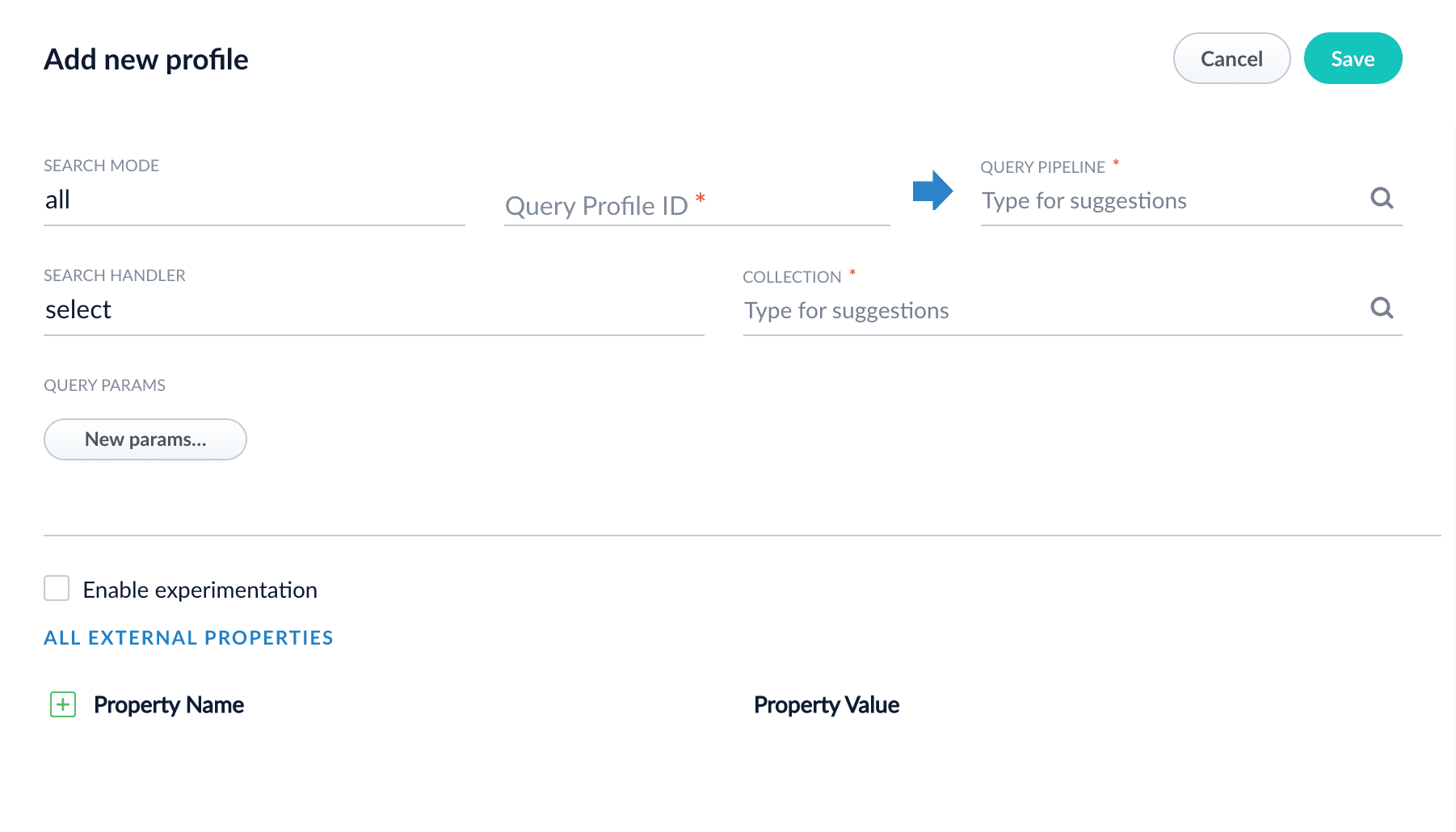
1. In the Fusion workspace, navigate to **Querying** > **Query Profiles**.
2. Click **New**. The **Add Query Profile** panel appears:
3. Enter a search mode to use with this profile.
* `dsl` ([Domain Specific Language](/docs/5/fusion/getting-data-out/query-basics/domain-specific-language)) uses expressive search queries and responses via a structured, modern JSON format.
* `legacy` primarily uses Solr parameters. See the [Solr Query Language cheat sheet](/docs/5/fusion/getting-data-out/query-basics/query-language-cheat-sheet).
* `all` uses both DSL and legacy search modes. This is the default value.
The default value of `all` works well for most use cases.
The **Search Mode** field is available for Fusion 5.4.x and later.
4. Enter a **Query Profile ID**.
5. Select a query pipeline to associate with this profile.
6. Enter a [Solr search handler](https://wiki.apache.org/solr/SearchHandler) to use with this profile.
The default of `select` works well for most use cases.
7. Select a collection to associate with this profile.
8. Optionally, click **New params...** to enter Solr request parameters to add to the request URL when submitting queries using this profile.
9. Optionally, select **Enable experimentation** to configure this profile for use with [experiments](/docs/4/fusion-ai/concepts/experiments/overview).
1. Select the percentage of experiment traffic to direct to this profile.
2. Select the experiment to associate with this profile, or select **Add Experiment** to configure a new one.
10. Click **Save**.
The query profile window displays the request URL for sending queries to this profile.
The course for **Index and Query Profiles** focuses on how index and query profiles operate, and how to configure and manage them.
### JSON faceting example
For example, if a product is available in SKUs of multiple colors, the following should apply:
1. All available colors (in any SKU in the result set) are represented in the facets
2. The `count` for those facets reflects matching product counts, not SKU counts.
In this example, eight SKU records are used across two products.
| SKU | Product | Color |
| ----- | ------- | ----- |
| Sku11 | Prod1 | Red |
| Sku12 | Prod1 | Blue |
| Sku13 | Prod1 | Blue |
| Sku14 | Prod1 | Blue |
| Sku21 | Prod2 | Red |
| Sku22 | Prod2 | Blue |
| Sku23 | Prod2 | Green |
| Sku24 | Prod2 | Green |
With the preceding data, the color facet should show:
```bash theme={"dark"}
Color:
Red (2)
Blue (2)
Green (1)
```
## Facet stats
The [Stats component](https://solr.apache.org/guide/solr/latest/query-guide/stats-component.html) is useful for computing statistics against fields within your document set. For example, when performing a query, you can invoke the Stats component to return information about the `mean` price of a product or determine how many documents are missing a particular field.
### Facet stats example
```sh wrap theme={"dark"}
https://FUSION_HOST:FUSION_PORT/api/apps/exampleapp/query/examplepipeline/select?q=Cooking&stats=true&stats.field=price
```
```json wrap theme={"dark"}
...
"stats":{
"stats_fields":{
"price":{
"min":12.34,
"max":57.65,
"mean":34.56,
...
```
## Faceting concepts
Key Facet Concepts:
* **Term**: A specific value from a field.
* **Limit**: The maximum number of terms to be returned.
* **Offset**: The number of top facet values to skip in the response (just like paging through search results and choosing an offset of 51 to start on page 2 when showing 50 results per page).
* **Sort**: The order in which to list facet values: `count` ordering is by documents per term, descending, and `index` ordering is sorted on term values themselves.
* **Missing**: The number of documents in the results set which have no value for the facet field.
* **Choice of facet method (advanced)**: Specify Solr algorithm used to calculate facet counts. (See [Facet Method Configuration](https://cwiki.apache.org/confluence/display/solr/Faceting#Faceting-Thefacet.methodParameter) for details).\
One of:
* `enum`. Small number of distinct categories.
* `fc` ("field cache"). Many different values in the field, each document has low number of values, multi-valued field.
* `fcs` ("single value string fields"). Good for rapidly changing indexes.
## Learn more
The course for **Faceting** focuses on how to use facets to ensure faster, smarter search results.
## See also
* [https://lucidworks.com/blog/pivot-facets-inside-and-out/](https://lucidworks.com/blog/pivot-facets-inside-and-out/)
* [https://lucidworks.com/blog/apache-solr-statistics/](https://lucidworks.com/blog/apache-solr-statistics/)
* [https://lucidworks.com/blog/pivoting-to-the-query-using-pivot-facets-to-build-a-multi-field-suggester/](https://lucidworks.com/blog/pivoting-to-the-query-using-pivot-facets-to-build-a-multi-field-suggester/)
 Faceting is the name given to a set of computed counts over a search result returned together with the documents which match the search query.
Facets are most often used to create additional navigational controls on the search results page or panel. Users can expand and restrict their search criteria in a natural way, without having to construct complicated queries.
For example, popular e-commerce facets include product category, price range, availability, and user ratings.
Fusion leverages [Solr’s Faceting](https://cwiki.apache.org/confluence/display/solr/Faceting) search components.
Faceting is the name given to a set of computed counts over a search result returned together with the documents which match the search query.
Facets are most often used to create additional navigational controls on the search results page or panel. Users can expand and restrict their search criteria in a natural way, without having to construct complicated queries.
For example, popular e-commerce facets include product category, price range, availability, and user ratings.
Fusion leverages [Solr’s Faceting](https://cwiki.apache.org/confluence/display/solr/Faceting) search components.
 3. Enter a search mode to use with this profile.
* `dsl` ([Domain Specific Language](/docs/5/fusion/getting-data-out/query-basics/domain-specific-language)) uses expressive search queries and responses via a structured, modern JSON format.
* `legacy` primarily uses Solr parameters. See the [Solr Query Language cheat sheet](/docs/5/fusion/getting-data-out/query-basics/query-language-cheat-sheet).
* `all` uses both DSL and legacy search modes. This is the default value.
The default value of `all` works well for most use cases.
3. Enter a search mode to use with this profile.
* `dsl` ([Domain Specific Language](/docs/5/fusion/getting-data-out/query-basics/domain-specific-language)) uses expressive search queries and responses via a structured, modern JSON format.
* `legacy` primarily uses Solr parameters. See the [Solr Query Language cheat sheet](/docs/5/fusion/getting-data-out/query-basics/query-language-cheat-sheet).
* `all` uses both DSL and legacy search modes. This is the default value.
The default value of `all` works well for most use cases.