> ## Documentation Index
> Fetch the complete documentation index at: https://doc.lucidworks.com/llms.txt
> Use this file to discover all available pages before exploring further.
# Lucidworks MCP
export const LwTemplate = ({title = "Key questions to get you started", icon = "sparkles", cta = "Powered by Agent Studio", linkHref = "https://lucidworks.com/demo/?utm_source=docs&utm_medium=referral&utm_campaign=docs_cta_ai"}) => {
const [isLoaded, setIsLoaded] = useState(false);
useEffect(() => {
const timer = setTimeout(() => {
setIsLoaded(true);
}, 500);
return () => clearTimeout(timer);
}, []);
return
{isLoaded && `
}} />}
Powered by Lucidworks Agent Studio
;
};
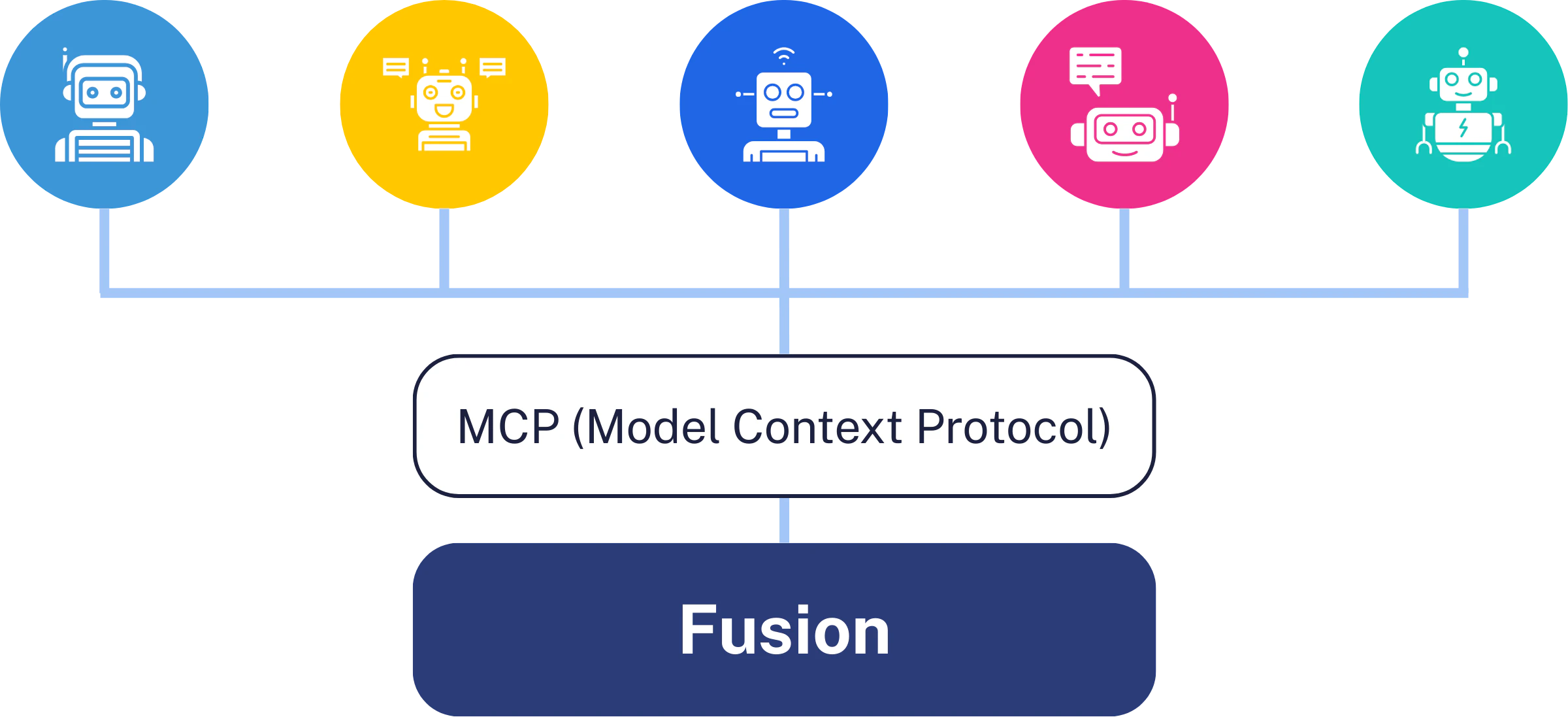
Lucidworks MCP (Model Context Protocol) enables agentic search using Claude to search your Fusion data.
You configure the connection once, and Claude can immediately search your indexed content.
**Self-hosted Fusion users**: See [Monitor MCP Server usage](/docs/5/fusion/operations/monitoring-and-reporting/mcp-monitoring) to set up Grafana dashboards for tracking MCP request volume, latency, and error rates.
## Benefits
Lucidworks MCP server provides these advantages:
* **Self-service integration:** Configure Claude to access Fusion data without custom API development.
* **Enterprise security:** Leverages Fusion's existing security controls, including field-level security, role-based access, and audit logging.
* **Multi-pipeline access:** Access multiple query pipelines through a single MCP endpoint, enabling Claude to search across different data sources and configurations based on context.
* **Multi-tenant architecture:** Support multiple use cases with different data access patterns using query profiles and collection isolation.
* **Query pipeline integration:** Claude benefits from your custom query pipelines, ML models, and relevance tuning.
* **Extensible tool framework:** Add custom tools programmatically that automatically become available to Claude.
## Supported AI clients
Lucidworks MCP works with any MCP-compatible AI client, including these popular clients:
* **Claude Code** - Command-line AI agent with built-in MCP support (recommended for easiest setup).
* **Claude Desktop** - Desktop application for conversational AI.
## MCP server setup
### Before you begin
Before configuring MCP access, ensure you have the following:
* Fusion 5.17 or later deployed with the MCP Server service running
* A Fusion app configured with indexed content
* A query profile created for MCP access
* Claude Code (recommended) or Claude Desktop
The MCP server runs on your Fusion infrastructure at `https://FUSION_HOST/mcp`.
### Set up authentication
Fusion MCP Server supports two authentication methods:
Generate an [API key](/docs/5/fusion/operations/security/access-control/api-keys) in Fusion with the appropriate permissions for your transport mode.
**HTTP mode (Claude Code, custom integrations):**
```
POST,GET:/mcp
```
**STDIO mode (Claude Desktop):**
```
GET:/query-profiles/search-experiences
GET:/collections/*/schema/fields
GET:/collections/*/schema/dynamicfields
GET:/apps/*/query-profiles/**
GET:/apps/*/query/**
```
You can replace the wildcards with specific values from your search experience configuration:
```
GET:/query-profiles/search-experiences
GET:/collections//schema/fields
GET:/collections//schema/dynamicfields
GET:/apps//query-profiles/
GET:/apps//query/
```
To grant access to multiple search experiences, duplicate the permissions for each collection, app, and query profile combination.
Fusion 5.18 and later supports OAuth 2.1 authentication using external identity providers that support the OAuth 2.1 protocol.
This enables enterprise single sign-on workflows and provides automatic token lifecycle management.
**Advantages over API keys:**
* User-specific access control tied to authenticated users
* Automatic token expiration and refresh (access tokens expire after 30 minutes)
* Immediate revocation when users are deleted
* Standard protocol support for all OAuth 2.1-compliant AI clients
**Prerequisites:**
Your external identity provider must support the following:
* OAuth 2.0 / 2.1 with Authorization Code flow and PKCE (RFC 7636)
* Authorization Server metadata (RFC 8414)
* OAuth redirect URIs for callback handling:
* **Azure AD, Keycloak**: Support wildcard redirect URIs like `http://localhost/callback`
* **Okta**: Requires specific callback ports (for example, `http://localhost:3118/callback`)
**Configuration steps:**
Create a JWT realm in Fusion with the following configuration:
* **Issuer**: Must match the external IDP's issuer from the Authorization Server metadata
* **JWK Set URL**: Must point to the external IDP's public keys endpoint
See [Configure Fusion for JWT](/docs/5/fusion/reference/config-ref/configure-fusion-for-jwt-5x) for detailed setup instructions.
Create an OAuth client (Single Page Application type) in your external identity provider with the appropriate redirect URI:
* **Azure AD, Keycloak**: Use wildcard redirect URI `http://localhost/callback`
* **Okta**: Use specific callback port like `http://localhost:3118/callback` (or configure multiple ports)
Note the client ID for use in the next step.
Claude Code starts a local server on a random port for OAuth callbacks.
IDPs that support wildcard redirect URIs work automatically.
For Okta, users can specify a callback port using `--callback-port` when adding the MCP server.
Set the following environment variables in the API Gateway service:
* `OAUTH_CLIENT_ID`: The OAuth client identifier (pre-created in the external IDP) that will be returned to all MCP clients during registration
* `OAUTH_AUTHORIZATION_SERVER_URL`: Base URL of the external IDP's authorization server used to fetch OAuth metadata via `/.well-known/oauth-authorization-server`
**Registration modes:**
Fusion supports two OAuth registration modes:
* **Dynamic registration**: Use when your IDP does not require authorization for its registration endpoint. MCP clients can register directly using the `registration_endpoint` discovered from `/.well-known/oauth-authorization-server`.
* **Static registration**: Use when your IDP requires authorization for its registration endpoint (such as Okta). Fusion exposes a `/oauth2/register` endpoint that returns the pre-configured `OAUTH_CLIENT_ID` to all MCP clients.
### Configure the MCP server
In Fusion 5.18 and later, you configure MCP search experiences through the Query Profile panel in the Fusion UI.
This is the only supported configuration method for 5.18+.
Fusion 5.17 uses a configuration file (configmap) instead.
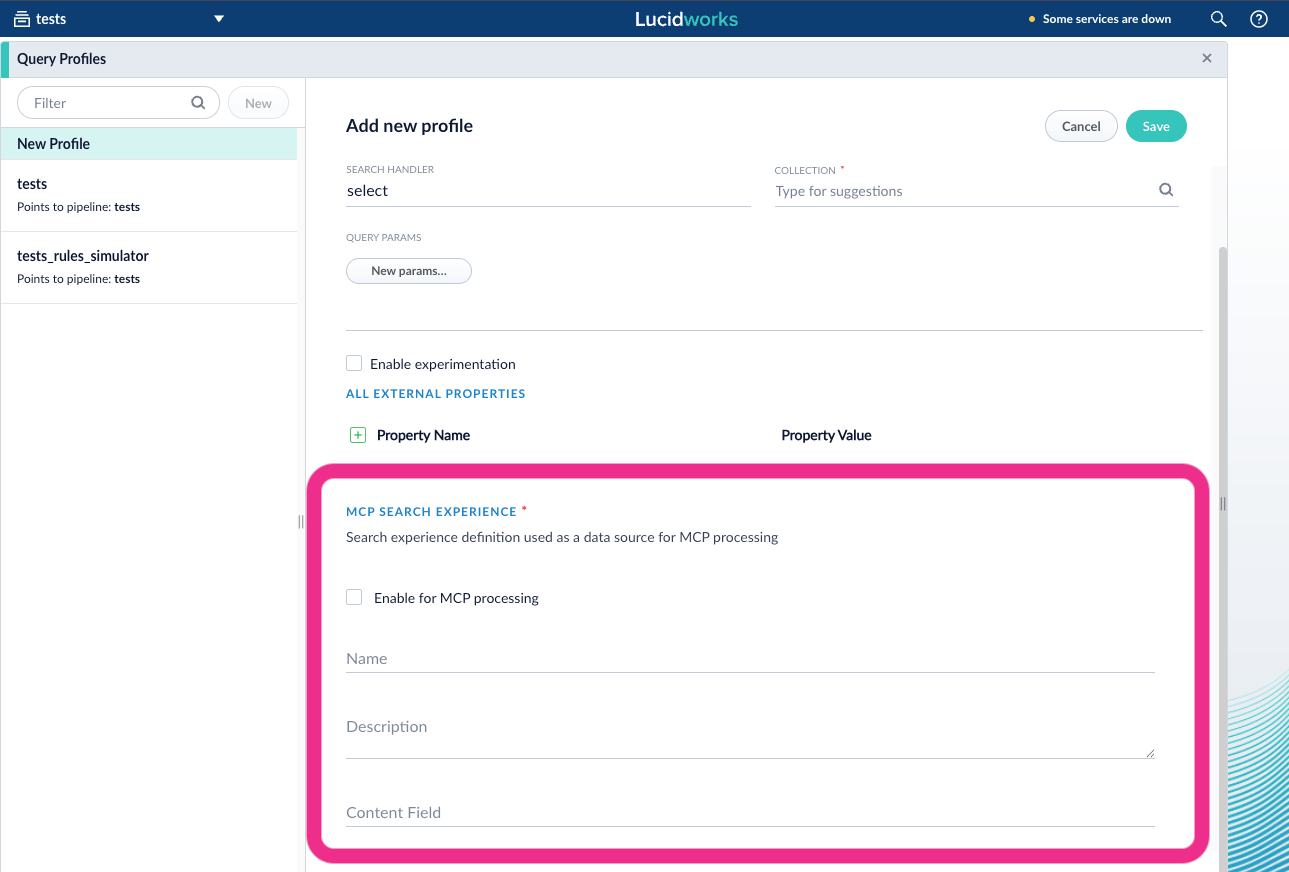
For any query profile, you can configure an MCP search experience in the Query Profiles panel of the Fusion UI.
Repeat these steps for each query profile that you want to make available as an MCP search experience.
In Fusion, navigate to **Querying** > **Query Profiles** and select the query profile you want to make available as an MCP search experience.
Scroll to the **MCP Search Experience** section and select the **Enable for MCP Processing** checkbox:
Fill in the required fields:
* **Name**: Display name for this search experience (required)
* **Description**: Description that helps Claude understand when to use this search experience (required)
* **Content Field**: Optional field name to use as the document description source
The form validates that required fields are populated before allowing you to save.
**How document descriptions are determined:**
When **Content Field** is specified:
* If the field contains a value in the Query Profile response, that value is used.
* If the field is empty, the MCP server falls back to checking default fields like `body_t`.
When **Content Field** is empty:
* The MCP server checks default fields like `body_t` to generate document descriptions.
Click **Save** to apply your changes.
The search experience is immediately available to MCP clients.
Repeat these steps for each query profile you want to expose as an MCP search experience.
Open your Fusion `values.yaml` configuration file.
Add the MCP server configuration to the `query-pipeline` service configuration with at least one search experience, as in this example:
```yaml wrap theme={"dark"}
query-pipeline:
searchExperiences:
- name: "Product Catalog"
description: "Search outdoor gear, camping equipment, and sporting goods inventory"
application-name: "products"
query-profile: "catalog-search"
- name: "Employee Resources"
description: "HR policies, benefits information, and internal documentation"
application-name: "hr-docs"
query-profile: "internal-search"
- name: "Customer Support"
description: "Product guides, troubleshooting articles, and warranty information"
application-name: "support"
query-profile: "support-search"
```
Replace the example values above with your own Fusion configuration.
You can configure multiple search experiences that point to different applications and query profiles.
Claude automatically selects the appropriate search experience based on the query context and the search experience descriptions.
The MCP server validates the configuration at deployment and requires at least one valid search experience with all required fields populated.
If no valid search experiences are configured, the service fails to start with an error message.
**Search experience configuration parameters:**
List of available search experiences.
Each search experience defines how the MCP server routes queries to Fusion applications.
You must configure at least one search experience.
Display name of the search experience.
Claude uses this name to route queries.
Description of what this search experience contains.
This helps Claude determine which search experience to use for a given query.
A well-crafted description helps provide a seamless experience for users.
Make your descriptions as detailed as possible to enable Claude to quickly identify the right search experience for any prompt.
Fusion application name to query.
Fusion query profile to use for queries.
**Optional: Tool description configuration**
You can also configure custom descriptions for the MCP tools.
Description for the `search_documents` tool.
This parameter is optional and has a safe default that includes critical dependency information.
Only override this if you understand [how the tools work together](#how-the-tools-work-together).
The default description instructs Claude to first call `list_search_experiences` to obtain valid search experience names.
Incorrect descriptions can break the automatic workflow.
Description for the `list_search_experiences` tool.
This parameter is optional and has a safe default that includes usage examples.
Only override this if you understand [how the tools work together](#how-the-tools-work-together).
Modifying this incorrectly can prevent Claude from discovering available search experiences properly.
### Connect an AI agent
To connect an AI agent to Fusion, you need your [Fusion API key](/docs/5/fusion/operations/security/access-control/api-keys) for authentication.
The key is sent as an HTTP header with each request.
Claude Code connects with a single command.
```bash wrap theme={"dark"}
claude mcp add --transport http fusion https://FUSION_HOST/mcp --header "x-api-key: FUSION_API_KEY"
```
Replace the placeholder values with your Fusion host, port, and API key.
If you receive errors when running this command, check your Claude Code version.
The `--transport` and `--scope` flags require a recent version of Claude Code.
By default, MCP servers are scoped to the current project.
To make the server available globally across all projects, add `--scope user`.
To explicitly scope it to the current project, add `--scope project`.
**OAuth with Okta**: If using OAuth authentication with Okta, add `--callback-port` to specify the port configured in your OAuth client:
```bash wrap theme={"dark"}
claude mcp add --transport http --callback-port 3118 fusion https://FUSION_HOST/mcp
```
```bash wrap theme={"dark"}
claude mcp list
```
You should see `fusion` listed, with the HTTP transport.
Lucidworks provides an MCP Bundle (`.mcpb`) file; this is the recommended method.
Alternatively, you can configure Claude Desktop manually by editing the JSON configuration file.
1. Make sure Claude Desktop is already installed.
2. [Download `fusion-5-17-0.mcpb`](https://github.com/lucidworks/fusion-cloud-native/raw/refs/heads/master/mcp/fusion-5-17-0.mcpb).
3. Double-click the downloaded file. The file opens in Claude Desktop, where you can review the file's details.
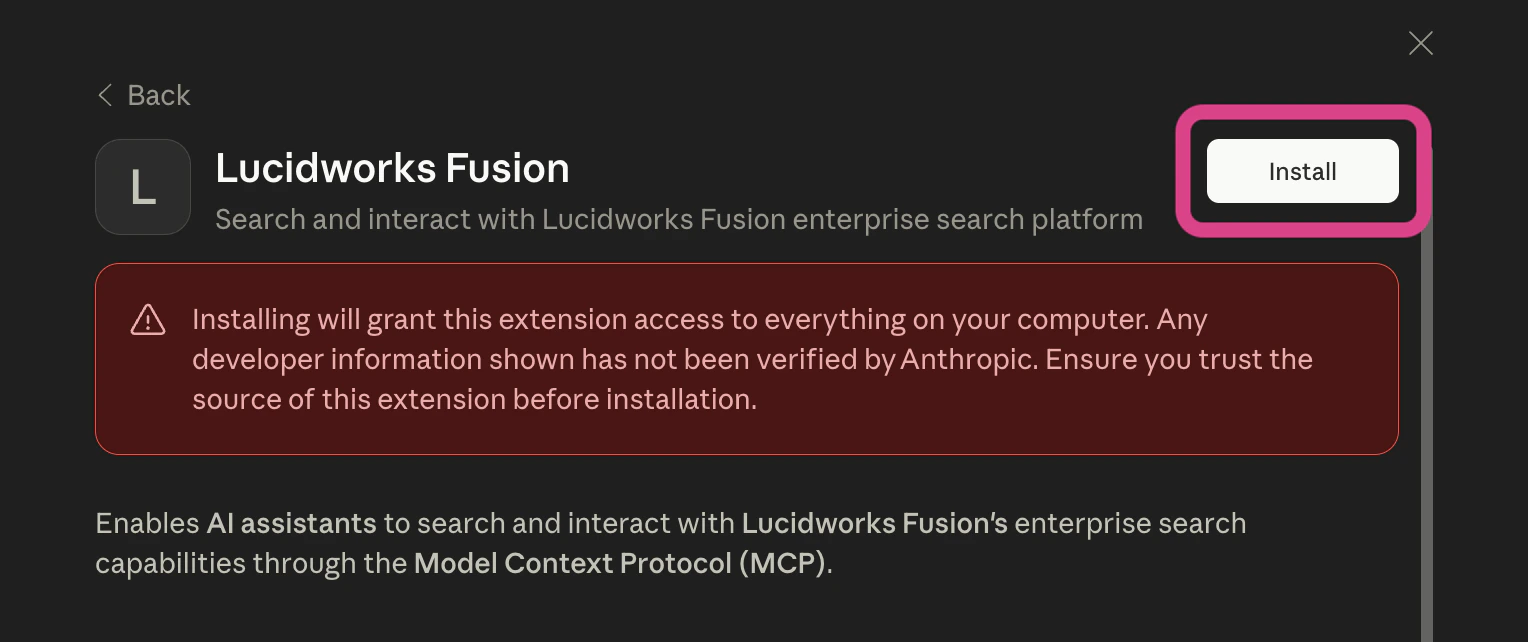
4. In Claude Desktop, click **Install**:
5. In the next dialog, click **Install** to confirm the installation.
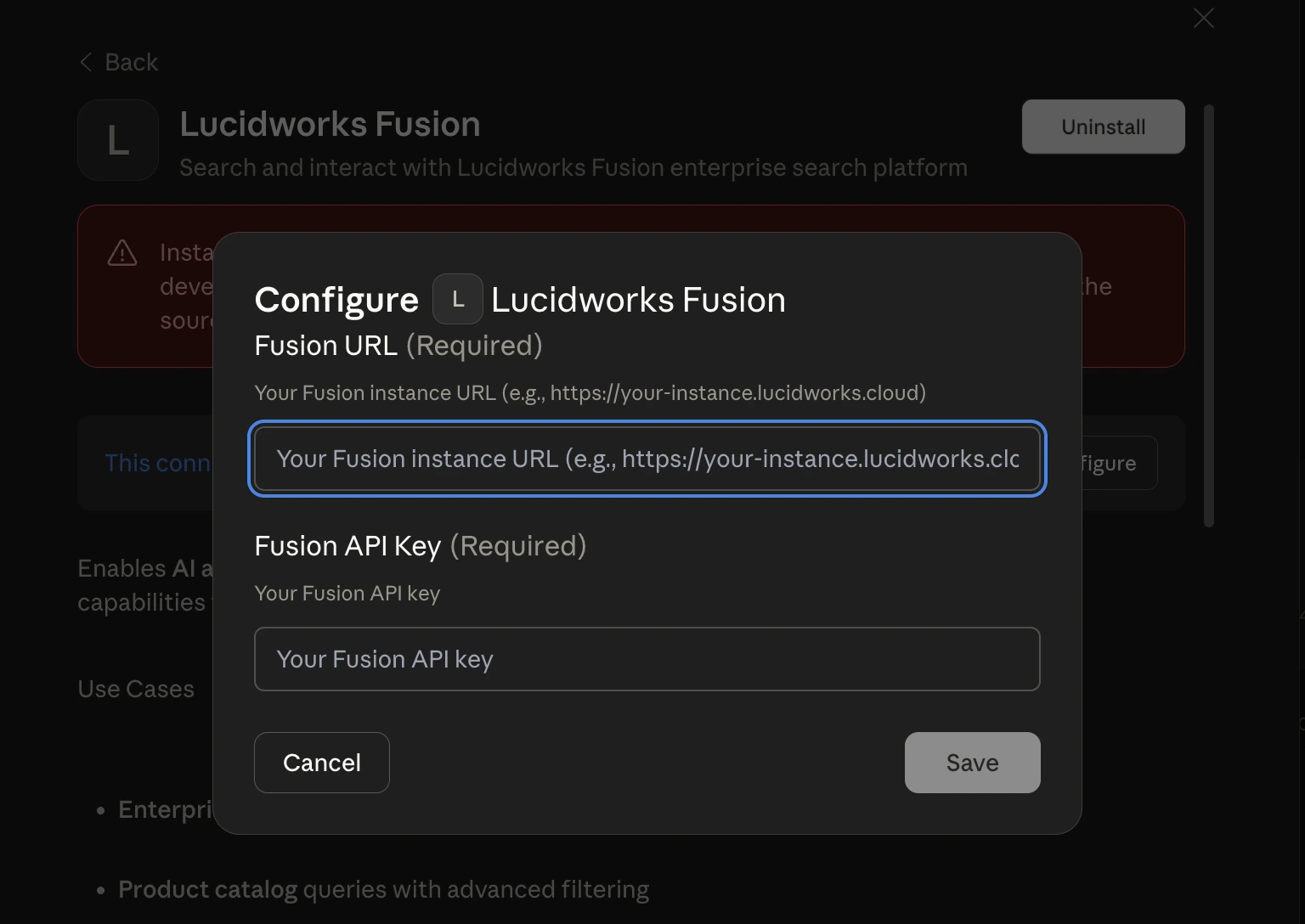
6. Enter your MCP server URL (as in `https://FUSION_HOST/mcp`) and your API key:
7. Click **Save**.
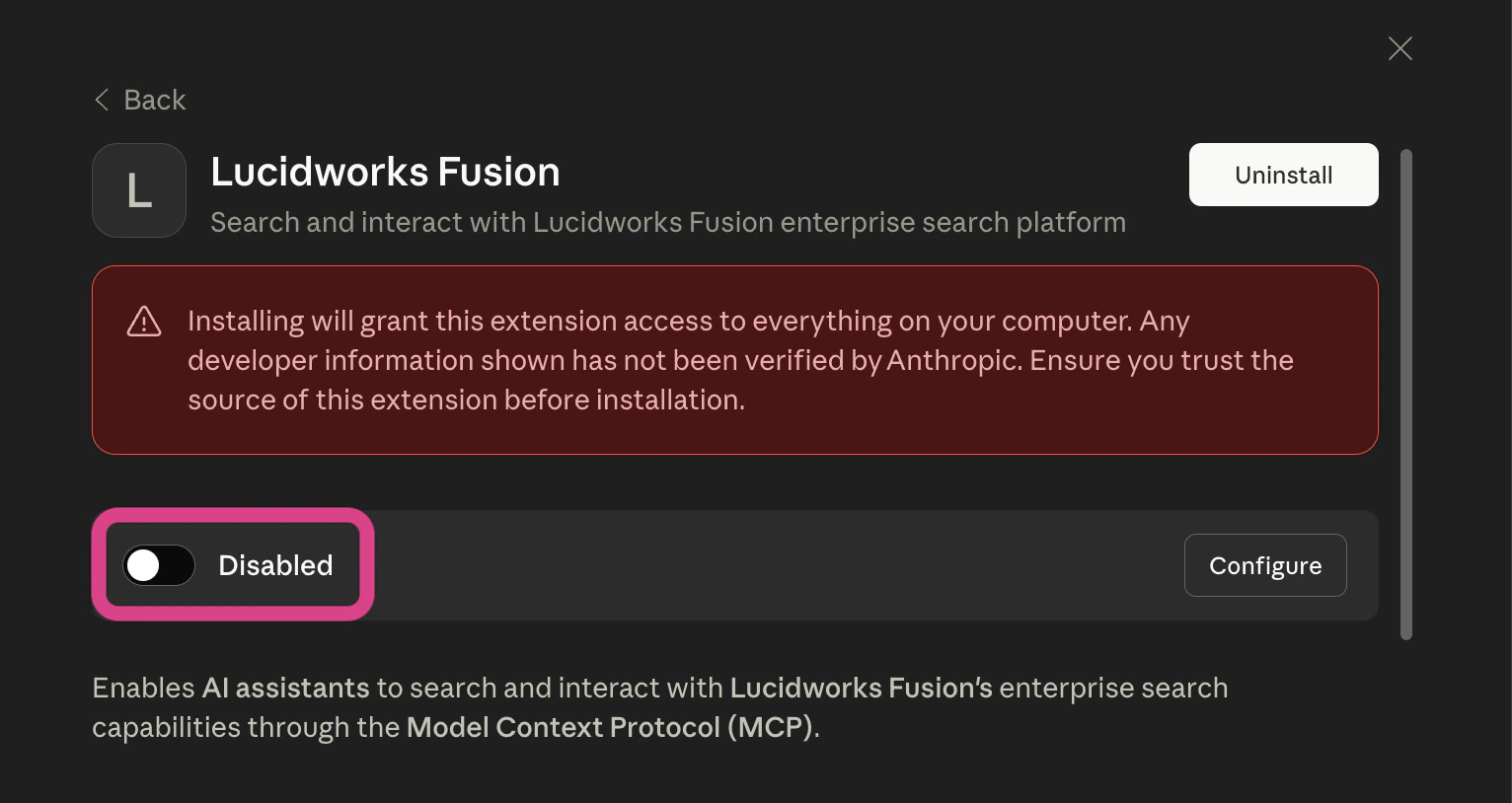
8. Click the **Disabled** switch to toggle it to **Enabled**:
9. Close the Lucidworks Fusion modal in Claude Desktop.
10. Verify the connection.
Go to **Customize** > **Connectors** in the Claude Desktop interface to confirm the MCP server is connected.
Ask Claude to search Fusion to verify it uses the Lucidworks MCP tools automatically.
1. Locate the configuration file for your operating system:
* **macOS:** `~/Library/Application Support/Claude/claude_desktop_config.json`
* **Windows:** `%APPDATA%\Claude\claude_desktop_config.json`
* **Linux:** `~/.config/Claude/claude_desktop_config.json`
2. Edit the file to add the Fusion MCP server:
```json theme={"dark"}
{
"mcpServers": {
"fusion": {
"command": "docker",
"args": [
"run", "--rm", "-i", "--name", "mcp-server",
"-e", "FUSION_URL=https://FUSION_HOST/mcp",
"-e", "FUSION_API_KEY=API_KEY",
"lucidworks/mcp-server-stdio:5.17.0"
]
}
}
}
```
Replace the placeholder values with your specific credentials.
3. Restart Claude Desktop.
4. Verify the connection.
Look for the hammer icon (🔨) in the Claude interface to confirm the MCP server is connected.
Ask Claude to search Fusion, and it should automatically use the `fusion` tool.
### Test the connection
After configuring your AI agent, test the connection with these example prompts.
These prompts verify that the MCP server is working correctly and that Claude can discover and use the configured search experiences.
Test whether Claude can successfully retrieve the configured search experiences from Fusion.
Using the Lucidworks MCP's `list_search_experiences` tool, show me all available search experiences in this Fusion instance.
Test whether Claude can identify the correct search experience by name and execute a search query.
Using the Lucidworks MCP's `search_documents` tool, search the Product Catalog search experience for wireless headphones and return the results.
Test that Claude can automatically route queries to the correct search experience based on context, demonstrating access to multiple query pipelines through a single MCP endpoint.
Using the Lucidworks MCP, first search the Product Catalog for wireless headphones, then search Employee Resources for the return policy. Show results from both search experiences.
Test whether Claude can match natural language queries to search experience descriptions and return relevant results.
Using the Lucidworks MCP's `search_documents` tool, identify the appropriate search experience and search for information about benefits and time off policies, then return the results.
## Search with MCP
Lucidworks MCP server provides four tools that work together in a discovery-to-execution pattern.
Claude automatically determines which tool to call based on the user's query.
### List search experiences
The `list_search_experiences` tool discovers available search experiences configured in Fusion.
You can use this tool in the following situations:
* You need to see what search experiences are available.
* You need to determine which search experience to use for a specific query.
* You need to help users who don't know what they can search for.
Claude automatically calls this tool when users ask questions like "What can I search here?" or "What do I find in Fusion?".
The tool returns a list of configured search experiences with their names and descriptions.
This tool takes no parameters.
### Search documents
The `search_documents` tool searches for documents and returns relevant results from Fusion collections.
Based on user input, it automatically selects a search experience and can optionally filter and sort results.
For example, a user can input "Find all reports from the last six months and sort them with the newest ones first" to trigger a query that uses `filters` to specify the document type and date range and `sort` to order the results by date, newest to oldest.
### Get a document
The `get_document` tool fetches a specific document by its ID.
This is useful when `search_documents` has already been called and the user inquires about a specific document returned in those results.
The tool returns complete details about the document, such as its title, description, URL, similar documents (if [MoreLikeThis](/docs/5/fusion/reference/config-ref/pipeline-stages/query-stages/solr-more-like-this-query-stage) is implemented), and highlighted fields (if [highlighting](/docs/5/fusion/reference/config-ref/pipeline-stages/query-stages/highlight-query-stage) is implemented).
### Get the field schema
The `get_schema` tool retrieves available fields within a specific search experience and returns schema information with sortable and searchable capability flags.
You can use this tool in the following situations:
* You need to discover what fields exist within a particular search experience.
* You need to determine which fields can be used for sorting.
* You need to determine which fields can be used for filtering.
* You need to display field information to users with human-readable names.
Claude automatically calls this tool before using the `sort` or `filters` parameters when searching documents, or when users ask questions like "What fields can I sort by?" or "What can I filter by?".
The tool returns field names with their display values and capability flags.
By default, the tool returns only populated fields.
Set `includeEmptyFields=true` to retrieve the complete schema.
### How the tools work together
Claude uses these tools in the following order:
1. When a user asks a question without specifying a search experience, Claude calls `list_search_experiences` to discover available options.
2. Claude analyzes the search experiences and matches them to the user's query intent.
3. Claude calls `search_documents` with the appropriate search experience.
4. Claude returns results to the user.
For example, when a user asks "Find hiking backpacks," Claude automatically completes the following steps:
1. Calls `list_search_experiences` and receives the following data:
```json wrap theme={"dark"}
{
"searchExperiences": [
{"name": "Product Catalog", "description": "Outdoor gear and sporting equipment"},
{"name": "Support Articles", "description": "Product guides, warranties, and care instructions"}
]
}
```
2. Identifies the "Product Catalog" search experience as the one that best matches the prompt.
3. Calls `search_documents` with `searchExperience: "Product Catalog"` and the user's query.
4. Returns the product results.
This pattern allows users who know nothing about Fusion's configuration to simply ask questions and get results without needing to understand the underlying structure.
## Example use cases
The following examples demonstrate common MCP integration patterns.
An employee uses Claude to search internal technical documentation:
```text User query wrap theme={"dark"}
Find all technical documentation about JWT authentication from the past six months
```
```json MCP call (automatic) wrap theme={"dark"}
{
"method": "tools/call",
"params": {
"name": "search_documents",
"arguments": {
"searchExperience": "technical_docs",
"query": "JWT authentication",
"filters": [
{"field": "doc_type", "operator": "equals", "value": "technical"},
{"field": "date", "operator": "relative_date_range", "timeUnit": "MONTHS", "timeValue": 6}
],
"rows": 10
}
}
}
```
```text Claude output wrap theme={"dark"}
I found eight technical documents about JWT authentication from the past six months:
1. **JWT Authentication Best Practices 2026** (Jan 15, 2026)
This guide covers modern JWT authentication patterns including...
[View Document](https://docs.company.com/security/jwt-guide)
2. **Implementing JWT in Node.js** (Feb 2, 2026)
Step-by-step tutorial for implementing JWT tokens...
[View Document](...)
```
A Japanese-speaking employee searches in their native language:
**User query (Japanese):**
```text wrap theme={"dark"}
認証に関する最新のドキュメントを教えてください
```
Fusion processes the Japanese query, applies language-specific tokenization, and returns results with Japanese snippets.
Claude displays results in Japanese, maintaining the natural language interaction.
If your query pipeline is configured with [highlighting](/docs/5/fusion/reference/config-ref/pipeline-stages/query-stages/highlight-query-stage) or [MoreLikeThis](/docs/5/fusion/reference/config-ref/pipeline-stages/query-stages/solr-more-like-this-query-stage), the MCP server can include those features in its responses:
```json Example response wrap theme={"dark"}
{
"jsonrpc": "2.0",
"id": 10,
"result": {
"content": [],
"isError": false,
"structuredContent": {
"summary": "Found 3 documents for query: search",
"documents": [
{
"id": "doc-123",
"title": "Introduction to Search Analytics",
"url": "https://docs.example.com/search-analytics",
"moreLikeThis": [
{
"id": "doc-456",
"title": "Query Performance Optimization"
},
{
"id": "doc-789",
"title": "Relevance Tuning Best Practices"
},
{
"id": "doc-321",
"title": "Understanding Search Metrics"
}
],
"highlighting": {
"title_t": ["Introduction to Search Analytics"],
"description_t": ["Learn how to analyze and improve your search performance"]
}
}
],
"searchExperiences": [],
"querySpellcheckSuggestions": []
}
}
}
```
A user asks Claude to search across multiple related content types in a single query:
**User query:**
```text wrap theme={"dark"}
Find all customer feedback about our mobile app performance
```
**Search experience configuration:**
The workspace has three search experiences configured:
* "Customer Support Tickets" - Support cases and resolutions
* "Product Reviews" - App store reviews and ratings
* "User Surveys" - Customer satisfaction surveys and NPS data
**MCP behavior:**
Claude recognizes that customer feedback spans multiple sources and automatically searches all three experiences in parallel, then synthesizes the results.
**Claude output:**
```text wrap theme={"dark"}
I found customer feedback about mobile app performance across three sources:
**Support Tickets:**
- 23 recent tickets mention slow loading times on iOS devices
- Most common issue: image gallery performance (12 tickets)
[View tickets](https://...)
**App Store Reviews:**
- Average 3.2 stars for performance (down from 4.1 last quarter)
- Top complaint: "App freezes when scrolling through photos"
- 47 mentions of battery drain during video playback
[View reviews](https://...)
**User Surveys:**
- 67% of respondents rate mobile app speed as "needs improvement"
- Performance is the #2 requested enhancement after offline mode
- Users on Android 12+ report better experience than iOS users
[View survey results](https://...)
**Summary:** Performance concerns are consistent across all feedback channels, with image and video handling being the primary pain points, particularly on iOS devices.
```
This demonstrates how a single query can benefit from searching multiple related content sources, with Claude automatically determining which search experiences are relevant and synthesizing results from all of them.
## Example multi-tenant configurations
Lucidworks MCP server supports multi-tenant architectures where different users or use cases access different data subsets.
You can configure separate MCP endpoints with different query profiles:
```bash Employee configuration (full access) wrap theme={"dark"}
claude mcp add --transport http fusion-employee \
https://FUSION_HOST/mcp \
--header "x-api-key: EMPLOYEE_KEY"
```
```bash Contractor configuration (restricted access) wrap theme={"dark"}
claude mcp add --transport http fusion-contractor \
https://FUSION_HOST/mcp \
--header "x-api-key: CONTRACTOR_KEY"
```
* The employee API key accesses a server with search experiences configured for full access to all collections.
* The contractor API key accesses a server with search experiences limited to public documentation and shared resources.
You can support both public (unauthenticated) and authenticated access patterns:
```json Public kiosk configuration wrap theme={"dark"}
{
"mcpServers": {
"fusion-public": {
"type": "http",
"url": "https://FUSION_HOST/mcp",
"headers": {
"x-api-key": "PUBLIC_READONLY_KEY"
}
}
}
}
```
```json Authenticated employee configuration wrap theme={"dark"}
{
"mcpServers": {
"fusion-internal": {
"type": "http",
"url": "https://FUSION_HOST/mcp",
"headers": {
"x-api-key": "EMPLOYEE_KEY"
}
}
}
}
```
This approach enables use cases like showroom kiosks (public read-only access with search experiences configured for public documents) and internal employee tools (authenticated with search experiences configured for full access and security trimming) using the same Fusion instance.
## Troubleshooting
If you cannot connect to the MCP server, verify the following:
1. Verify the endpoint is accessible:
```bash expandable wrap theme={"dark"}
curl -X POST https://FUSION_HOST/mcp \
-H "Content-Type: application/json" \
-H "Accept: text/event-stream, application/json" \
-H "x-api-key: API_KEY" \
-i \
-d '{
"jsonrpc": "2.0",
"id": 1,
"method": "initialize",
"params": {
"protocolVersion": "2025-11-25",
"capabilities": {},
"clientInfo": {
"name": "test-client",
"version": "1.0.0"
}
}
}'
```
The protocol version in this example (`2025-11-25`) may differ from your installed version. See the [MCP schema specification](https://modelcontextprotocol.io/specification/2025-11-25/schema) for the current version.
If the endpoint is accessible, it returns output similar to the example below.
Any other result means that the endpoint is not accessible.
```bash expandable wrap theme={"dark"}
{
"jsonrpc": "2.0",
"id": 1,
"result": {
"protocolVersion": "2024-11-05",
"capabilities": {
"logging": {},
"prompts": {
"listChanged": false
},
"resources": {
"subscribe": false,
"listChanged": true
},
"tools": {
"listChanged": true
}
},
"serverInfo": {
"name": "Lucidworks MCP Server",
"version": "1.0.0"
}
}
```
}
````
2. Confirm that the Fusion version is 5.17 or later:
```bash wrap
curl https://FUSION_HOST:FUSION_PORT/api/admin/version
````
3. Check the URL path is exactly `/mcp` (no trailing slash, not `/api/mcp`).
4. Test with verbose logging:
```bash wrap theme={"dark"}
claude mcp test fusion --verbose
```
1. Regenerate the API key in Fusion Admin (the key may be expired or revoked).
2. Verify the header format is exactly `x-api-key: API_KEY` (case-sensitive).
3. Test the key directly against Fusion's API:
```bash wrap theme={"dark"}
curl -H "x-api-key: abc123" https://FUSION_HOST:FUSION_PORT/api/apps/YOUR_APP/query/YOUR_PROFILE
```
1. Verify the query profile exists in the specified Fusion app.
2. Check the profile name is an exact match (case-sensitive).
3. Ensure the API key's role has permission to execute queries on this profile.
The `x-api-key` header is required for authentication:
```bash wrap theme={"dark"}
claude mcp add --transport http fusion https://FUSION_HOST/mcp --header "x-api-key: API_KEY"
```
Run this command to verify your configuration:
```bash wrap theme={"dark"}
claude mcp list
```
The response should show your MCP URL:
```bash wrap theme={"dark"}
fusion - https://FUSION_HOST/mcp (http)
```
If searches complete successfully but return no results, try these steps.
1. Verify the Fusion app contains indexed content:
```bash wrap theme={"dark"}
curl "https://FUSION_HOST:FUSION_PORT/api/apps/YOUR_APP/query/YOUR_PROFILE?q=*:*"
```
2. Check that the query profile has access to the expected collections.
3. Test the same query directly in Fusion's Query Workbench to confirm results exist.
4. Review security trimming rules that might filter out documents for the API key's role.
If MCP searches are slow, try these steps.
1. Check the query profile's pipeline stages for expensive operations.
2. Review the query complexity (complex filter queries can impact performance).
3. Monitor Fusion's query logs for slow queries.
4. Consider optimizing ML model execution or caching strategies.
5. Verify network latency between Claude and the Fusion instance.
If the Lucidworks MCP server fails to start with an error message about search experiences, follow these steps.
**Symptom:**
```text wrap theme={"dark"}
ERROR - No valid search experiences configured. Server cannot start without at least one valid search experience.
Exception in thread "main" java.lang.IllegalStateException: No valid search experiences configured...
```
**Solution:**
1. Add at least one search experience with all required fields to `values.yaml`:
```yaml wrap theme={"dark"}
query-pipeline:
searchExperiences:
- name: "Company Knowledge" # Required
description: "Internal documentation..." # Required
application-name: "APP_NAME" # Required
query-profile: "default" # Required
```
2. Restart the server.
3. Verify startup logs show: `Found 1 valid search experience(s): [Company Knowledge]`
If `list_search_experiences` returns fewer search experiences than you configured, follow these steps.
**Solution:**
1. Check server startup logs for: `INFO - Found N valid search experience(s): [names]`
2. Compare logged names with your configuration.
3. Verify all required fields are populated (`name`, `description`, `application-name`, `query-profile`).
4. Fix configuration and restart.
If your search query returns an error message about the search experience not being configured, verify the search experience name.
**Symptom:**
```json wrap theme={"dark"}
{
"summary": "Search experience is not configured",
"documents": [],
"searchExperiences": [...]
}
```
**Solution:**
1. Call `list_search_experiences` to get exact names.
2. Use the exact name (case-sensitive).
Common mistakes:
* ❌ "engineering docs" (wrong case)
* ✅ "Engineering Docs" (exact match)
If you receive a generic error message about being unable to process the request, verify your Fusion configuration and connectivity.
**Symptom:**
```json wrap theme={"dark"}
{
"content": [{"type": "text", "text": "Error: Unable to process request"}],
"isError": true
}
```
**Solution:**
Follow these troubleshooting steps:
1. Verify Fusion is running and accessible.
2. Check that `application-name` exists in Fusion (case-sensitive).
3. Verify `query-profile` exists and is enabled in Fusion.
4. Check authentication and network connectivity.
5. Review MCP server logs for detailed error messages.
If your search completes successfully but returns no documents, verify your data and query configuration.
**Symptom:**
```json wrap theme={"dark"}
{
"summary": "Found 0 documents",
"documents": [],
"searchExperiences": []
}
```
**Solution:**
Follow these troubleshooting steps:
1. Verify documents are indexed in Fusion (check Collections in Fusion UI).
2. Try omitting the query parameter to return all documents (defaults to `*:*`):
```json wrap theme={"dark"}
{
"searchExperience": "Company Knowledge"
}
```
3. Try a broader query.
4. Test the same query directly in Fusion's Query Workbench.
5. Verify `application-name` points to the correct Fusion application.
6. Check query profile settings for permission filters.
 5. In the next dialog, click **Install** to confirm the installation.
6. Enter your MCP server URL (as in `https://FUSION_HOST/mcp`) and your API key:
5. In the next dialog, click **Install** to confirm the installation.
6. Enter your MCP server URL (as in `https://FUSION_HOST/mcp`) and your API key:
 7. Click **Save**.
8. Click the **Disabled** switch to toggle it to **Enabled**:
7. Click **Save**.
8. Click the **Disabled** switch to toggle it to **Enabled**:
 9. Close the Lucidworks Fusion modal in Claude Desktop.
10. Verify the connection.
Go to **Customize** > **Connectors** in the Claude Desktop interface to confirm the MCP server is connected.
Ask Claude to search Fusion to verify it uses the Lucidworks MCP tools automatically.
9. Close the Lucidworks Fusion modal in Claude Desktop.
10. Verify the connection.
Go to **Customize** > **Connectors** in the Claude Desktop interface to confirm the MCP server is connected.
Ask Claude to search Fusion to verify it uses the Lucidworks MCP tools automatically.