> ## Documentation Index
> Fetch the complete documentation index at: https://doc.lucidworks.com/llms.txt
> Use this file to discover all available pages before exploring further.
# Data Models
export const LwTemplate = ({title = "Key questions to get you started", icon = "sparkles", cta = "Powered by Agent Studio", linkHref = "https://lucidworks.com/demo/?utm_source=docs&utm_medium=referral&utm_campaign=docs_cta_ai"}) => {
const [isLoaded, setIsLoaded] = useState(false);
useEffect(() => {
const timer = setTimeout(() => {
setIsLoaded(true);
}, 500);
return () => clearTimeout(timer);
}, []);
return
{isLoaded && `
}} />}
Powered by Lucidworks Agent Studio
;
};
[localhost link]: http://localhost:3000/docs/5/fusion/getting-data-in/indexing/data-models/overview
[mintlify link]: https://doc.lucidworks.com/docs/5/fusion/getting-data-in/indexing/data-models/overview
[old doc.lw link]: https://doc.lucidworks.com/fusion/5.9/8829
Data models simplify the process of getting started with Fusion by providing pre-configured objects to reduce the effort spent on basic starting tasks. This helps keep documents consistent between datasources and intuitive to the object’s type.
## Components
Data models consist of the following:
* **[Object type](#object-type)** - Describes the object type, or what a document in the index is. For example, an object may be a file, email, person, product, etc.
* **[Index pipeline](#index-pipeline)** - Specifies the index pipeline that is indexing documents relevant to the data model.
* **[Query pipeline](#query-pipeline)** - Specifies the query pipeline that is invoked when a query involves the data model.
* **[Fields configuration](#fields-configuration)** - Creates a schema map that describes how the object schema should be translated into the Solr index. For example, the field name `first_name` can map to Solr fields `first_name_s` and `first_name_t`.
### Object type
The object type defines what a document is and what associated data is expected.
**Example**
When indexing employees for a company directory, certain fields are expected by a user. This includes the employees’s name, title, and contact information. An object type, `person`, is created for this purpose. The data model object is created to include this information in a clear, intuitive way:
| Data Model Field | Solr Fields |
| ---------------- | -------------------------------- |
| `first_name` | `firstName_t` `firstName_s` |
| `last_name` | `lastName_t` `lastName_s` |
| `email` | `email_s` |
| `job_title` | `jobTitle_t` `lastName_s` |
### Index pipeline
When you add a connector in Fusion, a default index pipeline is created that is used to map the documents' fields to the data model fields. The pipeline contains two pipeline stages, the **[Data Model Mapping](/docs/5/fusion/reference/config-ref/pipeline-stages/index-stages/datamodel-mapping-index-stage)** index stage and the **[Call Data Model Pipeline](/docs/5/fusion/reference/config-ref/pipeline-stages/index-stages/call-datamodel-pipeline-index-stage)** index stage. Once configured, this stage indexes the documents as various object types. Fields irrelevant to that object type are optionally discarded.
### Query pipeline
The query pipeline is applied by default whenever a user is searching documents of the object type. This enables query pipeline configurations specialized for the object type. For example, a query pipeline for the object type `person` could boost or filter results for current employees over previous employees.
The query pipeline is optional for data models.
### Fields configuration
Data model fields allow you to map document fields to Solr fields in a way that respects the data model object type. The fields configuration allows this map to be intuitive to new users, offering a guided experience for configuring these options.
## UI fields configuration
| Field | Required | Description | Example |
| -------------------------- | -------- | --------------------------------------------------------------------------------------------- | --------------------------------- |
| **Name of the Data Model** | ✅ | `string` A user-friendly name for the data model. This typically describes the object type. | `person` |
| **Index Pipeline** | ✅ | `string` The name of the index pipeline used for the data model. | `companyDirectory-index-pipeline` |
| **Query Pipeline** | ✅ | `string` The name of the query pipeline used for the data model. | `companyDirectory-query-pipeline` |
| **Field Name** | ✅ | `string` | `first_name` |
| * *Required** | ✘ | `boolean` | `true` |
| ***Solr Fields* ↓** | | | |
| **Solr Field Name** | ✅ | `string` | `firstName_t` |
| **Is Query Field** | ✘ | `boolean` | `true` |
| **Enable Phrase Match** | ✘ | `boolean` | `false` |
| **Boost Value** | ✘ | `integer` The amount of boost to give to the query. | `1` |
| **Phrase Boost** | ✘ | `integer` The amount of boost to give to the query, if it matches as an exact phrase. | `2` |
## More information
* **Configure a Data Model**
* [Data Models API reference](/api-reference/data-models/get-data-models-service-status)
* [Data Model Mapping Index Stage reference](/docs/5/fusion/reference/config-ref/pipeline-stages/index-stages/datamodel-mapping-index-stage)
* [Call Data Model Pipeline Index Stage reference](/docs/5/fusion/reference/config-ref/pipeline-stages/index-stages/call-datamodel-pipeline-index-stage)
Data models simplify the process of getting started with Fusion by providing pre-configured objects to reduce the effort spent on basic starting tasks. This helps keep documents consistent between datasources and intuitive to the object’s type.
See the [Data Models](/docs/5/fusion/getting-data-in/indexing/data-models/overview) topic for more information.
## Configure the datasource
This section references the Slack V2 Connector.
1. Navigate to **Indexing > Datasources**.
2. Click the **Add** button, and choose the Slack V2 connector from the list.
Some connectors include built-in data models as a standard component. Others require you to manually create data models.
3. Complete the datasource configuration:
* Ideally, use a pipeline specifically created for this data model. For now, you can create the pipeline by navigating to **Indexing > Index Pipelines** and clicking the **Add** button. Configure it using the information in [Configure the index pipeline](#configure-the-index-pipeline).
* Under **Profiles Settings**, select *Index profiles*:
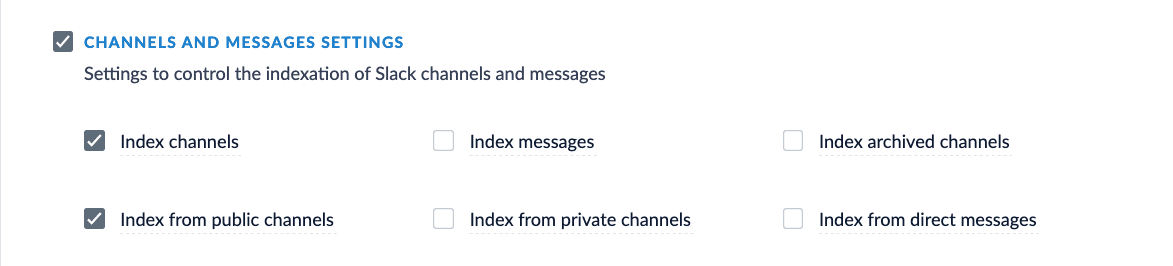
* Under **Channels and Messages Settings**, select *Index channels* and *Index from public channels*:
4. Click **Save**.
5. Click **Run** to run the indexing job.
{/* [#configure-data-model] */}
## Configure the data model
Some connectors include built-in data models with pre-configured object types. However, you can add new data models or customize existing ones to fit your particular needs.
1. Navigate to **Indexing > Data Models**.
2. Click the **Add** button.
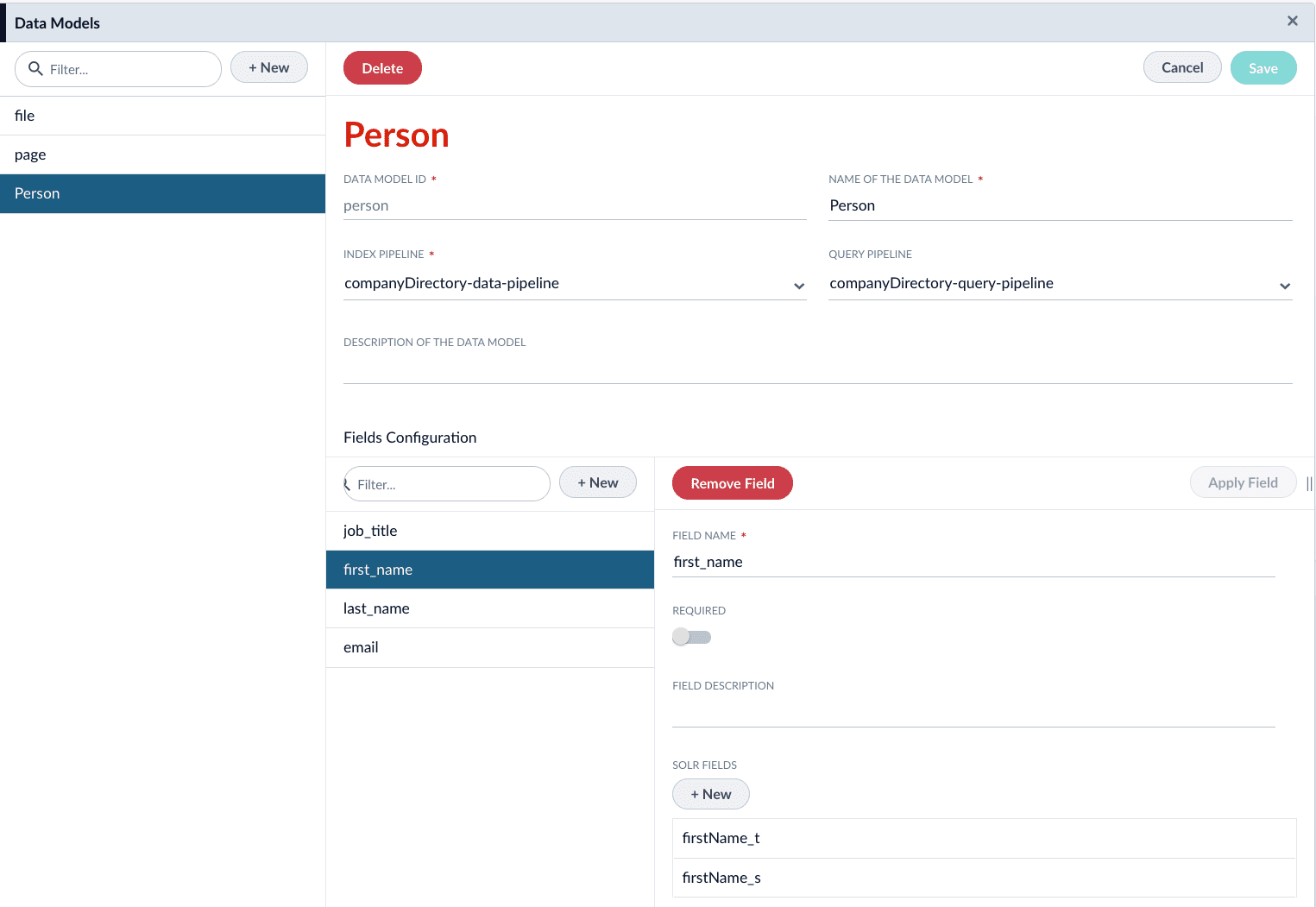
3. Create a new data model. For example, `person`.
4. Assign the index pipeline for the data model. In this example, create a new index pipeline named `companyDirectory-data-pipeline`.
This pipeline is ideally for operation with data models only. For the sake of this example, we will only be using the default stages. Applying additional logic/stages specific to the object would occur here.
5. Assign the query pipeline you will use to query the indexed documents. In this example, create a new query pipeline named `companyDirectory-query-pipeline`.
6. Click the **New** button under **Fields Configuration**.
7. Complete the required configurations, as detailed in [Data Models API Reference](/api-reference/data-models/get-data-models-service-status). Create fields for the following:
| Field Name | Solr Fields |
| ------------ | ---------------------------- |
| `first_name` | `firstName_t`, `firstName_s` |
| `last_name` | `lastName_t`, `lastName_s` |
| `email` | `email_s` |
| `job_title` | `jobTitle_t`, `jobTitle_s` |
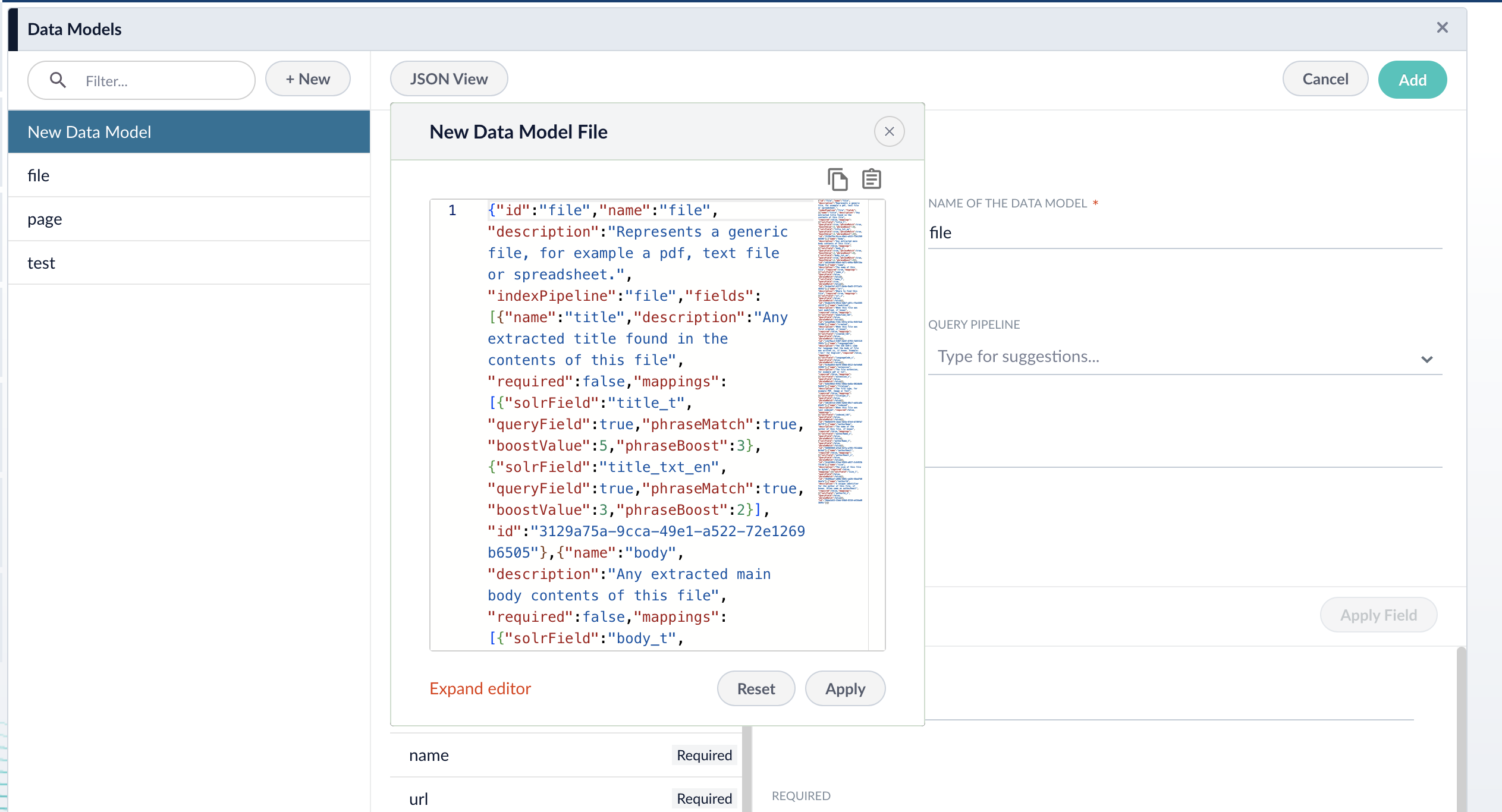
8. If needed, edit the JSON for the data model before saving. After saving the data model, this JSON viewer becomes read-only.
9. Click the **Save** button to save the data model.
## Configure the index pipeline
To begin, navigate to **Indexing > Index Workbench**. Alternatively, the `companyDirectory-index-pipeline` pipeline can be configured in **Indexing > Index Pipelines**, but you are not able to preview results.
The raw data fields in your index coming from Slack may differ from the example data fields used in this article.
### Data Model Mapping stage
1. Click the **Add a Stage** button, and choose **Data Model Mapping** from the list.
2. Use the **Data Model Type** dropdown to select the `person` data model.
3. *(optional)* Check the **Match Trigger** checkbox and assign the following values:
| Field | Value |
| ------------------ | -------- |
| **Field to match** | `type_s` |
| **Value to match** | `user` |
The **Value to match** field supports RegEx. You can assign multiple values. Alternatively, you can create additional **Data Model Mapping** stages.
4. Assign field mappings for the Slack datasource’s raw datasources:
| Source Field | Data Model Field |
| ------------ | ---------------- |
| `first_name` | `first_name` |
| `last_name` | `last_name` |
| `email` | `email` |
5. *(optional)* Check the **Keep unmapped fields** checkbox to preserve fields that are unmatched to the data model.
6. Click **Apply**.
### Call Data Model Pipeline stage
This stage must be placed *after* the Data Model Mapping stage.
1. Click the **Add a Stage** button, and choose **Call Data Model Pipeline** from the list.
2. Assign the value `_lw_data_model_type_s` to the **Data Model Type Field** field. This field is created when a document meets the criteria specified in the **Data Model Mapping**.
3. Click **Apply**.
## Next steps
With the index pipeline configured, you are now ready to complete the indexing job by clicking the **Start Job** button.
Once complete, the documents are ready for viewing in the Query Workbench:
1. Navigate to **Querying > Query Workbench**.
2. Click the **Load** button.
3. Choose the query pipeline you specified when creating the data model, `companyDirectory-query-pipeline`.
## More information
* [Data Models](/docs/5/fusion/getting-data-in/indexing/data-models/overview)
* [Data Models API reference](/api-reference/data-models/get-data-models-service-status)
* [Data Model Mapping Index Stage reference](/docs/5/fusion/reference/config-ref/pipeline-stages/index-stages/datamodel-mapping-index-stage)
* [Call Data Model Pipeline Index Stage reference](/docs/5/fusion/reference/config-ref/pipeline-stages/index-stages/call-datamodel-pipeline-index-stage)
 * Under **Channels and Messages Settings**, select *Index channels* and *Index from public channels*:
 4. Click **Save**.
5. Click **Run** to run the indexing job.
{/* [#configure-data-model] */}
## Configure the data model
Some connectors include built-in data models with pre-configured object types. However, you can add new data models or customize existing ones to fit your particular needs.
1. Navigate to **Indexing > Data Models**.
2. Click the **Add** button.
3. Create a new data model. For example, `person`.
4. Assign the index pipeline for the data model. In this example, create a new index pipeline named `companyDirectory-data-pipeline`.
This pipeline is ideally for operation with data models only. For the sake of this example, we will only be using the default stages. Applying additional logic/stages specific to the object would occur here.
5. Assign the query pipeline you will use to query the indexed documents. In this example, create a new query pipeline named `companyDirectory-query-pipeline`.
6. Click the **New** button under **Fields Configuration**.
7. Complete the required configurations, as detailed in [Data Models API Reference](/api-reference/data-models/get-data-models-service-status). Create fields for the following:
| Field Name | Solr Fields |
| ------------ | ---------------------------- |
| `first_name` | `firstName_t`, `firstName_s` |
| `last_name` | `lastName_t`, `lastName_s` |
| `email` | `email_s` |
| `job_title` | `jobTitle_t`, `jobTitle_s` |
4. Click **Save**.
5. Click **Run** to run the indexing job.
{/* [#configure-data-model] */}
## Configure the data model
Some connectors include built-in data models with pre-configured object types. However, you can add new data models or customize existing ones to fit your particular needs.
1. Navigate to **Indexing > Data Models**.
2. Click the **Add** button.
3. Create a new data model. For example, `person`.
4. Assign the index pipeline for the data model. In this example, create a new index pipeline named `companyDirectory-data-pipeline`.
This pipeline is ideally for operation with data models only. For the sake of this example, we will only be using the default stages. Applying additional logic/stages specific to the object would occur here.
5. Assign the query pipeline you will use to query the indexed documents. In this example, create a new query pipeline named `companyDirectory-query-pipeline`.
6. Click the **New** button under **Fields Configuration**.
7. Complete the required configurations, as detailed in [Data Models API Reference](/api-reference/data-models/get-data-models-service-status). Create fields for the following:
| Field Name | Solr Fields |
| ------------ | ---------------------------- |
| `first_name` | `firstName_t`, `firstName_s` |
| `last_name` | `lastName_t`, `lastName_s` |
| `email` | `email_s` |
| `job_title` | `jobTitle_t`, `jobTitle_s` |
 8. If needed, edit the JSON for the data model before saving. After saving the data model, this JSON viewer becomes read-only.
 9. Click the **Save** button to save the data model.
## Configure the index pipeline
To begin, navigate to **Indexing > Index Workbench**. Alternatively, the `companyDirectory-index-pipeline` pipeline can be configured in **Indexing > Index Pipelines**, but you are not able to preview results.
9. Click the **Save** button to save the data model.
## Configure the index pipeline
To begin, navigate to **Indexing > Index Workbench**. Alternatively, the `companyDirectory-index-pipeline` pipeline can be configured in **Indexing > Index Pipelines**, but you are not able to preview results.