> ## Documentation Index
> Fetch the complete documentation index at: https://doc.lucidworks.com/llms.txt
> Use this file to discover all available pages before exploring further.
# Blob Storage
export const LwTemplate = ({title = "Key questions to get you started", icon = "sparkles", cta = "Powered by Agent Studio", linkHref = "https://lucidworks.com/demo/?utm_source=docs&utm_medium=referral&utm_campaign=docs_cta_ai"}) => {
const [isLoaded, setIsLoaded] = useState(false);
useEffect(() => {
const timer = setTimeout(() => {
setIsLoaded(true);
}, 500);
return () => clearTimeout(timer);
}, []);
return
{isLoaded && `
}} />}
Powered by Lucidworks Agent Studio
;
};
export const InlineImage = ({src, alt = '', height = '2em'}) => {
return ;
};
[localhost link]: http://localhost:3000/docs/5/fusion/getting-data-in/blob-storage
[mintlify link]: https://doc.lucidworks.com/docs/5/fusion/getting-data-in/blob-storage
[old doc.lw link]: https://doc.lucidworks.com/fusion/5.9/153
Fusion accepts large binary objects (blobs) for upload, and stores them in Solr. Blob uploads are used to install models, lookup lists, JDBC drivers, and more.
## Blob Types
A `resourceType` query parameter can be used to specify the blob type. For example, specify `file` when uploading a text or CSV file, like this:
```bash wrap theme={"dark"}
curl -H 'Content-Type: text/csv' -u USERNAME:PASSWORD -X PUT 'https://FUSION_HOST:FUSION_PORT/api/apps/APP_NAME/blobs/quickstart/EXAMPLE.csv?resourceType=file' --data-binary @/path/EXAMPLE.csv
```
The complete list of valid values for `resourceType` is below:
| Type | Description |
| -------------------- | ------------------------------------------------------------------------------------------------------------------------------------------------------------------ |
| `banana` | A Banana [dashboard](/docs/5/fusion/operations/monitoring-and-reporting/banana-dashboards/overview) |
| `catalog` | An analytics catalog |
| `driver:jdbc` | A JDBC Driver |
| `file:js-index` | A JavaScript file for use with a [Managed Javascript index stage](/docs/5/fusion/reference/config-ref/pipeline-stages/index-stages/managed-javascript-index-stage) |
| `file:js-query` | A JavaScript file for use with a [Managed Javascript query stage](/docs/5/fusion/reference/config-ref/pipeline-stages/query-stages/managed-javascript-query-stage) |
| `file` | Any uploaded file, such as from the Quickstart or the [Index Workbench](/docs/5/fusion/intro/ui-tour/index-workbench) |
| `unspecified` | A blob of unknown type If no `resourceType` is specified on upload, "other" is assigned by default. |
| `plugin:index-stage` | An [index stage plugin](/docs/5/fusion/dev-portal/index-stage-sdk) |
| `plugin:query-stage` | A [query stage plugin](/docs/5/fusion/dev-portal/query-stage-sdk/overview) |
The JDBC V2 connector is supported, and fetches documents from a relational database via SQL queries. Under the hood, this connector implements the Solr [DataImportHandler (DIH)](https://wiki.apache.org/solr/DataImportHandler) plugin.
Fusion stores JDBC drivers in the blob store. You can upload a driver using the Fusion UI or the Blob Store API.
## How to upload a JDBC driver using the Fusion UI
{/* // tag::upload[] */}
1. In the Fusion UI, navigate to **System** > **Blobs**.
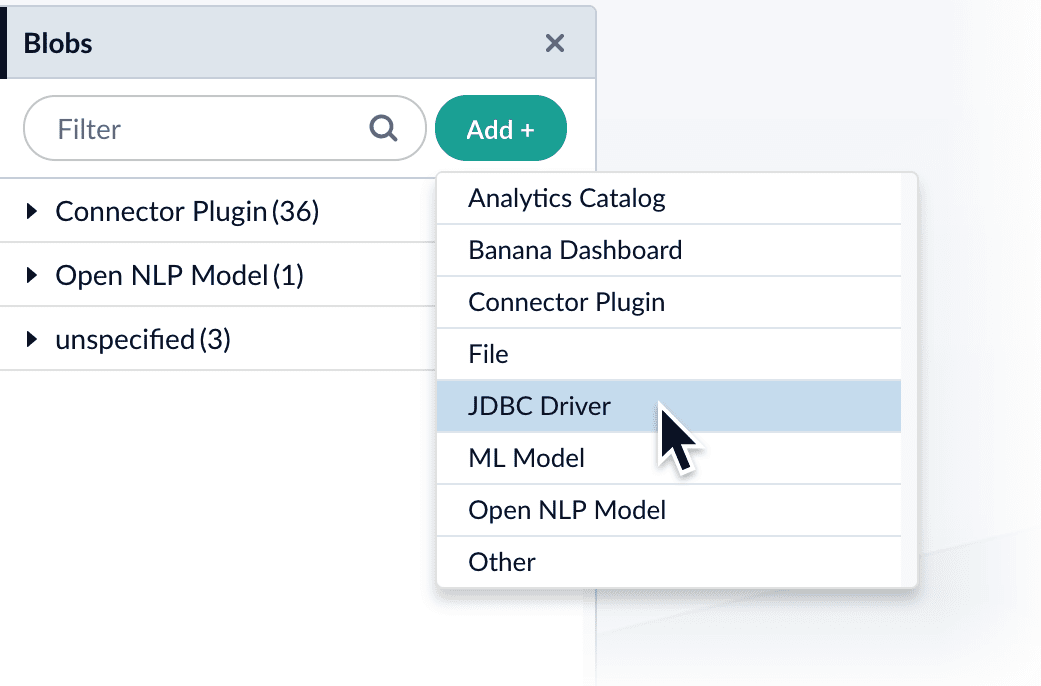
2. Click **Add**.
3. Select **JDBC Driver**.\
The "New 'JDBC Driver' Upload" panel appears.
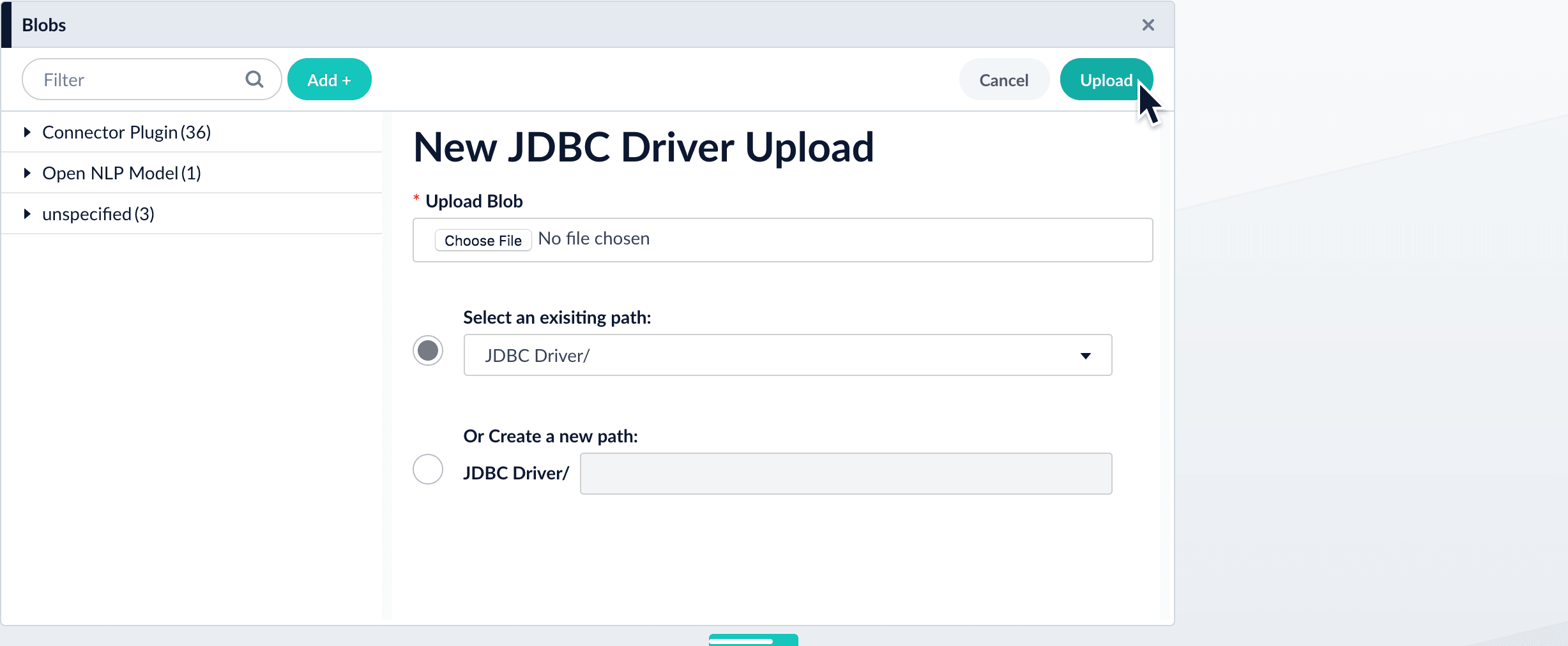
4. Click **Choose File** and select the .jar file from your file system.
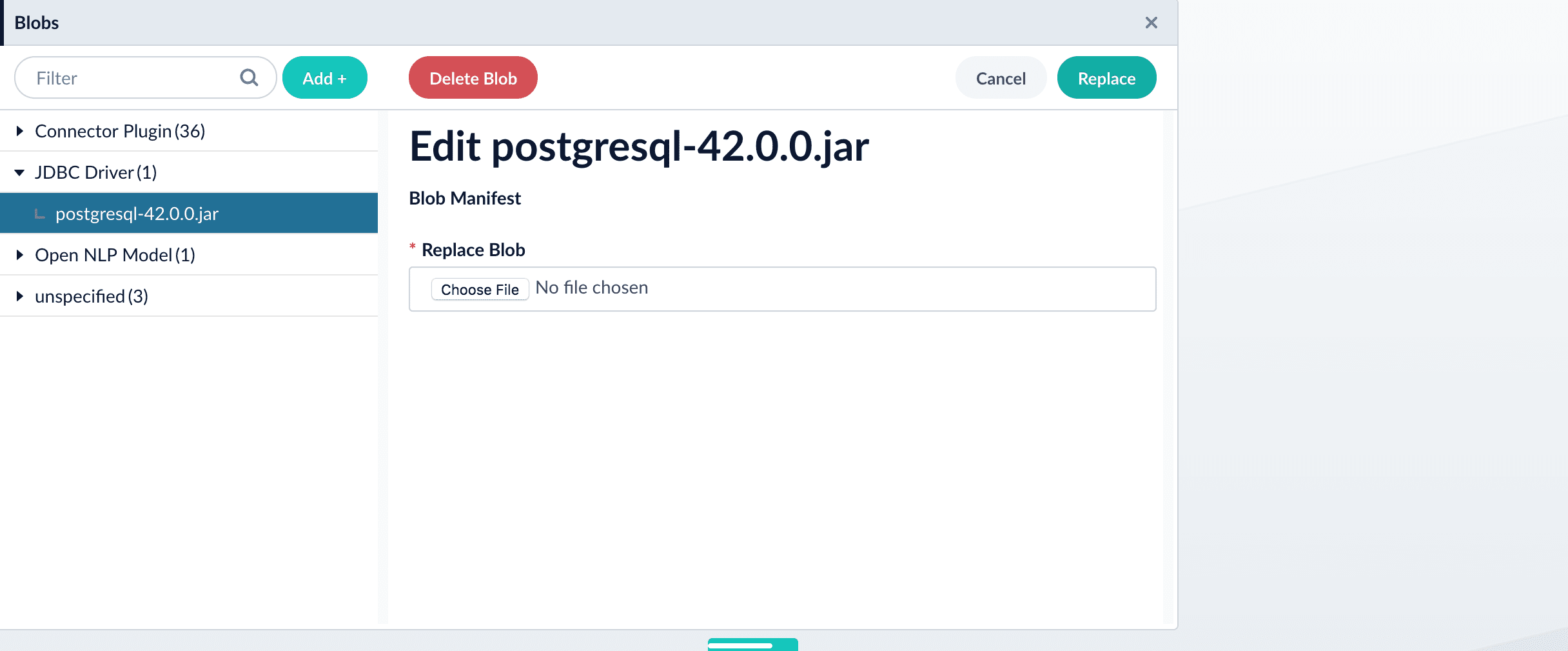
5. Click **Upload**.\
The new driver’s blob manifest appears.
From this screen you can also delete or replace the driver.
{/* // end::upload[] */}
## How to install a JDBC driver using the API
1. Upload the JAR file to Fusion’s blob store using the [`/blobs/{id}` endpoint](/api-reference/blobs/upload-a-blob).
Specify an arbitrary blob ID, and a `resourceType` value of `plugin:connector`, as in this example:
```bash theme={"dark"}
curl -u USERNAME:PASSWORD -H "content-type:application/java-archive" -H "content-length:707261" -X PUT --data-binary @postgresql-42.0.0.jar http://localhost:8764/api/blobs/mydriver?resourceType=driver:jdbc
```
Success response:
```json theme={"dark"}
{
"name" : "mydriver",
"contentType" : "application/java-archive",
"size" : 707261,
"modifiedTime" : "2017-06-09T19:00:48.919Z",
"version" : 0,
"md5" : "c67163ca764bfe632f28229c142131b5",
"metadata" : {
"subtype" : "driver:jdbc",
"drivers" : "org.postgresql.Driver",
"resourceType" : "driver:jdbc"
}
}
```
Fusion automatically publishes the event to the cluster, and the listeners perform the driver installation process on each node.
If the blob ID is identical to an existing one, the old driver will be uninstalled and the new driver will installed in its place. To get the list of existing blob IDs, run: `curl -u USERNAME:PASSWORD https://FUSION_HOST:FUSION_PORT/api/blobs`
2. To verify the uploaded driver, run:
```bash theme={"dark"}
curl -u USERNAME:PASSWORD https://FUSION_HOST:FUSION_PORT/api/blobs/BLOB_ID/manifest
```
Where the `BLOB_ID` is the name specified during upload, such as "mydriver" above. A success response looks like this:
```json theme={"dark"}
{
"name" : "mydriver",
"contentType" : "application/java-archive",
"size" : 707261,
"modifiedTime" : "2017-06-09T19:05:17.897Z",
"version" : 1569755095787110400,
"md5" : "c67163ca764bfe632f28229c142131b5",
"metadata" : {
"subtype" : "driver:jdbc",
"drivers" : "org.postgresql.Driver",
"resourceType" : "driver:jdbc"
}
}
```
## The Blob manager
In addition to the [Blob Store API](/api-reference/blobs/get-blob-store-service-status), the Fusion UI provides an interface to the blob store in the [Fusion workspace](/docs/5/fusion/intro/ui-tour/overview) at **System** > **Blobs**.
* Click **Add** to upload a new blob.
* Select an uploaded blob to view, replace, or delete it.
* Click **Add** to upload a new blob.
* Select an uploaded blob to view, replace, or delete it.
### Blob editor
The blob editor gives the ability to edit blobs in the Fusion UI in a variety of formats:
* CSV
* Java
* JavaScript
* Python
* SCALA
* Typescript
* Plain text
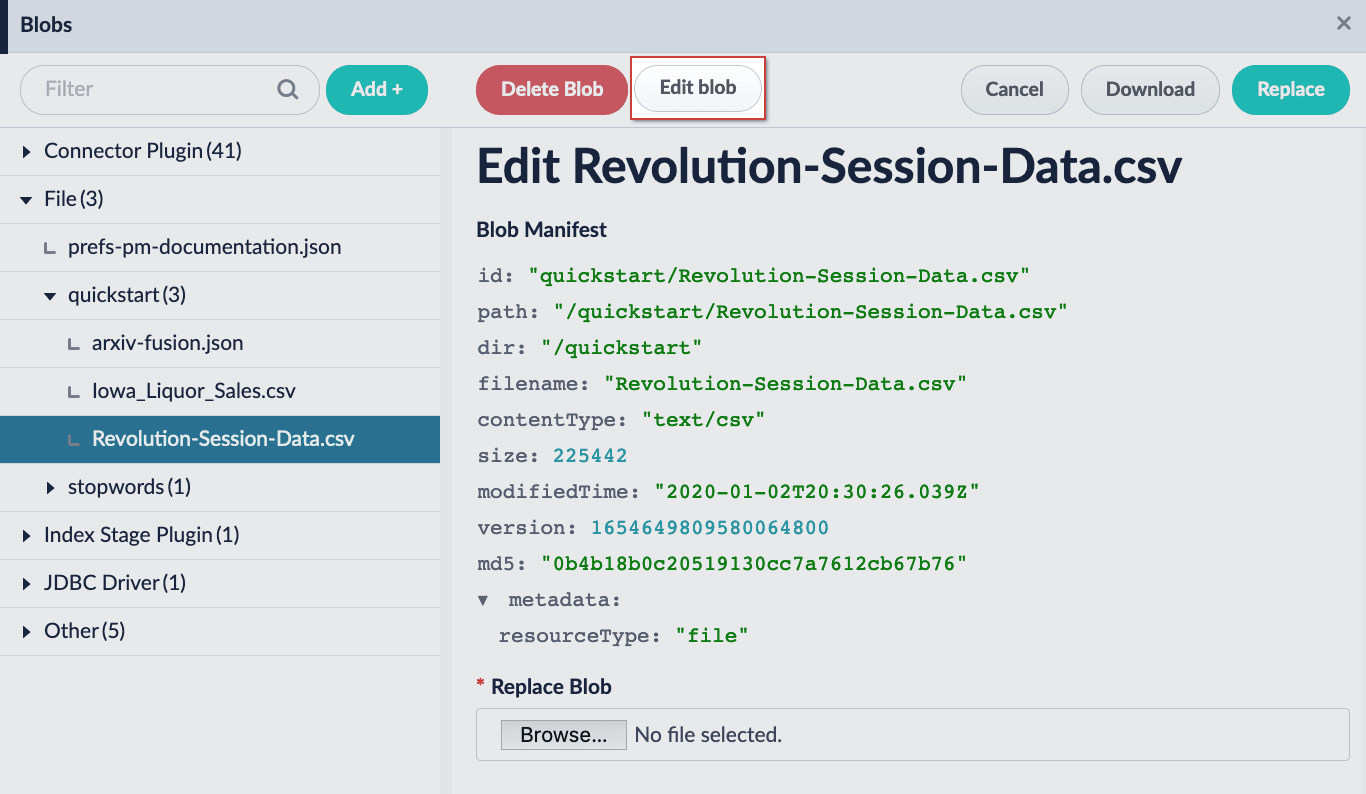
Navigate to **System > Blobs**, select a blob, and click the **Edit blob** button to open the editor:
* If the **Edit blob** button is not available, the blob type cannot be edited with the blob editor.
* For Fusion 5.4.x and later, JavaScript can be edited directly in the Fusion UI.
The editor has several elements worth noting:
| Elements | Description |
| ----------------------------------------------------------------- | ------------------------------------------------------------------ |
| | Copies the JSON to the clipboard. |
| | Pastes the clipboard into the editor. Only valid JSON is accepted. |
| | Expands the editor to a fullscreen view. |
| | Condenses the editor to a compact view. |
| | Saves the JSON in the editor and updates the blob. |
| | Resets changes made since the last time changes were applied. |
For instructions, see **Use the Blob Editor**.
The blob editor gives the ability to edit blobs in the Fusion UI in a variety of formats:
* CSV
* Java
* JavaScript
* Python
* SCALA
* Typescript
* Plain text
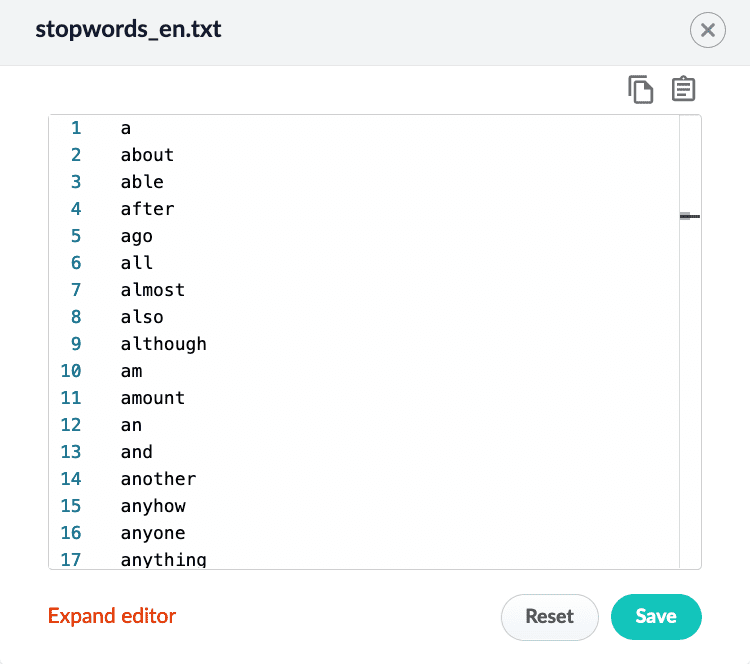
This article focuses on editing an existing blob. In this case, the blob is a [stopwords file](/docs/5/fusion/getting-data-out/query-enhancement/stopwords-files) that needs to be updated.
1. Navigate to **System > Blobs** and select a valid blob.
2. Click the **Edit blob** button. This button is only available for valid blob types.
The editor appears:
3. (optional) Click **Expand editor** to view the editor in fullscreen mode.
4. (optional) Click the **Copy** button to copy the blob details. This can be saved somewhere, if desired.
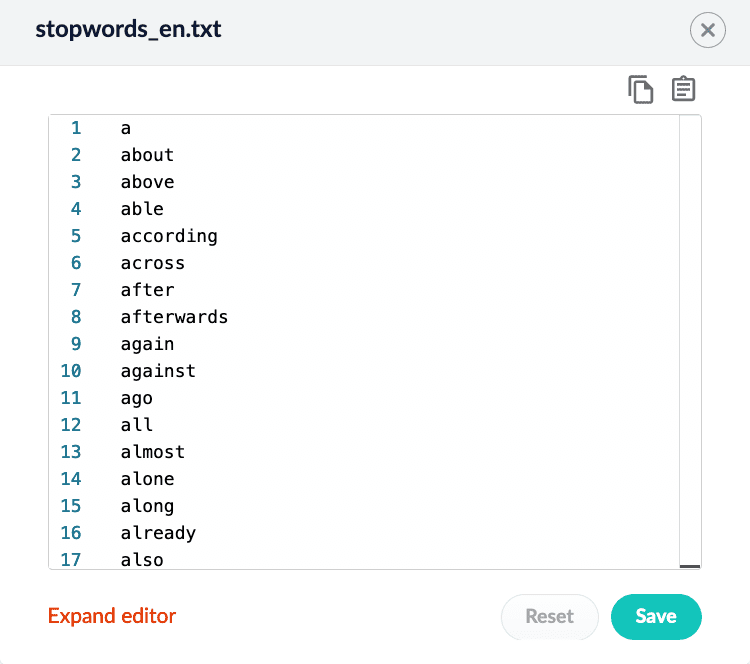
5. Copy the contents of the new stop words file, and click the **Paste** button to replace the contents of the blob. Alternatively, delete the existing contents and manually paste the new contents.
6. Click the **Save** button to save your changes.
 4. Click **Choose File** and select the .jar file from your file system.
 5. Click **Upload**.\
The new driver’s blob manifest appears.
5. Click **Upload**.\
The new driver’s blob manifest appears.
 From this screen you can also delete or replace the driver.
{/* // end::upload[] */}
## How to install a JDBC driver using the API
1. Upload the JAR file to Fusion’s blob store using the [`/blobs/{id}` endpoint](/api-reference/blobs/upload-a-blob).
Specify an arbitrary blob ID, and a `resourceType` value of `plugin:connector`, as in this example:
```bash theme={"dark"}
curl -u USERNAME:PASSWORD -H "content-type:application/java-archive" -H "content-length:707261" -X PUT --data-binary @postgresql-42.0.0.jar http://localhost:8764/api/blobs/mydriver?resourceType=driver:jdbc
```
Success response:
```json theme={"dark"}
{
"name" : "mydriver",
"contentType" : "application/java-archive",
"size" : 707261,
"modifiedTime" : "2017-06-09T19:00:48.919Z",
"version" : 0,
"md5" : "c67163ca764bfe632f28229c142131b5",
"metadata" : {
"subtype" : "driver:jdbc",
"drivers" : "org.postgresql.Driver",
"resourceType" : "driver:jdbc"
}
}
```
Fusion automatically publishes the event to the cluster, and the listeners perform the driver installation process on each node.
From this screen you can also delete or replace the driver.
{/* // end::upload[] */}
## How to install a JDBC driver using the API
1. Upload the JAR file to Fusion’s blob store using the [`/blobs/{id}` endpoint](/api-reference/blobs/upload-a-blob).
Specify an arbitrary blob ID, and a `resourceType` value of `plugin:connector`, as in this example:
```bash theme={"dark"}
curl -u USERNAME:PASSWORD -H "content-type:application/java-archive" -H "content-length:707261" -X PUT --data-binary @postgresql-42.0.0.jar http://localhost:8764/api/blobs/mydriver?resourceType=driver:jdbc
```
Success response:
```json theme={"dark"}
{
"name" : "mydriver",
"contentType" : "application/java-archive",
"size" : 707261,
"modifiedTime" : "2017-06-09T19:00:48.919Z",
"version" : 0,
"md5" : "c67163ca764bfe632f28229c142131b5",
"metadata" : {
"subtype" : "driver:jdbc",
"drivers" : "org.postgresql.Driver",
"resourceType" : "driver:jdbc"
}
}
```
Fusion automatically publishes the event to the cluster, and the listeners perform the driver installation process on each node.
 3. (optional) Click **Expand editor** to view the editor in fullscreen mode.
4. (optional) Click the **Copy** button to copy the blob details. This can be saved somewhere, if desired.
5. Copy the contents of the new stop words file, and click the **Paste** button to replace the contents of the blob. Alternatively, delete the existing contents and manually paste the new contents.
3. (optional) Click **Expand editor** to view the editor in fullscreen mode.
4. (optional) Click the **Copy** button to copy the blob details. This can be saved somewhere, if desired.
5. Copy the contents of the new stop words file, and click the **Paste** button to replace the contents of the blob. Alternatively, delete the existing contents and manually paste the new contents.
 6. Click the **Save** button to save your changes.