> ## Documentation Index
> Fetch the complete documentation index at: https://doc.lucidworks.com/llms.txt
> Use this file to discover all available pages before exploring further.
# Search Platforms
export const LwTemplate = ({title = "Key questions to get you started", icon = "sparkles", cta = "Powered by Agent Studio", linkHref = "https://lucidworks.com/demo/?utm_source=docs&utm_medium=referral&utm_campaign=docs_cta_ai"}) => {
const [isLoaded, setIsLoaded] = useState(false);
useEffect(() => {
const timer = setTimeout(() => {
setIsLoaded(true);
}, 500);
return () => clearTimeout(timer);
}, []);
return
{isLoaded && `
}} />}
Powered by Lucidworks Agent Studio
;
};
[old doc.lw link]: https//doc.lucidworks.com/app-studio/4.2/3196
[localhost link]: http://localhost:3000/docs/5/app-studio/reference/search-platforms/overview
[mintlify link]: https://doc.lucidworks.com/docs/5/app-studio/reference/search-platforms/overview
Appkit integrates with a number of search engines, data warehouses and web service endpoints, even surfacing information from multiple sources simultaneously. The platform abstraction covers both search and storage sides, meaning that Appkit will implement for each platform the necessary protocols to save or index content for any platform. A number of platform adapters are available out-of-the-box with Appkit, and [adding new ones](/docs/5/fusion/dev-portal/appkit/concepts/extending-appkit/developing-platforms) is a simple exercise.
This is a summary of all types of data source currently supported by Appkit. Each data source has an associated set of connectors, that are responsible for brokering communications between the end-user and the underlying search endpoint. In each case, the corresponding search platform is typically configured through platform configuration files, all of which share a number of [common attributes](/docs/5/fusion/dev-portal/appkit/reference/search-platforms/shared-platform-attributes).
### Search engines
* [Fusion](/docs/5/fusion/dev-portal/appkit/reference/search-platforms/fusion/overview)
* [Solr](/docs/5/fusion/dev-portal/appkit/reference/search-platforms/solr/overview)
* [SolrCloud](/docs/5/fusion/dev-portal/appkit/reference/search-platforms/solr/solrcloud)
* [Elasticsearch](/docs/5/fusion/dev-portal/appkit/reference/search-platforms/elasticsearch)
### Other data sources
* [Wolfram|Alpha](/docs/5/fusion/dev-portal/appkit/reference/search-platforms/wolfram-alpha/overview)
* [Wikipedia](/docs/5/fusion/dev-portal/appkit/reference/search-platforms/wikipedia)
* [Pipl](/docs/5/fusion/dev-portal/appkit/reference/search-platforms/pipl)
* [YouTube](/docs/5/fusion/dev-portal/appkit/reference/search-platforms/youtube)
* [Twitter](/docs/5/fusion/dev-portal/appkit/reference/search-platforms/twitter)
* [Google Custom Search](/docs/5/fusion/dev-portal/appkit/reference/search-platforms/google-custom-search)
## Related how-to articles
* **Fusion Impersonation via a Service Account**
* **Set Up Active Directory Federation Services (ADFS) Authentication for App Studio or Appkit**
* **Set Up Facebook Authentication**
* **Set Up Google Authentication**
* **Set Up Office 365 Authentication**
To securely access Fusion via Appkit, a user has several options. They can either adopt Appkit’s Fusion security provider making use of session cookies to send repeated requests back to Fusion, or they can access Fusion via a service account if they are planning to use [query pipelines](/api-reference/query-pipelines-api/get-all-query-pipelines). In this section, we describe how to set up the latter.
## 1 Set up a service account on the Fusion server
If a user wants to query Fusion through a pipeline by impersonating another user via a service account, they must first ensure such an account has been set up on the Fusion server. This account should have access rights to the required resources.
## 2 Add Security Trimming query stages to required pipelines
Query pipelines can have additional security filtering applied to ensure specific users do or do not have access to specific resources. This filtering can be set up by adding a Security Trimming stage to the query pipeline via the Fusion UI. The User ID key that is used in the security trimming stage to filter on results is supported in Appkit via the `user-id` attribute, which is described in the next section.
## 3 Update fusion.conf
To query Fusion using this approach, this attributes must be added to the platform `fusion.conf` file in `src/main/resources/conf/platforms/fusion/`:
```yaml theme={"dark"}
impersonate: true
userName: joebloggs
password: password
user-id: username
```
Here, the `impersonate` attribute informs Appkit that users will be querying Fusion pipelines via a service account. Below that, both the `userName` and the `password` are the credentials for the service account that Fusion will authenticate against. The last attribute `user-id` is optional and by default takes the value of `username`. This is the parameter that will be appended to the query string and filtered on in the security trimming stage. For example, the complete query URL might appear as:
```bash wrap theme={"dark"}
http://localhost:8764/api/apollo/query-pipelines/test-default/collections/test/select?&wt=json&q=*:*&debug=false&fl=x,y,z&start=0&username=joe@bloggs.com'
```
{/* // Update how-to header information */}
{/* // formatted */}
The Active Directory Federation Services (ADFS) security provider is available in Appkit.
OAuth based authentication against ADFS requires **ADFS 3** (or newer) which is available from Windows Server 2012 R2 onwards.
To authenticate against ADFS, perform the steps in this article.
## 1 Add the security provider dependency
To add ADFS as a security provider in the Oauth Security module:
1. Remove any existing security provider dependency from the `pom.xml` under the root of the project.
2. Add a security provider dependency for ADFS to the `dependencies` tag in `pom.xml`:
```
twigkittwigkit.security.provider.oauth.adfs3${project.parent.version}
```
3. Configure Appkit to invoke the Oauth Security module on startup. Change the `security.conf` file in `src/main/resources/conf/security/` to contain:
```
type: oauth
```
You must remove any existing `spring-security.xml` file because this module encapsulates all Spring configuration automatically.
## 2 Set up the application (relying party trust) in ADFS
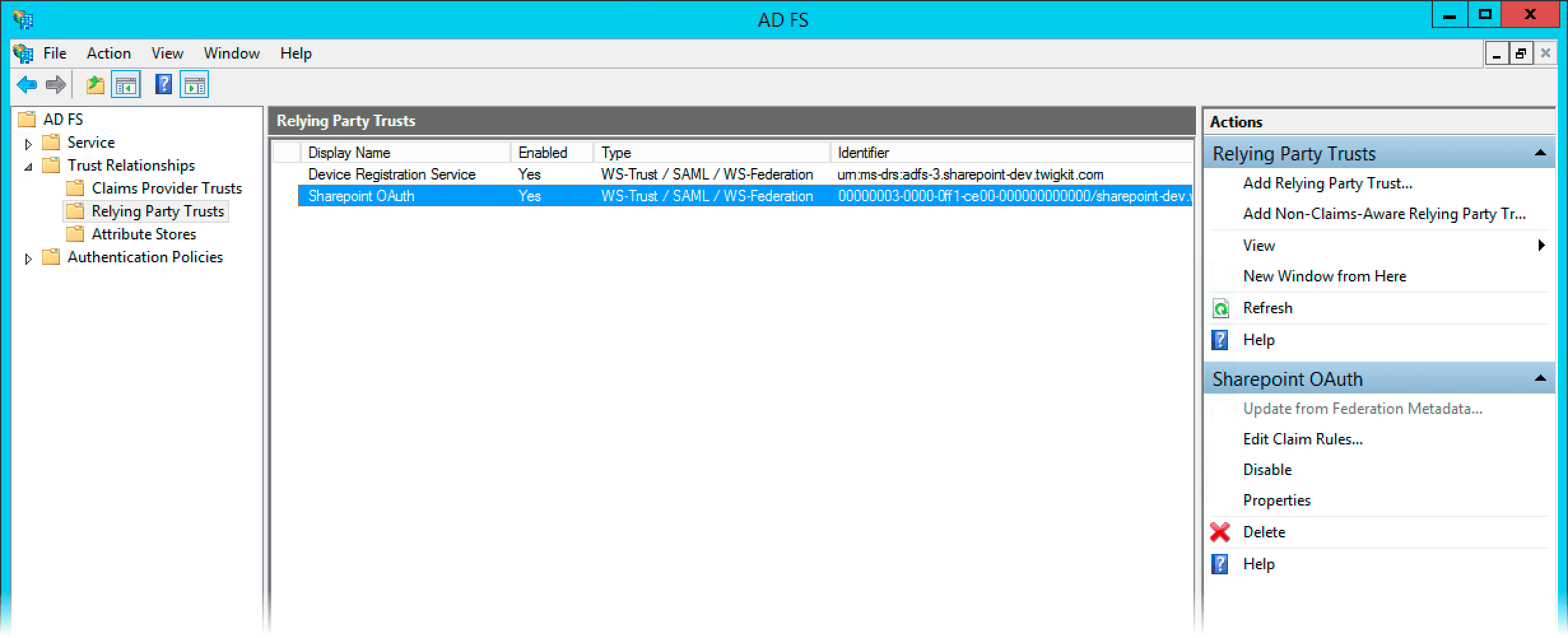
1. Add a new relying party in ADFS management. The identifier is usually set to the URL of the Appkit application itself.
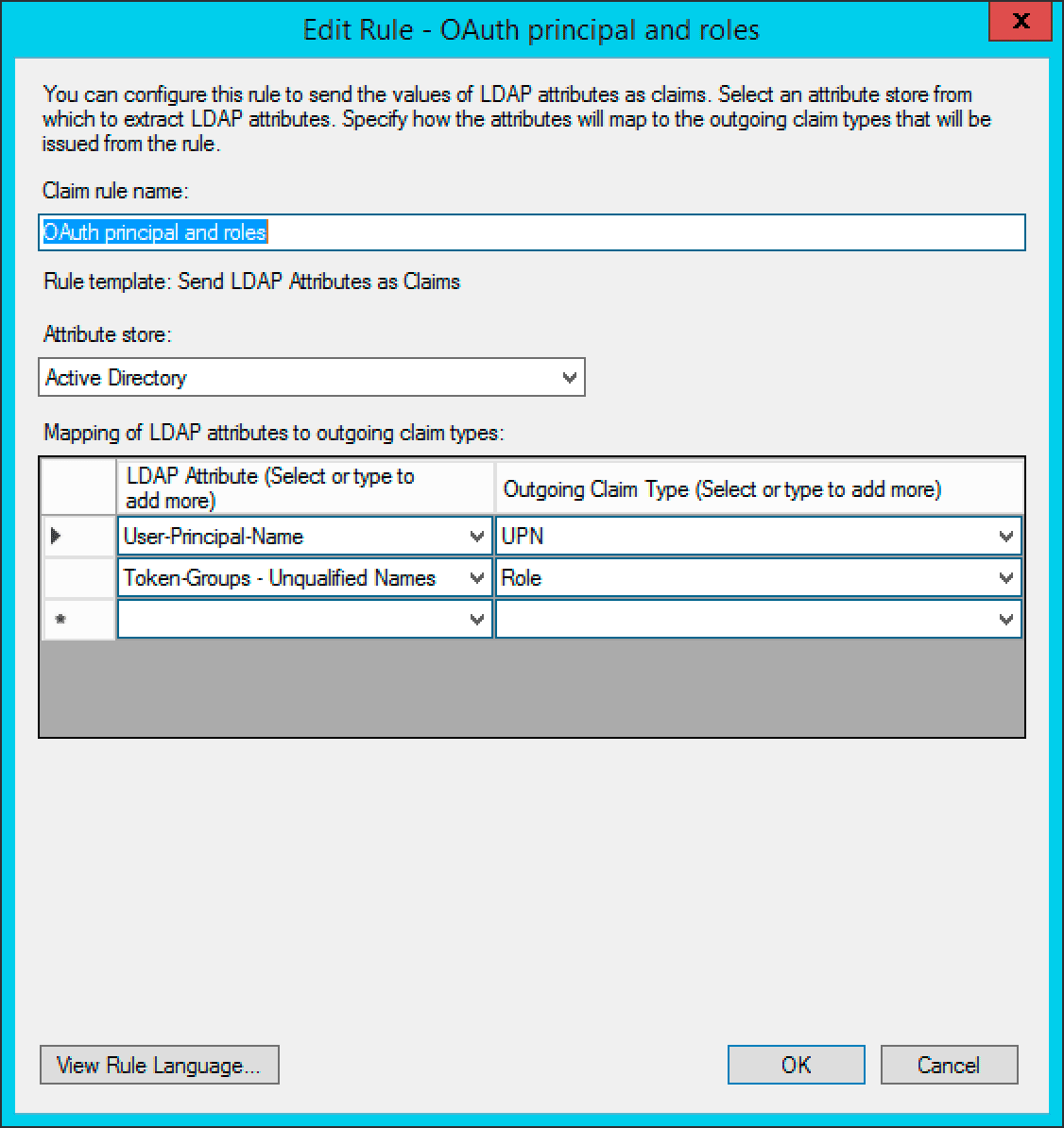
2. Edit the Claim Rules to pass through the credentials as shown in the screenshot. It is important the configuration is as shown in the screenshots here. The User Principal Name is passed through as the 'UPN' claim and the Token-Groups Unqualified Name is passed through as the 'Role' claim.
3. Open a PowerShell session to create the OAuth ADFS 'client' for the Appkit application:
```
Add-ADFSClient -Name "Appkit OAuth" -ClientId "1234567890-ABCDEF" -RedirectUri="http://localhost:8080/oauthLogin"
```
The `ClientId` should be a GUID and the `RedirectUri` must point to the Appkit application URL, with `/oauthLogin` appended. Here, `localhost` is used for testing an Appkit application running on the local development machine.
## 3 Configure the OAuth module for the application setup in ADFS
Create a new configuration file in `conf/security/oauth.conf`.
### `oauth.conf`
```yaml theme={"dark"}
client-id: 168f3ee4-63fc-4723-a61a-6473f6cb515d
adfs-url: https://your-adfs-server/adfs
resource: http://localhost:8080
high-trust: false
```
Here, you must change the `client-id`, `adfs-url` and `resource` parameters for the environment in question.
The `client-id` is the ID that was set up against ADFS using the `Add-ADFSClient` PowerShell command.
The `adfs-url` is the URL of the ADFS server with the `/adfs` context appended.
The `resource` is the relying party trust identifier set up in ADFS management.
The \`high-trust' parameter is only required when integrating the ADFS and SharePoint modules. This article is only concerned with authentication against ADFS.
## 3 Add the Spring filter to the web.xml
Add this to the `web.xml` file of the project:
```xml theme={"dark"}
contextConfigLocationclasspath:spring-security.xmlorg.springframework.web.context.ContextLoaderListenerspringSecurityFilterChainorg.springframework.web.filter.DelegatingFilterProxyspringSecurityFilterChain/*
org.springframework.web.context.request.RequestContextListener
```
Inclusion of a 'RequestContextListener' is not required in a standard Appkit-plus-Spring Security application.
## 4 Test the authentication
If a user is not logged via ADFS prior to visiting the application they will be redirected to the ADFS OAuth login page. The user experience is a typical login page.
After the user logs in, the user will be returned to the application as an authenticated user.
The Appkit user’s details will also be populated with any basic information available from the decoded OAuth token such as roles and the user principal name.
To authenticate against Facebook, perform the steps in this article.
## Add the security provider dependency
To add Facebook as a security provider in the Oauth Security module:
1. Remove any existing security provider dependency from the `pom.xml` under the root of the project.
2. Add a security provider dependency for Facebook to the `dependencies` tag in `pom.xml`:
```xml theme={"dark"}
twigkittwigkit.security.provider.oauth.facebook${project.parent.version}
```
3. Configure Appkit to invoke the Oauth Security module on startup. Change the `security.conf` file in `src/main/resources/conf/security/` to contain:
```
type: oauth
```
You must remove any existing `spring-security.xml` file because this module encapsulates all Spring configuration automatically.
## Configure the OAuth module for the application setup in Facebook
Add the relevant configuration in a file in `conf/security/oauth.conf`. For example:
```yaml theme={"dark"}
client-id: 1669796236622670
client-secret: c064ea0f5e5c13a2a6c5f6366f7426cb
scope: public_profile,email
```
Including the user profile scope lets Appkit automatically pull the user profile information into their Appkit user details.
This guide assumes the `client-id` and `client-secret` settings have already been generated in the 'Facebook for Developers' admin console and provided to you as an application developer. For more information, see the [Facebook documentation on OAuth](https://developers.facebook.com/docs/facebook-login/guides/advanced/manual-flow).
The application’s 'Site URL' must be configured in the console under 'settings' as `http://your-application-url/oauthLogin`.
## Add the Spring filter to the web.xml
Add this to the `web.xml` file of the project:
```xml theme={"dark"}
contextConfigLocationclasspath:spring-security.xmlorg.springframework.web.context.ContextLoaderListenerspringSecurityFilterChainorg.springframework.web.filter.DelegatingFilterProxyspringSecurityFilterChain/*
org.springframework.web.context.request.RequestContextListener
```
Inclusion of a 'RequestContextListener' is not required in a standard Appkit-plus-Spring Security application.
## Test the authentication
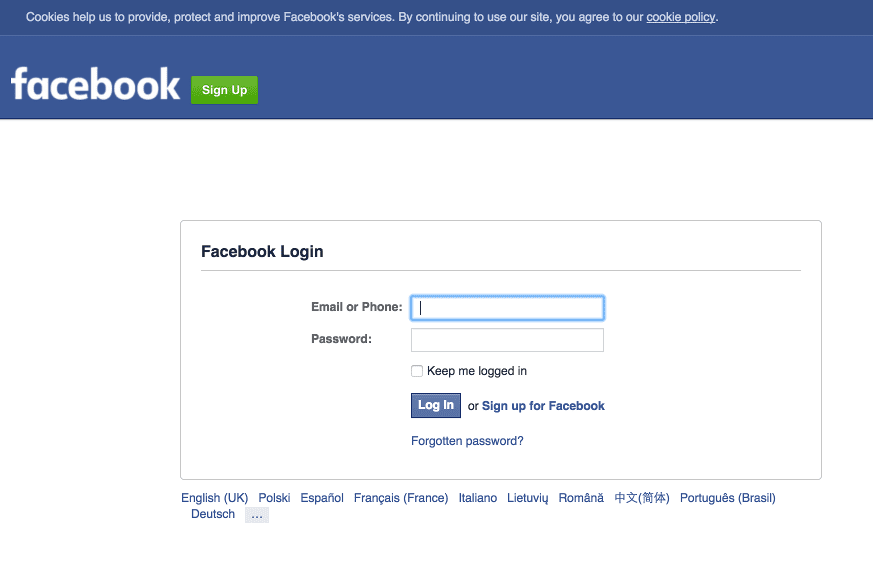
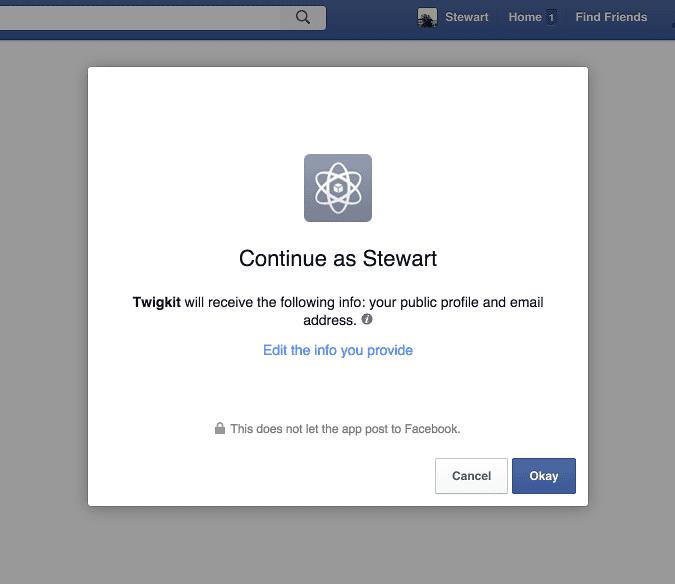
If a user is not logged into a Facebook account prior to visiting the application they will be redirected to the Facebook login page. They will then be asked if they want to approve the application to access the services defined in the scopes parameter. If the user profile scope is included the Appkit user’s details will also be populated with any basic information available from the decoded OAuth token such as first name, last name and email address.
Using OAuth can create a seamless experience where, after the token handshake and approval is complete, the user will always be logged into the application as long as their session with Facebook is active.
User logs in:
User approves application:
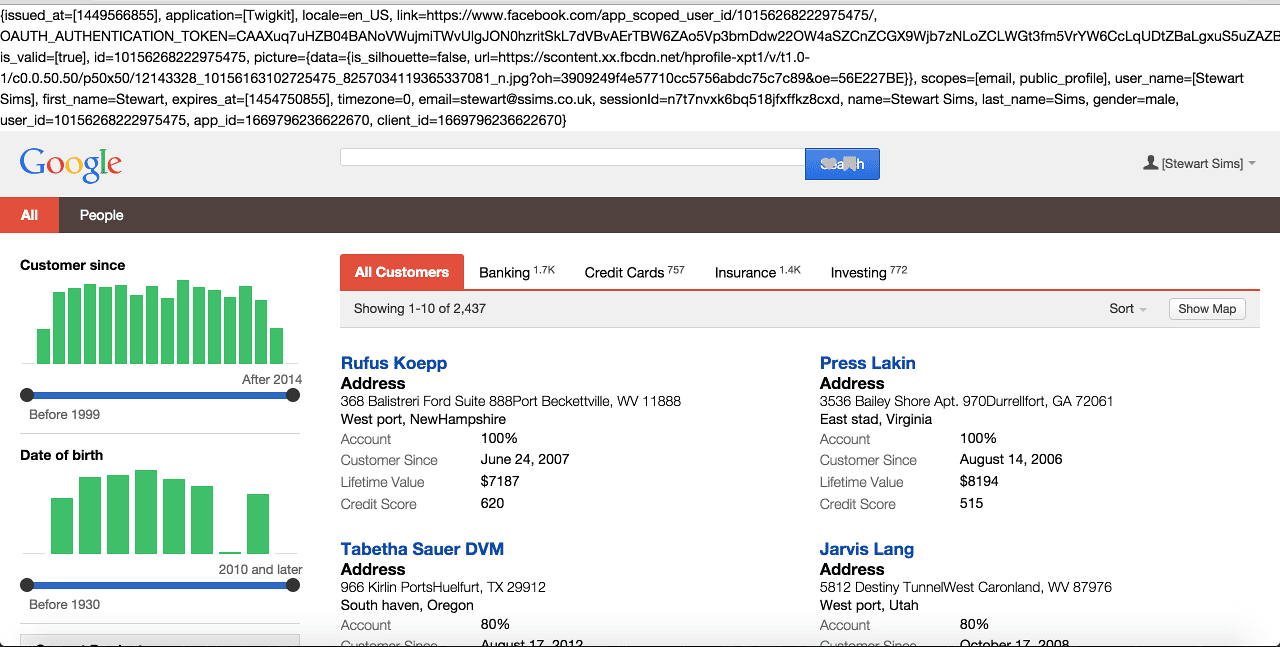
The user is signed into the application with an OAuth token, and will be signed in automatically from now on unless the token expires or the user logs out of Facebook entirely.
To authenticate against Google services, perform the steps in this article.
## 1 Add the security provider dependency
To add Google as a security provider in the Oauth Security module:
1. Remove any existing security provider dependency from the `pom.xml` under the root of the project.
2. Add a security provider dependency for Google to the `dependencies` tag in `pom.xml`:
```xml theme={"dark"}
twigkittwigkit.security.provider.oauth.google${project.parent.version}
```
3. Configure Appkit to invoke this module on startup. Change the `security.conf` file in `src/main/resources/conf/security/` to contain:
```
type: oauth
```
4. Remove any existing `spring-security.xml` file, because this module encapsulates all Spring configuration automatically.
## 2 Configure the OAuth module for application setup in Google Developer Console
Add the relevant configuration in a file in `conf/security/oauth.conf`:
```yaml wrap theme={"dark"}
client-id: 419084461435-2370lvl0rpcr8b8lu0ljkv3l2ib2ahfc.apps.googleusercontent.com
client-secret: 5p-Ph7AcvnFBfMQSSUNv-umQ
scope: https://www.googleapis.com/auth/userinfo.profile
```
Including the user profile scope lets Appkit automatically pull the user profile information into their Appkit user details.
This guide assumes the `client-id` and `client-secret` settings have already been generated in the Google Developer Console and provided to you as an application developer. For more information about this, see the [Google documentation on OAuth](https://developers.google.com/identity/protocols/OAuth2).
The authorized redirect URI must be configured in the Google Developer Console as `http://your-application-url/oauthLogin`.
## 3 Add the Spring filter to the web.xml
Add this to the `web.xml` of the project:
```xml theme={"dark"}
contextConfigLocationclasspath:spring-security.xmlorg.springframework.web.context.ContextLoaderListenerspringSecurityFilterChainorg.springframework.web.filter.DelegatingFilterProxyspringSecurityFilterChain/*
org.springframework.web.context.request.RequestContextListener
```
Inclusion of a 'RequestContextListener' is not required in a standard Appkit-plus-Spring Security application.
## 4 Test the authentication
If a user is not logged into a Google account prior to visiting the application they will be redirected to the Google login page. They will then be asked if they want to approve the application to access the services defined in the scopes parameter. If the user profile scope is included the Appkit user’s details will also be populated with any basic information available from the decoded OAuth token such as first name, last name and email address.
Using OAuth can create a seamless experience where, after the token handshake and approval is complete, the user will always be logged into the application as long as their session with Google is active.
User logs in:
User approves application:
The user is signed into the application with an OAuth token, and will be signed in automatically from now on unless the token expires or the user logs out of Google entirely.
To authenticate against Office 365, perform the steps in this article.
## 1 Add the security provider dependency
To add Office 365 as a security provider in the Oauth Security module:
1. Remove any existing security provider dependency from the `pom.xml` under the root of the project.
2. Add a security provider dependency for Office 365 to the `dependencies` tag in `pom.xml`:
```xml theme={"dark"}
twigkittwigkit.security.provider.oauth.office365${project.parent.version}
```
3. Configure Appkit to invoke the Oauth Security module on startup. Change the `security.conf` file in `src/main/resources/conf/security/` to contain:
```
type: oauth
```
You must remove any existing `spring-security.xml` file because this module encapsulates all Spring configuration automatically.
## 2 Configure the OAuth module for the application setup in Azure AD
Add the relevant configuration in a file in `conf/security/oauth.conf`:
```yaml theme={"dark"}
azure-ad-tenant-id: 746a834e-ba89-4191-926d-f2c220b79a4a
resource: https://your-organisation.sharepoint.com/
client-id: 08de5b32-569a-4387-ab94-08b7b6fc1ed8
client-secret: x7vRc8VJ9CHjSM5XXyHpCSRaD5JH/6VsB8P5ZGz4B8M=
```
This guide assumes these settings have already been set up in the Azure AD instance in Microsoft’s Azure portal and provided to you as an application developer.
The reply URL must be configured in Azure AD as `http://your-application-url/oauthLogin`.
## 3 Add the Spring filter to the web.xml file
Add this to the `web.xml` file of the project:
```xml theme={"dark"}
contextConfigLocationclasspath:spring-security.xmlorg.springframework.web.context.ContextLoaderListenerspringSecurityFilterChainorg.springframework.web.filter.DelegatingFilterProxyspringSecurityFilterChain/*
org.springframework.web.context.request.RequestContextListener
```
Inclusion of a 'RequestContextListener' is not required in a standard Appkit-plus-Spring Security application.
## 4 Test the authentication
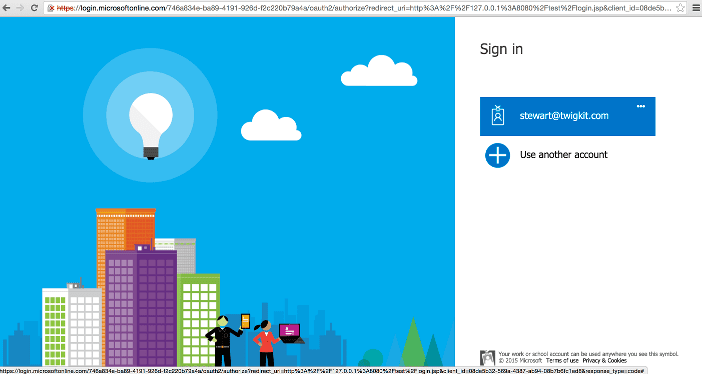
If a user is not logged into Office 365 prior to visiting the application, then they will be redirected to the Microsoft Online login page.
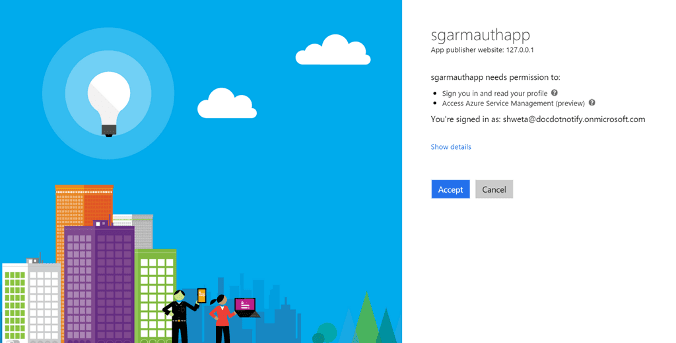
If the Azure administrator has set app approval explicitly, after the user is logged in, the user will be returned to the application as an authenticated user.
The Appkit user’s details will be populated with any basic information available from the decoded OAuth token such as first name, last name and email address.
If approval is not set by the Azure AD administrator, then there will be an intermediary step after the user logs into Microsoft Online requesting their explicit approval for the application to access their credentials.
Using OAuth can create a seamless experience where, after the token handshake and approval is complete, the user will always be logged into the application as long as their session with Microsoft Online/Office 365 is active.
User logs in:
User approves application:
(This is optional, depending on the Azure AD configuration.)
The user is signed into the application with an OAuth token, and will be signed in automatically from now on unless the token expires or the user logs out of Office 365 entirely.
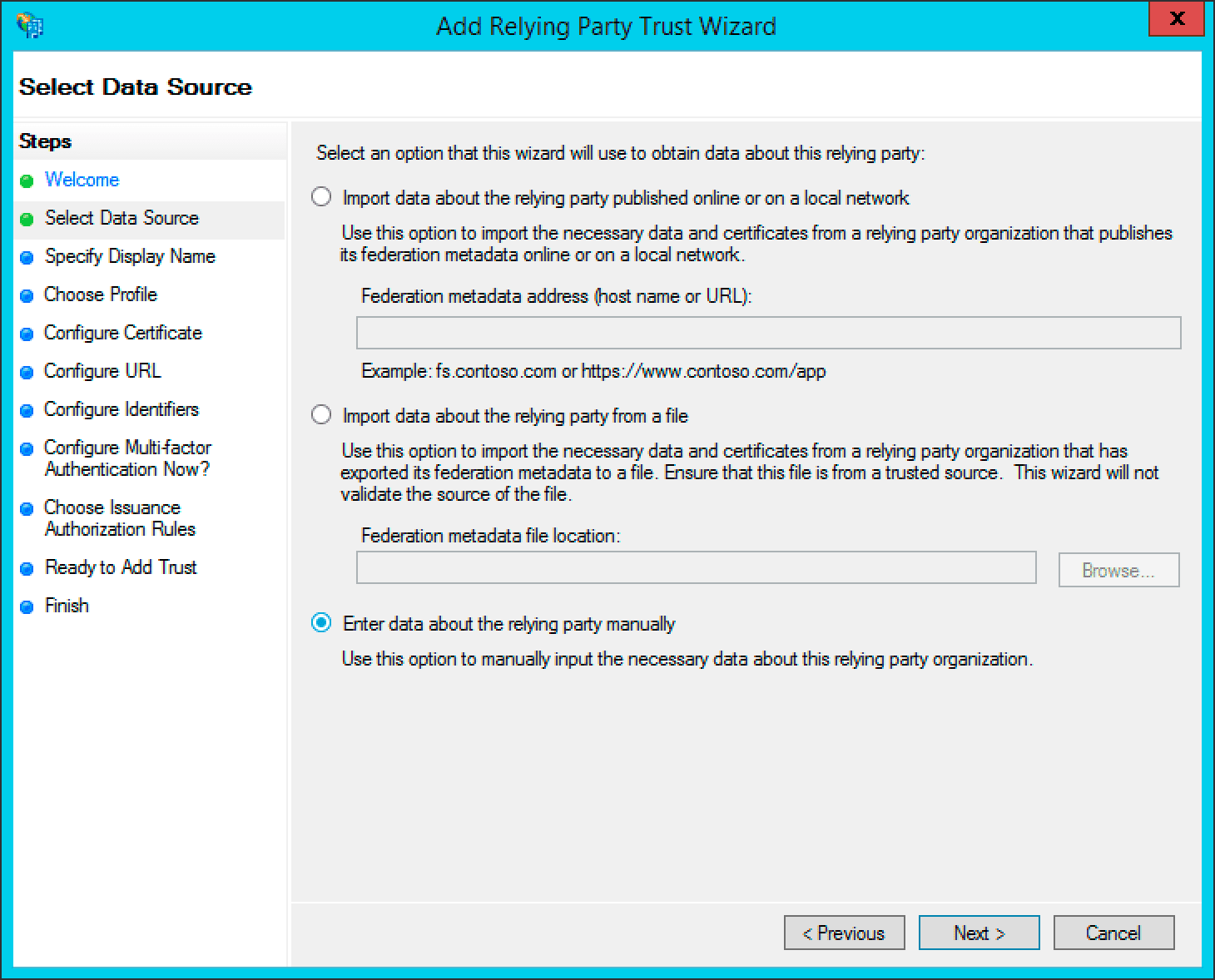
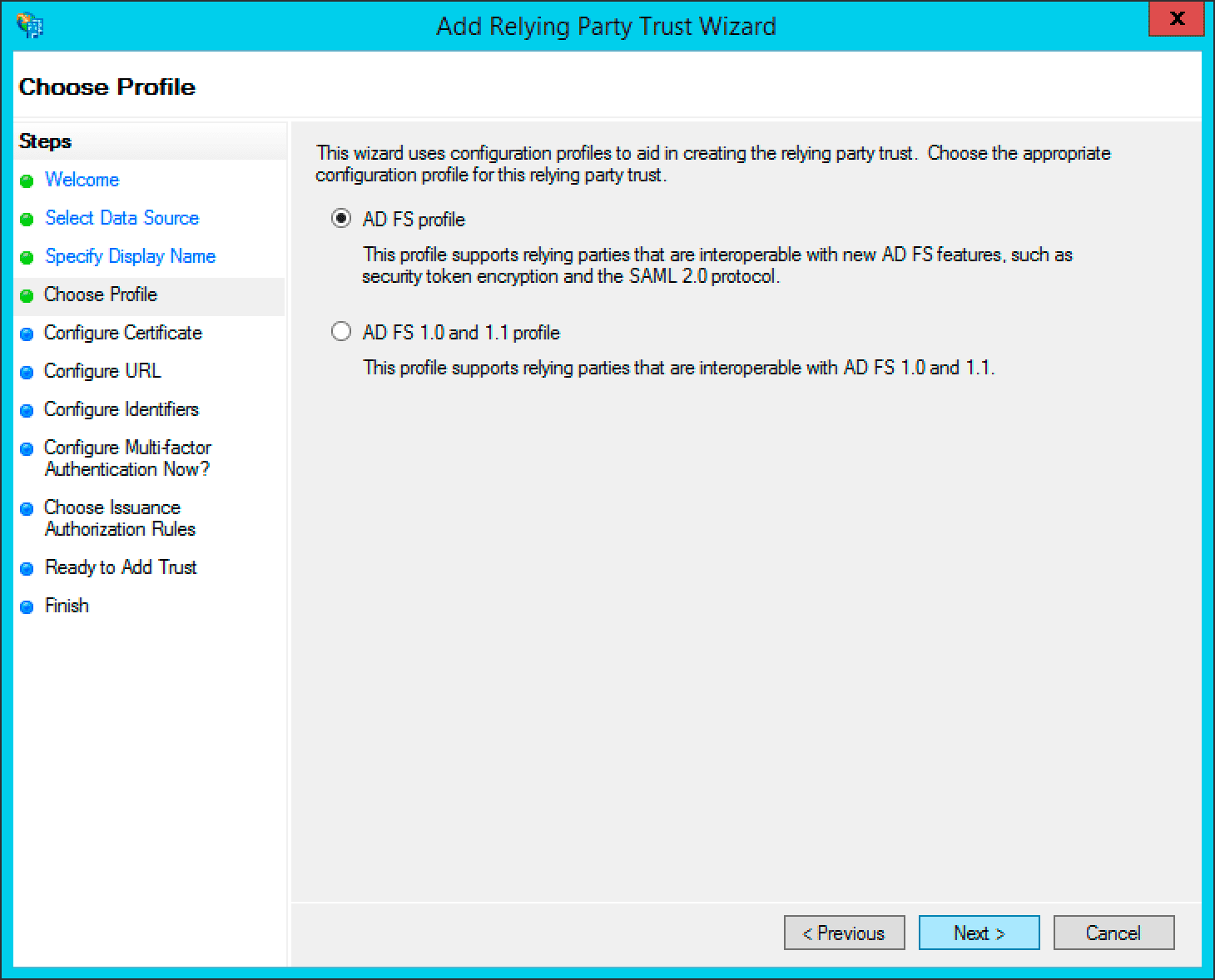 1. Add a new relying party in ADFS management. The identifier is usually set to the URL of the Appkit application itself.
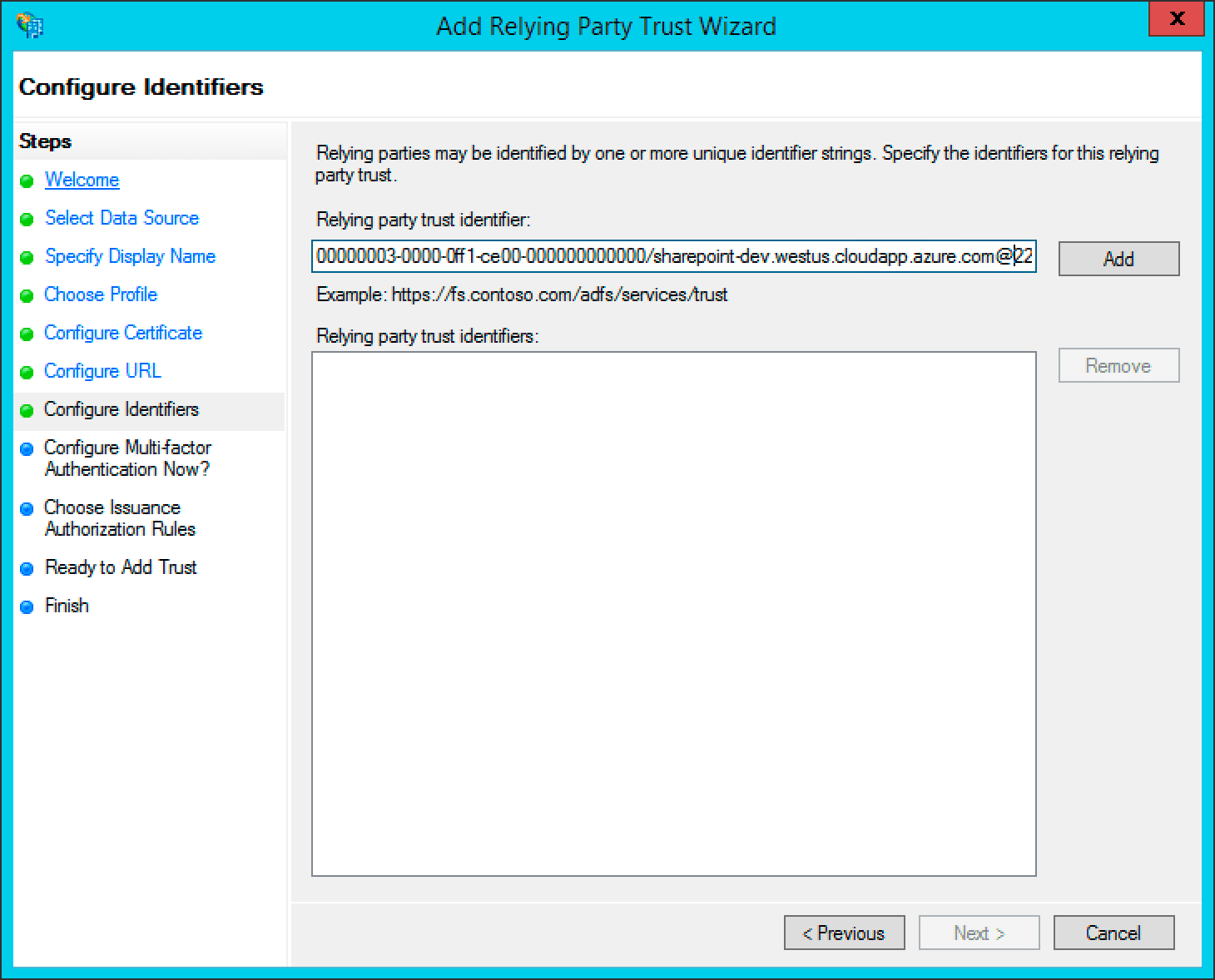
 2. Edit the Claim Rules to pass through the credentials as shown in the screenshot. It is important the configuration is as shown in the screenshots here. The User Principal Name is passed through as the 'UPN' claim and the Token-Groups Unqualified Name is passed through as the 'Role' claim.
 3. Open a PowerShell session to create the OAuth ADFS 'client' for the Appkit application:
```
Add-ADFSClient -Name "Appkit OAuth" -ClientId "1234567890-ABCDEF" -RedirectUri="http://localhost:8080/oauthLogin"
```
The `ClientId` should be a GUID and the `RedirectUri` must point to the Appkit application URL, with `/oauthLogin` appended. Here, `localhost` is used for testing an Appkit application running on the local development machine.
## 3 Configure the OAuth module for the application setup in ADFS
Create a new configuration file in `conf/security/oauth.conf`.
### `oauth.conf`
```yaml theme={"dark"}
client-id: 168f3ee4-63fc-4723-a61a-6473f6cb515d
adfs-url: https://your-adfs-server/adfs
resource: http://localhost:8080
high-trust: false
```
Here, you must change the `client-id`, `adfs-url` and `resource` parameters for the environment in question.
The `client-id` is the ID that was set up against ADFS using the `Add-ADFSClient` PowerShell command.
The `adfs-url` is the URL of the ADFS server with the `/adfs` context appended.
The `resource` is the relying party trust identifier set up in ADFS management.
The \`high-trust' parameter is only required when integrating the ADFS and SharePoint modules. This article is only concerned with authentication against ADFS.
## 3 Add the Spring filter to the web.xml
Add this to the `web.xml` file of the project:
```xml theme={"dark"}
3. Open a PowerShell session to create the OAuth ADFS 'client' for the Appkit application:
```
Add-ADFSClient -Name "Appkit OAuth" -ClientId "1234567890-ABCDEF" -RedirectUri="http://localhost:8080/oauthLogin"
```
The `ClientId` should be a GUID and the `RedirectUri` must point to the Appkit application URL, with `/oauthLogin` appended. Here, `localhost` is used for testing an Appkit application running on the local development machine.
## 3 Configure the OAuth module for the application setup in ADFS
Create a new configuration file in `conf/security/oauth.conf`.
### `oauth.conf`
```yaml theme={"dark"}
client-id: 168f3ee4-63fc-4723-a61a-6473f6cb515d
adfs-url: https://your-adfs-server/adfs
resource: http://localhost:8080
high-trust: false
```
Here, you must change the `client-id`, `adfs-url` and `resource` parameters for the environment in question.
The `client-id` is the ID that was set up against ADFS using the `Add-ADFSClient` PowerShell command.
The `adfs-url` is the URL of the ADFS server with the `/adfs` context appended.
The `resource` is the relying party trust identifier set up in ADFS management.
The \`high-trust' parameter is only required when integrating the ADFS and SharePoint modules. This article is only concerned with authentication against ADFS.
## 3 Add the Spring filter to the web.xml
Add this to the `web.xml` file of the project:
```xml theme={"dark"}
 User approves application:
 The user is signed into the application with an OAuth token, and will be signed in automatically from now on unless the token expires or the user logs out of Facebook entirely.
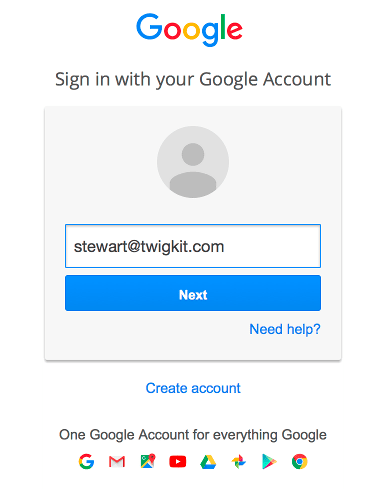 User approves application:
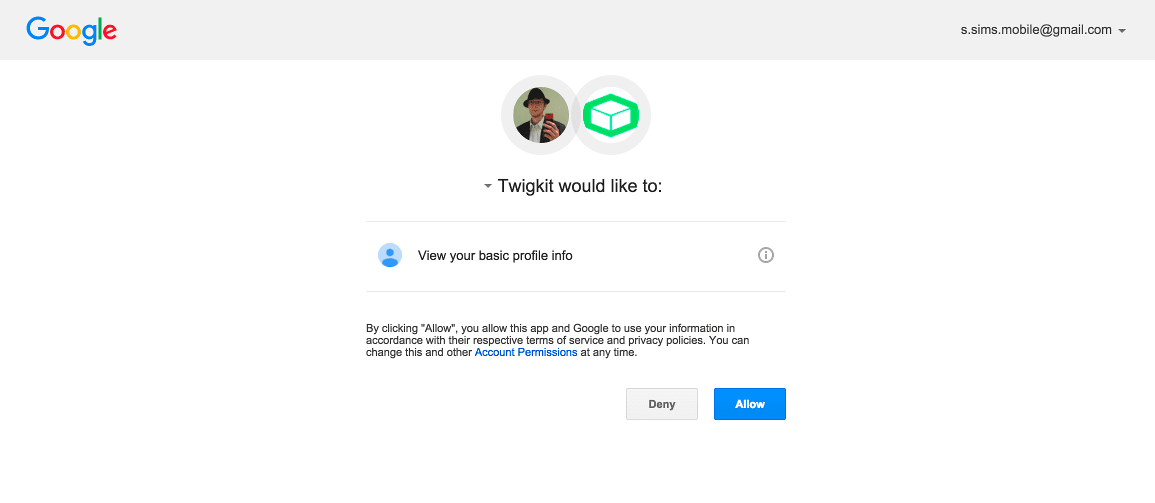 The user is signed into the application with an OAuth token, and will be signed in automatically from now on unless the token expires or the user logs out of Google entirely.
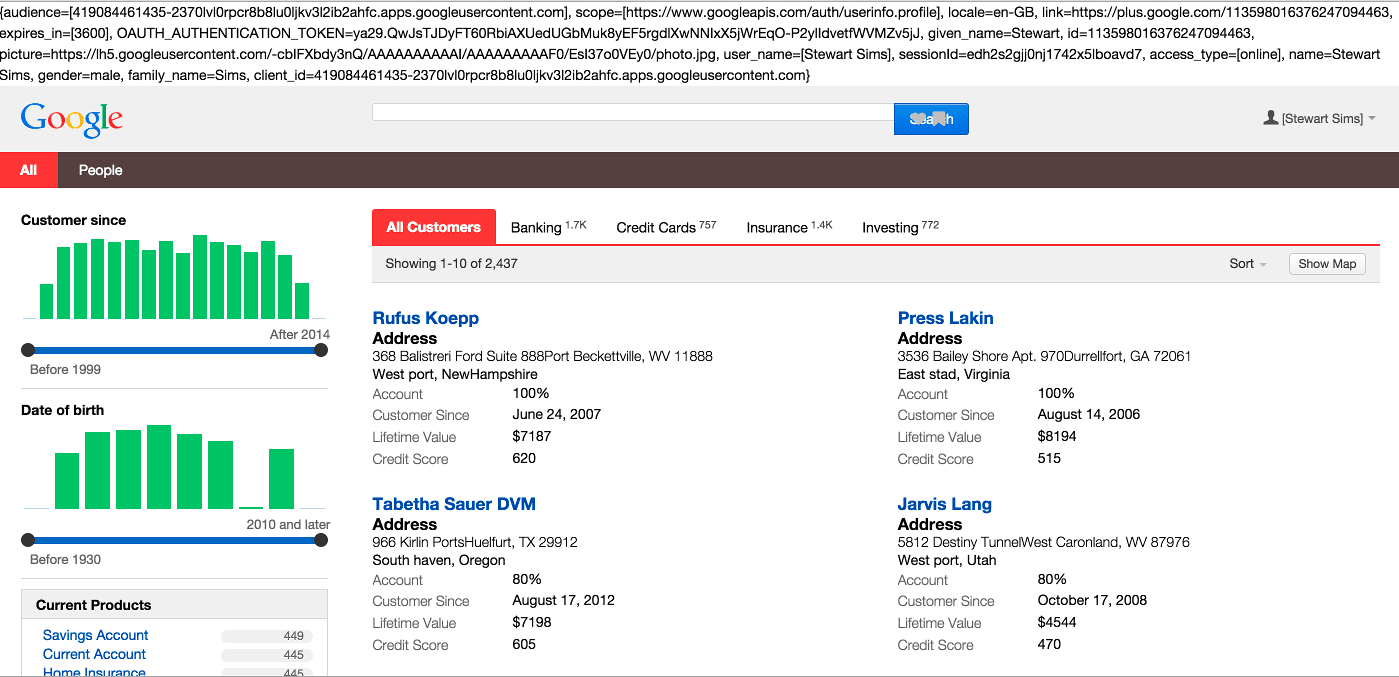
 User approves application:
 (This is optional, depending on the Azure AD configuration.)
The user is signed into the application with an OAuth token, and will be signed in automatically from now on unless the token expires or the user logs out of Office 365 entirely.
(This is optional, depending on the Azure AD configuration.)
The user is signed into the application with an OAuth token, and will be signed in automatically from now on unless the token expires or the user logs out of Office 365 entirely.