> ## Documentation Index
> Fetch the complete documentation index at: https://doc.lucidworks.com/llms.txt
> Use this file to discover all available pages before exploring further.
# Additional resources
export const LwTemplate = ({title = "Key questions to get you started", icon = "sparkles", cta = "Powered by Agent Studio", linkHref = "https://lucidworks.com/demo/?utm_source=docs&utm_medium=referral&utm_campaign=docs_cta_ai"}) => {
const [isLoaded, setIsLoaded] = useState(false);
useEffect(() => {
const timer = setTimeout(() => {
setIsLoaded(true);
}, 500);
return () => clearTimeout(timer);
}, []);
return
{isLoaded && `
}} />}
Powered by Lucidworks Agent Studio
;
};
App Studio will send information on user clicks that trigger URL requests as well as when a user creates an annotation, for example, a bookmark or comment.
A signal event of type `click` will include, amongst other things, information about the URL that was clicked as well as the number of times that URL was clicked.
A signal event of type `annotation` will include, amongst other things, information about the annotation target, the collection, and the creator.
For a full list of properties that are stored, refer to the signals collection associated with your application.
## Authorization
Activity tracking requires authorization. Both service account impersonation and the Sessions API can be used for this purpose.
Service account impersonation requires credentials for the service account and these are stored in the Fusion platform configuration. These credentials can be accessed by setting the name of the Fusion platform configuration via the `platform-config` parameter in the Fusion activity tracking configuration.
If the credentials for a service account are not provided or cannot be found, a check will be made to see if a Fusion session cookie is available. Typically, this will be present when the user is known to the Fusion server and the Session API has been set up accordingly.
When using the Appkit Social module, an Appkit application can save social data (comments, bookmarks, and saved search queries) for logged in users.
You can store the social data in a Fusion collection, have the application save the data in an in-memory database, the contents of which are lost when the application restarts, or configure Appkit to persist social data to a database that uses disk storage.
## Requirements
* Any JDBC-compliant relational database (such as Oracle, MySQL, or SQL Server) or a Fusion deployment
* Network access from the Appkit application to the relational database or to Fusion
The database doesn’t have to be empty because Appkit prefixes all of its tables with a `twigkit` identifier. But for simplicity, we recommend using a separate schema, because you probably won’t must join Appkit tables with tables in other schemas.
## Persist data in a relational database
Perform the tasks in this section to persist Appkit social data in a relational database.
### Overview of procedure
To configure a database for persistence on disk, perform these steps, which are explained in more detail below:
1. Declare a Maven POM dependency in `pom.xml` to specify the database for storing the metadata that the Social module collects.
2. Configure a `persistence.xml` file with the appropriate elements, including those for database connections.
3. If necessary, perform other steps as required for specific databases.
The sections that follow describe these steps in more detail for the default [Derby database](#use-derby) and for [other databases](#use-a-different-relational-database).
### Use Derby
#### Declare a POM dependency
To persist social data in a disk-based database, declare a POM dependency in the file `pom.xml`, which is located at the root level of a project.
#### Create and configure persistence.xml
You will must create and configure a `persistence.xml` file with the appropriate elements, including those for database connections.
Create the `persistence.xml` file here:\
`src/main/resources/META-INF/persistence.xml`
#### Specify the type of Hibernate ID generator mappings
Hibernate ID generator mappings changed in Hibernate 5. Ensure use of the correct mappings as follows:
* **Apps created with versions of Appkit that precede version 4.2.**
Ensure that both pre- and post-Hibernate 5 IDs are generated using the old mapping. Add this property to the `persistence.xml` file:
```xml wrap theme={"dark"}
```
* **Apps created with Appkit 4.2 or later.**
Apps can use new ID generator mappings. Add this property to the `persistence.xml` file:
```xml wrap theme={"dark"}
```
#### Specify the Derby system directory
You can specify the Derby system directory, which is the directory that will contain the social database, by adding this flag to your Java options:
```bash theme={"dark"}
-Dderby.system.home=*_/my/derby/directory_*
```
If the system directory that you specify with `derby.system.home` does not exist at startup, Derby creates the directory automatically.
### Use a different relational database
You can configure Appkit to persist social data in an on-disk JDBC-compliant relational database other than Derby (such as Oracle, MySQL, or SQL Server).
Other pre-configured versions are also available, including:
```bash theme={"dark"}
db.mysql
db.oracle
db.sqlserver
```
#### Declare the POM dependency
To persist social metadata in a JDBC-compliant relational database, change the POM dependency to:
**MySQL:**
```xml theme={"dark"}
twigkittwigkit.social.provider.db.mysql${project.parent.version}
```
**Oracle:**
```xml theme={"dark"}
twigkittwigkit.social.provider.db.oracle${project.parent.version}
```
**SQL Server:**
```xml theme={"dark"}
twigkittwigkit.social.provider.db.sqlserver${project.parent.version}
```
#### Create and configure persistence.xml
You will must create and configure a `persistence.xml` file with the appropriate elements, including those for database connections.
Create the `persistence.xml` file here:\
`src/main/resources/META-INF/persistence.xml`
#### Specify the type of Hibernate ID generator mappings
Hibernate ID generator mappings changed in Hibernate 5. Ensure use of the correct mappings as follows:
* **Apps created with versions of Appkit that precede version 4.2.**
Ensure that both pre- and post-Hibernate 5 IDs are generated using the old mapping. Add this property to the `persistence.xml` file:
```xml wrap theme={"dark"}
```
* **Apps created with Appkit 4.2 or later.**
Apps can use new ID generator mappings. Add this property to the `persistence.xml` file:
```xml wrap theme={"dark"}
```
## Persist Social module data in Fusion
Perform the tasks in this section to persist Appkit Social module data in Fusion.
1. Configure Fusion.
2. Enable social features.
## Troubleshooting database configuration
Use these tips to troubleshoot problems with database configuration.
### Connection issues
Many databases require the application to manage the connections, refreshing them and maintaining enough open connections to service the load on the database. In some cases the default connection management provided is inadequate for production setups.
**If you notice bad performance, connections going stale, and associated errors (usually intermittently) the default connection pooling is probably inadequate for your environment**.
To remedy this situation you can use a third-party connection pooling technology. We recommend 'C3P0', which can be configured with these simple steps:
1. Add the dependency for Hibernate c3p0 to the `pom.xml`:
```xml theme={"dark"}
org.hibernatehibernate-c3p0X.X.X.Final
```
The version of Hibernate c3p0 you should use depends on the version of Appkit you are using. To begin with, try Hibernate version 4.1.7.Final (legacy) or 5.2.2.Final.
2. Add the configuration for C3P0 to the `persistence.xml` file:
```xml theme={"dark"}
```
The settings above should be adequate for a standard Appkit application using the Social module, but they can be adjusted as desired.
To help protect against Cross-Site Request Forgery (CSRF) attacks on social web services, App Studio can ensure that all requests are tokenized. That is, each request is provided with a randomized Appkit request token.
**To enable protection against CSRF in your application:**
1. If it does not already exist, create a new file named `csrf.conf` and place it in `src/main/resources/conf/security`.
2. In that file, set the property `enabled` to `true`. This tokenizes the requests.
3. By default, the time-to-live of the Appkit request token is 60 minutes. You can change this by setting the property `duration` to some other value; for example, `duration: 30`. Responses received without a request token or with a request token has expired are rejected.
This configuration enables protection against CSRF attacks and sets the time-to-live of the request token to 30 minutes:
```yaml theme={"dark"}
enabled: true
duration: 30
```
### 1 Add the Fusion Signals dependency
Signals tracking in Fusion requires the Fusion Signals module. To enable this module, insert this within the `dependencies` tag of your `pom.xml`:
```xml theme={"dark"}
twigkittwigkit.activity.fusion-signals${project.parent.version}
```
### 2 Add fusion.conf to activity tracking resources
To access this module when Appkit starts up, create a `fusion.conf` file in `resources/conf/activity/tracking/`. In that file, configure the `signals-endpoint`. This is the REST-API endpoint that will ingest signal data into a signals collection. For example:
```yaml wrap theme={"dark"}
signals-endpoint: http://localhost:8764/api/apollo/signals/image_catalog
signals-index-pipeline:
commit: true
async: false
platform-config: platforms.fusion
```
Here, `image_catalog` is the name of a primary collection that will be used to generate an auxiliary collection consisting of activity tracking data.
When accessing Fusion using a service account, the parameter `platform-config` is required. This is the name of the Fusion platform configuration that includes the necessary parameters required for basic authentication. For example, if the configuration file for the Fusion platform, `fusion.conf` is stored in `resources/conf/platforms/fusion/` then the `platform-config` parameter would be set as shown above. If, however, the configuration file for the Fusion platform was named `myFusion.conf` and again stored in `resources/conf/platforms/fusion/`, then the `platform-config` parameter would be `platforms.fusion.myFusion`. For quick reference, the platform configuration should contain these parameters to enable basic authentication:
```yaml theme={"dark"}
impersonate: true
userName: joebloggs
password: Enc()
```
For more information about how authentication is used when accessing the Fusion Signals endpoint, see the [Authentication](#writing-a-custom-authorization) section below.
Several optional parameters are also provided as shown. The first, `signals-index-pipeline`, can be used to define an index pipeline that will to be used to convert the raw JSON signal data into a set of Solr documents. If no pipeline is defined, then the preconfigured `_signals_ingest` pipeline will be used. Both the remaining two parameters, `commit` and `async`, are booleans. If `commit` is set to true, a Solr commit will occur at the end of indexing allowing a persistent record of the activity to be kept. If `async` is set to true, signals will be indexed in asynchronous mode. In this mode, an autoCommit is issued with each signal and failures are not reported. The default is false.
By default, the alerting module produces "in-memory" alerts, meaning that any alerts registered will only be sent for the duration of the application lifecycle.
For static configuration based alerts this is not an issue as they are registered again on application startup. However for alerts configured by a user with the 'saved query alert form' all alerts will be lost when the application is shut down or redeployed. Therefore on a production system, it makes sense to configure persistence of alerts using a database. This is simple to configure with these steps.
### 1: Configure your alerting module database
1. Add this dependency to your `pom.xml`:
```xml theme={"dark"}
twigkittwigkit.social.runtime${project.parent.version}twigkittwigkit.alert.db.derby.memory${project.parent.version}
```
2. Remove any existing reference to `twigkit.social` modules. Currently the in-memory database and MySQL are supported (`twigkit.alert.db.mysql`).
### 2: Add alerting module ORM mapping to your persistence configuration
Assuming you have configured your social datastore in a `persistence.xml` file, add this entry right after the existing `mapping-file` XML element:
```xml theme={"dark"}
META-INF/alert/orm.xml
```
### 3: Tell the Quartz scheduler how to connect to the database
Add a `quartz.properties` file to the root of your class path (typically, in `src/main/resources` when building a Maven project form source) that contains the database configuration for the Quartz scheduler.
This is a sample `quartz.properties` file with placeholder values for the database-specific parameters you must fill in. For example:
```bash theme={"dark"}
org.quartz.scheduler.instanceName = AlertScheduler
org.quartz.threadPool.threadCount = 4
org.quartz.jobStore.class = org.quartz.impl.jdbcjobstore.JobStoreTX
org.quartz.jobStore.driverDelegateClass = org.quartz.impl.jdbcjobstore.StdJDBCDelegate
org.quartz.jobStore.dataSource = AlertDataSource
org.quartz.dataSource.AlertDataSource.driver = ${javax.persistence.jdbc.driver}
org.quartz.dataSource.AlertDataSource.URL = ${javax.persistence.jdbc.url}
org.quartz.dataSource.AlertDataSource.user = ${javax.persistence.jdbc.user}
org.quartz.dataSource.AlertDataSource.password = ${javax.persistence.jdbc.password}
org.quartz.dataSource.AlertDataSource.maxConnections = 30
org.quartz.jobStore.tablePrefix = qrtz_
```
Replace the variables in curly braces on the right with their respective values from your `persistence.xml` file.
Email alerts can be configured statically in `conf` files to be sent at regular intervals throughout the lifecycle of an application. Use these steps to get up and running with the Alerting module:
1. Add this dependency to your `pom.xml` file:
```xml theme={"dark"}
twigkittwigkit.alert.runtime${project.parent.version}
```
2. Set up `conf/alert/email/smtp.conf`; see below for an example configuration:
```bash theme={"dark"}
# User to log into Appkit
twigkit-user: foo
twigkit-password: bar
# User to send emails as
from: foobar@twigkit.com
password: foobar
# Override to address for all config-based alerts
to: reporting@some-alerting-domain.com
# SMTP details
mail.smtp.host: smtp.gmail.com
mail.smtp.port: 587
mail.smtp.auth: true
mail.smtp.starttls.enable: true
```
3. Set up `conf/alert/email/alerts/alerts.conf`; see below for an example configuration:
```
email-template: http://localhost:8080/email/
```
4. Add the alert `.conf` files to `conf/alert/email/alerts/my-alert-name-here.conf`; see below for an example:
```bash theme={"dark"}
to: foobar@twigkit.com
subject: New documents on brewing
query: ?q=homebrew
cron-expression: 30 * * * * ?
```
Here, the `cron-expression` defines how often to send the alert as described in this [Quartz tutorial](http://www.quartz-scheduler.org/documentation/quartz-2.3.0/tutorials/tutorial-lesson-06.html).
5. Create a JSP, in this case configured as above, on a standard Appkit application would be in `src/main/webapp/WEB-INF/pages/email.jsp` and the content would include:
```xml theme={"dark"}
<%@ page contentType="text/html" pageEncoding="UTF-8" %>
<%@ include file="/WEB-INF/tags/client/taglibs.jspf" %>
Automated alert for query ${query.value}
```
Email alerts can be configured statically in `conf` files to be sent at regular intervals throughout the lifecycle of an application. Use these steps to get up and running with the Alerting module:
1. Add this dependency to your `pom.xml` file:
```xml theme={"dark"}
twigkittwigkit.alert.runtime${project.parent.version}
```
2. Set up `conf/alert/email/smtp.conf`; see below for an example configuration:
```bash theme={"dark"}
# User to log into Appkit
twigkit-user: foo
twigkit-password: bar
# User to send emails as
from: foobar@twigkit.com
password: foobar
# Override to address for all config-based alerts
to: reporting@some-alerting-domain.com
# SMTP details
mail.smtp.host: smtp.gmail.com
mail.smtp.port: 587
mail.smtp.auth: true
mail.smtp.starttls.enable: true
```
3. Set up `conf/alert/email/alerts/alerts.conf`; see below for an example configuration:
```bash theme={"dark"}
email-template: http://localhost:8080/email/
```
4. Add the alert `.conf` files to `conf/alert/email/alerts/my-alert-name-here.conf`; see below for an example:
```bash theme={"dark"}
to: foobar@twigkit.com
subject: New documents on brewing
query: ?q=homebrew
cron-expression: 30 * * * * ?
```
Here, the `cron-expression` defines how often to send the alert as described in this [Quartz tutorial](http://www.quartz-scheduler.org/documentation/quartz-2.3.0/tutorials/tutorial-lesson-06.html).
5. Create a JSP, in this case configured as above, on a standard Appkit application would be in `src/main/webapp/WEB-INF/pages/email.jsp` and the content would include:
```js theme={"dark"}
<%@ page contentType="text/html" pageEncoding="UTF-8" %>
<%@ include file="/WEB-INF/tags/client/taglibs.jspf" %>
Automated alert for query ${query.value}
```
For communication between separate system components, Appkit uses an *event bus* architecture. The event bus handles local events, within the same virtual machine. The event model is quite flexible and allows for any POJO to be transmitted on the event bus. Our current implementation uses Google Guava as the event bus provider.
## Sending event notifications
To post an event notification onto the event bus, you must obtain a copy of the global event bus and submit an instance of the class that describes the event. In this example, we assume that a Java class named `MyEvent` captures the event details.
```java theme={"dark"}
import com.google.common.eventbus.EventBus;
import com.google.inject.Inject;
@Inject
EventBus eventBus;
...
eventBus.post(new MyEvent());
```
## Subscribing to events
To subscribe for an event of a particular type, you create a new subscriber class (or use an anonymous class) that has a single-argument method annotated with the `@Subscribe` annotation.
```java theme={"dark"}
import eventBus.register.Subscribe;
public class MyEventSubscriber {
@Subscribe
public void newEvent(MyEvent event) {
// implement your business logic here
}
}
```
Next, you must register the subscriber on the event bus, so that events of the given type are routed correctly. This is typically done in your application module or controller.
```java theme={"dark"}
import com.google.common.eventbus.EventBus;
import com.google.inject.Inject;
@Inject
EventBus eventBus;
...
eventBus.register(new MyEventSubscriber());
```
## Standard event types
This types of event are built into the AppKit core framework. You can register your own subscriber to receive notifications of each. See details in our JavaDocs on which attributes are available in each case.
* `twigkit.security.event.LoginEvent`: User logs into the system.
* `twigkit.event.ResponseEvent`: A search response was retrieved from a data provider.
In addition, this events are available if activity tracking is enabled:
* `twigkit.event.QueryEvent`: A search query was formulated and submitted to a data provider.
* `twigkit.event.ClickEvent`: User clicked a link on a page, possibly linked to a search query.
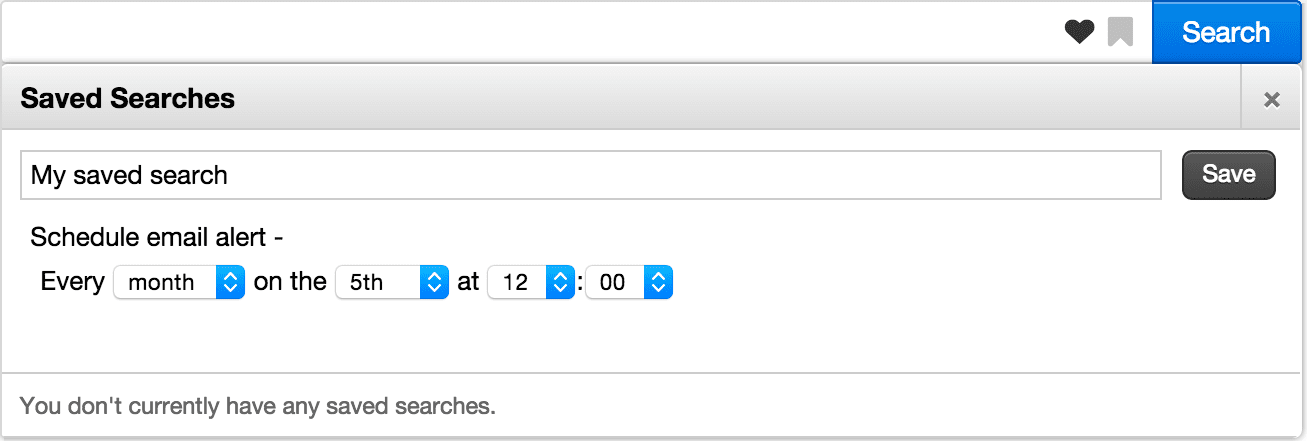
You can set up Appkit to provide user-specified email alerts in an app.
## Setup
To set up user-specified alerts:
1. Add this dependency to your `pom.xml`. Remove any previous reference to `twigkit.social` modules.
```xml theme={"dark"}
twigkittwigkit.social.runtime${project.parent.version}twigkittwigkit.alert.db.derby.memory${project.parent.version}
```
2. Add a configuration file in `conf/alert/email/smtp.conf`; see below for an example configuration:
```bash theme={"dark"}
# User to log into Appkit (service account)
twigkit-user: admin
twigkit-password: password
# Email account to use to send alert emails
from: foobar@twigkit.com
password: foobar
# SMTP details
mail.smtp.host: smtp.gmail.com
mail.smtp.port: 587
mail.smtp.auth: true
mail.smtp.starttls.enable: true
```
3. Add another configuration file for the email template in `conf/alert/email/alerts/alerts.conf`; see below for an example configuration:
```bash theme={"dark"}
email-template: http://localhost:8080/email/
subject-prefix: New report for saved query
```
4. Add the saved query alert scheduling form to the search header (header.tag):
```xml theme={"dark"}
<%-- Bookmarks --%>
<%-- Saved Searches --%>
```
5. Create the email template JSP, in `src/main/webapp/WEB-INF/pages/email.jsp`. For example:
```js theme={"dark"}
<%@ page contentType="text/html" pageEncoding="UTF-8" %>
<%@ include file="/WEB-INF/tags/client/taglibs.jspf" %>
Automated alert for query ${query.value}
```
Note the following:
* The 'alert seen' functionality is reliant on a field in the data specifying the date the document was last updated, in this case named `updated`
* The 'to address' of the email alert will either be chosen by the user via the form (default) or can be set by using the `toAddress` attribute on the saved query alert form tag.
* Appkit includes full user impersonation, so any security trimming is applied automatically.
### Saved Query Alert Form tag attributes
`**query (twigkit.model.Query)**`\
The Query object to be registered for alerting.
`**defaultTitle (java.lang.String)**`\
Default title of a saved query (if no query supplied).
`**scheduleAlertText (java.lang.String)**`\
Text to display above schedule component.
`**toAddress (java.lang.String)**`\
The email address to which the alert should be sent. If not supplied (left empty), the user will be presented with a field to specify this (default behavior).
`**toAddressPlaceholderText (java.lang.String)**`\
Placeholder text for 'to' email address field which is displayed if toAddress attribute is blank
`**toAddressLabelText (java.lang.String)**`\
Label text for 'to' email address field which is displayed if toAddress attribute is blank
`**deliveryFrequencyLabelText (java.lang.String)**`\
Text for label above scheduling component
The ConfiguredPlatformProvider is a Java class that lets you gain access to an instance of a platform configured via the 'conf' files specified in an Appkit project. This is useful when writing custom code which you would like to have access to a platform already defined in an Appkit application, for example indexing or storing documents in a platform.
To use this, simply inject the ConfiguredPlatformProvider into the class in which you want to gain access to the platform’s programmatic API:
```java theme={"dark"}
@Inject
private ConfiguredPlatformProvider myPlatformProvider;
You can then access a configured platform using this method
public Platform get(String name)
```
For example, if you have a platform configured in `src/main/resources/conf/platforms/gsa/gsa.conf`, in your code you would have:
```java theme={"dark"}
Platform myPlatform = myPlatformProvider.get("platforms.gsa");
myPlatform.search(X) //search the platform
myPlatform.store(X) //post a document to the platform
```
Most platforms support these general methods that you might want to use within the custom code that interfaces with the platform:
```java theme={"dark"}
public twigkit.model.Response search(twigkit.model.Query query) throws twigkit.platform.PlatformException;
public void store(twigkit.model.Content... contents) throws twigkit.platform.PlatformException;
public twigkit.model.Content load(java.lang.String s) throws twigkit.platform.PlatformException;
public void delete(twigkit.model.Query query) throws twigkit.platform.PlatformException;
```
A `PlatformOperationNotSupportedException` will be thrown if the method is not supported by the underlying platform. See the Javadoc for the `twigkit.model.Platform` interface for more information.
## Deploying your service
Appkit uses Guice to inject dependencies into Java classes. The easiest way to let Guice know about your new Java class (service) so that it can inject the ConfiguredPlatformProvider is to define your class as a managed Appkit service. This is done by adding a configuration file with the fully qualified name of the Java class under:
```java theme={"dark"}
/META-INF/
/services/
twigkit.service.AppkitService <-- this is a file
```
You can enter a fully qualified Java class per line for each managed service you want to deploy.
An alternative is to use the AppkitApplication class to get an instance of the ConfiguredPlatformProvider:
```java theme={"dark"}
ConfiguredPlatformProvider platformProvider = TwigKitApplication.getInstance().getInjector().getInstance(ConfiguredPlatformProvider.class);
```
This creates code that is more tightly coupled, so is generally less desirable, but still completely functional.
At Lucidworks, we use [GitHub](https://github.com) for hosting and [Git](http://git-scm.com/) for version control of our code and customers' code. There are several good guides on the web to using Git detailed below, along with some high level instructions for getting started.
## Getting access to the project
To gain access to a project, you must sign up for a [free GitHub account](https://help.github.com/articles/signing-up-for-a-new-github-account/). After you are signed up, [contact Lucidworks Support](https://support.lucidworks.com/hc/en-us/requests/new) and tell us who you are, your GitHub username, and which project you work on, and we can add you to the right project.
## Using the Fork-and-Branch Git workflow
When working with multiple developers on a single codebase, we use a Fork-and-Branch model. This lets you create a copy of a repository, make your changes and then submit them back to the original repository for review by the owner before they are merged in.
### GitHub Desktop App (Windows and Mac)
If you use the GitHub desktop application ([details and install guide](https://desktop.github.com/)) there is a good [Github guide](https://guides.github.com/activities/forking/) on how forking with the GitHub desktop app works.
### Command Line (Windows and Mac)
If you use the command-line git tools then the “fork and branch” workflow process is documented well in this [blog post](http://blog.scottlowe.org/2015/01/27/using-fork-branch-git-workflow/):
The article above covers it really well, but at a high level the process is as follows:
1. Fork a GitHub repository.
2. Clone the forked repository to your local system.
3. Add a Git remote for the original repository.
4. Create a feature branch in which to place your changes.
5. Make your changes to the new branch.
6. Commit the changes to the branch.
7. Push the branch to GitHub.
8. Open a pull request from the new branch to the original repo.
9. Keeping Your Fork in Sync.
If you are stuck, search for a specific command in the [Pro Git book](https://git-scm.com/book/en/v2); it is a useful resource.
### Forking a GitHub Repository
Forking a repository is really straightforward:
Make sure you’re logged into GitHub with your account. Find the GitHub repository with which you’d like to work.
Click the Fork button on the upper right-hand side of the repository’s page. That’s it — you now have a copy of the original repository in your GitHub account.
### Making a local clone
Even though you have a copy of the original repository in your GitHub account, you must copy it (clone it) locally so you can work on it. Navigate to the forked repository on github.com (this is the copy of the original repository residing in your GitHub account) and look on the right-hand side of the web page. You should see an area that is labeled “HTTPS clone URL”. Simple copy the URL there and use as follows:
```bash theme={"dark"}
git clone https://github.com/username/projectname.git
```
Here, **username** is your GitHub username and **projectname** is the specific name of the project (GitHub provides you the URL to copy and paste for ease).
Git will copy down the repository, both contents and commit history, to your system. Git will also add a Git remote named `origin` that points back to the forked repository in your GitHub account.
### Adding a Git Remote
Git already added a Git remote named `origin` to the clone of the Git repository on your system, and this will let you push changes back up to the forked repository in your GitHub account using `git commit` (to add commits locally) and `git push`.
To use the “fork and branch” workflow, you’ll must add a Git remote pointing back to the original repository (the one you forked on GitHub).
You’d want to add a Git remote that points back to the original repository, like this:
```bash theme={"dark"}
git remote add upstream https://github.com/twigkit/projectname.git
```
Of course, you’d want to replace the URL after `git remote add upstream` with the appropriate clone URL for the original project repository.
### Keeping Your Fork in Sync
Your forked repository does not stay in sync automatically - you must take care of this yourself - it is good practice to do this before you start work to pull in changes from other developers. To ensure your code has the latest upstream code changes, first make sure you are on your local master branch:
```bash theme={"dark"}
git checkout master
```
Then either pull the latest changes in - these commands pull (fetch and merge) the most recent changes from the upstream repository, and pushes them back to your repository:
```bash theme={"dark"}
git pull upstream master
git push origin master
```
Or explicitly fetch and merge the most recent changes from the upstream repository:
```bash theme={"dark"}
git fetch upstream
git merge upstream/master
git push origin master
```
### Working with feature branches
The master branch is the master copy of the code. When working on individual features, it is better to work in branches. Using branches, you can switch between different development tasks easily mid-flow.
#### Create a new branch
```bash theme={"dark"}
git checkout -b
```
For example, suppose you are working on ISSUE-1234. Then before doing any code changes, make sure you create a new feature branch like so:
```bash theme={"dark"}
git checkout -b ISSUE-1234
```
#### Commit changes
1. See what files you have changed and what is queued up to commit:
```bash theme={"dark"}
git status
```
2. Add some changes you have made to commit:
```bash theme={"dark"}
git add
```
3. Make your changes and then commit the changes to the branch:
```bash theme={"dark"}
git commit -m 'short descriptive note about my changes'
```
#### Push changes back to your repository
When you’re ready to commit your changes, push those changes up to the corresponding feature branch on your remote fork. This does not push the changes back to Appkit - just to your forked copy:
```bash theme={"dark"}
git push -u origin
```
See [https://help.github.com/articles/pushing-to-a-remote/](https://help.github.com/articles/pushing-to-a-remote/) and [https://git-scm.com/book/en/v2/Git-Basics-Working-with-Remotes](https://git-scm.com/book/en/v2/Git-Basics-Working-with-Remotes).
Other useful commands are `git branch` (lists what branches you have created) and `git remote -v` (lists what remote repositories you are linked to).
### Sending changes back to the master repository - opening a Pull Request
When your feature branch is ready to have its changes brought into the master branch, you must go to your GitHub fork and issue a new pull request from that feature branch. If the branch does not already exist in GitHub, a pull request will automatically be created when you push the new branch up to your repository - GitHub will prompt you to create a pull request when you view the repo online (I’m assuming you’re using your browser and not the GitHub native apps). The maintainers of the original project can use this pull request to pull your changes across to their repository and, if they approve of the changes, merge them into the main repository. See [this guide on how to create a pull request in GitHub](https://help.github.com/articles/creating-a-pull-request/) for more details.
It is good practice to ensure the pull request has a clear description of what it entails, and it should refer back to the issue that is being resolved in either the title or the description.
#### Code review
After you have created the pull request, you should assign it to a colleague for peer review. If any issues are identified during the review, the reviewer can add code comments, and assign the pull request back to you to fix. After the pull request has passed its code review, the reviewer can assign the pull request to a dedicated merge master who can do the final merge.
### Milestones and releases
GitHub lets you tag your work and keep track of which tasks should be completed by specific milestones or releases. You might also want to consider following this practice to ensure development work on your codebase is sufficiently prioritized.
* great Git resources
The best reference on the web is the [git SCM book - https://git-scm.com/book/en/v2](https://git-scm.com/book/en/v2) - covers everything you must know about Git - a great reference if you are stuck or if you are getting started, a simplified [Git Guide](http://rogerdudler.github.io/git-guide/).
In some cases, you might want to apply custom business logic for authorization after a user has been authenticated in Appkit. For example, you might want to load group and role information from an external database or directory, in those cases where the authentication provider does not provide this information.
This is relatively easy to do in Appkit, if you follow these steps.
## 1. Implement your own authorization filter
### MyAuthorizationFilter.java
```java wrap expandable theme={"dark"}
import com.google.inject.Singleton;
import twigkit.model.auth.AnonymousUser;
import twigkit.model.auth.Role;
import twigkit.model.auth.User;
import twigkit.security.SecurityContext;
import twigkit.security.filter.AuthorisationFilter;
import javax.servlet.http.HttpServletRequest;
import javax.servlet.http.HttpServletResponse;
import java.util.List;
@Singleton
public class MyAuthorizationFilter implements AuthorisationFilter {
@Override
public void init() {
}
@Override
public boolean filter(HttpServletRequest servletRequest, HttpServletResponse servletResponse) throws Exception {
if (SecurityContext.getUser() != null && !(SecurityContext.getUser() instanceof AnonymousUser)) {
User user = SecurityContext.getUser();
List roles = null; // implement your own business logic here
for (Role role : roles) {
user.addRole(role);
}
}
return true;
}
@Override
public void destroy() {
}
}
```
## 2. Bind your authorization filter in Guice
Assuming you already have a Guice application module, add your authorization filter to the authorization bindings like so:
### MyAppModule.java
```java theme={"dark"}
import com.google.inject.multibindings.Multibinder;
import twigkit.AbstractTwigKitModule;
import twigkit.security.filter.AuthorisationFilter;
public class MyAppModule extends AbstractTwigKitModule {
@Override
protected void configure() {
Multibinder authorisationBinder = Multibinder.newSetBinder(binder(), AuthorisationFilter.class);
authorisationBinder.addBinding().to(MyAuthorizationFilter.class);
}
}
```
If you do not already have a Guice app module, simply create one like above, and add an entry to `src/main/resources/META-INF/services/twigkit.TwigKitModule` (note the capitalization of TwigKitModule) containing the Fully-Qualified Class Name of the module. That is, in `src/main/resources/META-INF/services/twigkit.TwigKitModule` add the entry:
```java theme={"dark"}
your.package.MyAppModule
```
 ## Setup
To set up user-specified alerts:
1. Add this dependency to your `pom.xml`. Remove any previous reference to `twigkit.social` modules.
```xml theme={"dark"}
## Setup
To set up user-specified alerts:
1. Add this dependency to your `pom.xml`. Remove any previous reference to `twigkit.social` modules.
```xml theme={"dark"}