> ## Documentation Index
> Fetch the complete documentation index at: https://doc.lucidworks.com/llms.txt
> Use this file to discover all available pages before exploring further.
# App Development
export const LwTemplate = ({title = "Key questions to get you started", icon = "sparkles", cta = "Powered by Agent Studio", linkHref = "https://lucidworks.com/demo/?utm_source=docs&utm_medium=referral&utm_campaign=docs_cta_ai"}) => {
const [isLoaded, setIsLoaded] = useState(false);
useEffect(() => {
const timer = setTimeout(() => {
setIsLoaded(true);
}, 500);
return () => clearTimeout(timer);
}, []);
return
{isLoaded && `
}} />}
Powered by Lucidworks Agent Studio
;
};
[localhost link]: http://localhost:3000/docs/5/app-studio/concepts/app-development/overview
[mintlify link]: https://doc.lucidworks.com/docs/5/app-studio/concepts/app-development/overview
[old doc.lw link]: https://doc.lucidworks.com/app-studio/4.2/991
App Studio supports customization using an array of markup elements, or tags, that handle all the complexities of connecting to Fusion and visualizing the response to your queries.
These topics explain the details of how to customize your search interface:
* [Introduction to App Studio Markup](/docs/5/fusion/dev-portal/appkit/concepts/configuration/basic-configuration)
* [Anatomy of A View](/docs/5/fusion/dev-portal/appkit/concepts/layout-and-styling/default-view)
* [Display Search Results](/docs/5/fusion/dev-portal/appkit/concepts/rendering-search-results/overview)
* [Style an App](/docs/5/fusion/dev-portal/appkit/concepts/layout-and-styling/themes-and-styling)
* [Add Navigation Tools](/docs/5/fusion/dev-portal/appkit/concepts/navigation/overview)
* [Search Queries](/docs/5/fusion/dev-portal/appkit/reference/accessing-data/formulating-a-query)
* [Search Filters](/docs/5/fusion/dev-portal/appkit/reference/filters/overview)
* **Configure Autocomplete**
* **Localize an App**
* [Security](/docs/5/fusion/dev-portal/appkit/reference/modules/security/authentication/overview)
* [Connecting to other search providers](/docs/5/fusion/dev-portal/appkit/reference/search-platforms/overview)
* **Run App Studio in Demo Mode**
App Studio supports the ability to generate suggestions on the fly, also called autocomplete or type-ahead, using the [Terms component](https://lucene.apache.org/solr/guide/6_6/the-terms-component.html) or [Suggest component](https://lucene.apache.org/solr/guide/6_6/suggester.html) embedded in Fusion’s Solr core.
{/* // == Using the Terms component */}
The Solr [Terms component](https://lucene.apache.org/solr/guide/6_6/the-terms-component.html) provides access to the indexed terms in a field and the number of documents that match each term. This can be used, for example, to find all terms in the Solr index that match an expansion of the given query term. For example, "car" might return CARRY, CARRIED, CARE, CARL, and so on.
Since the Terms component only allows suggestions one term at a time, in cases when multiple terms are being typed, suggestions are given for the last term typed.
**How to configure suggestions with the Terms component**
1. Configure Fusion:
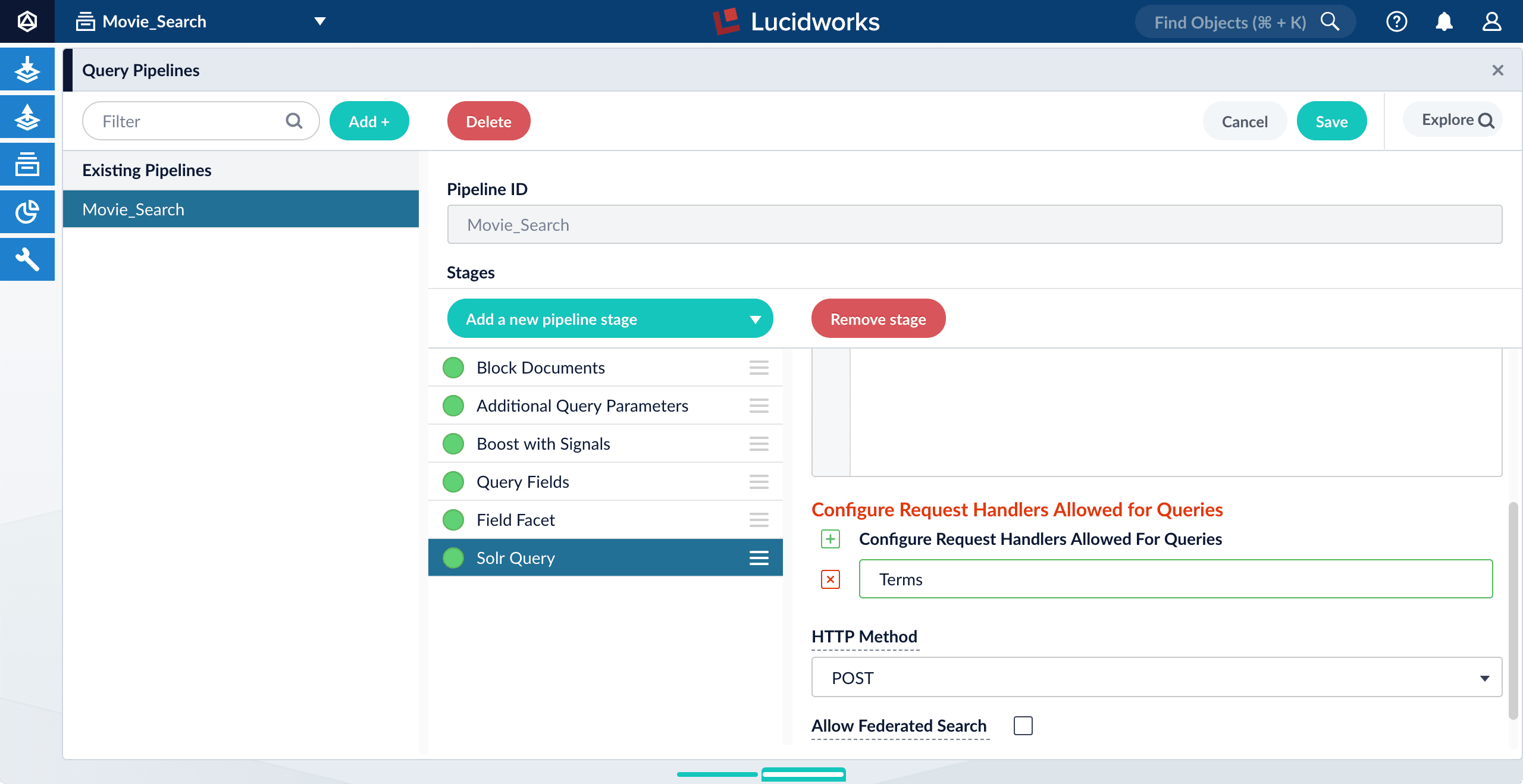
1. In Fusion, navigate to **Querying** > **Query Pipelines**.
2. Select the query pipeline you are using.
3. Select the **Solr Query** pipeline stage.
4. Under **configure Request Handlers Allowed for Queries**, click Add .
5. Enter "Terms".
6. Click **Save**.
Unlike the Suggest component, you do not need to modify `solrconfig.xml` to use the Terms component; it is preconfigured.
2. Configure App Studio:
1. Open `config/services/suggestions/terms.conf`.
Its default content is as follows:
```
name: twigkit.search.solr.suggestions.SolrQueryTermsService
source: platforms.fusion
```
# List out all fields to base your terms suggestions on
term-fields: title
title:
````
2. Change the default `source: platforms.fusion` to `source: platforms.fusion.data`.
3. Edit the value of `term-fields` as a comma-separated list of fields in your data from which to retrieve terms.
This corresponds to Solr’s `terms.fl` parameter.
4. Edit the value of `title` to describe the group of suggestions returned by Fusion.
This title can be used to group suggestions in the UI. If you are implementing only one group of suggestions, you can leave this blank or set it to something generic, like "Suggested phrases".
5. Save and close the file.
6. Open `app/views/partials/header.tpl.html`.
7. Uncomment the following line:
```xml
````
8. Save the file.
9. Refresh the search UI in your browser.
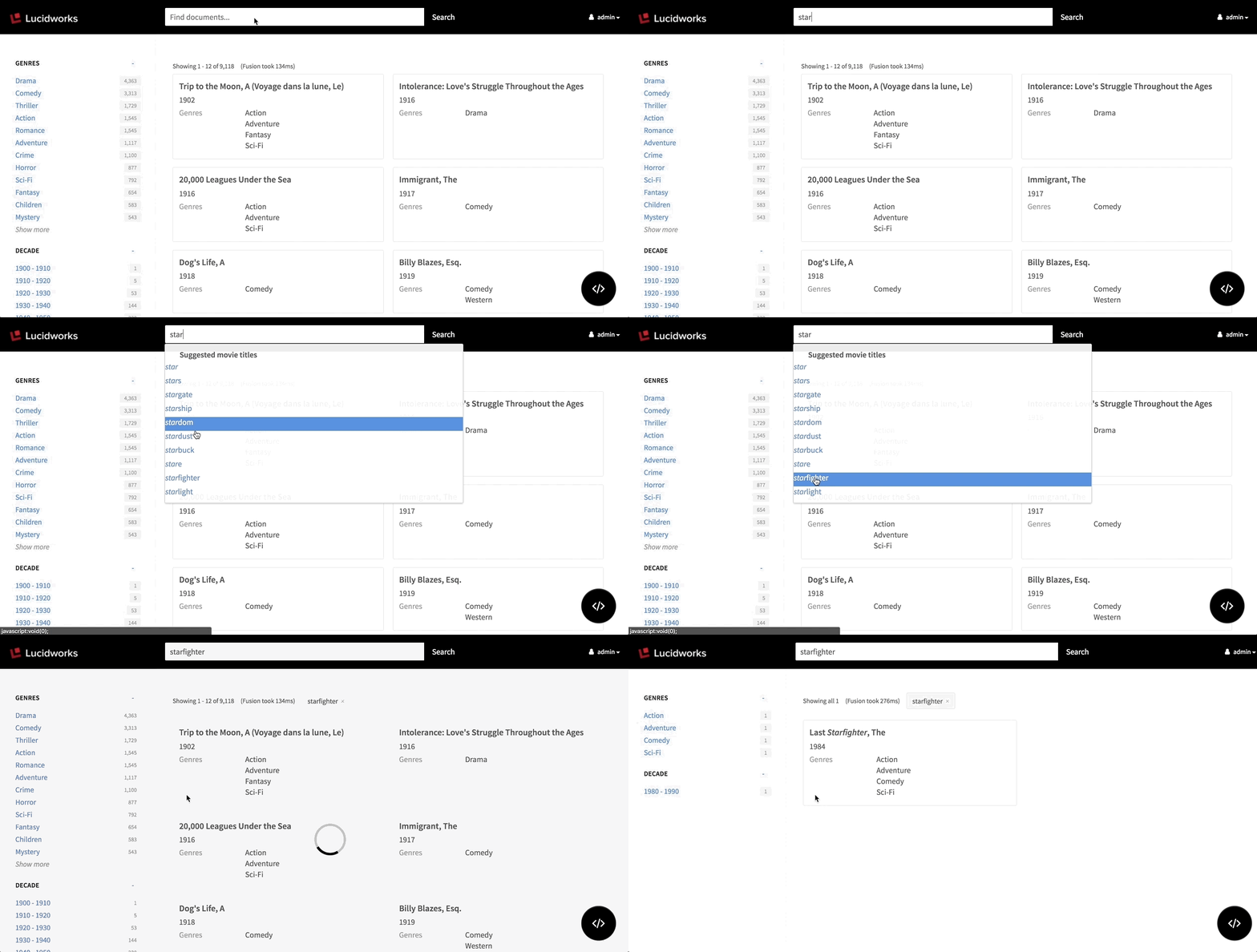
10. Test the feature by typing a search phrase.
App Studio now displays suggested terms on the fly:
{/* // == Using the Suggest component */}
{/* // */}
{/* // Solr’s [Suggest component](https://lucene.apache.org/solr/guide/6_6/suggester.html) provides the means to suggest documents or terms to end users while they are typing search terms in the search box. It can suggest terms in a dictionary file, terms indexed in a specific field, or it can suggest entire documents based on the occurrence of the search terms in a specific field. */}
{/* // */}
{/* // For reference, here is an example of how the App Studio configuration may appear for this particular service: */}
{/* // [source,] */}
{/* // ---- */}
{/* // name: twigkit.search.solr.suggestions.SolrSuggestionsParserService */}
{/* // source: platforms.fusion.data */}
{/* // suggester: titleMatchSuggester */}
{/* // parenthesis: true */}
{/* // title: Staff */}
{/* // custom: count[5] */}
{/* // ---- */}
{/* // Here, the `source` defines the location of the Fusion platform configuration. This is used to identify the Fusion host and collection. */}
{/* // */}
{/* // Below is an example of code that you need to add to `solrconfig.xml` to get suggestions based on matching against a title field as well as looking up terms in the main content field: */}
{/* // [source,xml] */}
{/* // ---- */}
{/* // <searchComponent name="suggest" class="solr.SuggestComponent"> */}
{/* // <!--Suggestion based on matches in the title. This will return the entire title field as a suggestion--> */}
{/* // <lst name="suggester"> */}
{/* // <str name="name">titleMatchSuggester</str> */}
{/* // <str name="lookupImpl">FuzzyLookupFactory</str> */}
{/* // <str name="dictionaryImpl">DocumentDictionaryFactory</str> */}
{/* // <str name="field">title</str> */}
{/* // <str name="suggestAnalyzerFieldType">text_general</str> */}
{/* // <str name="buildOnStartup">true</str> */}
{/* // </lst> */}
{/* // <!--Suggestion based on keyword matches in the content field. This will only return the individual words matching the input string--> */}
{/* // <lst name="suggester"> */}
{/* // <str name="name">freeTextContentSuggester</str> */}
{/* // <str name="lookupImpl">FreeTextLookupFactory</str> */}
{/* // <str name="dictionaryImpl">DocumentDictionaryFactory</str> */}
{/* // <str name="field">content</str> */}
{/* // <str name="suggestFreeTextAnalyzerFieldType">text_general</str> */}
{/* // <str name="suggestAnalyzerFieldType">text_general</str> */}
{/* // <str name="buildOnStartup">true</str> */}
{/* // </lst> */}
{/* // </searchComponent> */}
{/* // */}
{/* // <requestHandler class="org.apache.solr.handler.component.SearchHandler" name="/suggest"> */}
{/* // <lst name="defaults"> */}
{/* // <str name="suggest">true</str> */}
{/* // <str name="suggest.count">5</str> */}
{/* // <str name="suggest.dictionary">titleMatchSuggester</str> */}
{/* // <str name="suggest.dictionary">freeTextContentSuggester</str> */}
{/* // </lst> */}
{/* // <arr name="components"> */}
{/* // <str>suggest</str> */}
{/* // </arr> */}
{/* // </requestHandler> */}
{/* // ---- */}
{/* // Once this is set up, and you have restarted your solr engine, the query `http://localhost:8983/solr/sample/suggest?q=al` (replace 'al' with the string the end-user has typed) will bring back suggestions for both suggesters in the following format: */}
{/* // [source,xml] */}
{/* // ---- */}
{/* // <response> */}
{/* // <lst name="responseHeader"> */}
{/* // <int name="status">0</int> */}
{/* // <int name="QTime">3</int> */}
{/* // </lst> */}
{/* // <lst name="suggest"> */}
{/* // <lst name="titleMatchSuggester"> */}
{/* // <lst name="al"> */}
{/* // <int name="numFound">1</int> */}
{/* // <arr name="suggestions"> */}
{/* // <lst> */}
{/* // <str name="term">allpicsppt</str> */}
{/* // <long name="weight">0</long> */}
{/* // <str name="payload"/> */}
{/* // </lst> */}
{/* // </arr> */}
{/* // </lst> */}
{/* // </lst> */}
{/* // <lst name="freeTextContentSuggester"> */}
{/* // <lst name="al"> */}
{/* // <int name="numFound">4</int> */}
{/* // <arr name="suggestions"> */}
{/* // <lst> */}
{/* // <str name="term">all</str> */}
{/* // <long name="weight">14243018808291072</long> */}
{/* // <str name="payload"/> */}
{/* // </lst> */}
{/* // <lst> */}
{/* // <str name="term">alternative</str> */}
{/* // <long name="weight">4069433945226020</long> */}
{/* // <str name="payload"/> */}
{/* // </lst> */}
{/* // <lst> */}
{/* // <str name="term">aligned</str> */}
{/* // <long name="weight">2034716972613010</long> */}
{/* // <str name="payload"/> */}
{/* // </lst> */}
{/* // <lst> */}
{/* // <str name="term">alzheimer’s</str> */}
{/* // <long name="weight">2034716972613010</long> */}
{/* // <str name="payload"/> */}
{/* // </lst> */}
{/* // </arr> */}
{/* // </lst> */}
{/* // </lst> */}
{/* // </lst> */}
{/* // </response> */}
{/* // ---- */}
{/* // This response is basically suggesting one document with a title that contains the keyword typed by the end user as well as suggesting search terms which exist in the index. */}
{/* // */}
{/* // Use the SolrSuggestionsParserService to access suggestions. Under resources/conf/services/suggestions create a configuration file (for example, querySuggestions.conf) to contain the configuration parameters for the suggestion service. Here is an example of how this may look: */}
{/* // [source,] */}
{/* // ---- */}
{/* // name: twigkit.search.solr.suggestions.SolrSuggestionsParserService */}
{/* // source: platforms.fusion */}
{/* // suggester: titleMatchSuggester */}
{/* // parenthesis: true */}
{/* // title: Staff */}
{/* // custom: count[5] */}
{/* // ---- */}
{/* // As above, both the name and source attributes are required. The source attribute here refers to a Fusion platform configuration, which must have the backwardsCompatible attribute set to true. The other required attribute for this service is suggester. This is the name of the Solr suggester as defined in the solrconfig.xml. For example, using the example above, suggester could be set to titleMatchSuggester or freeTextContentSuggester. */}
{/* // */}
The remaining attributes shown above are optional and are the same as described above for when backwards compatibility is disabled.
{/* // */}
You can localize the UI labels in an app in multiple languages of your choice.
Appkit obtains the correct labels for a language by making calls to an Appkit translation service. The service provides a label in the chosen language, with a fallback to English if no translation exists for the label in the chosen language.
## Loading translations
You can use the new `` JSP tag to load a set of UI label translations into an app. The tag syntax is:
```xml theme={"dark"}
```
* **`dictionary`.** Name of the resource bundle from which to load translations. This is also the first part of the name of each property file that contains translations.
Default: `translations`
* **`locale`.** Locale
Default: `en` (English)
The `dictionary` and `locale` are used to find the file as follows:
1. In `src/main/resources`, the Appkit translation service looks for a resource bundle named `dictionary`, for example, `translations`.
2. Within the resource bundle, the translation service looks for property files named `{resource}`, for example, for the files `translations_en.properties` and `translations_fr.properties`.
## Enabling translations
1. Find label strings that need to be translated in the UI and identify the [key names for the labels](/docs/4/app-studio/concepts/configuration/localization-keys).
2. Create translation property files and add them under the `src/main/resources` directory. For example, for a dictionary called `translations` add `translations_en.properties` and `translations_fr.properties`.\
Edit the property files and include the label keys and translations. For example:
In `translations_en.properties`:
```properties theme={"dark"}
# translations_en.properties
...
components.pagination.next = Next
components.pagination.previous = Previous
...
```
In `translations_fr.properties`:
```properties theme={"dark"}
# translations_fr.properties
...
components.pagination.next = Suivant
components.pagination.previous = Précédent
...
```
Some translations include variables. For example, `components.response-statistics.showing` is `Showing {first} - {last} of {total}` in English. Translations should retain the variables, though their order might differ. Labels can use `` tags for emphasis, for example, `More results like {result}`.
3. Add the following dependency to your app’s `pom.xml`:
```xml theme={"dark"}
twigkittwigkit.translations${project.parent.version}
```
4. Add this `taglib` directive at the top of your app’s `index.jsp`:
```java theme={"dark"}
<%@ taglib prefix="translations" uri="/twigkit/translations" %>
```
5. Add the Appkit `` JSP tag inside the `` element of your app’s `index.jsp`:
```java theme={"dark"}
```
6. Add this rule to the `url-rules.xml` file:
```xml theme={"dark"}
^/lang/(.*)//index.jsp?locale=$1
```
You can modify other URL rules to suit your application logic. The `` JSP tag works the same.
7. Restart your app.
8. Verify that the translations are present by visiting pages in the app that should be in different languages.
This deployment type is useful for:
* Evaluating App Studio
* Previewing the UI during development
* Demoing your UI
In order to run your UI in demo mode, you need a downloaded project.
From your project directory, run `app-studio start` or `app-studio.bat start` and go to `http://localhost:8080/` to view your demo deployment. The code editor is available in the demo interface; you can hide this by using the `--production` flag.
## Start up in demo mode
Run the `app-studio` or `app-studio.bat` script like this:
```bash theme={"dark"}
app-studio start [--production] [-f] [-p port] [-m memory] [-t timeout] [-V]
```
After startup, your demo deployment is available at `http://localhost:8080/`.
| | |
| ------------- | ------------------------------------------------------------------------------------------------------------------------------------------------------------------------------------------- |
| --production | Run App Studio in "production mode", with the code editor and wizard disabled. This gives you a preview of what your UI will look like in a production deployment. |
| -f | Start App Studio in the foreground. By default, App Studio starts in the background and sends stdout/stderr to `app-studio-PORT-console.log`. |
| -p \ | Specify the port on which to start the App Studio Web server; the default is 8080. |
| -m \ | Set the minimum (`-Xms`) and maximum (`-Xmx`) heap size for the JVM, such as `-m 4g` which results in `-Xms4g -Xmx4g`. By default, this script sets the heap size to 512MB. |
| -t \ | Set the startup timeout in seconds; the default is 120. |
## Shut down in demo mode
To shut down your demo application, run `app-studio stop` or `app-studio.bat stop`:
```bash theme={"dark"}
app-studio stop [-p port] [-V]
```
The optional `-p` flag specifies the port to which the App Studio HTTP listener is bound.
You can edit the default view in your browser using the **Use the Code Editor** or
you can **Download an App Studio Project (4.2)** in order to develop it using your own IDE or store it in a source control repository.
{/* // tag::code-editor[] */}
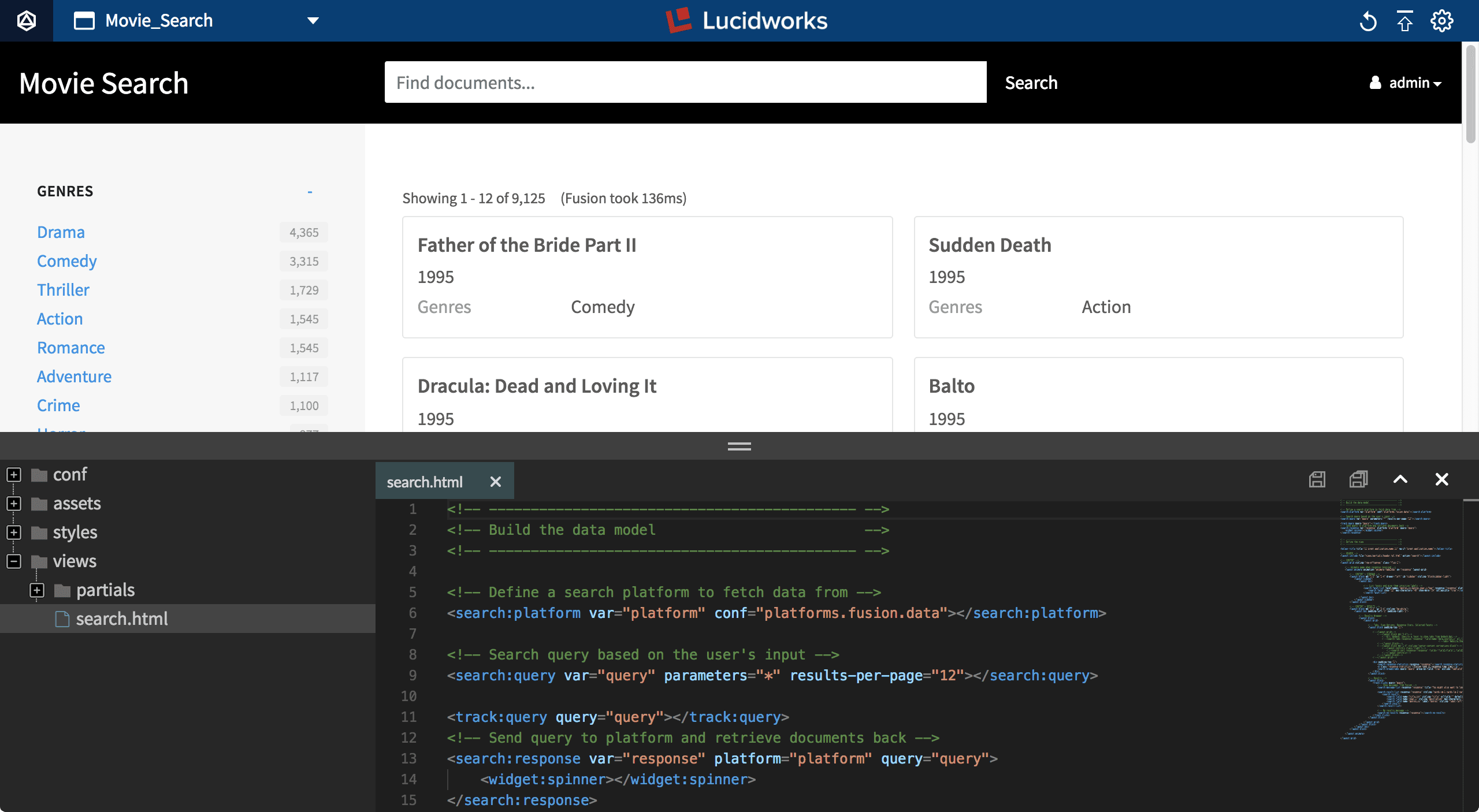
App Studio’s interface includes a built-in code editor that opens in your browser.
The code editor modifies the file that configures your search interface (`app-studio/app/views/search.html` in version 4.0), using App Studio’s [markup tags](/docs/4/app-studio/reference/overview). Your search interface reloads automatically when you save your changes in the code editor.
The code editor is also where you can publish your search interface to Fusion Server.
## Opening the code editor
**How to open the code editor**
{/* // tag::open[] */}
* Press the ESC key
*or*
* Click the code editor button:
{/* // end::open[] */}
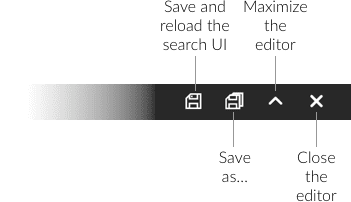
## The toolbar
## Saving your changes
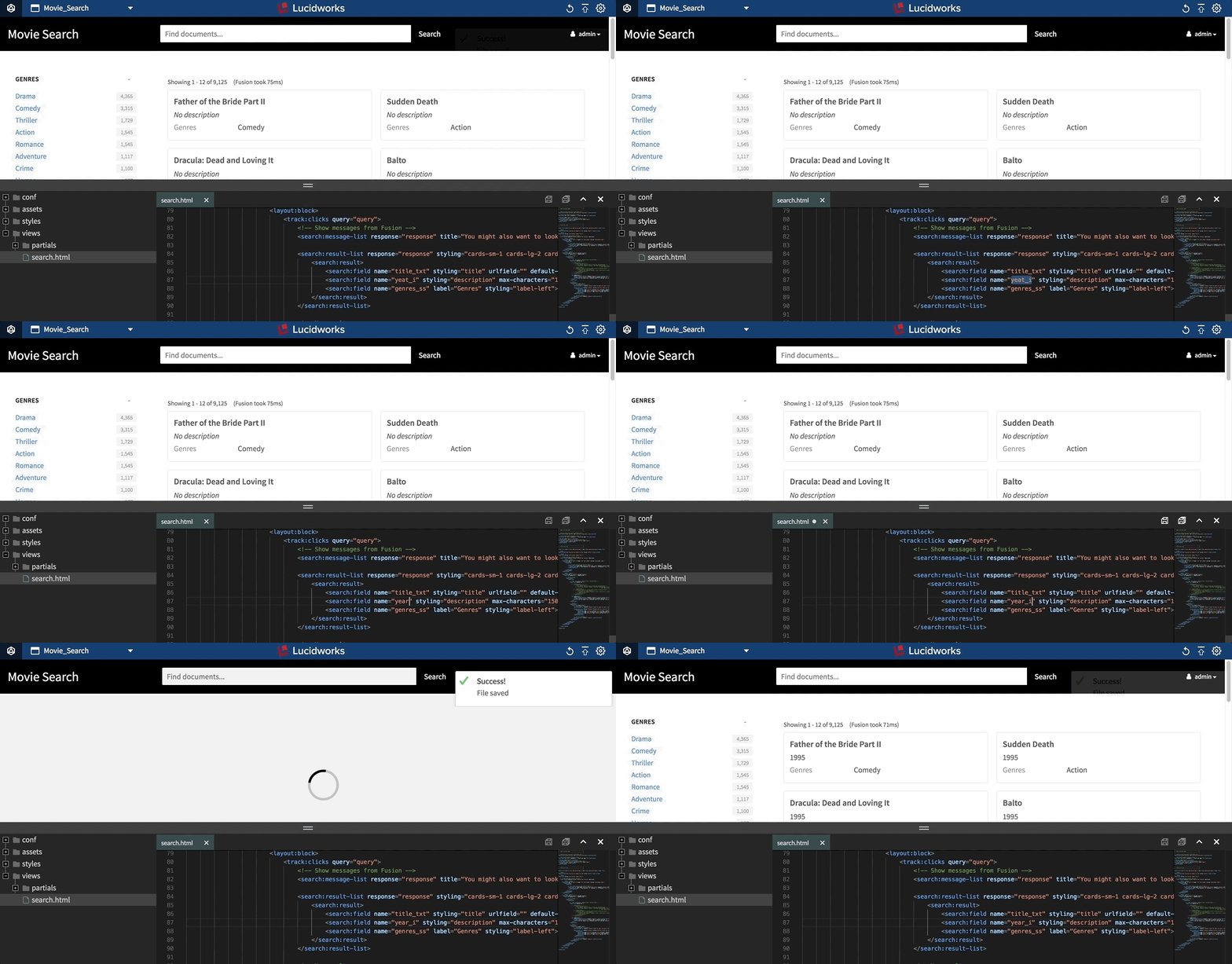
The **Save** button (or `⌘-S`/`CTRL-S`) saves the file and reloads the page to display your updated interface:
## Publishing your search interface from the code editor (version 4.0)
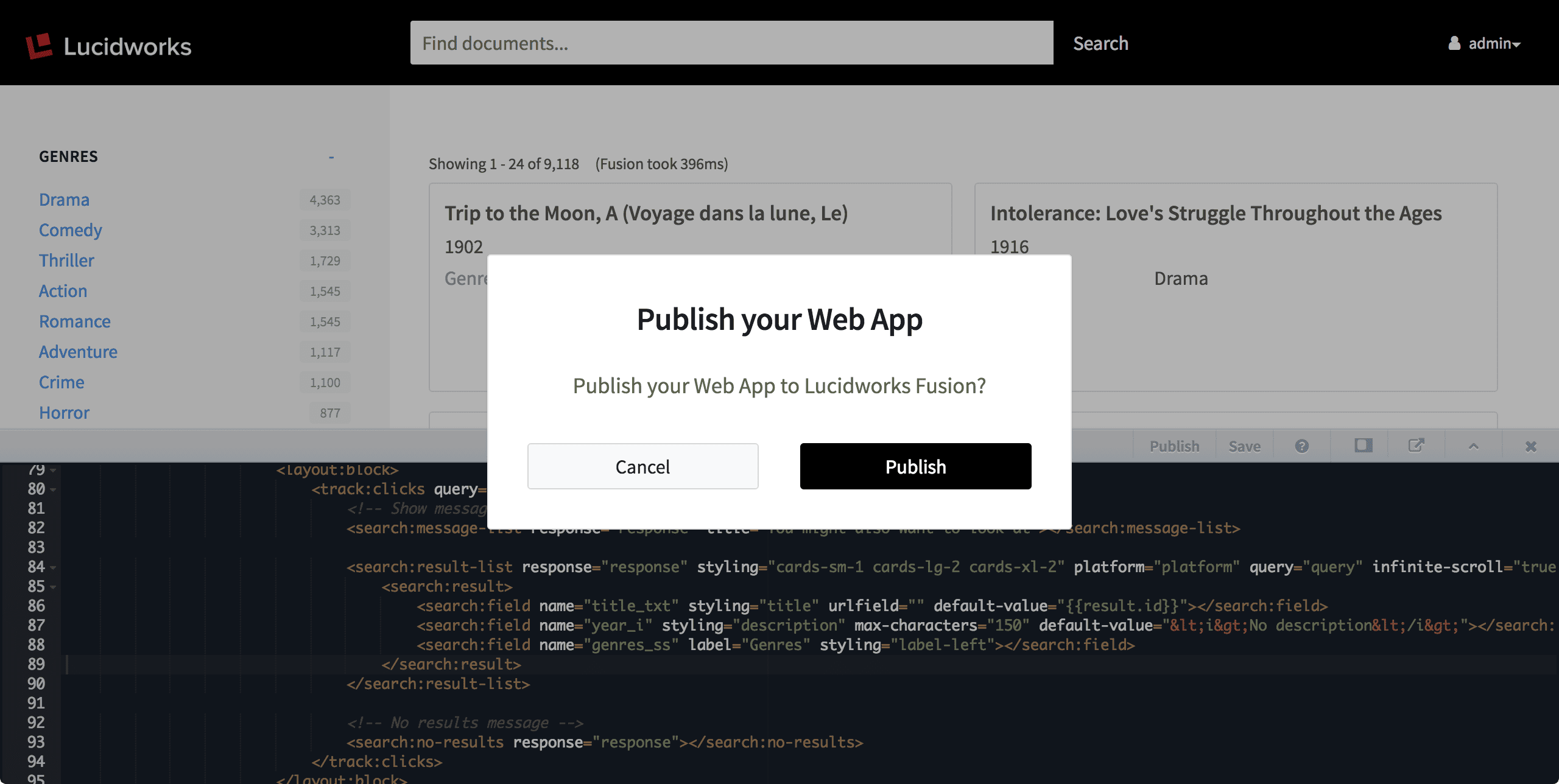
The **Publish** button deploys your search interface to Fusion. App Studio prompts you to confirm that you want to publish your Web app to Fusion:
Click **Publish** to complete the deployment.
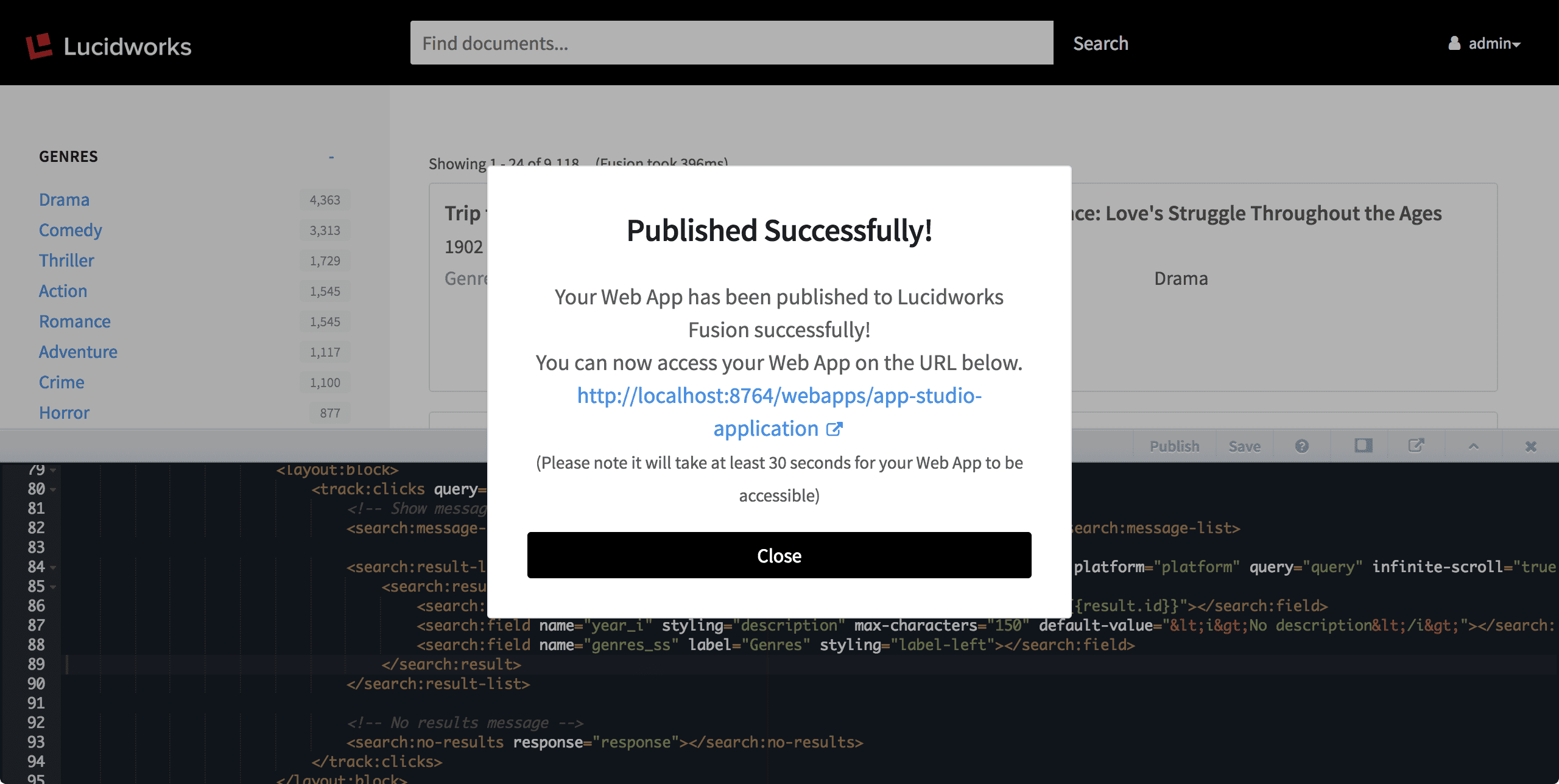
When deployment is complete, App Studio displays the Fusion URL where you can access your search interface:
{/* // end::code-editor[] */}
If you prefer to develop your search interface using your own tools, you can download it as a `.zip` file.
The project directory includes tools for running a demo deployment or compiling an application for a [production deployment](/docs/4/app-studio/reference/app-deployment/overview).
## Downloading a project from Fusion
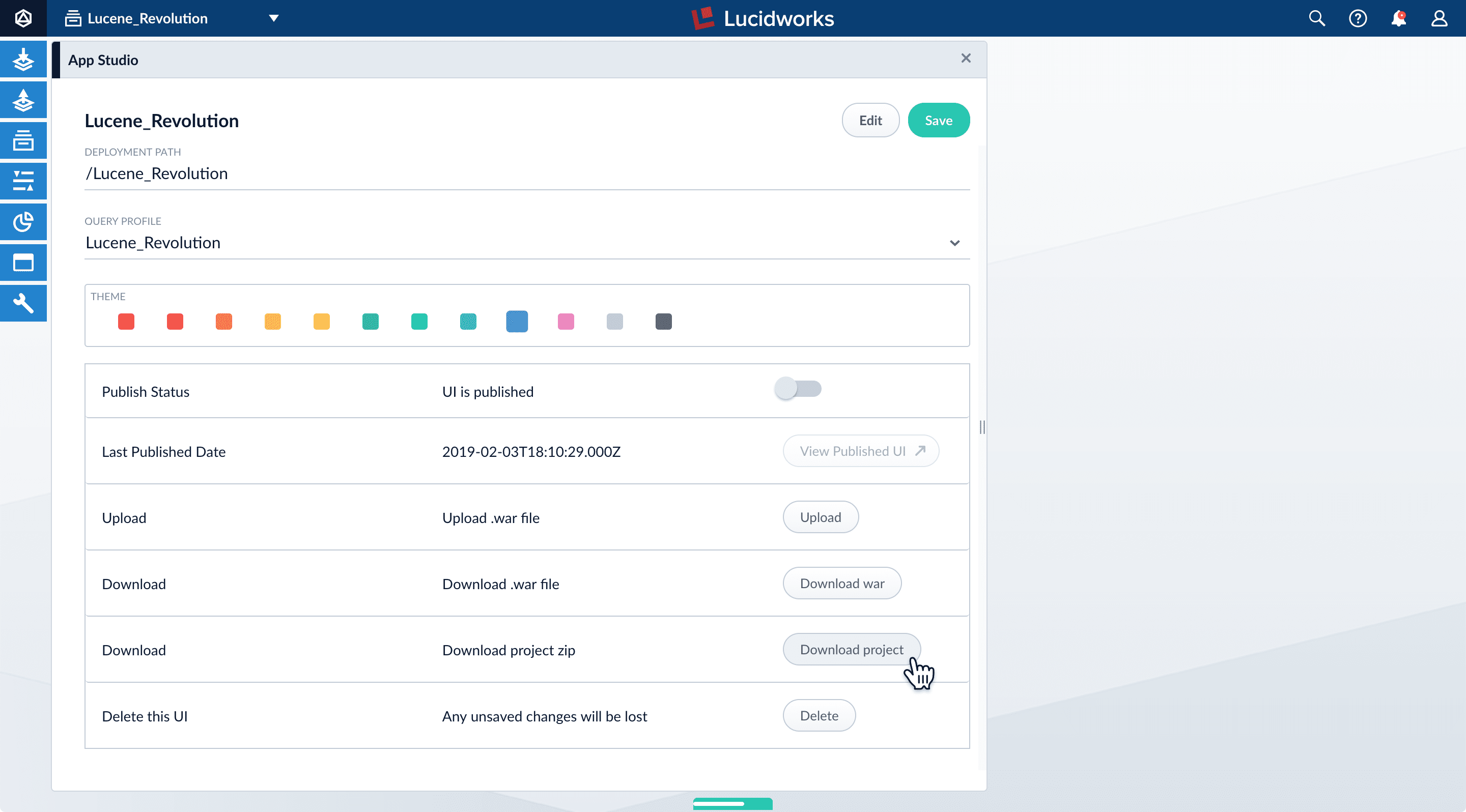
You can download your App Studio project as a `.zip` file from its configuration panel in App Studio.
This option is unavailable after you have uploaded a WAR file for the project.
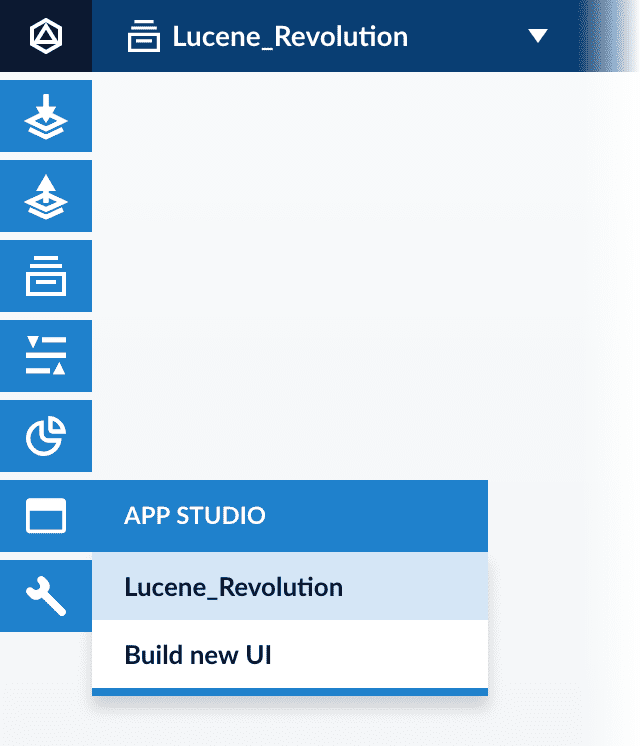
1. From the App Studio menu, select your project:
The project configuration panel appears.
2. Click **Download project**:
Your browser downloads the project as a `.zip` file.
## Deploying a project
There are several ways to deploy a project. For information, see [Deployment Overview](/docs/4/app-studio/reference/app-deployment/overview).
* You can get detailed information about every App Studio markup tag in the [Reference Guides](/docs/4/app-studio/reference/overview).
* For ideas and reusable code, see the [App Studio Gallery](/docs/5/fusion/dev-portal/appkit/reference/gallery/overview).
 .
5. Enter "Terms".
.
5. Enter "Terms".
 6. Click **Save**.
 {/* // == Using the Suggest component */}
{/* // */}
{/* // Solr’s [Suggest component](https://lucene.apache.org/solr/guide/6_6/suggester.html) provides the means to suggest documents or terms to end users while they are typing search terms in the search box. It can suggest terms in a dictionary file, terms indexed in a specific field, or it can suggest entire documents based on the occurrence of the search terms in a specific field. */}
{/* // */}
{/* // For reference, here is an example of how the App Studio configuration may appear for this particular service: */}
{/* // [source,] */}
{/* // ---- */}
{/* // name: twigkit.search.solr.suggestions.SolrSuggestionsParserService */}
{/* // source: platforms.fusion.data */}
{/* // suggester: titleMatchSuggester */}
{/* // parenthesis: true */}
{/* // title: Staff */}
{/* // custom: count[5] */}
{/* // ---- */}
{/* // Here, the `source` defines the location of the Fusion platform configuration. This is used to identify the Fusion host and collection. */}
{/* // */}
{/* // Below is an example of code that you need to add to `solrconfig.xml` to get suggestions based on matching against a title field as well as looking up terms in the main content field: */}
{/* // [source,xml] */}
{/* // ---- */}
{/* // <searchComponent name="suggest" class="solr.SuggestComponent"> */}
{/* // <!--Suggestion based on matches in the title. This will return the entire title field as a suggestion--> */}
{/* // <lst name="suggester"> */}
{/* // <str name="name">titleMatchSuggester</str> */}
{/* // <str name="lookupImpl">FuzzyLookupFactory</str> */}
{/* // <str name="dictionaryImpl">DocumentDictionaryFactory</str> */}
{/* // <str name="field">title</str> */}
{/* // <str name="suggestAnalyzerFieldType">text_general</str> */}
{/* // <str name="buildOnStartup">true</str> */}
{/* // </lst> */}
{/* // <!--Suggestion based on keyword matches in the content field. This will only return the individual words matching the input string--> */}
{/* // <lst name="suggester"> */}
{/* // <str name="name">freeTextContentSuggester</str> */}
{/* // <str name="lookupImpl">FreeTextLookupFactory</str> */}
{/* // <str name="dictionaryImpl">DocumentDictionaryFactory</str> */}
{/* // <str name="field">content</str> */}
{/* // <str name="suggestFreeTextAnalyzerFieldType">text_general</str> */}
{/* // <str name="suggestAnalyzerFieldType">text_general</str> */}
{/* // <str name="buildOnStartup">true</str> */}
{/* // </lst> */}
{/* // </searchComponent> */}
{/* // */}
{/* // <requestHandler class="org.apache.solr.handler.component.SearchHandler" name="/suggest"> */}
{/* // <lst name="defaults"> */}
{/* // <str name="suggest">true</str> */}
{/* // <str name="suggest.count">5</str> */}
{/* // <str name="suggest.dictionary">titleMatchSuggester</str> */}
{/* // <str name="suggest.dictionary">freeTextContentSuggester</str> */}
{/* // </lst> */}
{/* // <arr name="components"> */}
{/* // <str>suggest</str> */}
{/* // </arr> */}
{/* // </requestHandler> */}
{/* // ---- */}
{/* // Once this is set up, and you have restarted your solr engine, the query `http://localhost:8983/solr/sample/suggest?q=al` (replace 'al' with the string the end-user has typed) will bring back suggestions for both suggesters in the following format: */}
{/* // [source,xml] */}
{/* // ---- */}
{/* // <response> */}
{/* // <lst name="responseHeader"> */}
{/* // <int name="status">0</int> */}
{/* // <int name="QTime">3</int> */}
{/* // </lst> */}
{/* // <lst name="suggest"> */}
{/* // <lst name="titleMatchSuggester"> */}
{/* // <lst name="al"> */}
{/* // <int name="numFound">1</int> */}
{/* // <arr name="suggestions"> */}
{/* // <lst> */}
{/* // <str name="term">allpicsppt</str> */}
{/* // <long name="weight">0</long> */}
{/* // <str name="payload"/> */}
{/* // </lst> */}
{/* // </arr> */}
{/* // </lst> */}
{/* // </lst> */}
{/* // <lst name="freeTextContentSuggester"> */}
{/* // <lst name="al"> */}
{/* // <int name="numFound">4</int> */}
{/* // <arr name="suggestions"> */}
{/* // <lst> */}
{/* // <str name="term">all</str> */}
{/* // <long name="weight">14243018808291072</long> */}
{/* // <str name="payload"/> */}
{/* // </lst> */}
{/* // <lst> */}
{/* // <str name="term">alternative</str> */}
{/* // <long name="weight">4069433945226020</long> */}
{/* // <str name="payload"/> */}
{/* // </lst> */}
{/* // <lst> */}
{/* // <str name="term">aligned</str> */}
{/* // <long name="weight">2034716972613010</long> */}
{/* // <str name="payload"/> */}
{/* // </lst> */}
{/* // <lst> */}
{/* // <str name="term">alzheimer’s</str> */}
{/* // <long name="weight">2034716972613010</long> */}
{/* // <str name="payload"/> */}
{/* // </lst> */}
{/* // </arr> */}
{/* // </lst> */}
{/* // </lst> */}
{/* // </lst> */}
{/* // </response> */}
{/* // ---- */}
{/* // This response is basically suggesting one document with a title that contains the keyword typed by the end user as well as suggesting search terms which exist in the index. */}
{/* // */}
{/* // Use the SolrSuggestionsParserService to access suggestions. Under resources/conf/services/suggestions create a configuration file (for example, querySuggestions.conf) to contain the configuration parameters for the suggestion service. Here is an example of how this may look: */}
{/* // [source,] */}
{/* // ---- */}
{/* // name: twigkit.search.solr.suggestions.SolrSuggestionsParserService */}
{/* // source: platforms.fusion */}
{/* // suggester: titleMatchSuggester */}
{/* // parenthesis: true */}
{/* // title: Staff */}
{/* // custom: count[5] */}
{/* // ---- */}
{/* // As above, both the name and source attributes are required. The source attribute here refers to a Fusion platform configuration, which must have the backwardsCompatible attribute set to true. The other required attribute for this service is suggester. This is the name of the Solr suggester as defined in the solrconfig.xml. For example, using the example above, suggester could be set to titleMatchSuggester or freeTextContentSuggester. */}
{/* // */}
The remaining attributes shown above are optional and are the same as described above for when backwards compatibility is disabled.
{/* // */}
{/* // == Using the Suggest component */}
{/* // */}
{/* // Solr’s [Suggest component](https://lucene.apache.org/solr/guide/6_6/suggester.html) provides the means to suggest documents or terms to end users while they are typing search terms in the search box. It can suggest terms in a dictionary file, terms indexed in a specific field, or it can suggest entire documents based on the occurrence of the search terms in a specific field. */}
{/* // */}
{/* // For reference, here is an example of how the App Studio configuration may appear for this particular service: */}
{/* // [source,] */}
{/* // ---- */}
{/* // name: twigkit.search.solr.suggestions.SolrSuggestionsParserService */}
{/* // source: platforms.fusion.data */}
{/* // suggester: titleMatchSuggester */}
{/* // parenthesis: true */}
{/* // title: Staff */}
{/* // custom: count[5] */}
{/* // ---- */}
{/* // Here, the `source` defines the location of the Fusion platform configuration. This is used to identify the Fusion host and collection. */}
{/* // */}
{/* // Below is an example of code that you need to add to `solrconfig.xml` to get suggestions based on matching against a title field as well as looking up terms in the main content field: */}
{/* // [source,xml] */}
{/* // ---- */}
{/* // <searchComponent name="suggest" class="solr.SuggestComponent"> */}
{/* // <!--Suggestion based on matches in the title. This will return the entire title field as a suggestion--> */}
{/* // <lst name="suggester"> */}
{/* // <str name="name">titleMatchSuggester</str> */}
{/* // <str name="lookupImpl">FuzzyLookupFactory</str> */}
{/* // <str name="dictionaryImpl">DocumentDictionaryFactory</str> */}
{/* // <str name="field">title</str> */}
{/* // <str name="suggestAnalyzerFieldType">text_general</str> */}
{/* // <str name="buildOnStartup">true</str> */}
{/* // </lst> */}
{/* // <!--Suggestion based on keyword matches in the content field. This will only return the individual words matching the input string--> */}
{/* // <lst name="suggester"> */}
{/* // <str name="name">freeTextContentSuggester</str> */}
{/* // <str name="lookupImpl">FreeTextLookupFactory</str> */}
{/* // <str name="dictionaryImpl">DocumentDictionaryFactory</str> */}
{/* // <str name="field">content</str> */}
{/* // <str name="suggestFreeTextAnalyzerFieldType">text_general</str> */}
{/* // <str name="suggestAnalyzerFieldType">text_general</str> */}
{/* // <str name="buildOnStartup">true</str> */}
{/* // </lst> */}
{/* // </searchComponent> */}
{/* // */}
{/* // <requestHandler class="org.apache.solr.handler.component.SearchHandler" name="/suggest"> */}
{/* // <lst name="defaults"> */}
{/* // <str name="suggest">true</str> */}
{/* // <str name="suggest.count">5</str> */}
{/* // <str name="suggest.dictionary">titleMatchSuggester</str> */}
{/* // <str name="suggest.dictionary">freeTextContentSuggester</str> */}
{/* // </lst> */}
{/* // <arr name="components"> */}
{/* // <str>suggest</str> */}
{/* // </arr> */}
{/* // </requestHandler> */}
{/* // ---- */}
{/* // Once this is set up, and you have restarted your solr engine, the query `http://localhost:8983/solr/sample/suggest?q=al` (replace 'al' with the string the end-user has typed) will bring back suggestions for both suggesters in the following format: */}
{/* // [source,xml] */}
{/* // ---- */}
{/* // <response> */}
{/* // <lst name="responseHeader"> */}
{/* // <int name="status">0</int> */}
{/* // <int name="QTime">3</int> */}
{/* // </lst> */}
{/* // <lst name="suggest"> */}
{/* // <lst name="titleMatchSuggester"> */}
{/* // <lst name="al"> */}
{/* // <int name="numFound">1</int> */}
{/* // <arr name="suggestions"> */}
{/* // <lst> */}
{/* // <str name="term">allpicsppt</str> */}
{/* // <long name="weight">0</long> */}
{/* // <str name="payload"/> */}
{/* // </lst> */}
{/* // </arr> */}
{/* // </lst> */}
{/* // </lst> */}
{/* // <lst name="freeTextContentSuggester"> */}
{/* // <lst name="al"> */}
{/* // <int name="numFound">4</int> */}
{/* // <arr name="suggestions"> */}
{/* // <lst> */}
{/* // <str name="term">all</str> */}
{/* // <long name="weight">14243018808291072</long> */}
{/* // <str name="payload"/> */}
{/* // </lst> */}
{/* // <lst> */}
{/* // <str name="term">alternative</str> */}
{/* // <long name="weight">4069433945226020</long> */}
{/* // <str name="payload"/> */}
{/* // </lst> */}
{/* // <lst> */}
{/* // <str name="term">aligned</str> */}
{/* // <long name="weight">2034716972613010</long> */}
{/* // <str name="payload"/> */}
{/* // </lst> */}
{/* // <lst> */}
{/* // <str name="term">alzheimer’s</str> */}
{/* // <long name="weight">2034716972613010</long> */}
{/* // <str name="payload"/> */}
{/* // </lst> */}
{/* // </arr> */}
{/* // </lst> */}
{/* // </lst> */}
{/* // </lst> */}
{/* // </response> */}
{/* // ---- */}
{/* // This response is basically suggesting one document with a title that contains the keyword typed by the end user as well as suggesting search terms which exist in the index. */}
{/* // */}
{/* // Use the SolrSuggestionsParserService to access suggestions. Under resources/conf/services/suggestions create a configuration file (for example, querySuggestions.conf) to contain the configuration parameters for the suggestion service. Here is an example of how this may look: */}
{/* // [source,] */}
{/* // ---- */}
{/* // name: twigkit.search.solr.suggestions.SolrSuggestionsParserService */}
{/* // source: platforms.fusion */}
{/* // suggester: titleMatchSuggester */}
{/* // parenthesis: true */}
{/* // title: Staff */}
{/* // custom: count[5] */}
{/* // ---- */}
{/* // As above, both the name and source attributes are required. The source attribute here refers to a Fusion platform configuration, which must have the backwardsCompatible attribute set to true. The other required attribute for this service is suggester. This is the name of the Solr suggester as defined in the solrconfig.xml. For example, using the example above, suggester could be set to titleMatchSuggester or freeTextContentSuggester. */}
{/* // */}
The remaining attributes shown above are optional and are the same as described above for when backwards compatibility is disabled.
{/* // */}
 {/* // end::open[] */}
 ## The toolbar
 ## Saving your changes
The **Save** button (or `⌘-S`/`CTRL-S`) saves the file and reloads the page to display your updated interface:
## Saving your changes
The **Save** button (or `⌘-S`/`CTRL-S`) saves the file and reloads the page to display your updated interface:
 ## Publishing your search interface from the code editor (version 4.0)
The **Publish** button deploys your search interface to Fusion. App Studio prompts you to confirm that you want to publish your Web app to Fusion:
## Publishing your search interface from the code editor (version 4.0)
The **Publish** button deploys your search interface to Fusion. App Studio prompts you to confirm that you want to publish your Web app to Fusion:
 Click **Publish** to complete the deployment.
When deployment is complete, App Studio displays the Fusion URL where you can access your search interface:
Click **Publish** to complete the deployment.
When deployment is complete, App Studio displays the Fusion URL where you can access your search interface:
 {/* // end::code-editor[] */}
 The project configuration panel appears.
2. Click **Download project**:
The project configuration panel appears.
2. Click **Download project**:
 Your browser downloads the project as a `.zip` file.
## Deploying a project
There are several ways to deploy a project. For information, see [Deployment Overview](/docs/4/app-studio/reference/app-deployment/overview).
Your browser downloads the project as a `.zip` file.
## Deploying a project
There are several ways to deploy a project. For information, see [Deployment Overview](/docs/4/app-studio/reference/app-deployment/overview).