> ## Documentation Index
> Fetch the complete documentation index at: https://doc.lucidworks.com/llms.txt
> Use this file to discover all available pages before exploring further.
# System Administration
export const LwTemplate = ({title = "Key questions to get you started", icon = "sparkles", cta = "Powered by Agent Studio", linkHref = "https://lucidworks.com/demo/?utm_source=docs&utm_medium=referral&utm_campaign=docs_cta_ai"}) => {
const [isLoaded, setIsLoaded] = useState(false);
useEffect(() => {
const timer = setTimeout(() => {
setIsLoaded(true);
}, 500);
return () => clearTimeout(timer);
}, []);
return
{isLoaded && `
}} />}
Powered by Lucidworks Agent Studio
;
};
export const InlineImage = ({src, alt = '', height = '2em'}) => {
return ;
};
[localhost link]: http://localhost:3000/docs/4/fusion-server/concepts/system/overview
[mintlify link]: https://doc.lucidworks.com/docs/4/fusion-server/concepts/system/overview
[old doc.lw link]: https://doc.lucidworks.com/fusion-server/4.2/129
The Fusion UI provides information for system administration and lets you configure system components.
The REST API provides equivalent functionality. See [System Admin APIs](/docs/4/fusion-server/reference/api/system-admin-apis/overview).
## DevOps Center
The DevOps Center is a
suite of tools
for monitoring, troubleshooting, and incident investigation. It consists of
a set of dashboards and
an interactive log viewer, providing views into this Fusion cluster’s hosts and services using metrics and events.
See [The DevOps Center](/docs/4/fusion-server/concepts/system/devops-center).
## Object Explorer
Object Explorer lets you easily find and manage Fusion objects within a specific app and across multiple apps in an entire Fusion deployment.
See [Object Explorer](/docs/4/fusion-server/concepts/object-explorer).
## Log Viewer
Fusion includes some dashboards to view and analyze events in Fusion logs. You can also customize existing dashboards or create new ones.
To access these dashboards, click **System > Log Viewer**. See [Dashboards](/docs/4/fusion-server/concepts/dashboards/overview).
## Access Control
Fusion provides application security by restricting access to known users. Users are assigned named sets of permissions which provide access to a specific function called roles. A Security Realm encapsulates a user database together with specific authentication and authorization mechanisms.
The Access Control panel allows you to view and edit [users](/docs/4/fusion-server/concepts/security/access-control/users), [roles](/docs/4/fusion-server/concepts/security/access-control/roles), and [security realms](/docs/4/fusion-server/concepts/security/access-control/security-realms).
## Blobs
Fusion accepts large binary objects (blobs) for upload, and stores them in Solr. Blob uploads are used to install models, lookup lists, JDBC drivers, connectors, and more. In addition to the Blob Store API, the Fusion UI provides an interface to the blob store in the Fusion workspace.
See [Blob Storage](/docs/4/fusion-server/concepts/indexing/blob-storage).
## Import Fusion Objects
You can use the Fusion UI and the Objects API to migrate collections and related objects, including your searchable data, configuration data, pipelines, aggregations, and other objects on which your collections depend. You can also migrate entire apps.
You can use the Fusion UI and the [Objects API](/docs/4/fusion-server/reference/api/objects-api) to migrate collections and related objects, including your searchable data, configuration data, pipelines, aggregations, and other objects on which your collections depend. You can also migrate entire apps.
When upgrading from one Fusion version to a later one, you must use the migrator to migrate objects. The migrator automates the process of translating relevant objects to the new version. Exporting an object from one Fusion version and importing it into a different Fusion version *isn’t* supported.
You might need to migrate objects in the following circumstances:
* When migrating data from development environments into testing and production environments
* To back up data, so you can restore it after an incident of data loss
* When the migrator script was not able to migrate an object automatically
When you export and import objects to migrate them, make sure you that any data gets to where it is going before deleting the sources.
## Migration approaches
Several approaches are available for migrating Fusion objects. This table summarizes the approaches.
| | Export an app | Import an app | Export an object | Import an object | Add an object to an app |
| --------------------------------- | -------------------------- | ------------------------------------------------------------------ | -------------------------- | ------------------------- | ----------------------- |
| **Fusion UI** | App configuration | Launcher (entire app) App configuration (combine apps) | - | - | Object Explorer |
| **Objects API** (endpoints) | GET from `export` endpoint | POST to `import` endpoint | GET from `export` endpoint | POST to `import` endpoint | - |
For more information about using the Objects API to export and import objects, see [Objects API](/docs/4/fusion-server/reference/api/objects-api).
The remainder of this topic describes approaches in the Fusion UI.
Use the parts of the Fusion UI indicated in the table to export and import apps and specific objects. Exporting creates a zip file. To import, you select a data file and possibly a variable file.
The approach with Object Explorer differs. With Object Explorer, you can add objects from other apps (or that are not linked to any apps) to the currently open app.
## Export an app with the Fusion UI
**How to export an app with the Fusion UI**
1. Navigate to the launcher.
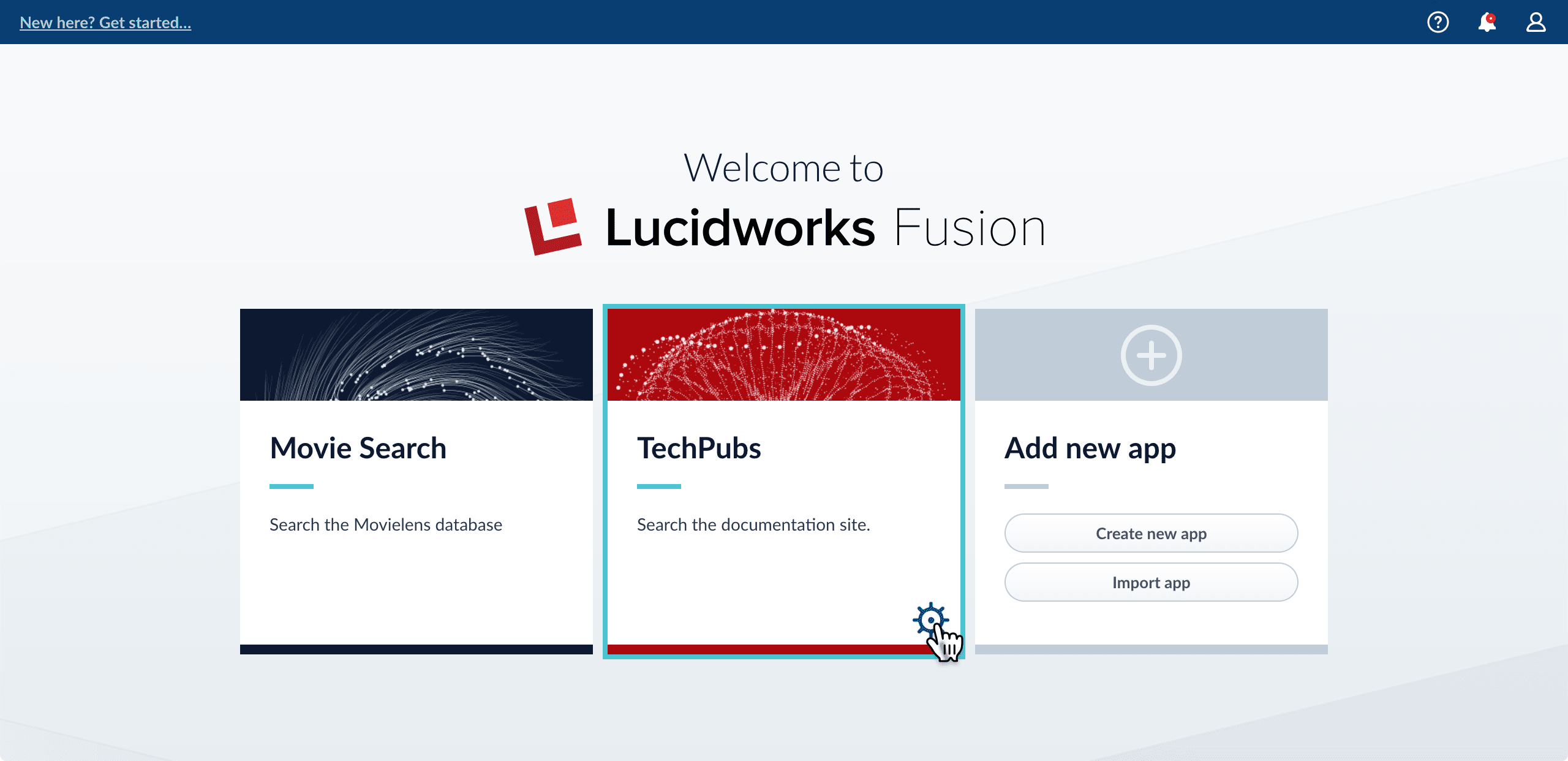
2. Hover over the app you want to export and click the Configure icon:
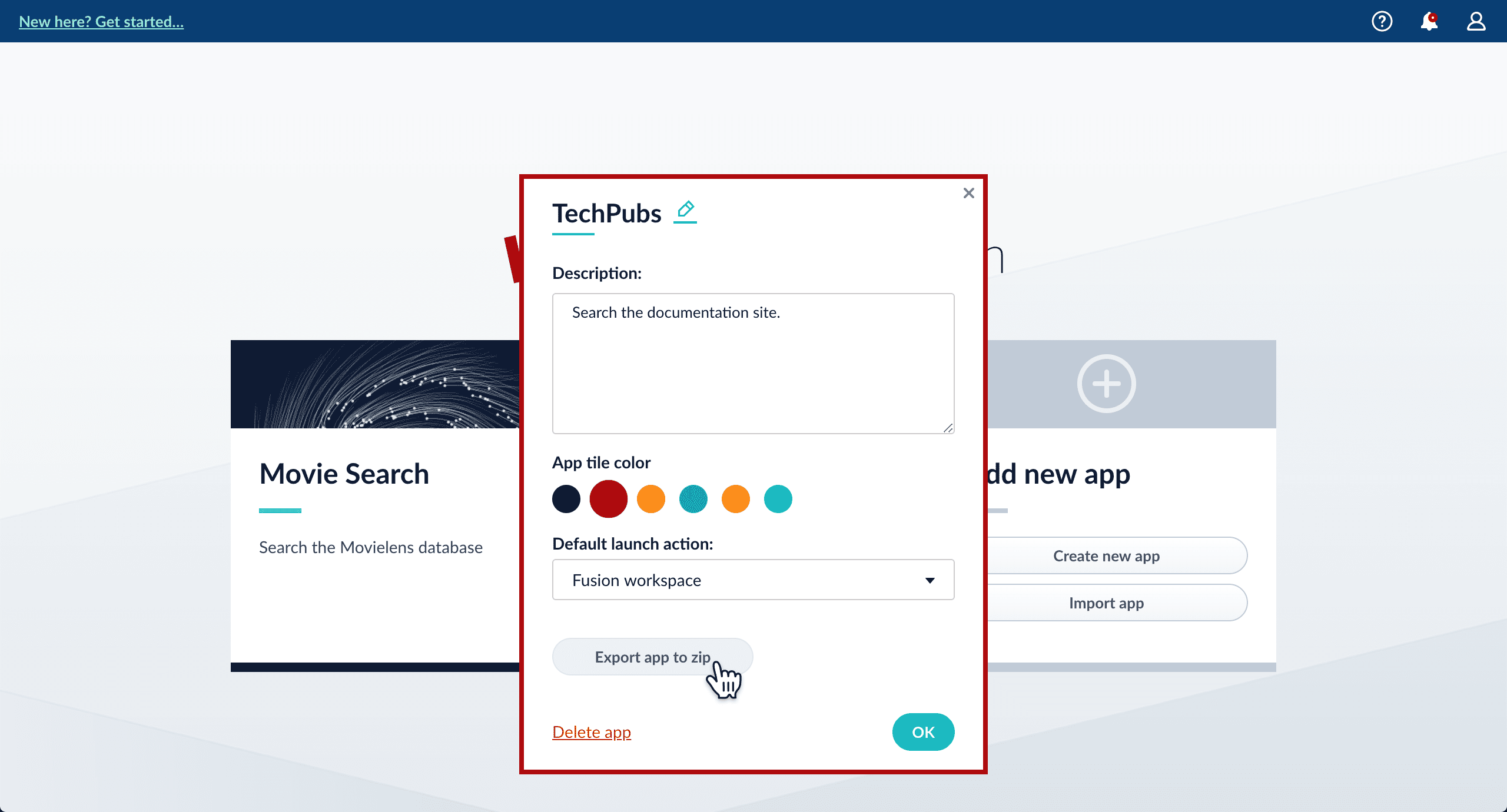
3. In the app config window, click **Export app to zip**:
See import for information to import the downloaded zip file into other instances of Fusion 4.x Server.
## Import an app with the Fusion UI
**How to import an app with the Fusion UI**
1. Navigate to the launcher.
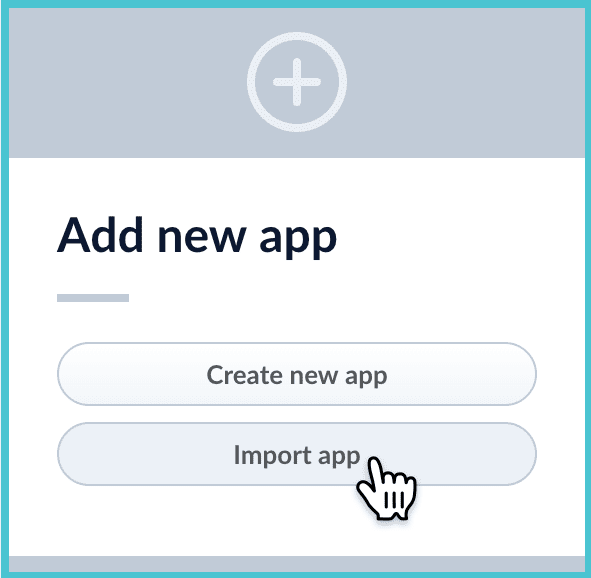
2. Click **Import app**.
3. Under **Data File**, click **Choose File** and select the zip file containing the app you want to import.
4. If your app has [usernames and passwords](/docs/4/fusion-server/reference/api/objects-api) in a separate file, select it under **Variables File**.\
If the Variables File is needed, it *must* be a separate file that is not in a .zip file. It is a .json map of variables to values. The following is an example:
```json theme={"dark"}
{
"secret.dataSources.Inventory_BR_S3_DS.password":"SOMETHING",
"secret.dataSources.LLM_A_BR_S3_DS.password":"FmJSaDE9Tj5REDACTED",
"secret.dataSources.LLM_BR_Inventory_S3_DS.password":"FmJSaDE9Tj5GzIVvethAC4Huh",
"secret.dataSources.LLM_BR_Load_S3_DS.password":"FmJSaDE9Tj5GzIVvethAC4"
}
```
1. In Fusion 4.1 and later, you can sometimes edit parameter values to use the new values in the imported app. If this is the case, Fusion displays a dialog box that lets you edit the parameter values.
Make desired changes, and then click **Import**.
## Copy an app
To copy an app from one deployment to a different one, [export the app](#export-an-app-with-the-fusion-ui) on the source deployment, and then [import the app](#import-an-app-with-the-fusion-ui) on the target deployment.
## Import objects into an app
You can import objects into the currently open app.
**How to import objects into an open app**
1. In the Fusion launcher, click the app into which you want to import objects.\
The Fusion workspace appears.
2. In the upper left, click **System** > **Import Fusion Objects**.
The Import Fusion Objects window opens.
3. Select the data file from your local filesystem.\
If you are importing [usernames and passwords](/docs/4/fusion-server/reference/api/objects-api) in a separate file, select it under **Variables File**.
4. Click **Import**.\
If there are conflicts, Fusion prompts you to specify an import policy:
* Click **Overwrite** to overwrite the objects on the target system with the ones in the import file.
* Click **Merge** to skip all conflicting objects and import only the non-conflicting objects.
* Click **Start Over** to abort the import.\
Fusion confirms that the import was successful:
5. Click **Close** to close the Import Fusion Objects window.
## Add an object to an app
You can add objects present in other apps (or in no apps) to the open app. Some objects are linked to other apps. You can also add those directly to an app.
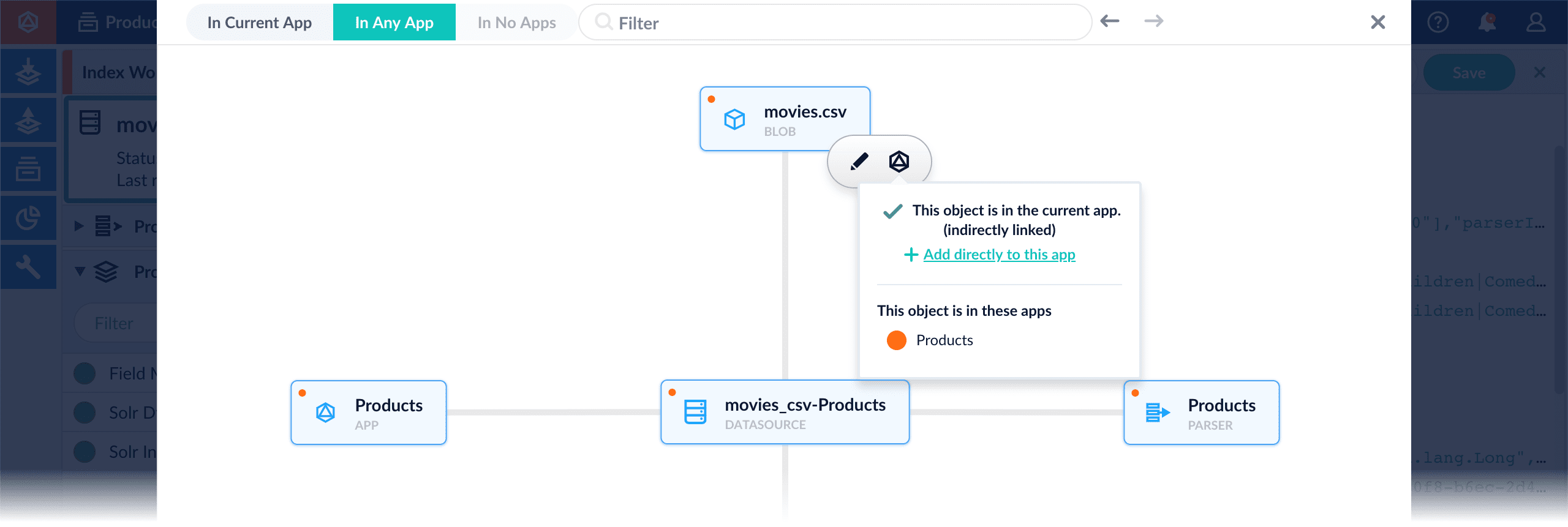
* **Add an object to an app** – While in the Fusion workspace for the app to which you want to add an object, open Object Explorer and click **In Any App**. Search for or browse to the object you want to add. Hover over the object, click the App icon, and then click **Add to this app**.
* **Add an object to an app directly** – In cases when an object is linked to an app, but is not linked directly to the app (it is linked via some dependency), you can add the object to an app directly.
While in the Fusion workspace for the app to which you want to add an object directly, open Object Explorer and click **In Any App**. Search for or browse to the object you want to add. Hover over the object, click the App icon, and then click **Add to this app directly**.
### Messaging Services
The Messaging Services menu lets you configure system notifications, log messages, and alerts to external applications. Several messaging services are available.
See [Messaging Services](/docs/4/fusion-server/concepts/system/monitoring/messaging-services).
## Scheduler
A job is a runnable Fusion object that performs a specific activity. Datasource jobs, Spark jobs, and tasks are all types of jobs.
The Scheduler provides an interface for scheduling jobs.
See [Jobs and Schedules](/docs/4/fusion-server/concepts/jobs/overview).
### Solr Clusters
The Solr Clusters menu provides controls for both reporting on and configuring Solr servers. When using Fusion with an existing Solr cluster, this provides a single point of access for both systems.
## Solr Config
Solr uses several XML configuration files to specify the contents and behavior of a Solr collection. Fusion provides a set of default configurations, but depending on your application needs, it may be necessary to edit these configuration files.
This Solr Config panel displays the set of Solr configuration XML files that you can edit. This is an advanced feature, for experienced Solr users. See the [Solr wiki](https://cwiki.apache.org/confluence/display/solr/Configuring+solrconfig.xml) for more information on configuring Solr.
## System
To access the system dashboard, click **System** > **System**.
You need to be logged in as `admin` to access the full feature set.
### System Overview
The System Overview tab shows an overview of the collections and their states in the cluster.
Click a specific collection to view the core name, collection name, Solr memory, system memory, and swap space usage.
### API Insight
The API Insight tab shows the available REST API endpoints in the system.
### Configurations
The Configurations tab provides read access to all of the global property settings of the system. The UI allows you to filter the list of configuration items by terms and choose the node of the cluster to examine.
If you need to change any configuration item, you should use the [Configurations API](/docs/4/fusion-server/reference/api/system-admin-apis/configurations-api).
### History
The History tab shows the start and stop times of all services.
### Heartbeat Data
The Heartbeat Data tab shows you the information that would be sent to Lucidworks as part of the [System Usage Monitor](/docs/4/fusion-server/concepts/system/system-usage-monitor),
an optional program to report information about your system. You can enable or disable sending the data in this screen, by checking the box next to **Report Heartbeat**.
### Metrics
The Metrics tab provides access to the metrics indexed in the `system_metrics` collection, if enabled.
In Fusion 4.2 and later, this metrics collection implementation is deprecated in favor of the `system_monitor` collection and the [DevOps Center](/docs/4/fusion-server/concepts/system/devops-center).
For details, see [System Metrics](/docs/4/fusion-server/reference/system-metrics).
### Threads
The Threads tab shows the details of each active thread in the system. This is the same information returned by the threads endpoint of the [System API](/docs/4/fusion-server/reference/api/system-admin-apis/system-api).
## Learn more
## Troubleshooting
### High CPU load
Heavy CPU load across all nodes in the cluster might indicate the need for more nodes. More typically, however, a single node or service is being overloaded.
* Use `top` or another monitoring utility to find out which processes are using high CPU.
* All Fusion services, including Solr and Zookeeper, run as Java processes. Most services indicate the name of the service via the `-DserviceName` command-line argument.
Common reasons for busy services:
* Connectors-classic: document parsing and ingestion
* Connectors-classic: document-heavy index and/or query pipeline use
* API: document-heavy index and/or query pipeline use
* Solr: use across multiple nodes holding the same collection
* Solr: use across multiple nodes holding shard leaders
* Heavy query load involving facets, stats, and/or sorting
* Heavy document writing to a given collection
What to do:
* Find out which services or nodes are being overloaded.
* Find out if there is known activity to explain the excessive CPU load.
* If no explanation is found, [Contact Lucidworks Support](https://support.lucidworks.com/hc/en-us/requests/new).
### Low memory
Low memory problems are typically the result of two issues: low system memory and a lack of heap space for an individual service.
### Lack of free memory
You can detect a lack of free memory on a server using the `free -h` command. On servers running the Solr service, large amounts of free memory is ideal because this memory is used for filesystem caching. Take note of the amount of free memory and the disk cache in comparison to the overall index size. Ideally, the disk cache should be able to hold all of the index, although this is not as important when using newer SSD technologies.
There are several ways to increase the available memory on a server:
* Change the command-line options configured in `conf/fusion.cors` to reduce the heap sizes of individual services. However, this might result in a lack of heap space, as described below.
* Run fewer services on a node and/or reallocate services that need more memory to nodes with extra capacity.
* Add nodes to the cluster.
* Add memory to the nodes.
### Lack of heap space
Finding processes that have exited with `OutOfMemoryError` in the logs, or finding a dump file called `java_pidXXX.hprof` in the log directory, indicates that a service failed due to lack of heap space.
Heap space is configured on a per-service basis in the `conf/fusion.cors` file via the `-Xmx` and `-Xms` command-line parameters. Avoid allocating heap sizes that are known to be larger than needed for a service, because these can lead to long GC pauses.
Two common ways to detect long GC pauses include:
* Examine the `gc_*.log` files in the log directories. For deep analysis, upload files to [http://gceasy.io](http://gceasy.io).
* Using `top`, look for periods when all cores are busy followed by a spike in one core (with most or all other cores dropping to near zero). This is pattern is typically found when one service is busy and is encountering long GC pauses.
The need for GC analysis varies from application to application.
 3. In the app config window, click **Export app to zip**:
 See import for information to import the downloaded zip file into other instances of Fusion 4.x Server.
## Import an app with the Fusion UI
**How to import an app with the Fusion UI**
1. Navigate to the launcher.
2. Click **Import app**.
See import for information to import the downloaded zip file into other instances of Fusion 4.x Server.
## Import an app with the Fusion UI
**How to import an app with the Fusion UI**
1. Navigate to the launcher.
2. Click **Import app**.
 3. Under **Data File**, click **Choose File** and select the zip file containing the app you want to import.
4. If your app has [usernames and passwords](/docs/4/fusion-server/reference/api/objects-api) in a separate file, select it under **Variables File**.\
If the Variables File is needed, it *must* be a separate file that is not in a .zip file. It is a .json map of variables to values. The following is an example:
```json theme={"dark"}
{
"secret.dataSources.Inventory_BR_S3_DS.password":"SOMETHING",
"secret.dataSources.LLM_A_BR_S3_DS.password":"FmJSaDE9Tj5REDACTED",
"secret.dataSources.LLM_BR_Inventory_S3_DS.password":"FmJSaDE9Tj5GzIVvethAC4Huh",
"secret.dataSources.LLM_BR_Load_S3_DS.password":"FmJSaDE9Tj5GzIVvethAC4"
}
```
1. In Fusion 4.1 and later, you can sometimes edit parameter values to use the new values in the imported app. If this is the case, Fusion displays a dialog box that lets you edit the parameter values.
3. Under **Data File**, click **Choose File** and select the zip file containing the app you want to import.
4. If your app has [usernames and passwords](/docs/4/fusion-server/reference/api/objects-api) in a separate file, select it under **Variables File**.\
If the Variables File is needed, it *must* be a separate file that is not in a .zip file. It is a .json map of variables to values. The following is an example:
```json theme={"dark"}
{
"secret.dataSources.Inventory_BR_S3_DS.password":"SOMETHING",
"secret.dataSources.LLM_A_BR_S3_DS.password":"FmJSaDE9Tj5REDACTED",
"secret.dataSources.LLM_BR_Inventory_S3_DS.password":"FmJSaDE9Tj5GzIVvethAC4Huh",
"secret.dataSources.LLM_BR_Load_S3_DS.password":"FmJSaDE9Tj5GzIVvethAC4"
}
```
1. In Fusion 4.1 and later, you can sometimes edit parameter values to use the new values in the imported app. If this is the case, Fusion displays a dialog box that lets you edit the parameter values.
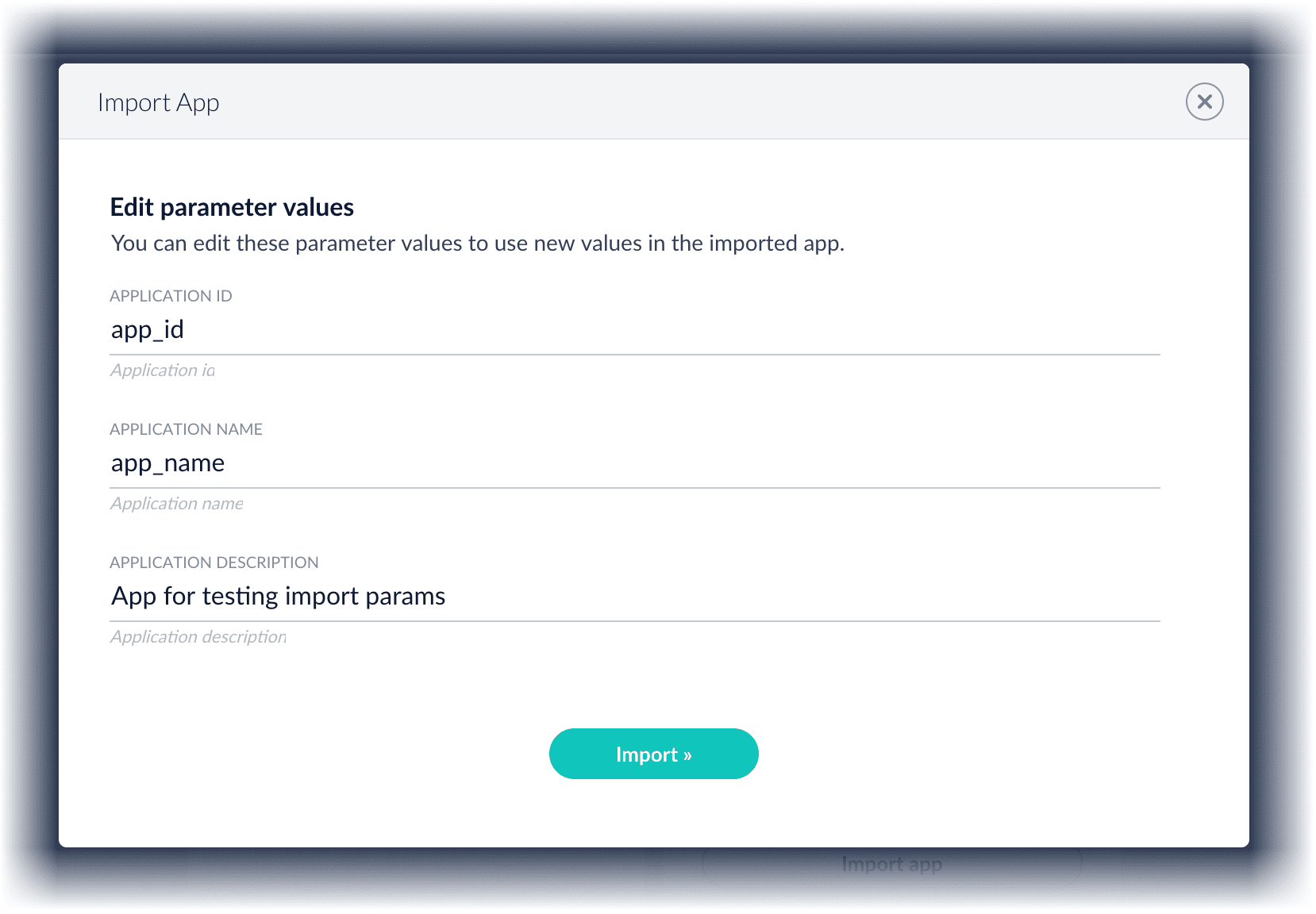 Make desired changes, and then click **Import**.
## Copy an app
To copy an app from one deployment to a different one, [export the app](#export-an-app-with-the-fusion-ui) on the source deployment, and then [import the app](#import-an-app-with-the-fusion-ui) on the target deployment.
## Import objects into an app
You can import objects into the currently open app.
**How to import objects into an open app**
1. In the Fusion launcher, click the app into which you want to import objects.\
The Fusion workspace appears.
2. In the upper left, click **System**
Make desired changes, and then click **Import**.
## Copy an app
To copy an app from one deployment to a different one, [export the app](#export-an-app-with-the-fusion-ui) on the source deployment, and then [import the app](#import-an-app-with-the-fusion-ui) on the target deployment.
## Import objects into an app
You can import objects into the currently open app.
**How to import objects into an open app**
1. In the Fusion launcher, click the app into which you want to import objects.\
The Fusion workspace appears.
2. In the upper left, click **System**  > **Import Fusion Objects**.
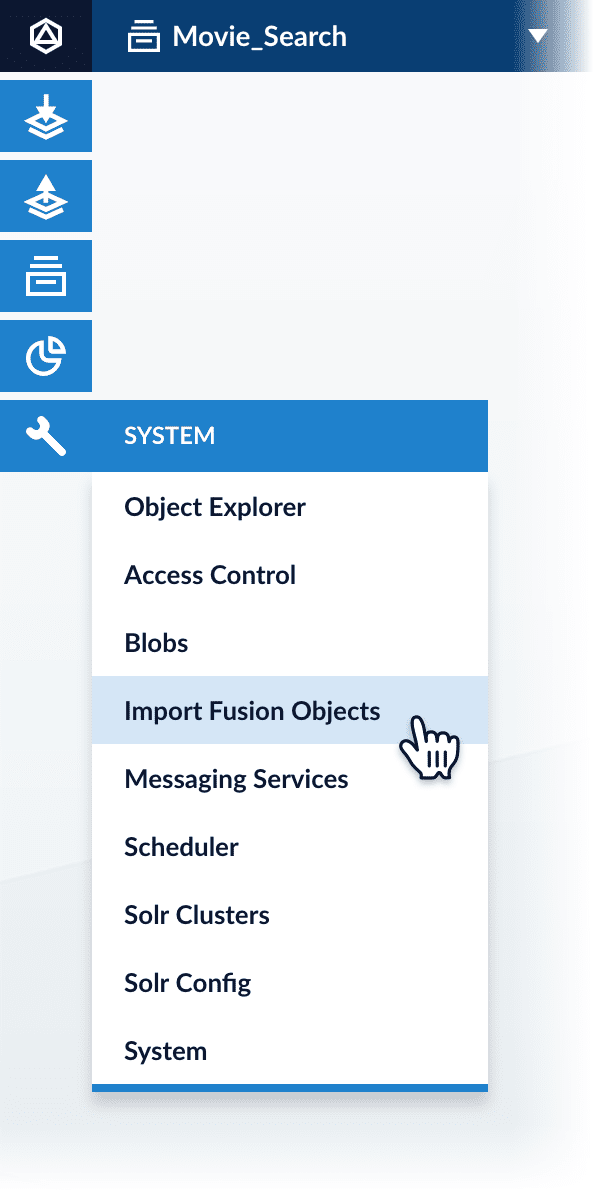 The Import Fusion Objects window opens.
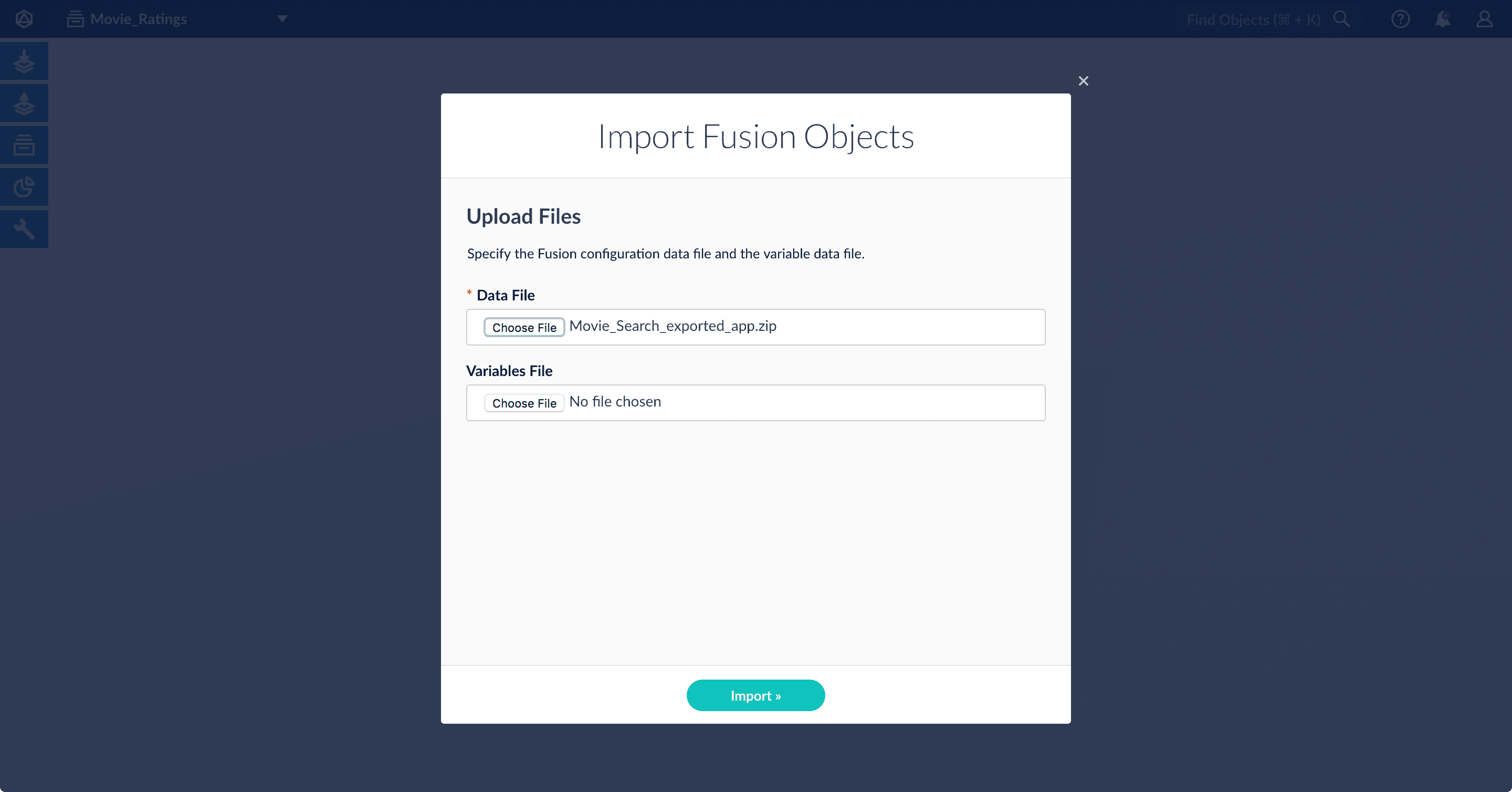 3. Select the data file from your local filesystem.\
If you are importing [usernames and passwords](/docs/4/fusion-server/reference/api/objects-api) in a separate file, select it under **Variables File**.
4. Click **Import**.\
If there are conflicts, Fusion prompts you to specify an import policy:
3. Select the data file from your local filesystem.\
If you are importing [usernames and passwords](/docs/4/fusion-server/reference/api/objects-api) in a separate file, select it under **Variables File**.
4. Click **Import**.\
If there are conflicts, Fusion prompts you to specify an import policy:
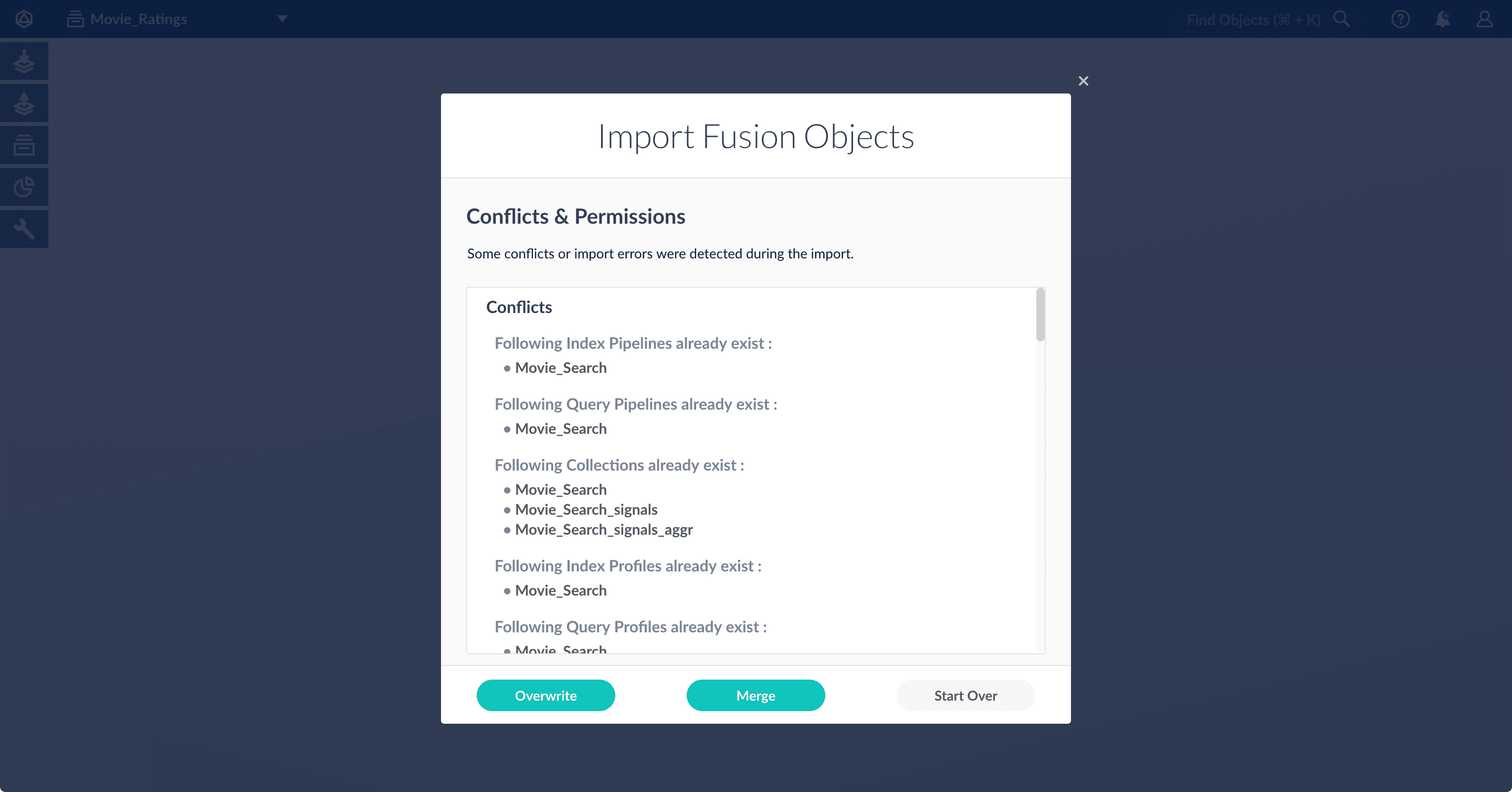 * Click **Overwrite** to overwrite the objects on the target system with the ones in the import file.
* Click **Merge** to skip all conflicting objects and import only the non-conflicting objects.
* Click **Start Over** to abort the import.\
Fusion confirms that the import was successful:
* Click **Overwrite** to overwrite the objects on the target system with the ones in the import file.
* Click **Merge** to skip all conflicting objects and import only the non-conflicting objects.
* Click **Start Over** to abort the import.\
Fusion confirms that the import was successful:
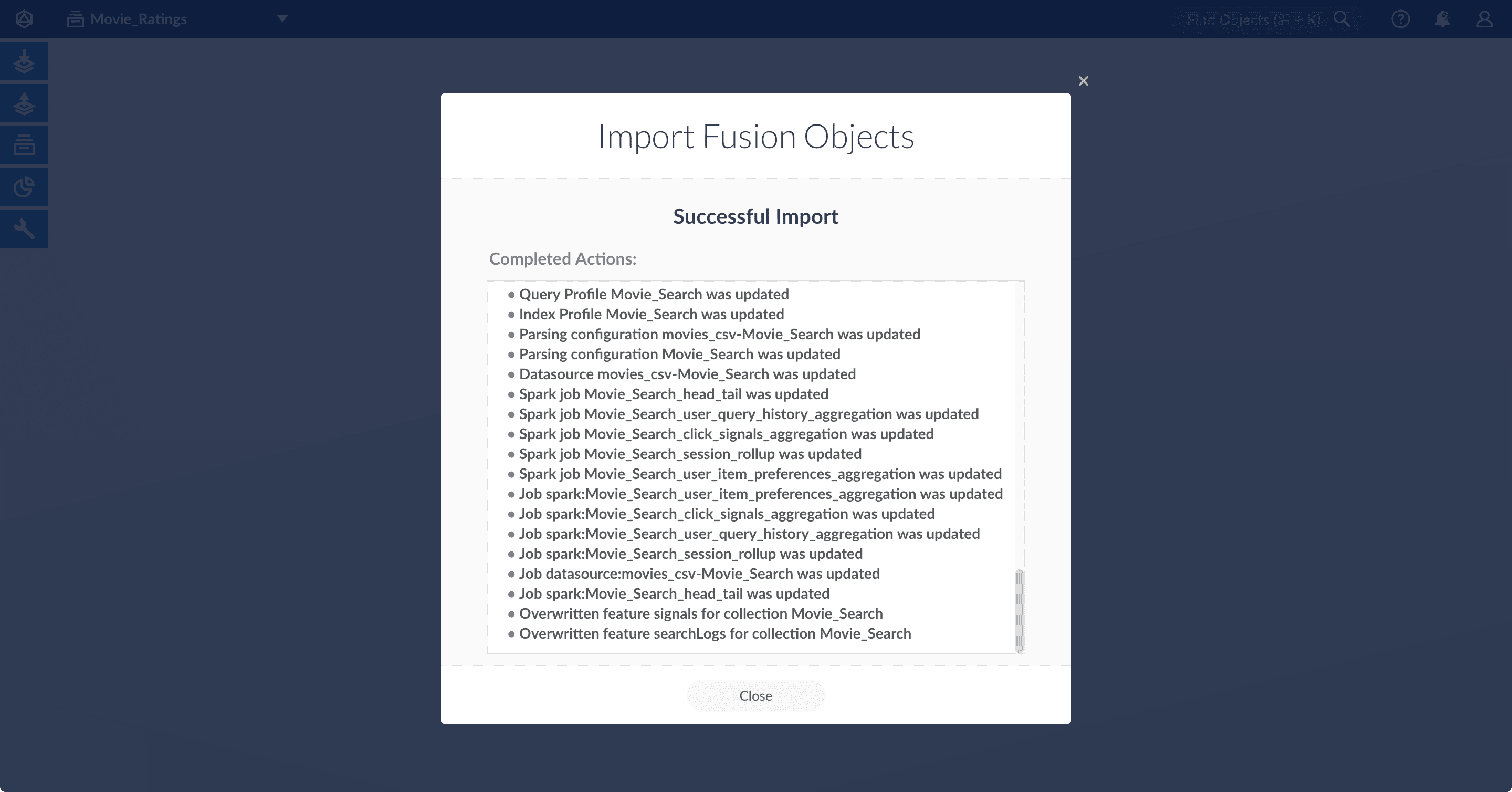 5. Click **Close** to close the Import Fusion Objects window.
## Add an object to an app
You can add objects present in other apps (or in no apps) to the open app. Some objects are linked to other apps. You can also add those directly to an app.
* **Add an object to an app** – While in the Fusion workspace for the app to which you want to add an object, open Object Explorer and click **In Any App**. Search for or browse to the object you want to add. Hover over the object, click the App
5. Click **Close** to close the Import Fusion Objects window.
## Add an object to an app
You can add objects present in other apps (or in no apps) to the open app. Some objects are linked to other apps. You can also add those directly to an app.
* **Add an object to an app** – While in the Fusion workspace for the app to which you want to add an object, open Object Explorer and click **In Any App**. Search for or browse to the object you want to add. Hover over the object, click the App  icon, and then click **Add to this app**.
 * **Add an object to an app directly** – In cases when an object is linked to an app, but is not linked directly to the app (it is linked via some dependency), you can add the object to an app directly.
While in the Fusion workspace for the app to which you want to add an object directly, open Object Explorer and click **In Any App**. Search for or browse to the object you want to add. Hover over the object, click the App
* **Add an object to an app directly** – In cases when an object is linked to an app, but is not linked directly to the app (it is linked via some dependency), you can add the object to an app directly.
While in the Fusion workspace for the app to which you want to add an object directly, open Object Explorer and click **In Any App**. Search for or browse to the object you want to add. Hover over the object, click the App