> ## Documentation Index
> Fetch the complete documentation index at: https://doc.lucidworks.com/llms.txt
> Use this file to discover all available pages before exploring further.
# Blob Storage
export const LwTemplate = ({title = "Key questions to get you started", icon = "sparkles", cta = "Powered by Agent Studio", linkHref = "https://lucidworks.com/demo/?utm_source=docs&utm_medium=referral&utm_campaign=docs_cta_ai"}) => {
const [isLoaded, setIsLoaded] = useState(false);
useEffect(() => {
const timer = setTimeout(() => {
setIsLoaded(true);
}, 500);
return () => clearTimeout(timer);
}, []);
return
{isLoaded && `
}} />}
Powered by Lucidworks Agent Studio
;
};
[localhost link]: http://localhost:3000/docs/4/fusion-server/concepts/indexing/blob-storage
[mintlify link]: https://doc.lucidworks.com/docs/4/fusion-server/concepts/indexing/blob-storage
[old doc.lw link]: https://doc.lucidworks.com/fusion/5.9/153
Fusion accepts large binary objects (blobs) for upload, and stores them in Solr. Blob uploads are used to install models, lookup lists, JDBC drivers, connectors, and more.
## Blob Types
A `resourceType` query parameter can be used to specify the a blob type. For example, specify `plugin:connector` when uploading a connector, like this:
```bash wrap theme={"dark"}
curl -H 'content-type:application/zip' -X PUT 'fusion-host:{api-port}/api/blobs/myplugin?resourceType=plugin:connector' --data-binary @myplugin.zip
```
The complete list of valid values for `resourceType` is below:
| Type | Description |
| ------------------ | ------------------------------------------------------------------------------------------------------------------------------------------------------------ |
| `banana` | A Banana [dashboard](/docs/4/fusion-server/concepts/dashboards/overview) |
| `catalog` | An [analytics catalog](/docs/4/fusion-server/reference/api/catalog-api) |
| `driver:jdbc` | A [JDBC Driver uploaded to Fusion Server](#upload-a-jdbc-driver-to-fusion-server) |
| `file:js-index` | A JavaScript file for use with a [Managed Javascript index stage](/docs/4/fusion-server/reference/pipeline-stages/indexing/managed-javascript-index-stage). |
| `file:js-query` | A JavaScript file for use with a [Managed Javascript query stage](/docs/4/fusion-server/reference/pipeline-stages/query/managed-javascript-query-stage). |
| `file` | Any uploaded file, such as from the [Quickstart](#quickstart) or the [Index Workbench](/docs/4/fusion-server/concepts/indexing/datasources/index-workbench). |
| `model:ml-model` | A [machine learning model](/docs/4/fusion-ai/concepts/machine-learning/machine-learning-models) (Fusion AI only) |
| `model:open-nlp` | An [OpenNLP model](/docs/4/fusion-ai/reference/index-pipeline-stages/opennlp-ner-extractor-index-stage) (Fusion AI only) |
| `other` | A blob of unknown type If no `resourceType` is specified on upload, "other" is assigned by default. |
| `plugin:connector` | A [Fusion 4.x connector](#install-a-connector-fusion-4-x) |
The JDBC connector fetches documents from a relational database via SQL queries. Under the hood, this connector implements the Solr [DataImportHandler (DIH)](https://wiki.apache.org/solr/DataImportHandler) plugin.
Fusion stores JDBC drivers in the blob store. You can upload a driver using the Fusion UI or the Blob Store API.
* The JDBC V1 connector is supported in Fusion releases 5.3 and earlier.
* The JDBC V2 connector is supported in Fusion releases 5.4 and later.
## How to upload a JDBC driver using the Fusion UI
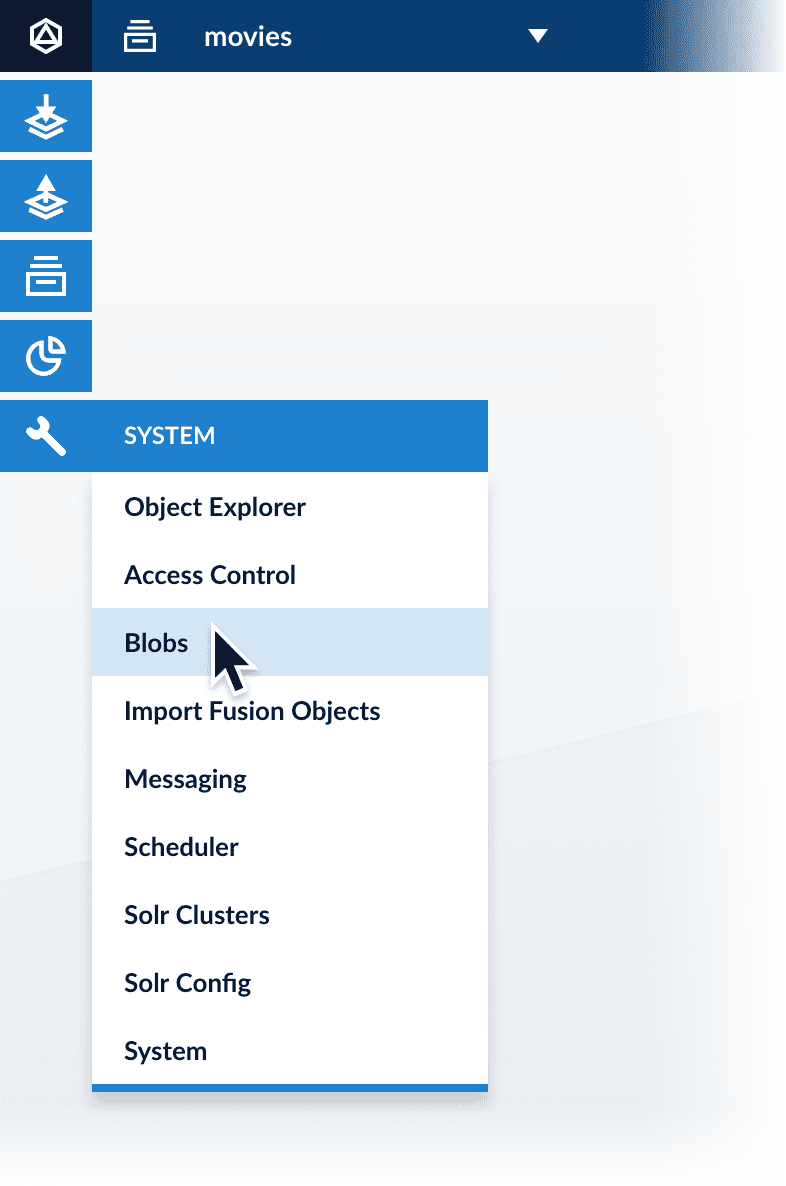
1. In the Fusion UI, navigate to **System** > **Blobs**.
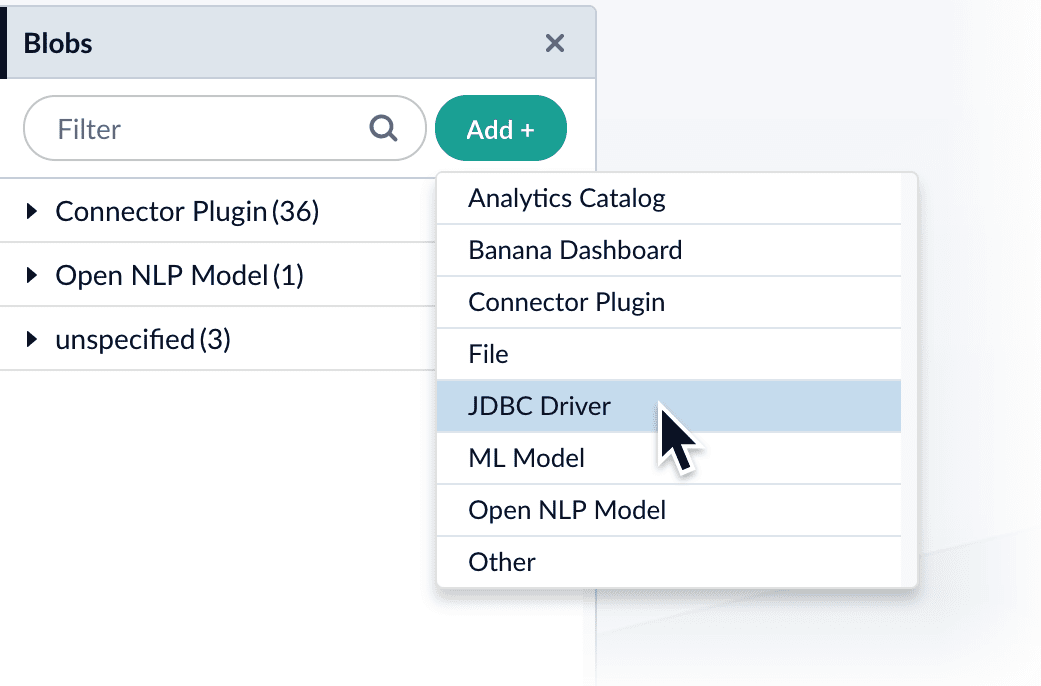
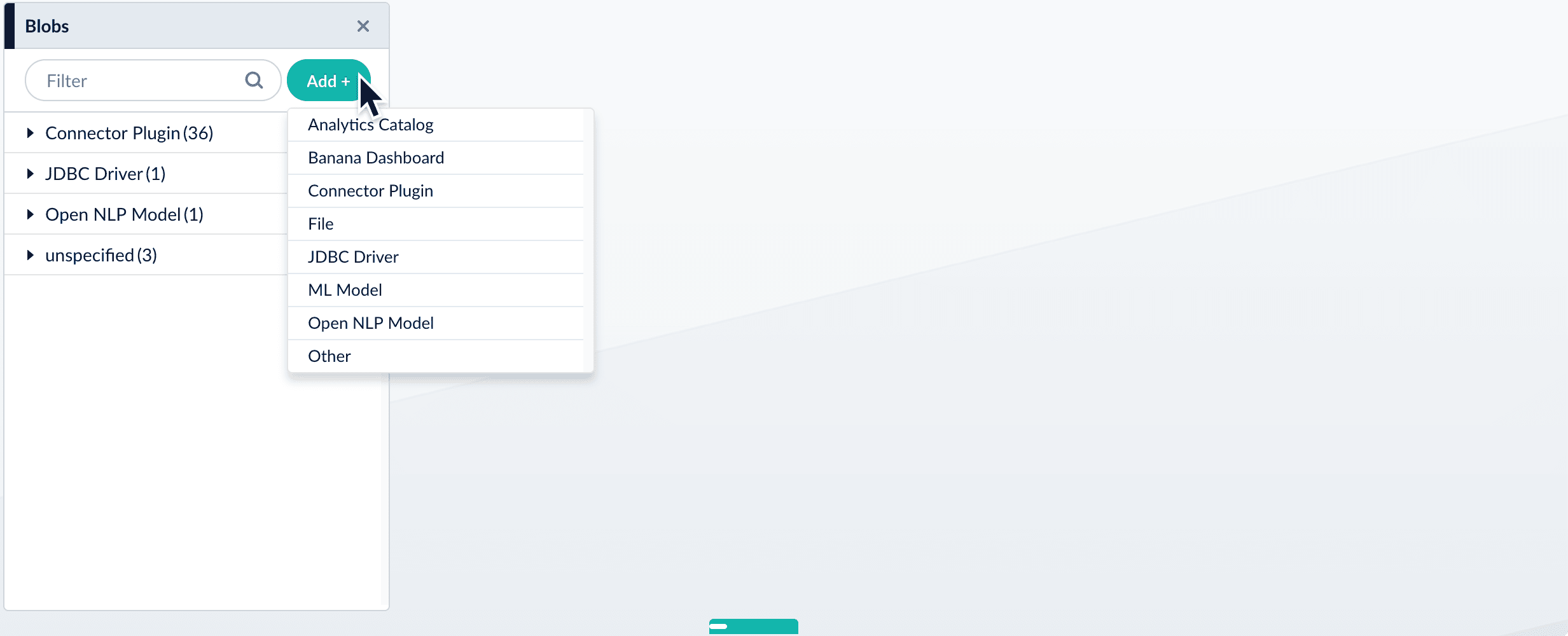
2. Click **Add**.
3. Select **JDBC Driver**.\
The "New 'JDBC Driver' Upload" panel appears.
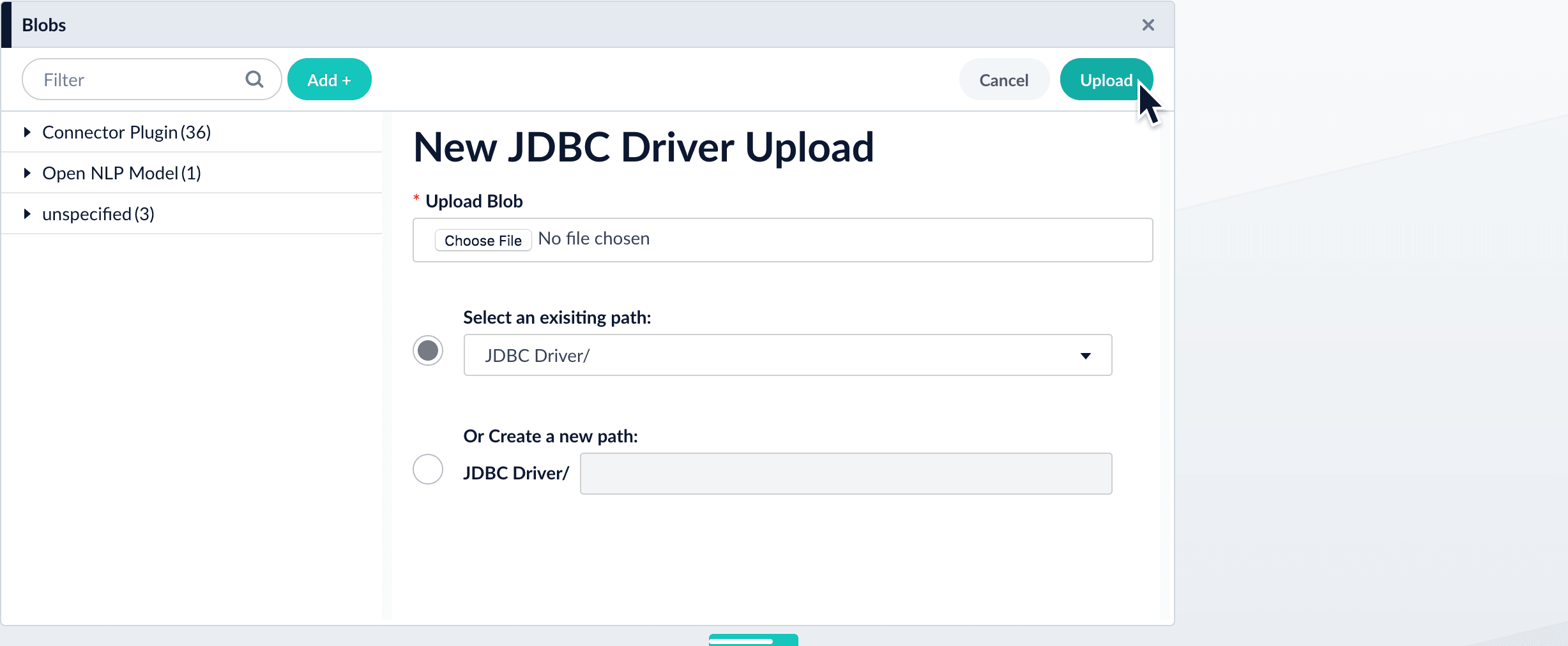
4. Click **Choose File** and select the .jar file from your file system.
5. Click **Upload**.\
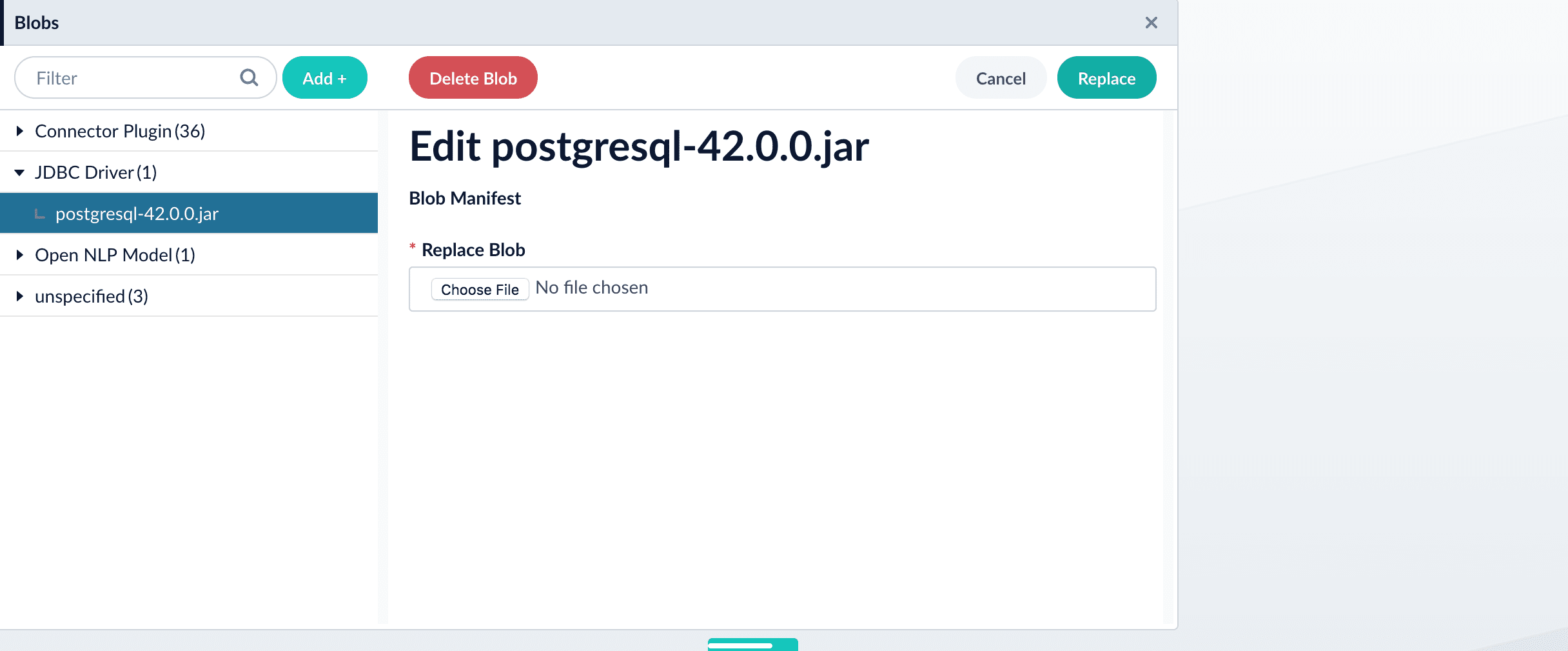
The new driver’s blob manifest appears.
From this screen you can also delete or replace the driver.
## How to install a JDBC driver using the API
1. Upload the JAR file to Fusion’s blob store using the [`/blobs/{id}` endpoint](/api-reference/blobs/upload-a-blob).
Specify an arbitrary blob ID, and a `resourceType` value of `plugin:connector`, as in this example:
```bash theme={"dark"}
curl -u USERNAME:PASSWORD -H "content-type:application/java-archive" -H "content-length:707261" -X PUT --data-binary @postgresql-42.0.0.jar http://localhost:8764/api/blobs/mydriver?resourceType=driver:jdbc
```
Success response:
```json theme={"dark"}
{
"name" : "mydriver",
"contentType" : "application/java-archive",
"size" : 707261,
"modifiedTime" : "2017-06-09T19:00:48.919Z",
"version" : 0,
"md5" : "c67163ca764bfe632f28229c142131b5",
"metadata" : {
"subtype" : "driver:jdbc",
"drivers" : "org.postgresql.Driver",
"resourceType" : "driver:jdbc"
}
}
```
Fusion automatically publishes the event to the cluster, and the listeners perform the driver installation process on each node.
If the blob ID is identical to an existing one, the old driver will be uninstalled and the new driver will installed in its place. To get the list of existing blob IDs, run: `curl -u USERNAME:PASSWORD https://FUSION_HOST:FUSION_PORT/api/blobs`
2. To verify the uploaded driver, run:
```bash theme={"dark"}
curl -u USERNAME:PASSWORD https://FUSION_HOST:FUSION_PORT/api/blobs/BLOB_ID/manifest
```
Where the `BLOB_ID` is the name specified during upload, such as "mydriver" above. A success response looks like this:
```json theme={"dark"}
{
"name" : "mydriver",
"contentType" : "application/java-archive",
"size" : 707261,
"modifiedTime" : "2017-06-09T19:05:17.897Z",
"version" : 1569755095787110400,
"md5" : "c67163ca764bfe632f28229c142131b5",
"metadata" : {
"subtype" : "driver:jdbc",
"drivers" : "org.postgresql.Driver",
"resourceType" : "driver:jdbc"
}
}
```
## How to manually upload a JDBC V1 driver for Fusion 4.x.x releases
For Fusion 4.x.x release levels, it is recommended that you upload the JDBC driver jar files manually. This prevents some issues with dynamically loading the driver causing errors, particularly with Oracle and Microsoft SQL drivers.
The following steps specify how to upload a JDBC driver JAR file to Fusion manually. The example uses the Microsoft SQL Server JDBC driver `mssql-jdbc-6.6.2-jre8.jar` file.
1. Delete the JDBC V1 driver uploaded using the Blob store upload window.
2. Save the JDBC V1 driver JAR file to the `apps/lib` folder. For example:
`apps\libs\mssql-jdbc-6.2.2.jre8.jar`
3. Open the `apps/jetty/connectors-classic/webapps/connectors-extra-classpath.txt` file and add the following line:
`apps/libs/mssql-jdbc-6.2.2.jre8.jar`
4. Restart connectors-classic.
5. Specify the JDBC driver class name in the **Manually uploaded JDBC Driver Name** field.
6. Enter **com.microsoft.sqlserver.jdbc.SQLServerDriver** in the **JDBC Driver Name** field.
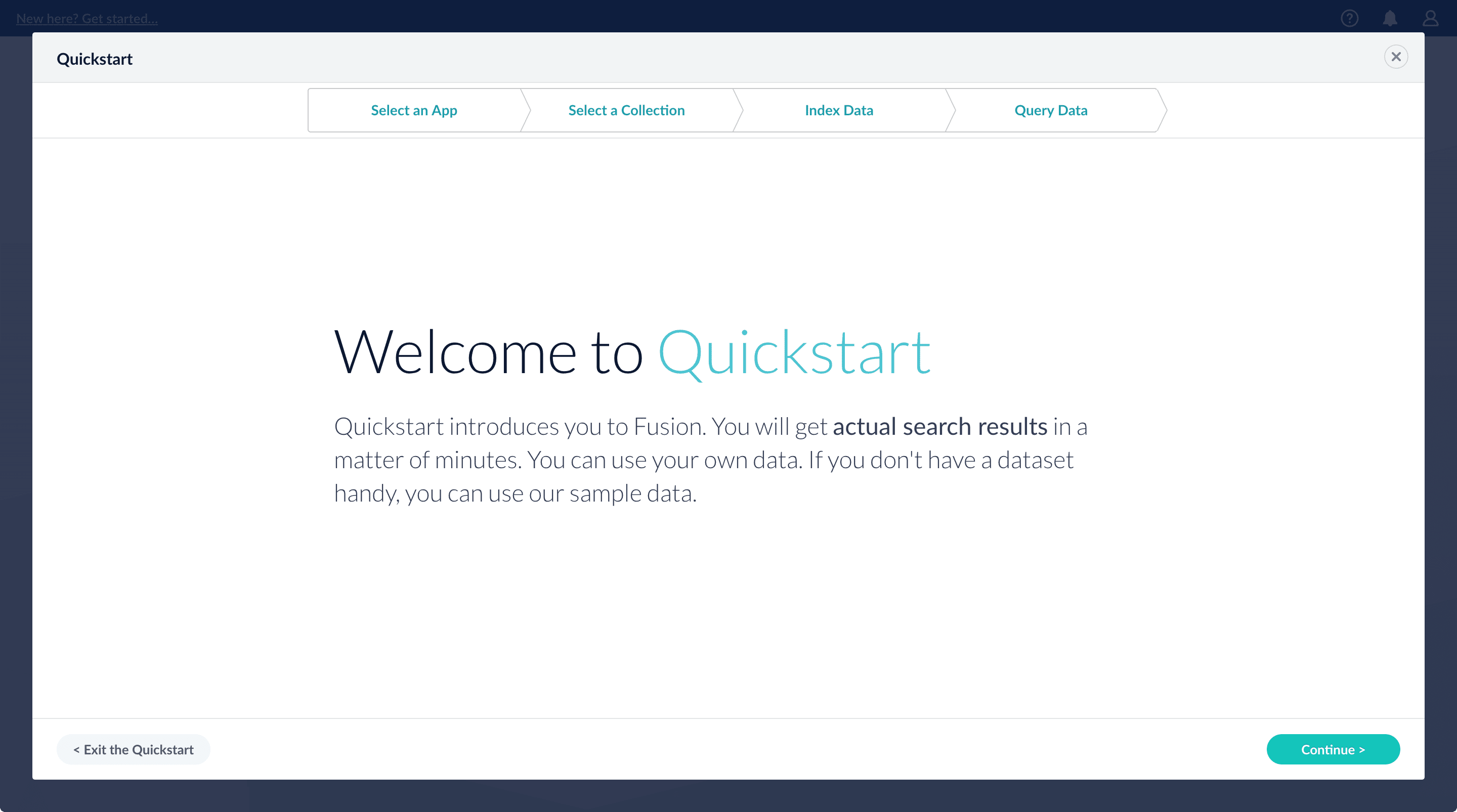
The Quickstart is a wizard that lets you explore some of Fusion’s core capabilities:
* Creating or selecting an app
* Selecting a collection (where data is stored)
* Indexing data
* Searching
The course for **Using The Quickstart Wizard** focuses on using the wizard to practice using the key functions of Fusion.
## Step through the Quickstart wizard
If it is not already open, open the Quickstart wizard. In the Fusion launcher, click **New here? Get started...**.
1. Click **Continue**.
On the **Select an App** screen, you can select or create an [app](/docs/4/fusion-server/concepts/overview) for your quickstart data.
If you click **Create new app**, Fusion prompts you to enter an app name (and optionally a description), then click **Create App** to return to the Quickstart. Your new app is selected by default.
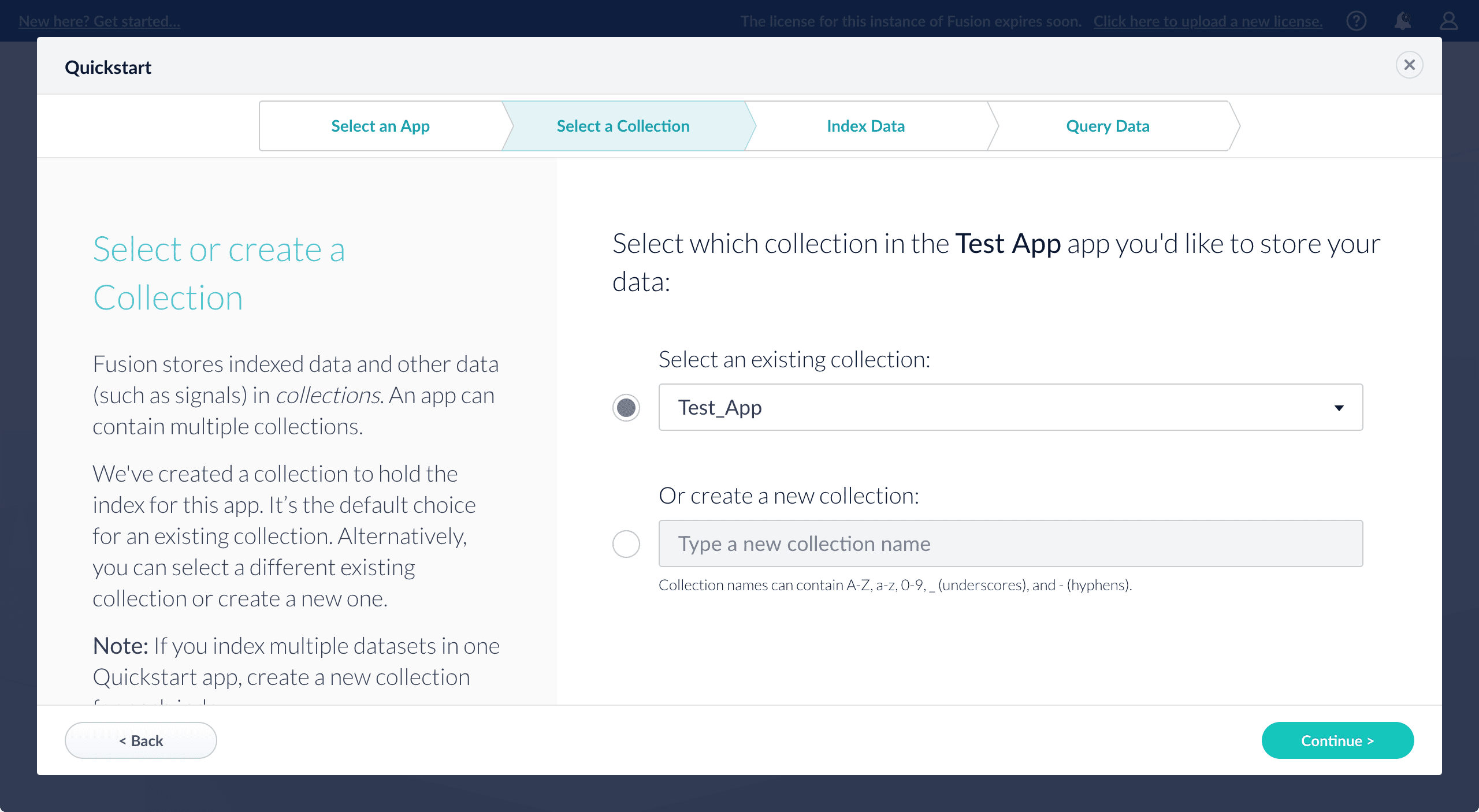
2. After selecting an app, click **Continue**.
On the **Select a Collection** screen, you can select or create a [collection](/docs/4/fusion-server/concepts/overview) for your quickstart data. A collection with the same name as your app is created automatically:
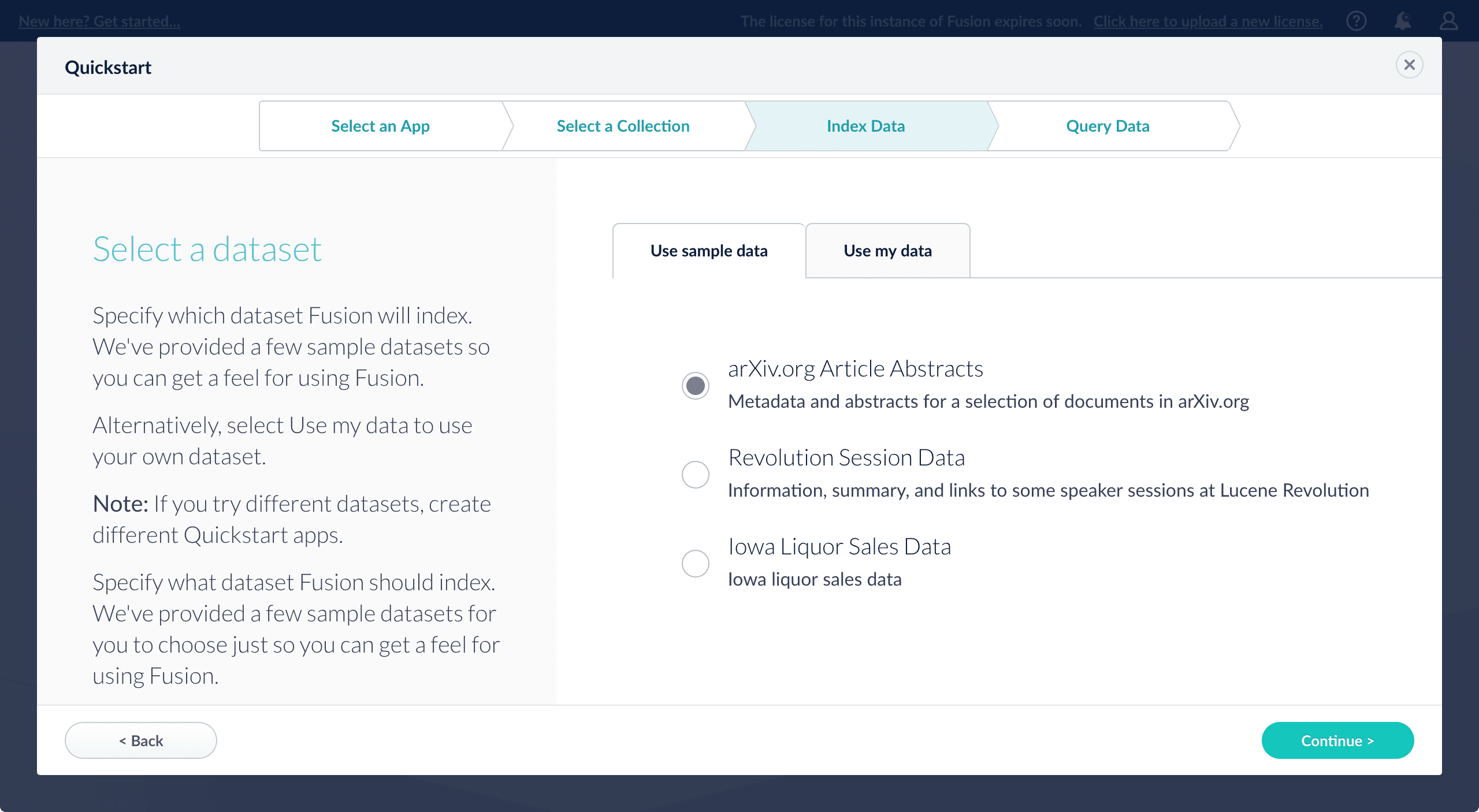
3. Click **Continue**.\
On the **Index Data** screen, you can either select one of the built-in sample datasets or click **Use my data** to upload your own:
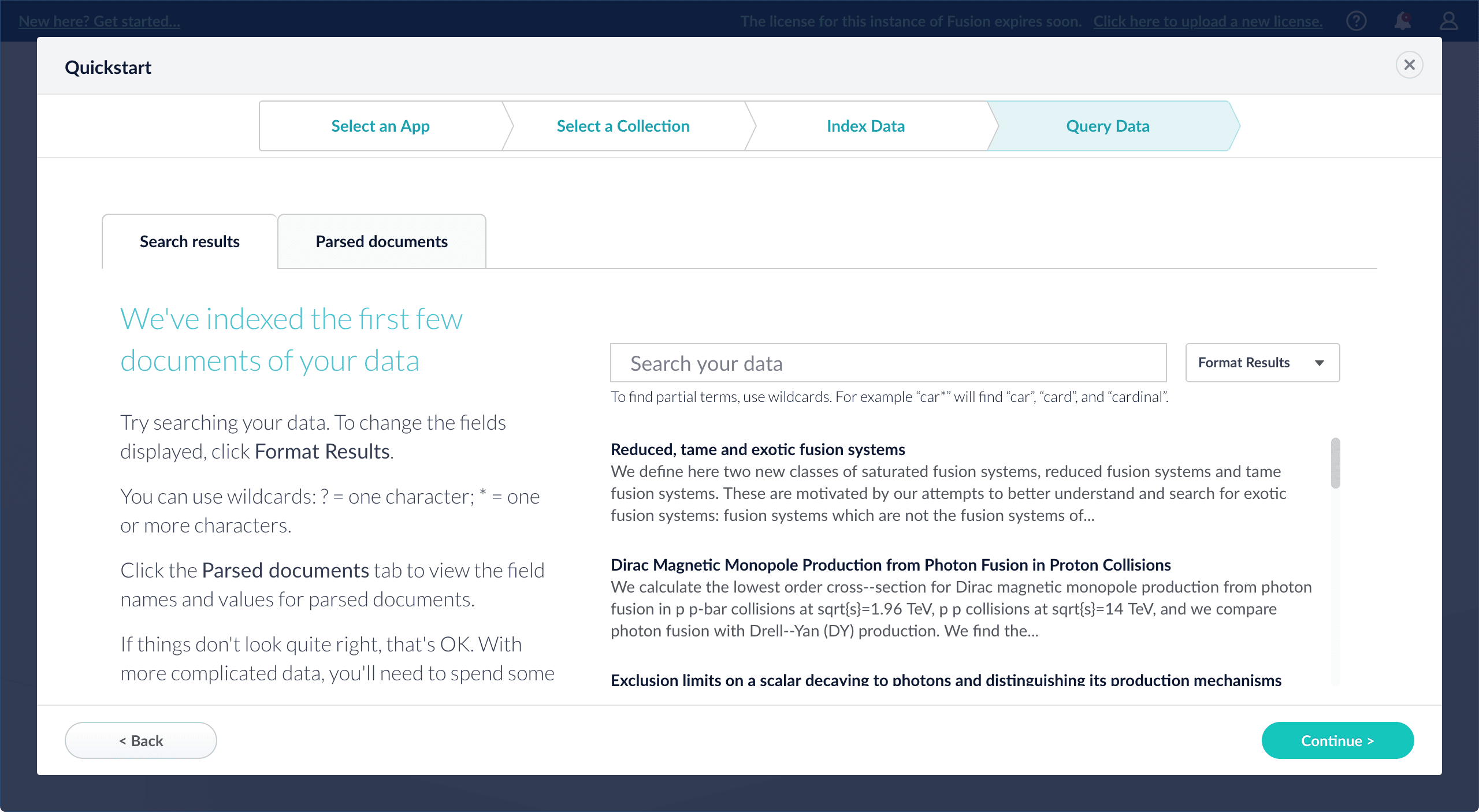
4. Click **Continue**.\
On the **Query Data** screen, you can see all search results and enter your own search queries to test the indexed dataset. You can also select the display fields or view the parsed documents:
5. Click **Continue**.
From here, you can do the following:
* Open the Index Workbench to change the index pipeline.
* [Fusion 4.x Index Workbench](/docs/4/fusion-server/concepts/indexing/datasources/index-workbench)
* [Fusion 5.x Index Workbench](/docs/5/fusion/intro/ui-tour/index-workbench)
* Open the Query Workbench to change the query pipeline.
* [Fusion 4.x Query Workbench](/docs/4/fusion-server/concepts/querying/query-workbench)
* [Fusion 5.x Query Workbench](/docs/5/fusion/getting-data-out/query-basics/query-workbench)
The workbenches are essentials tools in the Fusion workflow.
* Open [App Studio](/docs/4/app-studio/overview) to create a user interface for searching this collection.
App Studio is only available in Fusion 4.1 and 4.2.
In Fusion 4.x, connectors are installed by uploading them to the blob store. You can use any of these methods to install a connector:
* By installing connectors [as "bootstrap plugins"](#install-a-connector-as-a-bootstrap-plugin), that is, by putting them in the `bootstrap-plugins` directory during initial installation or an upgrade
* By using the [Blob Store UI](#install-or-update-a-connector-using-the-blob-store-ui) after installation or an upgrade
* By using the [Blob Store API](#install-or-update-a-connector-using-the-blob-store-api) after installation or an upgrade.
During upgrades, the migrator handles some aspects of installing connectors. Depending on the target version and the presence or absence of an Internet connection, there might be manual steps. Installing connectors during upgrades is explained where needed in the upgrade procedures.
After you install a connector, you can Configure A New Datasource.
You can view and download all current and previous V2 connector releases at [plugins.lucidworks.com](https://plugins.lucidworks.com/).
## Install a connector as a bootstrap plugin
Fusion can install connectors as "bootstrap plugins." All this means is that you put the connector `zip` files in a specific directory named `bootstrap-plugins`, and Fusion installs the connectors the first time it starts during initial installation or an upgrade.
1. Download the connector zip file from [Fusion 4.x Connector Downloads](/docs/fusion-connectors/downloads/fusion-4-x-connector-downloads).\
Do not expand the archive; Fusion consumes it as-is. Also, do not start Fusion until instructed to do so by the installation or upgrade instructions.
2. Under the version-numbered Fusion directory, place the connector in the directory `apps/connectors/bootstrap-plugins/` (on Unix) or `\apps\connectors\bootstrap-plugins\` (on Windows).
3. Start Fusion when instructed to do so in the installation or upgrade procedure.
## Install or update a connector using the Blob Store UI
1. Download the connector zip file from [Fusion 4.x Connector Downloads](/docs/fusion-connectors/downloads/fusion-4-x-connector-downloads).
Do not expand the archive; Fusion consumes it as-is.
2. In the Fusion workspace, navigate to **System** > **Blobs**.
3. Click **Add**.
4. Select **Connector Plugin**.
The "New Connector Plugin Upload" panel appears.
5. Click **Choose File** and select the downloaded zip file from your file system.
6. Click **Upload**.\
The new connector’s blob manifest appears.
From this screen you can also delete or replace the connector.
## Install or update a connector using the Blob Store API
1. Download the connector zip file from [Fusion 4.x Connector Downloads](/docs/fusion-connectors/downloads/fusion-4-x-connector-downloads).
Do not expand the archive; Fusion consumes it as-is.
2. Upload the connector zip file to Fusion’s blob store.\
Specify an arbitrary blob ID, and a `resourceType` value of `plugin:connector`, as in this example:
```
curl -H 'content-type:application/zip' -X PUT 'localhost:8764/api/blobs/myplugin?resourceType=plugin:connector' --data-binary @myplugin.zip
```
Fusion automatically publishes the event to the cluster, and the listeners perform the connector installation process on each node.
If the blob ID is identical to an existing one, the old connector will be uninstalled and the new connector will installed in its place. To get the list of existing blob IDs, run: `curl -u USERNAME:PASSWORD localhost:8764/api/blobs`
3. Look in `https://FUSION_HOST:FUSION_PORT/apps/connectors/plugins/` to verify the new connector is installed.
## Reinstall a connector
To reinstall a connector for any reason, first delete the connector then use the preceding steps to install it again. This may take a few minutes to complete depending on how quickly the pods are deleted and recreated.
## The Blob manager
In addition to the [Blob Store API](/docs/4/fusion-server/reference/api/blob-store-api), the Fusion UI provides an interface to the blob store in the [Fusion workspace](/docs/4/fusion-server/concepts/general-ui-overview) at **System** > **Blobs**:
* Click **Add** to upload a new blob:
* Select an uploaded blob to view, replace, or delete it:
 4. Click **Choose File** and select the .jar file from your file system.
 5. Click **Upload**.\
The new driver’s blob manifest appears.
5. Click **Upload**.\
The new driver’s blob manifest appears.
 From this screen you can also delete or replace the driver.
## How to install a JDBC driver using the API
1. Upload the JAR file to Fusion’s blob store using the [`/blobs/{id}` endpoint](/api-reference/blobs/upload-a-blob).
Specify an arbitrary blob ID, and a `resourceType` value of `plugin:connector`, as in this example:
```bash theme={"dark"}
curl -u USERNAME:PASSWORD -H "content-type:application/java-archive" -H "content-length:707261" -X PUT --data-binary @postgresql-42.0.0.jar http://localhost:8764/api/blobs/mydriver?resourceType=driver:jdbc
```
Success response:
```json theme={"dark"}
{
"name" : "mydriver",
"contentType" : "application/java-archive",
"size" : 707261,
"modifiedTime" : "2017-06-09T19:00:48.919Z",
"version" : 0,
"md5" : "c67163ca764bfe632f28229c142131b5",
"metadata" : {
"subtype" : "driver:jdbc",
"drivers" : "org.postgresql.Driver",
"resourceType" : "driver:jdbc"
}
}
```
Fusion automatically publishes the event to the cluster, and the listeners perform the driver installation process on each node.
From this screen you can also delete or replace the driver.
## How to install a JDBC driver using the API
1. Upload the JAR file to Fusion’s blob store using the [`/blobs/{id}` endpoint](/api-reference/blobs/upload-a-blob).
Specify an arbitrary blob ID, and a `resourceType` value of `plugin:connector`, as in this example:
```bash theme={"dark"}
curl -u USERNAME:PASSWORD -H "content-type:application/java-archive" -H "content-length:707261" -X PUT --data-binary @postgresql-42.0.0.jar http://localhost:8764/api/blobs/mydriver?resourceType=driver:jdbc
```
Success response:
```json theme={"dark"}
{
"name" : "mydriver",
"contentType" : "application/java-archive",
"size" : 707261,
"modifiedTime" : "2017-06-09T19:00:48.919Z",
"version" : 0,
"md5" : "c67163ca764bfe632f28229c142131b5",
"metadata" : {
"subtype" : "driver:jdbc",
"drivers" : "org.postgresql.Driver",
"resourceType" : "driver:jdbc"
}
}
```
Fusion automatically publishes the event to the cluster, and the listeners perform the driver installation process on each node.
 1. Click **Continue**.
On the **Select an App** screen, you can select or create an [app](/docs/4/fusion-server/concepts/overview) for your quickstart data.
1. Click **Continue**.
On the **Select an App** screen, you can select or create an [app](/docs/4/fusion-server/concepts/overview) for your quickstart data.
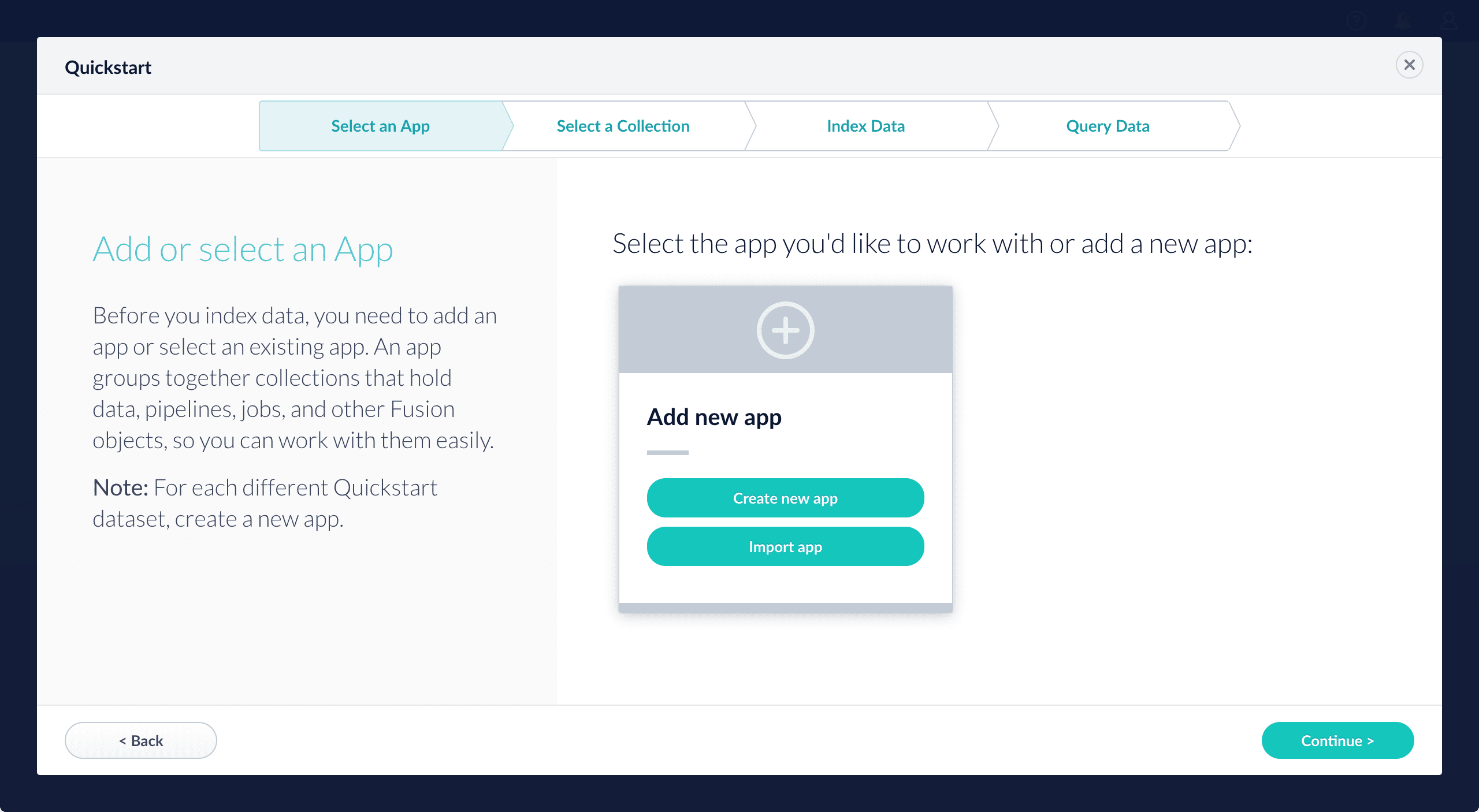 If you click **Create new app**, Fusion prompts you to enter an app name (and optionally a description), then click **Create App** to return to the Quickstart. Your new app is selected by default.
2. After selecting an app, click **Continue**.
On the **Select a Collection** screen, you can select or create a [collection](/docs/4/fusion-server/concepts/overview) for your quickstart data. A collection with the same name as your app is created automatically:
If you click **Create new app**, Fusion prompts you to enter an app name (and optionally a description), then click **Create App** to return to the Quickstart. Your new app is selected by default.
2. After selecting an app, click **Continue**.
On the **Select a Collection** screen, you can select or create a [collection](/docs/4/fusion-server/concepts/overview) for your quickstart data. A collection with the same name as your app is created automatically:
 3. Click **Continue**.\
On the **Index Data** screen, you can either select one of the built-in sample datasets or click **Use my data** to upload your own:
3. Click **Continue**.\
On the **Index Data** screen, you can either select one of the built-in sample datasets or click **Use my data** to upload your own:
 4. Click **Continue**.\
On the **Query Data** screen, you can see all search results and enter your own search queries to test the indexed dataset. You can also select the display fields or view the parsed documents:
4. Click **Continue**.\
On the **Query Data** screen, you can see all search results and enter your own search queries to test the indexed dataset. You can also select the display fields or view the parsed documents:
 5. Click **Continue**.
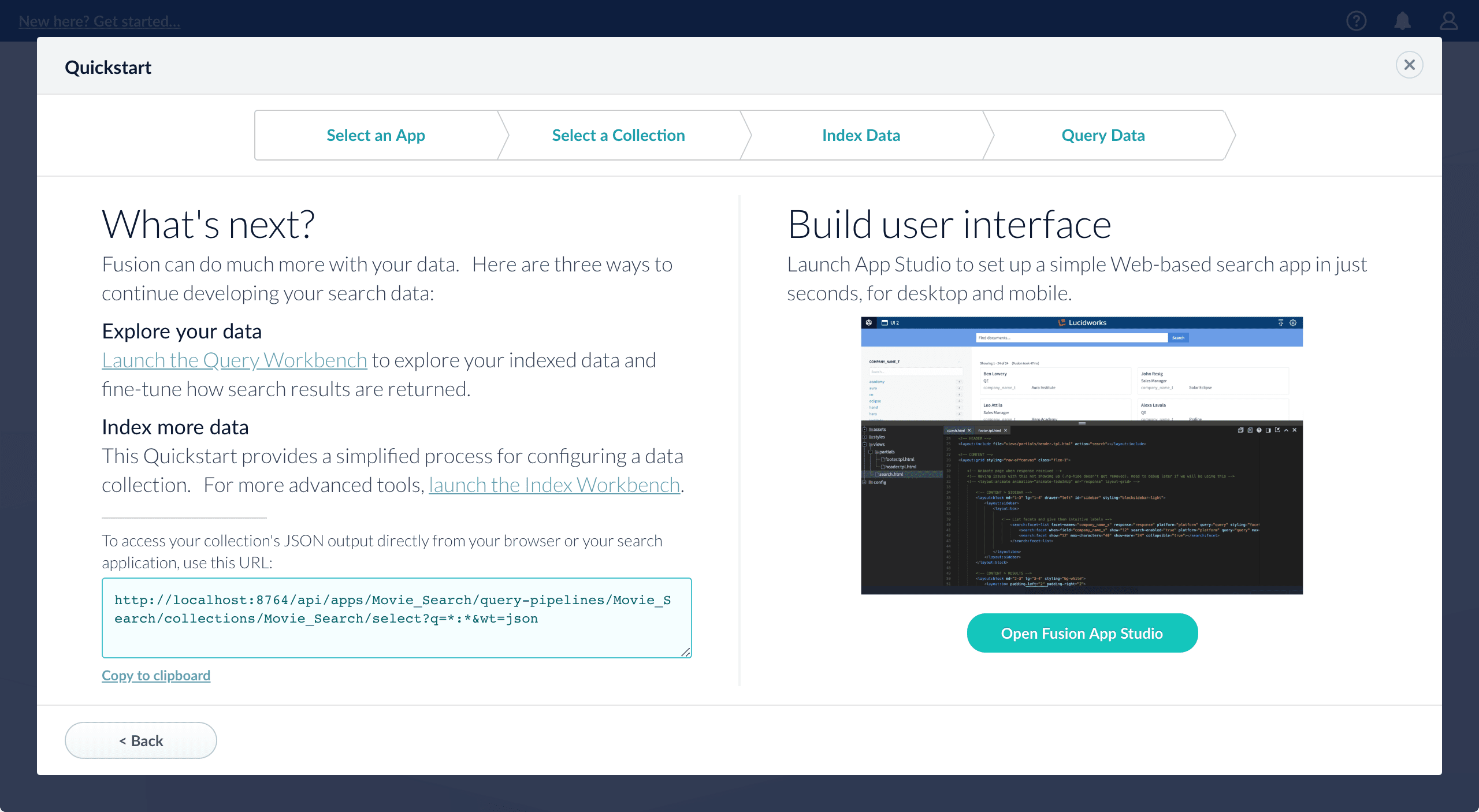 From here, you can do the following:
* Open the Index Workbench to change the index pipeline.
* [Fusion 4.x Index Workbench](/docs/4/fusion-server/concepts/indexing/datasources/index-workbench)
* [Fusion 5.x Index Workbench](/docs/5/fusion/intro/ui-tour/index-workbench)
* Open the Query Workbench to change the query pipeline.
* [Fusion 4.x Query Workbench](/docs/4/fusion-server/concepts/querying/query-workbench)
* [Fusion 5.x Query Workbench](/docs/5/fusion/getting-data-out/query-basics/query-workbench)
The workbenches are essentials tools in the Fusion workflow.
* Open [App Studio](/docs/4/app-studio/overview) to create a user interface for searching this collection.
From here, you can do the following:
* Open the Index Workbench to change the index pipeline.
* [Fusion 4.x Index Workbench](/docs/4/fusion-server/concepts/indexing/datasources/index-workbench)
* [Fusion 5.x Index Workbench](/docs/5/fusion/intro/ui-tour/index-workbench)
* Open the Query Workbench to change the query pipeline.
* [Fusion 4.x Query Workbench](/docs/4/fusion-server/concepts/querying/query-workbench)
* [Fusion 5.x Query Workbench](/docs/5/fusion/getting-data-out/query-basics/query-workbench)
The workbenches are essentials tools in the Fusion workflow.
* Open [App Studio](/docs/4/app-studio/overview) to create a user interface for searching this collection.
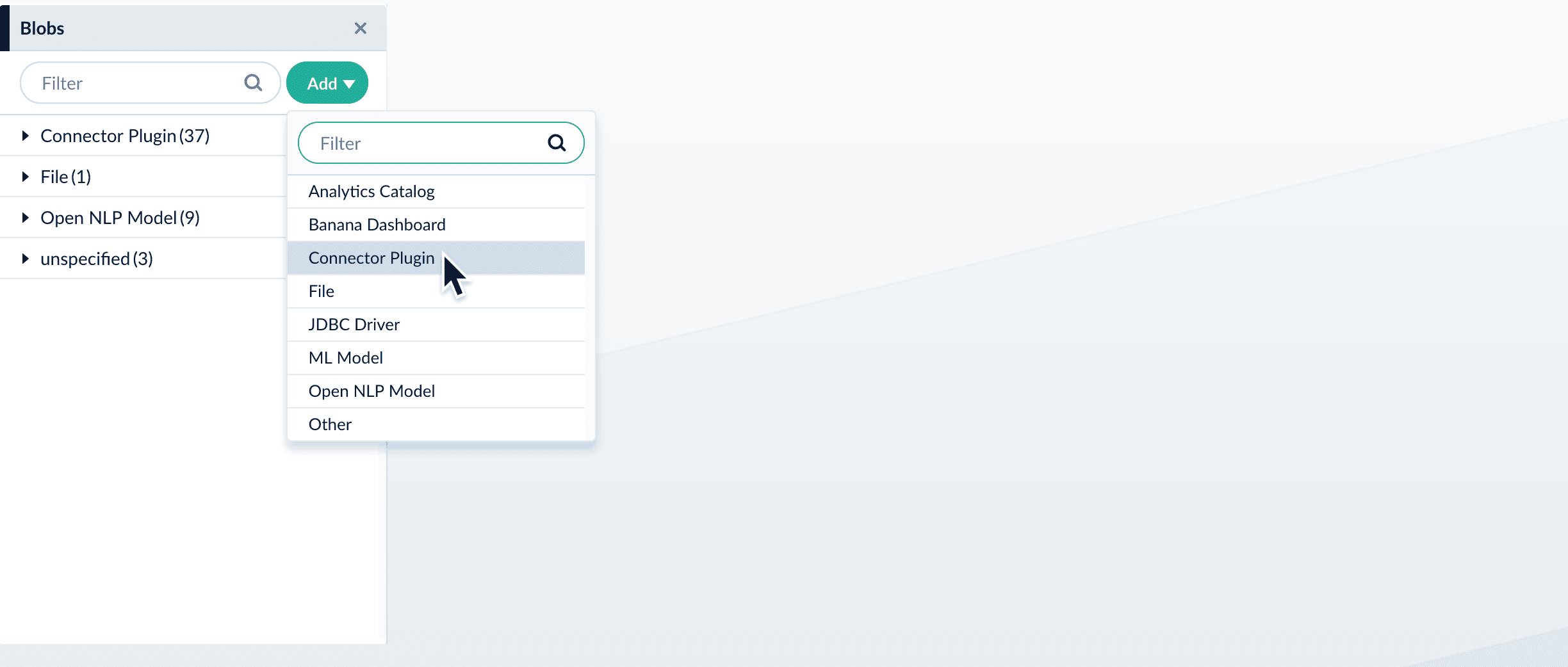 The "New Connector Plugin Upload" panel appears.
5. Click **Choose File** and select the downloaded zip file from your file system.
The "New Connector Plugin Upload" panel appears.
5. Click **Choose File** and select the downloaded zip file from your file system.
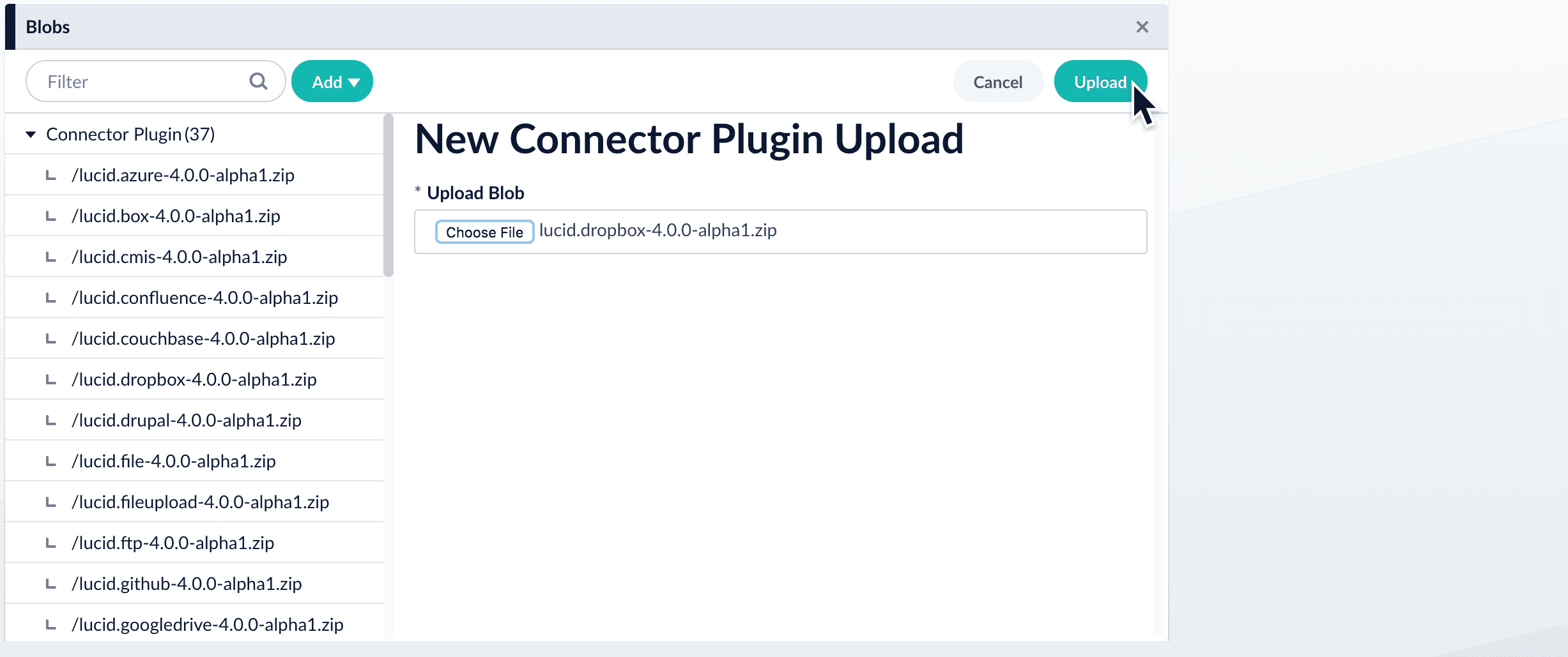 6. Click **Upload**.\
The new connector’s blob manifest appears.
6. Click **Upload**.\
The new connector’s blob manifest appears.
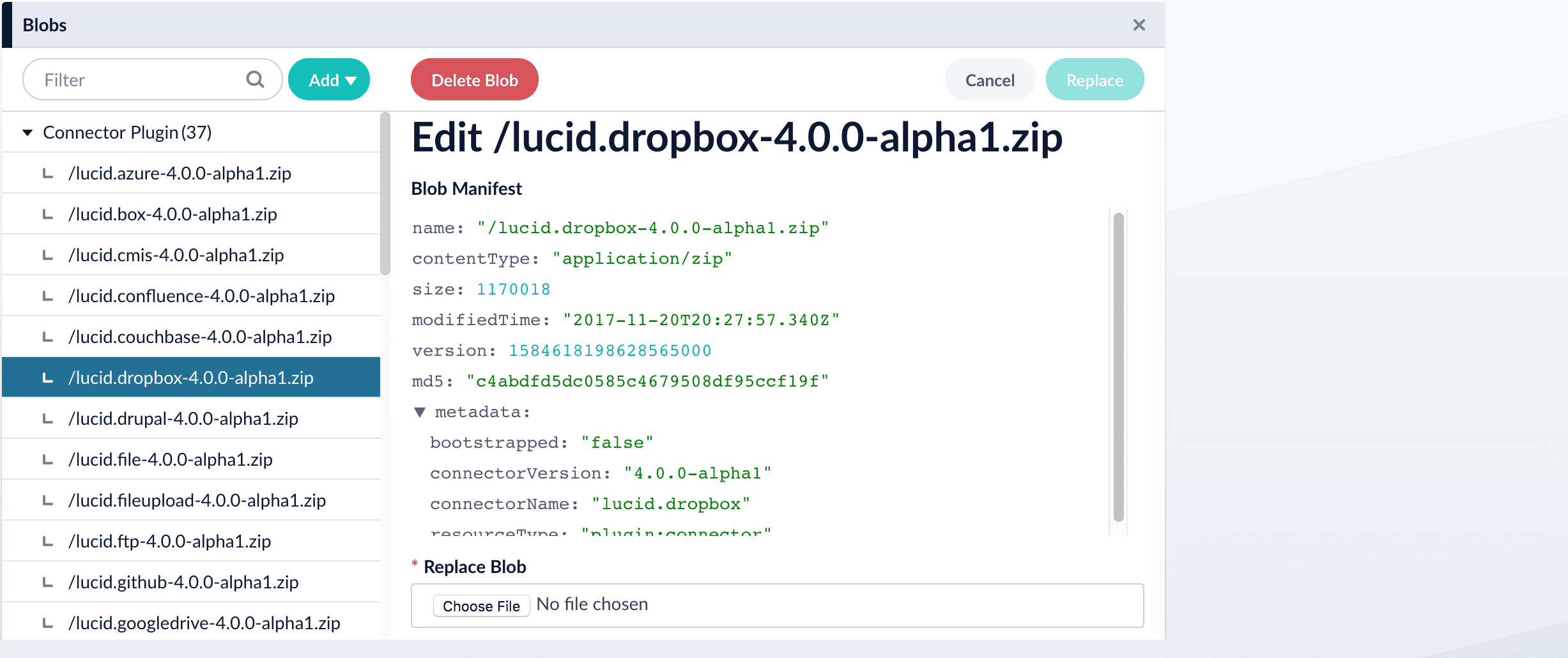 From this screen you can also delete or replace the connector.
## Install or update a connector using the Blob Store API
1. Download the connector zip file from [Fusion 4.x Connector Downloads](/docs/fusion-connectors/downloads/fusion-4-x-connector-downloads).
From this screen you can also delete or replace the connector.
## Install or update a connector using the Blob Store API
1. Download the connector zip file from [Fusion 4.x Connector Downloads](/docs/fusion-connectors/downloads/fusion-4-x-connector-downloads).
 * Click **Add** to upload a new blob:
 * Select an uploaded blob to view, replace, or delete it: