> ## Documentation Index
> Fetch the complete documentation index at: https://doc.lucidworks.com/llms.txt
> Use this file to discover all available pages before exploring further.
# Fusion UI
export const LwTemplate = ({title = "Key questions to get you started", icon = "sparkles", cta = "Powered by Agent Studio", linkHref = "https://lucidworks.com/demo/?utm_source=docs&utm_medium=referral&utm_campaign=docs_cta_ai"}) => {
const [isLoaded, setIsLoaded] = useState(false);
useEffect(() => {
const timer = setTimeout(() => {
setIsLoaded(true);
}, 500);
return () => clearTimeout(timer);
}, []);
return
{isLoaded && `
}} />}
Powered by Lucidworks Agent Studio
;
};
export const InlineImage = ({src, alt = '', height = '2em'}) => {
return ;
};
[localhost link]: http://localhost:3000/docs/4/fusion-server/concepts/general-ui-overview
[mintlify link]: https://doc.lucidworks.com/docs/4/fusion-server/concepts/general-ui-overview
[old doc.lw link]: https://doc.lucidworks.com/fusion/5.9/116
The Fusion UI gives you easy access to all of Fusion Server’s features.
The UI service utilizes the API service, so each UI feature has an API equivalent. For programmatic access to the features you see in the UI, see the [API Reference Guide](/docs/4/fusion-server/reference/api/overview).
## Logging in
The Proxy service runs on port 8764 by default. Access the Fusion UI through the Proxy service. To log in, point your browser to this port on the Fusion host, for example, `http://localhost:8764/`.
When you are the *first user* to log in:
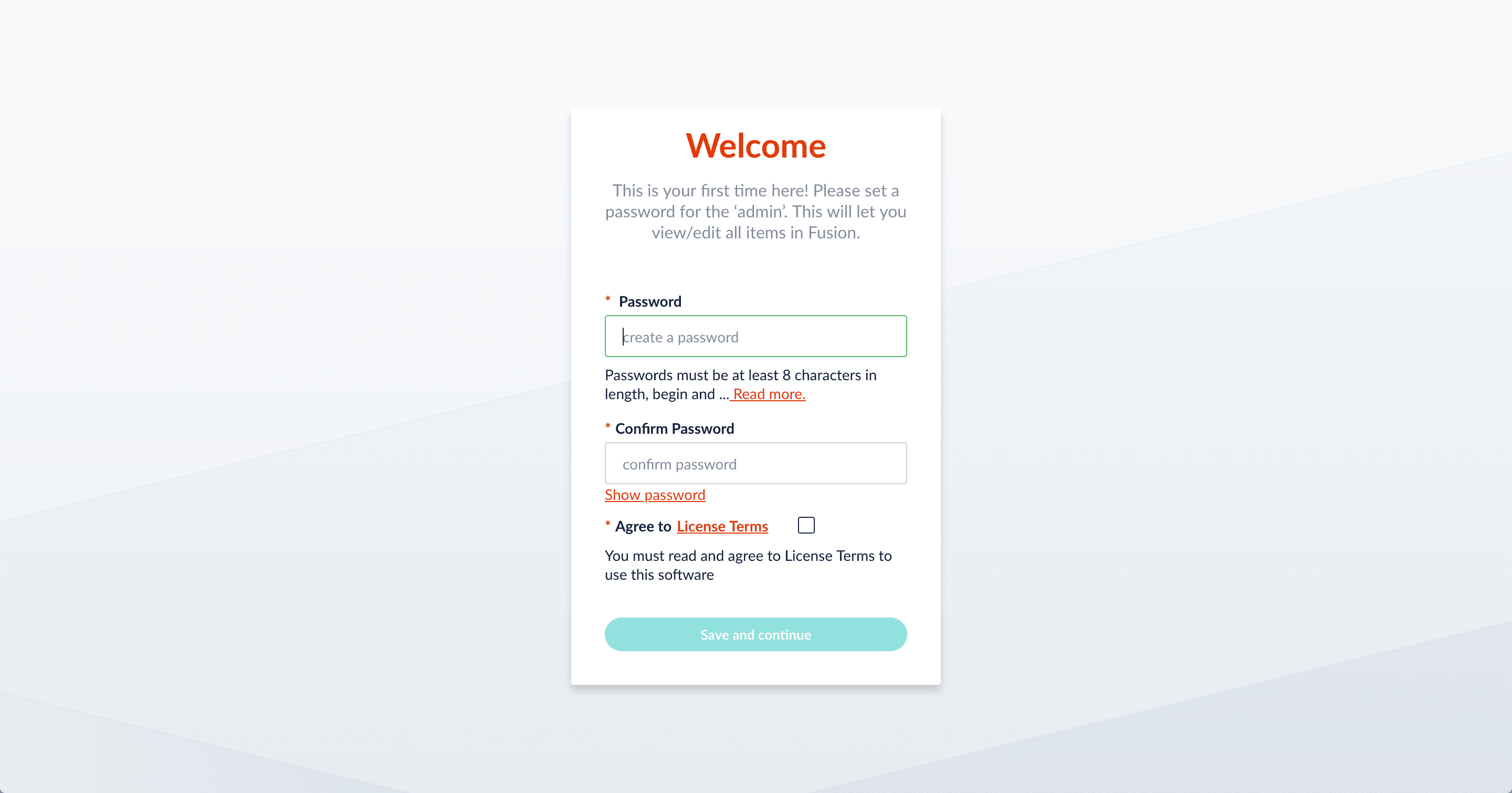
Fusion Server prompts you to set the password for the "admin" account and agree to the license terms. All other accounts must be created by an admin.
Fusion Server also prompts you to register to send metrics to Lucidworks. You can click **Skip** to send no metrics; you can also register later.
The first time you log in:
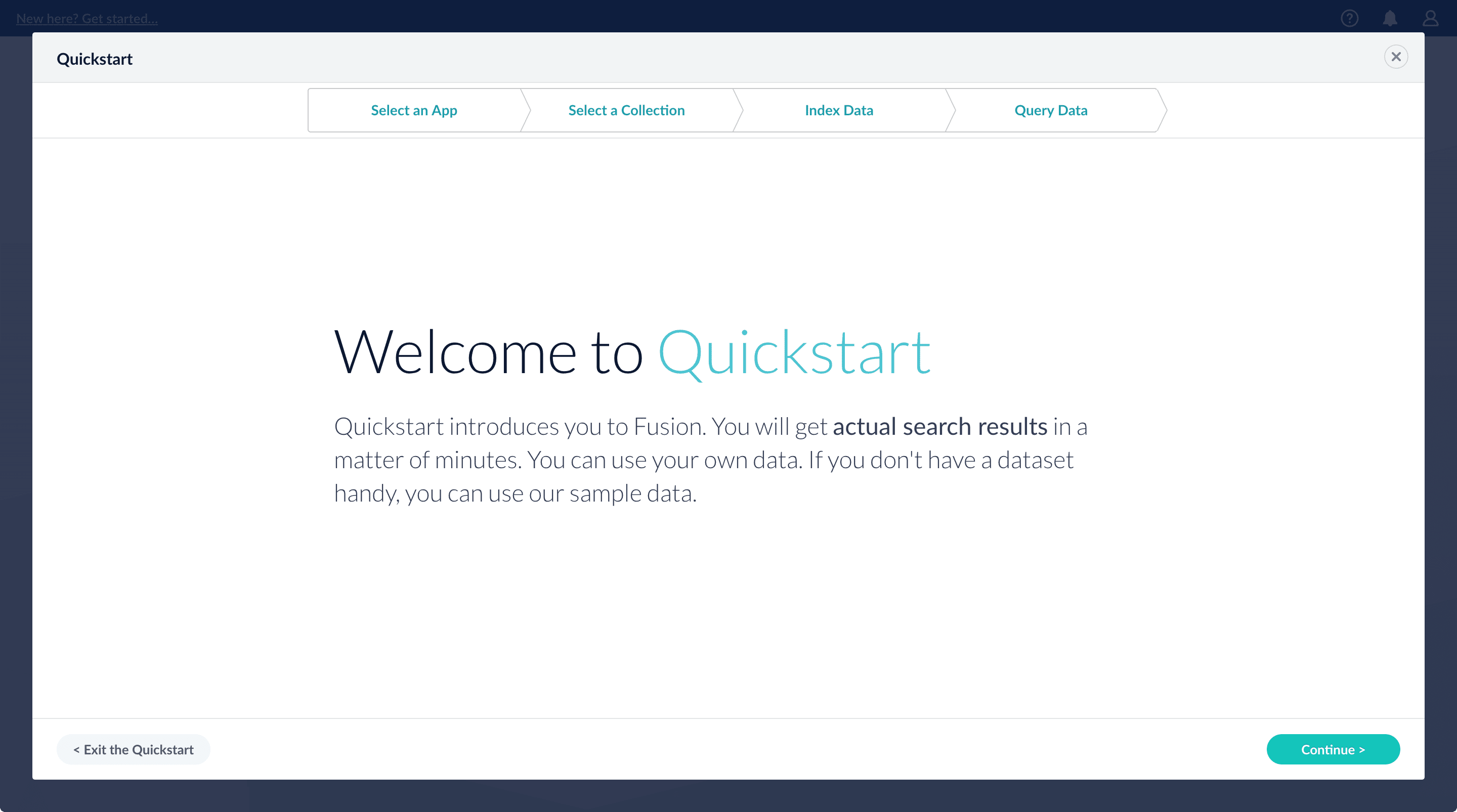
Fusion Server opens the **Quickstart**, to give you a quick demonstration of Fusion’s most basic features. You can click **Exit the Quickstart** to close it and go to the Fusion launcher.
The Quickstart is a wizard that lets you explore some of Fusion’s core capabilities:
* Creating or selecting an app
* Selecting a collection (where data is stored)
* Indexing data
* Searching
The course for **Using The Quickstart Wizard** focuses on using the wizard to practice using the key functions of Fusion.
## Step through the Quickstart wizard
If it is not already open, open the Quickstart wizard. In the Fusion launcher, click **New here? Get started...**.
1. Click **Continue**.
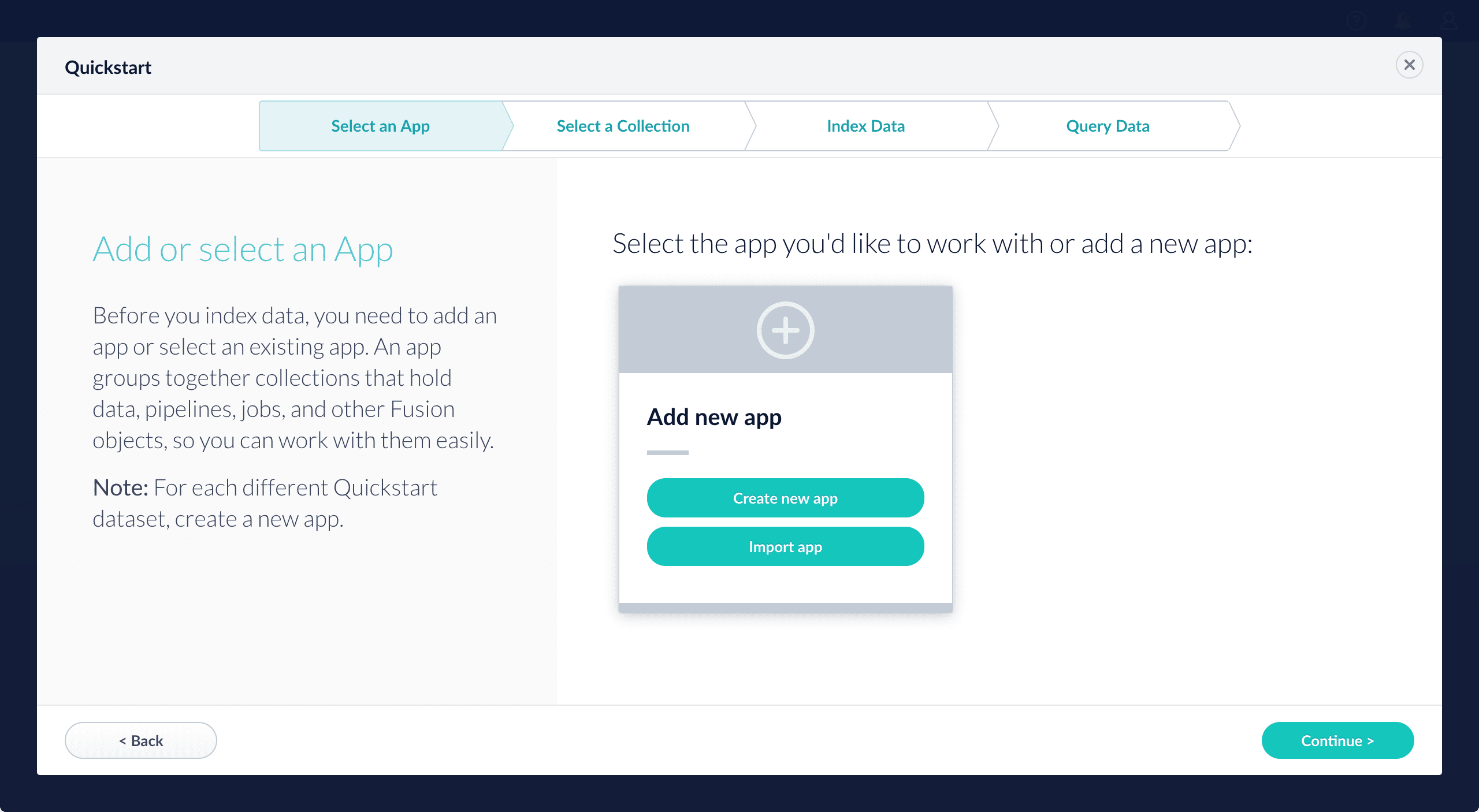
On the **Select an App** screen, you can select or create an [app](/docs/4/fusion-server/concepts/overview) for your quickstart data.
If you click **Create new app**, Fusion prompts you to enter an app name (and optionally a description), then click **Create App** to return to the Quickstart. Your new app is selected by default.
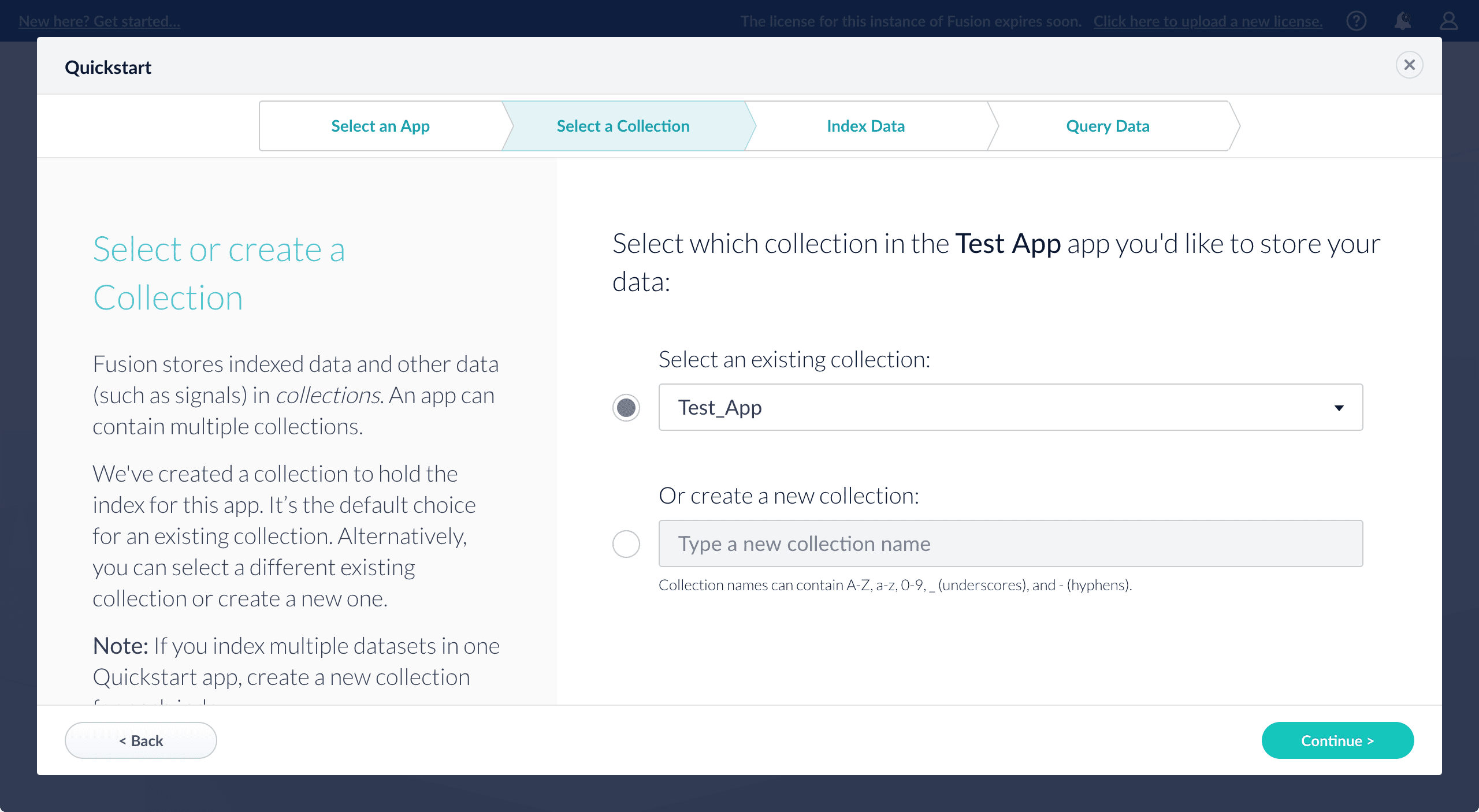
2. After selecting an app, click **Continue**.
On the **Select a Collection** screen, you can select or create a [collection](/docs/4/fusion-server/concepts/overview) for your quickstart data. A collection with the same name as your app is created automatically:
3. Click **Continue**.\
On the **Index Data** screen, you can either select one of the built-in sample datasets or click **Use my data** to upload your own:
4. Click **Continue**.\
On the **Query Data** screen, you can see all search results and enter your own search queries to test the indexed dataset. You can also select the display fields or view the parsed documents:
5. Click **Continue**.
From here, you can do the following:
* Open the Index Workbench to change the index pipeline.
* [Fusion 4.x Index Workbench](/docs/4/fusion-server/concepts/indexing/datasources/index-workbench)
* [Fusion 5.x Index Workbench](/docs/5/fusion/intro/ui-tour/index-workbench)
* Open the Query Workbench to change the query pipeline.
* [Fusion 4.x Query Workbench](/docs/4/fusion-server/concepts/querying/query-workbench)
* [Fusion 5.x Query Workbench](/docs/5/fusion/getting-data-out/query-basics/query-workbench)
The workbenches are essentials tools in the Fusion workflow.
* Open [App Studio](/docs/4/app-studio/overview) to create a user interface for searching this collection.
App Studio is only available in Fusion 4.1 and 4.2.
You can open the Quickstart at any time by navigating to the Fusion launcher and clicking **New here? Get started…**.
The brief tour below shows you how to find your way around the interface. For a more detailed tour, try the instructions in **Getting Started with Fusion Server**.
This tutorial takes you from installation to application-ready search data in four easy parts, using a [MovieLens](https://grouplens.org/datasets/movielens/) dataset.
* Part 1: Run Fusion and Create an App
{/* // tag::get-started-1[] */}
Download, install Fusion, and run Fusion, then create a Movie Search app.
{/* // end::get-started-1[] */}
* Part 2: Get Data In
{/* // tag::get-started-2[] */}
Use the Index Workbench to configure an index pipeline, preview the results, and get data into the Movie Search app in a format that is useful for search.
{/* // end::get-started-2[] */}
* Part 3: Get Data Out
{/* // tag::get-started-3[] */}
Use Query Workbench to get data out of the Movie Search app, explore the role of query pipeline stages, configure faceting, and preview search results.
{/* // end::get-started-3[] */}
* Part 4: Improve Relevancy
{/* // tag::get-started-4[] */}
Use signals and boosting to make search results more relevant.
{/* // end::get-started-4[] */}
## A brief tour
* The *launcher* is where you can view all of the apps in your Fusion environment and create new ones.
* The *Fusion workspace* is where you configure how an app ingests, indexes, queries, and analyzes data.
### The Fusion launcher
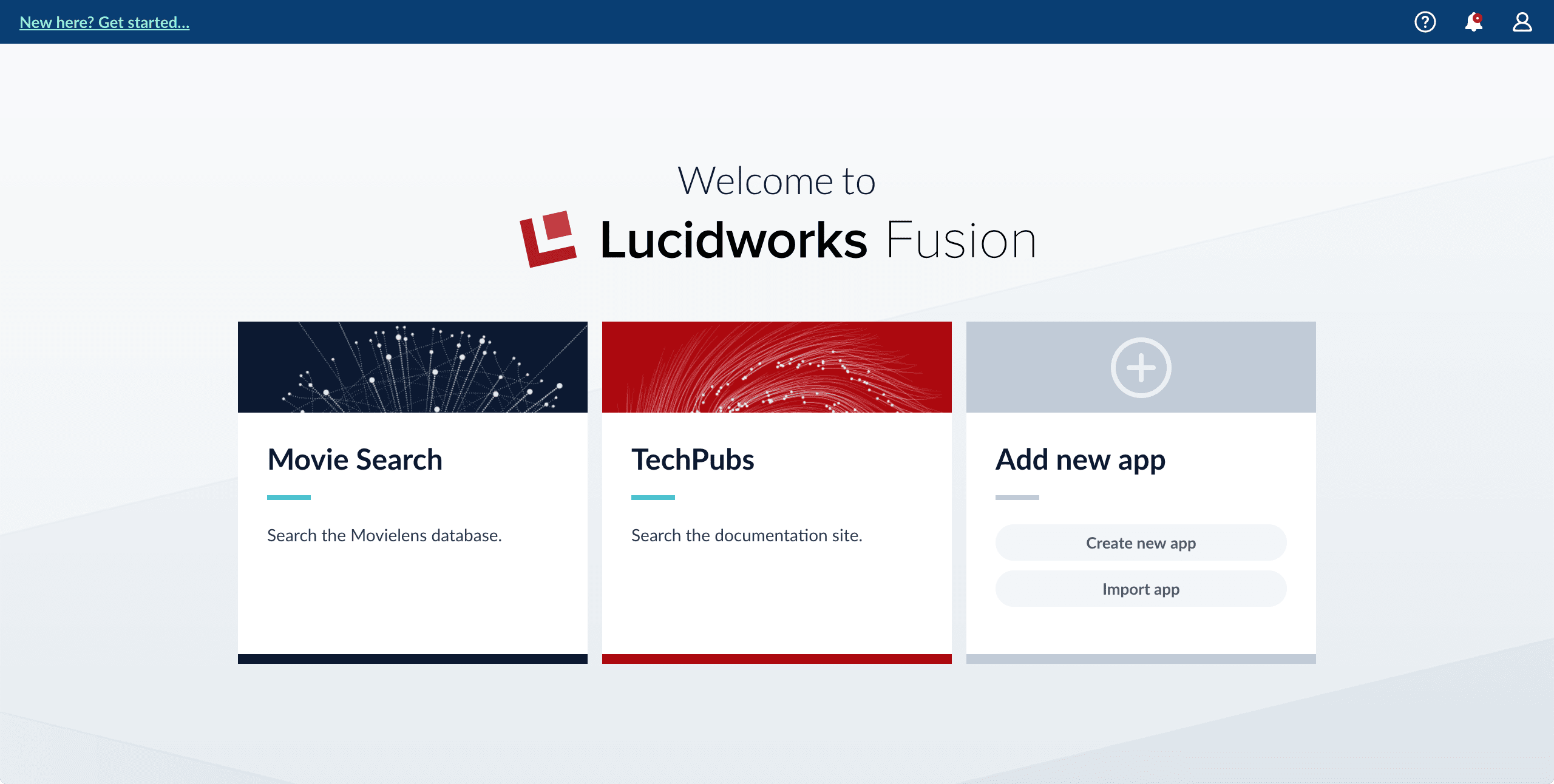
When you log in to Fusion Server, the first page is the Fusion launcher. This is where you create and launch apps:
To return to the Fusion workspace, hover over , and then click **Return to launcher**.
See details about creating an app:
To create an app in App Studio:
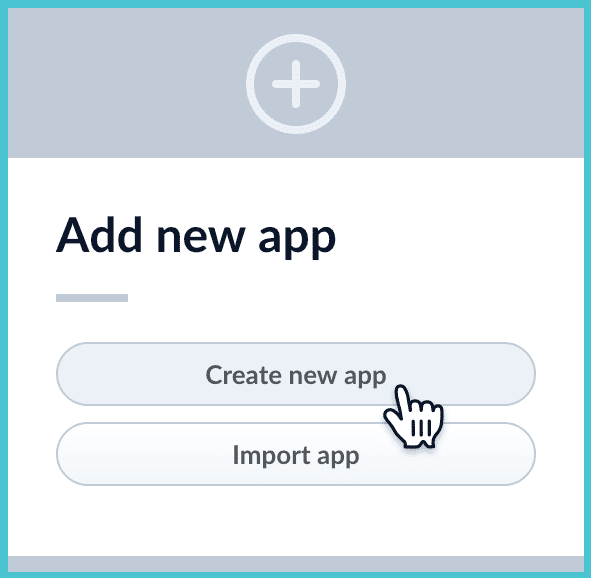
1. Navigate to the launcher and click **Create new app**.
2. Enter an app name.
Optionally, you can also enter a description and select the app tile color.
If you want to choose the name of the first collection in the app, then deselect **Create new app default collection**. When you do this and click **Create app** (in the next step), Fusion Server prompts you to enter a name for the first collection. Otherwise, Fusion Server creates a default collection whose name is the same as the app name.
3. Click **Create App**.
The Fusion workspace appears, and you are ready to work with your app’s first collection.
### The Fusion workspace
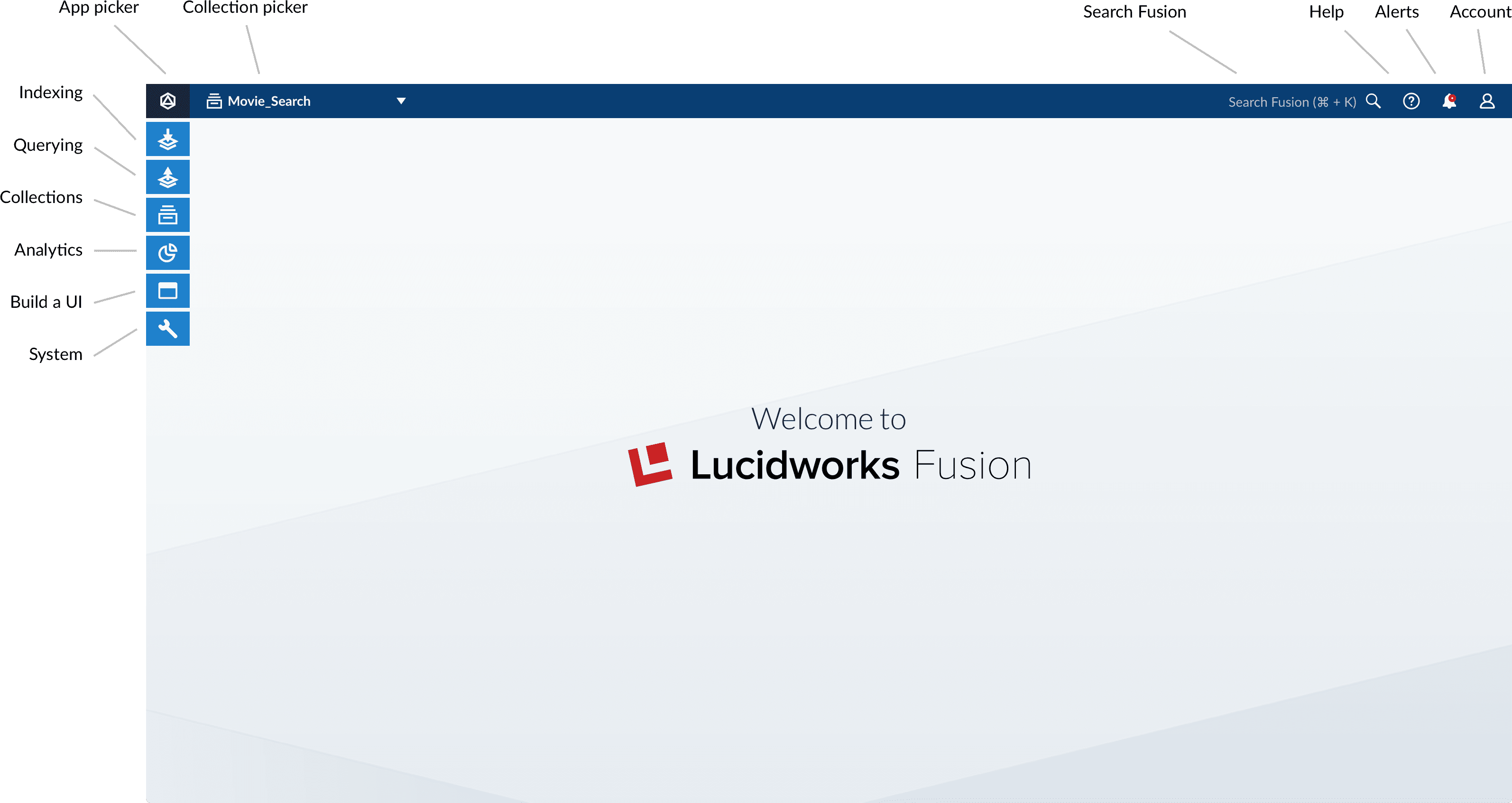
You can reach the Fusion workspace by clicking on any app in the launcher. When you enter the Fusion workspace, you find all the tools you need to configure the currently-selected app:
* On the left side are the [app tool menus](#app-tool-menus), where you can find tools for working with your app.
* At the top, you can [use Object Explorer](#finding-objects-in-object-explorer) to search for and browse objects that are in the current app, in any app, in no apps, and in any app or no apps.
* [System-wide tools](#system-wide-tools) are in the upper right corner.
#### App tool menus
On the left side of the screen are five menus where you can find tools for working with your app:
* Indexing (getting data in)\
The [Index Workbench](/docs/4/fusion-server/concepts/indexing/datasources/index-workbench) is the primary tool for getting data into your app through the Fusion UI. It provides an all-in-one view of the components of a datasource. You can also access those components individually through this menu.
* Querying (getting data out)\
For getting data out, the [Query Workbench](/docs/4/fusion-server/concepts/querying/query-workbench) is the main tool. It shows you a live preview of search results while you configure and fine tune your query pipelines.\
See also [Getting Data Out](/docs/4/fusion-server/concepts/querying/overview).
* Collection management\
Manage your data collections and configure their features.\
See also [Collection Management](/docs/4/fusion-server/concepts/indexing/collections/overview).
* System administration\
System administration for your apps.\
See the [*System Administration with the Fusion UI*](/docs/4/fusion-server/concepts/system/overview).
#### Finding objects in Object Explorer
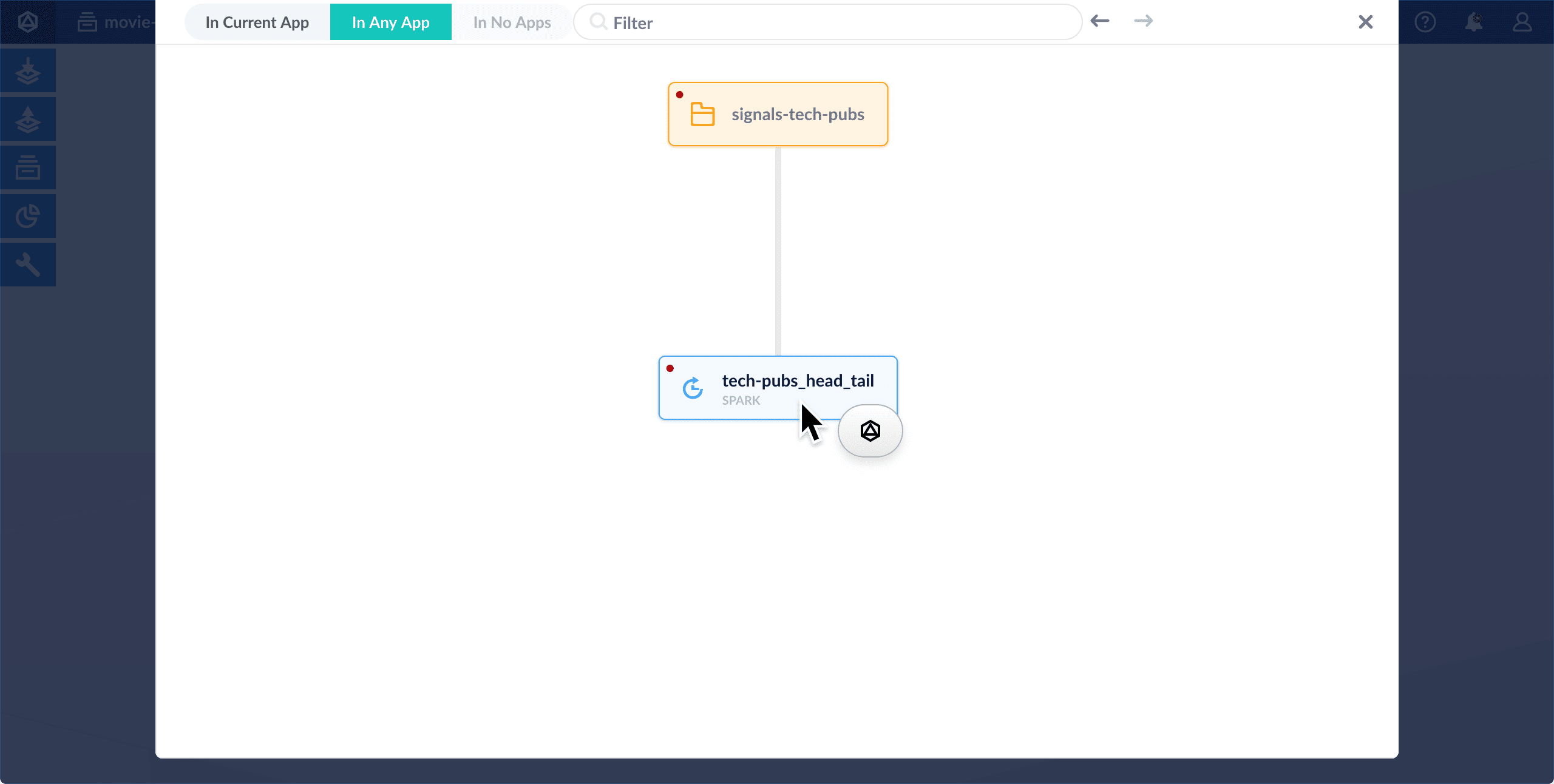
At the top of the Fusion workspace is a Find Objects search field. When you click **Find Objects**, [Object Explorer](/docs/4/fusion-server/concepts/object-explorer) opens.
In the **Filter** search box, you can search by name or type for all [types of Fusion objects](/docs/4/fusion-server/concepts/object-explorer), such as collections, apps, pipelines, and more. Browse objects by clicking them. You can use Object Explorer to view and configure the links between objects. For example, you can use it to **Share Objects Between Fusion Apps**.
Sharing objects between apps lets you reuse parts of apps and synchronize apps without duplicating objects. For example, after you have developed a query pipeline that is well-suited to your data and search application, you can reuse it in another app with a different set of datasources.
When a shared object is modified in one app, the changes affect all other apps that share the object.
To share an object between apps:
1. Navigate to the app that does not yet include the object.
2. Navigate to **System** > **Object Explorer** or click **Find Objects**.
3. Click **In Any App**.
4. Select the object you want to include in this app.
5. Hover over the object to reveal the app icon.
6. Click the app icon.
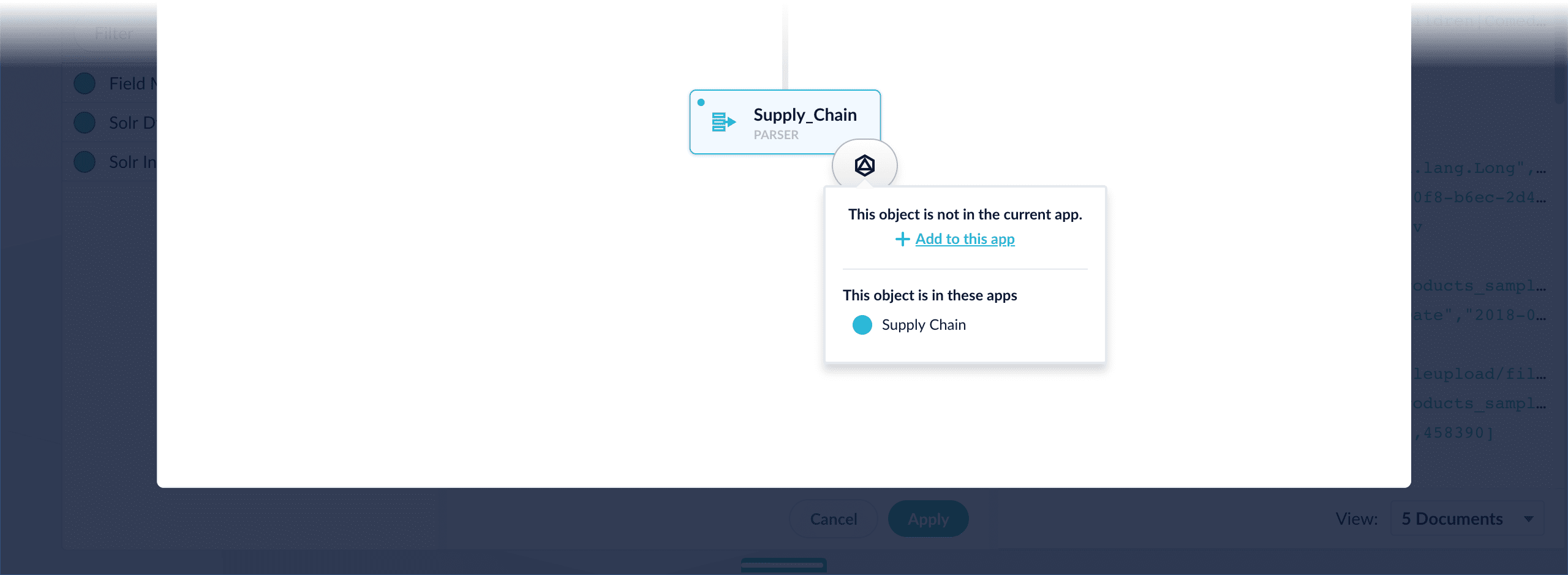
7. Select **Add to this app**.
Object Explorer now displays a link between the object and this app:
Now you will see the shared object in the Fusion workspace for this app.
The course for **Fusion Applications and Collections** focuses on the features of Fusion apps and collections and best practices when working with them.
#### System-wide tools
On the right are menus for system-wide actions:
* Help\
Click here to access the documentation from the Fusion UI.
* Alerts\
New alerts are briefly displayed in the foreground. Open this menu to see past alerts, or to clear the alert history.
* Account\
Here you can edit your profile, log out, or manage your Fusion license.
## Learn more
1. In the Fusion workspace, navigate to **Collections > Jobs**.
2. Click **Add** and select the job type. The New Job Configuration panel appears. This panel is different for each job type.
3. Configure the new job as needed.
4. Click **Save**.
You can create, modify, and delete apps in the Fusion UI or with the Apps API.
## Manage apps in the Fusion UI
### Create an app
Fusion prompts you to create an app the first time you log in. You can create additional apps at anytime from Fusion’s home page.
1. Log into Fusion and navigate to the home screen.
2. Click **Create new app**.
3. Enter a **Name**, **Description**, and select an **App tile color**.
4. Click **Create App**.
### Modify or delete an app
1. Log into Fusion and navigate to the home screen.
2. Click the **Configure** icon on the app you want to modify or delete.
3. To modify the app, click the edit icon .
1. Edit the **Name** or **Description**.
2. Click **OK**.
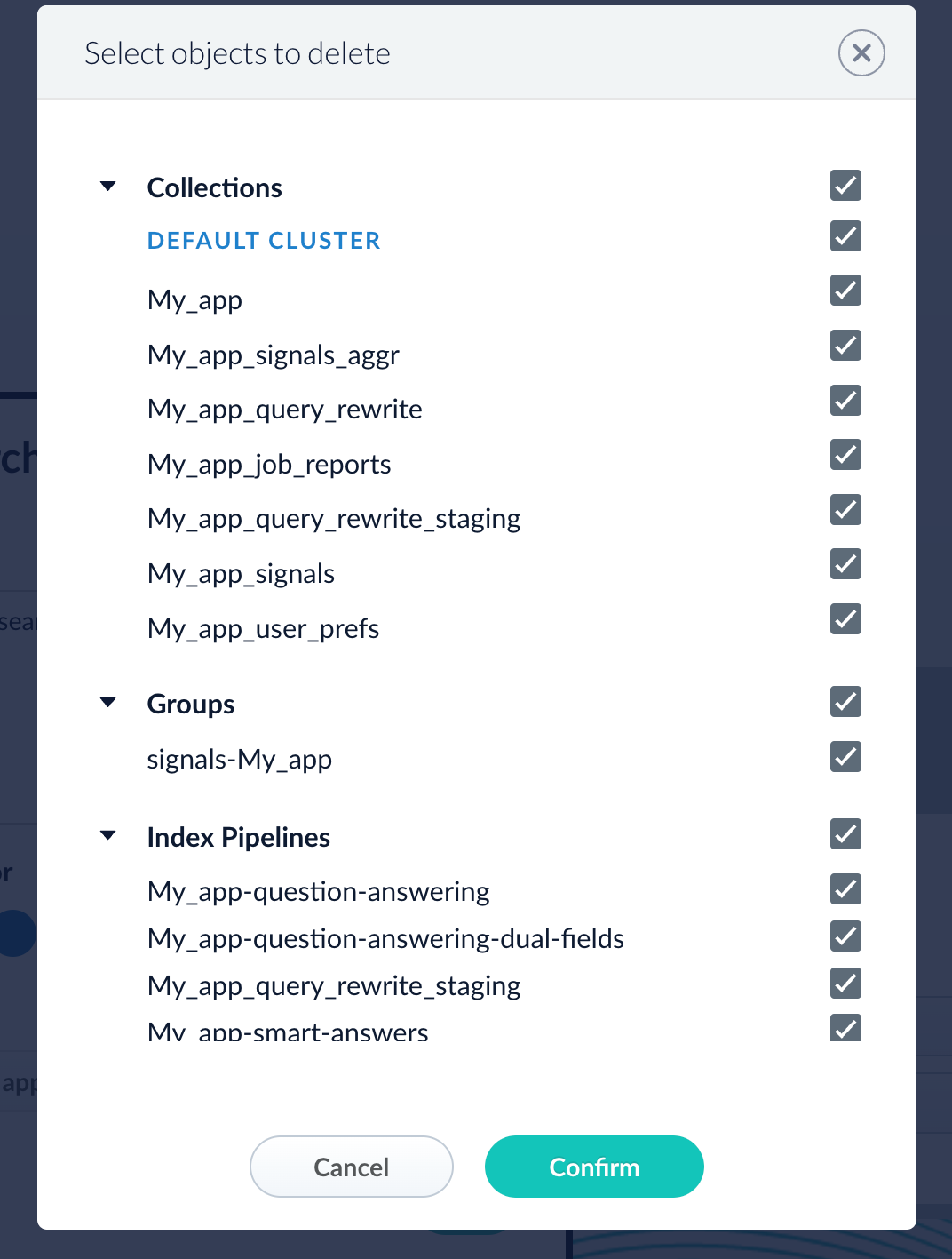
4. To delete the app, click **Delete app**.
1. A dialog box appears where you can choose which associated objects to delete or retain. Only objects not associated with other objects are displayed. All objects are selected by default.
2. Click **Confirm**.
## Manage apps with the Apps API
### Create an app
```bash wrap theme={"dark"}
curl -u USERNAME:PASSWORD -X POST -H 'Content-type: application/json' -d '{"id": "MyNewApp", "name":"My new app", "description":"A really really great new app"}' https://FUSION_HOST/api/apps
```
### Delete an app
Run the following command, replacing `{id}` with the name of your app. This operation take about a minute to complete.
```bash theme={"dark"}
curl -u USERNAME:PASSWORD -X DELETE https://FUSION_HOST/api/apps/{id}
```
To export a Fusion app, you can use either the Fusion UI or the Objects API.
When upgrading from one Fusion version to a later one, you must use the migrator to migrate objects. The migrator automates the process of translating relevant objects to the new version. Exporting an object from one Fusion version and importing it into a different Fusion version *isn’t* supported.
## Export an app with the Fusion UI
1. How to export an app with the Fusion UI
2. Navigate to the launcher.
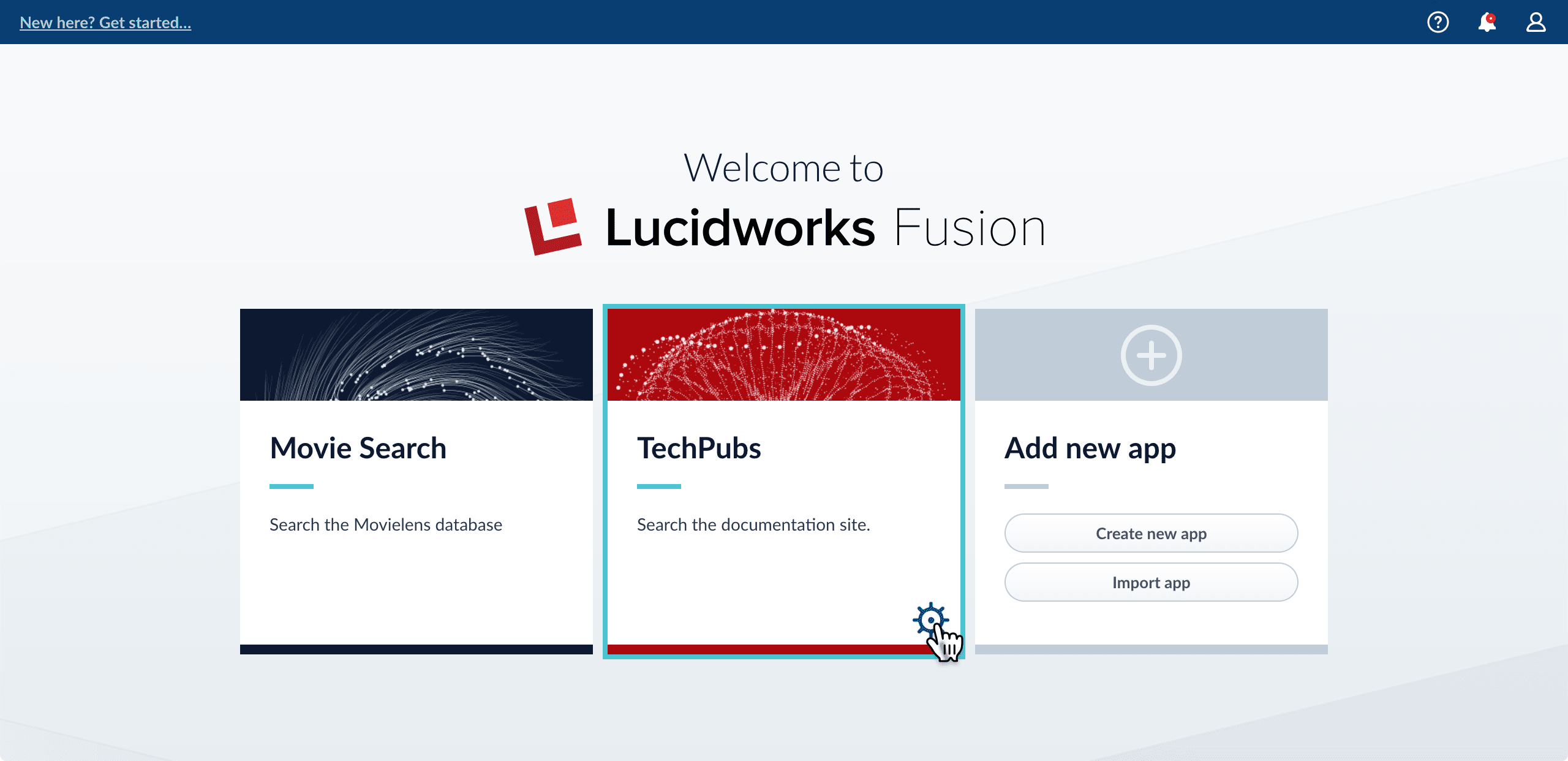
3. Hover over the app you want to export and click the Configure icon:
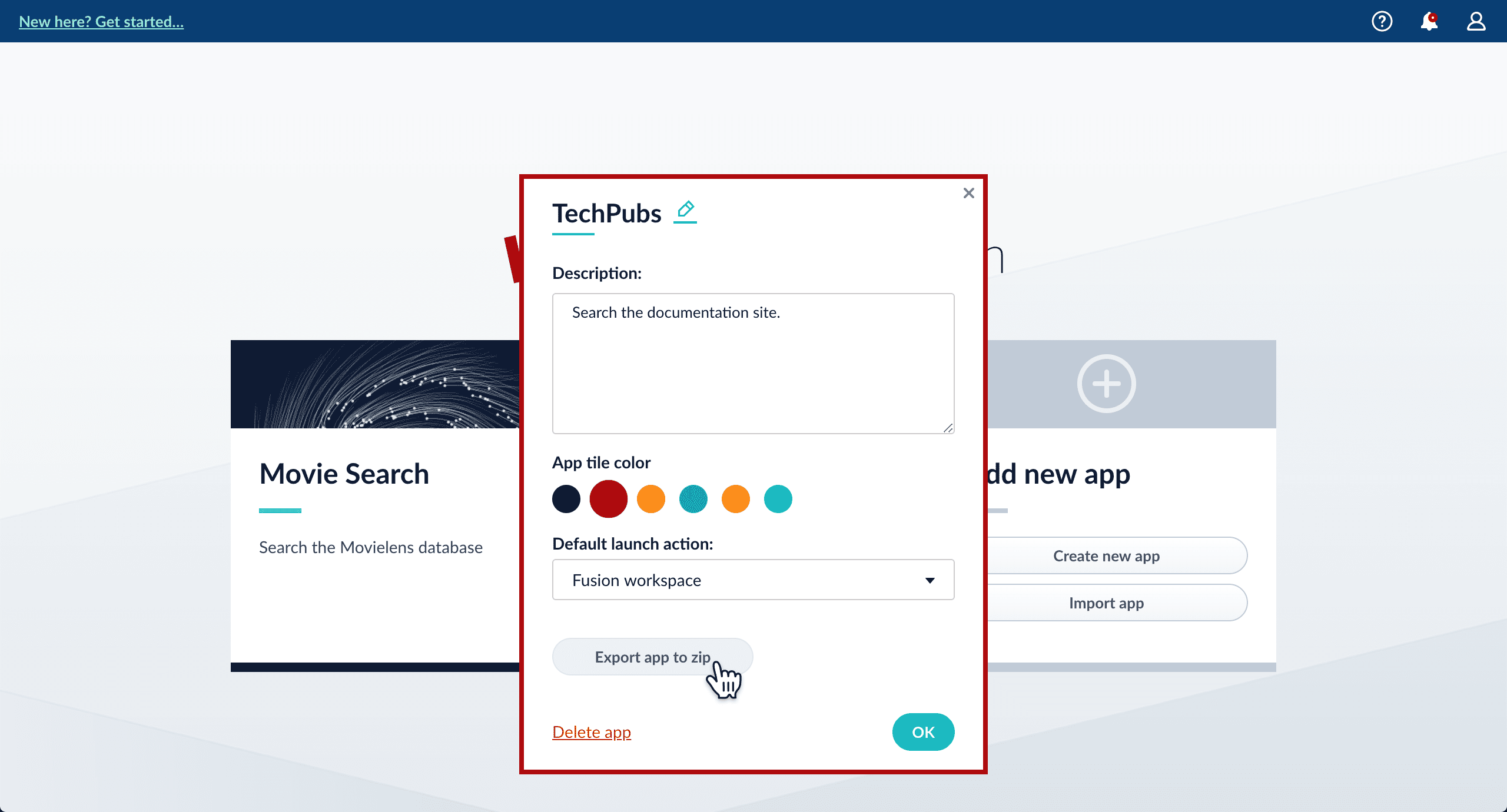
4. In the app config window, click **Export app to zip**:
See import for information to import the downloaded zip file into other instances of Fusion 4.x Server.
## Export an app with the Objects API
The examples below show how to export one or more apps:
**Export all apps**
```bash wrap theme={"dark"}
curl -u USERNAME:PASSWORD http://localhost:8764/api/objects/export?type=app > all-apps.zip
```
**Get all app IDs, then export one app by ID**
```bash expandable theme={"dark"}
> curl -u USERNAME:PASSWORD http://localhost:8764/api/apps
[ {
"id" : "movies",
"name" : "Movies",
"description" : "Search the movielens database.",
"dataUri" : "/App-Tile-01-460x160.png",
"properties" : {
"headerImageName" : "headerImage1",
"tileColor" : "apps-darkblue",
"previousCollectionId" : "movies"
}
}, {
"id" : "tech-pubs",
"name" : "TechPubs",
"description" : "Search the documentation.",
"dataUri" : "/App-Tile-02-460x160.png",
"properties" : {
"headerImageName" : "headerImage2",
"tileColor" : "apps-darkblue",
"previousCollectionId" : "tech-pubs"
}
} ]
> curl -u USERNAME:PASSWORD http://localhost:8764/api/objects/export?app.ids=tech-pubs > techpubs.zip
```
When you export an app that includes objects that are shared with other apps, then all apps linked to that object are also exported.
**Export two apps by ID**
```bash wrap theme={"dark"}
curl -u USERNAME:PASSWORD http://localhost:8764/api/objects/export?app.ids=tech-pubs,movies > two-apps.zip
```
For the `app` object type, the `deep` parameter is not used. Linked objects are always included when exporting apps.
 Fusion Server also prompts you to register to send metrics to Lucidworks. You can click **Skip** to send no metrics; you can also register later.
The first time you log in:
Fusion Server opens the **Quickstart**, to give you a quick demonstration of Fusion’s most basic features. You can click **Exit the Quickstart** to close it and go to the Fusion launcher.
Fusion Server also prompts you to register to send metrics to Lucidworks. You can click **Skip** to send no metrics; you can also register later.
The first time you log in:
Fusion Server opens the **Quickstart**, to give you a quick demonstration of Fusion’s most basic features. You can click **Exit the Quickstart** to close it and go to the Fusion launcher.
 1. Click **Continue**.
On the **Select an App** screen, you can select or create an [app](/docs/4/fusion-server/concepts/overview) for your quickstart data.
1. Click **Continue**.
On the **Select an App** screen, you can select or create an [app](/docs/4/fusion-server/concepts/overview) for your quickstart data.
 If you click **Create new app**, Fusion prompts you to enter an app name (and optionally a description), then click **Create App** to return to the Quickstart. Your new app is selected by default.
2. After selecting an app, click **Continue**.
On the **Select a Collection** screen, you can select or create a [collection](/docs/4/fusion-server/concepts/overview) for your quickstart data. A collection with the same name as your app is created automatically:
If you click **Create new app**, Fusion prompts you to enter an app name (and optionally a description), then click **Create App** to return to the Quickstart. Your new app is selected by default.
2. After selecting an app, click **Continue**.
On the **Select a Collection** screen, you can select or create a [collection](/docs/4/fusion-server/concepts/overview) for your quickstart data. A collection with the same name as your app is created automatically:
 3. Click **Continue**.\
On the **Index Data** screen, you can either select one of the built-in sample datasets or click **Use my data** to upload your own:
3. Click **Continue**.\
On the **Index Data** screen, you can either select one of the built-in sample datasets or click **Use my data** to upload your own:
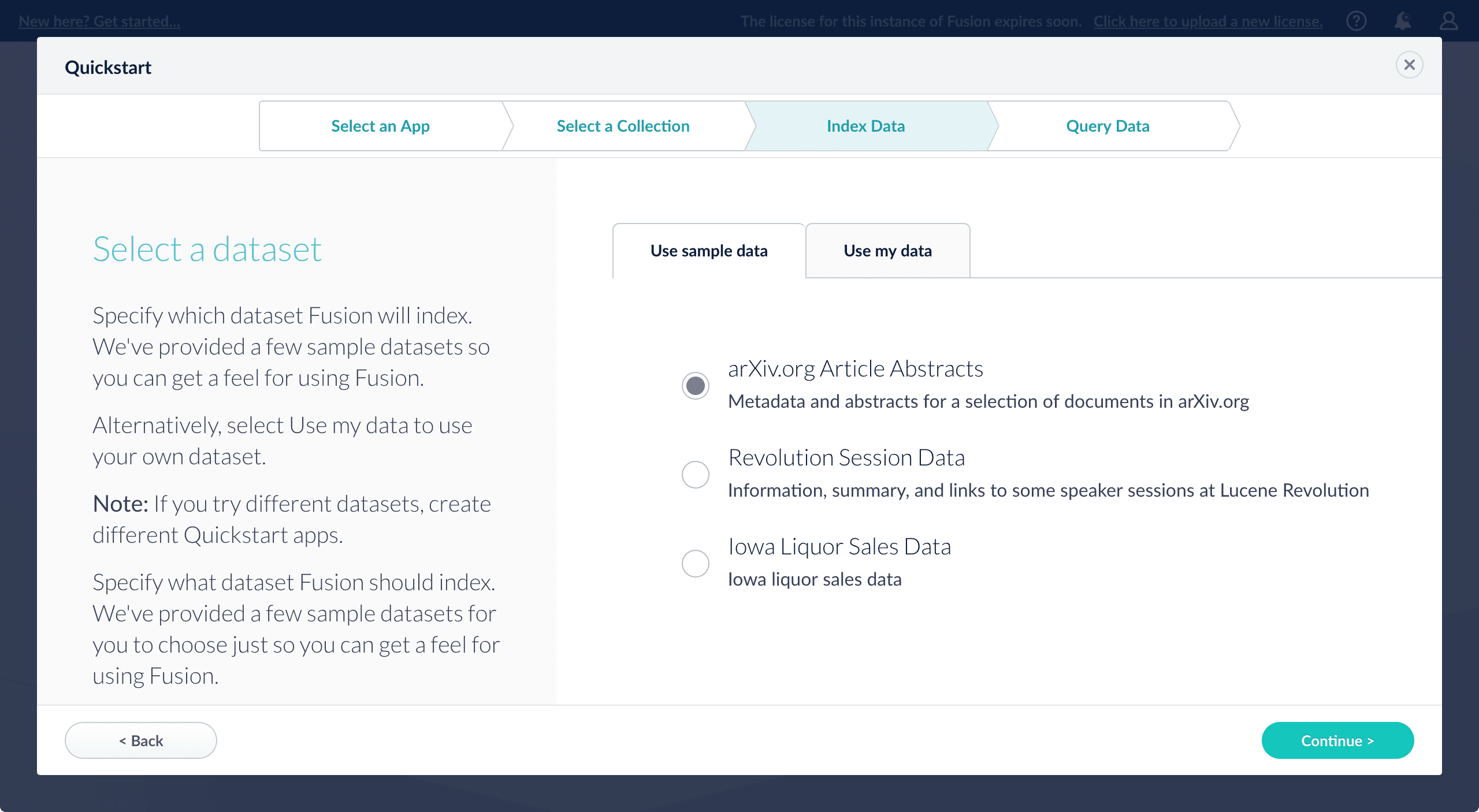 4. Click **Continue**.\
On the **Query Data** screen, you can see all search results and enter your own search queries to test the indexed dataset. You can also select the display fields or view the parsed documents:
4. Click **Continue**.\
On the **Query Data** screen, you can see all search results and enter your own search queries to test the indexed dataset. You can also select the display fields or view the parsed documents:
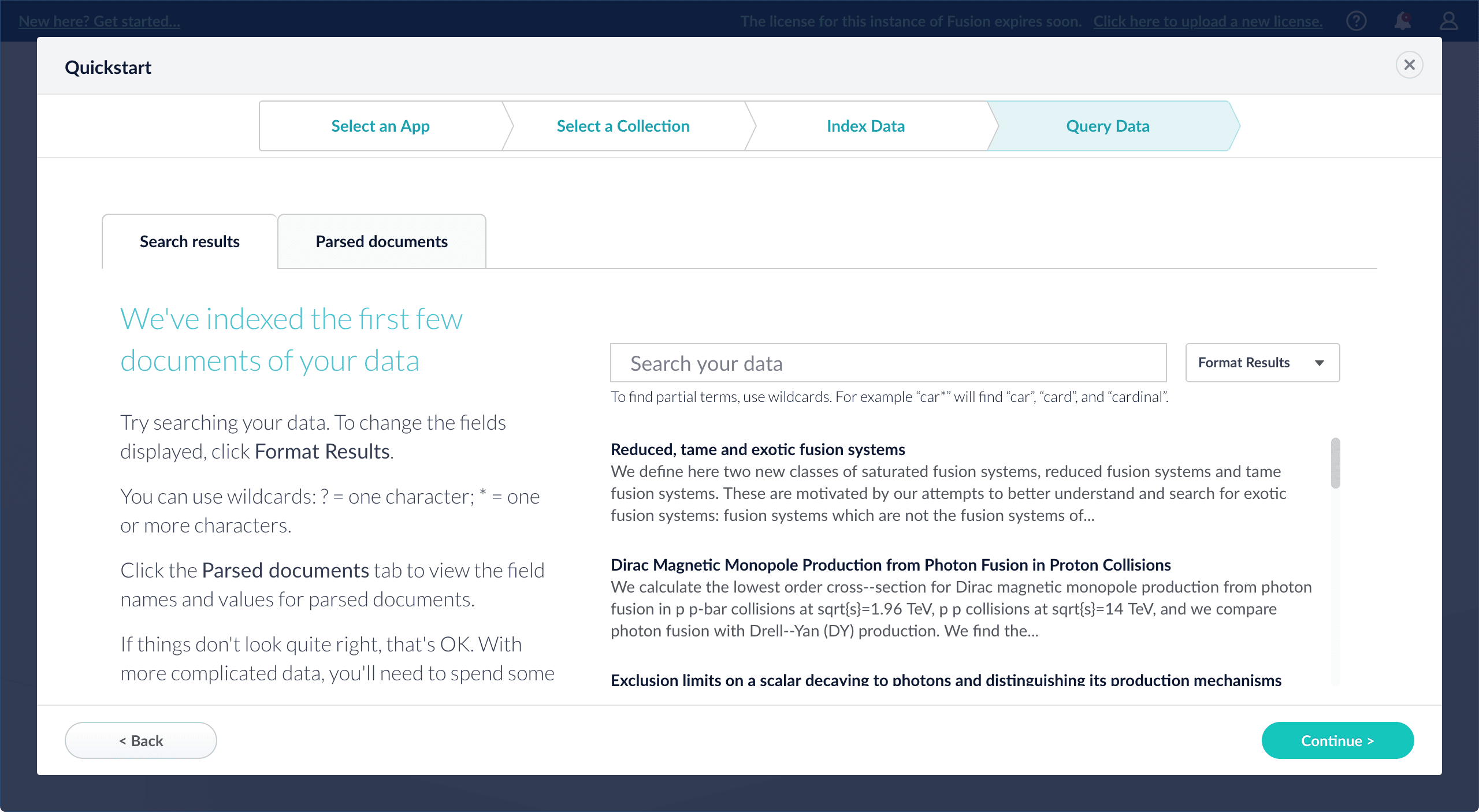 5. Click **Continue**.
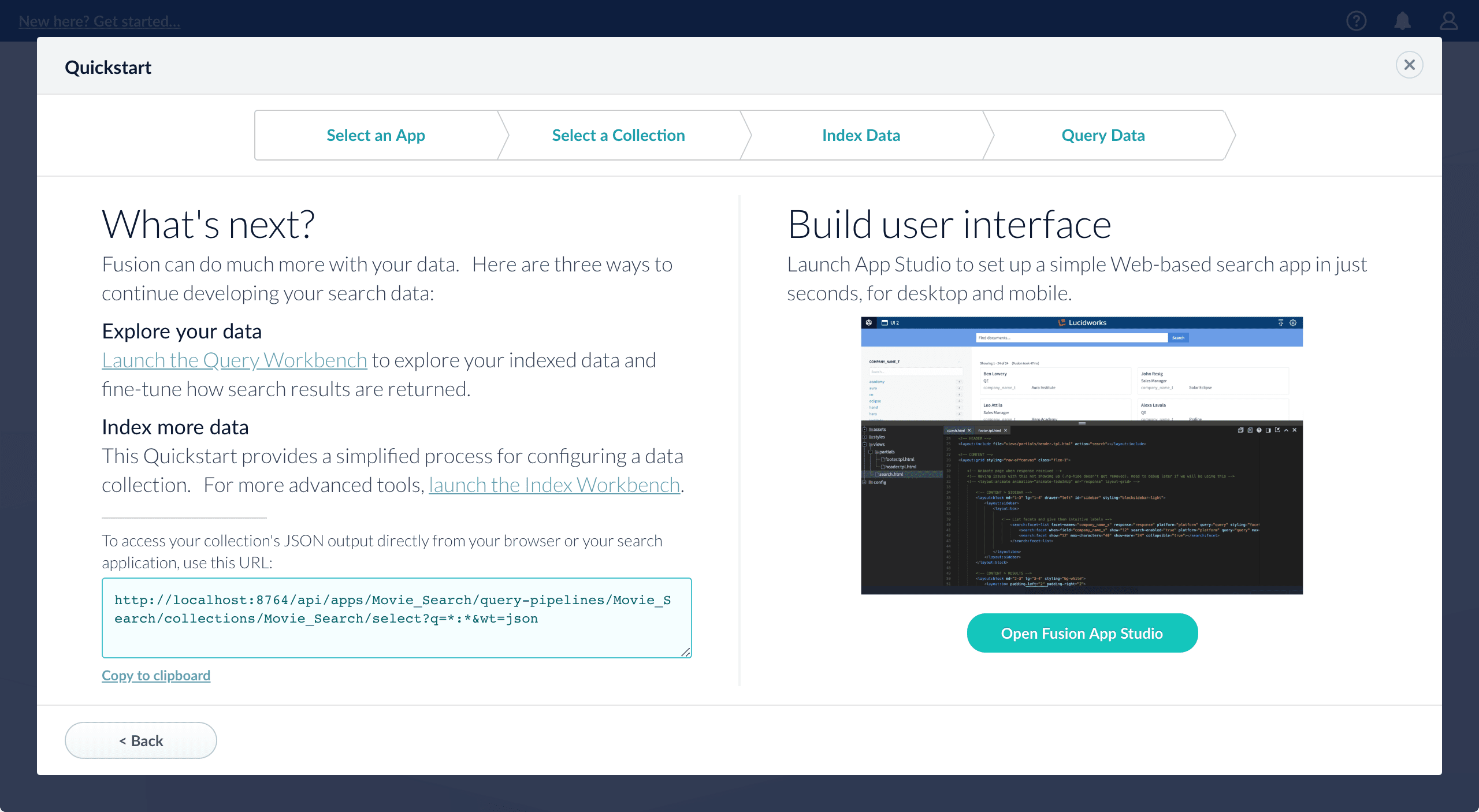 From here, you can do the following:
* Open the Index Workbench to change the index pipeline.
* [Fusion 4.x Index Workbench](/docs/4/fusion-server/concepts/indexing/datasources/index-workbench)
* [Fusion 5.x Index Workbench](/docs/5/fusion/intro/ui-tour/index-workbench)
* Open the Query Workbench to change the query pipeline.
* [Fusion 4.x Query Workbench](/docs/4/fusion-server/concepts/querying/query-workbench)
* [Fusion 5.x Query Workbench](/docs/5/fusion/getting-data-out/query-basics/query-workbench)
The workbenches are essentials tools in the Fusion workflow.
* Open [App Studio](/docs/4/app-studio/overview) to create a user interface for searching this collection.
From here, you can do the following:
* Open the Index Workbench to change the index pipeline.
* [Fusion 4.x Index Workbench](/docs/4/fusion-server/concepts/indexing/datasources/index-workbench)
* [Fusion 5.x Index Workbench](/docs/5/fusion/intro/ui-tour/index-workbench)
* Open the Query Workbench to change the query pipeline.
* [Fusion 4.x Query Workbench](/docs/4/fusion-server/concepts/querying/query-workbench)
* [Fusion 5.x Query Workbench](/docs/5/fusion/getting-data-out/query-basics/query-workbench)
The workbenches are essentials tools in the Fusion workflow.
* Open [App Studio](/docs/4/app-studio/overview) to create a user interface for searching this collection.
 To return to the Fusion workspace, hover over
  2. Enter an app name.
Optionally, you can also enter a description and select the app tile color.
If you want to choose the name of the first collection in the app, then deselect **Create new app default collection**. When you do this and click **Create app** (in the next step), Fusion Server prompts you to enter a name for the first collection. Otherwise, Fusion Server creates a default collection whose name is the same as the app name.
3. Click **Create App**.
The Fusion workspace appears, and you are ready to work with your app’s first collection.
2. Enter an app name.
Optionally, you can also enter a description and select the app tile color.
If you want to choose the name of the first collection in the app, then deselect **Create new app default collection**. When you do this and click **Create app** (in the next step), Fusion Server prompts you to enter a name for the first collection. Otherwise, Fusion Server creates a default collection whose name is the same as the app name.
3. Click **Create App**.
The Fusion workspace appears, and you are ready to work with your app’s first collection.
 * On the left side are the [app tool menus](#app-tool-menus), where you can find tools for working with your app.
* At the top, you can [use Object Explorer](#finding-objects-in-object-explorer) to search for and browse objects that are in the current app, in any app, in no apps, and in any app or no apps.
* [System-wide tools](#system-wide-tools) are in the upper right corner.
#### App tool menus
On the left side of the screen are five menus where you can find tools for working with your app:
*
* On the left side are the [app tool menus](#app-tool-menus), where you can find tools for working with your app.
* At the top, you can [use Object Explorer](#finding-objects-in-object-explorer) to search for and browse objects that are in the current app, in any app, in no apps, and in any app or no apps.
* [System-wide tools](#system-wide-tools) are in the upper right corner.
#### App tool menus
On the left side of the screen are five menus where you can find tools for working with your app:
*  In the **Filter** search box, you can search by name or type for all [types of Fusion objects](/docs/4/fusion-server/concepts/object-explorer), such as collections, apps, pipelines, and more. Browse objects by clicking them. You can use Object Explorer to view and configure the links between objects. For example, you can use it to **Share Objects Between Fusion Apps**.
 6. Click the app icon.
7. Select **Add to this app**.
6. Click the app icon.
7. Select **Add to this app**.
 Object Explorer now displays a link between the object and this app:
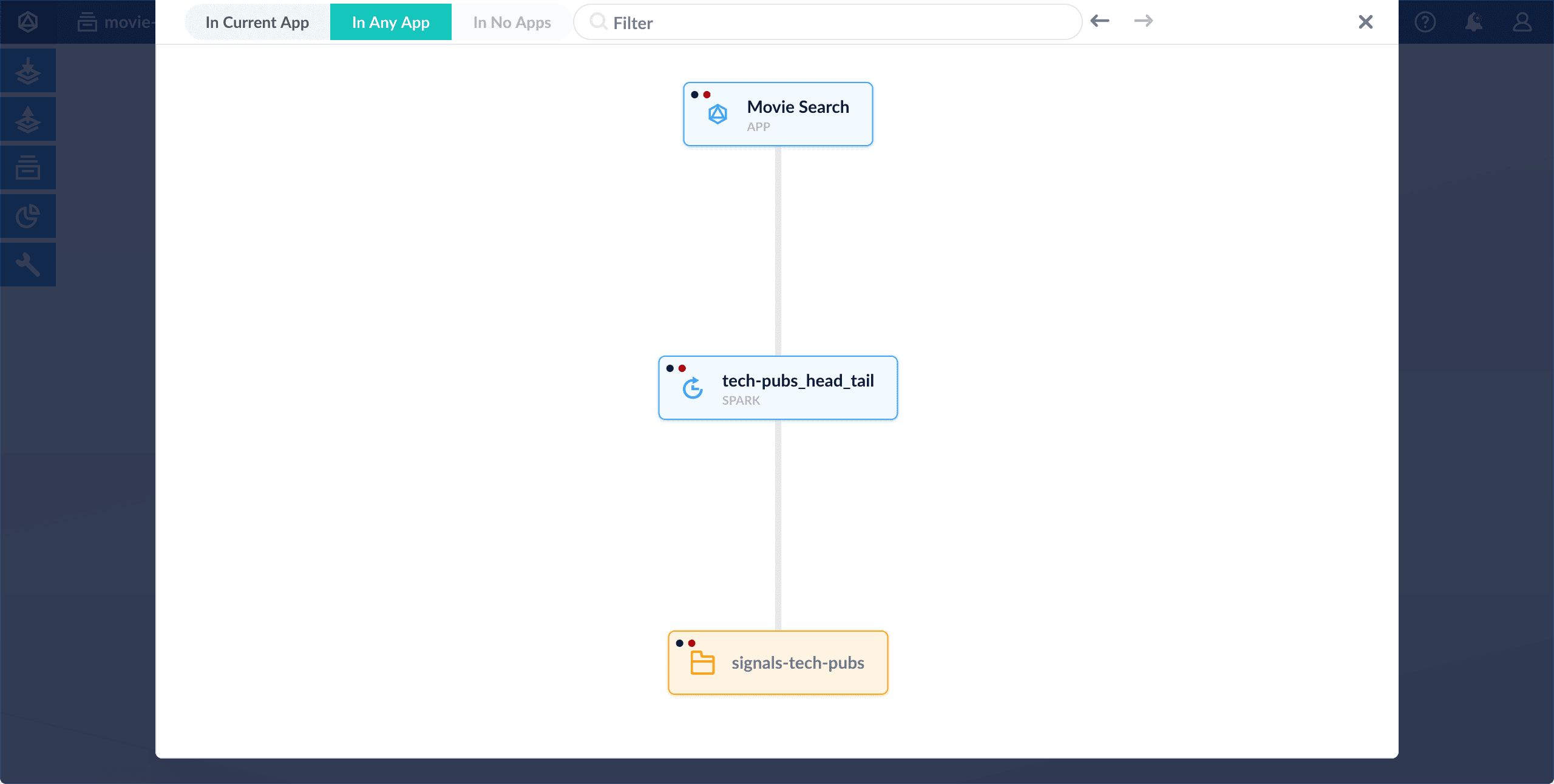 Now you will see the shared object in the Fusion workspace for this app.
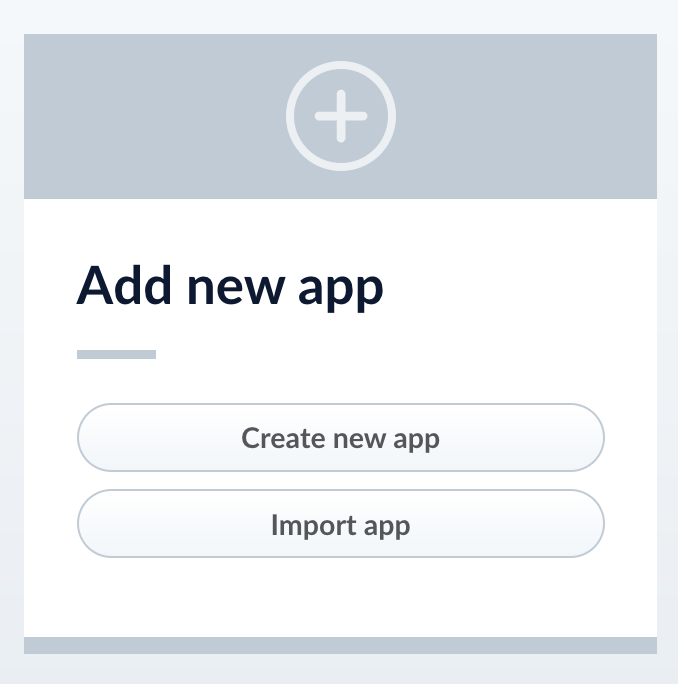 3. Enter a **Name**, **Description**, and select an **App tile color**.
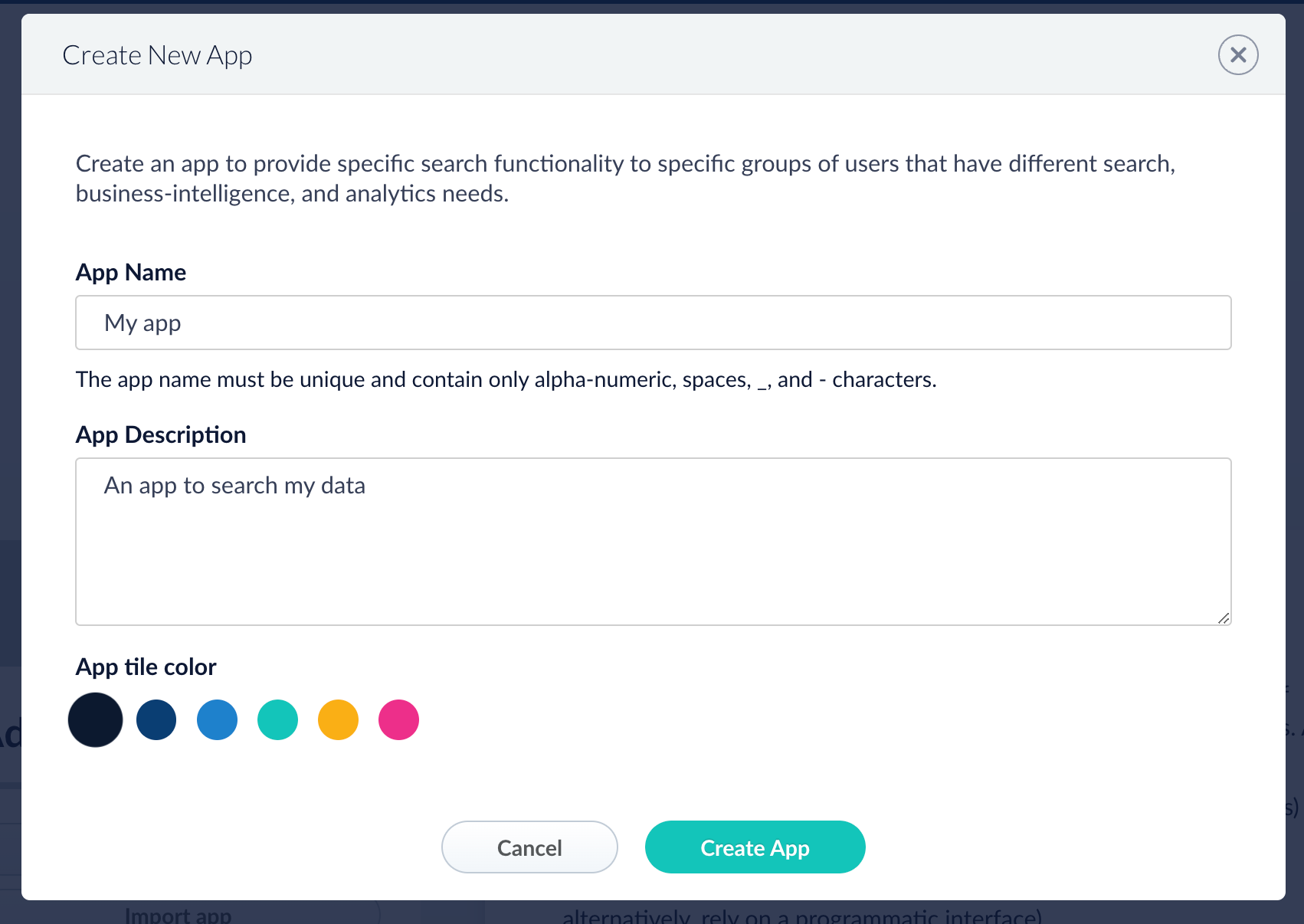 4. Click **Create App**.
### Modify or delete an app
1. Log into Fusion and navigate to the home screen.
2. Click the **Configure** icon on the app you want to modify or delete.
4. Click **Create App**.
### Modify or delete an app
1. Log into Fusion and navigate to the home screen.
2. Click the **Configure** icon on the app you want to modify or delete.
 3. To modify the app, click the edit icon
  .
.
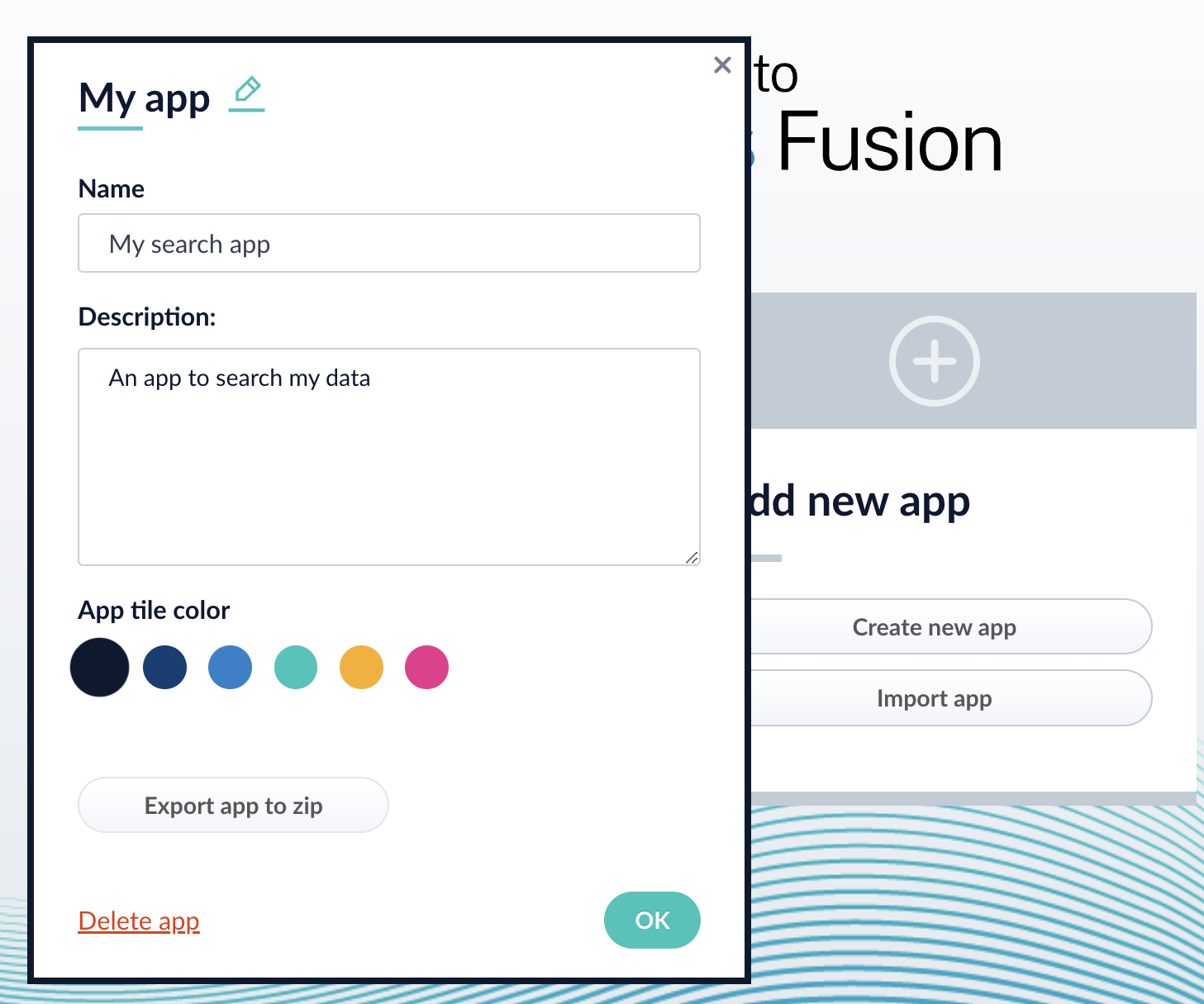 1. Edit the **Name** or **Description**.
2. Click **OK**.
4. To delete the app, click **Delete app**.
1. A dialog box appears where you can choose which associated objects to delete or retain. Only objects not associated with other objects are displayed. All objects are selected by default.
2. Click **Confirm**.
1. Edit the **Name** or **Description**.
2. Click **OK**.
4. To delete the app, click **Delete app**.
1. A dialog box appears where you can choose which associated objects to delete or retain. Only objects not associated with other objects are displayed. All objects are selected by default.
2. Click **Confirm**.
 ## Manage apps with the Apps API
### Create an app
```bash wrap theme={"dark"}
curl -u USERNAME:PASSWORD -X POST -H 'Content-type: application/json' -d '{"id": "MyNewApp", "name":"My new app", "description":"A really really great new app"}' https://FUSION_HOST/api/apps
```
### Delete an app
Run the following command, replacing `{id}` with the name of your app. This operation take about a minute to complete.
```bash theme={"dark"}
curl -u USERNAME:PASSWORD -X DELETE https://FUSION_HOST/api/apps/{id}
```
## Manage apps with the Apps API
### Create an app
```bash wrap theme={"dark"}
curl -u USERNAME:PASSWORD -X POST -H 'Content-type: application/json' -d '{"id": "MyNewApp", "name":"My new app", "description":"A really really great new app"}' https://FUSION_HOST/api/apps
```
### Delete an app
Run the following command, replacing `{id}` with the name of your app. This operation take about a minute to complete.
```bash theme={"dark"}
curl -u USERNAME:PASSWORD -X DELETE https://FUSION_HOST/api/apps/{id}
```
 4. In the app config window, click **Export app to zip**:
 See import for information to import the downloaded zip file into other instances of Fusion 4.x Server.
## Export an app with the Objects API
The examples below show how to export one or more apps:
**Export all apps**
```bash wrap theme={"dark"}
curl -u USERNAME:PASSWORD http://localhost:8764/api/objects/export?type=app > all-apps.zip
```
**Get all app IDs, then export one app by ID**
```bash expandable theme={"dark"}
> curl -u USERNAME:PASSWORD http://localhost:8764/api/apps
[ {
"id" : "movies",
"name" : "Movies",
"description" : "Search the movielens database.",
"dataUri" : "/App-Tile-01-460x160.png",
"properties" : {
"headerImageName" : "headerImage1",
"tileColor" : "apps-darkblue",
"previousCollectionId" : "movies"
}
}, {
"id" : "tech-pubs",
"name" : "TechPubs",
"description" : "Search the documentation.",
"dataUri" : "/App-Tile-02-460x160.png",
"properties" : {
"headerImageName" : "headerImage2",
"tileColor" : "apps-darkblue",
"previousCollectionId" : "tech-pubs"
}
} ]
> curl -u USERNAME:PASSWORD http://localhost:8764/api/objects/export?app.ids=tech-pubs > techpubs.zip
```
See import for information to import the downloaded zip file into other instances of Fusion 4.x Server.
## Export an app with the Objects API
The examples below show how to export one or more apps:
**Export all apps**
```bash wrap theme={"dark"}
curl -u USERNAME:PASSWORD http://localhost:8764/api/objects/export?type=app > all-apps.zip
```
**Get all app IDs, then export one app by ID**
```bash expandable theme={"dark"}
> curl -u USERNAME:PASSWORD http://localhost:8764/api/apps
[ {
"id" : "movies",
"name" : "Movies",
"description" : "Search the movielens database.",
"dataUri" : "/App-Tile-01-460x160.png",
"properties" : {
"headerImageName" : "headerImage1",
"tileColor" : "apps-darkblue",
"previousCollectionId" : "movies"
}
}, {
"id" : "tech-pubs",
"name" : "TechPubs",
"description" : "Search the documentation.",
"dataUri" : "/App-Tile-02-460x160.png",
"properties" : {
"headerImageName" : "headerImage2",
"tileColor" : "apps-darkblue",
"previousCollectionId" : "tech-pubs"
}
} ]
> curl -u USERNAME:PASSWORD http://localhost:8764/api/objects/export?app.ids=tech-pubs > techpubs.zip
```