> ## Documentation Index
> Fetch the complete documentation index at: https://doc.lucidworks.com/llms.txt
> Use this file to discover all available pages before exploring further.
# On-Prem Deployment
export const LwTemplate = ({title = "Key questions to get you started", icon = "sparkles", cta = "Powered by Agent Studio", linkHref = "https://lucidworks.com/demo/?utm_source=docs&utm_medium=referral&utm_campaign=docs_cta_ai"}) => {
const [isLoaded, setIsLoaded] = useState(false);
useEffect(() => {
const timer = setTimeout(() => {
setIsLoaded(true);
}, 500);
return () => clearTimeout(timer);
}, []);
return
{isLoaded && `
}} />}
Powered by Lucidworks Agent Studio
;
};
[localhost link]: http://localhost:3000/docs/4/fusion-server/concepts/deployment/on-prem
[mintlify link]: https://doc.lucidworks.com/docs/4/fusion-server/concepts/deployment/on-prem
[old doc.lw link]: https://doc.lucidworks.com/fusion-server/4.2/143
These topics explain how to plan for, install, and upgrade your Fusion Server deployment on-premises:
## Introductory and reference information
* [**Review system requirements**](/docs/4/fusion-server/reference/system-requirements) - Start here to learn about required software and hardware.
* [**Review deployment types**](/docs/4/fusion-server/concepts/deployment/deployment-types) - Learn about deployment types for demos, trials, development, and production.
* **Start or Stop Fusion** - Start and stop everything or individual services.
* [**Learn about directories, files, and ports**](/docs/4/fusion-server/reference/directories-files-ports)
* [**Review licensing information**](/docs/4/fusion-server/concepts/licensing)
{/* // tag::body[] */}
This topic explains how to start and stop Fusion Server and its services using the scripts in the `bin` directory below the Fusion home directory:
* `/opt/fusion/latest.***__x__***/bin` (Unix)
* `C:\lucidworks\fusion{backslash}latest.***__x__***{backslash}bin` (Windows)
## Command summary
{/* // 4.2 list: zookeeper, solr, api, connectors-classic, connectors-rpc, proxy, webapps, admin-ui, sql, log-shipper */}
{/* // 4.1 list: zookeeper, solr, api, connectors-classic, connectors-rpc, proxy, webapps, admin-ui, log-shipper, spark-master, spark-worker, sql */}
{/* // 4.0 list: zookeeper, solr, api, connectors-rpc, connectors-classic, admin-ui, proxy, webapps, spark-master, spark-worker, sql */}
{/* // tag::servicecommands[] */}
You can control all Fusion services at once under the management of the Fusion agent, or you can control services individually.
**How to control all services using the Fusion agent:**
* **Unix.** `/opt/fusion/latest.***__x__***/bin/fusion `
* **Windows.** `C:\lucidworks\fusion{backslash}latest.***__x__***{backslash}bin{backslash}fusion.cmd `
**How to control individual services:**
* **Unix.** `/opt/fusion/latest.***__x__***/bin/`
For example: `/opt/fusion/latest.***__x__***/bin/proxy restart`
* **Windows.** `C:\lucidworks\fusion{backslash}latest.***__x__***{backslash}bin{backslash}.cmd `
For example: `C:\lucidworks\fusion{backslash}latest.***__x__***{backslash}bin{backslash}proxy.cmd restart`
When starting services individually, start Zookeeper first.
The commands below can be issued to the `fusion`/`fusion.cmd` script to issue the command to all services in the correct sequence, or they can be issued to an individual service.
{/* // tag::table[] */}
| | |
| ------------------------------------------------ | --------------------------------------------------------------------------------------------------------------------------------------------------------------------------------------- |
| `start` | Start one or all Fusion services. |
| `status` | Display the status of one or all Fusion services. |
| `restart` | Restart one or all Fusion services. |
| `stop` | Stop one or all Fusion services. |
| `run` | Start one or all Fusion services in the foreground. |
| `run-in-shell` (Unix only) *(Fusion 4.2+ only.)* | Start an individual service using Bash’s `exec` function, which allows the service to assume the shell process’s PID. See [Run Fusion in shell mode](#run-fusion-in-shell-mode) below. |
{/* // end::servicecommands[] */}
{/* // end::table[] */}
## Define groups of services
The `fusion.cors` (`fusion.properties` in Fusion 4.x) file includes the property definition `group.default`. This property defines the Fusion services to start and stop by default (if no property is named in the start or stop command).
The default list of services out-of-the-box is also the *minimum* set of services, with the exception of the `log-shipper` service, which you can remove if you do not use it.
Here is the `group.default` definition in `fusion.cors` (`fusion.properties` in Fusion 4.x):
**In Fusion 4.1+.**
```bash theme={"dark"}
group.default = zookeeper, solr, api, connectors-classic, connectors-rpc, proxy, webapps, admin-ui, log-shipper
```
With the exception of the `log-shipper` service, these are all required services. Even if only using RPC connectors, the `connectors-classic` service is required. The `log-shipper` service is required to use the Log Shipper.
**In Fusion 4.0.x.**
```bash theme={"dark"}
group.default = zookeeper, solr, api, connectors-rpc, connectors-classic, admin-ui, proxy, webapps
```
Even if only using RPC connectors, the `connectors-classic` service is required.
### How to modify the default list of services
**In Fusion 4.1+.**
Edit the `group.default` property, for example, to include Spark and SQL related services:
```bash theme={"dark"}
group.default = zookeeper, solr, api, connectors-classic, connectors-rpc, proxy, webapps, admin-ui, log-shipper, spark-master, spark-worker, sql
```
**In Fusion 4.0.x.**
Edit the `group.default` property, for example, to include Spark related services:
```bash theme={"dark"}
group.default = zookeeper, solr, api, connectors-classic, connectors-rpc, proxy, webapps, admin-ui, spark-master, spark-worker
```
### How to define other lists of services (Unix)
You can define other lists of services by defining other `group` properties.
**In Fusion 4.1+.**
For example, define this group property to start and stop services for Spark and SQL together:
```bash theme={"dark"}
group.spark-only = spark-master, spark-worker, sql
```
**In Fusion 4.0.x.**
For example, define this group property to start and stop services for Spark together:
```bash theme={"dark"}
group.spark-only = spark-master, spark-worker
```
Define this group property to start and stop services for classic and RPC connectors together:
```bash theme={"dark"}
group.connectors = connectors-classic, connectors-rpc
```
## Unix
Start and stop Fusion on Unix.
### Start Fusion
{/* // tag::starting-fusion-intro-unix[] */}
All Fusion start scripts must be executed by a user who has permissions to read and write to the directories where Fusion is installed. These scripts do not need to be run as root (or sudo), nor should they be. Use a suitable user, or create a new one, and then ensure that it owns the directory where Fusion resides, (for example, `C:\lucidworks`).
Give the commands that follow from the directory `fusion/latest.***__x__***/bin`.
{/* // end::starting-fusion-intro-unix[] */}
#### Start required services
{/* // tag::starting-fusion-command-unix[] */}
Start the required services that are defined in the `group.default` property.
**How to start all required services**
`./fusion start`
This is equivalent to `./fusion start default`. You can omit the group name `default`.
{/* // end::starting-fusion-command-unix[] */}
#### Start a group of services
You can start a group of services together. Reference the property in `fusion.cors` (`fusion.properties` in Fusion 4.x) that [defines the group](#define-groups-of-services).
Examples of when this is useful are:
* **Spark and SQL.** The `spark-master`, `spark-worker`, and `sql` services are interdependent and should be started and stopped together.
```bash theme={"dark"}
./fusion start spark-master spark-worker sql
```
* **Classic and RPC connectors.** RPC connectors require both the `connectors-classic` and `connectors-rpc` services to be running.
```bash theme={"dark"}
./fusion start connectors-classic connectors-rpc
```
#### Start services individually
You can start services individually.
{/* // 4.1 list: zookeeper, solr, api, connectors-classic, connectors-rpc, proxy, webapps, admin-ui, log-shipper, spark-master, spark-worker, sql */}
{/* // 4.0 list: zookeeper, solr, api, connectors-rpc, connectors-classic, admin-ui, proxy, webapps, spark-master, spark-worker, sql */}
**How to start services individually**
* Fusion UI service:
`./admin-ui start`
* API services:
`./api start`
* Classic Connectors services:
`./connectors-classic start`
* RPC Connectors services:
`./connectors-rpc start`
* Log shipper service (Fusion 4.1+ only):
`./log-shipper start`
* Proxy:
`./proxy start`
* Solr:
`./solr start`
* Spark Master:
`./spark-master start`
* Spark Worker:
`./spark-worker start`
* SQL service:
`./sql start`
* Web Apps:
`./webapps start`
* ZooKeeper:
`./zookeeper start`
For information about default ports, see [Default Ports](/docs/4/fusion-server/reference/directories-files-ports).
#### Run Fusion in the foreground
To run Fusion or any of its services in the foreground, use the `run` command-line argument in place of `start`.
#### Run Fusion in shell mode
This section applies to Fusion 4.2+ only.
To start any of Fusion’s services using Bash’s `exec` function, which allows the service to assume the shell process’s PID, use the `run-in-shell` command-line argument in place of `start` or `run`. The `run-in-shell` argument can only be used to start one service at a time.
**Examples**
```bash theme={"dark"}
./fusion run-in-shell zookeeper
```
or
```bash theme={"dark"}
./zookeeper run-in-shell
```
Shell mode is particularly useful in containerized environments, which generally assume that only one process runs per container and that process is "process 0", that is, the initial process invoked within the container, not a separate spawned process.
### Stop Fusion
**How to stop Fusion services**
To stop Fusion or any of its services, use the command above with the `stop` command-line argument in place of `start`, for example:
`./solr stop`
### Using systemd to manage processes
{/* // tag::systemd-intro[] */}
On Red Hat Enterprise Linux, CentOS 7 and newer, and Ubuntu 15.04 LTS and newer, we support using the operating system-provided `systemd` for process management.
{/* // end::systemd-intro[] */}
#### Launching Fusion at system start
You can configure `systemd` to launch Fusion when your system starts.
**How to launch Fusion at system start:**
1. Change your working directory to Fusion’s `systemd` directory, for example:
```bash theme={"dark"}
cd /opt/fusion/latest.**__x__**/init/systemd
```
2. Edit `fusion.service` to provide correct values for the `FUSION_HOME` and `JAVA_HOME` environment variables.
3. Stop Fusion if it is already running:
```bash theme={"dark"}
/opt/fusion/latest.**__x__**/bin/fusion stop
```
4. Create the `systemd` management file, which launches Fusion under `systemd` management:
```bash theme={"dark"}
sudo bash install.sh
```
#### Starting and stopping Fusion
You can use the `systemctl` command to start and stop Fusion:
```bash theme={"dark"}
sudo systemctl start fusion
sudo systemctl stop fusion
```
Log files for Fusion services are found in directories under `https://FUSION_HOST:FUSION_PORT/var/log`.
### Using Ubuntu Upstart to manage processes
{/* // tag::upstart-intro[] */}
Under Ubuntu 12.04 LTS through Ubuntu 14.10, we support using Upstart for process management. This requires Fusion to be installed in the `/opt/lucidworks/` directory.
{/* // end::upstart-intro[] */}
To configure upstart, run the following commands:
```bash theme={"dark"}
$ cd /opt/lucidworks/fusion/latest/init/upstart
$ sudo bash install.sh
```
If this complains with `no JAVA_HOME set`, replace `sudo` with `sudo -E`. Then you can use the `service` command to control the server:
```bash theme={"dark"}
$ sudo service fusion-solr start
$ sudo service fusion-api start
$ sudo service fusion-connectors start
$ sudo service fusion-ui start
```
and similarly use `stop` and `status`.
Log files for Fusion services are found in directories under `https://FUSION_HOST:FUSION_PORT/var/log`.
## Windows
Start and stop Fusion on Windows.
### Start Fusion
{/* // tag::starting-fusion-intro-windows[] */}
All Fusion start scripts must be executed by a user who has permissions to read and write to the directories where Fusion is installed. Ensure that the user owns the directory where Fusion resides (for example, `C:\lucidworks`).
Give the commands that follow from the directory `fusion\latest.***__x__***\bin`.
{/* // end::starting-fusion-intro-windows[] */}
#### Start required services
{/* // tag::starting-fusion-command-windows[] */}
**How to start all required Fusion services as Java processes**
```bash theme={"dark"}
fusion.cmd start
```
**How to start all required Fusion services as Windows services**
```bash theme={"dark"}
start-services.cmd
```
{/* // end::starting-fusion-command-windows[] */}
#### Start services individually
**How to start specific services as Java processes**
* UI service:
`admin-ui.cmd start`
* API services:
`api.cmd start`
* Classic Connectors services:
`connectors-classic.cmd start`
* RPC Connectors services:
`connectors-rpc.cmd start`
* Log shipper service (Fusion 4.1+ only):
`log-shipper.cmd start`
* Proxy:
`proxy.cmd start`
* Solr:
`solr.cmd start`
* Spark Master:
`spark-master.cmd start`
* Spark Worker:
`spark-worker.cmd start`
* SQL service:
`sql.cmd start`
* Web Apps:
`webapps.cmd start`
* ZooKeeper:
`zookeeper.cmd start`
For information about default ports, see [Default Ports](/docs/4/fusion-server/reference/directories-files-ports).
### Run Fusion in the foreground
To run Fusion or any of its services in the foreground, use the `run` command-line argument in place of `start`, for example:
`connectors.cmd run`
### Stop Fusion
**How to stop all Fusion services**
* `fusion.cmd stop` (Stop all Fusion services, if they are running as Java processes)
* `stop-services.cmd` (Stop all Fusion services, if they are running as Windows services)
To stop a specific Fusion service that is running as a Java process, use the command above with the `stop` command-line argument in place of `start`, for example:
`connectors.cmd stop`
### Run Fusion with a service account
This example assumes the following:
| Field | Value |
| ---------------------- | ---------------------- |
| Account | FUSION\_SVC |
| Domain | qe |
| Installation directory | C:\fusion\<version> |
| Server | EC2AMAZ-79FD9JL |
1. As an administrator, create the service account, and install it to the server you want to use for Fusion:
```bash theme={"dark"}
C:\Users\Administrator>New-ADServiceAccount -Name "FUSION_SVC" -RestrictToSingleComputer
C:\Users\Administrator>Add-ADComputerServiceAccount -Identity EC2AMAZ-79FD9JL -ServiceAccount "FUSION_SVC"
C:\Users\Administrator>Install-ADServiceAccount -Identity "FUSION_SVC"
C:\Users\Administrator>Test-ADServiceAccount "FUSION_SVC"
C:\Users\Administrator>Get-ADServiceAccount "FUSION_SVC"
```
2. Run `install-services.cmd` as a local administrator:
```bash theme={"dark"}
C:\Users\Administrator> C:\fusion\4.2.2\bin\install-services.cmd
ECHO is off.
Thank you for choosing
====================================================
" _ _ _ _ "
" | | (_) | | | | "
" | |_ _ ___ _ __| |_ _____ _ __| | _____ "
" | | | | |/ __| |/ _` \ \ /\ / / _ \| '__| |/ / __| "
" | | |_| | (__| | (_| |\ V V / (_) | | | <\__ \ "
" |_|\__._|\___|_|\__._| \_/\_/ \___/|_| |_|\_\___/ "
====================================================
You will now be prompted for the username and password of the Windows account that will launch Fusion.
IMPORTANT NOTE 1: When prompted 'Set Account rights to allow log on as a service', enter 'Y'
IMPORTANT NOTE 2: You must enter the username in domain\username format.
.... Starting winsw (https://github.com/kohsuke/winsw) service wrapper utility ...
2019-06-12 17:37:21,737 INFO - Starting ServiceWrapper in the CLI mode
Username: EC2AMAZ-79FD9JL\Administrator
Password: ************
Set Account rights to allow log on as a service (y/n)?: n
2019-06-12 17:38:02,970 INFO - Completed. Exit code is 0
```
3. Grant the service account full access to Fusion:
```bash theme={"dark"}
C:\Users\Administrator>$path = "C:\fusion"
$Acl = Get-Acl "$path"
$permission = "qe\FUSION_SVC$", "FullControl", "ContainerInherit,ObjectInherit", "None", "Allow"
$accessRule = New-Object System.Security.AccessControl.FileSystemAccessRule $permission
$Acl.SetAccessRule($accessRule)
Set-Acl "$path" $Acl
Get-Acl "$path" | fl
```
4. Modify the **Lucidworks Fusion** service to use the service account.
1. Open **Administrative Tools > Services** on your Windows server.
2. Select the **Lucidworks Fusion** service.
3. Open the **Properties > Log On** dialog.
4. Change the service user account to the `FUSION_SVC` user account.
Only the account name is required. The password is managed by Windows.
## Access Fusion after startup
After Fusion services have started, you can open the Fusion UI in a web browser at `http://localhost:8764/` (replace `localhost` with your server name or IP address if necessary).
The first time you access Fusion, you must set the password for the user `admin` and agree to the Fusion Licensing Agreement (which contains terms of service). This is followed by an optional registration step. After this, Fusion displays the Fusion launcher (the page from which you can open apps).
{/* // end::body[] */}
## Install Fusion Server
* **Install Fusion 4.x on a Single Node** - Install Fusion Server on a single Unix node. This is an easy way to try Fusion Server. Out-of-the-box, Fusion Server uses bundled instances of Solr, ZooKeeper, and Spark.
* **Install Fusion 4.x on a Single Node** - Install Fusion Server on a single Unix node. This is an easy way to try Fusion Server. Out-of-the-box, Fusion Server uses bundled instances of Solr, ZooKeeper, and Spark.
* **Install a Fusion 4.x Cluster** - You can cluster Fusion Server, Solr, and ZooKeeper nodes in a number of ways.
* **Install a Fusion 4.x Cluster (Unix)** - Install multiple instances of Fusion Server, and of Solr and ZooKeeper, in a cluster.
* **Install a Fusion 4.x Cluster (Windows)** - Install multiple instances of Fusion Server, and of Solr and ZooKeeper, in a cluster.
* **Integrate Fusion 4.x with an Existing Solr Deployment** - If you have an existing Solr deployment, you can integrate Fusion Server with that deployment (if it meets Fusion Server’s version requirement for Solr).
* **Troubleshoot When Installing Fusion 4.x** - Troubleshoot difficulties that you might encounter when installing Fusion Server.
These instructions are for an initial installation of Fusion on a single node (computer). To install Fusion on multiple nodes (a *Fusion cluster*), see [Install a Fusion Cluster](/docs/4/fusion-server/concepts/deployment/overview). If you already have a version of Fusion installed and want to upgrade it, see the \[Fusion upgrade instructions.
You can view the application files to download at [Fusion Server 4.x File Download Links](/docs/4/fusion-server/reference/fusion-server-4-x-file-download-links).
Out of the box, Fusion uses the instances of Solr, ZooKeeper, and Spark that are included in the Fusion distribution. See the [Release Notes](/docs/4/fusion-server/release-notes/4.2.0-release-notes) to find out which versions of Solr, Spark, and ZooKeeper are included in each Fusion release.
To use Fusion with an existing Solr deployment, see Integrating with existing Solr instances.
## Ports
This table lists the default port numbers used by Fusion processes. Port settings are defined in the
`:fusion.properties` file in `https://FUSION_HOST:FUSION_PORT/conf/` (on Unix or macOS) or `fusion\4.2.x\conf\` (on Windows).
| Port | Service |
| ----------- | ------------------------------------------------------------------------------------------------------------------------------------------------------------------------------------------------------------------------------------------------------------------------------------------------------------------------------------------------------------------------------------------------------------------------- |
| 8091 | Fusion agent |
| 8763 | Fusion UI service (use port 8764 to access the Fusion UI) |
| 8764 | Fusion proxy This service includes the Fusion Authorization Proxy. |
| 8765 | Fusion API Services |
| 8766 | Spark Master |
| 8769 | Spark Worker |
| 8771 | Connectors RPC Service This service can distribute connector jobs to as many Fusion nodes as you want. It uses HTTP/2 and has an SDK that you can use to [build your own connectors](/docs/fusion-connectors/developers/java-sdk). |
| 8780 | Web Apps This service delivers the UIs of Fusion apps. |
| 8781 | Log shipper Monitoring port that agent uses to check the health of the log shipper process. This port does not need to be accessible from other nodes. |
| 8983 | Solr This is the embedded Solr instance included in the Fusion distribution. |
| 8984 | Connectors Classic Service This service runs nondistributed connector jobs. It uses HTTP/1.1 and has no SDK. |
| 9983 | ZooKeeper The embedded ZooKeeper used by Fusion services. IMPORTANT: The ZooKeeper port is also defined in the configuration file for the embedded ZooKeeper, `https://FUSION_HOST:FUSION_PORT/conf/zookeeper/zoo.cfg` (on Unix or macOS) or `fusion\4.2.x\conf\zookeeper\zoo.cfg` (on Windows). Look for `clientPort`. If you run Fusion with the embedded ZooKeeper, remember to change the port number in both places. |
| 47100-48099 | Apache Ignite TCP communication port range (used by the API, Connectors Classic, Connectors RPC, and Proxy services) |
| 48100-48199 | Apache Ignite shared memory port range (used by the API, Connectors Classic, Connectors RPC, and Proxy services) |
| 49200-49299 | Apache Ignite discovery port range (used by API, Connectors Classic, Connectors RPC, and Proxy services) |
Additional ports might be required. See [Port configuration](/docs/4/fusion-server/reference/directories-files-ports) for more information or to modify the default ports before starting Fusion.
## Unix installation
Fusion for Unix is distributed as a gzipped tar file.
**How to install Fusion on Linux or Mac**
1. Verify that the node on which you plan to install Fusion meets [hardware and software requirements](/docs/4/fusion-server/reference/system-requirements).
2. Download the Fusion tar/zip file for the latest version of Fusion and move it to where you would like it to reside in your filesystem (if you would like to use Upstart for process management, you must install Fusion in `/opt/lucidworks`).
3. Become the user that will run Fusion.
Do not run Fusion as the root user.
4. Change your working directory to the directory in which you placed the `fusion-version.x.tar.gz` file, for example:
`$ cd /opt/lucidworks`
Failures in the Fusion install or startup may occur if the Fusion installation directory name contains a space.
5. Unpack the archive with `tar -xf` (or `tar -xvf`), for example:
`$ tar -xf fusion-version.x.tar.gz`
The resulting directory is named `https://FUSION_HOST:FUSION_PORT`. You can rename this if you wish. This directory is considered your Fusion home directory. See [Directories, Files, and Ports](/docs/4/fusion-server/reference/directories-files-ports) for the contents of the `https://FUSION_HOST:FUSION_PORT` directory.
### Starting Fusion
All Fusion start scripts must be executed by a user who has permissions to read and write to the directories where Fusion is installed. These scripts do not need to be run as root (or sudo), nor should they be. Use a suitable user, or create a new one, and then ensure that it owns the directory where Fusion resides, (for example, `C:\lucidworks`).
Give the commands that follow from the directory `fusion/latest.x/bin`.
Start the required services that are defined in the `group.default` property.
**How to start all required services**
`./fusion start`
This is equivalent to `./fusion start default`. You can omit the group name `default`.
For information about starting groups of services or individual services, see Start and Stop Fusion.
### Running Fusion In The Foreground
To run Fusion or any of its services in the foreground, use the `run` command-line argument in place of `start`.
### Stopping Fusion
To stop Fusion or any of its services, use the `stop` command-line argument in place of `start`.
### Using systemd to manage processes
On Red Hat Enterprise Linux, CentOS 7 and newer, and Ubuntu 15.04 LTS and newer, we support using the operating system-provided `systemd` for process management.
For more information about using `systemd`, see Using systemd to manage processes.
### Using Ubuntu Upstart to manage processes
Under Ubuntu 12.04 LTS through Ubuntu 14.10, we support using Upstart for process management. This requires Fusion to be installed in the `/opt/lucidworks/` directory.
For more information about using Upstart, see Using Ubuntu Upstart to manage processes.
## Windows installation
Fusion for Windows is distributed as a compressed zip file. To unpack the Fusion zip file on Windows, you can use a native compression utility or the freely available [7zip](http://www.7-zip.org) file archiver. Visit the [7zip download page](http://www.7-zip.org/download.html) for the latest version.
**How to install Fusion on Windows**
1. Verify that the node on which you plan to install Fusion meets [hardware and software requirements](/docs/4/fusion-server/reference/system-requirements).
2. Download the zip file for the latest version of Fusion and move it to where you would like Fusion to reside in your filesystem. It will appear as a compressed folder.
3. Unpack the archive. In most cases, you need only right-click and choose "Extract all...". If you do not see this option, check that you have permissions to extract folders on your system.\
The resulting directory is named `fusion\latest.x`. This directory is considered your Fusion home directory. See [Directories, Files, and Ports](/docs/4/fusion-server/reference/directories-files-ports) for the contents of the `fusion\latest.x` directory.
**To install Fusion as a set of Windows services**
1. Run `bin\install-services.cmd`.
2. Enter the name of the windows user that is used to launch this service.\
Remember the username is `COMPUTERNAME\username` or `DOMAIN\username` (if your computer is part of a Windows domain).
3. Enter the user’s password.
4. Enter the path to the directory containing the JDK to use for running the services.
### Starting Fusion
All Fusion start scripts must be executed by a user who has permissions to read and write to the directories where Fusion is installed. Ensure that the user owns the directory where Fusion resides (for example, `C:\lucidworks`).
Give the commands that follow from the directory `fusion\latest.x\bin`.
**How to start all required Fusion services as Java processes**
```bash theme={"dark"}
fusion.cmd start
```
**How to start all required Fusion services as Windows services**
```bash theme={"dark"}
start-services.cmd
```
For information about starting groups of services or individual services, see Start and Stop Fusion.
### Stopping Fusion
To stop Fusion or any of its services, use the `stop` command-line argument in place of `start`.
## Installation with an existing Solr instance or cluster
Before you install Fusion with an existing Solr instance or cluster, confirm that the [Solr version is supported](/docs/4/fusion-server/reference/system-requirements) by Fusion.
If installing Fusion to work with an existing Solr instance, either in SolrCloud mode or standalone, you should install Fusion as described above. You should start each of the services as described above.
Once Fusion installation is complete, you can register your existing Solr installation with Fusion to be able to use the two systems together. For details on how to do that, see the section Integrate Fusion with an Existing Solr Deployment.
## Troubleshooting
For information about problems you might encounter when installing Fusion, and solutions, see Troubleshoot When Installing Fusion.
To support enterprise search applications at any scale, install Fusion on multiple nodes (a *Fusion cluster*). Deployed in this manner, Fusion can store large amounts of data and achieve high processing throughput.
Historically, "node" has also had a meaning at Lucidworks related to licensing and to the number of CPU cores. We do not mean that here. In the context of this documentation "node" is a computer, usually a physical server but also possibly a virtual machine (especially for test environments).
See also this video tutorial for building a multi-mode Fusion cluster:
To install Fusion on a single node, see Install Fusion on a Single Node.
Failures in the Fusion install or startup may occur if the Fusion installation directory name contains a space.
## Install Fusion Server with Bundled Solr and ZooKeeper
When you install Fusion Server, the software includes bundled versions of Solr and ZooKeeper. Install Fusion Server on every node. Then, configure Fusion Server so that it does not start Solr and ZooKeeper on nodes where they are not needed.
## Supported Cluster Arrangements
To satisfy processing requirements, install Fusion Server, ZooKeeper, and Solr on specific nodes.
Before proceeding, review the supported [cluster arrangements](/docs/4/fusion-server/concepts/deployment/deployment-types).
## Hardware and software requirements
Verify that the nodes on which you plan to install Fusion meet [hardware and software requirements](/docs/4/fusion-server/reference/system-requirements).
## Next steps
Perform the installation steps in one of these articles:
* Install a Fusion Cluster (Unix)
* Install a Fusion Cluster (Windows)
If you already have a Solr deployment, use the instructions Integrate Fusion with an Existing Solr Deployment.
This article describes how to install a Fusion cluster on multiple Unix nodes. Instructions are given for each of the cluster arrangements described in [Deployment Types](/docs/4/fusion-server/concepts/deployment/deployment-types).
## Preliminary steps
Before proceeding to one of the sections that follow, perform these steps:
**How to prepare for setting up a Fusion cluster**
1. Prepare your firewall so that the Fusion nodes can communicate with each other. [The default ports list](/docs/4/fusion-server/reference/directories-files-ports) contains a list of all ports used by Fusion. From this list, it is important that the ZooKeeper ports, Apache Ignite ports, and the Spark ports (if you are using Spark) are open between the different nodes for cross-cluster communication.
2. Fusion for Unix is distributed as a compressed archive file (`.tar.gz`). Move this file to each node that will run Fusion.
To leverage the copies of Solr and/or ZooKeeper that are distributed with Fusion on nodes that will *not* run Fusion (as a simple means of obtaining compatible versions of the other software), also download the Fusion compressed archive file to each of those nodes. Below, you will edit configuration files so that Fusion does not run on those nodes.
3. On each node, change your working directory to the directory in which you placed the Fusion tar/zip file and unpack the archive, for example:
```bash theme={"dark"}
$ cd /opt/lucidworks
$ tar -xf fusion-version.x.tar.gz
```
Failures in the Fusion install or startup may occur if the Fusion installation directory name contains a space.\
The resulting directory is named `https://FUSION_HOST:FUSION_PORT`. You can rename this if you wish. This directory is considered your Fusion home directory. See [Directories, files, and ports](/docs/4/fusion-server/reference/directories-files-ports) for the contents of the `https://FUSION_HOST:FUSION_PORT` directory.
In the sections that follow, for every step on multiple nodes, complete the step *on all nodes* before going to the next step. It is especially important that you *do not* start Fusion on any node until the instructions say to do so.
In the steps below, the port numbers reflect [default port numbers](/docs/4/fusion-server/reference/directories-files-ports) and one common choice (port 2181 for nodes in an external ZooKeeper cluster). Port numbers for your nodes might differ.
## Nodes running core Fusion services and Solr also run ZooKeeper
In this cluster arrangement, a ZooKeeper cluster runs on the same nodes that run core Fusion services and Solr.
Perform the steps in the section [Preliminary steps](#preliminary-steps), and then perform these steps:
1. Assign a number to each Fusion node, starting at 1. We refer to the number we assign to each node as the *ZooKeeper myid*.
2. On each Fusion node, create a `https://FUSION_HOST:FUSION_PORT/data/zookeeper` directory, and a file called `myid` in that directory. Edit the file and save the *ZooKeeper myid* assigned for this node as the only contents.
3. On each Fusion node, open the `https://FUSION_HOST:FUSION_PORT/conf/zookeeper/zoo.cfg` file in a text editor and add the following after the `clientPort` line (change the hostnames or IP addresses to the correct ones for your servers):
```bash theme={"dark"}
server.1=[Hostname or IP for ZooKeeper with myid 1]:2888:3888
server.2=[Hostname or IP for ZooKeeper with myid 2]:2888:3888
server.3=[Hostname or IP for ZooKeeper with myid 3]:2888:3888
```
For example:
```bash theme={"dark"}
server.1=10.10.31.130:2888:3888
server.2=10.10.31.178:2888:3888
server.3=10.10.31.166:2888:3888
```
Do not use `localhost` or `127.0.0.1` as the hostname/IP. Specify the hostname/IP that other nodes will use when communicating with the current node.
4. On each Fusion node, edit
`default.zk.connect` in `https://FUSION_HOST:FUSION_PORT/conf/fusion.cors` (`fusion.properties` in Fusion 4.x) to point to the ZooKeeper hosts:
```bash wrap theme={"dark"}
default.zk.connect=[ZK host 1]:9983,[ZK host 2]:9983,[ZK host 3]:9983
```
5. On each node, start ZooKeeper with `bin/zookeeper start`. Zookeeper should start without errors. If a ZooKeeper instance fails to start, check the log at `https://FUSION_HOST:FUSION_PORT/var/log/zookeeper/zookeeper.log`.
6. On each node, start the rest of Fusion using `bin/fusion start`.
7. Create an admin password and log in to Fusion at `http://FIRST_NODE_IP:8764`, where `FIRST_NODE_IP` is the IP address of your first Fusion node.
8. Verify the Solr cluster is healthy by looking at `http://ANY_NODE_IP:8983/solr/#/~cloud`, where `ANY_NODE_IP` is the IP address of a Solr node. All of the nodes should appear green.
9. If necessary, prepare high availability by setting up a load balancer in front of Fusion so that it load balances between the Fusion UI URL’s at `http://NODE_IP:8764`.\
Consult your load balancer’s documentation for instructions.
## Nodes running ZooKeeper are not running core Fusion services or Solr
In this cluster arrangement, the ZooKeeper cluster runs on nodes in the Fusion cluster on which core Fusion services and Solr are not running.
Each node in the Fusion cluster has Fusion and Solr installed. ZooKeeper runs on Fusion cluster nodes on which neither Fusion nor Solr is running.
**How to set up a Fusion cluster**
Perform the steps in the section [Preliminary steps](#preliminary-steps), and then perform these steps:
1. Assign a number to each Fusion node, starting at 1. We refer to the number we assign to each node as the *ZooKeeper myid*.
2. On each Fusion node, create a `fusion\latest.x\data\zookeeper` directory, and a file called `myid` in that directory. Edit the file and save the *ZooKeeper myid* assigned for this node as the only contents.
3. On each Fusion node, open the `fusion\latest.x\conf\zookeeper\zoo.cfg` file in a text editor and add the following after the `clientPort` line (change the hostnames or IP addresses to the correct ones for your servers):
```bash theme={"dark"}
server.1=[Hostname or IP for ZooKeeper with myid 1]:2888:3888
server.2=[Hostname or IP for ZooKeeper with myid 2]:2888:3888
server.3=[Hostname or IP for ZooKeeper with myid 3]:2888:3888
```
For example:
```bash theme={"dark"}
server.1=10.10.31.130:2888:3888
server.2=10.10.31.178:2888:3888
server.3=10.10.31.166:2888:3888
```
4. Edit `conf/fusion.cors` (`fusion.properties` in Fusion 4.x) and remove `zookeeper` from the `group.default` list. This will make it so that ZooKeeper does not start when you start Fusion.
5. On each Fusion node, edit
`default.zk.connect` in `https://FUSION_HOST:FUSION_PORT/conf/fusion.cors` (`fusion.properties` in Fusion 4.x) to point to the ZooKeeper hosts:
```bash theme={"dark"}
default.zk.connect=[ZK host 1]:2181,[ZK host 2]:2181,[ZK host 3]:2181
```
6. On each node, start ZooKeeper with `bin/zookeeper start`. Zookeeper should start without errors. If a ZooKeeper instance fails to start, check the log at `https://FUSION_HOST:FUSION_PORT/var/log/zookeeper/zookeeper.log`.
7. On each node, start the rest of Fusion using `bin/fusion start`.
8. Create an admin password and log in to Fusion at `http://FIRST_NODE_IP:8764`, where `FIRST_NODE_IP` is the IP address of your first Fusion node.
9. Verify the Solr cluster is healthy by looking at `http://ANY_NODE_IP:8983/solr/#/~cloud`, where `ANY_NODE_IP` is the IP address of a Solr node. All of the nodes should appear green.
10. If necessary, prepare high availability by setting up a load balancer in front of Fusion so that it load balances between the Fusion UI URL’s at `http://NODE_IP:8764`.
Consult your load balancer’s documentation for instructions.
## Known issues
### Metrics collection failure
When the Java virtual machine (JVM) is started, the `/tmp/.java_pid` file is created and is the socket used:
* To attach a debugger
* By the agent to connect to the service that collects Java Management Extension (JMX) metrics
A known issue in Java 8 is that the timestamp is not updated, which causes the file to be deleted in standard Linux distribution systems. For example, the `/tmp/.java_pid` is deleted after ten days on a standard Amazon Linux in EC2.
When the JVM code the agent uses cannot locate the file, then it:
* Sends a `-QUIT` message to the JVM
* Triggers a thread dump to be printed to standard out
The standard out:
* Is logged to the agent log
* Generates the "No metrics can be gathered" exception
* Prints a complete thread dump
* Sends the thread dump to system logs
Choose one of the two workarounds:
* Exclude the `agent.log` from the logstash configuration. The logshipping is turned off for the file. *The disadvantage to this option is that the metrics are missing*.
* Change the cron job in the Linux distribution that deletes the `/tmp` files older than "x" days to exclude deleting the `/tmp/.java_pid` files. If your system is running the Linux Systemd software suite on EC2, the setting is typically located in the `usr/lib/tmpfiles.d/tmp.conf` file. For Dial On Demand (DOD), remove the call that configures the JMX Metrics requirement for the debugger attachment to the Java service.
This article describes how to install a Fusion cluster on multiple Windows nodes. Instructions are given for each of the cluster arrangements described in [Deployment Types](/docs/4/fusion-server/concepts/deployment/deployment-types).
## Preliminary steps
Failures in the Fusion install or startup may occur if the Fusion installation directory contains a space.
Before proceeding to one of the sections that follow, perform these steps:
**How to prepare for setting up a Fusion cluster**
1. Prepare your firewall so that the Fusion nodes can communicate with each other. [The default ports list](/docs/4/fusion-server/reference/directories-files-ports) contains a list of all ports used by Fusion. From this list, it is important that the ZooKeeper ports, Apache Ignite ports, and the Spark ports (if you are using Spark) are open between the different nodes for cross-cluster communication.
2. Fusion for Windows is distributed as a compressed archive file (`.zip`). Download the Fusion zip file for the latest version of Fusion to each node that will run Fusion, and move the file to where you would like Fusion to reside in your filesystem. It will appear as a compressed folder.
To leverage the copies of Solr and/or ZooKeeper that are distributed with Fusion on nodes that will *not* run Fusion (as a simple means of obtaining compatible versions of the other software), also download the Fusion zip file to each of those nodes. Below, you will edit configuration files so that Fusion does not run on those nodes.
3. Unpack the archive. In most cases, you need only right-click and choose "Extract all...". If you do not see this option, check that you have permissions to extract folders on your system.\
The resulting directory is named `fusion\latest.x`. This directory is considered your Fusion home directory. You can rename it if you wish. See [Directories, Files, and Ports](/docs/4/fusion-server/reference/directories-files-ports) for the contents of the Fusion home directory.
In the sections that follow, for every step on multiple nodes, complete the step *on all nodes* before going to the next step. It is especially important that you *do not* start Fusion on any node until the instructions say to do so.
In the steps below, the port numbers reflect [default port numbers](/docs/4/fusion-server/reference/directories-files-ports) and one common choice (port 2181 for nodes in an external ZooKeeper cluster). Port numbers for your nodes might differ.
## Nodes running core Fusion services and Solr also run ZooKeeper
In this cluster arrangement, a ZooKeeper cluster runs on the same nodes that run core Fusion services and Solr.
**How to set up a Fusion cluster**
Perform the steps in the section [Preliminary steps](#preliminary-steps), and then perform these steps:
1. Assign a number to each Fusion node, starting at 1. We refer to the number we assign to each node as the *ZooKeeper myid*.
2. On each Fusion node, create a `fusion\latest.x\data\zookeeper` directory, and a file called `myid` in that directory. Edit the file and save the *ZooKeeper myid* assigned for this node as the only contents.
3. On each Fusion node, open the `fusion\latest.x\conf\zookeeper\zoo.cfg` file in a text editor and add the following after the `clientPort` line (change the hostnames or IP addresses to the correct ones for your servers):
```bash theme={"dark"}
server.1=[Hostname or IP for ZooKeeper with myid 1]:2888:3888
server.2=[Hostname or IP for ZooKeeper with myid 2]:2888:3888
server.3=[Hostname or IP for ZooKeeper with myid 3]:2888:3888
```
For example:
```bash theme={"dark"}
server.1=10.10.31.130:2888:3888
server.2=10.10.31.178:2888:3888
server.3=10.10.31.166:2888:3888
```
do not use `localhost` or `127.0.0.1` as the hostname/IP. Specify the hostname/IP that other nodes will use when communicating with the current node.
4\. On each Fusion node, edit
`default.zk.connect` in `fusion\latest.x\conf\fusion.cors` (`fusion.properties` in Fusion 4.x) to point to the ZooKeeper hosts:
```bash wrap theme={"dark"}
default.zk.connect=[ZK host 1]:9983,[ZK host 2]:9983,[ZK host 3]:9983
```
5. On each node, start ZooKeeper with `bin\zookeeper start`. Zookeeper should start without errors. If a ZooKeeper instance fails to start, check the log at `fusion\latest.x\var\log\zookeeper\zookeeper.log`.
6. On each node, start the rest of Fusion using `bin\fusion start`.
7. Create an admin password and log in to Fusion at `http://FIRST_NODE_IP:8764`, where `FIRST_NODE_IP` is the IP address of your first Fusion node.
8. Verify the Solr cluster is healthy by looking at `http://ANY_NODE_IP:8983/solr/#/~cloud`, where `ANY_NODE_IP` is the IP address of a Solr node. All of the nodes should appear green.
9. If necessary, prepare high availability by setting up a load balancer in front of Fusion so that it load balances between the Fusion UI URL’s at `http://NODE_IP:8764`.\
Consult your load balancer’s documentation for instructions.
## Nodes running ZooKeeper are not running core Fusion services or Solr
In this cluster arrangement, the ZooKeeper cluster runs on nodes in the Fusion cluster on which core Fusion services and Solr are not running.
Each node in the Fusion cluster has Fusion and Solr installed. ZooKeeper runs on Fusion cluster nodes on which neither Fusion nor Solr is running.
**How to set up a Fusion cluster**
Perform the steps in the section [Preliminary steps](#preliminary-steps), and then perform these steps:
1. Assign a number to each Fusion node, starting at 1. We refer to the number we assign to each node as the *ZooKeeper myid*.
2. On each Fusion node, create a `fusion\latest.x\data\zookeeper` directory, and a file called `myid` in that directory. Edit the file and save the *ZooKeeper myid* assigned for this node as the only contents.
3. On each Fusion node, open the `fusion\latest.x\conf\zookeeper\zoo.cfg` file in a text editor and add the following after the `clientPort` line (change the hostnames or IP addresses to the correct ones for your servers):
```bash theme={"dark"}
server.1=[Hostname or IP for ZooKeeper with myid 1]:2888:3888
server.2=[Hostname or IP for ZooKeeper with myid 2]:2888:3888
server.3=[Hostname or IP for ZooKeeper with myid 3]:2888:3888
```
For example:
```bash theme={"dark"}
server.1=10.10.31.130:2888:3888
server.2=10.10.31.178:2888:3888
server.3=10.10.31.166:2888:3888
```
4. Edit `conf\fusion.cors` (`fusion.properties` in Fusion 4.x) and remove `zookeeper` from the `group.default` list. This will make it so that ZooKeeper does not start when you start Fusion.
5. On each Fusion node, edit
`default.zk.connect` in `fusion\latest.x\conf\fusion.cors` (`fusion.properties` in Fusion 4.x) to point to the ZooKeeper hosts:
```bash theme={"dark"}
default.zk.connect=[ZK host 1]:2181,[ZK host 2]:2181,[ZK host 3]:2181
```
6. On each node, start ZooKeeper with `bin\zookeeper start`. Zookeeper should start without errors. If a ZooKeeper instance fails to start, check the log at `fusion\latest.x\var\log\zookeeper\zookeeper.log`.
7. On each node, start the rest of Fusion using `bin\fusion start`.
8. Create an admin password and log in to Fusion at `http://FIRST_NODE_IP:8764`, where `FIRST_NODE_IP` is the IP address of your first Fusion node.
9. Verify the Solr cluster is healthy by looking at `http://ANY_NODE_IP:8983/solr/#/~cloud`, where `ANY_NODE_IP` is the IP address of a Solr node. All of the nodes should appear green.
10. If necessary, prepare high availability by setting up a load balancer in front of Fusion so that it load balances between the Fusion UI URL’s at `http://NODE_IP:8764`.
Consult your load balancer’s documentation for instructions.
If you have already implemented Solr as a standalone instance or as a SolrCloud cluster, you can add Fusion to your existing Solr deployment (if the [Solr version is supported](/docs/4/fusion-server/reference/system-requirements)) and import your Solr collections into Fusion. Each Fusion collection can import one Solr collection.
* *If your existing Solr instance is running in SolrCloud mode*, you can use Fusion’s UI to modify configuration files (such as schema.xml or solrconfig.xml) and create Solr collections.
* *If your existing Solr instance is running in standalone mode*, you can still connect it to Fusion. Fusion can send documents to a standalone Solr instance and query the instance. But you will not be able to use Fusion’s UI to create Solr collections (Solr cores) or to modify Solr configuration files.
## Prerequisites
Failures in the Fusion install or startup may occur if the Fusion installation directory contains a space.
* You have already [installed Fusion](/docs/4/fusion-server/concepts/deployment/overview).
* You have already installed Solr, which must meet these [Solr requirements](/docs/4/fusion-server/reference/system-requirements).
* You have already installed ZooKeeper, which must meet these [ZooKeeper requirements](/docs/4/fusion-server/reference/system-requirements).
We recommend that you create an *external* ZooKeeper cluster (external to both Fusion and SolrCloud).
* Your Solr deployment must contain one or more collections (cores).
* In SolrCloud mode, Solr must be configured to use ZooKeeper.
## Configure Fusion to use an existing Solr deployment
Use the [Fusion UI](#use-the-fusion-ui) to integrate Fusion with an existing Solr deployment.
### Use the Fusion UI
1. Create a Fusion search cluster:
1. In the Fusion UI, navigate to **System > Solr Clusters** and click **New Solr Cluster**.
2. Enter this information:
* A cluster ID of your choice
* Whether SolrCloud is enabled
* The connect string (to tell Fusion how to connect to the SolrCloud cluster or Solr instance)
* For SolrCloud, this is the ZooKeeper connect string.
* For a standalone Solr instance, this is the URL of the Solr instance.
3. Verify that the connection is working by clicking **Cores** in the new cluster and inspecting the contents.
2. Create a Fusion [collection](/docs/4/fusion-server/concepts/indexing/collections/overview) that points to your Solr cluster and collection:
1. In the UI, navigate to **Collections** and click **Add a Collection**.
2. Enter a name for the new collection.
3. Click **Advanced**.
4. Select your SolrCloud cluster or Solr instance from the dropdown.
5. Enter the name of the Solr collection to import.
## Sending Documents to Solr through Fusion
You can use the Fusion [connectors](/docs/fusion-connectors/connectors/overview) to crawl documents and index them to your existing Solr deployment.
1. Follow the steps above to create and configure a search cluster and a collection that points to Solr.
2. Define an index pipeline that ends with a [Solr Indexer stage](/docs/4/fusion-server/reference/pipeline-stages/indexing/solr-indexer-stage) that sends the documents to Solr.
3. Use one of these methods to ingest your data:
* In the collection that points to your Solr collection, define a
[datasource](/docs/4/fusion-server/concepts/overview) using the
[connector](/docs/4/fusion-server/concepts/overview) of choice.
* Send prepared documents directly to the index pipeline for processing. See
Importing Data with the REST API.
* It is also possible to use a different indexing process besides a connector, such as a script that sends documents through the index pipeline.
When documents are sent to Solr, a buffering SolrServer is used.
Buffering the updates reduces the number of HTTP requests made from Fusion to Solr, which can significantly affect processing time.
For example, when processing simple documents, you should always try to buffer as many documents as possible to increase throughput.
When processing complex documents, you should use small batch sizes.
You should only turn buffering off if you are using an older version of Solr and you want Fusion to catch and document indexing errors.
## Querying Solr via Fusion requests
Indexed documents are stored in Solr indexes. You can query for these documents by using query pipelines. The query pipelines let you define your query parameters - such as how many records to return, the fields you would like, how to structure facets, and so on. You also have the ability to add JavaScript to the response processing, and define landing pages or specific boost levels depending on the user’s query. See
[Query Pipelines](/docs/4/fusion-server/concepts/querying/pipelines/query-pipelines).
If you prefer, you can also use the [Solr API](/docs/4/fusion-server/reference/api/solr-api) and [SolrAdmin API](/docs/4/fusion-server/reference/api/solradmin-api) to query Solr directly.
This topic explains how to troubleshoot difficulties that occur when installing or upgrading Fusion.
## Fusion run script failures
Common problems that cause Fusion run scripts to fail:
* Wrong Java version.
* Spaces in Windows install path.
* Users have insufficient privileges for the installation directory.
* Java `bin` directory not in the `PATH` environment variable.
* Some Fusion services may already be running, or registered as running.
* Roaming IP address; try uncommenting this line in `https://FUSION_HOST:FUSION_PORT/conf/fusion.cors` (`fusion.properties` in Fusion 4.x):
```bash theme={"dark"}
default.address = 127.0.0.1
```
## Check the Java version
Fusion runs on [JDK 1.8](http://www.oracle.com/technetwork/java/javase/downloads/jdk8-downloads-2133151.html).
See [System Requirements](/docs/4/fusion-server/reference/system-requirements).
Fusion scripts use the environment variable `JAVA_HOME`.
To check the setting of this variable, log in to the account used to run Fusion, and check that this variable is set to the proper value.
On a linux, Mac, or other Unix system, use the following command:
```bash theme={"dark"}
echo $JAVA_HOME
```
On Windows, the command is:
```bash theme={"dark"}
echo %JAVA_HOME%
```
Fusion scripts execute both the `java` and `javac` commands.
To check the Java version invoked by these commands, run the following commands from a shell or terminal window:
```bash theme={"dark"}
java -version
javac -version
```
## Clear browser cache
If a previous version of Fusion was accessed in the browser with the same URL as that of the newly installed version of Fusion, then there may be old pages and/or cookies in the browser cache.
A hard page refresh will clear old pages from the browser cache.
If clearing the page cache does not solve this problem, clear session cookies as well.
## Stop/Clean up/Start
If the script `https://FUSION_HOST:FUSION_PORT/bin/fusion start` completes without reporting an error, but the
Fusion UI displays a message that it cannot find Collections or Datasources,
this may be due to Fusion services not being able to communicate properly (via ZooKeeper).
This can happen with developer deployments running on a laptop if the network connection
changes or is interrupted, especially when using the embedded ZooKeeper instance
that is bundled with Fusion.
In this situation, you should stop Fusion, inspect the system processes
and if necessary, manually terminate running processes and cleanup `.pid` files
to bring the system back to a clean state, then start Fusion once again.
Although the Fusion run script `bin/fusion` provides a restart option,
the restart option assumes a correctly functioning system and cannot
always recover from system failure.
To stop Fusion:
Run the script `https://FUSION_HOST:FUSION_PORT/bin/fusion` with the argument `stop`:
```bash theme={"dark"}
$ cd {path_to}https://FUSION_HOST:FUSION_PORT
$ ./bin/fusion stop
Successfully stopped ui (process ID 41524)
Successfully stopped connectors (process ID 41328)
Successfully stopped api (process ID 41159)
Successfully stopped solr (process ID 41153)
Successfully stopped zookeeper (process ID 41151)
```
After stopping Fusion, you should make sure that no Fusion services are running.
When the Fusion scripts start a Fusion service, they record the process id in a `.pid` file in the directory `https://FUSION_HOST:FUSION_PORT/var`.
For a Fusion instance that is up and running, we see the following set of `.pid` files:
```bash wrap theme={"dark"}
> find {path_to}https://FUSION_HOST:FUSION_PORT/var -name "*.pid" -print
fusion/var/api/api.pid
fusion/var/connectors/connectors.pid
fusion/var/solr/solr.pid
fusion/var/spark-master/spark-master.pid
fusion/var/spark-worker/spark-worker.pid
fusion/var/ui/ui.pid
fusion/var/zookeeper/zookeeper.pid
```
The above output shows the set of `.pid` created by a single Fusion instance running with embedded ZooKeeper and Solr.
But if no Fusion services are running, there should not be any `.pid` files.
In the case that all services have been stopped, but there are still some `.pid` files found,
these files should be deleted before starting Fusion.
## Inspect the log files
If none of the above help, inspect the Fusion log files in directory
`https://FUSION_HOST:FUSION_PORT/var/log`.
If you experience unexpected termination when running Fusion, first look in the [log files](/docs/4/fusion-server/reference/directories-files-ports) for clues.
One setting you can look into is in **\$FUSION\_HOME/conf/fusion.cors**: `default.supervision.pollingFailureCountThreshold`.
By default, `pollingFailureCountThreshold` is set to `1`, so the Agent restarts all services the second time it fails to reach a service. Try a modest increase, for example set `pollingFailureCountThreshold` to `3`.
Log file names that start with "oom" indicate out-of-memory problems.
You might need to increase the amount of memory allotted to that service.
The amount of memory allotted to each kind of Fusion service is controlled by
environment variables that are set in the
`fusion.cors` (`fusion.properties` in Fusion 4.x) file.
## Troubleshoot a Windows Install
Check common Windows service install script mistakes:
* Is the account trying run the install script a poweruser/administrator of the server?
* Is the DOMAIN\USERNAME correctly specified? Is the Domain correct?
* Is `java` installed on the `%PATH%`? To use a different Java, specify it in `bin/windows-service-wrapper.xml`.
* Are there any obvious issues in `var/log/windows-service-wrapper.log` ?
* Does Fusion start from the normal `bin\fusion start`?
* Are there any other errors in the normal logs?
## Increase memory
One other thing that can happen if you have not changed any of the default settings is for the services to run out of memory under heavy load, causing the program to crash.
To find out if this happened, you can check for the presence of any files matching the pattern **oom\_killer-**.log\* in the log directory for the service that is being restarted, for example, **\$FUSION\_HOME/var/log/connectors-classic** if that is the one being restarted.
If this is your issue, the first step is to increase the memory of the affected component by modifying `conf/fusion.cors` (`fusion.properties` in Fusion 4.x). Go to the `jvmOptions` for the service in question and change the value of the `-Xmx` flag. By default you will see something like:
```bash wrap theme={"dark"}
connectors-classic.jvmOptions = -Xmx1g -Xss256k -Dcom.lucidworks.connectors.pipelines.embedded=false
```
`-Xmx1g` means this service will fail if it needs more than 1 gigabyte of memory to operate. Increase this memory, for example set the flag to `Xmx4g` for an additional 3 gigabytes. 1g can be very low for some workloads.
## More Help and Support
* [Lucidworks Fusion Knowledge Base](https://support.lucidworks.com/)
* [Contact Lucidworks](https://lucidworks.com/contact/)
## Upgrade and maintain Fusion Server
* **Upgrade to Fusion 4.x** - Run a migrator to upgrade Fusion Server.
* **Migrate Fusion Objects** - Migrate Fusion objects by hand. You might need to do this for objects that the migrator does not migrate automatically. You can also use this manual approach to migrate Fusion objects from development environments into testing and production environments, or to back up data and restore it after an incident of data loss.
* **Scale a Fusion 4.x Cluster** - Add a new node to an existing Fusion cluster, or move Fusion from one node to another.
When you have a Fusion-based search application running, at some point it might be necessary to upgrade to a later version of Fusion. We provide a migrator tool to simplify the upgrade process.
See the [release history](/docs/4/fusion-server/release-notes/4.2.0-release-notes) to find out what is new, including which versions of Solr, Spark, and ZooKeeper are bundled with each Fusion release.
The migrator transfers over *most* of the objects that make up your search application, all configurations and customizations for your application, and all data in collections in the application.
In some cases, manual steps are required for objects that the migrator cannot handle automatically. We give you instructions and guidance about what might be required. You should also review the log of the upgrade in `/opt/fusion/x.y.z/var/upgrade/tmp/migrator.log` (on Unix) or `C:\lucidworks\var\fusion\x.y.z\upgrade\tmp\migrator.log` (on Windows). The x.y.z directory is for the Fusion version that you are migrating *from*.
## Key points
Following are some key points about upgrading Fusion:
* **Migration involves down time.** The upgrade process involves multiple starts and stops of Fusion services. Please plan accordingly, especially in terms of disabling external load balancers or monitors that might react adversely to the starts and stops.
* **Current deployment is preserved.** Upgrades preserve the current Fusion deployment, copying information over from the current deployment to the new one. This provides a rapid roll-back option if you encounter problems during the upgrade process.
* **If the upgrade fails.** If an upgrade fails, there is a procedure for dealing with that.
## Supported upgrade sequences
Only specific version-to-version upgrade sequences are supported. Some upgrades require multiple steps.
These upgrade sequences are supported.
### Upgrades to the current version
* **3.1.x to 4.2.y.** From any 3.1.x version to 4.2.6 SP1 (one step, using the migrator)
* **4.0.x to 4.2.y.** From any 4.0.x version to 4.2.6 SP1 (one step, using the migrator)
* **4.1.x to 4.2.y.** From any 4.1.x version to 4.2.6 SP1 (one step, using the migrator)
For links to these procedures, see [Per-version instruction sets](#per-version-instruction-sets).
### Upgrades to prior versions
Using the migrator:
* **3.1.x to 4.0.y.** From 3.1.5 directly to 4.0.2 (one step)
For more information, see Upgrade Fusion 3.1.x to 4.0.y.
* **4.0.x to 4.0.y.** From 4.0.0 or 4.0.1 to 4.0.2 (one step)
For more information, see Upgrade Fusion Server 4.0.x to 4.0.y.
* **3.1.x to 4.1.y.** From any 3.1.x version to 4.1.3 (one step, using the migrator)
For more information, see Upgrade Fusion Server 3.1.x to 4.1.y.
* **4.0.x to 4.1.y.** From 4.0.2 to 4.1.3 (one step, using the migrator)
For more information, see Upgrade Fusion Server 4.0.x to 4.1.y.
* **4.1.x to 4.1.y.** From 4.1.0 to 4.1.3 (one step, using the migrator)
For more information, see Upgrade Fusion Server 4.1.x to 4.1.y.
### Example
For example, to upgrade from Fusion 3.0.1 to Fusion Server 4.2.5, you would perform the following upgrades (both of them using the migrator):
1. Upgrade from Fusion 3.0.1 to Fusion 3.1.5
2. Upgrade from Fusion 3.1.5 to Fusion Server 4.2.5
## Per-version instruction sets
To upgrade to a later version of Fusion from an existing installation requires
transferring over all configurations and data from your existing Fusion installation to the
new version.
**How to upgrade from Fusion 3.1.x to Fusion Server 4.2.y**
Perform the steps in this article:
**Upgrade from Fusion Server 3.1.x to 4.2.y** - Run a migrator to upgrade from Fusion Server 3.1.x to 4.2.y.
**How to upgrade from Fusion 4.0.x to Fusion Server 4.2.y**
Perform the steps in this article:
**Upgrade from Fusion Server 4.0.x to 4.2.y** - Run a migrator to upgrade from Fusion Server 4.0.x to 4.2.y.
**How to upgrade from Fusion 4.1.x to Fusion Server 4.2.y**
Perform the steps in this article:
**Upgrade from Fusion Server 4.1.x to 4.2.y** - Run a migrator to upgrade from Fusion Server 4.1.x to 4.2.y.
**How to upgrade from Fusion 4.2.x to Fusion Server 4.2.y**
Perform the steps in this article:
**Upgrade from Fusion Server 4.2.x to 4.2.y** - Run a migrator to upgrade from Fusion Server 4.2.x to 4.2.y.
You can use the Fusion UI and the [Objects API](/docs/4/fusion-server/reference/api/objects-api) to migrate collections and related objects, including your searchable data, configuration data, pipelines, aggregations, and other objects on which your collections depend. You can also migrate entire apps.
When upgrading from one Fusion version to a later one, you must use the migrator to migrate objects. The migrator automates the process of translating relevant objects to the new version. Exporting an object from one Fusion version and importing it into a different Fusion version *isn’t* supported.
You might need to migrate objects in the following circumstances:
* When migrating data from development environments into testing and production environments
* To back up data, so you can restore it after an incident of data loss
* When the migrator script was not able to migrate an object automatically
When you export and import objects to migrate them, make sure you that any data gets to where it is going before deleting the sources.
## Migration approaches
Several approaches are available for migrating Fusion objects. This table summarizes the approaches.
| | Export an app | Import an app | Export an object | Import an object | Add an object to an app |
| --------------------------------- | -------------------------- | ------------------------------------------------------------------ | -------------------------- | ------------------------- | ----------------------- |
| **Fusion UI** | App configuration | Launcher (entire app) App configuration (combine apps) | - | - | Object Explorer |
| **Objects API** (endpoints) | GET from `export` endpoint | POST to `import` endpoint | GET from `export` endpoint | POST to `import` endpoint | - |
For more information about using the Objects API to export and import objects, see [Objects API](/docs/4/fusion-server/reference/api/objects-api).
The remainder of this topic describes approaches in the Fusion UI.
Use the parts of the Fusion UI indicated in the table to export and import apps and specific objects. Exporting creates a zip file. To import, you select a data file and possibly a variable file.
The approach with Object Explorer differs. With Object Explorer, you can add objects from other apps (or that are not linked to any apps) to the currently open app.
## Export an app with the Fusion UI
**How to export an app with the Fusion UI**
1. Navigate to the launcher.
2. Hover over the app you want to export and click the Configure icon:
3. In the app config window, click **Export app to zip**:
See import for information to import the downloaded zip file into other instances of Fusion 4.x Server.
## Import an app with the Fusion UI
**How to import an app with the Fusion UI**
1. Navigate to the launcher.
2. Click **Import app**.
3. Under **Data File**, click **Choose File** and select the zip file containing the app you want to import.
4. If your app has [usernames and passwords](/docs/4/fusion-server/reference/api/objects-api) in a separate file, select it under **Variables File**.\
If the Variables File is needed, it *must* be a separate file that is not in a .zip file. It is a .json map of variables to values. The following is an example:
```json theme={"dark"}
{
"secret.dataSources.Inventory_BR_S3_DS.password":"SOMETHING",
"secret.dataSources.LLM_A_BR_S3_DS.password":"FmJSaDE9Tj5REDACTED",
"secret.dataSources.LLM_BR_Inventory_S3_DS.password":"FmJSaDE9Tj5GzIVvethAC4Huh",
"secret.dataSources.LLM_BR_Load_S3_DS.password":"FmJSaDE9Tj5GzIVvethAC4"
}
```
1. In Fusion 4.1 and later, you can sometimes edit parameter values to use the new values in the imported app. If this is the case, Fusion displays a dialog box that lets you edit the parameter values.
Make desired changes, and then click **Import**.
## Copy an app
To copy an app from one deployment to a different one, [export the app](#export-an-app-with-the-fusion-ui) on the source deployment, and then [import the app](#import-an-app-with-the-fusion-ui) on the target deployment.
## Import objects into an app
You can import objects into the currently open app.
**How to import objects into an open app**
1. In the Fusion launcher, click the app into which you want to import objects.\
The Fusion workspace appears.
2. In the upper left, click **System** > **Import Fusion Objects**.
The Import Fusion Objects window opens.
3. Select the data file from your local filesystem.\
If you are importing [usernames and passwords](/docs/4/fusion-server/reference/api/objects-api) in a separate file, select it under **Variables File**.
4. Click **Import**.\
If there are conflicts, Fusion prompts you to specify an import policy:
* Click **Overwrite** to overwrite the objects on the target system with the ones in the import file.
* Click **Merge** to skip all conflicting objects and import only the non-conflicting objects.
* Click **Start Over** to abort the import.\
Fusion confirms that the import was successful:
5. Click **Close** to close the Import Fusion Objects window.
## Add an object to an app
You can add objects present in other apps (or in no apps) to the open app. Some objects are linked to other apps. You can also add those directly to an app.
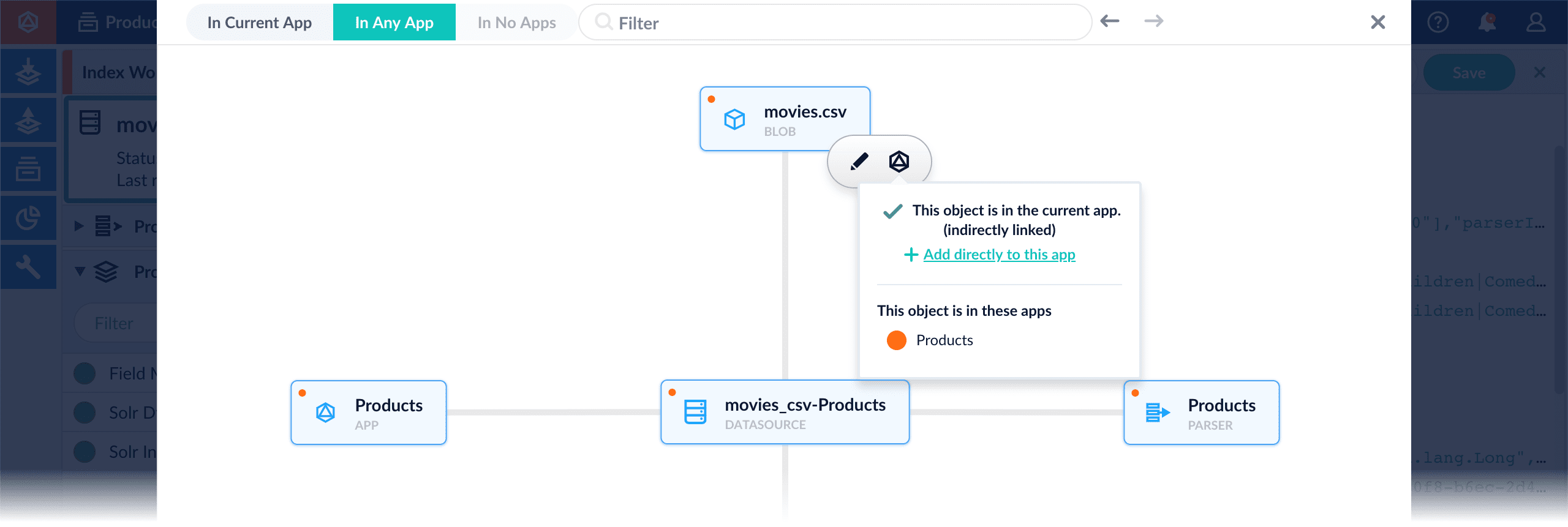
* **Add an object to an app** – While in the Fusion workspace for the app to which you want to add an object, open Object Explorer and click **In Any App**. Search for or browse to the object you want to add. Hover over the object, click the App icon, and then click **Add to this app**.
* **Add an object to an app directly** – In cases when an object is linked to an app, but is not linked directly to the app (it is linked via some dependency), you can add the object to an app directly.
While in the Fusion workspace for the app to which you want to add an object directly, open Object Explorer and click **In Any App**. Search for or browse to the object you want to add. Hover over the object, click the App icon, and then click **Add to this app directly**.
To scale a Fusion cluster, you can add new Fusion nodes, add new dedicated indexing nodes, or move Fusion to new nodes.
## Adding a new Fusion node to an existing cluster
Follow these steps to add a new node to an existing Fusion cluster:
If you are running embedded zookeepers from Fusion in an ensemble for your cluster, ensure that the you are running an odd number of zookeepers for your environment after addition of the new node.
1. Stop Fusion on all nodes in the cluster.
This ensures that there is no data inconsistency between the instances when the new node comes up.
2. Decompress the new copy of Fusion and place it in the desired directory.
3. Configure the `fusion.cors` (`fusion.properties` in Fusion 4.x) file to match your requirements.
If you will also run the embedded ZooKeeper, add the new node’s IP/hostname and port to the `default.zk.connect` string and copy this change to all other instances in your cluster. Configure the memory and other JVM options for the Fusion modules, then save the file.
4. *If embedded ZooKeepers are used in your cluster and you intend to start ZooKeeper on this node*, then follow the additional steps below. If not, then you are ready to start all nodes in the cluster.
1. Copy the `$FUSION_HOME/conf/zookeeper/zoo.cfg` file from one of the existing nodes to the new node, overwriting the default file.
2. Add the entry for the new ZooKeeper to the server list in the `zoo.cfg` file.\
The entry format is `server.x=IP:port:port`. For example, if this is the 5th node, then the new entry in `zoo.cfg` is `server.5=IP:port:port`.
3. Create a `zookeeper` folder under `$FUSION_HOME/data`.
4. Create a new `myid` file in `$FUSION_HOME/data/zookeeper`.\
The contents of this file must be an integer equal to the number of the new ZooKeeper node in the ensemble. For example, if the new node will be the 5th node in your ZooKeeper ensemble, then the `myid` file should contain the value "5".
5. Copy the `$FUSION_HOME/data/zookeeper/version-2` directory from one of the existing nodes to the new node, overwriting the default directory.
6. Modify the connect string for the default search cluster:
1. Start ZooKeeper on all nodes.
Next, you will need the `zkcli` script, located in `$FUSION_HOME/apps/solr-dist/server/scripts/cloud-scripts`. Use `zkcli.sh` for Unix or `zkcli.bat` for Windows. The examples below use the Unix script.
2. Download the default search cluster file:
```bash theme={"dark"}
./zkcli.sh -z :,:,... -cmd getfile .json
```
The path will differ depending on your Fusion version:
* 2.4.x: `/lucid/search-clusters/default`
* 3.x: `/lwfusion//core/search-clusters/default`
For example:
```bash theme={"dark"}
./zkcli.sh -z localhost:9983 -cmd getfile /lwfusion/3.1.2/core/search-clusters/default default_search_cluster.json
```
3. In the downloaded JSON file, find the `connectString` key and replace the old IP value with the IP of the new Fusion node.
Be sure to specify the chroot if your cluster is configured to use it.
For example:
```json theme={"dark"}
{
"id" : "default",
"connectString" : "localhost:9983/lwfusion/3.1.2/solr",
"zkClientTimeout" : 30000,
"zkConnectTimeout" : 60000,
"cloud" : true,
"bufferFlushInterval" : 1000,
"bufferSize" : 100,
"concurrency" : 10,
"authConfig" : {
"authType" : "none"
},
"validateCluster" : true
}
```
4. Upload the modified search cluster file:
```bash theme={"dark"}
./zkcli.sh -z :,:,... -cmd putfile .json
```
For example:
```bash theme={"dark"}
./zkcli.sh -z localhost:9983 -cmd putfile /lwfusion/3.1.2/core/search-clusters/default default_search_cluster.json
```
5. Start Fusion on all nodes in the cluster.
## Adding an indexing node to a Fusion cluster
If you need more capacity for indexing, you can add nodes dedicated to indexing. To do this, you add a new Fusion node, configure it to only run the Solr service, then allocate replicas of your collections to the new node.
1. Install the Fusion package on the new node.
2. Edit `fusion.cors` (`fusion.properties` in Fusion 4.x) as follows:
1. Edit `group.default` to include only the Solr service.\
For example, change
```bash theme={"dark"}
group.default = zookeeper, solr, api, connectors-rpc, connectors-classic, admin-ui, proxy, webapps
```
to
```bash theme={"dark"}
group.default = solr
```
2. Uncomment `default.zk.connect` and point it to the cluster’s ZooKeeper instances.\
For example, change
```bash theme={"dark"}
# default.zk.connect = localhost:9983
```
to
```bash theme={"dark"}
default.zk.connect = 172.23.1.1:9983,172.23.1.2:9983,172.23.1.3:9983/solr
```
3. Save the file.
3. Start Fusion on the new node:
```bash theme={"dark"}
bin/fusion start
```
At this point, the new node is added to the cluster. No indexing takes place on the new node yet.
4. Allocate one or more collection replicas to this node:
1. Open the Solr UI at `http://:8983/solr/`.
2. Click **Collections**
3. Select a collection to replicate on the new indexing node.
4. Click **Shard: shard1** (or another shard if you have more than one for this collection).
5. Click **add replica**.
6. From the **Node** drop-down list, select the new node.
7. Click **Create Replica**.\
To verify that the collection is being replicated, you can click **Cloud** and view the replicas.
{/* // Sometimes 4. 1-7 is scripted, especially for adding capacity on demand. */}
Consider whether secondary collections should also be replicated. For example, consider adding replicas for the signals and aggregations collections associated with the main collections that you are replicating.
{/* // Autoscaling on Solr does not currently work. That is fine because customers generally have a limited number of collections to allocate into shards and replicas. */}
{/* //Also consider downscaling instructions: Remove shards in the Solr UI. ZK is automatically updated when you do this. */}
{/* //Splitting more shards not recommended; you can never merge shards. */}
{/* //Fusion creates two shards by default. */}
## Moving Fusion from one node to another
1. Stop Fusion on all nodes in the cluster.
This ensures that there is no data inconsistency between the instances when the new node comes up.
2. Compress the Fusion node you wish to move.
3. Copy the compressed file to the destination.
4. Starting with step 2, follow the instructions above for adding a new node.
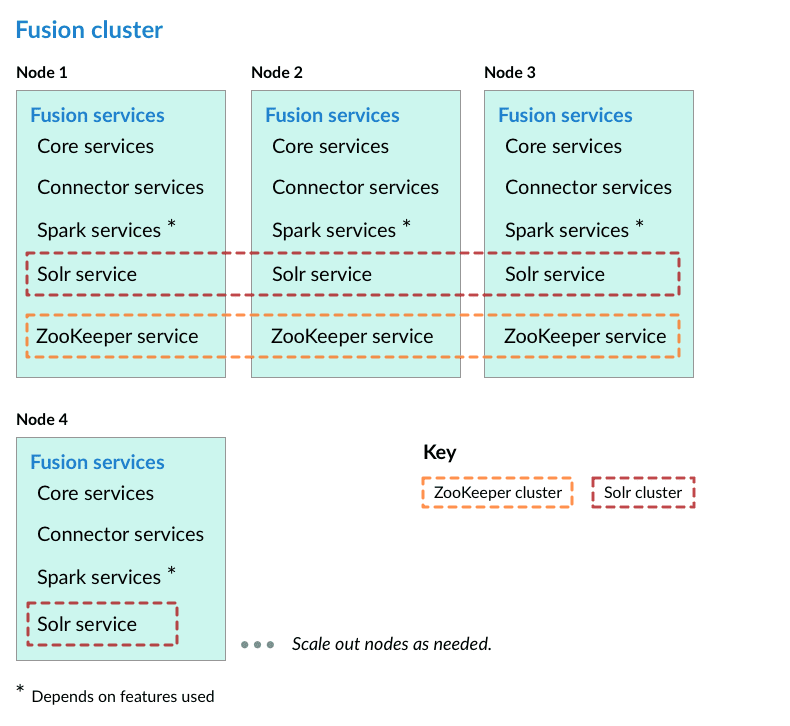 Perform the steps in the section [Preliminary steps](#preliminary-steps), and then perform these steps:
1. Assign a number to each Fusion node, starting at 1. We refer to the number we assign to each node as the *ZooKeeper myid*.
2. On each Fusion node, create a `https://FUSION_HOST:FUSION_PORT/data/zookeeper` directory, and a file called `myid` in that directory. Edit the file and save the *ZooKeeper myid* assigned for this node as the only contents.
3. On each Fusion node, open the `https://FUSION_HOST:FUSION_PORT/conf/zookeeper/zoo.cfg` file in a text editor and add the following after the `clientPort` line (change the hostnames or IP addresses to the correct ones for your servers):
```bash theme={"dark"}
server.1=[Hostname or IP for ZooKeeper with myid 1]:2888:3888
server.2=[Hostname or IP for ZooKeeper with myid 2]:2888:3888
server.3=[Hostname or IP for ZooKeeper with myid 3]:2888:3888
```
For example:
```bash theme={"dark"}
server.1=10.10.31.130:2888:3888
server.2=10.10.31.178:2888:3888
server.3=10.10.31.166:2888:3888
```
Perform the steps in the section [Preliminary steps](#preliminary-steps), and then perform these steps:
1. Assign a number to each Fusion node, starting at 1. We refer to the number we assign to each node as the *ZooKeeper myid*.
2. On each Fusion node, create a `https://FUSION_HOST:FUSION_PORT/data/zookeeper` directory, and a file called `myid` in that directory. Edit the file and save the *ZooKeeper myid* assigned for this node as the only contents.
3. On each Fusion node, open the `https://FUSION_HOST:FUSION_PORT/conf/zookeeper/zoo.cfg` file in a text editor and add the following after the `clientPort` line (change the hostnames or IP addresses to the correct ones for your servers):
```bash theme={"dark"}
server.1=[Hostname or IP for ZooKeeper with myid 1]:2888:3888
server.2=[Hostname or IP for ZooKeeper with myid 2]:2888:3888
server.3=[Hostname or IP for ZooKeeper with myid 3]:2888:3888
```
For example:
```bash theme={"dark"}
server.1=10.10.31.130:2888:3888
server.2=10.10.31.178:2888:3888
server.3=10.10.31.166:2888:3888
```
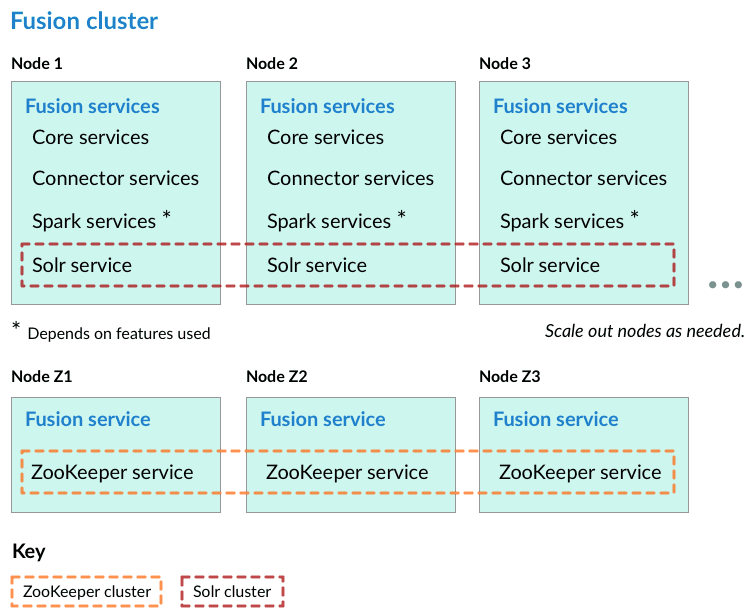 **How to set up a Fusion cluster**
Perform the steps in the section [Preliminary steps](#preliminary-steps), and then perform these steps:
1. Assign a number to each Fusion node, starting at 1. We refer to the number we assign to each node as the *ZooKeeper myid*.
2. On each Fusion node, create a `fusion\latest.x\data\zookeeper` directory, and a file called `myid` in that directory. Edit the file and save the *ZooKeeper myid* assigned for this node as the only contents.
3. On each Fusion node, open the `fusion\latest.x\conf\zookeeper\zoo.cfg` file in a text editor and add the following after the `clientPort` line (change the hostnames or IP addresses to the correct ones for your servers):
```bash theme={"dark"}
server.1=[Hostname or IP for ZooKeeper with myid 1]:2888:3888
server.2=[Hostname or IP for ZooKeeper with myid 2]:2888:3888
server.3=[Hostname or IP for ZooKeeper with myid 3]:2888:3888
```
For example:
```bash theme={"dark"}
server.1=10.10.31.130:2888:3888
server.2=10.10.31.178:2888:3888
server.3=10.10.31.166:2888:3888
```
4. Edit `conf/fusion.cors` (`fusion.properties` in Fusion 4.x) and remove `zookeeper` from the `group.default` list. This will make it so that ZooKeeper does not start when you start Fusion.
5. On each Fusion node, edit
`default.zk.connect` in `https://FUSION_HOST:FUSION_PORT/conf/fusion.cors` (`fusion.properties` in Fusion 4.x) to point to the ZooKeeper hosts:
```bash theme={"dark"}
default.zk.connect=[ZK host 1]:2181,[ZK host 2]:2181,[ZK host 3]:2181
```
6. On each node, start ZooKeeper with `bin/zookeeper start`. Zookeeper should start without errors. If a ZooKeeper instance fails to start, check the log at `https://FUSION_HOST:FUSION_PORT/var/log/zookeeper/zookeeper.log`.
7. On each node, start the rest of Fusion using `bin/fusion start`.
8. Create an admin password and log in to Fusion at `http://FIRST_NODE_IP:8764`, where `FIRST_NODE_IP` is the IP address of your first Fusion node.
9. Verify the Solr cluster is healthy by looking at `http://ANY_NODE_IP:8983/solr/#/~cloud`, where `ANY_NODE_IP` is the IP address of a Solr node. All of the nodes should appear green.
10. If necessary, prepare high availability by setting up a load balancer in front of Fusion so that it load balances between the Fusion UI URL’s at `http://NODE_IP:8764`.
Consult your load balancer’s documentation for instructions.
## Known issues
### Metrics collection failure
When the Java virtual machine (JVM) is started, the `/tmp/.java_pid
**How to set up a Fusion cluster**
Perform the steps in the section [Preliminary steps](#preliminary-steps), and then perform these steps:
1. Assign a number to each Fusion node, starting at 1. We refer to the number we assign to each node as the *ZooKeeper myid*.
2. On each Fusion node, create a `fusion\latest.x\data\zookeeper` directory, and a file called `myid` in that directory. Edit the file and save the *ZooKeeper myid* assigned for this node as the only contents.
3. On each Fusion node, open the `fusion\latest.x\conf\zookeeper\zoo.cfg` file in a text editor and add the following after the `clientPort` line (change the hostnames or IP addresses to the correct ones for your servers):
```bash theme={"dark"}
server.1=[Hostname or IP for ZooKeeper with myid 1]:2888:3888
server.2=[Hostname or IP for ZooKeeper with myid 2]:2888:3888
server.3=[Hostname or IP for ZooKeeper with myid 3]:2888:3888
```
For example:
```bash theme={"dark"}
server.1=10.10.31.130:2888:3888
server.2=10.10.31.178:2888:3888
server.3=10.10.31.166:2888:3888
```
4. Edit `conf/fusion.cors` (`fusion.properties` in Fusion 4.x) and remove `zookeeper` from the `group.default` list. This will make it so that ZooKeeper does not start when you start Fusion.
5. On each Fusion node, edit
`default.zk.connect` in `https://FUSION_HOST:FUSION_PORT/conf/fusion.cors` (`fusion.properties` in Fusion 4.x) to point to the ZooKeeper hosts:
```bash theme={"dark"}
default.zk.connect=[ZK host 1]:2181,[ZK host 2]:2181,[ZK host 3]:2181
```
6. On each node, start ZooKeeper with `bin/zookeeper start`. Zookeeper should start without errors. If a ZooKeeper instance fails to start, check the log at `https://FUSION_HOST:FUSION_PORT/var/log/zookeeper/zookeeper.log`.
7. On each node, start the rest of Fusion using `bin/fusion start`.
8. Create an admin password and log in to Fusion at `http://FIRST_NODE_IP:8764`, where `FIRST_NODE_IP` is the IP address of your first Fusion node.
9. Verify the Solr cluster is healthy by looking at `http://ANY_NODE_IP:8983/solr/#/~cloud`, where `ANY_NODE_IP` is the IP address of a Solr node. All of the nodes should appear green.
10. If necessary, prepare high availability by setting up a load balancer in front of Fusion so that it load balances between the Fusion UI URL’s at `http://NODE_IP:8764`.
Consult your load balancer’s documentation for instructions.
## Known issues
### Metrics collection failure
When the Java virtual machine (JVM) is started, the `/tmp/.java_pid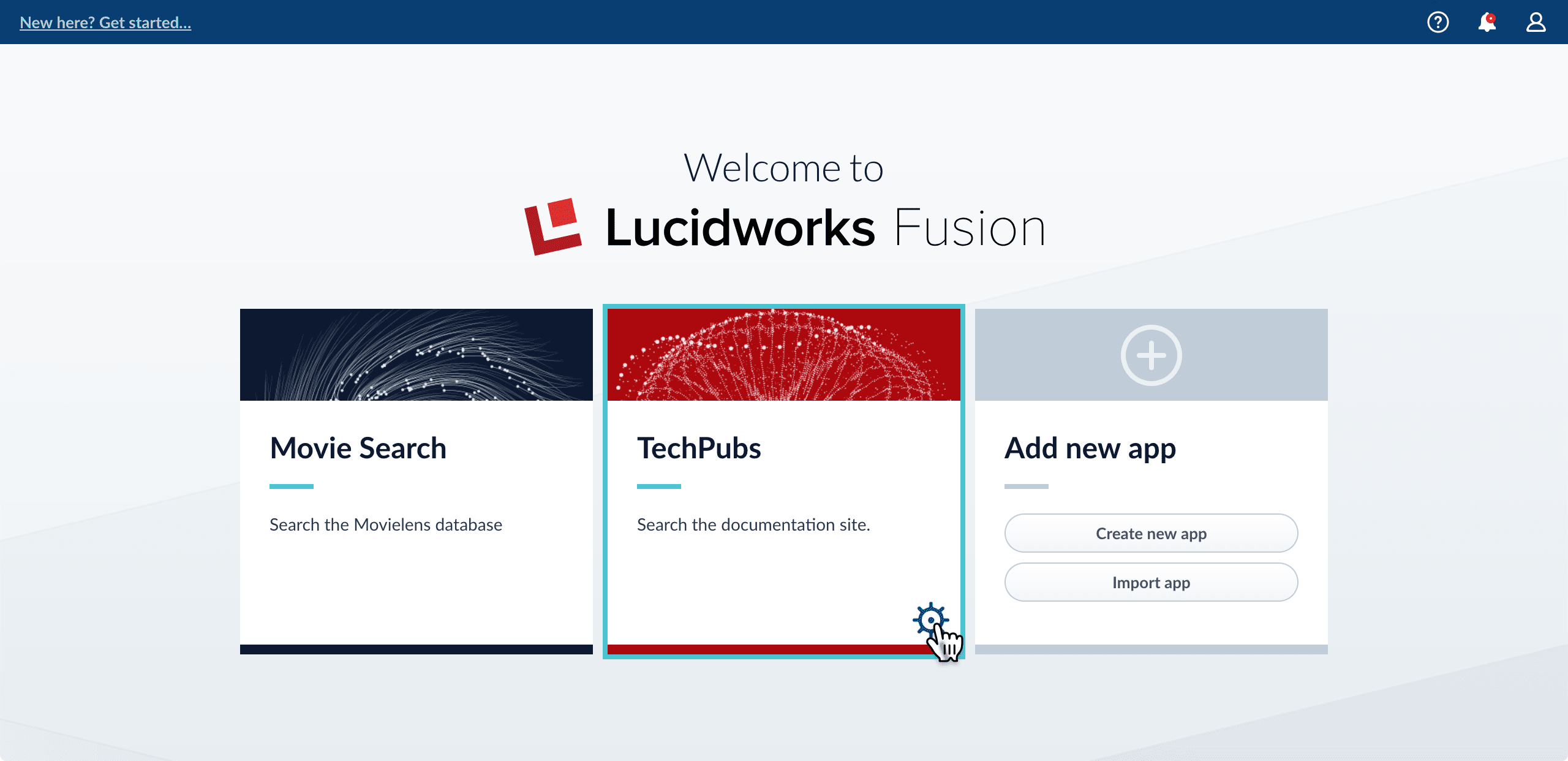 3. In the app config window, click **Export app to zip**:
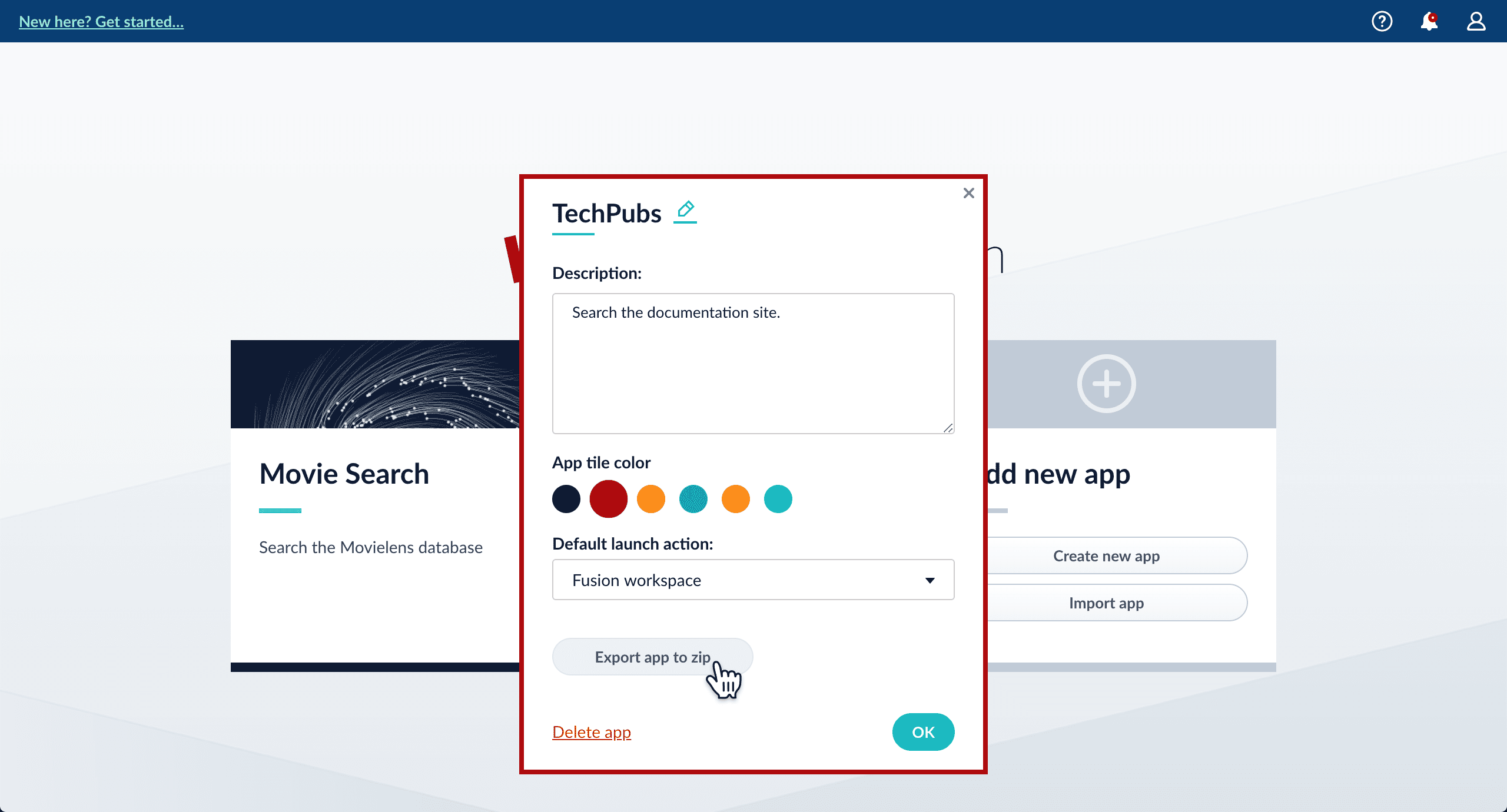 See import for information to import the downloaded zip file into other instances of Fusion 4.x Server.
## Import an app with the Fusion UI
**How to import an app with the Fusion UI**
1. Navigate to the launcher.
2. Click **Import app**.
See import for information to import the downloaded zip file into other instances of Fusion 4.x Server.
## Import an app with the Fusion UI
**How to import an app with the Fusion UI**
1. Navigate to the launcher.
2. Click **Import app**.
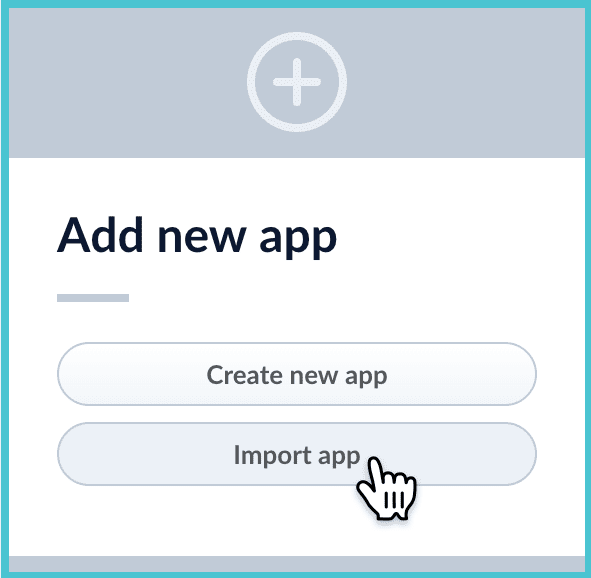 3. Under **Data File**, click **Choose File** and select the zip file containing the app you want to import.
4. If your app has [usernames and passwords](/docs/4/fusion-server/reference/api/objects-api) in a separate file, select it under **Variables File**.\
If the Variables File is needed, it *must* be a separate file that is not in a .zip file. It is a .json map of variables to values. The following is an example:
```json theme={"dark"}
{
"secret.dataSources.Inventory_BR_S3_DS.password":"SOMETHING",
"secret.dataSources.LLM_A_BR_S3_DS.password":"FmJSaDE9Tj5REDACTED",
"secret.dataSources.LLM_BR_Inventory_S3_DS.password":"FmJSaDE9Tj5GzIVvethAC4Huh",
"secret.dataSources.LLM_BR_Load_S3_DS.password":"FmJSaDE9Tj5GzIVvethAC4"
}
```
1. In Fusion 4.1 and later, you can sometimes edit parameter values to use the new values in the imported app. If this is the case, Fusion displays a dialog box that lets you edit the parameter values.
3. Under **Data File**, click **Choose File** and select the zip file containing the app you want to import.
4. If your app has [usernames and passwords](/docs/4/fusion-server/reference/api/objects-api) in a separate file, select it under **Variables File**.\
If the Variables File is needed, it *must* be a separate file that is not in a .zip file. It is a .json map of variables to values. The following is an example:
```json theme={"dark"}
{
"secret.dataSources.Inventory_BR_S3_DS.password":"SOMETHING",
"secret.dataSources.LLM_A_BR_S3_DS.password":"FmJSaDE9Tj5REDACTED",
"secret.dataSources.LLM_BR_Inventory_S3_DS.password":"FmJSaDE9Tj5GzIVvethAC4Huh",
"secret.dataSources.LLM_BR_Load_S3_DS.password":"FmJSaDE9Tj5GzIVvethAC4"
}
```
1. In Fusion 4.1 and later, you can sometimes edit parameter values to use the new values in the imported app. If this is the case, Fusion displays a dialog box that lets you edit the parameter values.
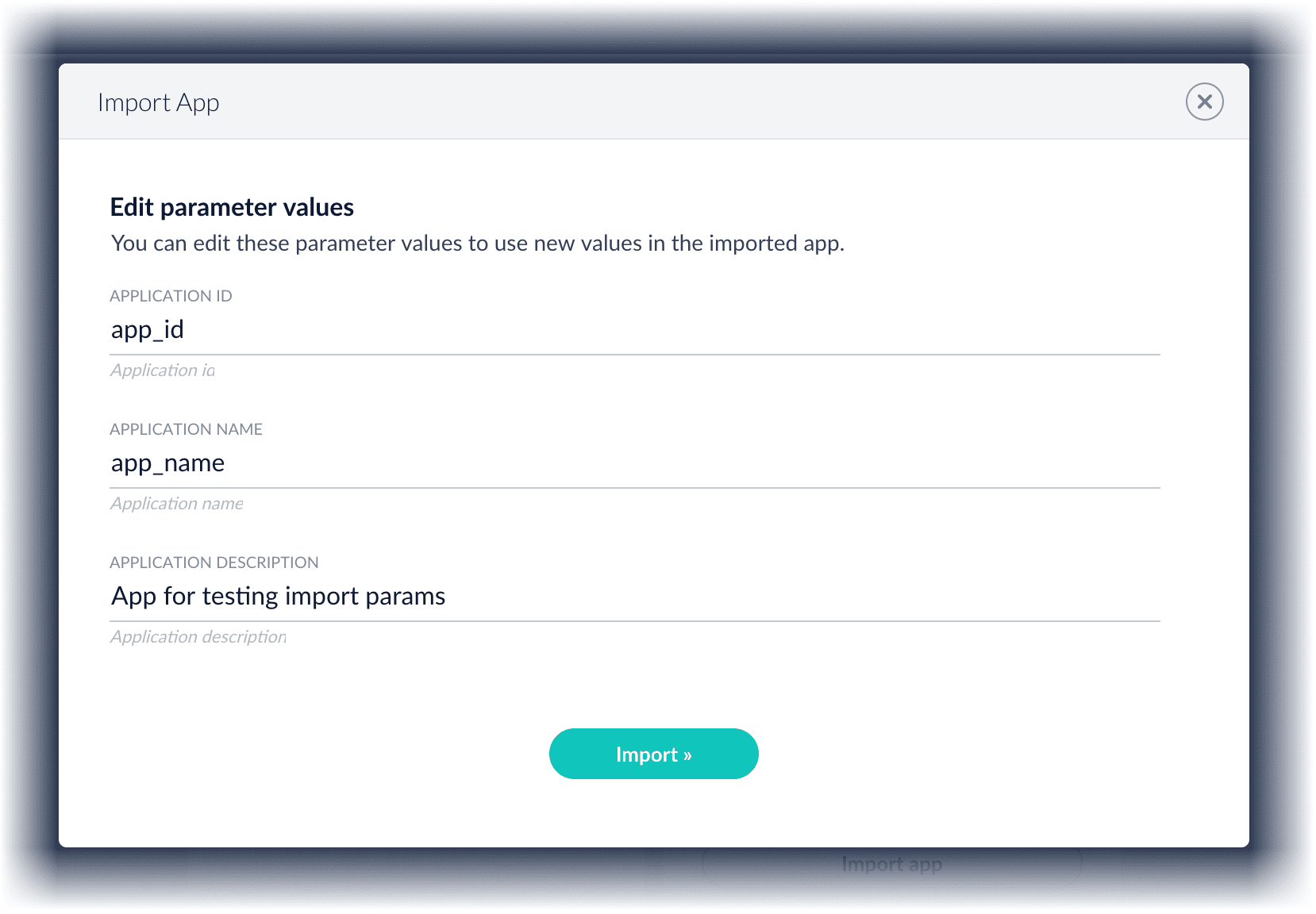 Make desired changes, and then click **Import**.
## Copy an app
To copy an app from one deployment to a different one, [export the app](#export-an-app-with-the-fusion-ui) on the source deployment, and then [import the app](#import-an-app-with-the-fusion-ui) on the target deployment.
## Import objects into an app
You can import objects into the currently open app.
**How to import objects into an open app**
1. In the Fusion launcher, click the app into which you want to import objects.\
The Fusion workspace appears.
2. In the upper left, click **System**
Make desired changes, and then click **Import**.
## Copy an app
To copy an app from one deployment to a different one, [export the app](#export-an-app-with-the-fusion-ui) on the source deployment, and then [import the app](#import-an-app-with-the-fusion-ui) on the target deployment.
## Import objects into an app
You can import objects into the currently open app.
**How to import objects into an open app**
1. In the Fusion launcher, click the app into which you want to import objects.\
The Fusion workspace appears.
2. In the upper left, click **System**  > **Import Fusion Objects**.
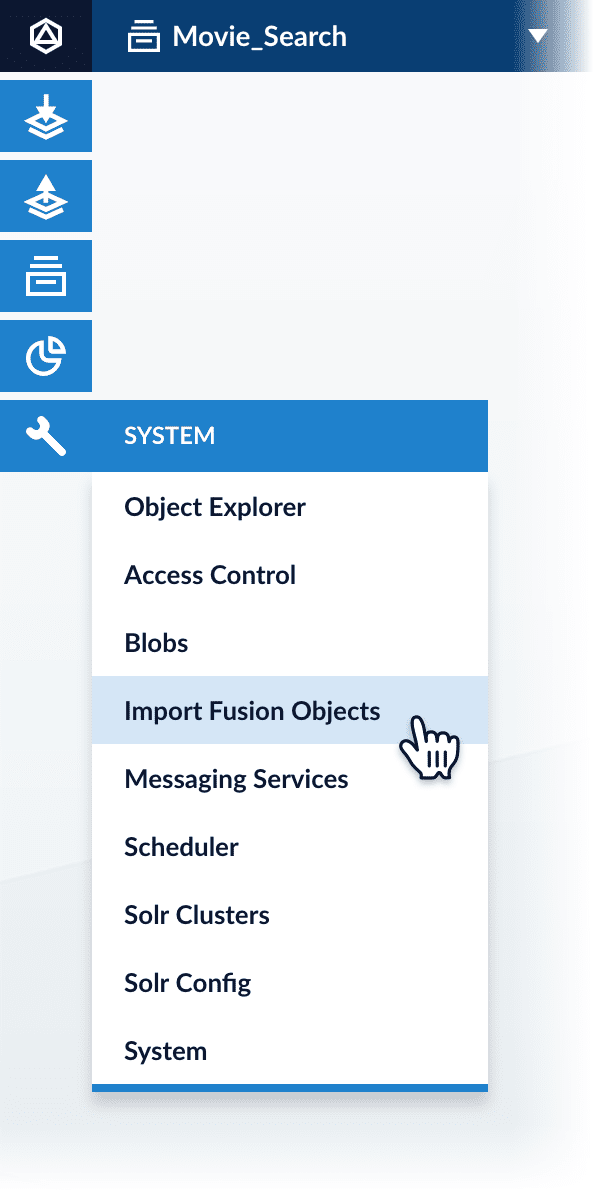 The Import Fusion Objects window opens.
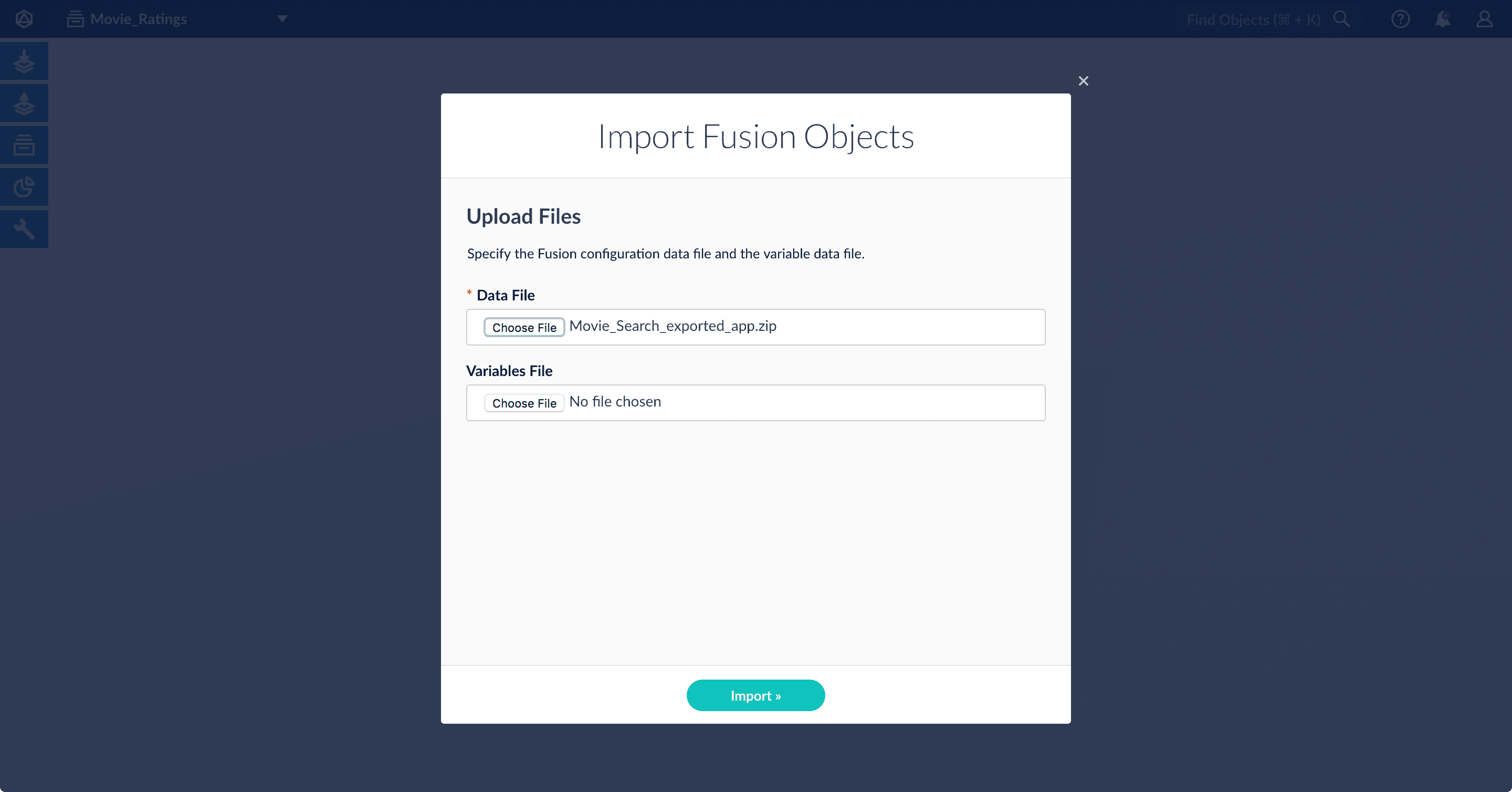 3. Select the data file from your local filesystem.\
If you are importing [usernames and passwords](/docs/4/fusion-server/reference/api/objects-api) in a separate file, select it under **Variables File**.
4. Click **Import**.\
If there are conflicts, Fusion prompts you to specify an import policy:
3. Select the data file from your local filesystem.\
If you are importing [usernames and passwords](/docs/4/fusion-server/reference/api/objects-api) in a separate file, select it under **Variables File**.
4. Click **Import**.\
If there are conflicts, Fusion prompts you to specify an import policy:
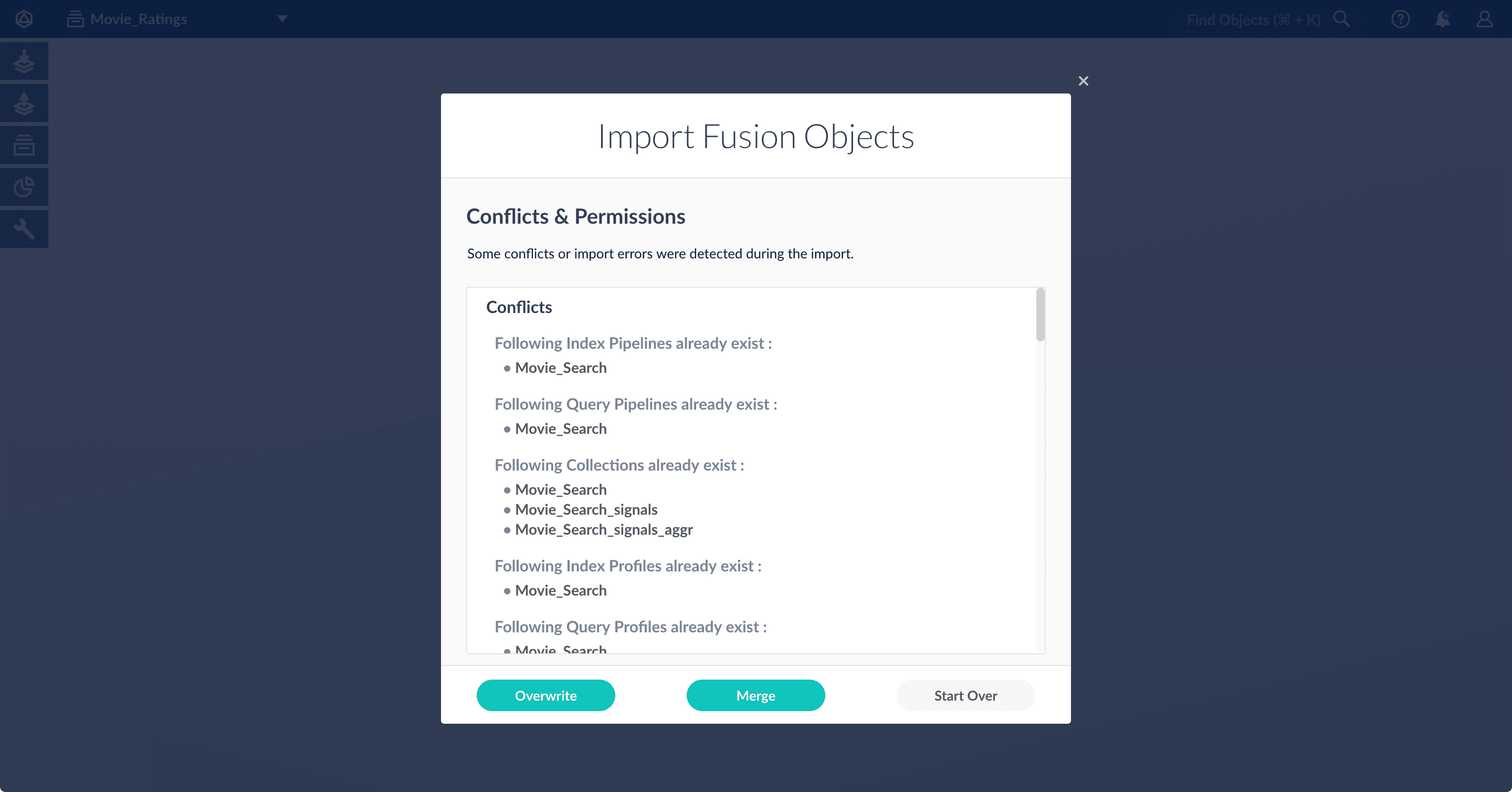 * Click **Overwrite** to overwrite the objects on the target system with the ones in the import file.
* Click **Merge** to skip all conflicting objects and import only the non-conflicting objects.
* Click **Start Over** to abort the import.\
Fusion confirms that the import was successful:
* Click **Overwrite** to overwrite the objects on the target system with the ones in the import file.
* Click **Merge** to skip all conflicting objects and import only the non-conflicting objects.
* Click **Start Over** to abort the import.\
Fusion confirms that the import was successful:
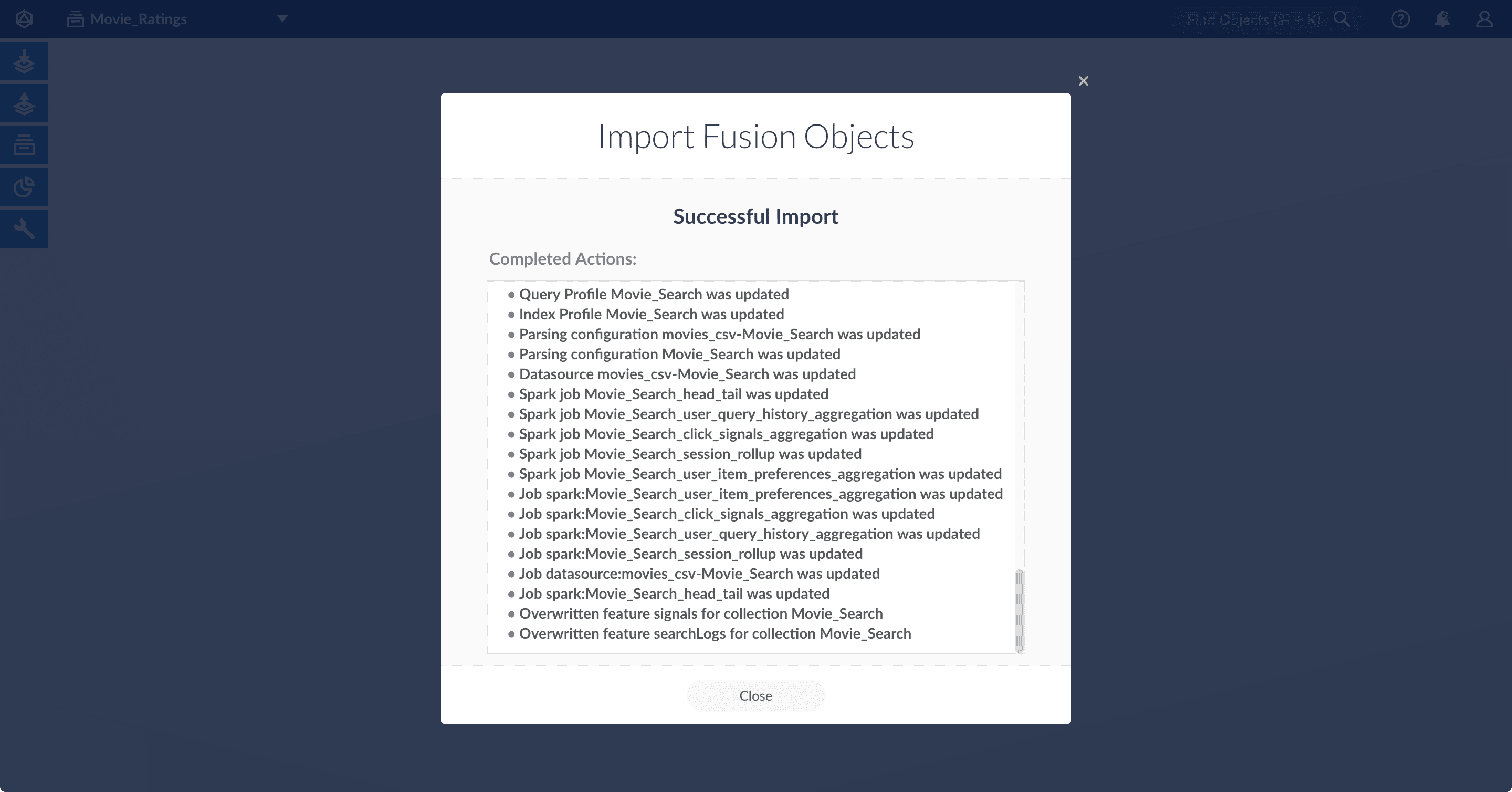 5. Click **Close** to close the Import Fusion Objects window.
## Add an object to an app
You can add objects present in other apps (or in no apps) to the open app. Some objects are linked to other apps. You can also add those directly to an app.
* **Add an object to an app** – While in the Fusion workspace for the app to which you want to add an object, open Object Explorer and click **In Any App**. Search for or browse to the object you want to add. Hover over the object, click the App
5. Click **Close** to close the Import Fusion Objects window.
## Add an object to an app
You can add objects present in other apps (or in no apps) to the open app. Some objects are linked to other apps. You can also add those directly to an app.
* **Add an object to an app** – While in the Fusion workspace for the app to which you want to add an object, open Object Explorer and click **In Any App**. Search for or browse to the object you want to add. Hover over the object, click the App  icon, and then click **Add to this app**.
 * **Add an object to an app directly** – In cases when an object is linked to an app, but is not linked directly to the app (it is linked via some dependency), you can add the object to an app directly.
While in the Fusion workspace for the app to which you want to add an object directly, open Object Explorer and click **In Any App**. Search for or browse to the object you want to add. Hover over the object, click the App
* **Add an object to an app directly** – In cases when an object is linked to an app, but is not linked directly to the app (it is linked via some dependency), you can add the object to an app directly.
While in the Fusion workspace for the app to which you want to add an object directly, open Object Explorer and click **In Any App**. Search for or browse to the object you want to add. Hover over the object, click the App