> ## Documentation Index
> Fetch the complete documentation index at: https://doc.lucidworks.com/llms.txt
> Use this file to discover all available pages before exploring further.
# Input Panels
export const LwTemplate = ({title = "Key questions to get you started", icon = "sparkles", cta = "Powered by Agent Studio", linkHref = "https://lucidworks.com/demo/?utm_source=docs&utm_medium=referral&utm_campaign=docs_cta_ai"}) => {
const [isLoaded, setIsLoaded] = useState(false);
useEffect(() => {
const timer = setTimeout(() => {
setIsLoaded(true);
}, 500);
return () => clearTimeout(timer);
}, []);
return
{isLoaded && `
}} />}
Powered by Lucidworks Agent Studio
;
};
[localhost link]: http://localhost:3000/docs/4/fusion-server/concepts/dashboards/input-panels
[mintlify link]: https://doc.lucidworks.com/docs/4/fusion-server/concepts/dashboards/input-panels
[old doc.lw link]: https://doc.lucidworks.com/fusion/5.9/138
Input panels let you control which data output panels display. The values you specify in input panels become parts of the Solr queries that output panels use to obtain data.
You can use these input panels:
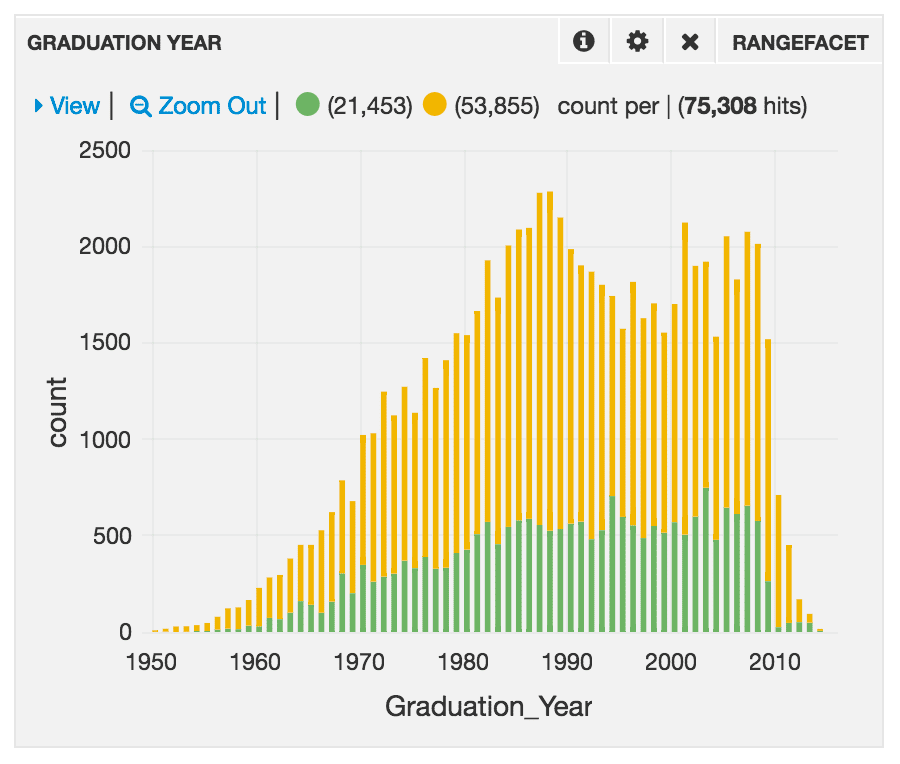
* **Query Panel.** Enter a freeform query (one or more query terms) in a search bar. Add additional search bars to a query panel to submit separate queries. Some visualization panels (for example, Rangefacet) keep the data separate so you can compare it. This is an example of a Query panel with two search boxes. The parameters for query strings are `Primary_Specialty:Urology` and `Primary_Specialty:Psychiatry`. Here is the Query Panel and the resulting Rangefacet panel:
* **Time Picker Panel.** Apply a time range to time-series data. The time range can be:
* Relative.\* A time range starting now and reaching backward in time, for example, the last 15 minutes or one hour
* Absolute.\* A specific time-and-date range, for example, from 06/01/2017 00:00:00 to 06/30/17 23:59:59
* Since.\* A time range since a specific date and time, for example, since 01/01/2017 00:00:00.
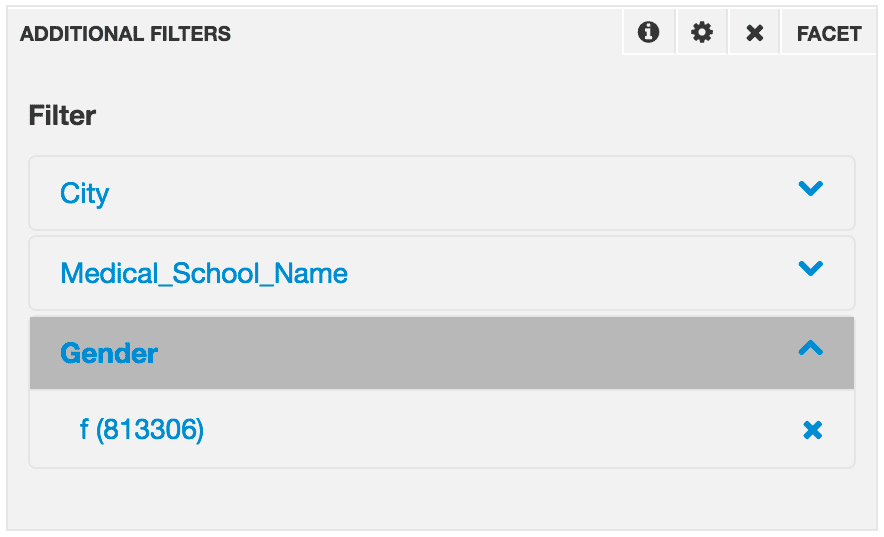
* **Facet.** A Facet panel can facet any data field.
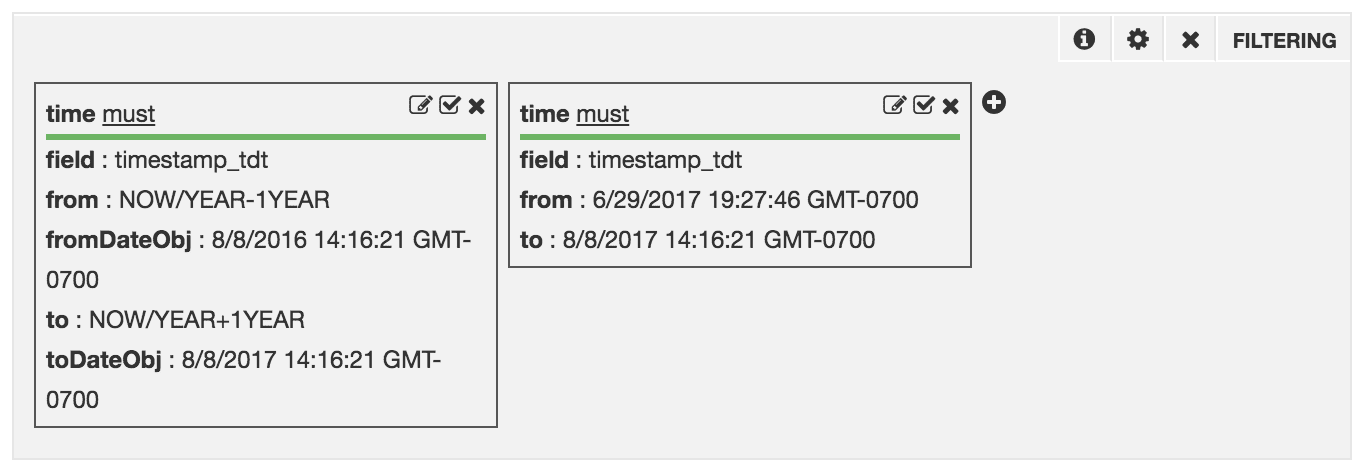
* **Filtering.** A Filtering panel lets you apply field-based filters to the hits returned by the query. The filters apply to all display panels.
**Important**
You must use a Filtering panel somewhere on your dashboard, so that all panels work correctly when you interact with data.
## Query Syntax
Enter a search term or phrase in the search box of the Query panel. Autocompletion provides a list of possibly related prior searches. Finish typing your search query or select an autocompleted query, and then click **Search**.
Enter queries in a Query panel using [Apache Lucene Query Parser syntax](https://lucene.apache.org/solr/guide/the-standard-query-parser.html#the-standard-query-parser). You enter the parameter for the query string (for example, `Susan` or `Gender:F`), not the query string (for example, `q=Susan` or `q=Gender:F`).
### Rules for the Simplest Cases
Here are some syntax rules for the simplest cases:
* A single term is either `field:value` or `value`. With `value`, the search is over all fields.
* For an exact-case match, you must specify the field name.
* Surround a term that contains spaces in *double quotation marks* (" ").
* You cannot specify `*:value` or `*:"value"` to search over all fields; that syntax does not work.
* To retrieve all records, use the search term `*:*`.
* For OR logic, enter `OR` between the terms, or just use spaces. For AND logic, enter `AND` between the terms.
### Examples
These are examples of the query syntax:
| Goal | Syntax and example |
| --------------------------------------------------------------------------------------------------------- | ------------------------------------------------------------ |
| Single term in any field; no blanks in term | `term` (matches any case) |
| Single term in any field; blanks in term | `"term"` (matches any case) |
| Multiple terms, each in any field; with OR logic; no blanks in terms | `term1` `term2` … |
| Multiple terms, each in any field; with OR logic; blanks in terms | `"term1"` `"term2"` … (matches any case) |
| Multiple terms, each in any field; with AND logic (in the same record); no blanks in terms | `term1 AND term2` … |
| Multiple terms, each in any field; with AND logic (in the same record); blanks in terms | `"term1" AND "term2"` … (matches any case) |
| Single term in a specific field; no blanks in term | `field:term` (matches any case) |
| Single term in a specific field; blanks in term | `"field:term"` (matches *exact* case) |
| Multiple terms, each in a specific field; with OR logic; no blanks in terms | `field1:term1` `field2:term2` … |
| Multiple terms, each in a specific field; with OR logic; blanks in terms | `"field1:term1"` `"field2:term2"` … (matches *exact* case) |
| Multiple terms, each in each in a specific field; with AND logic (in the same record); no blanks in terms | `field1:term1 AND field2:term2` … |
| Multiple terms, each in a specific field; with AND logic (in the same record); blanks in terms | `"field1:term1" AND "field2:term2"` … (matches *exact* case) |
For more information about the query syntax, see [Standard Query Parser Parameters](https://lucene.apache.org/solr/guide/the-standard-query-parser.html#the-standard-query-parser).
You can use a Text panel to advise the user regarding the syntax of search terms. Also, if you want the dashboard user to explore subsets of the data, use a Filtering panel or a Facet panel to achieve that. Do not expect users to enter complex search expressions. For example, add the field `gender` as a facet, instead of expecting the user to add `AND gender:male` to a search expression.
## Inspect a Panel Query
You cannot inspect the panel query in the Query panel. You can inspect the panel query in other panels, for example, in a Histogram or Heatmap panel. You can see the contributions that the different parts of the query make. In this example, there are no global query parameters.
Query:
```
start_station_name:"Broadway and E 14 St" AND gender:Male
```
Panel query for a Histogram panel:
The part of the query from the Query panel is the first part, from `q=` through `Male`.
```
q=start_station_name%3A%22Broadway%20and%20E%2014%20St%22%20AND%20gender%3AMale&wt=json&rows=0&fq=start_time:[2014-01-28T20:16:59.000Z%20TO%202014-03-15T05:36:55.000Z]&facet=true&facet.range=start_time&facet.range.start=2014-01-28T20:16:59.000Z&facet.range.end=2014-03-15T05:36:55.000Z&facet.range.gap=%2B12HOUR
```

 * **Time Picker Panel.** Apply a time range to time-series data. The time range can be:
* Relative.\* A time range starting now and reaching backward in time, for example, the last 15 minutes or one hour
* **Time Picker Panel.** Apply a time range to time-series data. The time range can be:
* Relative.\* A time range starting now and reaching backward in time, for example, the last 15 minutes or one hour
 * Absolute.\* A specific time-and-date range, for example, from 06/01/2017 00:00:00 to 06/30/17 23:59:59
 * Since.\* A time range since a specific date and time, for example, since 01/01/2017 00:00:00.
* **Facet.** A Facet panel can facet any data field.
* Since.\* A time range since a specific date and time, for example, since 01/01/2017 00:00:00.
* **Facet.** A Facet panel can facet any data field.
 * **Filtering.** A Filtering panel lets you apply field-based filters to the hits returned by the query. The filters apply to all display panels.