> ## Documentation Index
> Fetch the complete documentation index at: https://doc.lucidworks.com/llms.txt
> Use this file to discover all available pages before exploring further.
# Simulator
export const LwTemplate = ({title = "Key questions to get you started", icon = "sparkles", cta = "Powered by Agent Studio", linkHref = "https://lucidworks.com/demo/?utm_source=docs&utm_medium=referral&utm_campaign=docs_cta_ai"}) => {
const [isLoaded, setIsLoaded] = useState(false);
useEffect(() => {
const timer = setTimeout(() => {
setIsLoaded(true);
}, 500);
return () => clearTimeout(timer);
}, []);
return
{isLoaded && `
}} />}
Powered by Lucidworks Agent Studio
;
};
[localhost link]: http://localhost:3000/docs/4/fusion-ai/concepts/query-rewriting/simulator
[mintlify link]: https://doc.lucidworks.com/docs/4/fusion-ai/concepts/query-rewriting/simulator
[old doc.lw link]: https://doc.lucidworks.com/fusion-ai/4.2/484
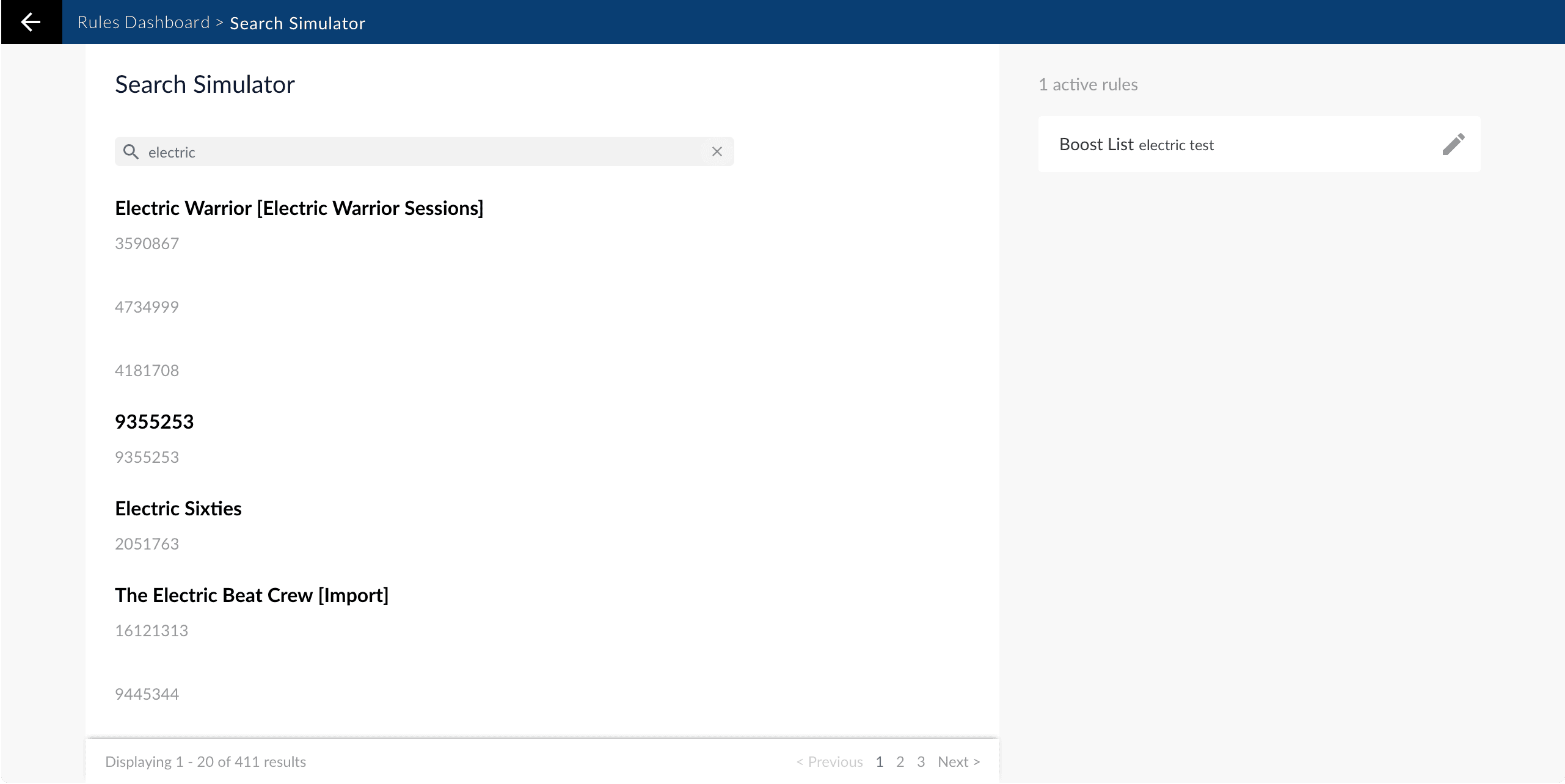
The Simulator provides an interactive preview of how your staged rules affect relevancy, using your search data and a simple search interface. When you enter a query, the Simulator shows you the triggered rules, in the order in which they were triggered, along with any triggered facets.
You can edit any of the triggered rules, then re-run the query to see new results. You can also return to the query rewriting dashboard to enable or disable query rewriting strategies.
The Simulator sends requests to the `_rules_simulator` query profile, which you can configure to point to any pipeline and collection in your app.
Opening the Simulator
1. In the Fusion UI, navigate to **Relevancy** > **Query Rewriting**.\
The query rewriting dashboard appears.
2. Click the **Simulator** button.\
The Simulator appears:
From here, you can:
* Enter search terms to see the results, using query rewriting data from the `_query_rewrite_staging` collection
* Edit rules that are triggered by the current query
* Click **Query Rewriting Dashboard** to go to the dashboard, where you can enable or disable query rewriting strategies, then return to the Simulator to see how relevancy is affected
 You can edit any of the triggered rules, then re-run the query to see new results. You can also return to the query rewriting dashboard to enable or disable query rewriting strategies.
The Simulator sends requests to the `_rules_simulator` query profile, which you can configure to point to any pipeline and collection in your app.
Opening the Simulator
1. In the Fusion UI, navigate to **Relevancy** > **Query Rewriting**.\
The query rewriting dashboard appears.
2. Click the **Simulator** button.\
The Simulator appears:
You can edit any of the triggered rules, then re-run the query to see new results. You can also return to the query rewriting dashboard to enable or disable query rewriting strategies.
The Simulator sends requests to the `_rules_simulator` query profile, which you can configure to point to any pipeline and collection in your app.
Opening the Simulator
1. In the Fusion UI, navigate to **Relevancy** > **Query Rewriting**.\
The query rewriting dashboard appears.
2. Click the **Simulator** button.\
The Simulator appears: