> ## Documentation Index
> Fetch the complete documentation index at: https://doc.lucidworks.com/llms.txt
> Use this file to discover all available pages before exploring further.
# Getting Started with Recommendations and Boosting
export const LwTemplate = ({title = "Key questions to get you started", icon = "sparkles", cta = "Powered by Agent Studio", linkHref = "https://lucidworks.com/demo/?utm_source=docs&utm_medium=referral&utm_campaign=docs_cta_ai"}) => {
const [isLoaded, setIsLoaded] = useState(false);
useEffect(() => {
const timer = setTimeout(() => {
setIsLoaded(true);
}, 500);
return () => clearTimeout(timer);
}, []);
return
{isLoaded && `
}} />}
Powered by Lucidworks Agent Studio
;
};
[localhost link]: http://localhost:3000/docs/4/fusion-ai/concepts/boosting/getting-started
[mintlify link]: https://doc.lucidworks.com/docs/4/fusion-ai/concepts/boosting/getting-started
[old doc.lw link]: https://doc.lucidworks.com/fusion/5.9/480
[Signals](/docs/4/fusion-ai/concepts/signals-and-aggregations/signals/overview) provide the data that Fusion uses to generate [collaborative recommendations](/docs/4/fusion-ai/concepts/boosting/recommendation-methods). The simplest way to get started is to enable signals and recommendations in one of your primary collections.
Once you do this, Fusion automatically creates a set of [default objects](#default-objects-for-recommendations) and begins creating and updating collections of recommendations on a regular schedule.
[Content-based recommendations](/docs/4/fusion-ai/concepts/boosting/recommendation-methods) can be used without enabling signals or recommendations, but they require manual configuration.
## Enabling signals
Signals are enabled by default for new collections when you have a Fusion AI license installed. You can enable or disable signals for any collection at **Collections** > **Collections Manager**.
Enabling signals automatically creates a set of [aggregation jobs](/docs/4/fusion-ai/concepts/signals-and-aggregations/aggregations/sql-aggregations) which create the input data for recommendations. See [Signals and Aggregations](/docs/4/fusion-ai/concepts/signals-and-aggregations/signals/overview) for complete details.
## Enable recommendations
Recommendations are not enabled by default; you can do this at **Collections** > **Collections Manager**.
When you enable recommendations, this automatically enables the [items-for-user](/docs/4/fusion-ai/concepts/boosting/recommendation-methods) and [items-for-item](/docs/4/fusion-ai/concepts/boosting/recommendation-methods) recommendation methods. To use additional [recommendation methods](/docs/4/fusion-ai/concepts/boosting/recommendation-methods), you must configure them separately.
## Default objects for recommendations
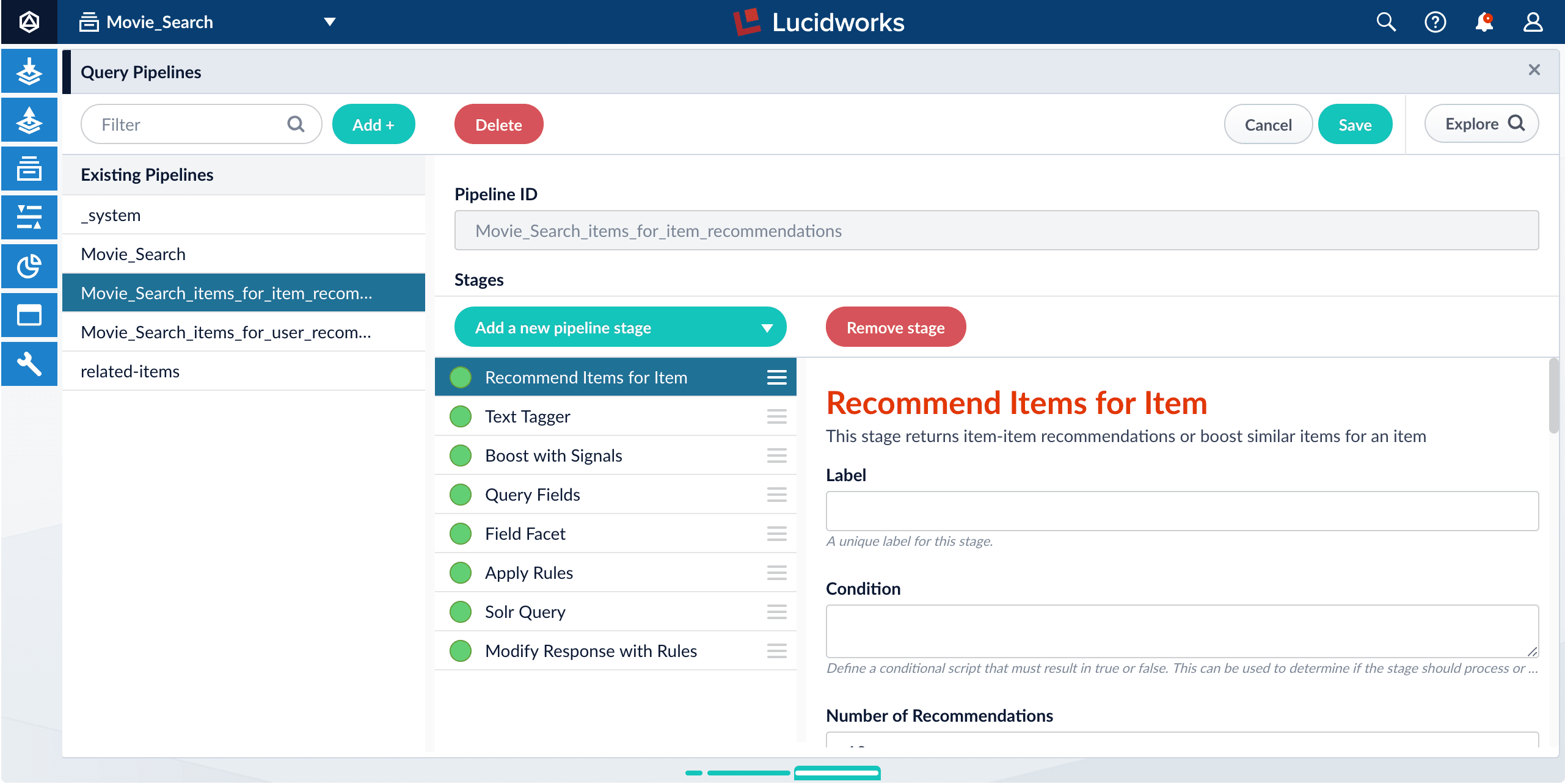
When recommendations are enabled, Fusion automatically creates a default set of collections, jobs, schedules, and query pipelines that provide basic functionality for recommendations.
You can tune the default jobs and pipelines as needed to refine the results, or create new ones, then configure your search application to request recommendations from the query pipelines.
**See also the default objects created when you [enable signals](/docs/4/fusion-ai/concepts/signals-and-aggregations/signals/overview). These must already exist when you enable recommendations.**
### Collections
* `COLLECTION_NAME_items_for_item_recommendations`
Collection to hold generated item-item similarities (by default 10 per item). No `user_id_s` data is present. A Recommend Items for Item query pipeline stage can use the similarities to return item recommendations. For example, a query in which `doc_id_s = docA` would return an ordered list of other `doc_id_s` values for documents that are similar to document `docA`, along with the similarities. For example: `[("docB", 0.83), ("docC", 0.55), ("docD", 0.43), …, ("docK", 0.22)]`.
* `COLLECTION_NAME_items_for_user_recommendations`
Collection to hold recommended items for a user. By default the job creates 10 recommendations per user.
### Job and schedule
Enabling recommendations creates one new [ALS Recommender](/docs/4/fusion-ai/reference/jobs/als-recommender) job, which consumes the output of the [signals aggregation jobs](/docs/4/fusion-ai/concepts/signals-and-aggregations/aggregations/sql-aggregations).
| | |
| -------------------------- | ------------------------------------------------------------------------------------------------- |
| Job | `COLLECTION_NAME_item_recommendations` |
| Default input collection | `COLLECTION_NAME_signals_aggr` |
| Default output collections | `COLLECTION_NAME_items_for_user_recommendations` `COLLECTION_NAME_items_for_item_recommendations` |
| Default trigger | None; schedule or start this job manually. |
As suggested by the output collection names, this default job produces recommender data for [items-for-user](/docs/4/fusion-ai/concepts/boosting/items-for-user) and [items-for-item](/docs/4/fusion-ai/concepts/boosting/items-for-item) recommendations.
The `COLLECTION_NAME_user_item_preferences_aggregation` job provides input data for this job and must run before it. See [SQL Aggregations](/docs/4/fusion-ai/concepts/signals-and-aggregations/aggregations/sql-aggregations#advantages-of-sql-aggregation) for details.
Fusion does *not* automatically create a [Query-to-Query Similarity](/docs/4/fusion-ai/reference/jobs/query-to-query-similarity-computation) job, which is needed for certain [recommender types](/docs/4/fusion-ai/concepts/boosting/recommendation-methods#content-based-vs-collaborative-recommendations).
### Query pipelines
* `COLLECTION_NAME_items_for_user_recommendations`
Query pipeline to generate recommendations of items for a user.
* `COLLECTION_NAME_items_for_item_recommendations`
Query pipeline to generate recommendations of items similar to an item.
## Learn more
When you enable recommendations on a per-collection basis:
A set of default objects is created, including jobs you can schedule and pipelines you can configure to fetch the recommendation data.
Signals are enabled.
## How to enable recommendations for a collection
1. From the collection picker, select the collection for which you want to enable recommendations, if it is not selected already.
2. Navigate to **Relevance > Recommendations**.\
The Enable Recommendations window appears, displaying the list of objects that will be created when you enable recommendations.\
If recommendations are already enabled for this collection, then the Object Explorer appears, displaying the recommendations-related objects in this app.
3. Click Enable Recommendations.
It may take a few moments for Fusion to create the default objects.
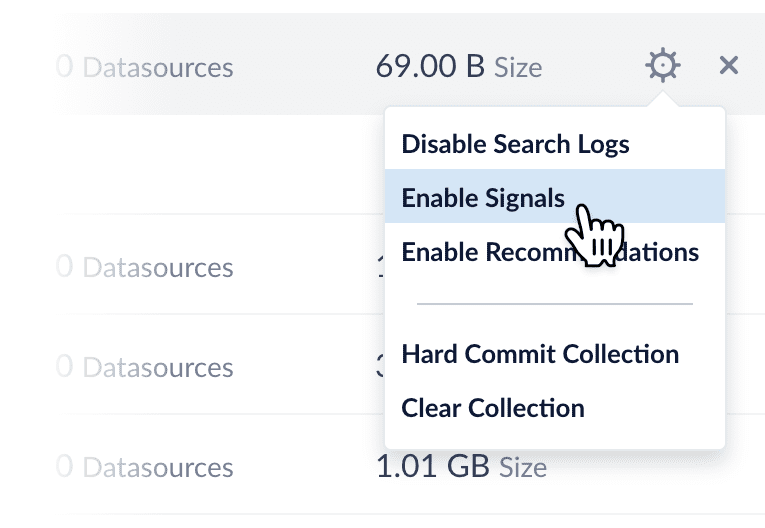 Enabling signals automatically creates a set of [aggregation jobs](/docs/4/fusion-ai/concepts/signals-and-aggregations/aggregations/sql-aggregations) which create the input data for recommendations. See [Signals and Aggregations](/docs/4/fusion-ai/concepts/signals-and-aggregations/signals/overview) for complete details.
## Enable recommendations
Recommendations are not enabled by default; you can do this at **Collections** > **Collections Manager**.
Enabling signals automatically creates a set of [aggregation jobs](/docs/4/fusion-ai/concepts/signals-and-aggregations/aggregations/sql-aggregations) which create the input data for recommendations. See [Signals and Aggregations](/docs/4/fusion-ai/concepts/signals-and-aggregations/signals/overview) for complete details.
## Enable recommendations
Recommendations are not enabled by default; you can do this at **Collections** > **Collections Manager**.
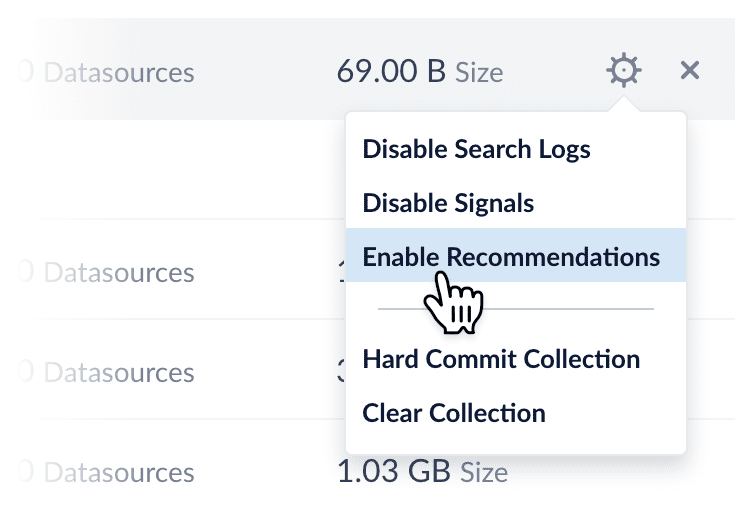 When you enable recommendations, this automatically enables the [items-for-user](/docs/4/fusion-ai/concepts/boosting/recommendation-methods) and [items-for-item](/docs/4/fusion-ai/concepts/boosting/recommendation-methods) recommendation methods. To use additional [recommendation methods](/docs/4/fusion-ai/concepts/boosting/recommendation-methods), you must configure them separately.
## Default objects for recommendations
When recommendations are enabled, Fusion automatically creates a default set of collections, jobs, schedules, and query pipelines that provide basic functionality for recommendations.
You can tune the default jobs and pipelines as needed to refine the results, or create new ones, then configure your search application to request recommendations from the query pipelines.
**See also the default objects created when you [enable signals](/docs/4/fusion-ai/concepts/signals-and-aggregations/signals/overview). These must already exist when you enable recommendations.**
### Collections
* `COLLECTION_NAME_items_for_item_recommendations`
Collection to hold generated item-item similarities (by default 10 per item). No `user_id_s` data is present. A Recommend Items for Item query pipeline stage can use the similarities to return item recommendations. For example, a query in which `doc_id_s = docA` would return an ordered list of other `doc_id_s` values for documents that are similar to document `docA`, along with the similarities. For example: `[("docB", 0.83), ("docC", 0.55), ("docD", 0.43), …, ("docK", 0.22)]`.
* `COLLECTION_NAME_items_for_user_recommendations`
Collection to hold recommended items for a user. By default the job creates 10 recommendations per user.
### Job and schedule
Enabling recommendations creates one new [ALS Recommender](/docs/4/fusion-ai/reference/jobs/als-recommender) job, which consumes the output of the [signals aggregation jobs](/docs/4/fusion-ai/concepts/signals-and-aggregations/aggregations/sql-aggregations).
| | |
| -------------------------- | ------------------------------------------------------------------------------------------------- |
| Job | `COLLECTION_NAME_item_recommendations` |
| Default input collection | `COLLECTION_NAME_signals_aggr` |
| Default output collections | `COLLECTION_NAME_items_for_user_recommendations` `COLLECTION_NAME_items_for_item_recommendations` |
| Default trigger | None; schedule or start this job manually. |
As suggested by the output collection names, this default job produces recommender data for [items-for-user](/docs/4/fusion-ai/concepts/boosting/items-for-user) and [items-for-item](/docs/4/fusion-ai/concepts/boosting/items-for-item) recommendations.
When you enable recommendations, this automatically enables the [items-for-user](/docs/4/fusion-ai/concepts/boosting/recommendation-methods) and [items-for-item](/docs/4/fusion-ai/concepts/boosting/recommendation-methods) recommendation methods. To use additional [recommendation methods](/docs/4/fusion-ai/concepts/boosting/recommendation-methods), you must configure them separately.
## Default objects for recommendations
When recommendations are enabled, Fusion automatically creates a default set of collections, jobs, schedules, and query pipelines that provide basic functionality for recommendations.
You can tune the default jobs and pipelines as needed to refine the results, or create new ones, then configure your search application to request recommendations from the query pipelines.
**See also the default objects created when you [enable signals](/docs/4/fusion-ai/concepts/signals-and-aggregations/signals/overview). These must already exist when you enable recommendations.**
### Collections
* `COLLECTION_NAME_items_for_item_recommendations`
Collection to hold generated item-item similarities (by default 10 per item). No `user_id_s` data is present. A Recommend Items for Item query pipeline stage can use the similarities to return item recommendations. For example, a query in which `doc_id_s = docA` would return an ordered list of other `doc_id_s` values for documents that are similar to document `docA`, along with the similarities. For example: `[("docB", 0.83), ("docC", 0.55), ("docD", 0.43), …, ("docK", 0.22)]`.
* `COLLECTION_NAME_items_for_user_recommendations`
Collection to hold recommended items for a user. By default the job creates 10 recommendations per user.
### Job and schedule
Enabling recommendations creates one new [ALS Recommender](/docs/4/fusion-ai/reference/jobs/als-recommender) job, which consumes the output of the [signals aggregation jobs](/docs/4/fusion-ai/concepts/signals-and-aggregations/aggregations/sql-aggregations).
| | |
| -------------------------- | ------------------------------------------------------------------------------------------------- |
| Job | `COLLECTION_NAME_item_recommendations` |
| Default input collection | `COLLECTION_NAME_signals_aggr` |
| Default output collections | `COLLECTION_NAME_items_for_user_recommendations` `COLLECTION_NAME_items_for_item_recommendations` |
| Default trigger | None; schedule or start this job manually. |
As suggested by the output collection names, this default job produces recommender data for [items-for-user](/docs/4/fusion-ai/concepts/boosting/items-for-user) and [items-for-item](/docs/4/fusion-ai/concepts/boosting/items-for-item) recommendations.
 ## Learn more